Step 1. Install the Movavi training video maker
Launch the downloaded file and follow the on-screen instructions to install the software.
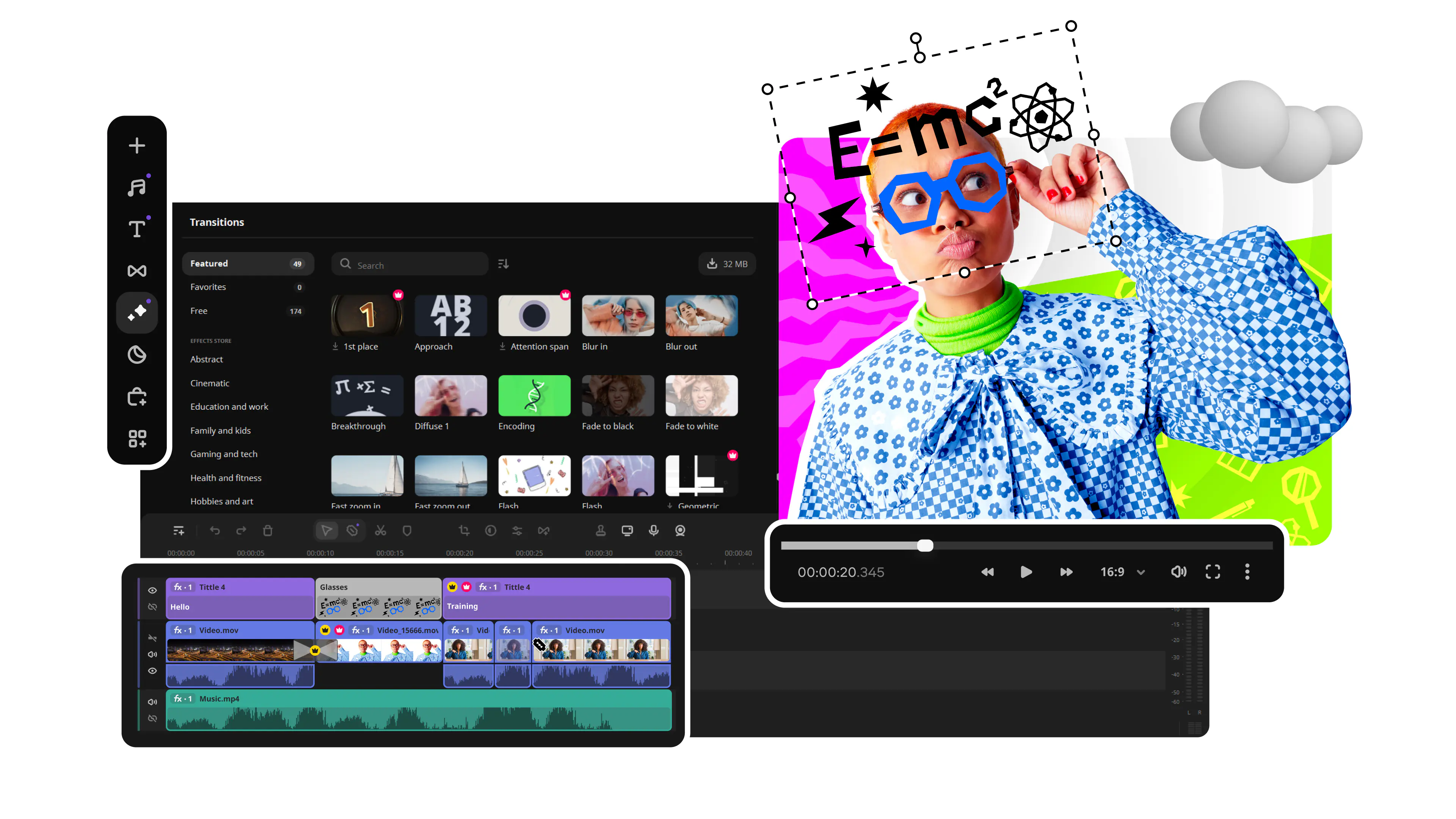
Movavi Academic is a free-to-try training video maker for PC and Mac that lets L&D teams, HR professionals, and independent trainers create polished instructional videos with screen recording, AI voiceovers, auto-subtitles, and animated callouts – all in a single desktop software.
Whether you need to create training videos for onboarding, compliance, software walkthroughs, or skills development, Movavi provides the complete production toolkit – from importing raw footage and recording a screencast to adding narration, chapters, and professional transitions – without a video production budget or dedicated editing team.
Millions


Everything an L&D team or independent trainer needs to create professional training videos on PC or Mac.
Built-in screen recorder for software and process walkthroughs
Movavi’s integrated screen recorder captures your full desktop, a selected window, or a custom region at up to 60fps – ideal for software demonstrations, process walkthroughs, and tutorial content. Record system audio and microphone simultaneously without a virtual driver. The recording opens directly in the Movavi timeline after capture, so you can edit and narrate in the same session without file conversion.

AI text-to-speech narration for training content
Generate professional narration for your training videos without a recording studio or voice talent. Type or paste your script into the AI Text-to-Speech tool, choose a voice style and language, and Movavi generates a natural-sounding voiceover track in seconds. Sync the narration to the footage by dragging it on the timeline. Ideal for trainers who want consistent audio quality across a large library of training modules.
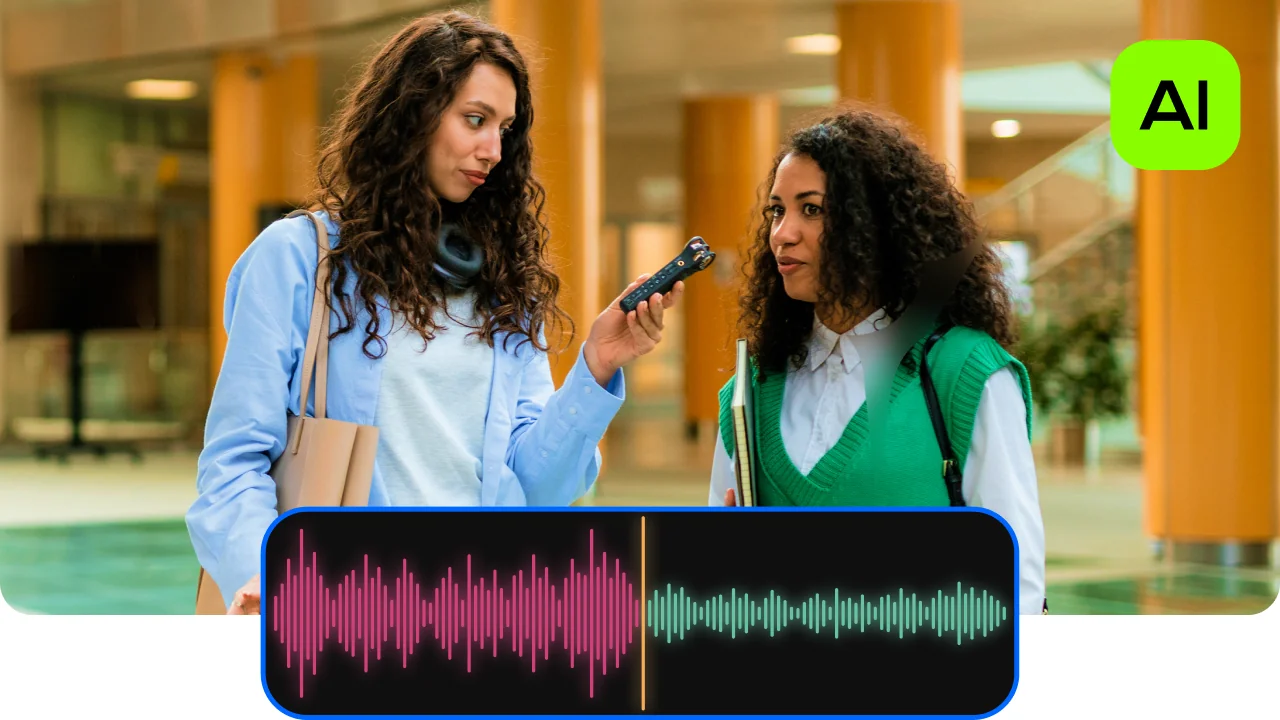
AI auto-subtitles for accessible training video content
Movavi’s AI Auto-Subtitles tool transcribes narration automatically and places timed captions on the timeline. Edit any subtitle block for accuracy, adjust timing, and customize font and color. Export the training video with subtitles burned in permanently for LMS upload, or export a standalone SRT file for platforms that support closed captions. Helps meet accessibility and compliance requirements without manual captioning work.

Animated callouts, arrows, and chapter markers
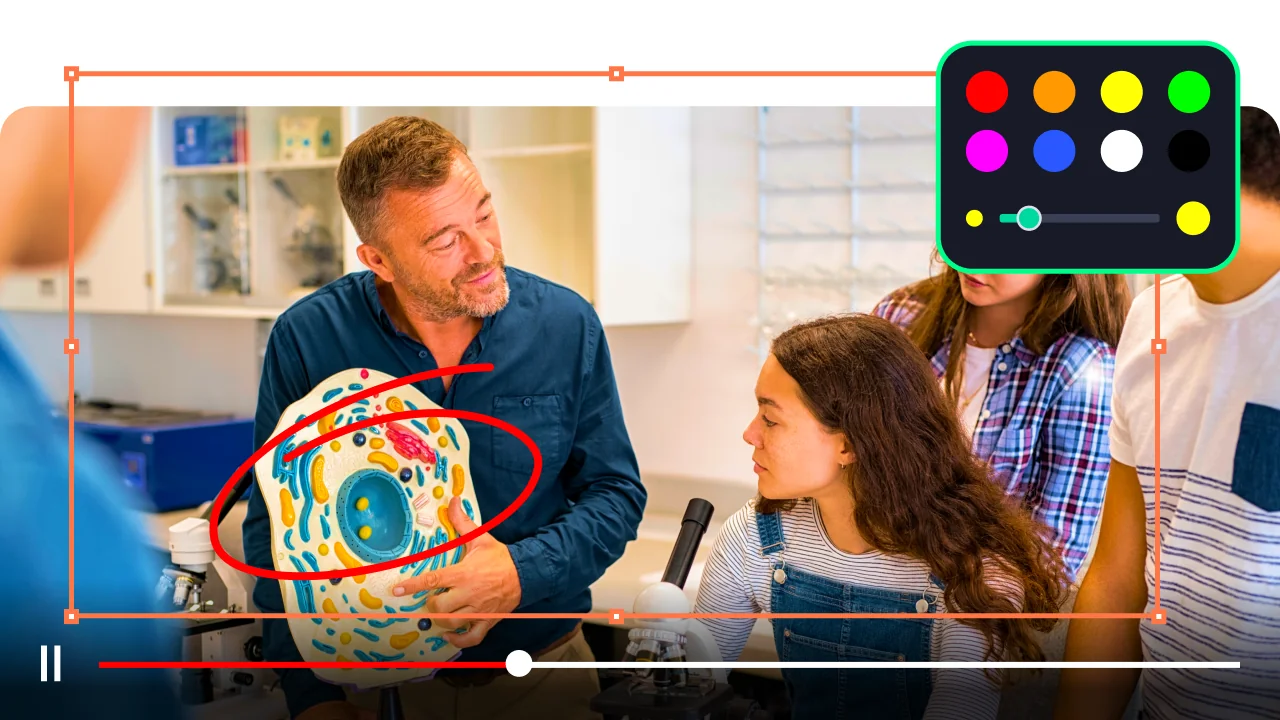
The Elements and Titles panels include animated callout boxes, highlight arrows, zoom-in effects, and chapter title cards – the core visual layer of effective instructional video. Place a callout to draw attention to a specific UI element in a software walkthrough, add a numbered step label at each procedure point, and use chapter markers to divide long training content into clearly navigable sections for learners.
Three reasons L&D professionals and corporate trainers choose Movavi over general-purpose editing software.
From screen recording to a fully narrated, captioned, and annotated training video ready for LMS upload.
Launch the downloaded file and follow the on-screen instructions to install the software.
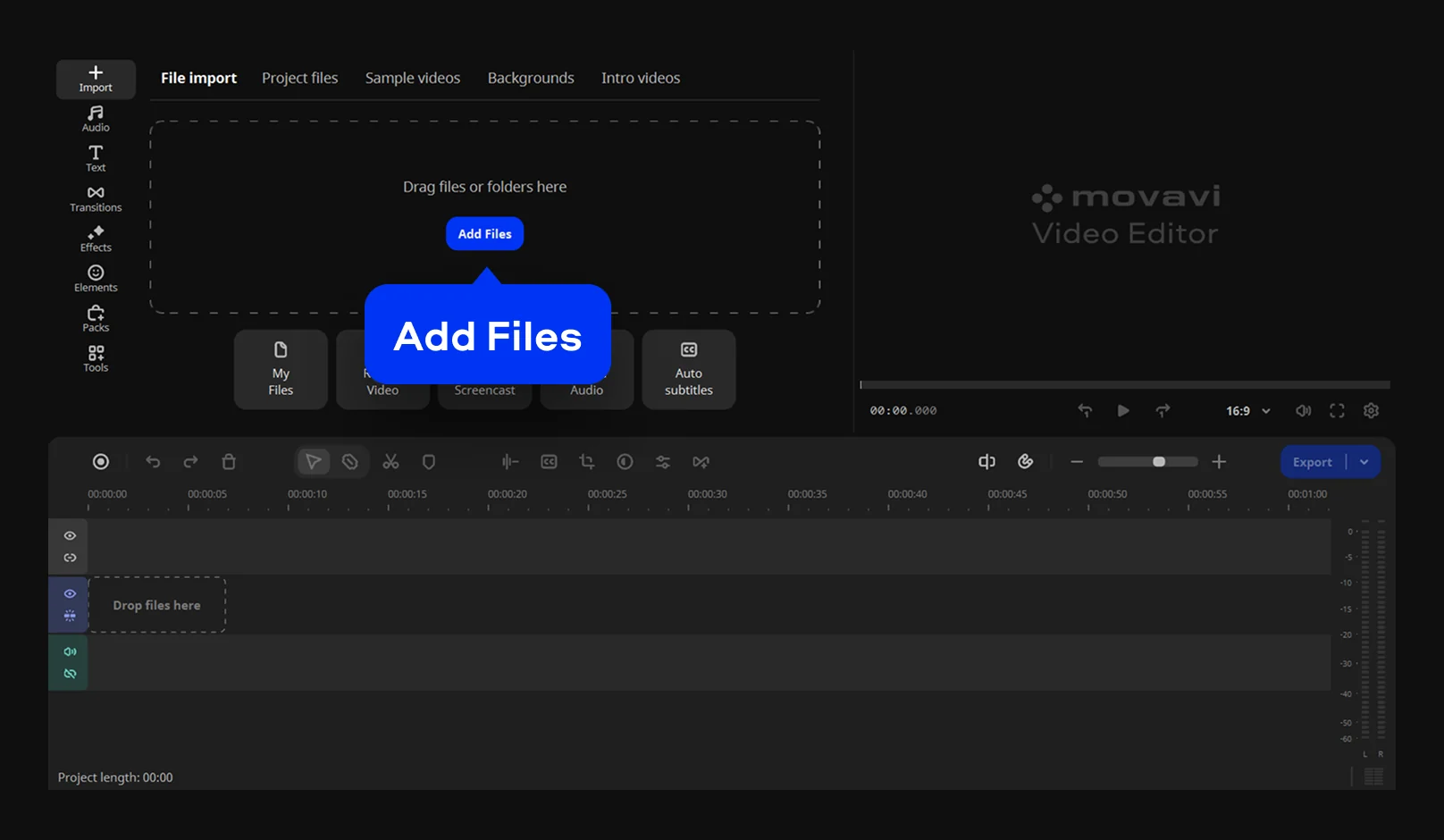
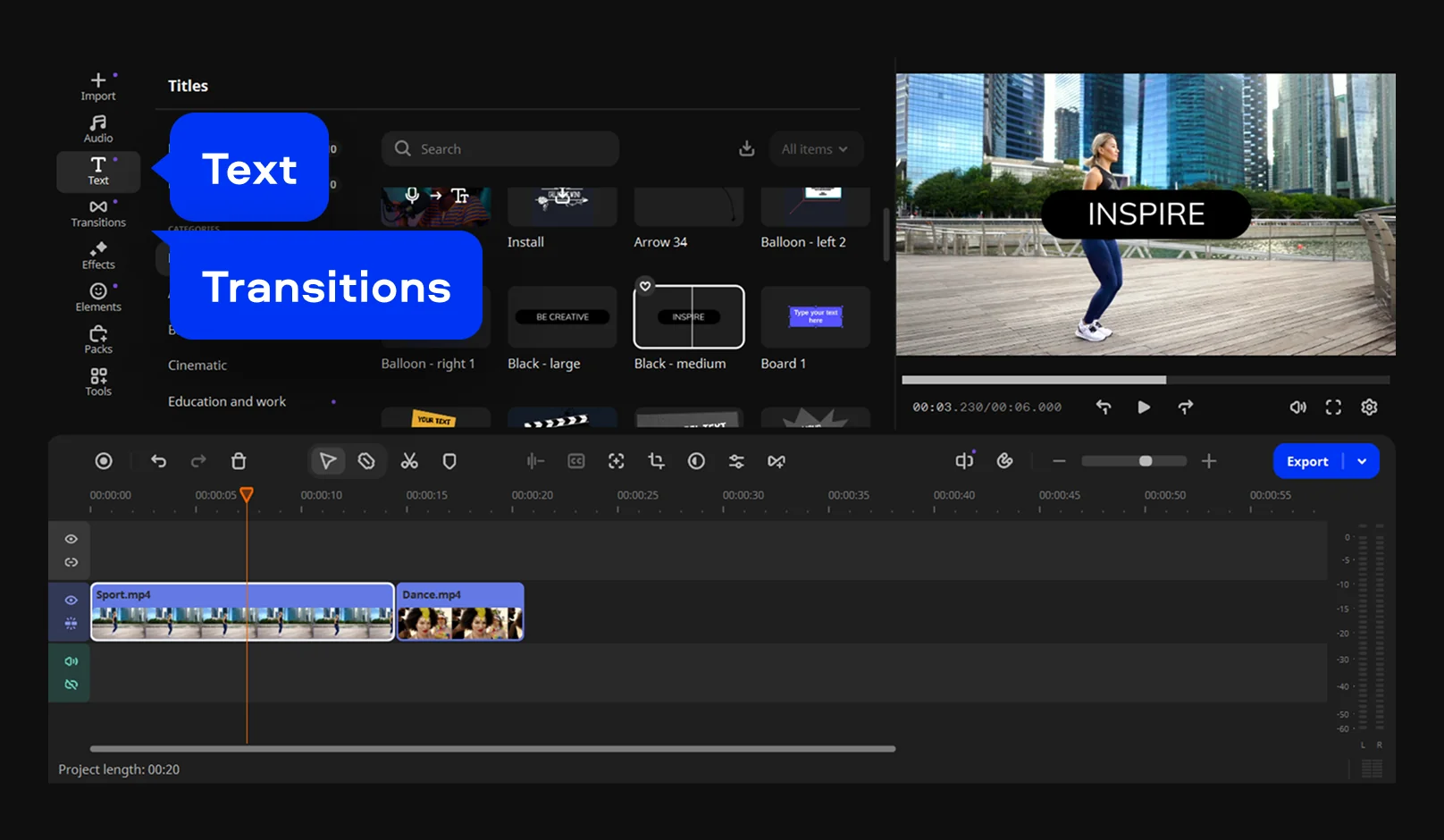
To begin creating your training video, click the Add Files button to import your screen recordings, video lectures, images, or audio files. Drag and drop the files onto the Timeline to arrange them in logical sequence.
Browse the Transitions tab to discover dozens of distinct styles for your sequence. Drag your preferred animations between clips on the timeline to establish a smooth visual flow. You can also add context by navigating to the Text tab for captions. Use the built-in interactive feature to insert quick knowledge checks or questions directly into the video timeline.
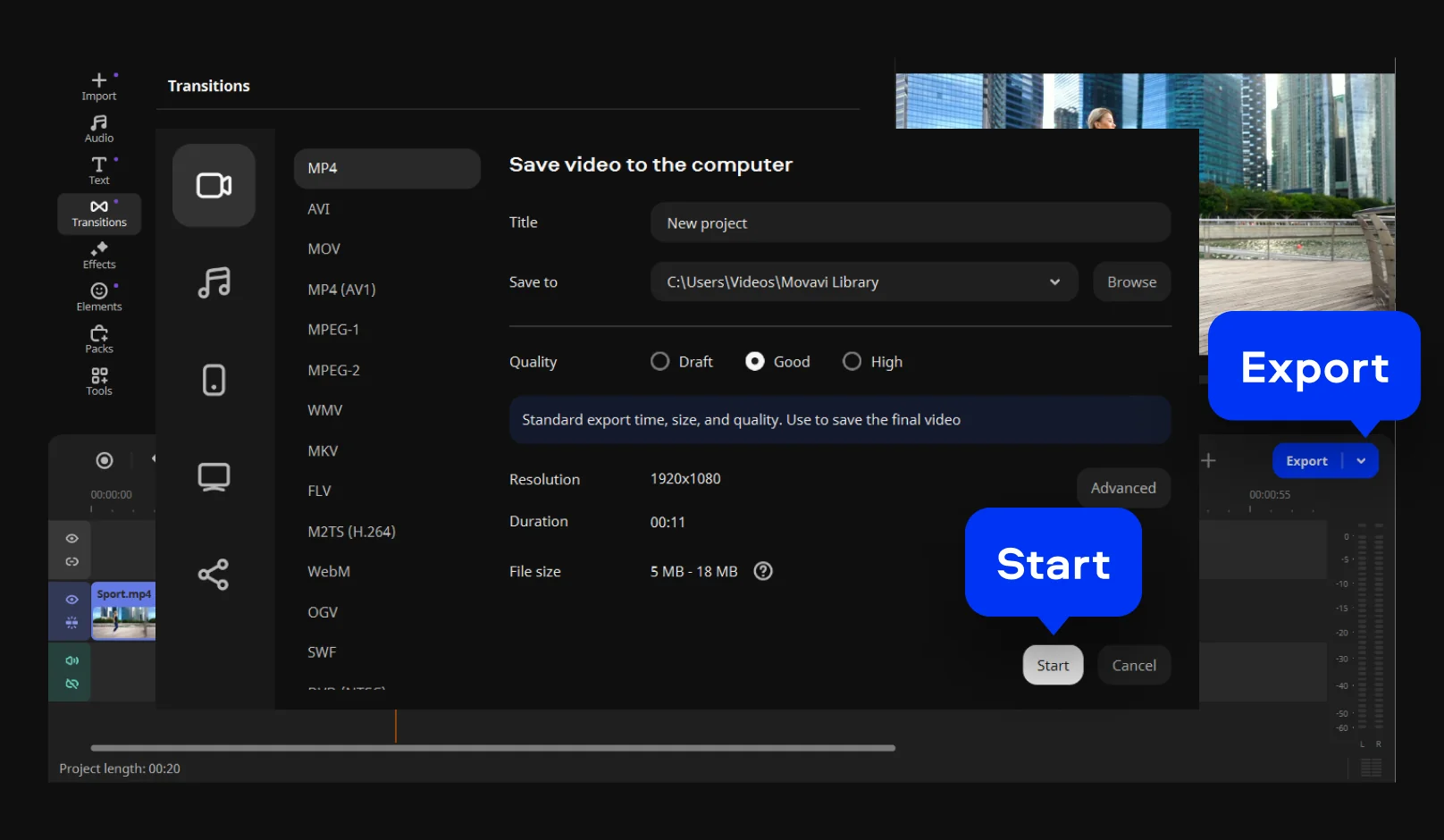
When your video is complete, click the Export button. Select your preferred video format (such as MP4) or choose a preset optimized for mobile devices and online platforms. Click Start to render and save your training video to your computer, or share it directly to your learning management system (LMS) or cloud storage.
Training video production spans corporate L&D, independent coaching, and technical documentation teams.
🏢 Corporate L&d and HR teams producing onboarding content | CORPORATE TRAINING
HR and learning and development teams responsible for employee onboarding, compliance training, and skills development need a training video maker that produces consistent, professional-quality video content at scale. Movavi’s screen recorder captures software walkthroughs for systems training, the AI voiceover tool eliminates the need for in-person narration sessions, and the auto-subtitle feature satisfies accessibility requirements for all corporate training content.
💻 IT and software teams creating technical documentation videos | TECHNICAL TRAINING
IT departments and software product teams producing help center content, release training, and internal process documentation need a screen recording tool that feeds directly into an editor without format conversion. Movavi’s integrated screen recorder and timeline let technical writers capture a software procedure, annotate each step with callout arrows, add chapter markers for navigation, and export a finished video in one continuous workflow on any PC or Mac.
🎓 Independent Trainers and Consultants Selling Online Courses I INDEPENDENT CREATOR
Coaches, consultants, and independent subject-matter experts selling online courses on Udemy, Teachable, or their own platform need a training video tool that produces broadcast-quality output without a video production budget. Movavi’s free-to-try software gives independent creators full production capability – screen recording, AI narration, auto-captions, background music, and professional transitions – for a one-time license cost with no per-video or per-student fees.
Common questions about how to make training videos and choose the right production tool.
The best way to make a training video follows a five-step production workflow: (1) Plan – write a clear script and define the learning objective for each video. A 5–10 minute focused video outperforms a 45-minute lecture for LMS completion rates. (2) Record – use a screen recorder for software walkthroughs and process demos. Movavi’s built-in screen recorder captures any area of your PC or Mac desktop directly to the timeline. (3) Narrate – use a microphone or an AI text-to-speech tool to add clear narration. AI voiceover eliminates recording setup for teams producing a high volume of training videos. (4) Annotate – add callout arrows, chapter titles, and highlighted step labels to guide learners through the content. (5) Export – output to MP4 at 1080p and include an SRT subtitle file for accessibility. Movavi video creator software handles all five steps in a single desktop tool.
ChatGPT itself cannot create training videos – it is a text generation model with no video output capability. However, ChatGPT can help with the script and structure of a training video: use it to draft a narration script, generate quiz questions, create chapter outlines, or write on-screen text for callout annotations. Once you have the script, a dedicated training video maker like Movavi handles the production: import your footage or screen recording, paste the ChatGPT-generated script into the AI Text-to-Speech tool to generate a voiceover, add auto-subtitles, place callout annotations, and export to MP4. The practical workflow is ChatGPT for script planning + Movavi software for video production – two specialized tools that complement each other rather than compete.
Becoming a video creator for training content starts with three things: a clear production process, the right software, and consistent practice. (1) Start with a screen recording workflow: the fastest path to your first training video is to record a software walkthrough or process demonstration using a screen recorder – this produces immediately useful content without camera equipment. (2) Use a free desktop tool first: Movavi Academic’s 7-day free trial gives full access to screen recording, AI voiceover, auto-subtitles, and all editing features. Producing your first complete training video in the trial period is the best learning experience available. (3) Build a production template: once you’ve made one video, save the project with your standard intro title, chapter style, and font settings as a reusable template. This reduces production time for every subsequent training video and keeps your library visually consistent.
