*The free version of Movavi Video Editor may have the following restrictions depending on the build: watermark on exported clips, 60-second video or 1/2 audio length limit, and/or some advanced features unavailable when exporting videos.
How to use Clipchamp: A beginner's guide
Try Movavi Video Editor for quick and efficient video editing!
Fast and easy editing: cut, crop, adjust colors and speed
One-click AI tools: auto subtitles, noise removal, and more
Hundreds of filters, transitions, titles, overlays
Clipchamp is a free online video editor that makes creating and editing videos simple for everyone. Whether you want to make a quick social media clip, edit a family video, or create content for your YouTube channel, Clipchamp provides all the tools you need right in your web browser or as a Windows app. This tutorial will walk you through everything you need to know to start editing videos with Clipchamp today.
The best part about Clipchamp is that you don't need expensive software or a powerful computer to get started. Since it works online and comes pre-installed on Windows 11, you can begin editing videos immediately without downloading large programs. The interface is clean and user-friendly, making it perfect for beginners who have never edited videos before.
Special pick: Movavi Video Editor
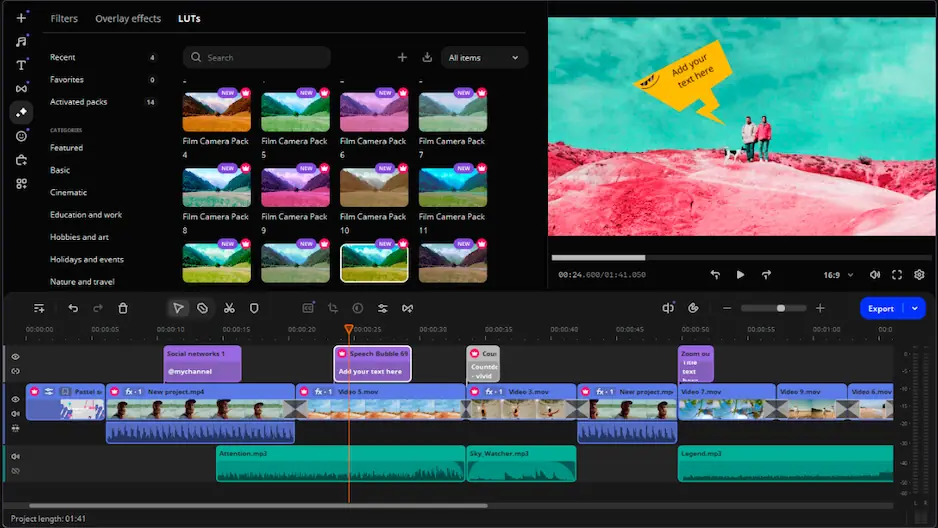
Before diving into Clipchamp, it's worth considering Movavi Video Editor as an excellent alternative for creating amazing videos. Movavi Video Editor offers a more comprehensive set of features while maintaining the same ease of use that makes Clipchamp popular. With its intuitive drag-and-drop interface and powerful editing tools, Movavi helps both beginners and experienced editors create professional-looking videos in minutes.
Movavi Video Editor stands out with its extensive collection of built-in effects, transitions, and filters that go beyond what Clipchamp offers. The software runs smoothly on your computer without requiring an internet connection, meaning you can edit videos anywhere, anytime. Plus, Movavi provides more advanced features like motion tracking, picture-in-picture effects, and keyframe animation, giving you greater creative control over your projects.
Key features of Movavi Video Editor:
- Over 160 filters and 100+ transitions to enhance your videos
- AI-powered tools for background removal and noise reduction
- Support for 4K video editing and export
- Built-in screen recorder for tutorials and gaming videos
- Extensive library of royalty-free music and sound effects

Why choose Movavi Video Editor over Clipchamp?
Movavi Video Editor might be a better choice than Clipchamp if you need more advanced editing features and prefer working offline. While Clipchamp limits video length and export quality in its free version, Movavi offers unrestricted editing capabilities once purchased. The software also processes videos faster since it uses your computer's resources directly, rather than relying on cloud processing like Clipchamp.
Getting started with Clipchamp
To begin using Clipchamp, you first need to create an account or sign in with your Microsoft, Google, or Facebook account. Open your web browser and go to the Clipchamp website, or launch the app from your Windows 11 start menu. Click the Sign in button in the top right corner and choose your preferred sign-in method.
Once you're logged in, you'll see the Clipchamp homepage with several options. Click the Create a video button to start a new project. You'll be asked to choose an aspect ratio for your video. Select from popular options like 16:9 for YouTube, 9:16 for TikTok and Instagram Stories, or 1:1 for Instagram posts. Don't worry if you're not sure – you can change this later.
Understanding the Clipchamp interface
The Clipchamp editor has four main areas you need to know about. On the left side, you'll find the Media panel where you import and manage your video clips, images, and audio files. The center of the screen shows the Preview window where you can watch your video as you edit it. Below the preview is the Timeline where you arrange and edit your clips. On the right side is the Properties panel that appears when you select items to adjust their settings.
At the top of the media panel, you'll see several tabs including Your media, Stock library, Text, Graphics, and Transitions. Each tab gives you access to different elements you can add to your video. The timeline at the bottom is where the real editing happens – this is where you'll spend most of your time arranging clips, trimming videos, and adding effects.
Importing your media files
To start editing, you need to import your video clips, photos, or audio files. Click the Import media button in the media panel or simply drag and drop files from your computer into this area. Clipchamp supports common video formats like MP4, MOV, and AVI, as well as image formats like JPG and PNG.
You can also record video directly in Clipchamp using your webcam. Click the Record & create tab in the media panel, then select Camera. Give Clipchamp permission to use your camera, then click the red Record button to start recording. When you're done, click Stop and your recording will appear in your media library.
Basic video editing techniques
Adding clips to the timeline
To add a clip to your video, simply drag it from the media panel and drop it onto the timeline. You can add multiple clips by dragging them one after another. The clips will automatically snap together, creating a seamless sequence. If you want to rearrange clips, just click and drag them to a new position on the timeline.
Trimming and cutting videos
To trim a video clip, first select it on the timeline by clicking on it. You'll see green handles appear at the beginning and end of the clip. Click and drag these handles inward to trim unwanted parts from the start or end of your clip. As you drag, the preview window will show you exactly where the trim will happen.
For more precise cutting, use the Split tool. Position the playhead (the white vertical line) where you want to cut the clip, then click the Split button (scissors icon) in the timeline toolbar. This cuts the clip into two separate pieces that you can move or delete independently.
Adjusting video speed
To change the speed of a video clip, select it on the timeline and look at the properties panel on the right. Click on the Speed option and use the slider to make your video faster or slower. Moving the slider to the right speeds up your video (up to 16x), while moving it left slows it down (as slow as 0.1x). This is great for creating time-lapse effects or slow-motion sequences.
Working with audio
Good audio is just as important as good video. To add background music, click the Stock library tab in the media panel, then select Music. Browse through the free music tracks and click the + button to add one to your timeline. You can also import your own music files using the Import media button.
To adjust audio levels, select an audio or video clip on the timeline and look for the Audio tab in the properties panel. Use the Volume slider to make the audio louder or quieter. If you have a video with unwanted sound, you can mute it completely by clicking the Mute button or moving the volume slider all the way to the left.
Adding voiceover
To record a voiceover, click Record & create in the media panel and select Audio. Click the red Record button and start speaking into your microphone. When you're finished, click Stop and the recording will be added to your media library. Drag it to the timeline and position it where you want the voiceover to play.
Adding text and titles
Text overlays help convey information and make your videos more engaging. Click the Text tab in the media panel to see all available text styles. Choose from title cards, lower thirds, or simple text overlays. Drag your chosen text style onto the timeline, placing it on a track above your video clips.
To edit the text, select it on the timeline and use the properties panel. Type your text in the Text field and customize it using the formatting options. You can change the font, size, color, and alignment. Use the Position controls to move the text around the screen, and adjust the Duration to control how long it appears.
Applying transitions and effects
Transitions help your video flow smoothly from one clip to another. Click the Transitions tab in the media panel to see available options. To add a transition, drag it from the panel and drop it between two clips on the timeline. The transition will automatically adjust to fit the gap between clips.
For video effects and filters, select a clip on the timeline and click the Filters tab in the properties panel. Choose from color correction options, vintage looks, or artistic effects. Click on any filter to apply it, and use the Intensity slider to control how strong the effect is.
Using green screen effects
Clipchamp includes a green screen (chroma key) feature for removing backgrounds. This works best with footage shot against a solid green or blue background. Select your green screen clip on the timeline, then go to the Effects tab in the properties panel. Click on Green screen and adjust the Threshold and Smoothing sliders until the background disappears cleanly.
Creating picture-in-picture effects
To create a picture-in-picture effect, add your main video to the timeline first. Then drag a second video onto a track above the first one. Select the top video and use the Transform controls in the properties panel to resize and reposition it. Make it smaller by adjusting the Scale slider, then drag it to a corner of the screen.
Working with templates
If you want to save time, Clipchamp offers pre-made templates for common video types. Click Templates in the left sidebar of the main dashboard before creating a new video. Browse categories like social media, business, or personal videos. Select a template you like and click Use this template. You can then customize it by replacing the placeholder content with your own media.
Color correction basics
To improve the look of your videos, use the color correction tools. Select a clip on the timeline and click the Adjust colors tab in the properties panel. Here you can modify:
The Exposure slider brightens or darkens your video. The Contrast slider makes the difference between light and dark areas more or less pronounced. Highlights and Shadows let you adjust the brightest and darkest parts separately. Temperature makes your video look warmer (orange) or cooler (blue), while Saturation controls how vivid the colors appear.
Adding graphics and stickers
Click the Graphics tab in the media panel to access shapes, stickers, and animated graphics. These elements can make your videos more fun and engaging. Drag any graphic onto the timeline, placing it on a track above your video. You can resize, rotate, and reposition graphics using the transform controls in the properties panel.
Exporting your finished video
When you're happy with your video, it's time to export it. Click the Export button in the top right corner of the editor. Choose your video quality – 480p, 720p, or 1080p (4K requires a paid subscription). Give your video a name and click Continue.
The export process happens in the cloud, so you can close the editor while Clipchamp processes your video. You'll receive an email when it's ready, or you can wait and download it directly. The free version of Clipchamp adds a small watermark to exported videos, which you can remove by upgrading to a paid plan.
Tips for better videos
Keep your videos short and focused – viewers have short attention spans. Use good lighting when recording video, as this makes a huge difference in quality. Natural light from windows works great for most situations. Record audio in a quiet environment to avoid distracting background noise.
Plan your video before you start editing by making a simple outline or storyboard. This saves time and helps create more cohesive content. Use transitions sparingly – too many fancy transitions can be distracting. Simple cuts often work best.
Troubleshooting common issues
If Clipchamp runs slowly, try closing other browser tabs and applications. Clear your browser cache if you experience glitches or loading problems. For the best performance, use Google Chrome or Microsoft Edge browsers, as these work best with Clipchamp.
If your exported video looks blurry, make sure you're exporting at the highest quality available in your plan. Check that your original footage is high quality too – Clipchamp can't improve low-resolution videos.
Conclusion
Clipchamp provides an accessible way for anyone to start editing videos without technical expertise or expensive software. By following this guide, you now know how to import media, perform basic edits, add effects and text, and export your finished videos. Remember that video editing is a skill that improves with practice, so don't be afraid to experiment with different features and techniques.
Start with simple projects and gradually work your way up to more complex edits as you become comfortable with the tools. Whether you're creating content for social media, preserving family memories, or building a YouTube channel, Clipchamp gives you the foundation you need to tell your stories through video.
1.5M+ users already subscribed to our newsletter