Movavi Video Converter
The ideal way to get your media in the format you need!
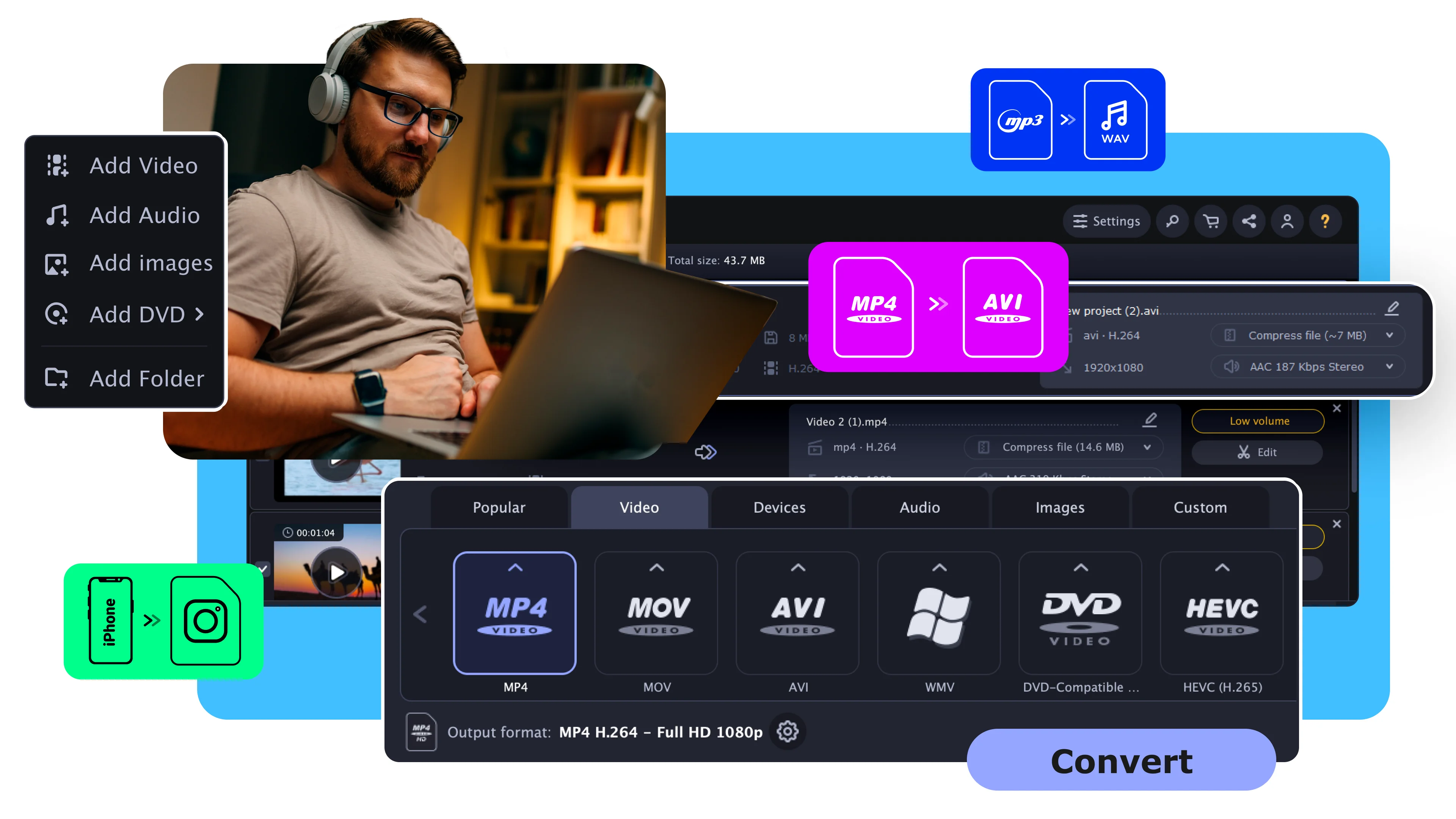
Need a DVD ripper?
Try Movavi Video Converter!
To rip a DVD, follow these simple steps:
Download and install the converter.
Open a DVD in the program.
Select a preset and convert video.
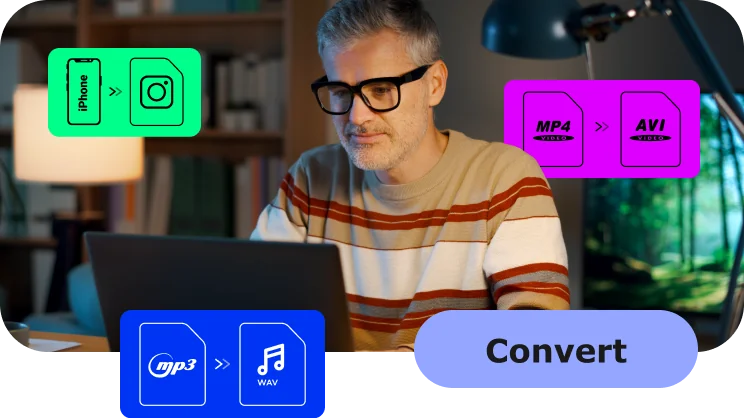
Ultrafast conversion
Boost productivity, save time, and unlock compatibility across all devices: change the format of your videos in the blink of an eye.
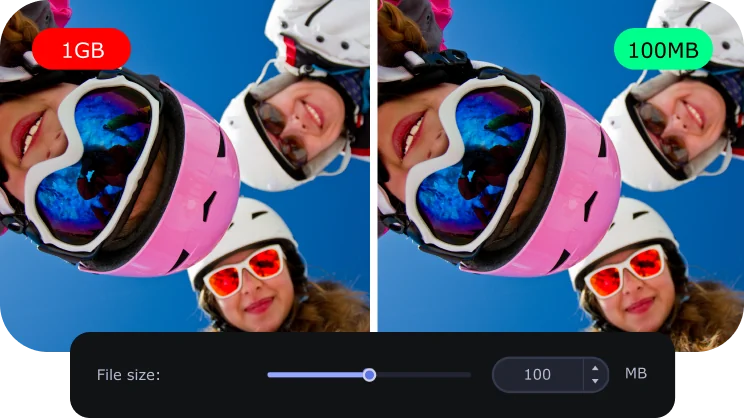
Lossless compression
Compress multimedia to optimize storage, speed up uploads, and ensure smooth playback – all without loss of quality.
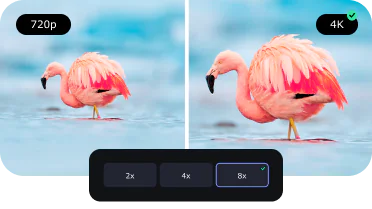
AI quality upscaling
Take advantage of the latest tech trend: use the program’s AI to up the resolution of grainy shots by 4 or even 8 times. Make every detail count!

Online subtitle search
Watch your favorite foreign language pictures more easily – find the correct subtitles using our app and add them right away. Download this movie converter for Windows and see for yourself!
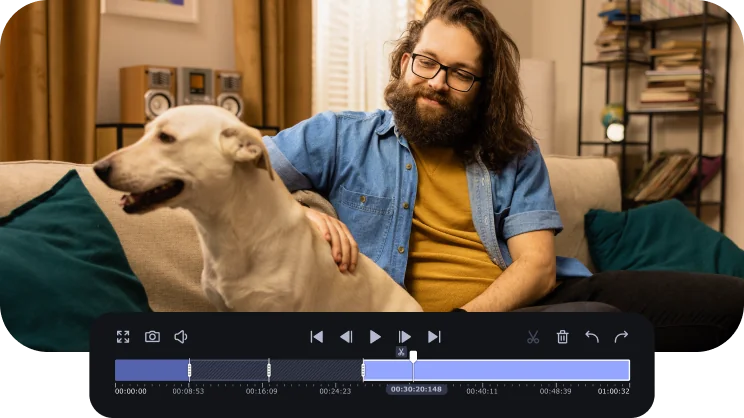
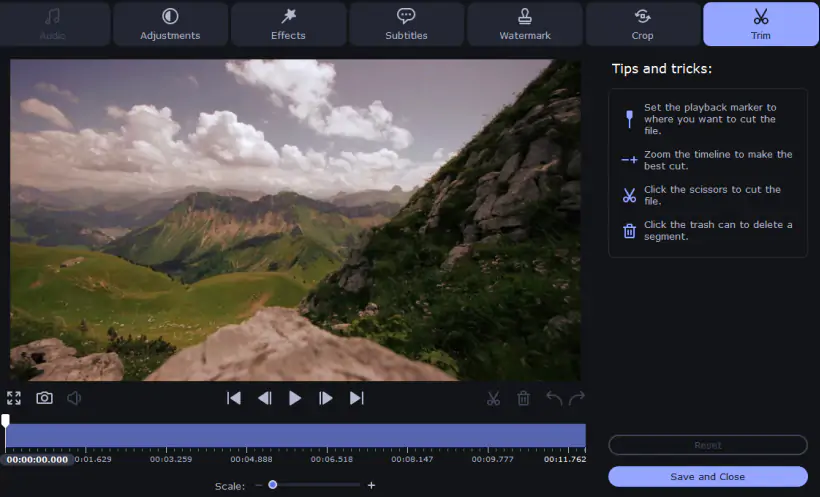
Super-precise trimming
Transform hours of footage into one captivating highlight reel. Seamlessly cut out pauses and other unwanted segments to create a video that perfectly captures the essence of your content.
Wondering how to transfer your DVD collection to your computer or another device so you can watch your favorite films anywhere? Now you can quickly rip your DVDs using Movavi Video Converter. Just follow the instructions in this tutorial and you'll be able to rip DVDs to any video format you like: AVI, MOV, MKV, M2TS, and many others!
With our handy DVD ripping software, it's a one-click task to convert a DVD to the MP4 file format to watch it on your mobile phone. No need to understand video formats, settings, or technicalities – just run the software, open your DVD, select a ready-made preset and click Convert.
To learn how to rip DVDs to a computer, just download Movavi Video Converter for PC or Mac and look at the tutorial below.
Check out how easy it is
Convert
Add a DVD
Click the Add Media button, then select Add DVD > Open DVD, and find the VIDEO_TS folder on your DVD.
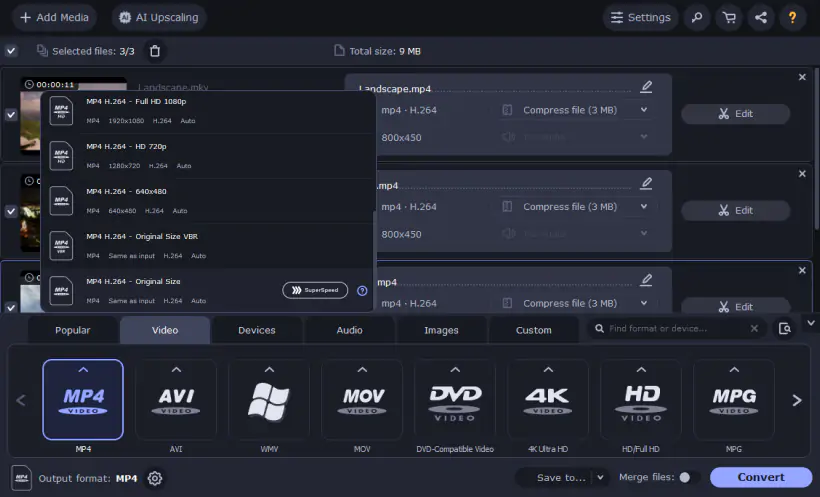
Choose a format
Click the icon for the desired format.
Rip your DVD
Click Save to to specify the folder on your hard drive where the program should save the converted files. Finally, click the Convert button. The program will start processing your media files.
Music and pictures, too
Transfer your video creations to any platform or device in any popular format.

Lightning-fast conversion
Convert your favorite films and clips from the Web in no time.

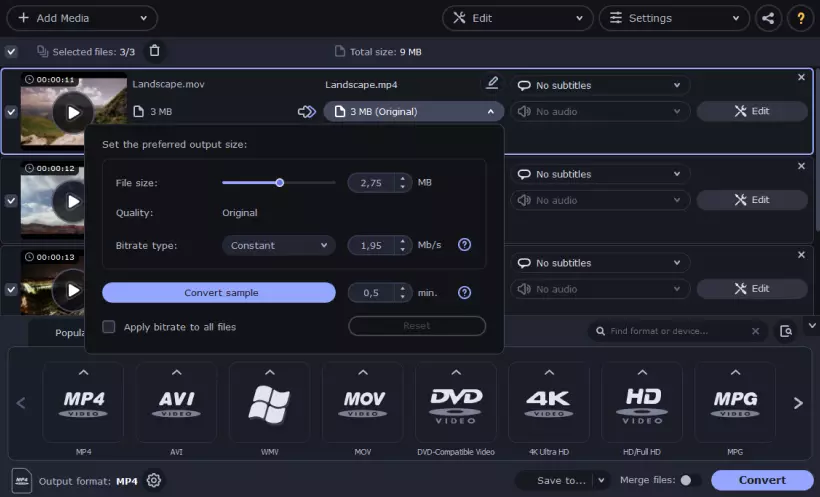
Be sure of what you’ll get
Use the Convert Sample function to easily check how your file is going to look like after conversion.


1.5M+ users already subscribed to our newsletter