Step 1. Install Movavi Video Editor
Launch the program file you’ve downloaded and follow the installation instructions.

Use Movavi Video Editor!
Reduce ambient noise from your recordings
Remove unwanted background sounds or voices
Clean up both audio and video files
If you’ve ever recorded video or audio, you’re probably all too familiar with the problem of background noise. Whether you’re making a family movie or recording a street interview using a microphone, it’s likely that the resulting footage will contain unwanted sounds: breathing, random voices, traffic noise, and other ambient sounds, or various hums and buzzes caused by mic defects. If you find your video or audio has unwanted background noise, there’s no need to throw your work into the garbage. We have an easy solution for you – Movavi Video Editor! It’s an efficient video editing app for Windows and Mac that can also be used as audio noise reduction software. To learn how to use Movavi Video Editor for background noise removal, read our quick guide below.
Launch the program file you’ve downloaded and follow the installation instructions.
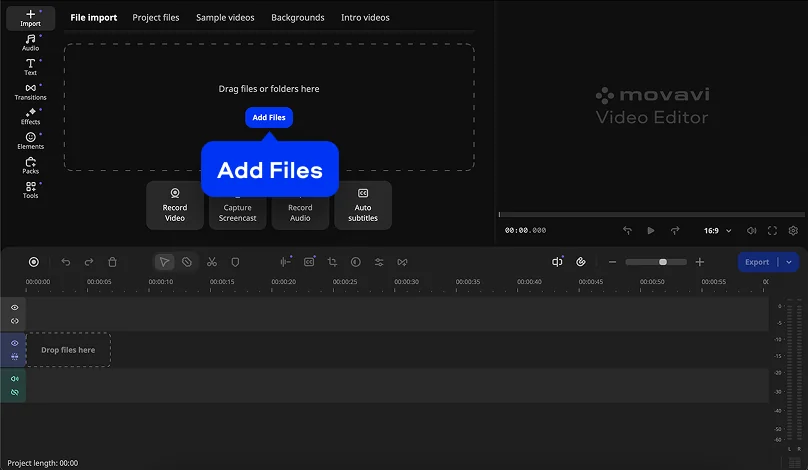
Click the Add Files button and choose the video and/or audio file you want to fix. Then drag your file onto the Timeline.
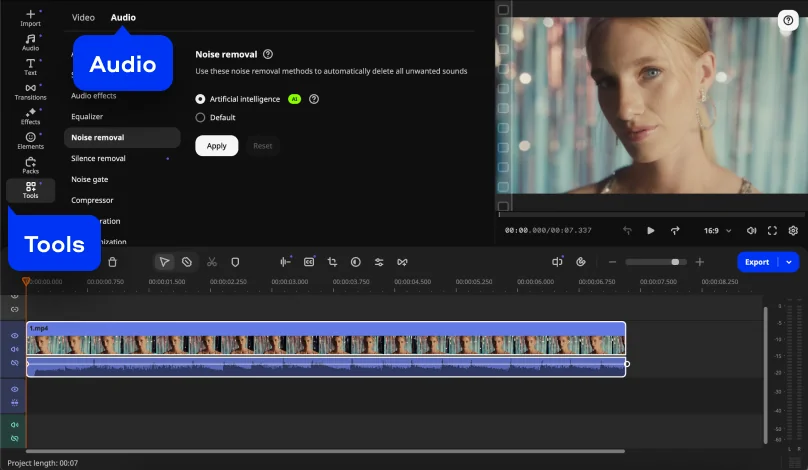
To access the audio denoise function, click Tools. Open the Audio tab and select Noise removal.
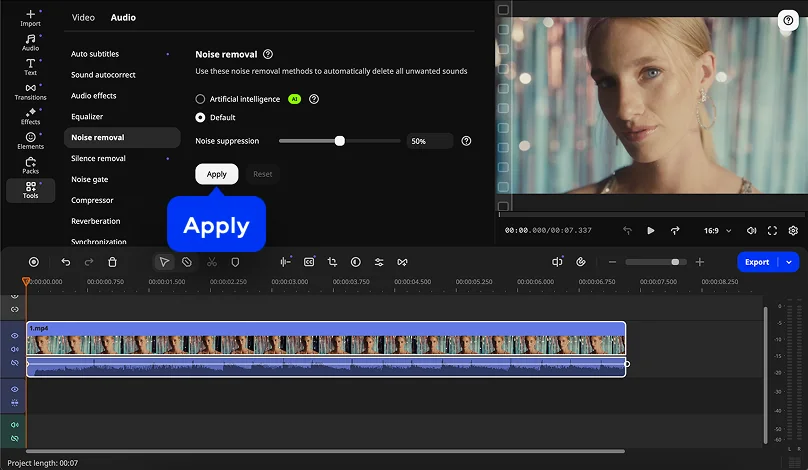
To get rid of unwanted noise from your recorded material, click Default and adjust the Noise suppression slider or use the AI-powered tool and click Apply. Experiment with different slider values until you get the best results; be aware that higher levels of noise suppression may cause distortions in the sound.
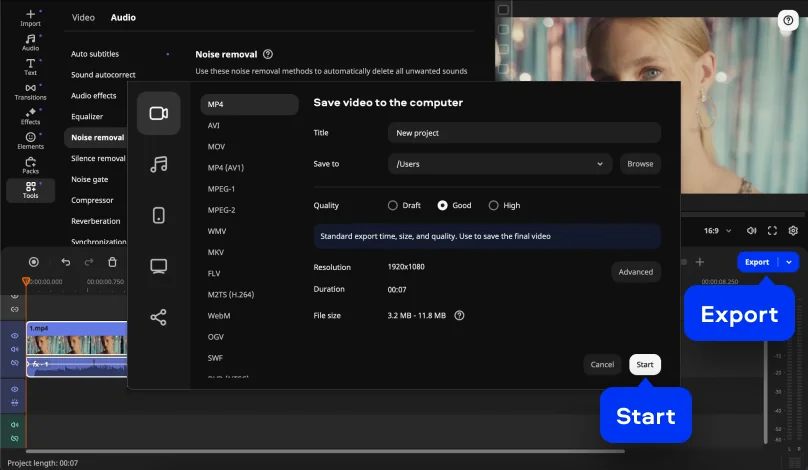
Now it’s time to save your fixed-up file. Click Export and choose the format in which to save your footage. You can choose any popular video or audio format: AVI, MP4, MOV, MP3, WAV, WMA, etc. When you’re ready to save, click the Start button.




1.5M+ users already subscribed to our newsletter