
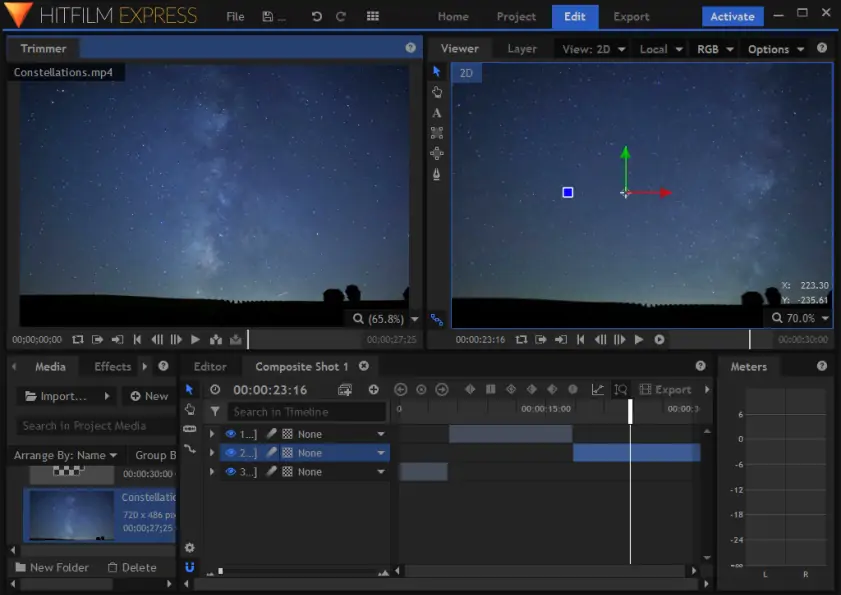
How to Use HitFilm Video Editor

Or try Movavi Video Editor as an alternative:

  • Edit and enhance videos easily

  • Add stylish transitions, titles, and filters

  • Stabilize and reverse video, equalize sound, and more

By clicking the download button, you're downloading a trial version of the program.*

What is HitFilm?

HitFilm is a free video editing and visual effects software developed by FXhome. It's not just another basic cutter – it's a full-blown post-production suite that combines timeline editing, motion graphics, color grading, and Hollywood-style VFX into one unified workspace. Think of it as the intersection between Adobe Premiere and After Effects, minus the monthly subscription fee.

It's used by indie filmmakers, gaming content creators, YouTubers, and visual effects artists who need serious tools without a serious budget. The learning curve exists, sure – but it's absolutely worth climbing.

Step 1. Download and install HitFilm

Head to the official FXhome website and create a free account. Once registered, you can download HitFilm directly from your account dashboard.

The installation process is straightforward – run the installer, follow the prompts, and within a few minutes you'll have the software ready to go. Keep in mind that HitFilm is available for both Windows and macOS, so there's no compatibility headache to worry about for most users.

One thing worth noting before you dive in: HitFilm can be demanding on your system. If you're running older hardware, expect slightly longer render times – especially when working with 4K footage or layered effects. For smoother performance, having a dedicated GPU and at least 8GB of RAM goes a long way.

Step 2. Start a new project and import your footage

Launch HitFilm and click New Project from the welcome screen. You'll be prompted to choose your project settings – this is where you define your resolution (1080p, 4K, etc.) and frame rate. If you're unsure, just match these settings to the footage you recorded.

Once your project is open, you'll land in the main editor interface. To bring your clips in, go to the Media panel in the bottom-left corner and click Import. You can select video files, audio tracks, images – pretty much any media format you're working with. HitFilm supports footage from DSLRs, mirrorless cameras, action cams, and smartphones, so compatibility is rarely an issue.

Your imported files will appear in the Media panel, ready to be dragged onto the timeline.

Step 3. Build your edit on the timeline

This is where the actual storytelling happens. Drag your clips from the Media panel down onto the timeline at the bottom of the screen. You'll notice the timeline supports multiple video and audio tracks stacked on top of each other – this is called multi-track editing, and it's what allows you to layer footage, music, voiceovers, and effects all at once.

Use the basic trimming tools to cut away the parts you don't need. The Slice tool lets you split a clip at any point, and from there you can delete sections, rearrange them, or close gaps between clips. The Viewer panel at the top lets you preview your edit in real time as you work.

A few tools that will quickly become your best friends:

  • S key – activates the Slice tool for cutting clips
  • V key – switches back to the Selection tool for moving clips around
  • Spacebar – plays and pauses your timeline preview

Work through your footage, trim the fat, and shape the sequence until it flows the way you want it to.

Step 4. Add transitions, titles, and effects

Once your rough cut is in place, it's time to make it look intentional rather than assembled. HitFilm comes loaded with a library of transitions, effects, and presets that you can access through the Effects panel on the right side of the interface.

To add a transition between two clips, simply drag it from the Effects panel and drop it onto the edit point where two clips meet. You can adjust the duration of the transition by clicking on it in the timeline and dragging its edges.

For text and titles, head to Controls > Text and drag a text layer onto your timeline. From there, you can customize the font, size, color, and animation. HitFilm also offers a solid range of 2D and 3D title templates if you'd rather not build one from scratch.

Want to push things further? The built-in VFX suite includes tools like chroma keying (green screen removal), motion tracking, lens flares, and particle simulations. These are the kinds of features that usually live behind expensive paywalls – here, they're included by default.

Step 5. Export your final video

You've edited, you've graded, and you've watched the timeline through three times to make sure everything feels right. Now it's time to get your video out of HitFilm and into the world.

Go to File > Export > Contents to open the export panel. Here you'll find a range of preset export profiles tailored to different platforms – YouTube, Vimeo, social media, and more. Select the one that fits your destination, and HitFilm will handle the technical settings automatically.

If you need more control, you can manually adjust the codec, bitrate, resolution, and audio settings to suit your specific requirements. Once everything is configured, hit Export and let HitFilm render your project to a finished file.

How to edit videos with Movavi Video Editor

Movavi Video Editor is the step-up choice when you want more control – cleaner cuts, better pacing, stronger sound, and visuals that feel intentional instead of “assembled,” making it a powerful alternative to mobile video editors for desktop creators. The big advantage is flexibility: multi-track editing, richer effects, precise audio tools, and a workflow that stays comfortable even when your project grows past a few clips. It’s built for creators who want speed without sacrificing polish, and it’s especially handy when you’re editing regularly for YouTube, Instagram, or client work.

Step 1. Get the editor up and running

Install Movavi Video Editor on your desktop and launch it. The process is straightforward, and before you have time to overthink it, a blank timeline is waiting for your first clip.

Step 2. Drop in your footage

Click Add Files and bring in your videos, photos, and audio files, then start cutting things down to size. The tools are laid out logically, so video editing feels more like decision-making than technical problem-solving.

Step 3. Edit your video

This is where titles, transitions, effects, an auto subtitles generator, and even text-to-speech video tools come into play. You can keep things subtle or lean into style, while built-in ai features quietly handle repetitive tweaks and cleanup in the background.

Step 4. Export the final cut

Click Export and pick your format and resolution. With the full version activated, the finished video is saved exactly as intended – clean, complete, and watermark-free.

Movavi Video Editor
Create awesome videos easily

*The free version of Movavi Video Editor may have the following restrictions depending on the build: watermark on exported clips, 60-second video or 1/2 audio length limit, and/or some advanced features unavailable when exporting videos.

Have questions?
If you can’t find the answer to your question, please feel free to contact our Support Team.
Join us for discounts, editing tips, and content ideas

1.5M+ users already subscribed to our newsletter

By signing up, you consent to receive our marketing emails and agree to Movavi using your personal data in accordance with our Privacy Policy. You also confirm that you meet the minimum age requirements.

