Step 1. Download and install Movavi Screen Recorder
First, download the installation file for your OS and install the program following the on-screen instructions.
Easily make engaging screencasts with Movavi Screen Recorder
Full-screen or custom area recording
Webcam capture and drawing on recordings in real time
Highlighting mouse cursor and keystrokes
Engage your audience more by drawing on the video during capture. Use the drawing tool to stress key points and improve the clarity of your communications.
First, download the installation file for your OS and install the program following the on-screen instructions.
Click the Screen recording button to set the recording area. To capture your webcam, microphone, or system audio, make sure that the corresponding icons are highlighted in green.
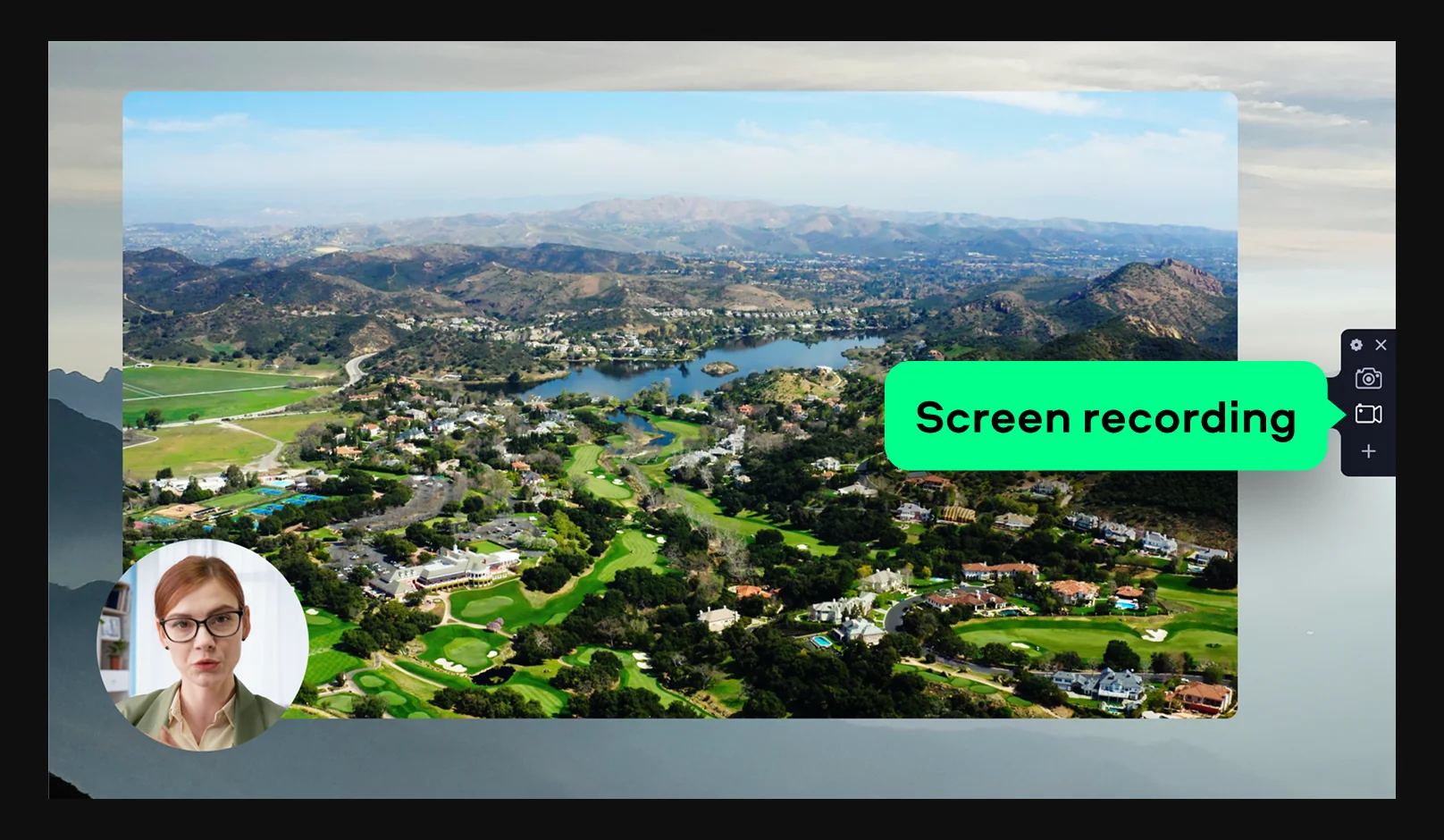
On the control panel of the screen recorder, you will see the red REC button. Click it to start the recording process. You can pause at any time by clicking the Pause button. The next step will detail how to record yourself drawing.
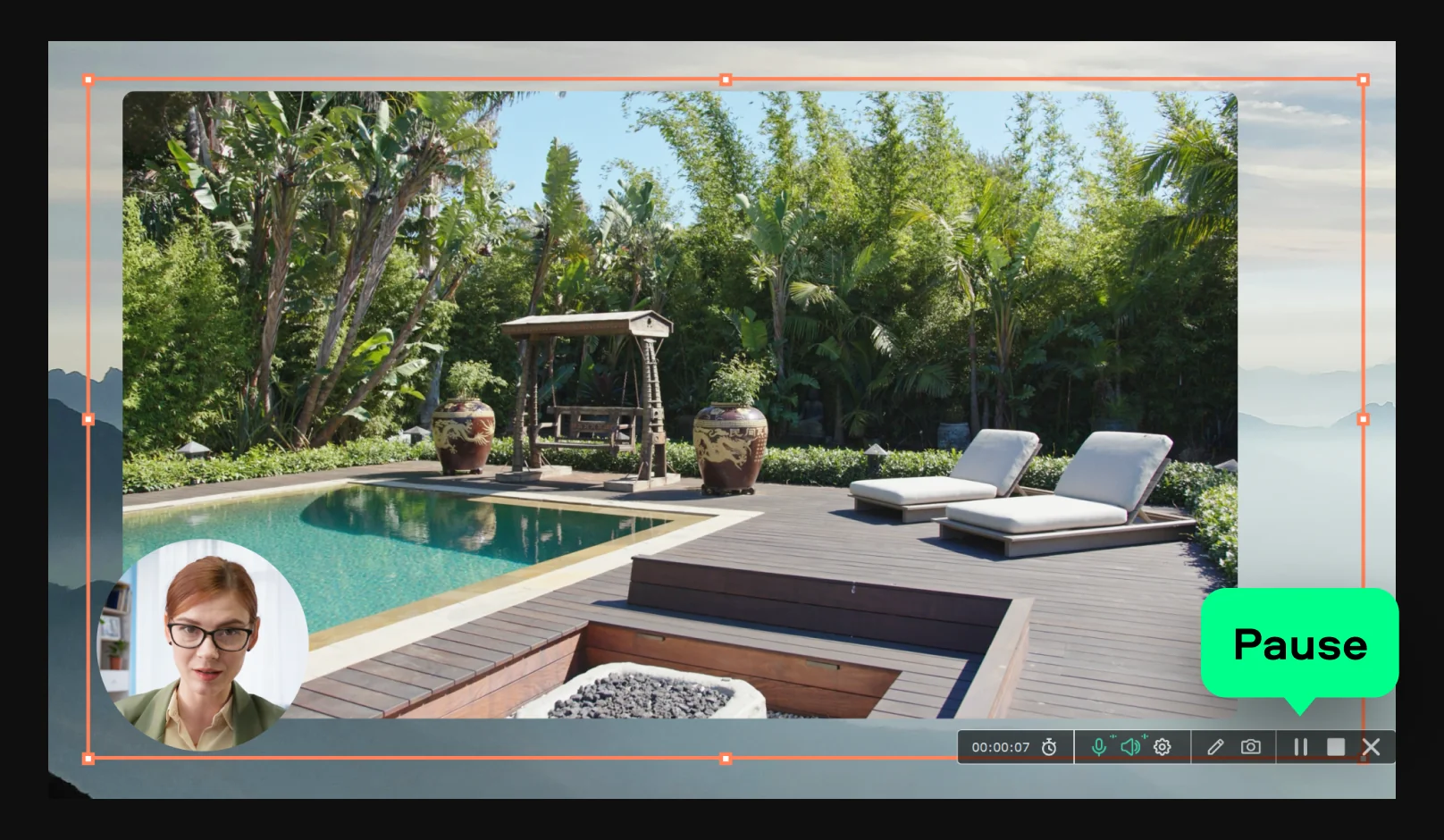
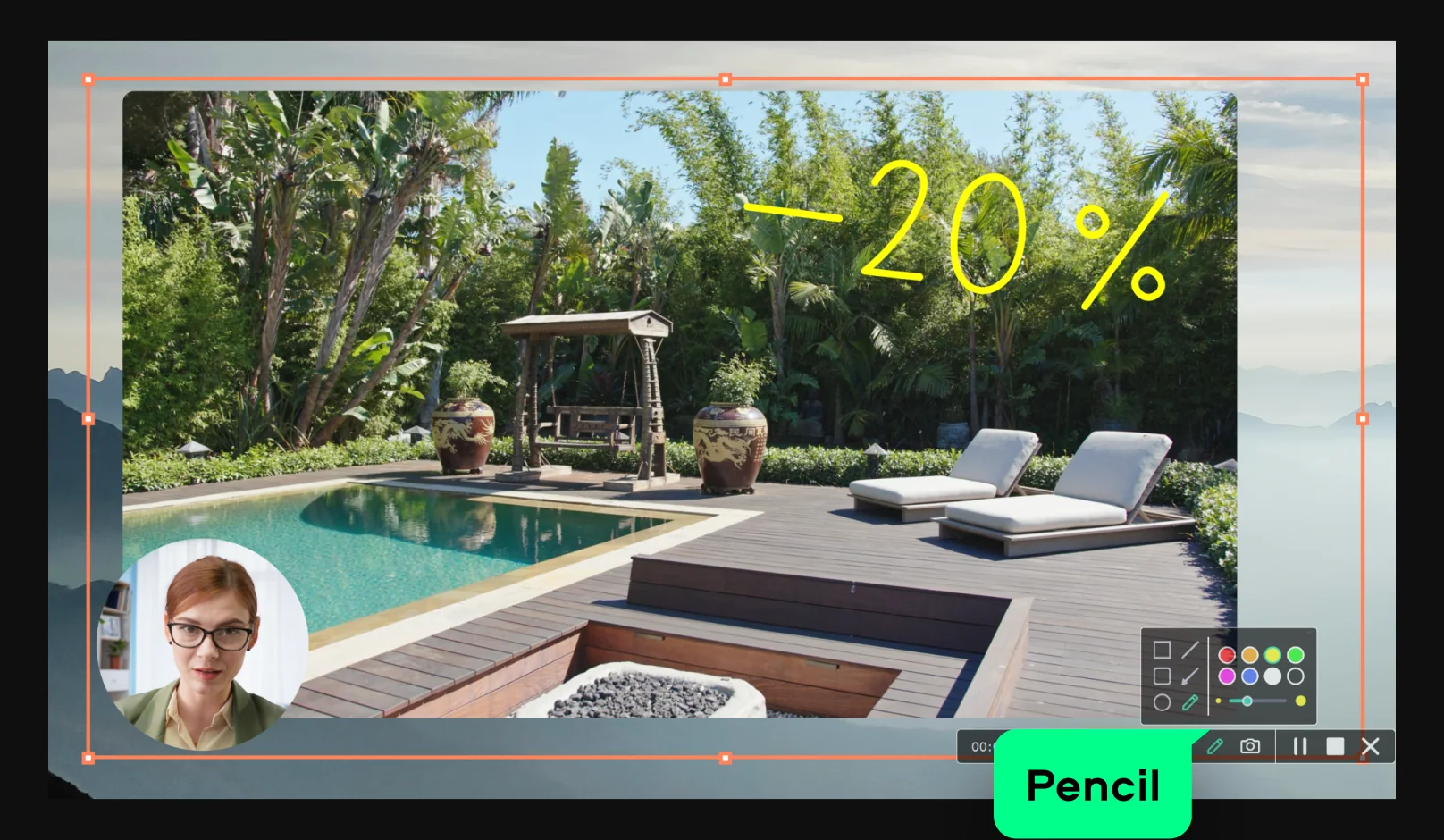
While recording, click the pencil icon to access the drawing tool. A menu will pop up to set the drawing preferences. You can select to draw arrows, lines, and other shapes. You can also choose color and brush size. Select your preferred settings, then hold the left mouse button and start drawing. Your drawings will be added to the video as you record it.
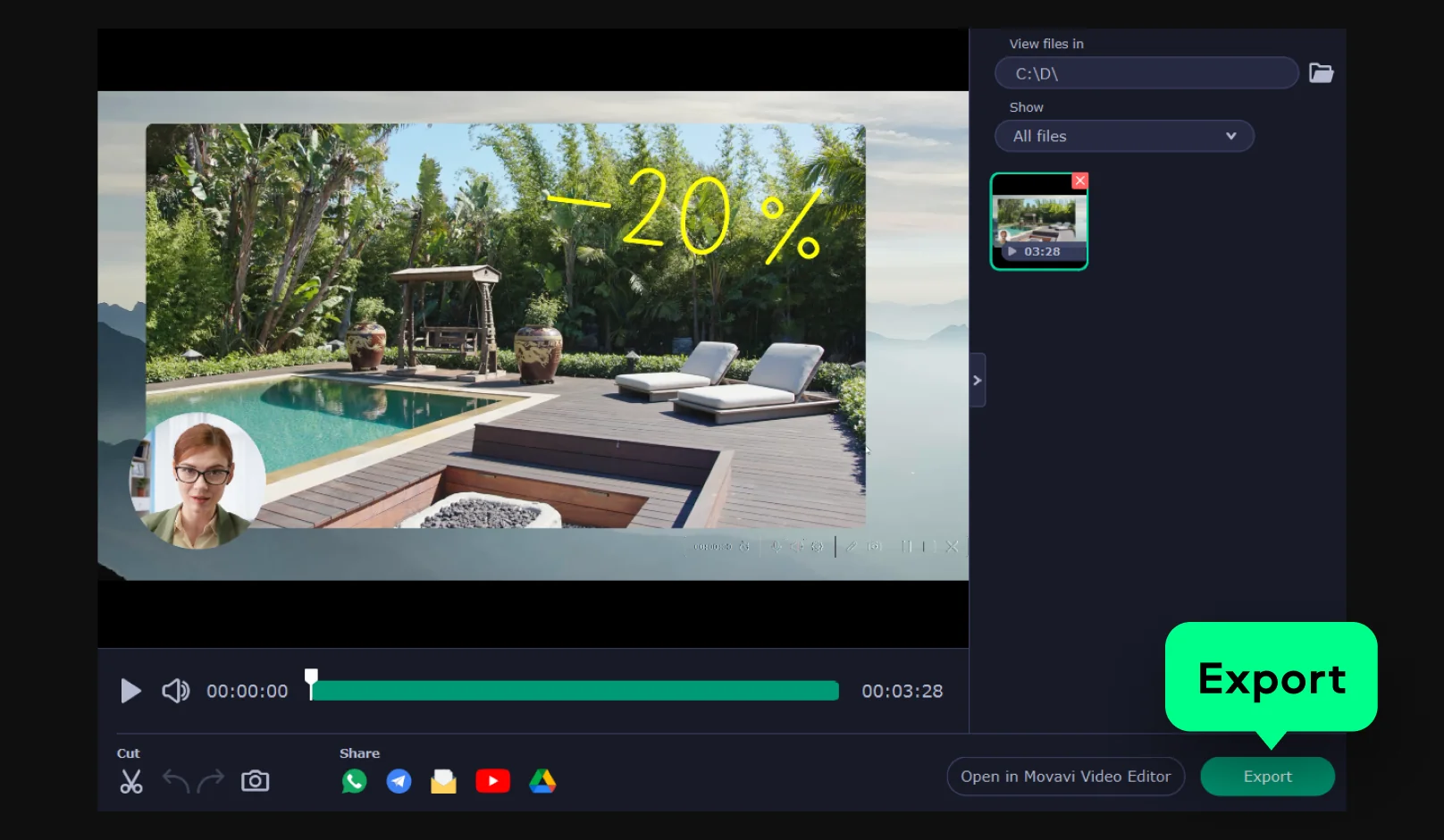
To finish recording, click the Stop button. In the new window that opens, trim your video if needed and hit the Export button to save it on your computer.
Your hassle-free screen capture tool for more efficient projects



1.5M+ users already subscribed to our newsletter