How to use Shotcut: A complete beginner's guide

Try Movavi Video Editor for quick and efficient video editing!

  • Fast and easy editing: cut, crop, adjust colors and speed

  • One-click AI tools: auto subtitles, noise removal, and more

  • Hundreds of filters, transitions, titles, overlays

By clicking the download button, you're downloading a trial version of the program.*

Shotcut is a free, open-source video editor that works on Windows, Mac, and Linux computers. Unlike many free video editors, Shotcut doesn't add watermarks to your videos or limit export quality. This tutorial will teach you everything you need to know to start editing videos with Shotcut, from basic cuts to advanced effects.

Special pick: Movavi Video Editor

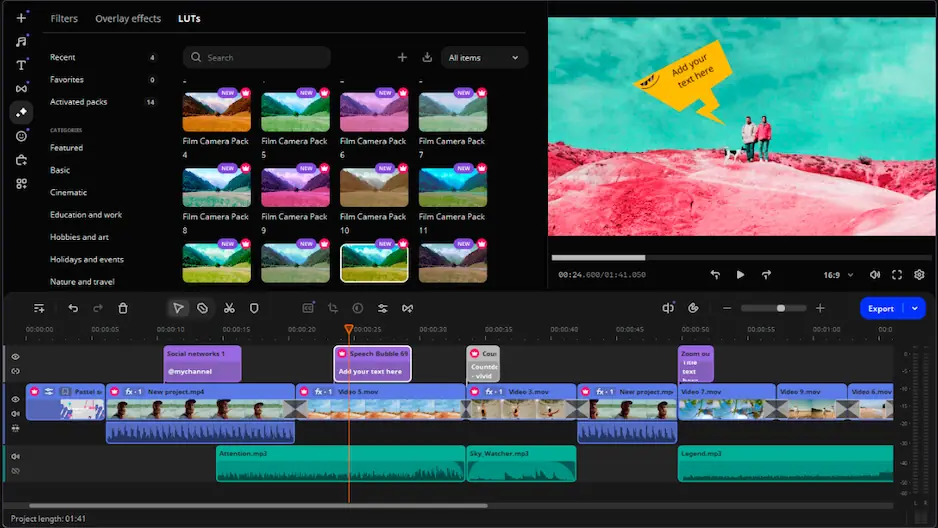
While learning Shotcut, you might also want to consider Movavi Video Editor as an alternative that offers a more streamlined experience for creating amazing videos. Movavi provides an intuitive interface that many beginners find easier to navigate. Here are its key features:

  • Drag-and-drop functionality for quick video creation  
  • Built-in media library with royalty-free music, sound effects, and video clips
  • Automatic video stabilization to fix shaky footage  
  • One-click color correction and enhancement tools  
  • Screen recording capability for tutorials and gameplay  
  • Motion tracking for adding text or graphics that follow objects  
  • Chroma key tool for green screen effects  
  • Direct upload to YouTube, Vimeo, and Google Drive  
  • Hardware acceleration for faster rendering  
  • Extensive collection of animated titles and transitions

Movavi Video Editor works well for users who want professional results without a steep learning curve, though it is paid software unlike the free Shotcut.

Getting started with Shotcut

Before you can start editing, you need to download and install Shotcut from the official website. Go to shotcut.org and click the download button for your operating system. The installation process is straightforward – just follow the on-screen instructions. Once installed, launch Shotcut to see the main interface.

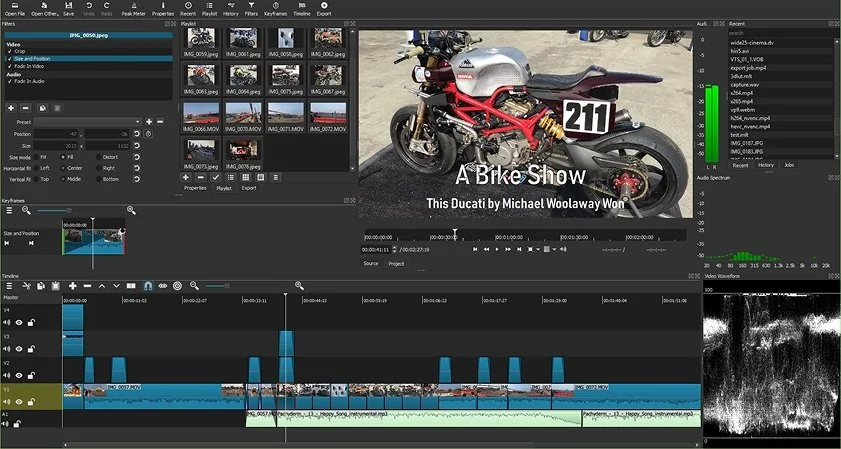
The first time you open Shotcut, you might feel overwhelmed by all the panels and buttons. Don't worry – you'll soon learn what everything does. The interface has several main areas: the source player on the left, the timeline at the bottom, the project player on the right, and various panels that you can open and close as needed.

1. Understanding the Shotcut interface

The source player is where you preview clips before adding them to your project. Think of it as a viewing window for your raw footage. The project player shows your edited video – what your final export will look like. The timeline is where you arrange your clips, add transitions, and build your video.

You can customize the interface to match your workflow. Click on View in the menu bar to show or hide different panels. The most important panels for beginners are the playlist, filters, and properties panels. The playlist holds all your imported media files, filters let you add effects, and properties show information about selected clips.

2. Starting your first project

To begin a new project, you should first set up your video settings. Click on Settings in the menu bar, then Video Mode. Choose a preset that matches your footage – for example, if you filmed in 1080p at 30 frames per second, select HD 1080p 30 fps. Setting this correctly at the start prevents problems later.

Now you're ready to import your media files. Click File, then Open File, and browse to your video clips, images, or audio files. You can also drag and drop files directly into Shotcut. Each file you import appears in the source player, where you can preview it before adding it to your timeline.

3. Working with the timeline

The timeline is the heart of video editing in Shotcut. To create a timeline, go to File and click New. Then open the Timeline panel from the View menu if it's not already visible. You'll see an empty timeline with tracks for video and audio.

To add a clip to the timeline, first open it in the source player. You can add the entire clip by clicking the append button (it looks like a plus sign) or drag it directly to the timeline. If you only want part of a clip, set in and out points first. Press to mark the in point where you want the clip to start, and to mark the out point where it should end.

You can add multiple video and audio tracks to your timeline. Right-click on the timeline header and select Add Video Track or Add Audio Track. Multiple tracks let you overlay videos, add picture-in-picture effects, or layer audio tracks for background music and sound effects.

4. Basic editing techniques

The most common editing task is cutting clips to remove unwanted parts. Position the playhead (the vertical line that moves through the timeline) where you want to cut, then press S on your keyboard. This splits the clip at that point. You can then select the unwanted section and press Delete to remove it.

To move clips around, simply click and drag them to new positions. Shotcut automatically closes gaps when you delete clips if the ripple editing mode is turned on. You can toggle this with the ripple button in the timeline toolbar. When ripple is off, deleting a clip leaves a gap that you'll need to close manually.

Trimming clips is another essential skill. Hover your mouse over the edge of a clip until the cursor changes to a resize icon. Then click and drag to make the clip shorter or longer. This is useful for fine-tuning the timing of your edits.

5. Adding transitions

Transitions help your video flow smoothly from one clip to another. Shotcut handles transitions differently from some other editors. To add a transition, you need to overlap two clips on the same track. Drag one clip so it slightly overlaps the next clip. The overlapping area automatically becomes a dissolve transition.

You can adjust the transition length by changing how much the clips overlap. For different transition types, you need to use filters. With the transition selected, open the Filters panel and click the plus button. Choose a video filter like Wipe or Slide to change the transition style. Each transition has properties you can adjust to customize its appearance.

6. Working with filters and effects

Filters in Shotcut let you enhance your videos with color correction, special effects, and more. To add a filter, select a clip on the timeline, open the Filters panel, and click the plus button. You'll see three categories: Favorite, Video, and Audio.

Some useful video filters for beginners include Brightness, Contrast, and Saturation for basic color correction. The Sharpen filter can improve slightly blurry footage. The Size, Position & Rotate filter lets you crop, resize, or rotate clips. Many filters have keyframes, which let you animate changes over time.

Audio filters are equally important. The Gain filter adjusts volume levels, while Normalize helps even out audio across different clips. The Compressor filter can improve dialogue clarity, and the Noise Gate filter reduces background noise.

7. Adding text and titles

Adding text to your videos is done through filters. Select a video clip or add a transparent clip to a new track where you want the text to appear. Open the Filters panel, click the plus button, and choose Text: Simple or Text: Rich. Simple text offers basic options, while rich text provides more formatting choices.

Type your text in the filter settings and adjust the font, size, color, and position. You can use preset positions like lower third or center, or manually position the text anywhere on screen. For animated text, use keyframes to make it move, fade in, or change over time.

Creating title cards works similarly. Add a color clip or image to your timeline as a background, then apply a text filter on top. You can layer multiple text filters on the same clip to create complex titles with different fonts and styles.

8. Working with audio

Good audio is just as important as good video. Shotcut provides several tools for improving your audio. First, always monitor your audio levels using the audio meter. The levels should peak around -6 dB for dialogue and never hit 0 dB, which causes distortion.

To adjust audio levels, select a clip and open the Filters panel. Add a Gain filter to increase or decrease the volume. You can keyframe the gain to create fade ins and fade outs, or to adjust levels for different parts of a clip.

For background music, add an audio track below your main video track. Import your music file and place it on the timeline. Lower its volume so it doesn't overpower dialogue. A good starting point is around -20 dB for background music under speech.

9. Color correction and grading

Color correction fixes problems with your footage, while color grading creates a specific look or mood. Start with basic correction using the Color Grading filter. This provides color wheels for shadows, midtones, and highlights, letting you adjust the color balance in different parts of the image.

The White Balance filter quickly fixes footage that looks too warm (orange) or too cool (blue). Pick a neutral gray or white area in your video, and Shotcut automatically corrects the colors. The Brightness and Contrast filters help fix footage that's too dark or lacks punch.

For creative color grading, try the Old Film filters for vintage looks, or the Sepia Tone filter for an aged appearance. The LUT (Look Up Table) filter lets you apply professional color grades if you download LUT files from the internet.

10. Exporting your finished video

When your edit is complete, it's time to export. Click File, then Export Video to open the export panel. Shotcut offers many preset options for different purposes. For YouTube, choose the YouTube preset. For general sharing, H.264 High Profile works well.

You can customize export settings if needed. The resolution should match your timeline settings. The frame rate should also match your project. For quality, higher bitrates create better-looking videos but larger file sizes. A bitrate of 10-15 Mbps works well for 1080p video.

Before exporting, preview your entire video to check for mistakes. Look for black frames, audio sync issues, or effects that didn't render correctly. Once you're satisfied, click Export File, choose a save location, and let Shotcut process your video.

Advanced tips and tricks

As you become comfortable with basic editing, try these advanced techniques. Use proxy editing for smoother playback of 4K footage. Create proxies by right-clicking clips in the playlist and selecting Create Proxies. Shotcut creates smaller versions for editing, then uses the original files for export.

Master keyboard shortcuts to edit faster. Learn the most useful ones like J, K, and L for playback control, I and O for in and out points, and S for splitting clips. You can customize shortcuts in Settings if you prefer different keys.

Use the timeline zoom controls to work more precisely. Zoom in for frame-accurate edits, or zoom out to see your entire project. The vertical zoom adjusts track height, useful when working with many tracks.

Troubleshooting common problems

Sometimes Shotcut might crash or freeze. Save your project frequently with Ctrl+S (Cmd+S on Mac). Enable auto-save in Settings for extra protection. If Shotcut crashes, it usually recovers your project when you restart.

If playback is choppy, try these solutions: lower the preview resolution using the Settings menu, close other programs to free up computer resources, use proxy files for high-resolution footage, or consider upgrading your computer's RAM or graphics card.

Audio sync problems sometimes occur with variable frame rate footage from phones. Convert your footage to constant frame rate using the Convert function in the Properties panel before editing.

Conclusion

Shotcut is a powerful video editor that rivals many paid alternatives. While it has a learning curve, mastering its tools lets you create professional-looking videos without spending money on expensive software. Start with simple projects and gradually explore more advanced features as your skills improve.

Remember that video editing is both technical and creative. The technical skills you've learned in this tutorial are tools for expressing your creative vision. Practice regularly, watch tutorials for inspiration, and don't be afraid to experiment with different techniques.

Whether you're creating YouTube videos, family memories, or professional content, Shotcut provides all the tools you need. Take your time learning the interface, save your work often, and most importantly, have fun bringing your video ideas to life. With patience and practice, you'll soon be editing videos like a professional using this capable free software.

Movavi Video Editor
Create awesome videos easily

*The free version of Movavi Video Editor may have the following restrictions depending on the build: watermark on exported clips, 60-second video or 1/2 audio length limit, and/or some advanced features unavailable when exporting videos.

Have questions?
If you can’t find the answer to your question, please feel free to contact our Support Team.
Join us for discounts, editing tips, and content ideas

1.5M+ users already subscribed to our newsletter

By signing up, I agree to receive marketing emails from Movavi and agree to Movavi's Privacy Policy.