Convert OMA to OGG Online for Free

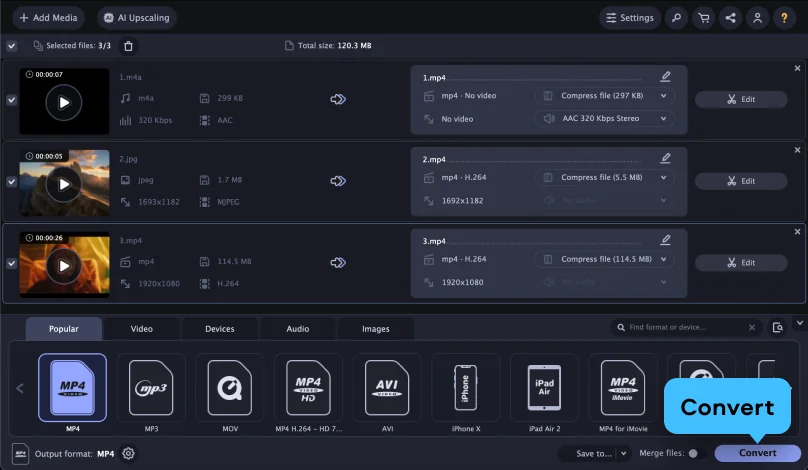
  1. Click Add Your Media and upload your OMA file.
  2. Make sure that the output format is set to OGG.
  3. Click Convert.
Convert to

How to convert OMA to OGG using the Movavi converter

Edited by
Ben Jacklin
24,528

What is OMA?

Full name

Sony OpenMG Audio File

Format type

Audio

Developed by

Sony

Description

OMA is an audio format developed by Sony to distribute DRM-protected music via the Sony CONNECT Music Store. These files are designed to be played on Sony devices, so they won't run on computers or gadgets produced by other companies.

File extension

.oma

Technical details

OMA files are encoded with the Sony ATRAC (Adaptive Transform Acoustic Coding) audio format, and, more specifically, use the OpenMG container, which is a DRM system developed by Sony to protect music data. The technical details of the files may vary depending on the version of the Sony ATRAC they are encoded with.

Associated programs

Sony SonicStage, VLC, Macgo Mac Media Player

What is OGG?

Full name

Ogg Vorbis

Format type

Audio

Developed by

Xiph.Org Foundation

Description

OGG is an open-source multimedia format created by the Xiph.Org Foundation. The format was originally used for storing video and audio content but, since 2007, the Xiph.Org Foundation recommends using files with the .ogg extension to store audio only.The OGG file type was designed primarily for streaming high-quality multimedia content online. Since the format was created for the web, users may face playback issues when trying to open OGG files on mobile devices. In this case, it’s best to convert your files to a more popular format. Check out the information below to know how to play and convert files with OGG format specifications.

File extension

.ogg

Technical details

The OGG format is a container that can store audio and metadata. Audio can be compressed with the MP3, Vorbis, Opus, FLAC, and Speex audio codecs. Metadata tags are used to provide titles for songs and information about artists and tracks. Some media players don’t play OGG files correctly, so you may need to install additional program components.

Associated programs

Windows Media Player (with the Xiph.org DirectShow filters), VLC, Adobe Audition, Google Chrome, Mozilla Firefox, and others

Step 1. Download and install the Movavi converter

How to use a file converter? First, download the version of the software for Microsoft Windows or Macintosh, launch it, and proceed following the on-screen instructions. When the app is installed to your computer, it will run automatically.
Step 2. Add your OMA files

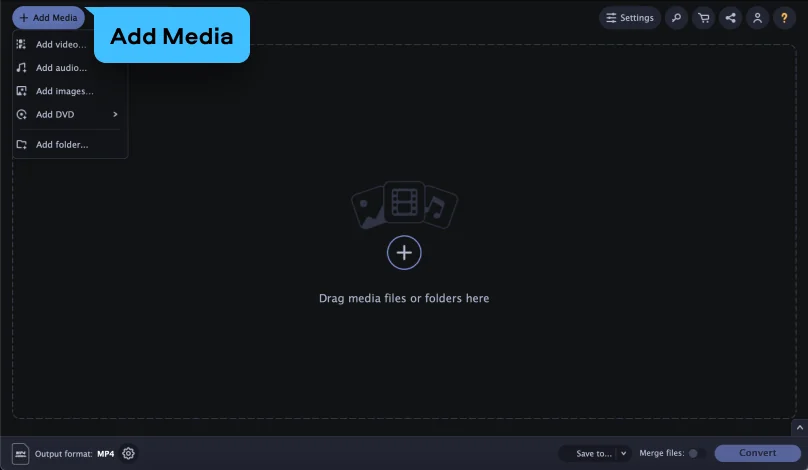
Locate the OMA files you want to convert and drag-and-drop them into the program’s window. The application can convert big batches of files – there’s no limit to how many files you can transfer at once.

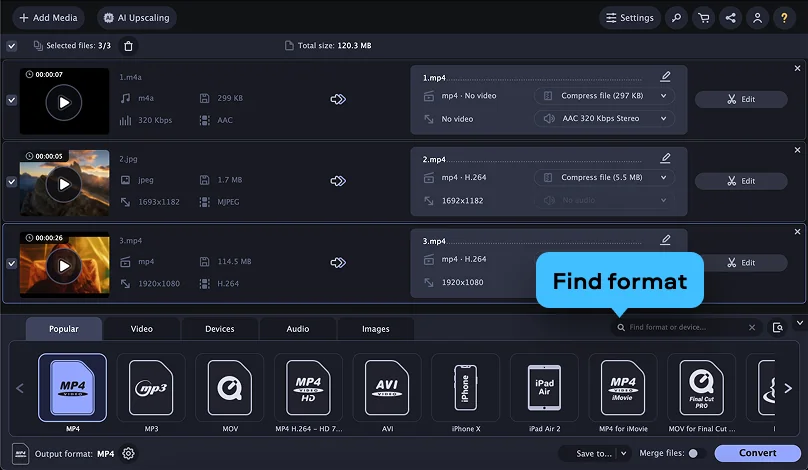
Step 3. Select OGG as the output format

In the Formats menu, select the file type you want to turn your media into and choose the target format for the files. Also, you can change the conversion settings: choose a different bitrate, resolution (including HD, Ultra HD, and even 4K), codec, etc. Pay attention to the SuperSpeed label: it indicates that the conversion will be performed with a very high speed and without losing quality.

Step 4. Convert OMA to OGG

To specify the output folder, click the Save to button. Hit the Convert button to launch the process. When the converting is done, the new media files will be saved to the chosen folder.

Now you know how to change the file format using the Movavi converter. With this tool, you can also reduce the file size, cut out clips from videos, crop pictures, and create animations from your favorite movies. Get the free trial version and test it out!

Movavi Video Converter
The ideal way to get your media in the format you need!
Movavi Video Converter

Popular conversions

Join us for discounts, editing tips, and content ideas

1.5M+ users already subscribed to our newsletter

By signing up, I agree to receive marketing emails from Movavi and agree to Movavi's Privacy Policy.