Turning a video into a GIF only takes four steps once the software's installed. Movavi Video Converter does exactly this job: pick a clip, pick a format, convert.
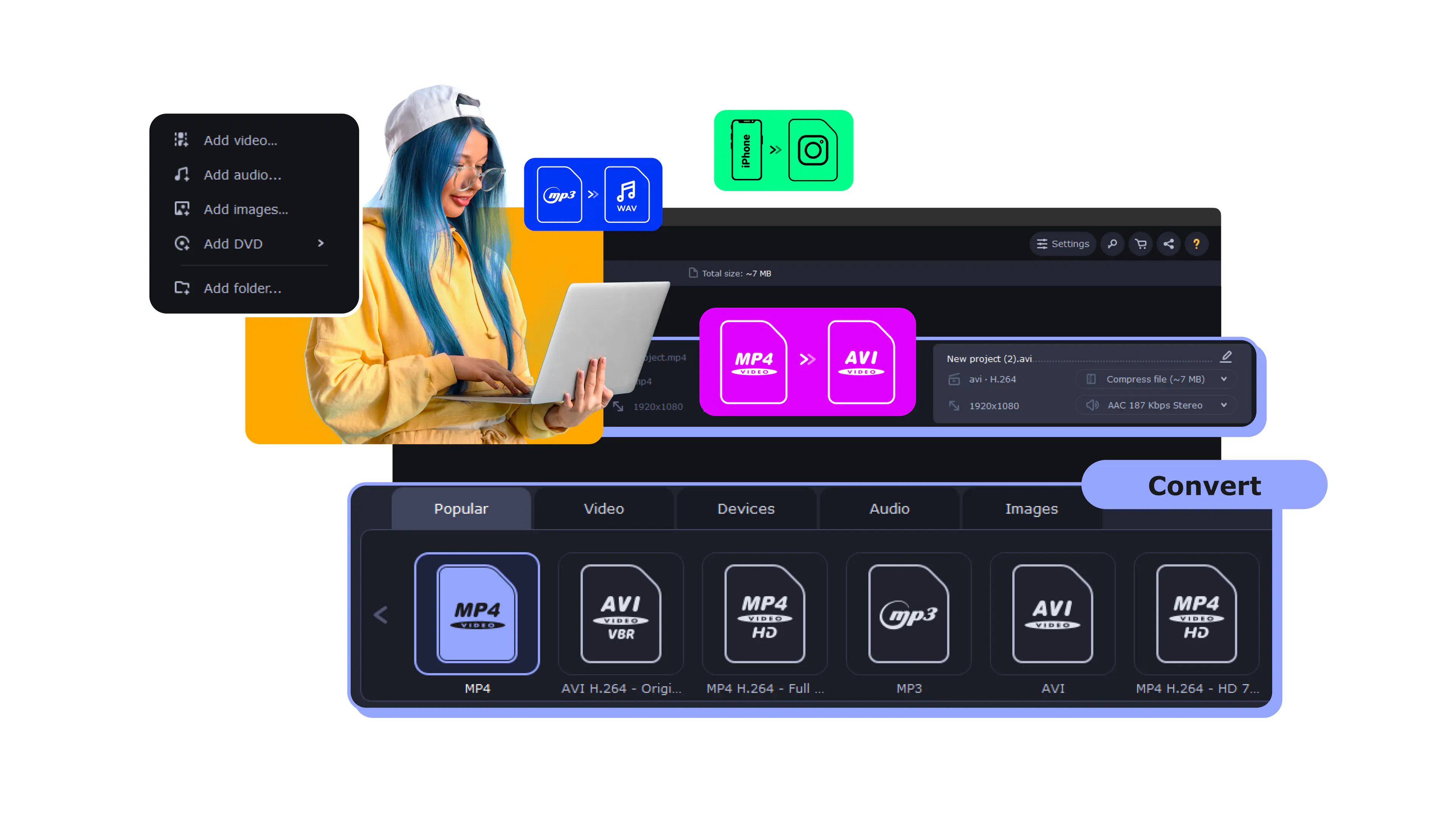
How to Convert a Video to a GIF: Step-by-Step Guide
Use Movavi Video Converter!
Lightning-fast conversion
Batch processing of files – any number, any size
No quality loss, even with 4K videos
Easy editing and compression

Edited by
10,084
Movavi Video Converter turns a video into a GIF in a few clicks, all on your own computer without uploading your video files online or waiting for server processing. Join millions of content creators worldwide who rely on Movavi for quick, simple conversions.
If you’re a content creator, your blooper or a reaction shot is one drag-and-drop away from becoming a shareable animated GIF. Here's exactly how to convert a video to a GIF, plus what to adjust if your first export doesn't come out the way you pictured it.
How to convert a video to a GIF
Step 1. Download and install Movavi Video Converter
Download the program for a PC or Mac, run the installer, and follow the on-screen prompts. The video-to-GIF converter opens on its own once setup finishes.
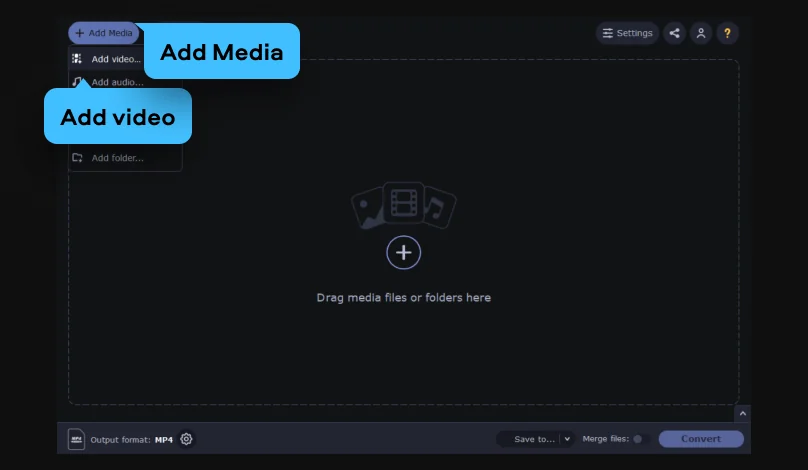
Step 2. Add your video
Drag your video file into the program window. Movavi Video Converter supports batch conversion, so if you've got a whole folder of clips to turn into GIFs, load them all together and let the batch run.
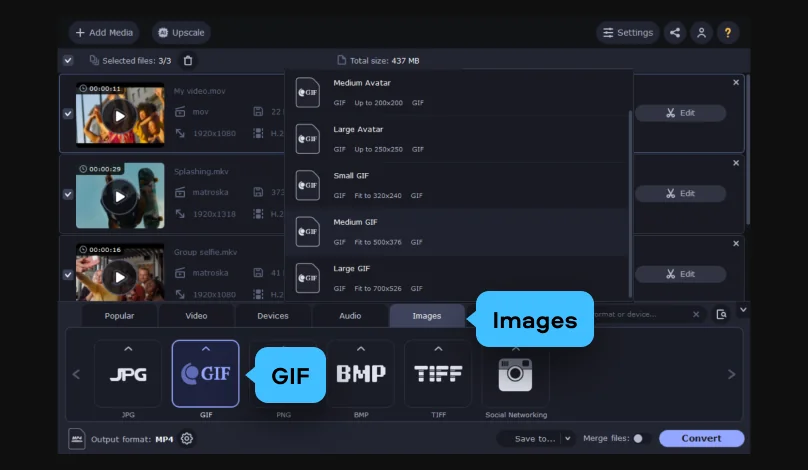
Step 3. Set GIF as an output format
In the Images tab, choose GIF as the target format. From here you can also set the resolution, pick a bitrate, and choose a codec. Watch for the SuperSpeed label: it flags settings that convert fast while keeping the high quality.
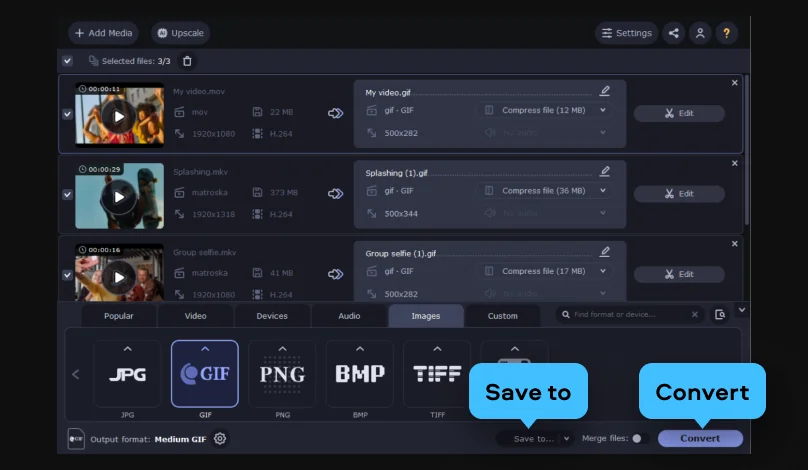
Step 4. Convert your video
Click Save to to pick where the finished file will be saved, then hit Convert. The output folder opens on its own the moment the conversion finishes.
Why content creators keep a GIF converter on hand
A GIF does something a video link can't: it plays itself, silently, the second someone scrolls past it. For creators who talk to a camera, that's genuinely useful. Pull your best reaction out of a stream and drop it straight into Discord. Turn a five-second reaction clip into one of the memes your fans quote back at you. Loop your favorite line from an interview into a blog post or newsletter, where an embedded video would just slow the page down and autoplay videos with sound are often muted or ignored anyway.
Getting a high-quality result
GIF is an old image format that caps out at 256 colors per frame so busy backgrounds, gradients, or low light can come out grainy or banded if you're not careful. A few things fix most of that:
- Trim to the moment. A short clip at a given resolution holds its detail better than a long one squeezed into the same file size.
- Match resolution to where it's going. A GIF headed for Discord or a forum signature doesn't need 4K; a bigger frame just means a bigger file with nothing extra to show for it.
- Start from clean source footage. If your original clip is a little soft, Movavi Video Converter's AI upscaling can sharpen it up to 8x before you export, so the GIF you end up with isn't stuck at the quality of the original file.
The program is also built to shrink oversized video files without a real quality hit, which matters if your source clip needs slimming down before it becomes a GIF. Bitrate is the lever that matters most for GIFs – set it higher and colors and motion hold up better, but the file size grows. If you drop it and you get a smaller, more shareable file at the cost of sharpness. There's no universal right answer here, so just test different options depending on the platform you're posting to.
What's next
Once you've got a GIF you're happy with, the same program is right there for whatever comes next: compress the full-length version of that clip before you upload it anywhere, or run a batch of older footage through the AI upscaler before you start pulling more highlights out of it. It's the same workflow you just used – drop it in, pick a format, and convert.
Movavi Video Converter
The ideal way to get your media in the format you need!
Frequently asked questions
Is Movavi Video Converter free to download?
Is Movavi Video Converter free to download?
Yes. The installer for both Windows and Mac is a free download, and a free trial lets you test the conversion before deciding whether to buy.
Will my GIF have sound?
Will my GIF have sound?
No. GIF is an image format rather than a video format, and animated GIFs never carry audio, regardless of which program creates them.
Can I convert more than one video into a GIF at the same time?
Can I convert more than one video into a GIF at the same time?
Yes. Load several video files into the program window before hitting Convert, and it processes the batch in one pass instead of one file at a time.
Do I need an internet connection to convert?
Do I need an internet connection to convert?
No. Once the software's installed, the entire conversion happens offline, so it works fine on a spotty connection or anywhere your Wi-Fi isn't cooperating.
My exported GIF looks blocky. What went wrong?
My exported GIF looks blocky. What went wrong?
Usually it's the color cap talking. GIFs only support 256 colors per frame, so busy or dark footage compresses less cleanly than simple, well-lit clips. Trimming the clip and dropping the resolution slightly usually cleans it right up.
Can I convert formats other than MP4 into a GIF?
Can I convert formats other than MP4 into a GIF?
Yes. The GIF export works from any video format the program reads – MOV, AVI, MKV, and well over a hundred others – so you're not limited to MP4 source files.
Does Movavi Video Converter work on a Mac as well as Windows?
Does Movavi Video Converter work on a Mac as well as Windows?
Yes – Movavi Video Converter has dedicated builds for both, so the steps above apply whichever machine you're on.

Have questions?
If you can’t find the answer to your question, please feel free to contact our Support Team.
Join us for discounts, editing tips, and content ideas


1.5M+ users already subscribed to our newsletter