Step 1. Download and open Movavi Video Editor
The free download gets you a working copy of the program for Windows or Mac, with every tool testable before you commit to the full version.

A promo video is the short, punchy clip that gets people to click, watch, or show up: a countdown to a sale, a teaser for next week's upload, an invite to a launch event. This guide covers how to make a promo video with a template in Movavi Video Editor – a promo video maker built for people who've never opened an editing program before.
Movavi Video Editor is an intuitive video editor with customizable video templates, one-click AI tools, and hundreds of drag-and-drop effects. It runs smoothly on Windows 10 and 11 (64-bit) and macOS 12.0 or later, with native support for Apple M1 and newer chips.

Whether you're a YouTuber hyping your next video, a small-business owner announcing a weekend sale, or a one-person marketing team prepping a launch clip, a template hands you a finished structure to drop your own footage, photos, and music into, instead of a blank timeline. Grab the free download for Windows or Mac before you read on.
Movavi Video Templates is a multi-style library of customizable, pro-looking, modular templates for any kind of video. One category is built specifically for business promos, alongside vlogs, family videos, holidays, and reviews. Each template arrives pre-loaded with transitions, music, and titles, so the pacing and editing decisions are already made before you touch anything.
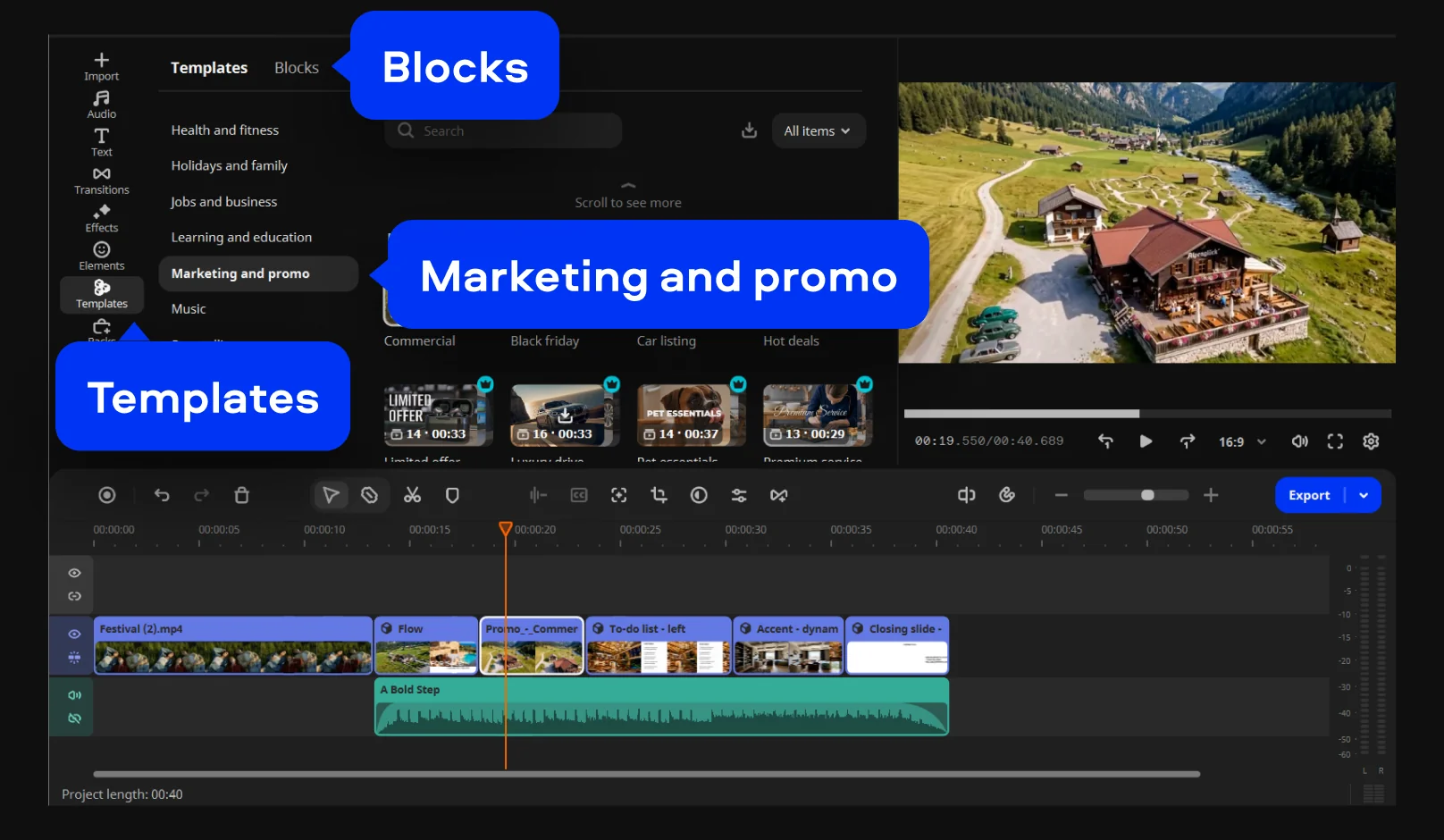
What makes a Movavi template different is that it's built from modular Blocks. A Block is a short, pre-edited segment – an intro, a countdown, a quick cut, an animated collage – and you drop your own video, photos, or text straight into it. Use a template exactly as it comes, or customize it: reorder Blocks, add new ones, remove the ones you don't need.
Several templates are included in the full version of Movavi Video Editor at no extra charge, and the Movavi Templates subscription unlocks the whole library of templates and Blocks. The trade is simple: a few minutes dropping your own footage into Blocks instead of hours building a sequence from scratch, and a promo that looks polished from the very first export.
How to make a promo video
The free download gets you a working copy of the program for Windows or Mac, with every tool testable before you commit to the full version.
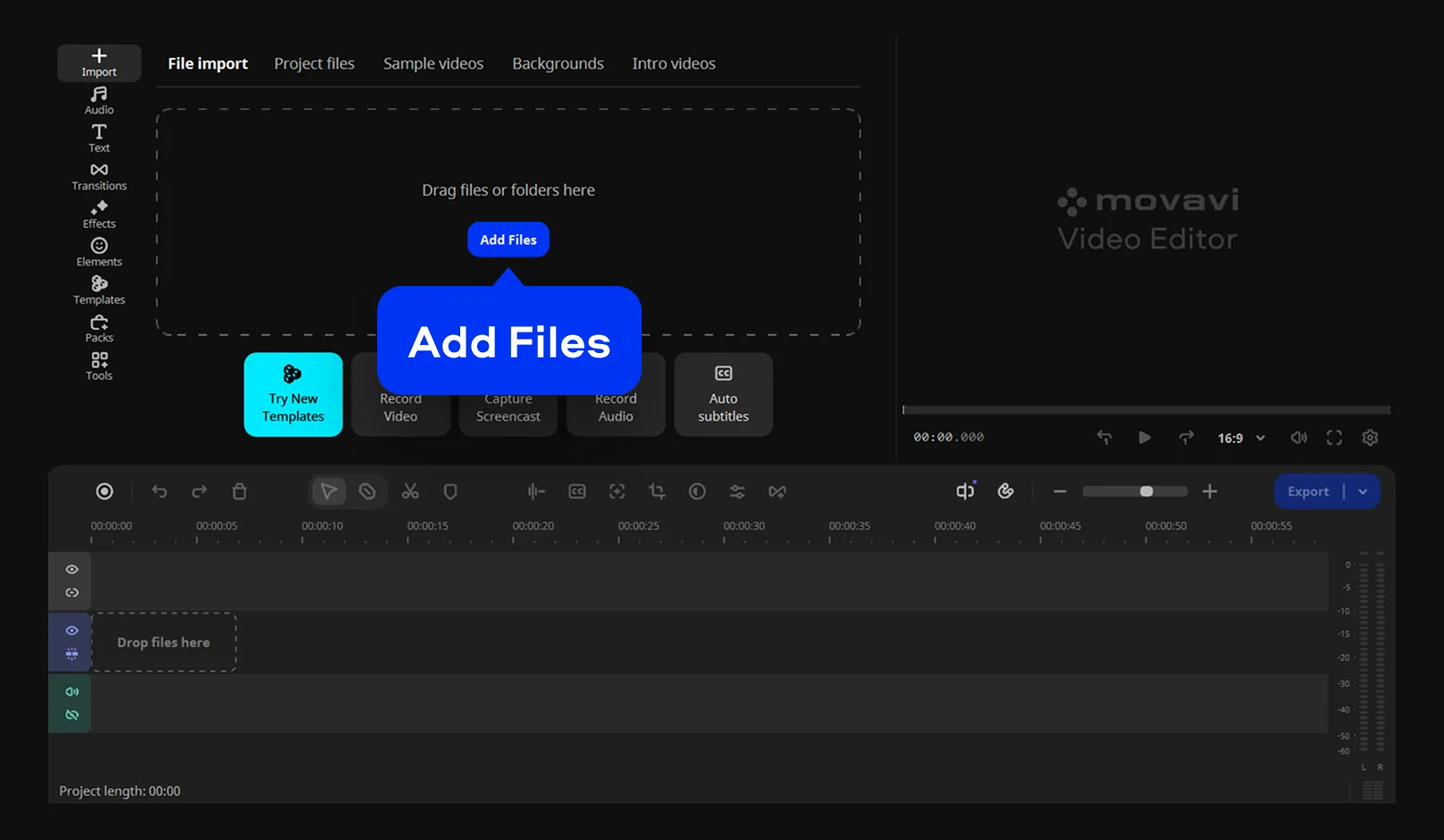
Click Add Files or drag your photos, music, and video clips into the program, then drop them onto the Timeline. If you don't have your own media ready yet, feel free to use the built-in sample footage.
Go to the Jobs and business or Marketing and promo category and pick a template that fits your vibe–from sales to product launches. Drop it onto the Timeline, then replace the placeholder clips in each Block with your own photos and videos. You can freely reorder or delete any Block (intros, quick cuts, countdowns) to customize the flow of your promo.
Step 4. Fine-tune the details
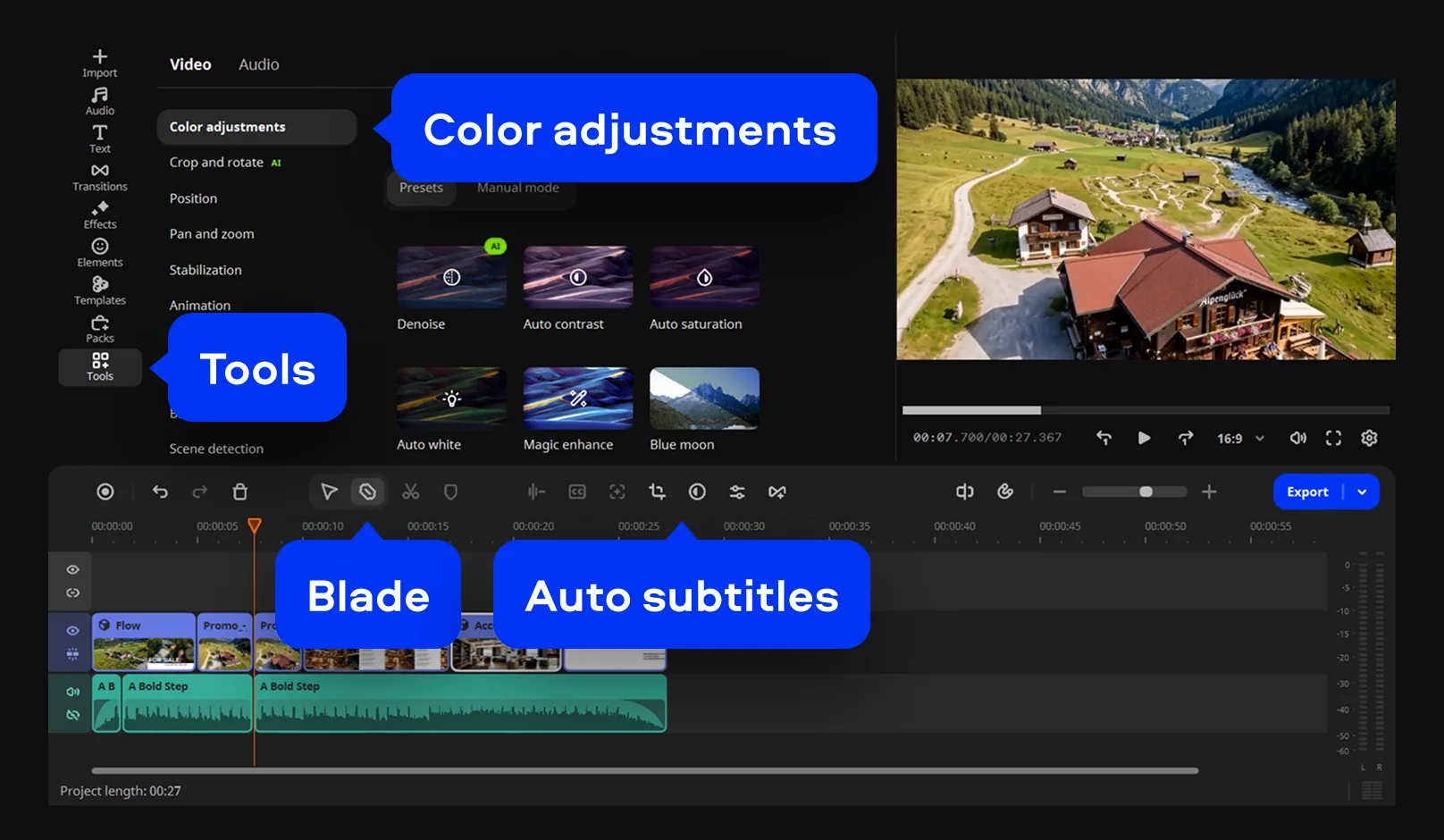
Trim a clip, using the Blade tool to quickly trim long clips. Adjust your video's colors under Tools > Color adjustments using ready-made presets or manual settings for a consistent visual style. Record a voiceover, add a royalty-free music track, or drag effects and transitions onto a Block. Add titles and captions, and use the Auto subtitles tool to generate one-click captions – handy since most people watch social promos with the sound off.
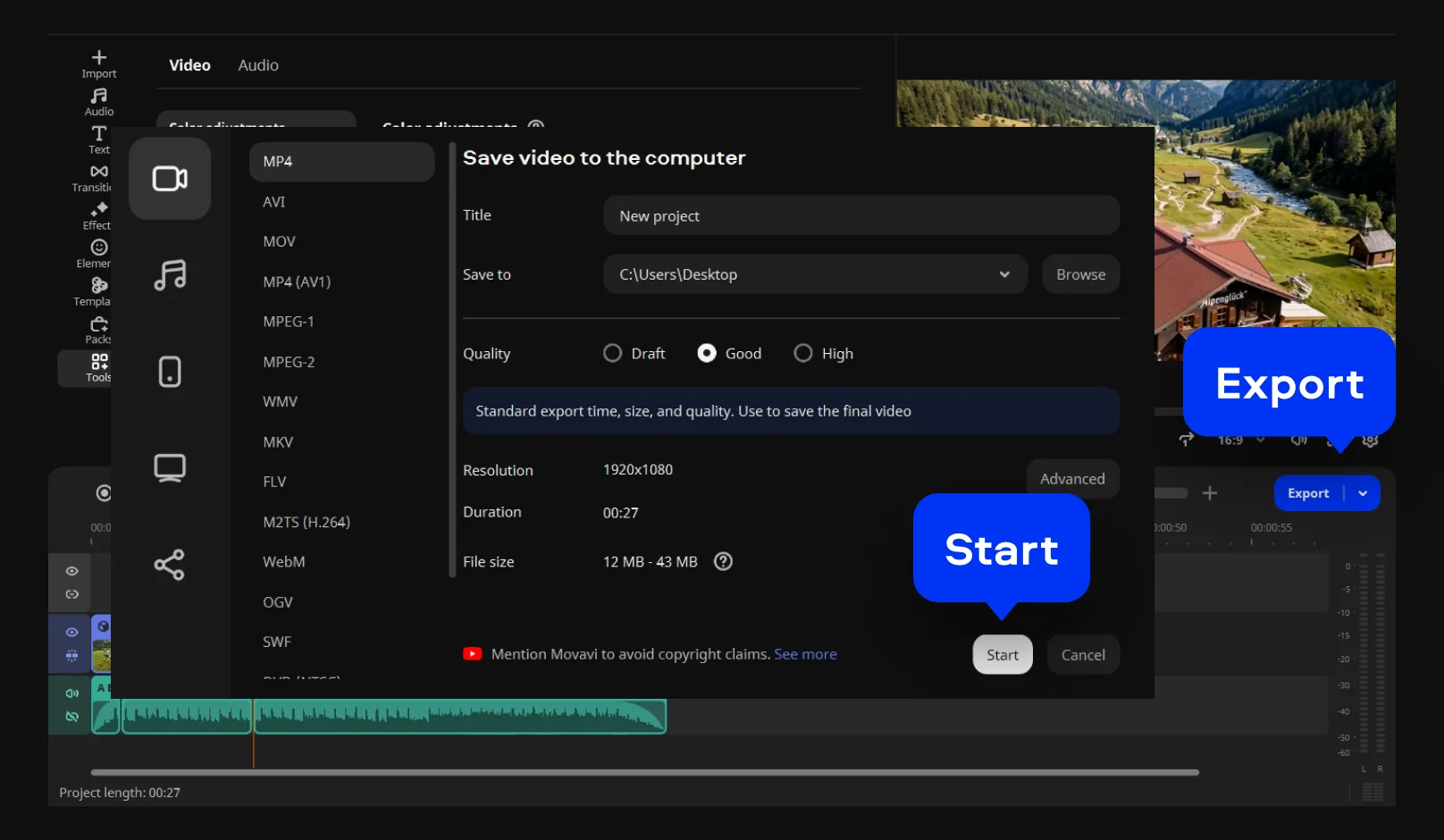
Click Export, choose the resolution you need, and click Save, or send it straight to YouTube, Vimeo, or Google Drive from inside the program.
Once you've exported your first promo, the same template trick works for almost anything else you need to announce – a giveaway, a new merch drop, or a holiday sale. Movavi Ideas adds a new step-by-step editing trick every week for free, if you want more formats to try once the promo bug bites.
Movavi Video Editor comes in three tiers, so you're not paying for tools you won't use:
Edition
What you get
Limits
Free
Every tool, including templates and auto subtitles, testable in-app
60-second length cap, watermark, limited codec support, lower output quality; using paid features restricts export
Lite
Core editing, templates, auto subtitles, silence removal
Small watermark on export; AI noise removal, background removal, chroma key, and a few other tools are limited
Full
Every tool unlocked
No watermark, no export cap
Want the full Movavi Templates library beyond what ships free with the full version? That's a separate Movavi Templates subscription – the same goes for Movavi Effects if you want more than the hundreds of built-in effects. Nobody needs either one just to make a single promo video; it's a flexible lineup, and you only add the pieces your project actually needs.

It's a ready-made sequence of Blocks – pre-built segments like an intro, a countdown, or a quick-cut montage – already set up with transitions, titles, and music. You drop your own clips and photos in instead of building the sequence from scratch.
Movavi Video Editor Free is a free download, and you can try every tool in the app. Exports from the Free edition are capped at 60 seconds, carry a watermark, use limited codecs, and come out in lower quality. The full version has no watermark or export limits.
MP4 is the safest choice for social platforms, YouTube, or your own website. The software can also export straight to YouTube, Vimeo, TikTok, or Google Drive without you handling a separate file at all.
No – that's the point of starting from a template. The pacing, transitions, and music are already set; you're mainly swapping in your own footage, photos, and text.
Yes. Movavi Video Editor runs on Windows 10/11 (64-bit) and macOS 12.0 or later, including Apple M1 and newer chips natively.



1.5M+ users already subscribed to our newsletter