Marriage video editing really comes down to the same basics as any other edit — footage, structure, sound, and export — and Movavi just keeps each step simple for first-timers.

How to Make a Wedding Video With Templates
Wedding videos that people actually want to rewatch are easy to make with Movavi Video Editor – an intuitive video editor with customizable video templates, one-click AI tools, and hundreds of drag-and-drop effects. Whether you are a YouTuber sharing your big day or a family member creating a keepsake, this app simplifies the process for both Windows and Mac users.
To streamline your editing, you can tap into Movavi Video Templates, a multi-style library of customizable, pro-looking, modular templates for any kind of video. Structured by Blocks, they let you drop your clips and photos straight into an existing structure to quickly assemble a professional cut of the ceremony, vows, and reception.

Edited by
13,698
How to make a wedding video step by step
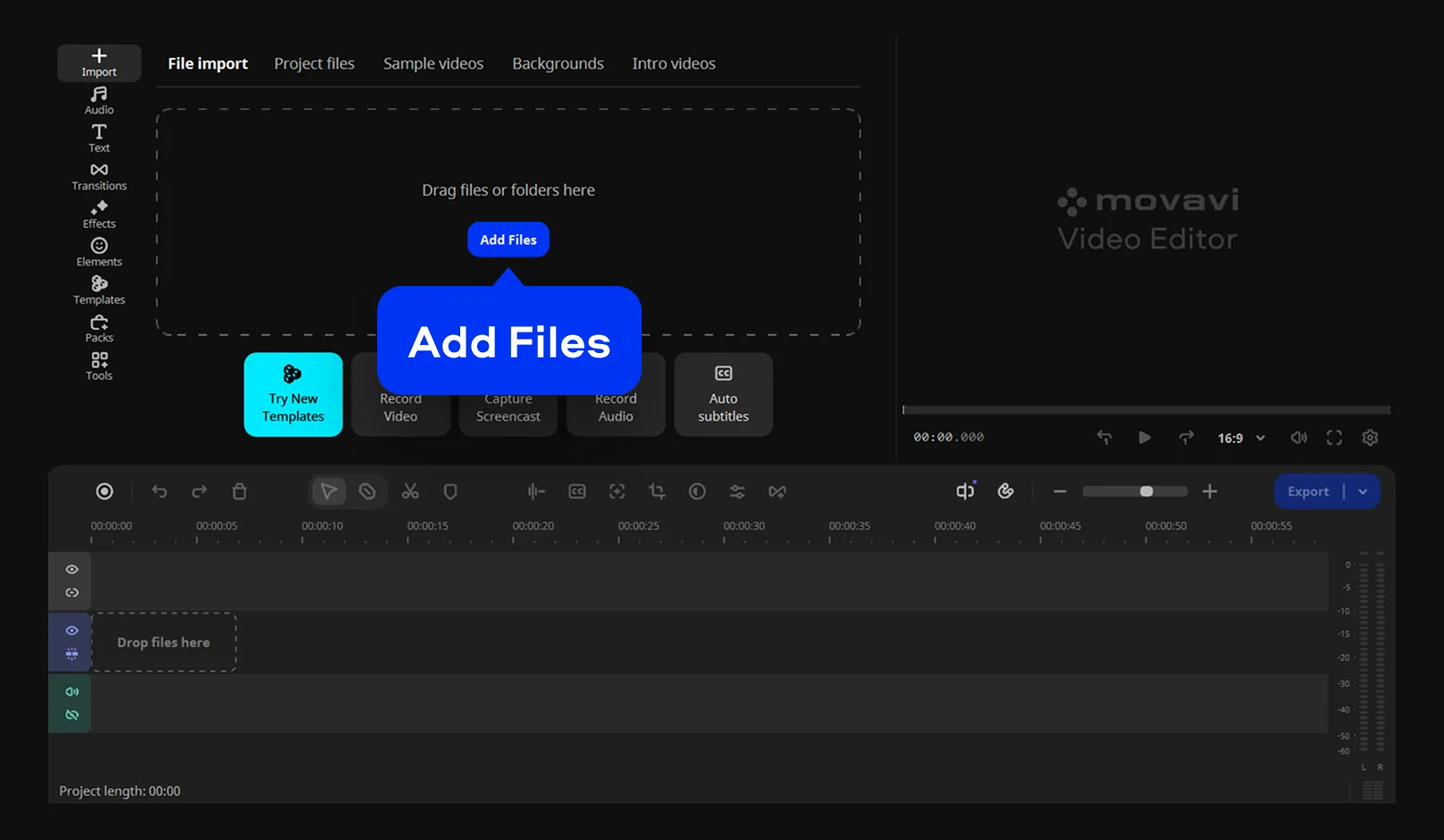
Step 1. Import your clips
Click Add Files to bring every clip and photo from the day into Movavi Video Editor – ceremony, speeches, first dance, and candid shots. The media import accepts MP4 video alongside JPEG and PNG photos. Shot on more than one camera or phone? That's fine; you'll trim the extra later. The project autosaves as you work so you won't lose your progress.
Step 2. Choose your wedding video template
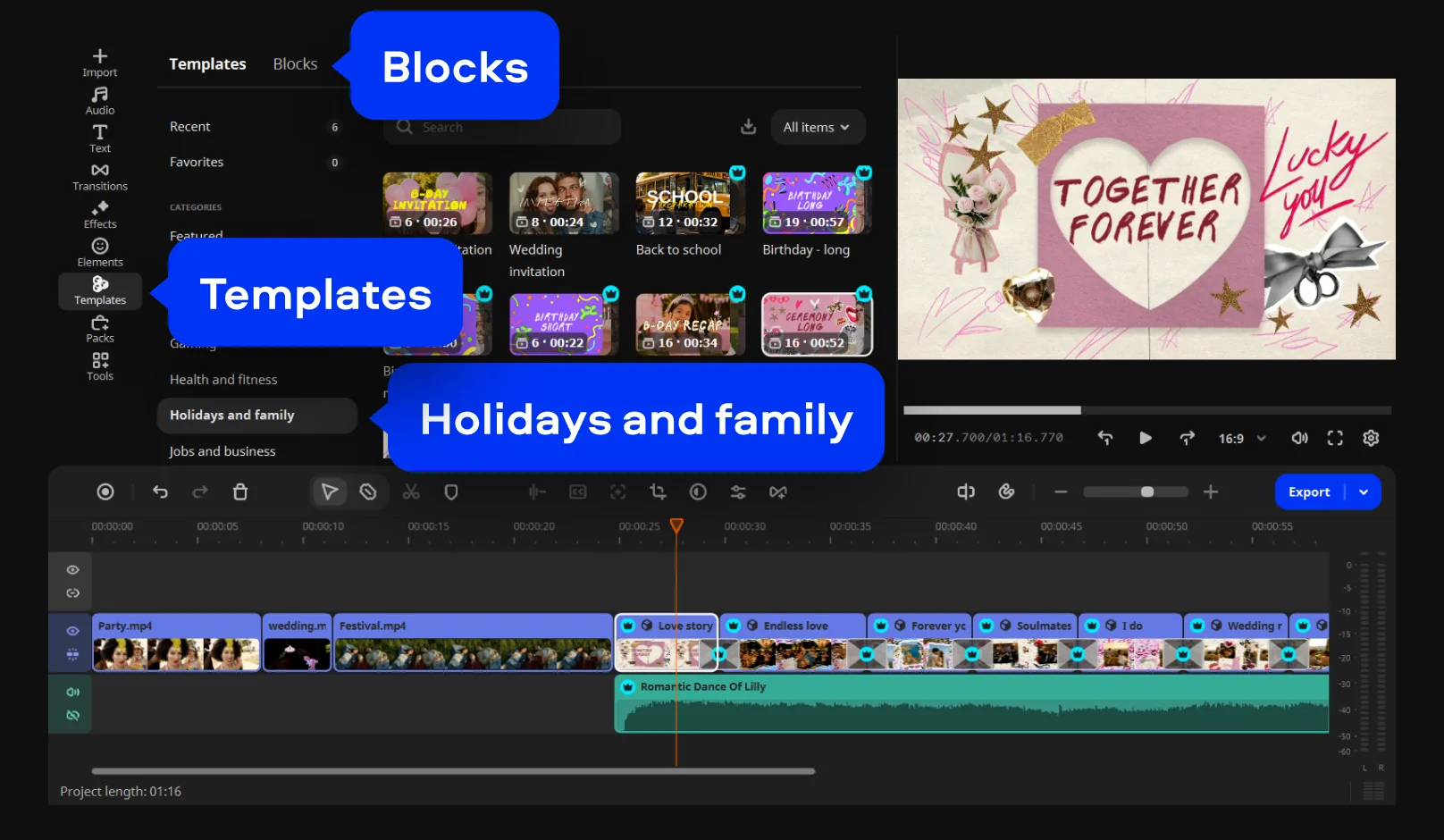
Click Templates on the left panel and select the Holidays and family category. Drag a wedding preset – like Wedding or Ceremony – onto the timeline. Replace the placeholder footage inside each Block with your own clips or photos, one scene at a time. Double-click any Block on the timeline to customize it further. You can reorder, add, or remove Blocks to shorten or extend the sequence, swap in a different Block, or build the layout entirely from Blocks you pick yourself.
Step 3. Trim footage, refine audio, and record an intro
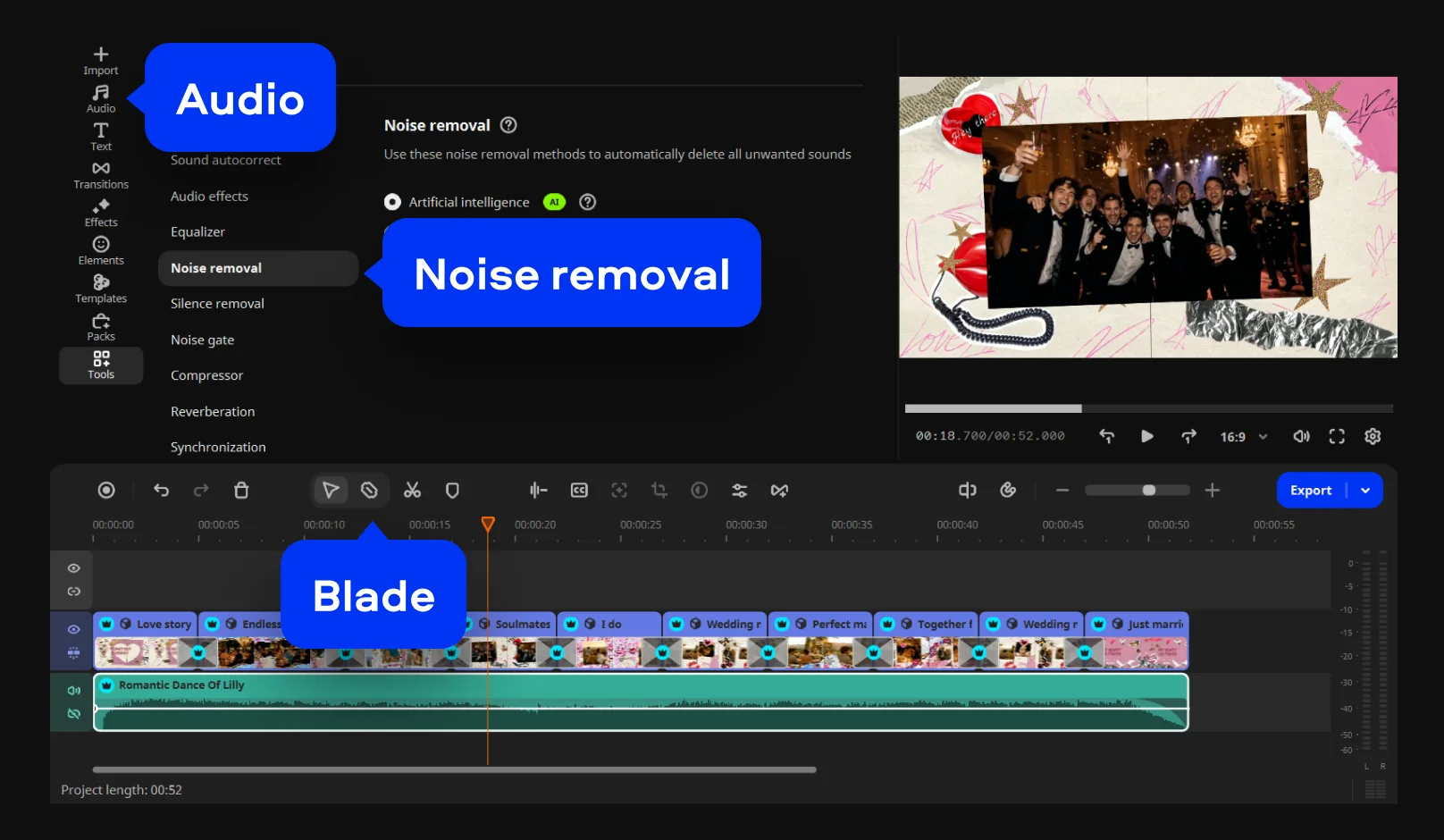
Use the Blade tool to cut dead air and keep key moments. Next, go to Tools > Audio to run AI noise removal on outdoor clips to filter background noise while keeping voices clear, then click Audio on the left panel to pick a built-in music track and fade it under speeches. If publishing to your channel, click the Record button (microphone icon) on the toolbar to capture a short webcam intro.
Step 4. Add titles, transitions, and effects
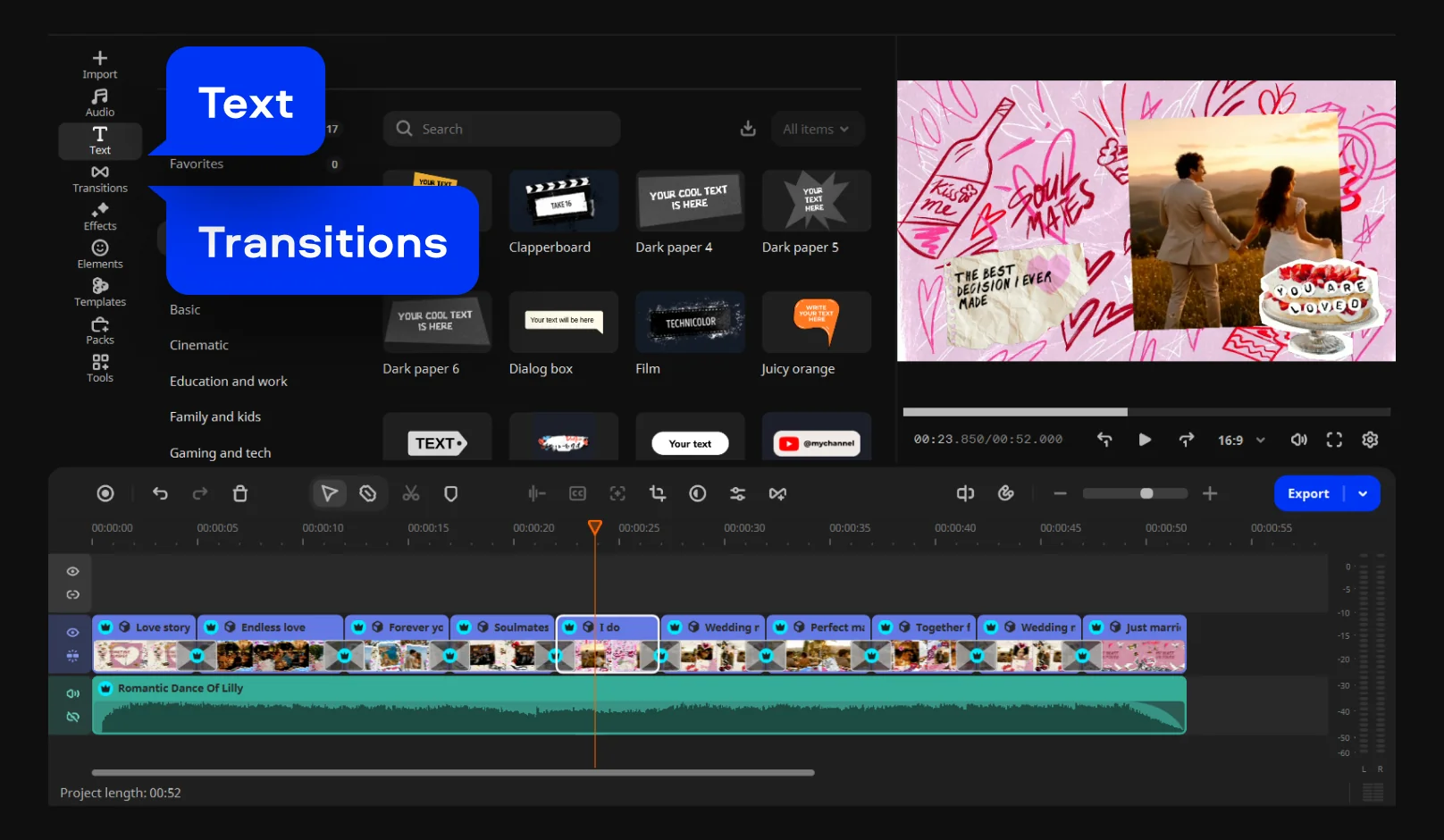
Click Text on the left panel to open the Titles collection, then add a title card with the couple's names and date – every text block is fully editable so you can match the font, color, and positioning to your style. Next, open the Transitions tab to customize how clips connect.
Step 5. Export your video
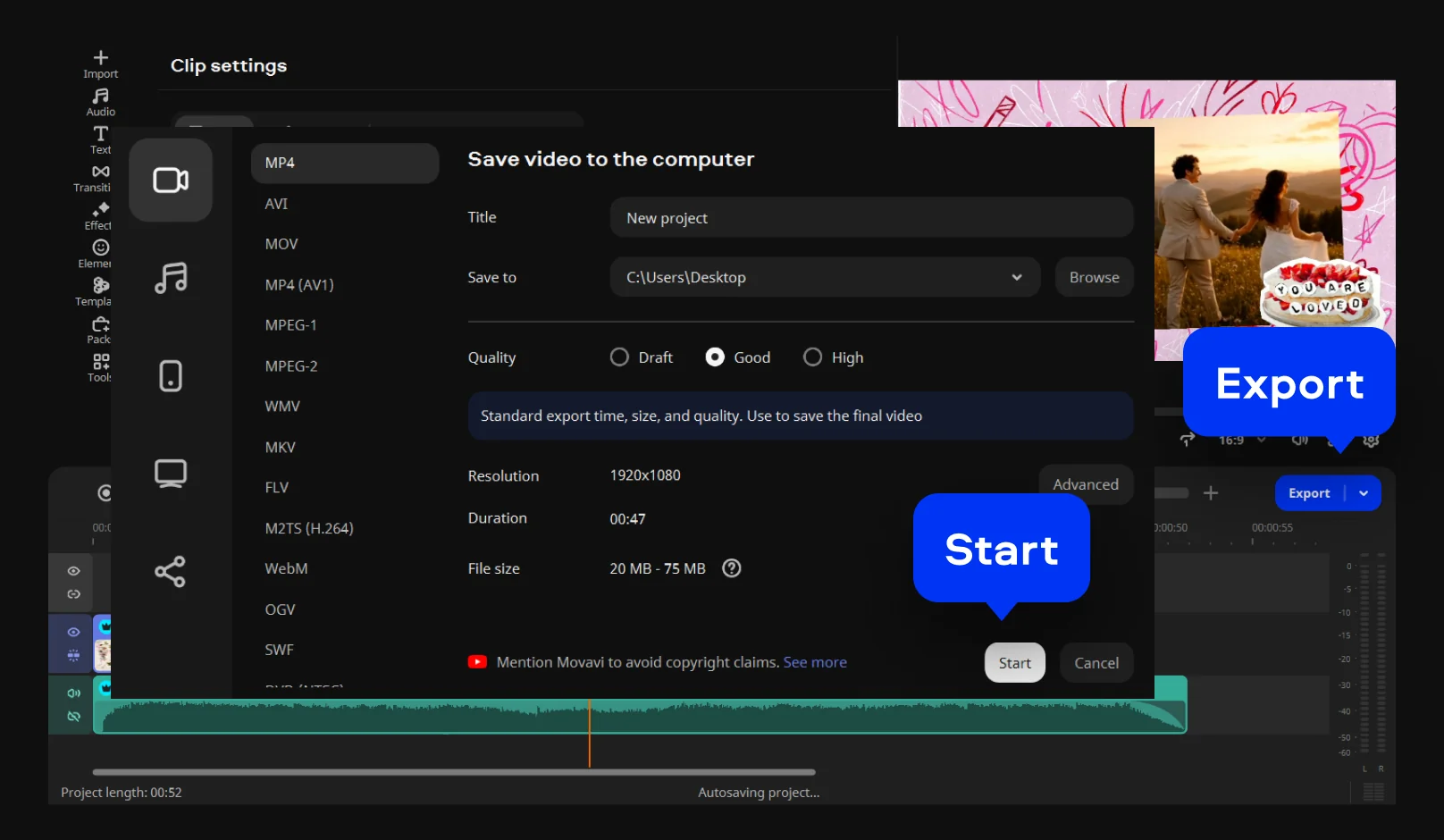
Click Export and choose MP4 for broad compatibility, then click Start to save your finished file. You can also use direct upload to send the video straight to YouTube or Google Drive for family who couldn't be there in person.
A couple of extras worth trying
If part of the ceremony is hard to hear, auto subtitles can generate captions straight from the audio – useful for a vows clip you plan to post, since viewers watching with the sound off will still catch the line that matters. If the ceremony footage is one long recording, Fast Track HD keeps scrubbing smooth while you edit, since it works on a lighter temporary copy and swaps back to the full-quality file on export. And if you're new to video editing software altogether, a free download of Movavi Video Editor lets you test templates and trim footage offline, on your own computer, before you commit to exporting anything.
Once the first wedding video is out, editing tends to become a habit – a shorter cut for social media, a longer one for the couple, maybe a same-day edit next time around. Movavi Ideas publishes a new editing idea every week, so there's usually something fresh waiting the next time you cut a video, holiday recap or graduation included.
Movavi Video Editor
Create awesome videos easily

Frequently asked questions
Do I need experience to edit a wedding video?
Do I need experience to edit a wedding video?
No. The templates are built for beginners – you're filling in an existing structure with your own clips, not designing one from scratch.
What file format should I export a wedding video in?
What file format should I export a wedding video in?
MP4 plays on the widest range of devices and platforms, including direct upload to YouTube.
Can I mix photos and video clips in the same wedding video?
Can I mix photos and video clips in the same wedding video?
Yes – Movavi imports JPEG and PNG photos alongside MP4 video, and you can set how long each photo displays before the next clip starts.
Can I edit a marriage video for free?
Can I edit a marriage video for free?
Yes – Movavi Video Editor is a user-friendly program for PC and Mac with a free download you can use to build and preview a project before exporting the final file.

Have questions?
If you can’t find the answer to your question, please feel free to contact our Support Team.
Join us for discounts, editing tips, and content ideas


1.5M+ users already subscribed to our newsletter