Need more tools?
Bring your creative ideas to life with Movavi Video Converter – the all-in-one program.
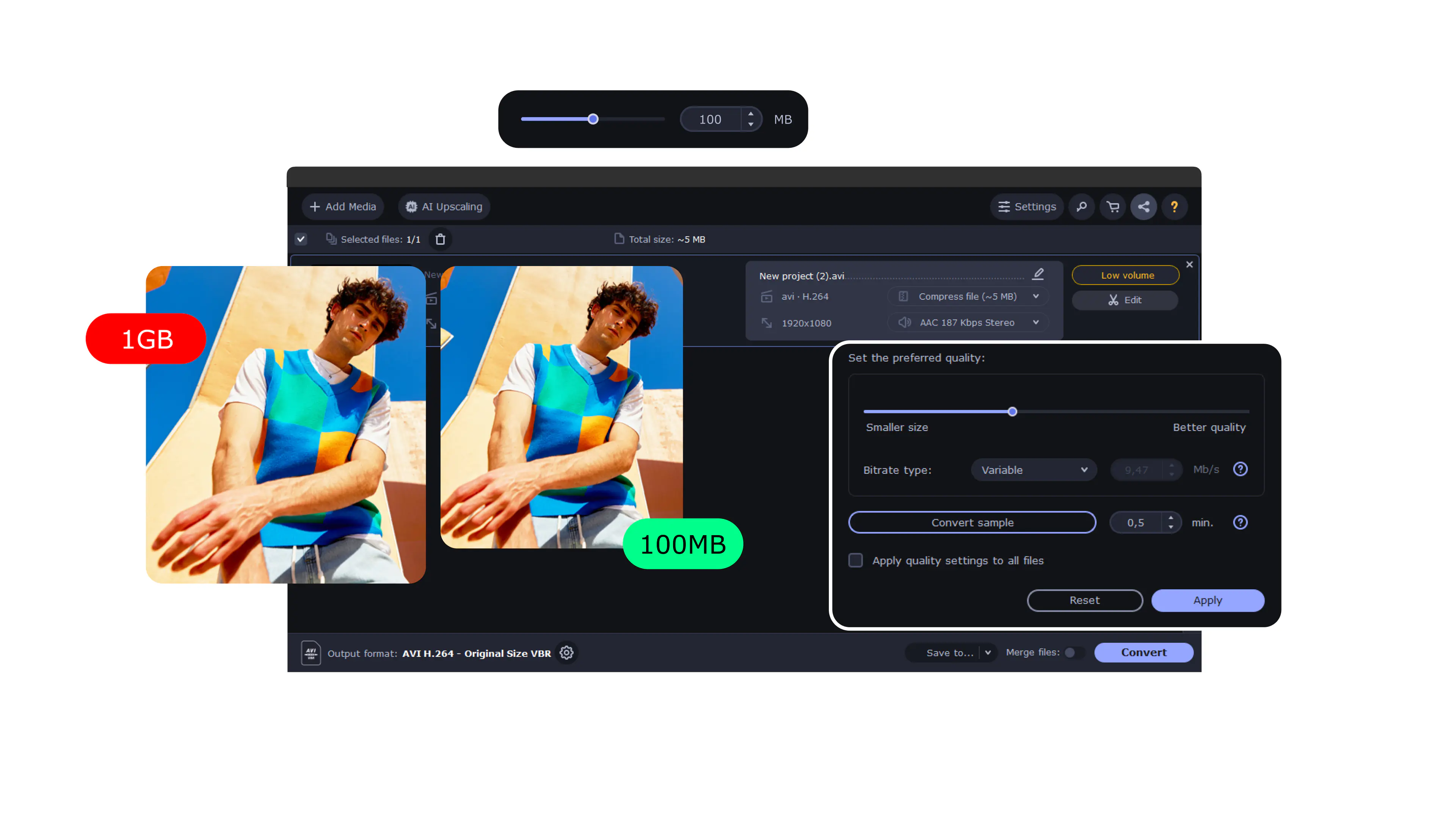
If you need to reduce photo file size, try Movavi Video Converter
Image format compression comparison
Comparative study – JPEG-LS vs. PNG vs. QOI vs. JPEG2000 (lossless)
Advanced modern formats overview (AVIF, HEIC, JPEG XL)
Modern format comparison – AVIF vs. WebP vs. JPEG XL
Image compression benchmark (many codecs tested)
WebP official documentation
AVIF technical overview
JPEG XL technical details
JPEG-LS overview (ITU standard)
JPEG2000 documentation
Rotate
Resize
Combine
Remove objects
Fix blurry photos
Convert images
Convert WebP to JPG
Convert HEIC to JPG
Convert WebP to PNG
In simple terms, compression makes an image file smaller. The image still looks the same to the eye, but the file behind it carries less digital “baggage.” Sometimes the data is packaged more efficiently; sometimes a bit of visual detail is dropped – usually the kind you’d never notice unless you zoom in close. The result is a familiar photo that opens faster, uploads quicker, and doesn’t eat up storage for no good reason.
Mostly when the size of a file starts getting in the way. Maybe you’re trying to upload photos to a website and the page crawls. A client wants 200 images and your email politely refuses to attach them. Or your phone flashes “Storage full” yet again. In moments like these, shrinking image files is the easiest way to keep everything moving smoothly.
Generally, yes. Your pictures are processed only to reduce the file size – not to identify faces, read text, or analyze content. Files stay on your device unless you choose to upload them and, if you do, the transfer uses secure protocols. You decide what goes in and what comes out. Nothing is shared, stored, or reused behind the scenes.
Picture a folder of vacation shots – hundreds of megabytes, maybe more. Now imagine the same folder five times smaller, yet with the files looking almost identical during normal viewing. Uploading and backups take less time, browsing feels snappier, and websites with smaller assets load noticeably faster (something search engines appreciate it, too). Done carefully, compression barely changes what you see – just how large the file is.
Quite a few. JPEG/JPG, PNG, GIF, BMP, and TIFF are the classics. Newer formats like WebP, AVIF, HEIC/HEIF, JPEG XL, and JPEG 2000 are supported as well – useful if you work with modern cameras or web assets. You can compress a single image file or a whole batch at once, which saves a lot of time when exporting large datasets.
Movavi applies several optimization techniques “under the hood” – sometimes lossless, sometimes lossy, depending on your settings. It adjusts bitrate, re-encodes textures, and cuts redundant data while aiming to keep the image visually intact. Results vary, but reductions of between 20% and 80% are common. For everyday tasks – websites, sharing, cloud storage – the image usually remains looking clean and natural.
Lossless compression is like vacuum-packing clothes: nothing gets thrown away, just folded tighter. When decompressed, the image returns to its original state pixel-for-pixel.
Lossy compression goes further – it discards a small amount of visual data to achieve even smaller files. You can’t fully restore it later, but in most cases the change is too minor to notice. People tend to use lossless for editing or archiving, and lossy for large photo sets where file size matters more.
AVIF, WebP (especially in lossless mode), HEIC, JPEG-XL, and JPEG-LS all perform extremely well. Many users notice that AVIF and JPEG-XL keep photos crisp while reducing file size dramatically. If you need perfect, bit-for-bit preservation, JPEG-LS or lossless JPEG-XL is a good choice, as long as your software supports those formats.
For most sites, WebP or AVIF hits the sweet spot – smaller files, fast loading, and solid visual quality. A lossy setting around 60–80% usually works well for photos. Logos, UI icons, and illustrations tend to look best in PNG or lossless WebP to avoid pixelation or edge artifacts. It’s worth testing a couple of levels on your actual page – even shaving off 10–20% more can noticeably improve speed.
Need more tools?
Bring your creative ideas to life with Movavi Video Converter – the all-in-one program.


1.5M+ users already subscribed to our newsletter