Need more tools?
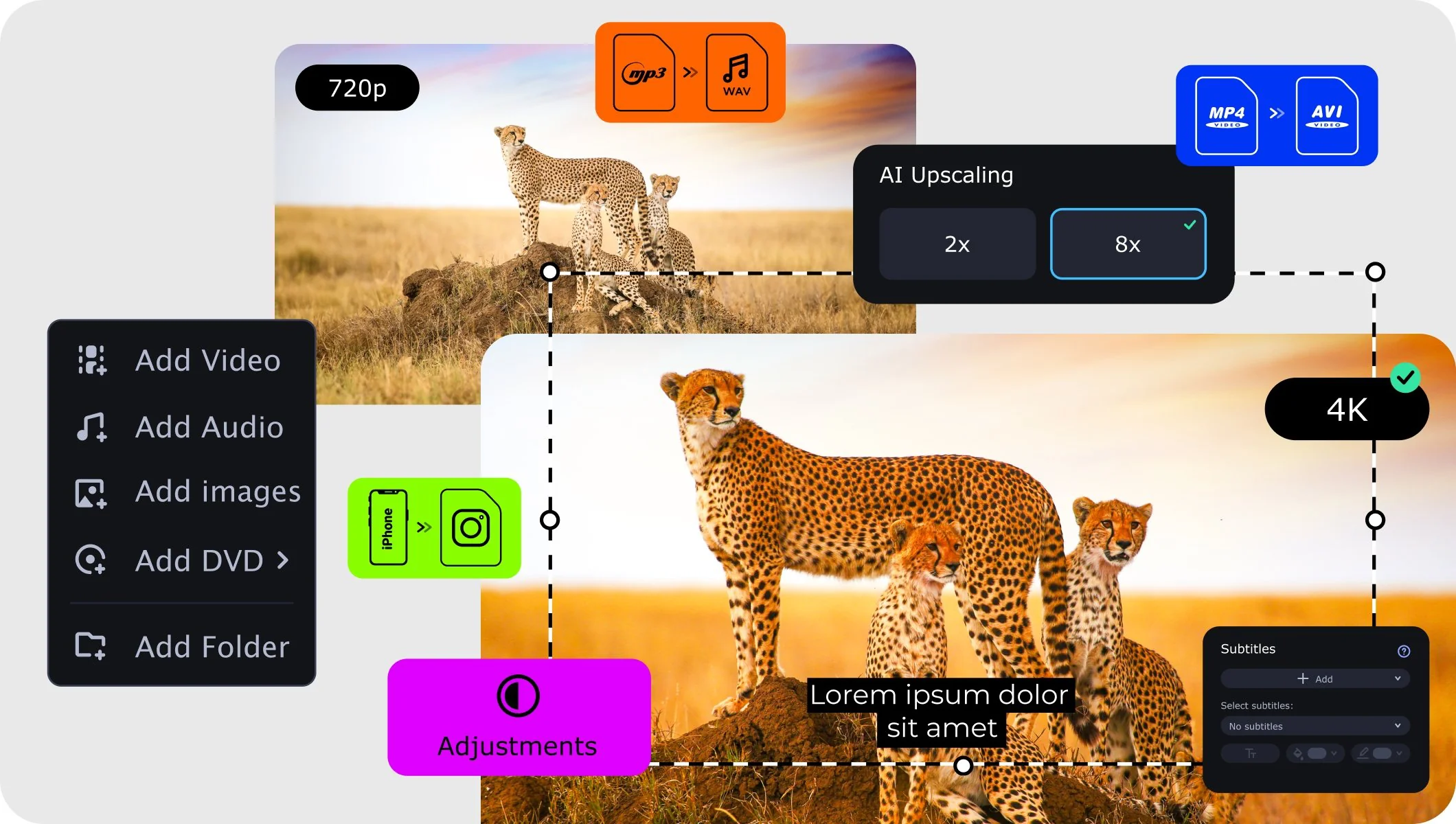
Bring your creative ideas to life with Movavi Video Converter – the all-in-one program.
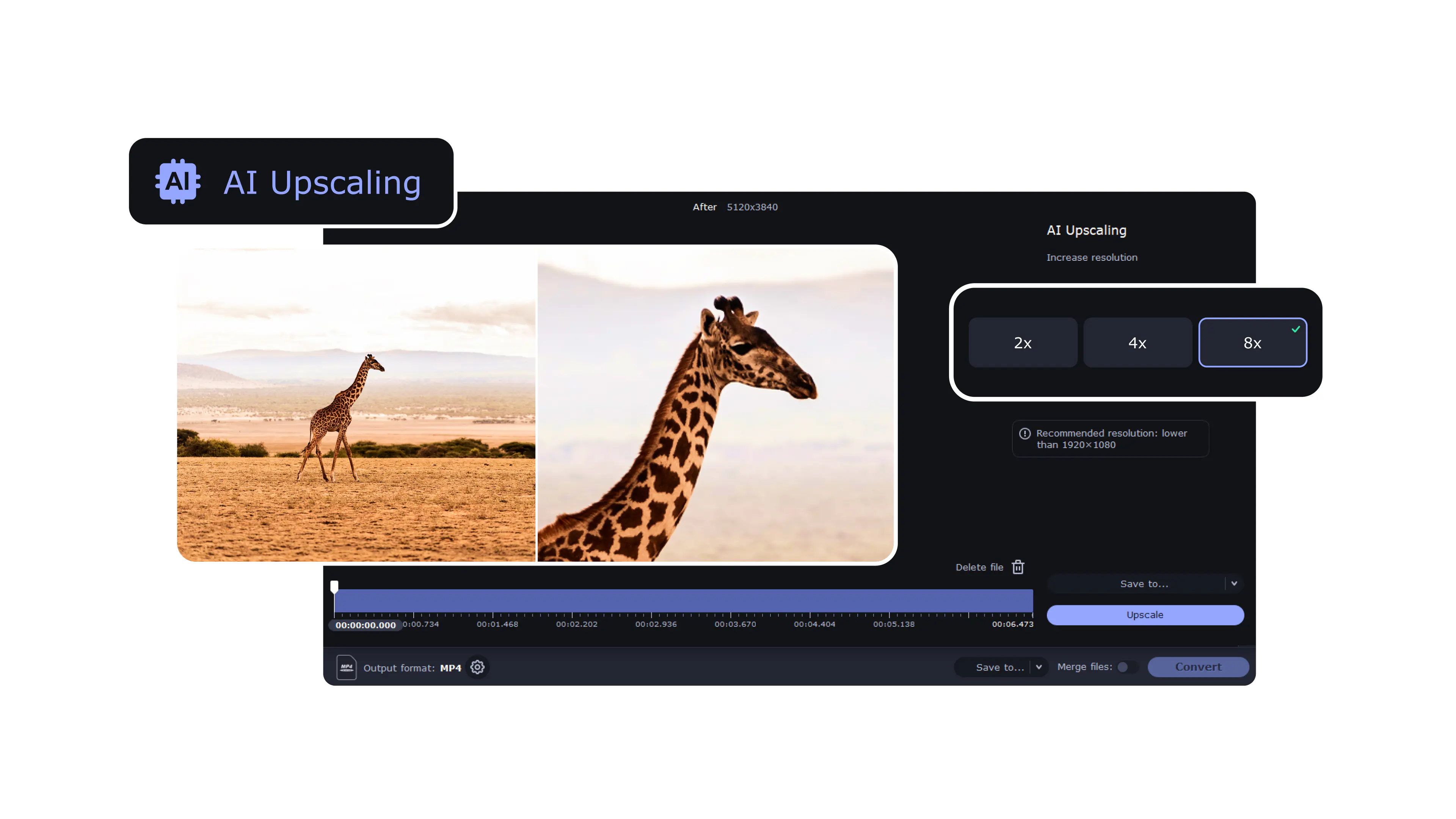
If you need to increase image resolution, try our Image Upscaler and improve your image quality for free
An image upscaler increases resolution so that the picture can be printed at a larger size or viewed on a big screen without it turning into a pixelated grid. Instead of stretching pixels, it rebuilds the image with more pixels. In Movavi’s version, you just pick x2, x4 or x8 and export - no complex configuration, just a quick jump in size for design work, print layouts, or viewing on high-res monitors.
Often yes, at least compared to basic enlargement. More pixels usually mean a smoother, more stable look when you scale up a small photo. It won’t invent missing texture or remove excessive noise, but for web graphics, product shots or old images you’re preparing for print, the results typically look cleaner and more usable.
In many cases it is. A small image enlarged properly tends to feel sharper and less muddy on modern screens. The final look still depends on what you start with, because Movavi doesn’t add any sharpening or AI-reconstruction. Very soft or compressed photos will still enlarge, just with more subtle change - more size than transformation.
Yes. With x2/x4/x8 scaling, you can push even modest source photos to poster-ready dimensions if the original isn’t too small. Web banners, large monitors, prints - all doable. The final output always scales from whatever size you begin with, so a bigger base file gives more room for expansion.
You load an image, choose a scale and export. That’s pretty much it. No additional filters or enhancement layers - just straightforward enlargement. It works well when you don’t want to delve through editing panels but just need a higher-resolution version quickly.
Photos with decent clarity: phone pictures, catalog shots, scanned artwork, product listings, graphics for web use. They tend to stretch gracefully. Very tiny or heavily compressed files still upscale, but the improvement is more about getting a workable large version than recovering lost detail.
No, this tool just handles scaling. It doesn’t sharpen resolution, reduce grain, or rebuild missing information. Think of it as straight upsizing rather than a retouch. If a photo needs cosmetic fixes, that part should be done before or after in another editor.
Three fixed steps: x2, x4 and x8. x2 is minor, x4 jumps into high-resolution territory, and x8 is the “go big” setting for very small originals. The presets make it easy to estimate the final output without having to do the math every time.
Need more tools?
Bring your creative ideas to life with Movavi Video Converter – the all-in-one program.


1.5M+ users already subscribed to our newsletter