Say you just got back from a trip with a phone full of clips, or you need a short promo for your online shop. Find a suitable template – a ready-made project built from Blocks: short segments of the video, such as an intro, a photo montage, or a closing card. You fill the Blocks with your own footage instead of building from a blank timeline.

Movavi Video Editor Tutorial for Beginners | How to Start Editing With Movavi
- Trim, cut, crop, and rotate videos
- Add titles, stickers, and transitions
- Apply visual effects
By clicking the download button, you're downloading a free version of the program.*

Edited by
12,567
This guide takes you from raw clips to a finished video in Movavi Video Editor, even if you’ve never edited before. Movavi Video Editor is an intuitive video editor with customizable video templates, one-click AI tools, and hundreds of drag-and-drop effects. Movavi Video Templates is a multi-style library of customizable, pro-looking, modular templates for any kind of video. Nearly everything runs off a single click, and starting from a ready-made template gives you pre-set transitions, text, and music, so you only add your footage. This video editing tutorial for beginners covers the whole workspace – bringing in your footage, working with the core tools alongside the AI-powered ones, dropping in subtitles, building from templates, and getting the finished file. A weekend travel vlog, an album review, or a gadget unboxing all follow the same basic path through the program.
In this guide, you'll learn:
- Which version of Movavi Video Editor fits your PC, Mac, or Windows laptop
- How to use Movavi Templates and create projects from a blank timeline
- What the AI-powered tools take care of automatically – subtitles, noise, cropping
- How to keep finding new editing tips every week
Choosing your Movavi Video Editor version
Before you even open the program, it's worth sorting out which version you've got – that's what decides what you're actually allowed to export once you're done.
Movavi Video Editor runs on Windows 10 and 11 (64-bit, fully patched) and on macOS 12.0 or later, with native support for Apple M1 and newer Mac chips. The format list covers what most beginners actually shoot and save in – MP4, MOV, AVI, MKV, and WMV for video, MP3, WAV, and FLAC for audio, plus JPEG, PNG, BMP, and static GIF for images. Fast Track HD acceleration keeps HD footage responsive while you're still editing it.
There are three ways to get started:
Learn how to use Movavi Video Editor
Download the app and follow the steps below to create your first project with Movavi Video Editor.
Method 1: With a template (fastest)
Step 1. Add your files
Click Add Files, then select all the clips and photos you want in the video.
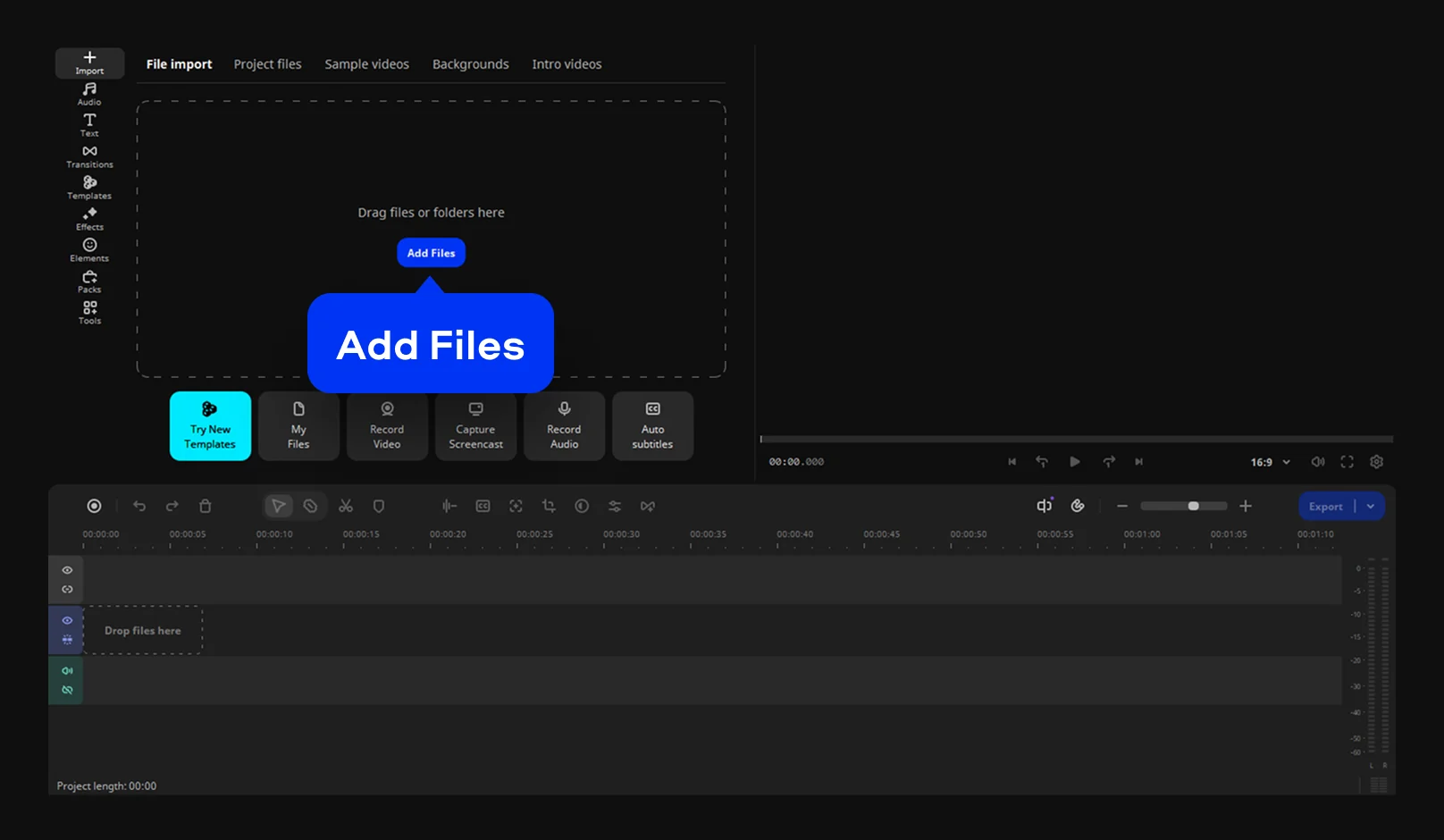
Step 2. Choose a template
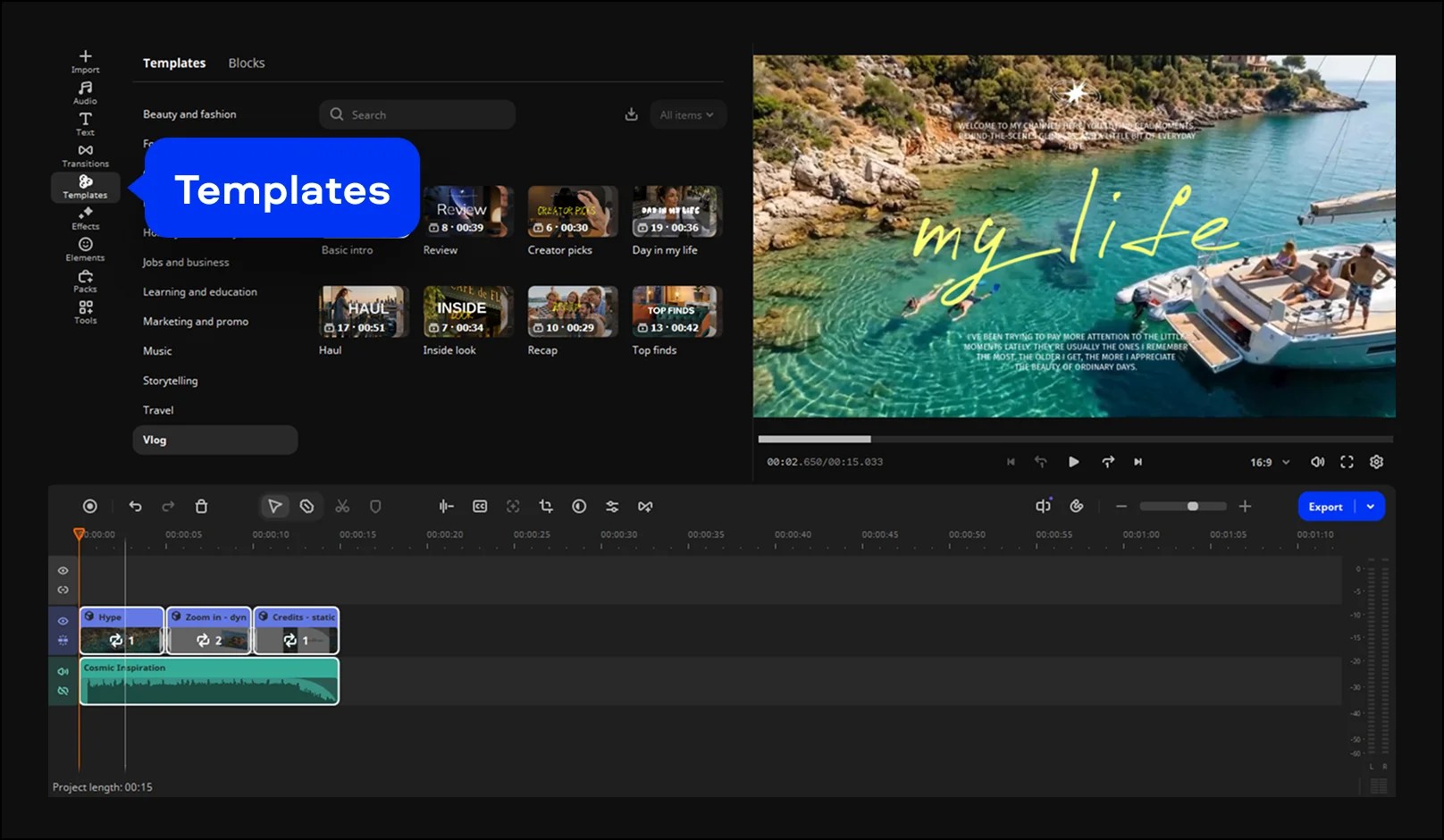
Open the Templates tab and browse until you find one that matches your video, such as a travel recap or a shop promo. Move the template onto the timeline. The Blocks appear in order, each holding a placeholder where your media goes.
Step 3. Customize the Blocks
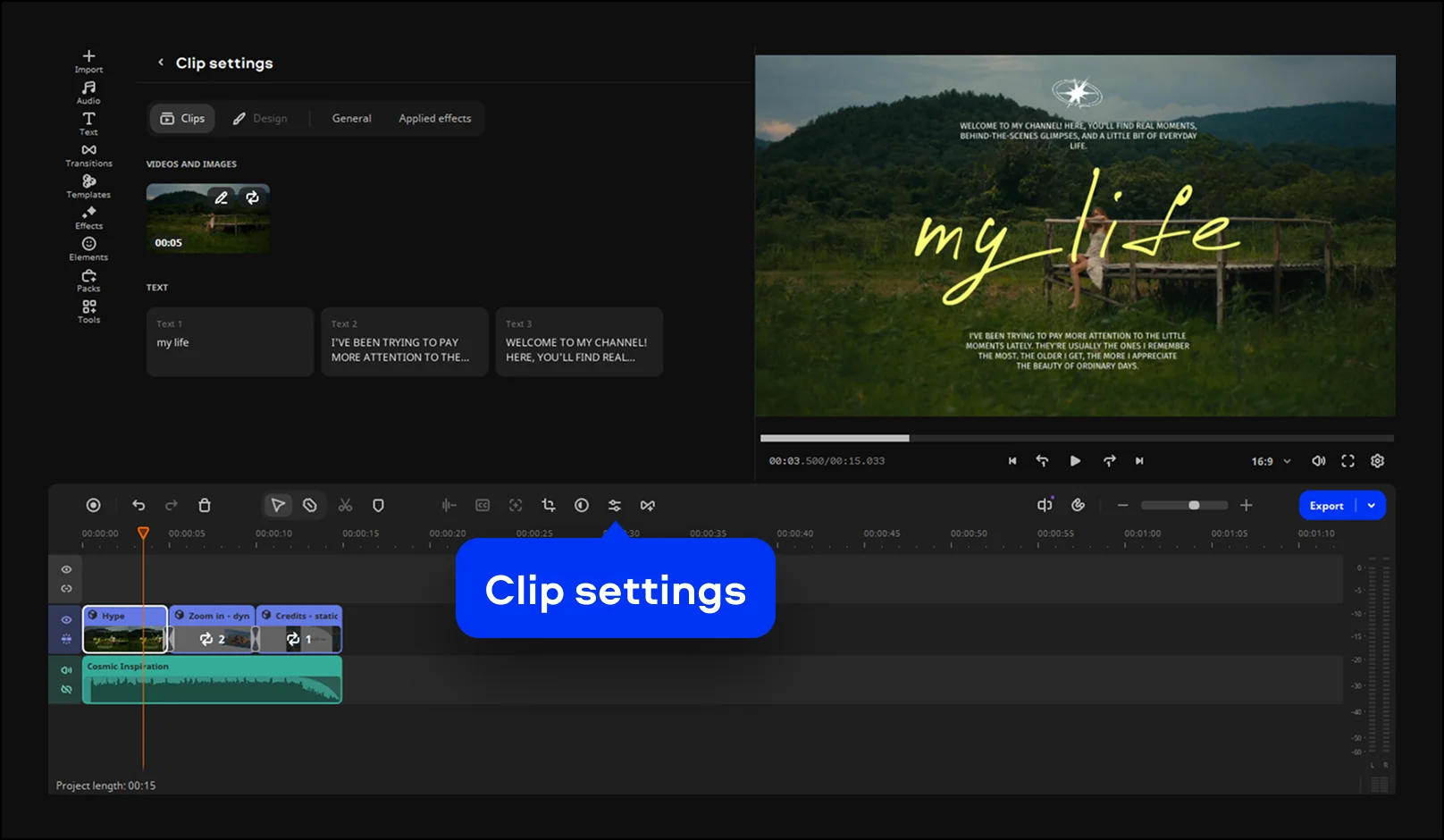
Double-click a Block on the timeline, or open Clip settings, and replace the placeholder with one of your clips or photos. For Blocks with titles, retype the default text and change the font or style if you want a different look.
You can reorder, add, swap, or delete Blocks until the pacing fits your video. Use fewer Blocks for a quick shop promo and more for a longer trip recap.
Step 4. Adjust the music, transitions, and effects
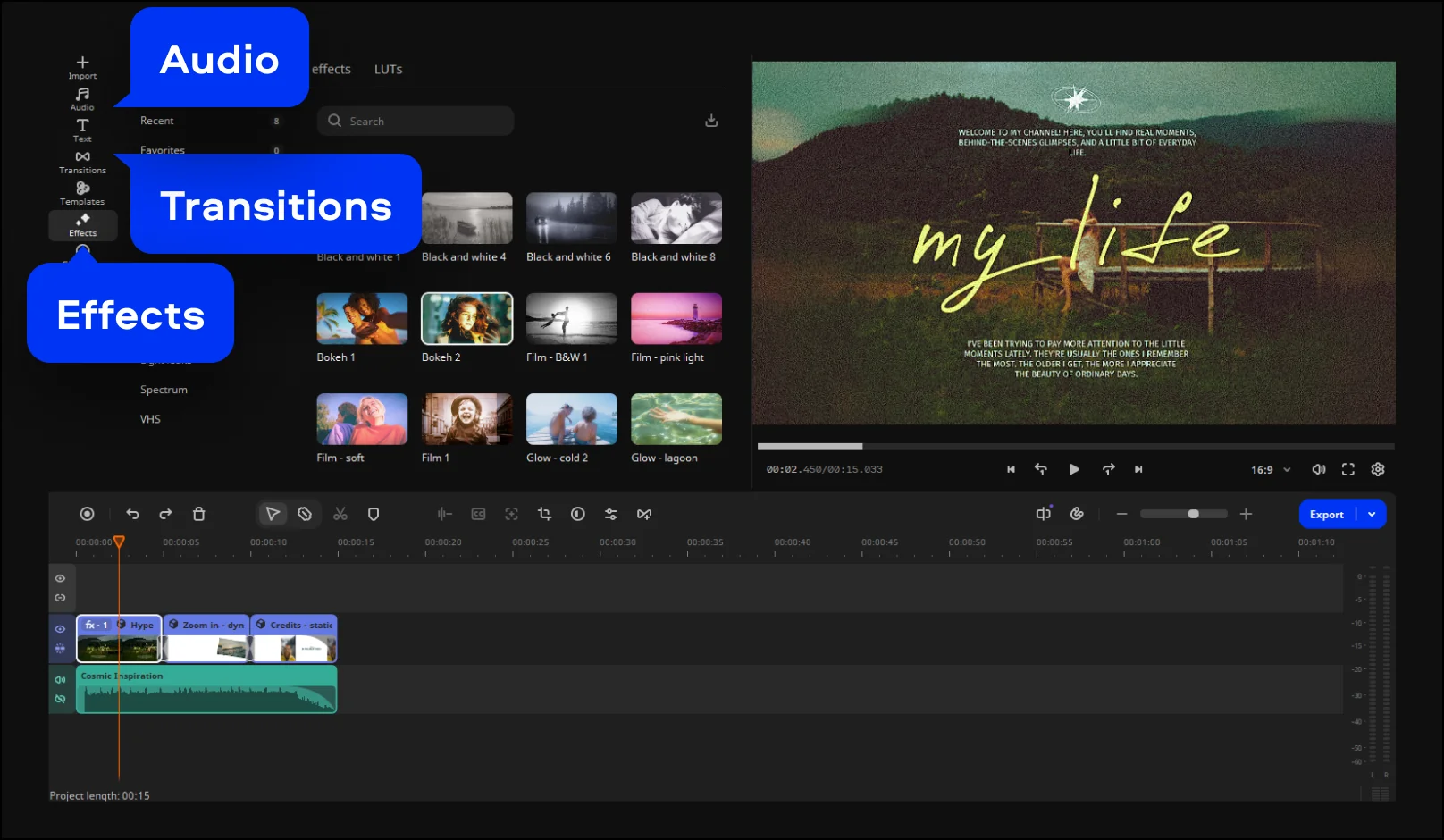
Keep the template’s music or replace it with a different track from the built-in music collection. You can also change or add transitions, apply filters and effects.
Step 5. Export your video
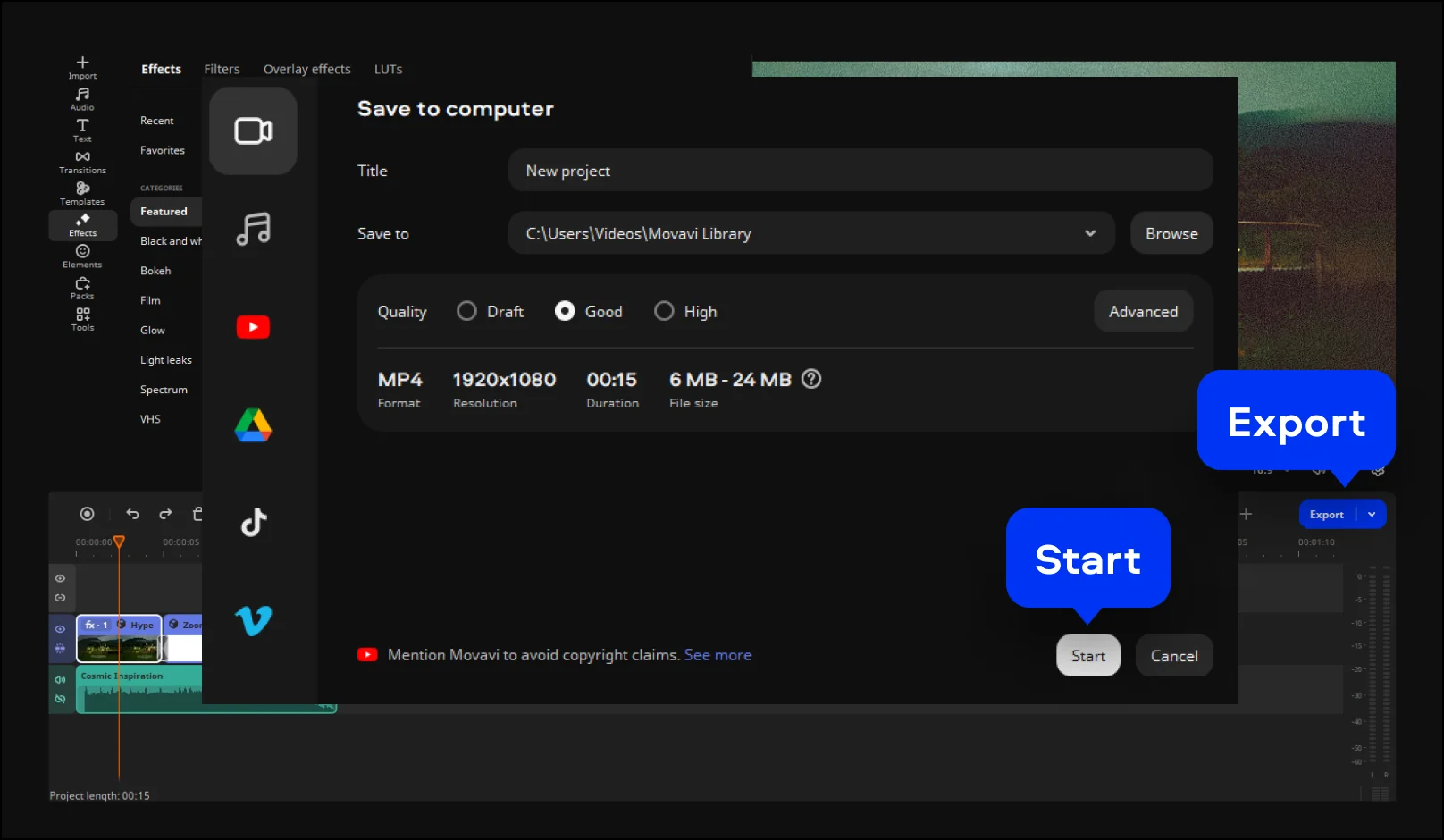
Click Export, choose MP4, then click Start. The export begins, and you’ll end up with a video that plays on most devices.
Method 2: From a blank timeline (full control)
If you like to control every cut, start with an empty timeline. A travel vlog works well here: trim the dead space and keep the strongest shots.
Step 1. Add your files
Click Add Files, then select your clips, photos, and any audio you plan to use. Select them all at once so everything is ready before you start editing.
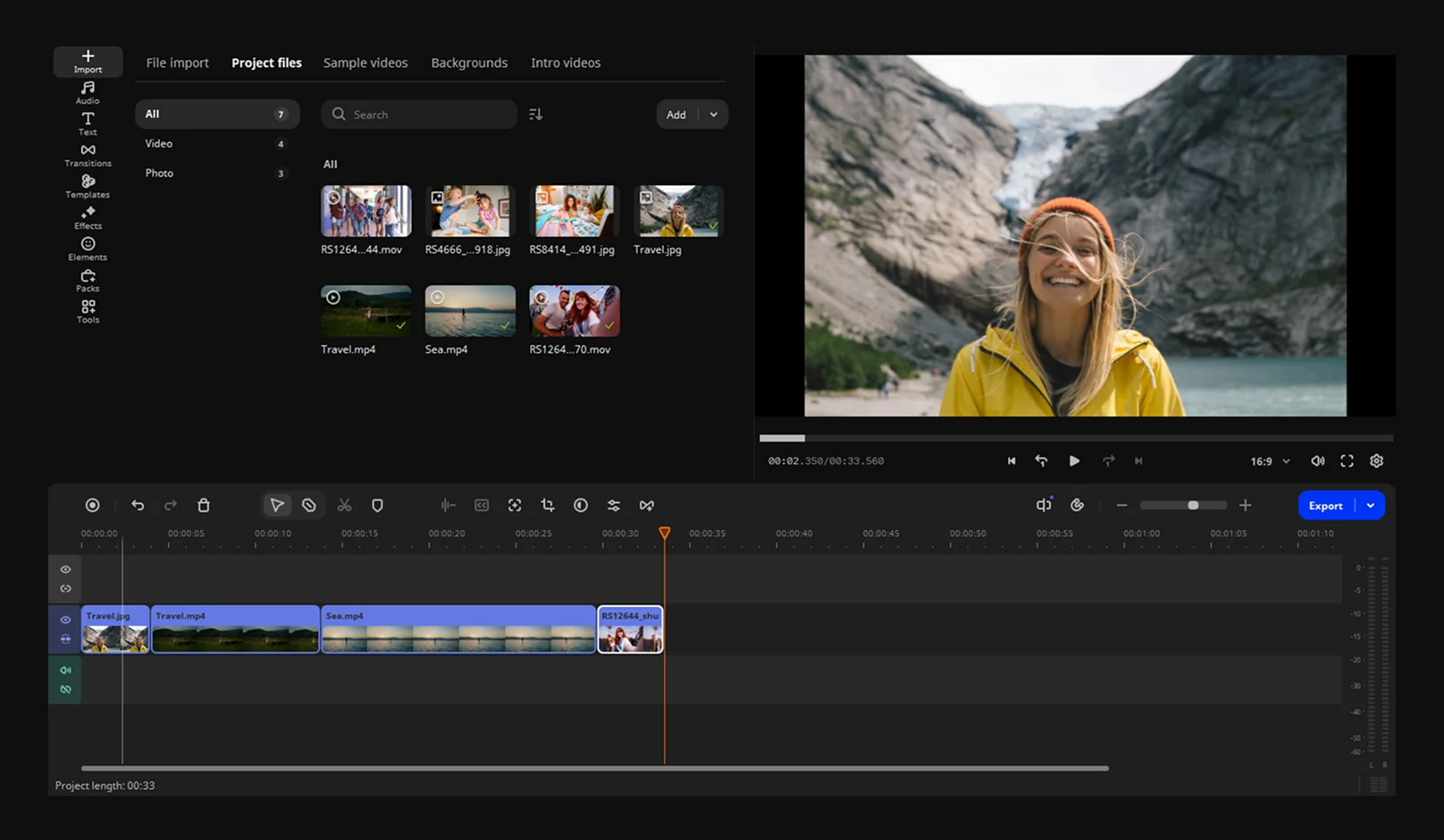
Step 2. Arrange your clips
Drag your clips onto the timeline in the order they should play, starting with your opening shot. Each clip snaps to the edge of the one before it, so there are no gaps between them.
Step 3. Split and trim your videos
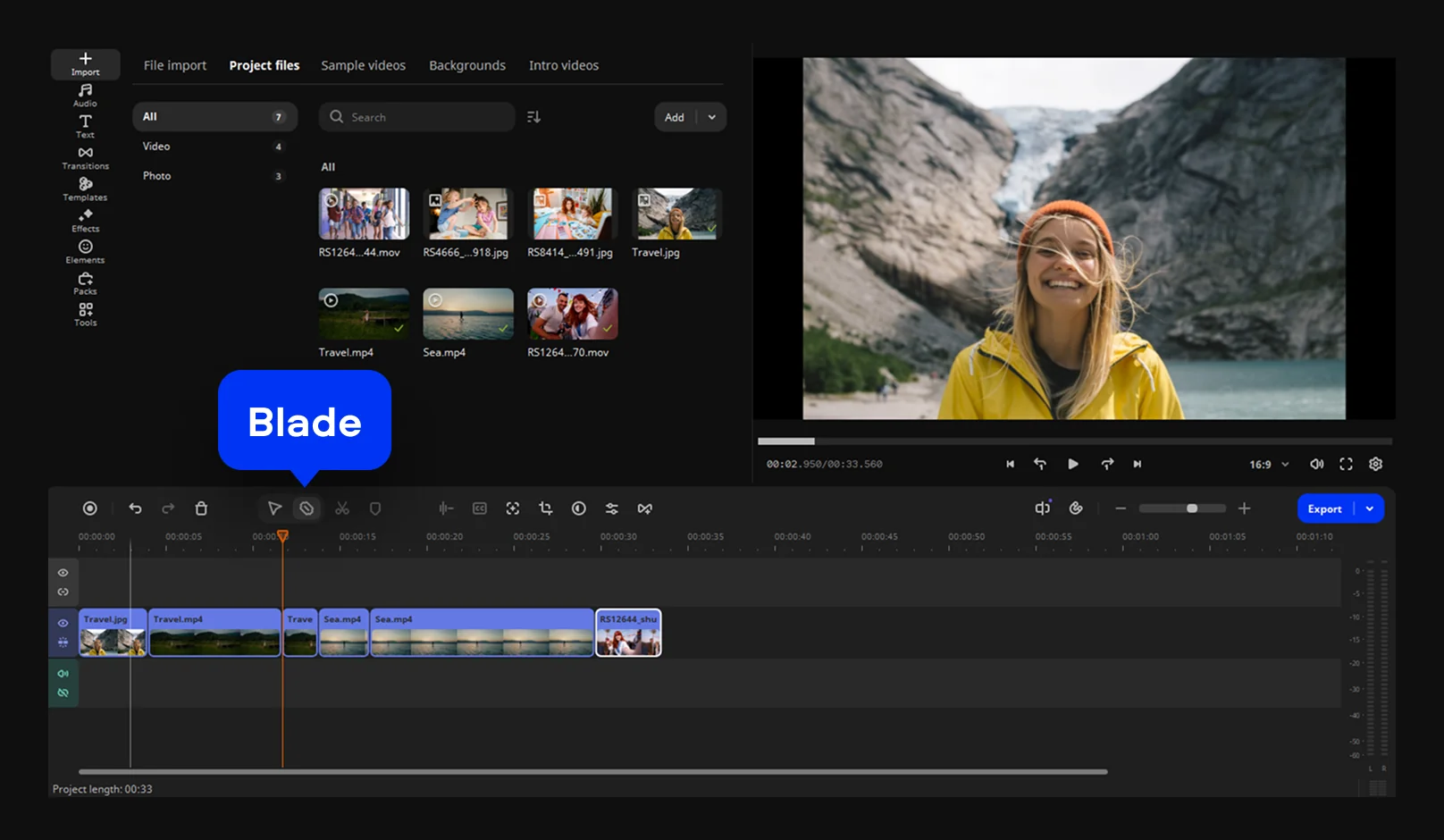
Select the Blade tool and click a clip at the exact point where you want a cut. Each clip divides into separate pieces you can move or delete on their own.
Drag a clip’s start or end edge toward the middle to cut the dead space, such as the seconds before you start talking. The clip shortens from the side you dragged.
Step 4. Preview and add effects
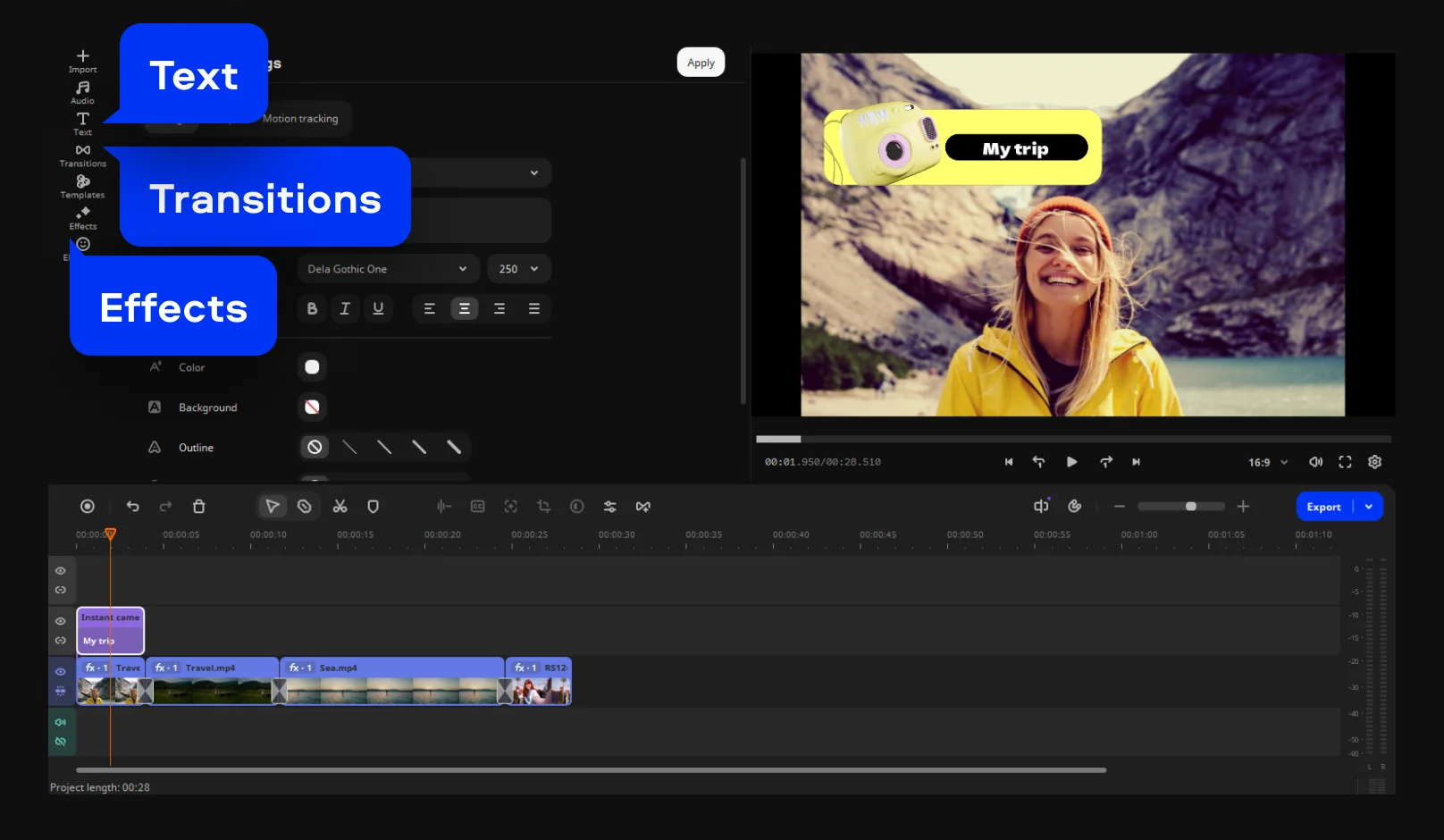
Hover over a transition, title, filter, or overlay in the effects library to preview it on your footage. When you find one that fits the mood, drag it onto a clip. For a vlog, one light filter and a single transition style are enough.
Step 5. Add music
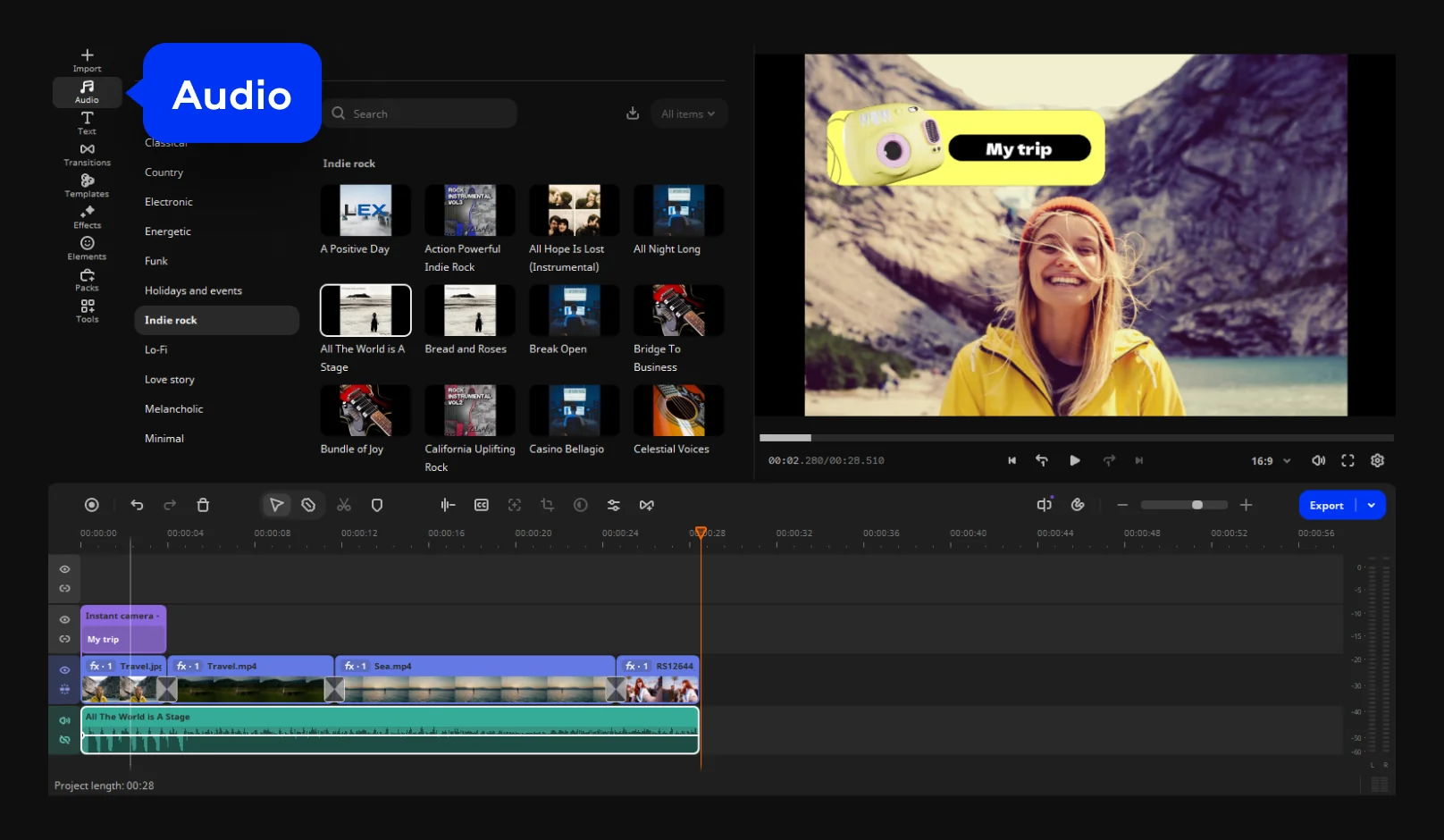
To add a copyright-free music track from the built-in library, go to Audio, select the track you like, and place it under your clips.
Step 6. Export your video
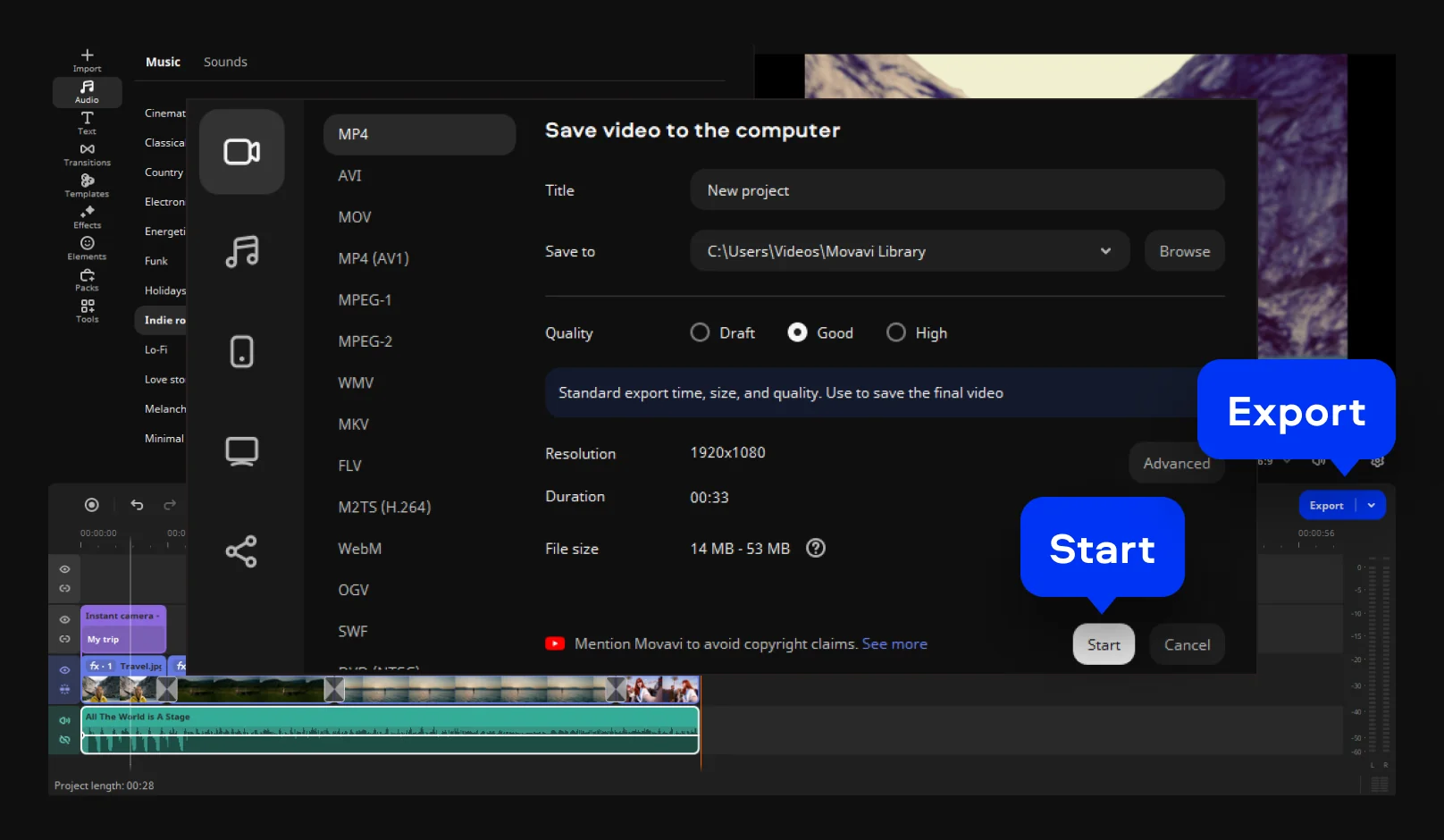
Click Export, choose MP4, then click Start. The export begins, and you’ll end up with a video that plays on most devices.
More effects and music
Movavi Video Editor comes with hundreds of built-in effects and copyright-free music and sounds. The Movavi Effects subscription adds 10,000+ effects and 1,500+ music tracks, and you can preview them on your own video for free before you buy.
Basic editing features every beginner should know
Once you've gotten through one full project, it helps to know what each core tool does by itself – you'll be reaching for the same handful of them in nearly every video from here on.
AI-powered tools in Movavi Video Editor
A lot of what makes Movavi Video Editor quick for a beginner isn't the manual tools at all – it's the AI-powered ones that take repetitive work off your plate in a single click.
Auto subtitles
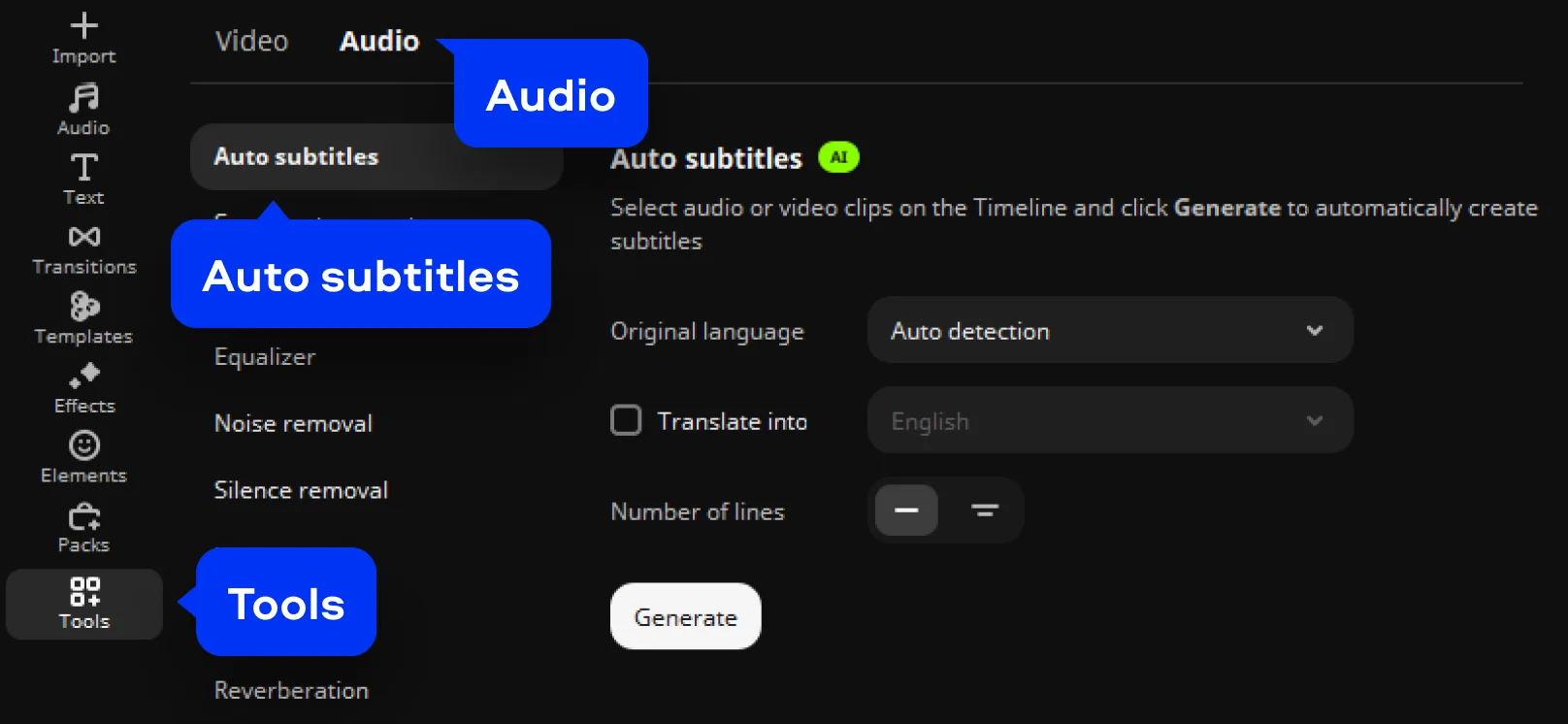
Movavi's AI transcribes your audio into on-screen text automatically, with 99% accuracy across 100+ languages . Pick from a wide range of design presets, from minimalist to bold, and let the active word-highlighting feature sync each word to the audio as it plays – the same style most social captions use right now.
Recapping a film or reviewing an album? Auto-generated captions save you from typing out everything you said – just skim the transcript for typos, nudge the timing if it's off, and move on to the next step.
AI audio noise removal
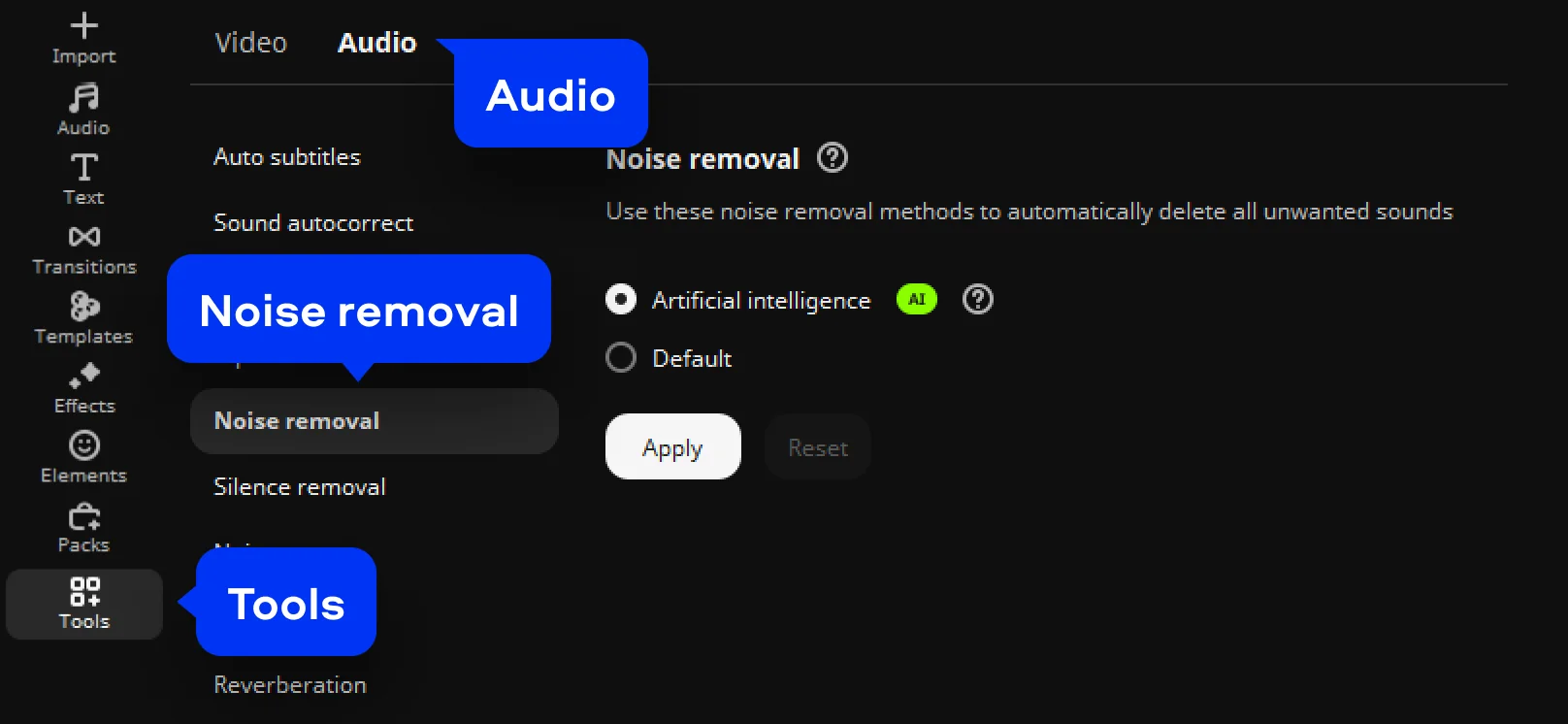
The tool strips out background sound like traffic, wind, and hums across high, mid, and low frequencies, clearing out most of the ambient noise while keeping your voice intact.
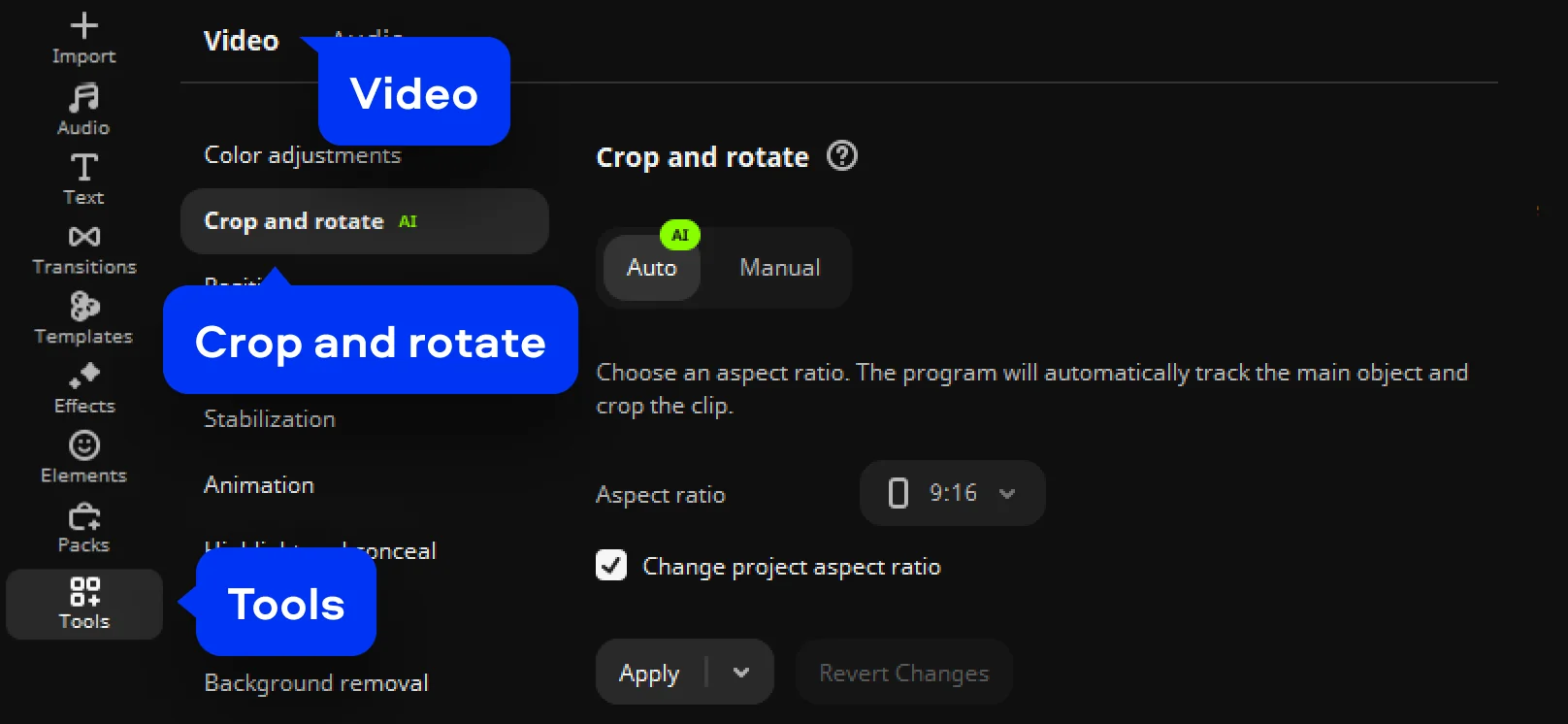
Auto-tracked cropping
Unboxing a new gadget for a review? Try auto-tracked cropping first – shoot it once, horizontally, and let the tool turn it into a vertical cut for Shorts or TikTok without you reshooting a thing.
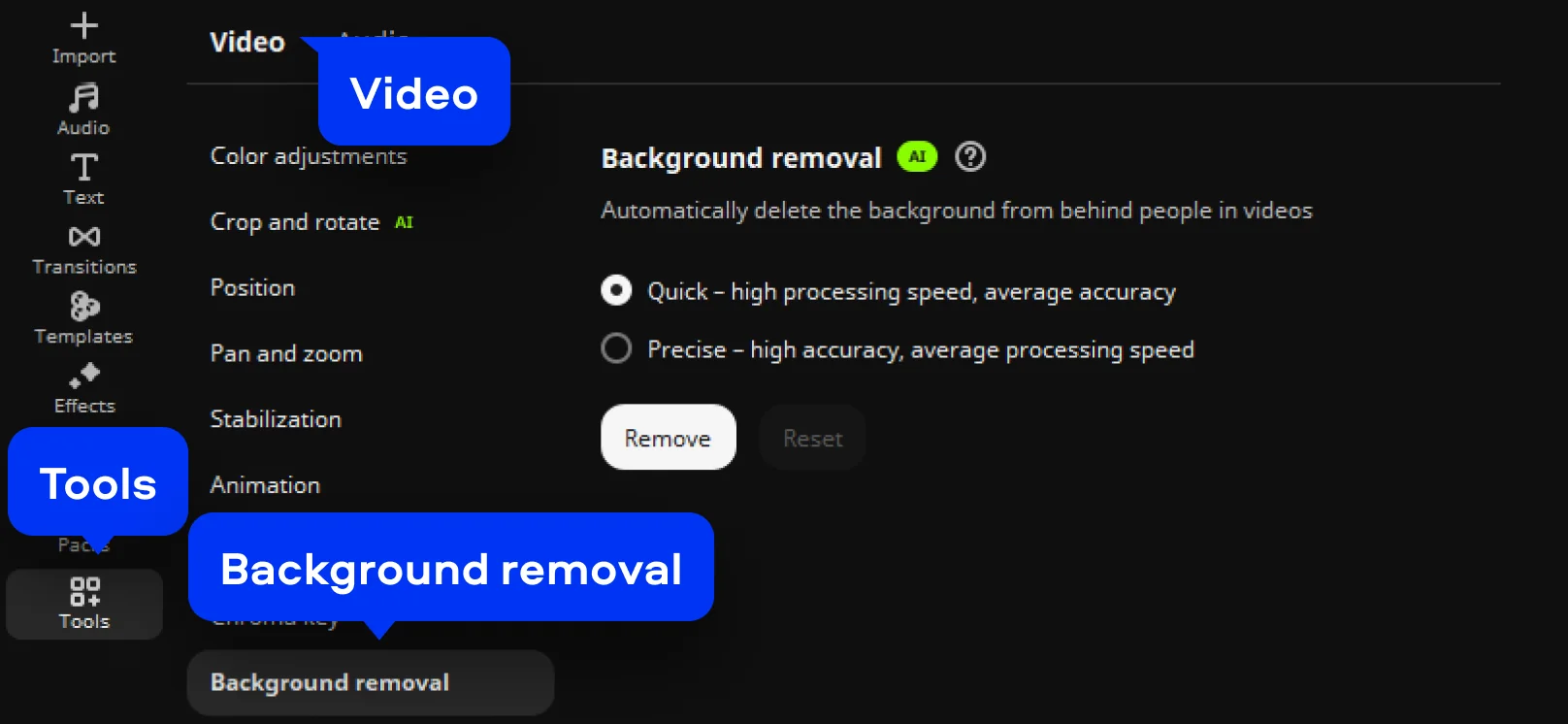
AI background removal
It detects and strips the background out of any clip with a person in it – no physical green screen required – then lets you swap in a solid color or an entirely different scene. Shooting a beauty or skincare video in a messy bedroom? It's a fast way to get a clean, consistent background without resetting the room before every take.
Movavi Ideas: New editing tricks every week
Once your first video is out, the quickest way to come up with the second one is to explore Movavi Ideas – a free, weekly tutorial hub built for exactly this stage of learning. Each entry is a short, step-by-step tutorial that's quick to work through, covering a wide range of formats: vlogs, short vertical clips, business content, holidays, family videos, memes, and more. It's an easy entry point for beginners and a steady source of new techniques for everyday creators to try on their next upload, with fresh ideas added weekly.
Tips for beginners
A few things that make the first few projects go faster:
- Start from a template. The blank timeline is the hardest part of any edit – dropping clips into pre-set Blocks gives you something to react to instead of a blank page to fill.
- Trim first, effects later. Lock in the cut before anything else – titles and effects are easier to place once you know exactly how long each clip runs.
- Match your export to where it's headed. MP4 at the resolution you're actually going to post saves you from re-exporting later.
- Save a portable project before switching computers. Bundling your media with the project file means nothing goes missing when you reopen it elsewhere.
- Check Movavi Ideas before your next project. A short tutorial can save you from reinventing a technique someone's already worked out.
Movavi Video Editor
Create awesome videos easily
*The free version of Movavi Video Editor may have the following restrictions depending on the build: watermark on exported clips, 60-second video or 1/2 audio length limit, and/or some advanced features unavailable when exporting videos.

Frequently asked questions
Is Movavi Video Editor good for beginners?
Is Movavi Video Editor good for beginners?
Yes, Movavi’s video-editing software is designed for beginners and everyday creators – most of the tools run in a single click, and the Free version lets you download it and try core features before deciding whether to buy.
Is Movavi Video Editor free?
Is Movavi Video Editor free?
Movavi Video Editor Free downloads straight from the official website and includes the core editing tools plus auto subtitles, auto crop, and silence removal, but exports keep a brief length cap, lower quality, and a watermark. Movavi Video Editor Lite lifts some of those limits but keeps a small watermark; the full version clears the watermark and the export restrictions entirely.
Does Movavi Video Editor work on Mac and Windows?
Does Movavi Video Editor work on Mac and Windows?
Yes – it runs on Windows 10 and 11 (64-bit) and macOS 12.0 or later, with native support for Apple M1 and newer chips. Fast Track HD acceleration also keeps processing quick while you're working with HD footage.
How do I add subtitles or captions in Movavi Video Editor?
How do I add subtitles or captions in Movavi Video Editor?
Open the Auto subtitles tool and let the AI transcribe your audio automatically, then choose from a wide range of design presets.
Can templates really make editing faster for a first video?
Can templates really make editing faster for a first video?
Yes – a template's transitions, music, and text are already in place, so you're customizing Blocks instead of building a sequence from scratch. Every template can be previewed on your own footage before you buy access to the full library.
What should a total beginner edit first?
What should a total beginner edit first?
Something short and low-pressure – a brief clip is enough to practice importing, merging, trimming, and exporting without getting lost in a long project. A template is the easiest way to give that first attempt some structure.
Can I remove background noise without re-recording my audio?
Can I remove background noise without re-recording my audio?
Yes – the AI audio noise removal tool clears out background sound like traffic or wind in one click, no retake needed, and there's a manual, slider-driven option too if you want more say over the result.
Can I export just the audio from my project?
Can I export just the audio from my project?
Yes – Movavi can export just the audio track in different audio formats, including MP3, WAV, and FLAC.

Have questions?
If you can’t find the answer to your question, please feel free to contact our Support Team.
Join us for discounts, editing tips, and content ideas


1.5M+ users already subscribed to our newsletter