Movavi Photo Editor

Create stunning pic on pic designs with easy overlays and creative image editing tools

Meet the Pic-on-Pic Editor – Easily Edit a Pic on a Pic

Get a free download of Movavi Photo Editor

Overlay images your way

Have an idea in mind? Edit pic-on-pic compositions by layering photos and arranging them until everything clicks. Shift elements around, play with size, tweak opacity, and watch your picture overlay come together in a way that feels just right.

Smart background control

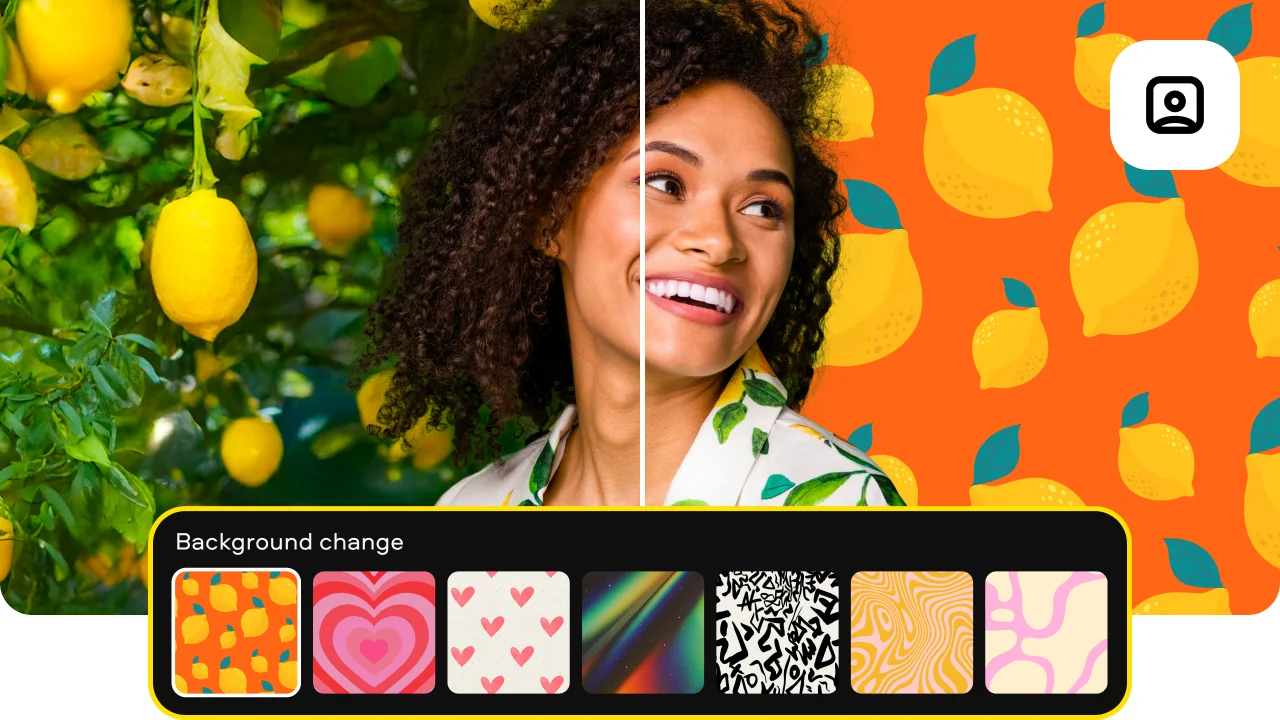
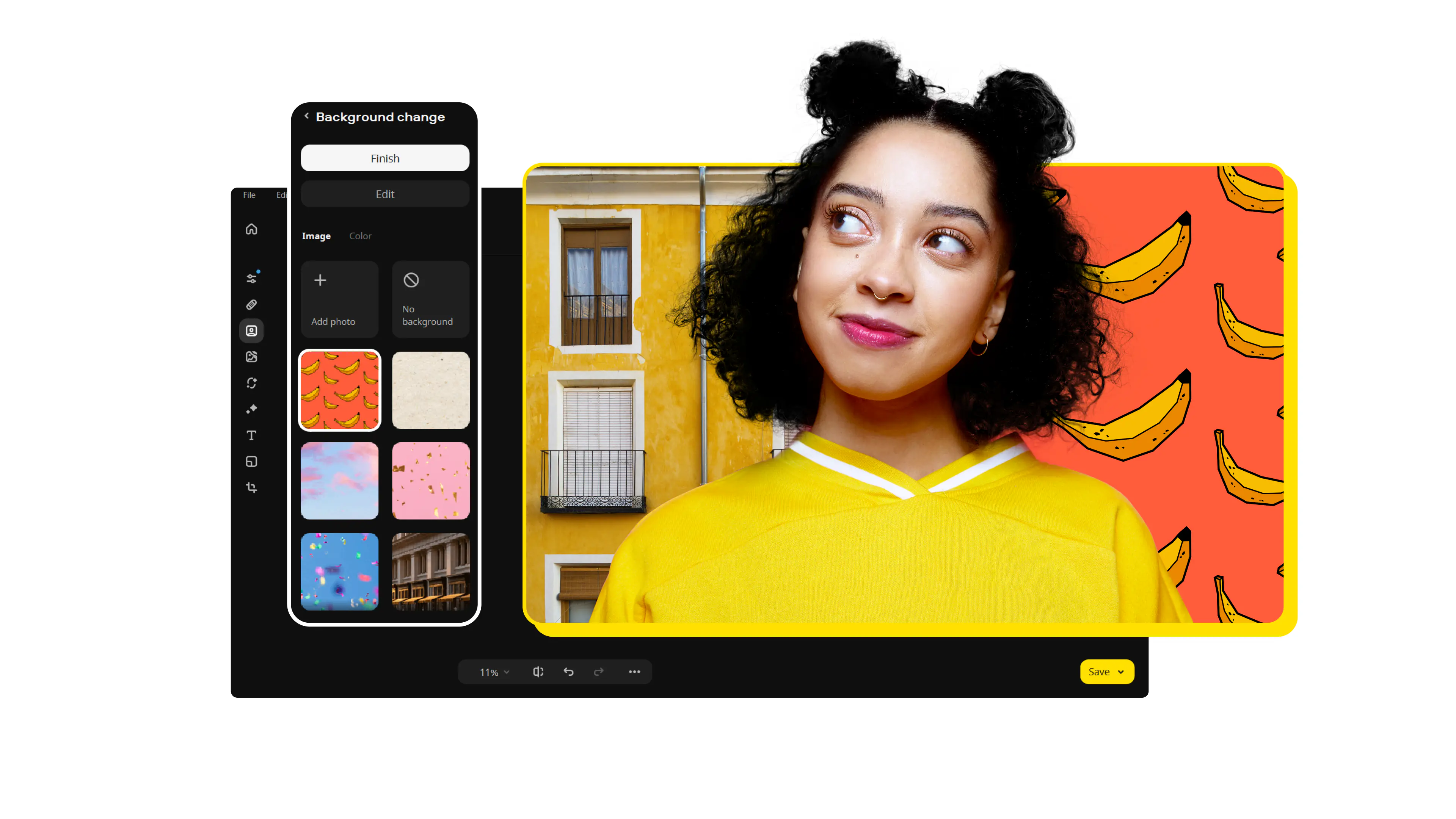
With the built-in picture-on-picture editor tools, you can separate a subject from its background and place it somewhere new. This gives you more freedom to experiment with different scenes and visual concepts.

Creative effects that bring depth

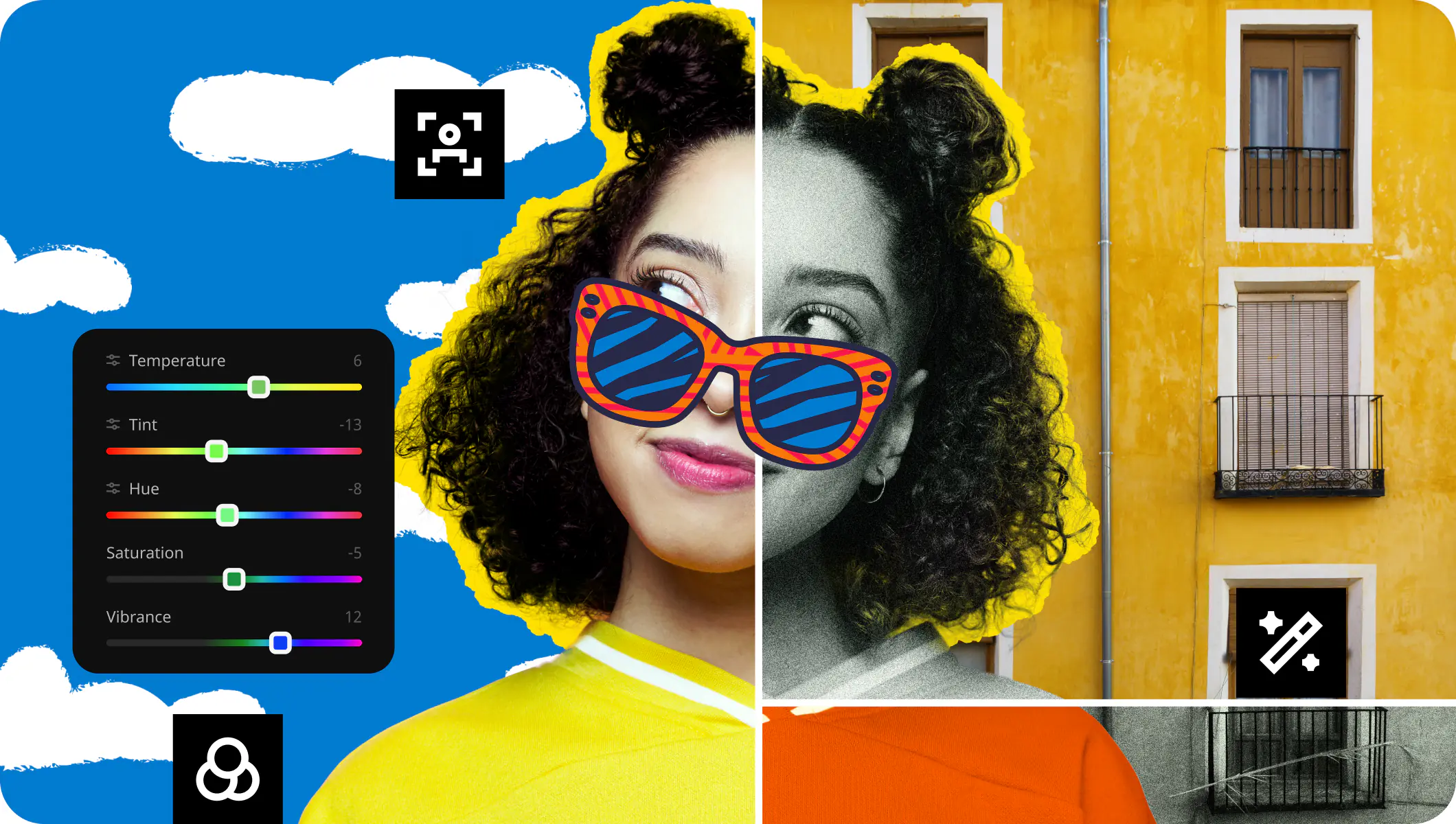
Once your images are in place, refine the look with filters, color correction, and blending modes. When you want to add a picture to a picture, these adjustments help tie everything together, giving your composition more depth and character.

Add a photo to photos quickly and easily

Want to add a photo to a photo and keep everything looking clean and natural?Movavi Photo Editor is a versatile pic-on-pic editor that helps you combine images, adjust details, and create polished results without extra effort.

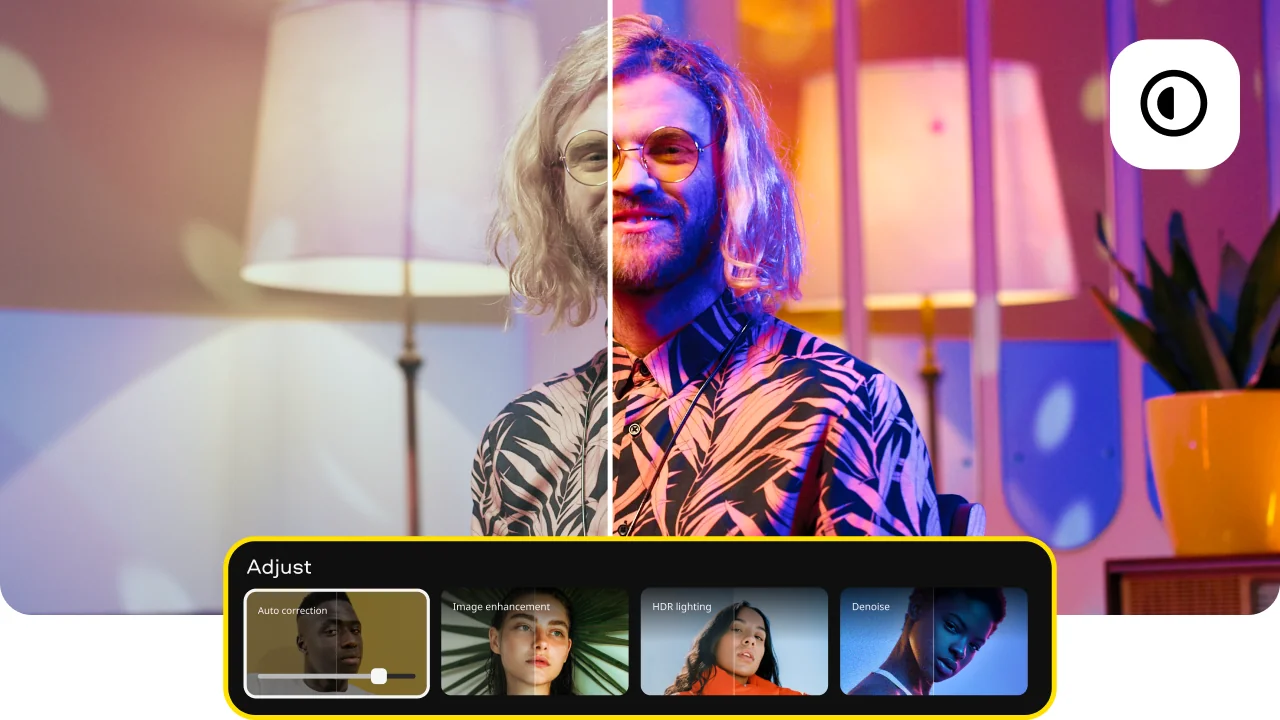
This powerful editing app supports a wide range of image formats and includes tools to remove unwanted objects, enhance colors, and improve overall image quality. You can fine-tune every element, from brightness to sharpness, to match your style.

Download Movavi Photo Editor for Windows or Mac and start working with your photos in a clear, user-friendly workspace designed for both quick edits and more creative projects.
How to add a picture to a picture

Step 1. Upload your base image

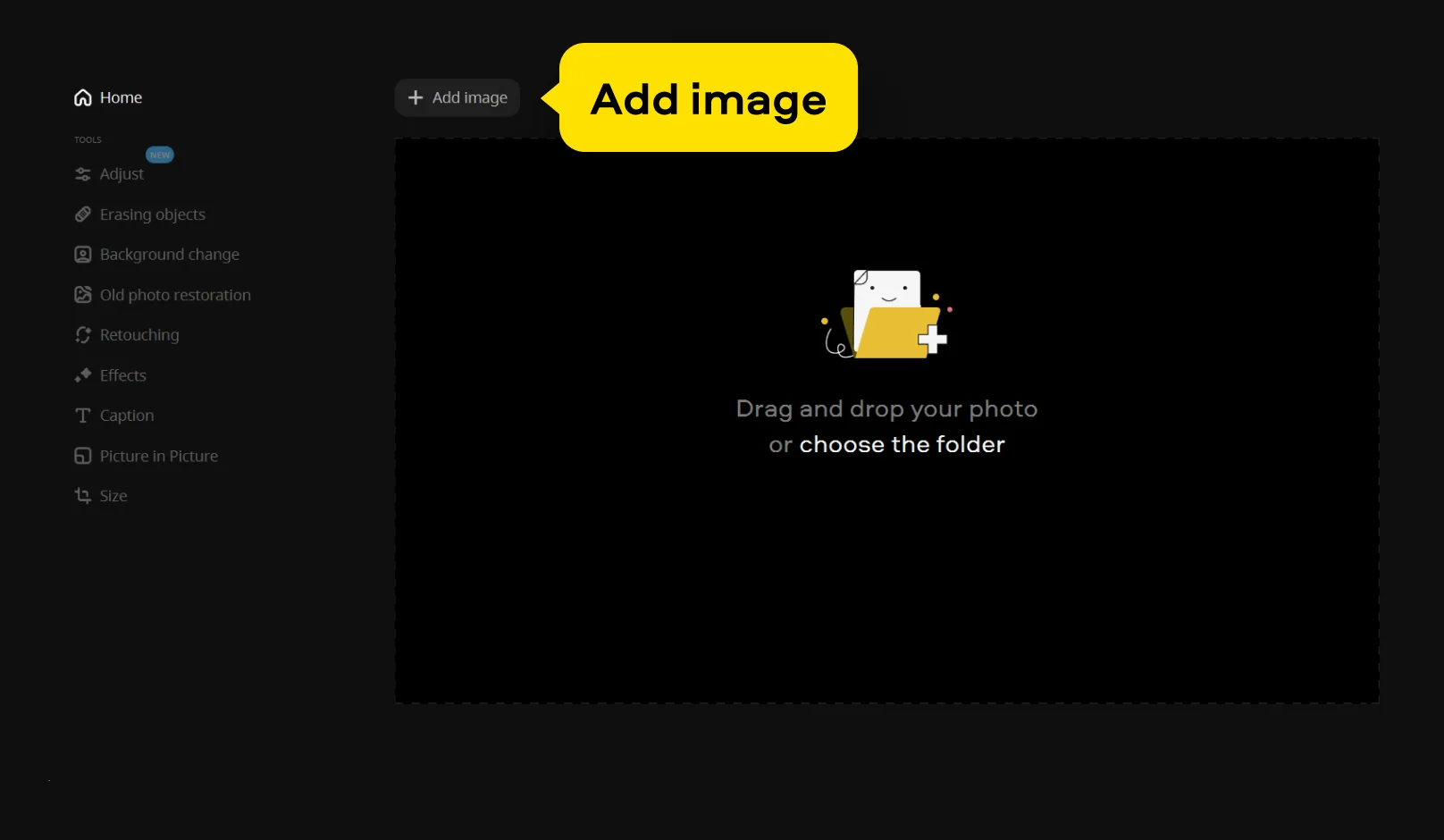
Open Movavi Photo Editor and upload your base image that will be used as the background. Click Add image and select the file from your computer. This first photo will act as the foundation for your composition, so make sure it’s the one you want to build on.

Step 2. Add the second picture

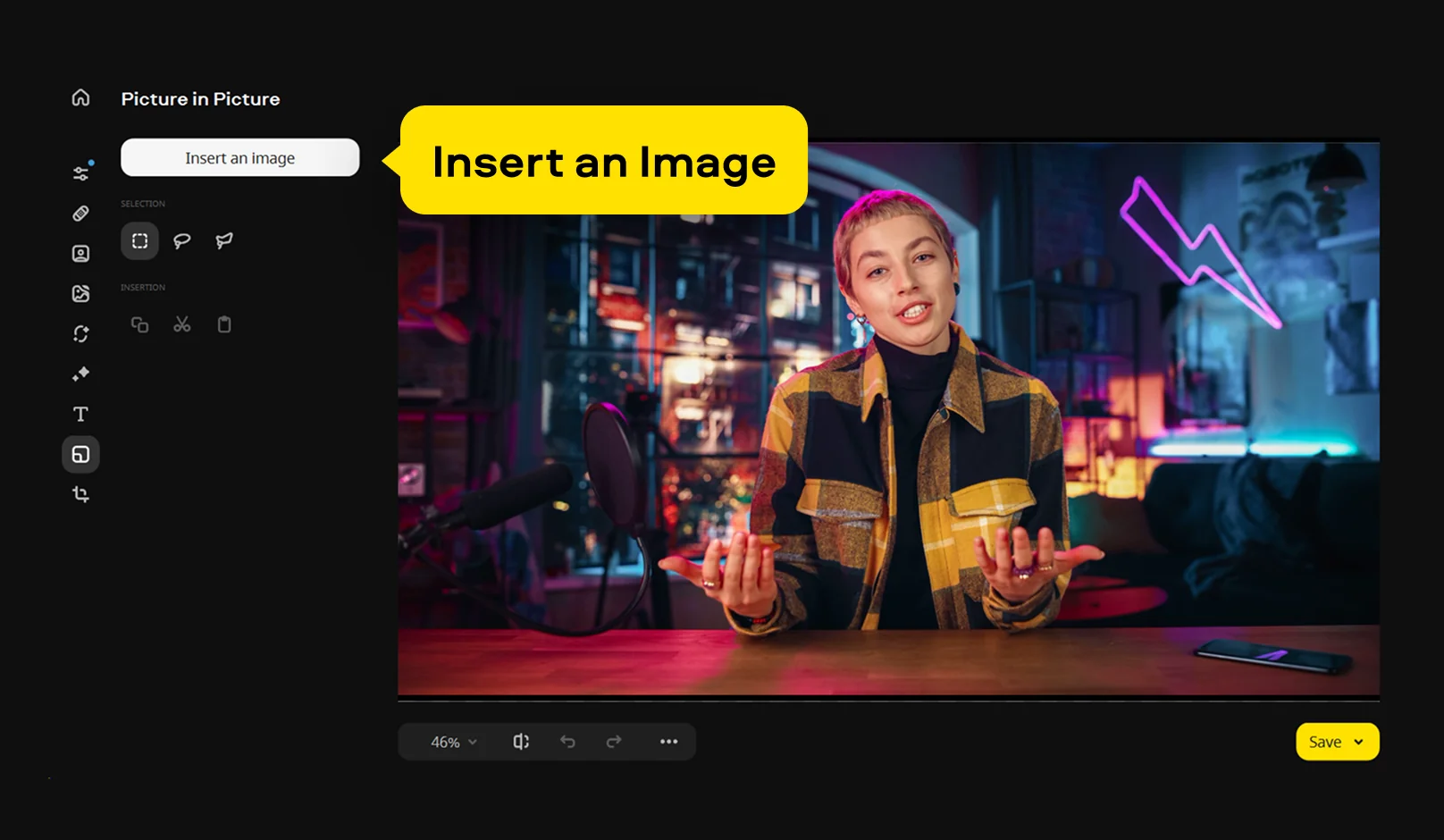
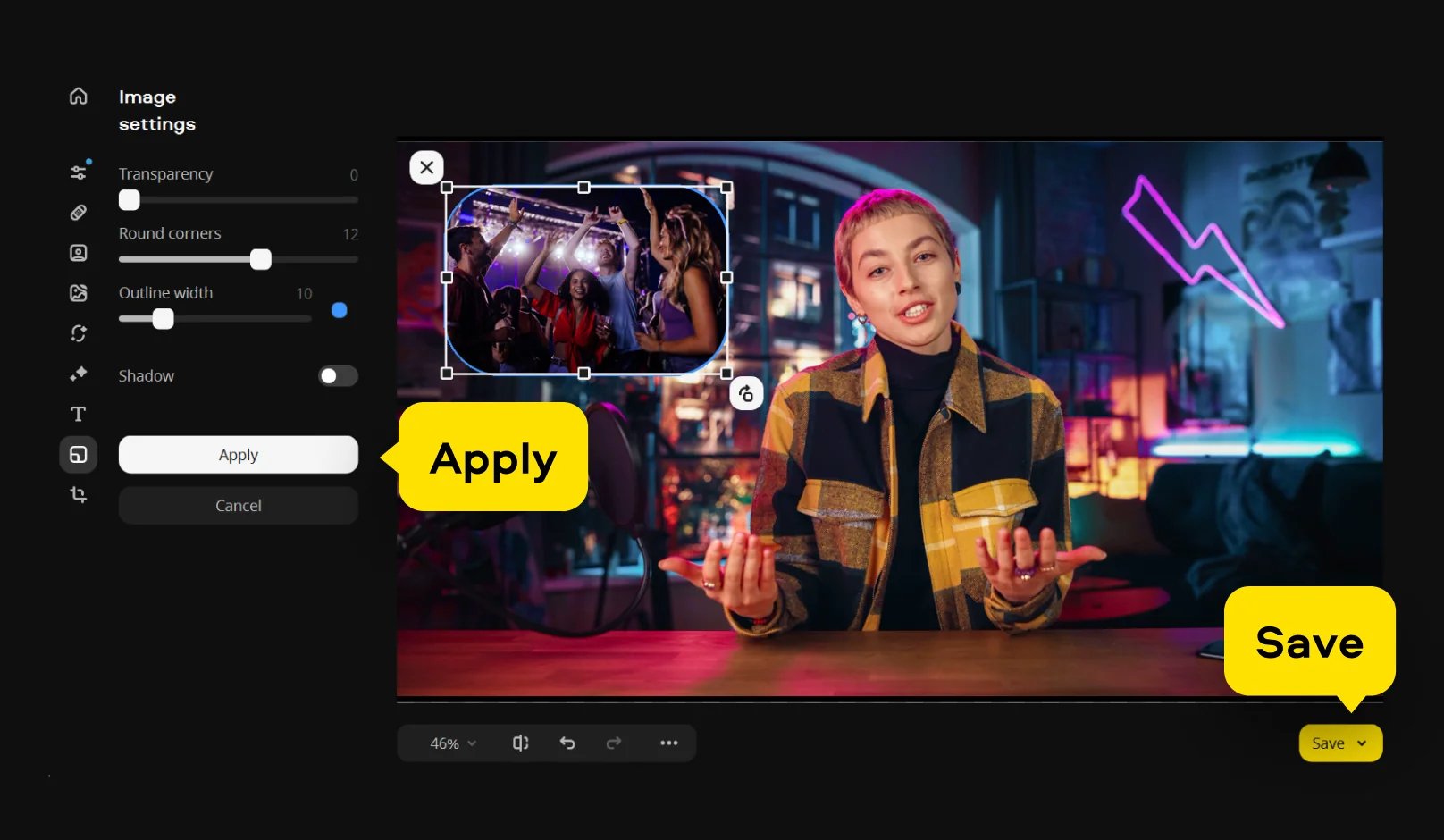
Go to the Picture in Picture tab and choose the option to insert another image. This is where you add an image to an image by placing the second photo over the first one. Adjust its position, resize it, and fine-tune opacity or edges so it fits naturally into the scene.

Step 3. Adjust and export your result

Once both images are combined, refine the composition using tools like color correction, filters, or cropping. When everything looks right, click Save, select the desired format, and export your final image.

Movavi Photo Editor
Easily enhance images and get professional-grade results in a snap.

*The trial version of Movavi Photo Editor has the following restrictions: you can save up to 10 images with added watermark, screenshots are disabled.

Why choose Movavi

We’re the #1 choice for millions of people from all around the world. Join our thriving community and create stunning content with incredible ease.

70M+

users

190+

countries

15+

updates per year

10,000+

effects to choose from

Frequently asked questions

How can I add one photo to another without special skills?

To insert a photo on a photo, you can use modern tools like Movavi Photo Editor that offer layering features. Start by uploading your base image, then add a second picture and adjust its position and size to create a clean, combined result.

What tools are essential for basic photo editing?

For effective photo editing, tools available in Movavi Photo Editor such as cropping, color correction, object removal, and layering help improve image quality and create more complex visuals.

How can I combine images without losing quality?

If you’re wondering how to overlay images without losing quality, start with high-resolution files and avoid excessive resizing. Movavi Photo Editor also lets you adjust sharpness and colors to maintain a clear final result.

Movavi Photo Editor
Easily enhance images and get professional-grade results in a snap.

*The trial version of Movavi Photo Editor has the following restrictions: you can save up to 10 images with added watermark, screenshots are disabled.

Join us for discounts, editing tips, and content ideas

1.5M+ users already subscribed to our newsletter

By signing up, I agree to receive marketing emails from Movavi and agree to Movavi's Privacy Policy.