Step 1. Download and install the WebM-to-MP4 converter
Download the installation file for your PC or Mac. Install it, and it launches on its own once setup finishes.
Use Movavi Video Converter!

WebM is an open, royalty-free video format built for the web back in 2010, which is why it shows up so often in screen recordings, browser capture tools, and video call platforms that export straight to WebM instead of anything else. This format pairs VP8 or VP9 video with Vorbis or Opus audio. Browsers read that combination natively, but most editing software, phones, and TVs don't recognize it nearly as well.
That's why converting to MP4 makes sense. No other video format is as close to universal, so converting WebM to MP4 is typically the first move before a clip reaches an audience.
Movavi Video Converter is the software built for exactly that conversion: change video, image, and audio formats in seconds, without digging through settings menus to figure out what changed. It's a free download for Windows and Mac, works with more than 180 file formats, and runs the whole process offline once it's installed. It’s the program millions of people across 190+ countries already reach for when a file shows up in the wrong format.
Here's how to convert WebM to MP4 in a few simple steps.
Browser-based screen recorders save to WebM by default. So do a lot of video call platforms, Chrome extensions built for quick screen capture, and some Android recording apps. If you've ever saved a clip from a Discord call, a Loom walkthrough, or a browser-based recording tool and wondered why it won't play anywhere but a browser tab, that's the format issue.
None of this is a flaw in WebM – it does exactly what it was built to do. The mismatch only shows up once you try to move the file somewhere that isn't a browser like a video editor, a phone gallery, or an old smart TV app. That's when a format converter becomes useful.
Download the installation file for your PC or Mac. Install it, and it launches on its own once setup finishes.
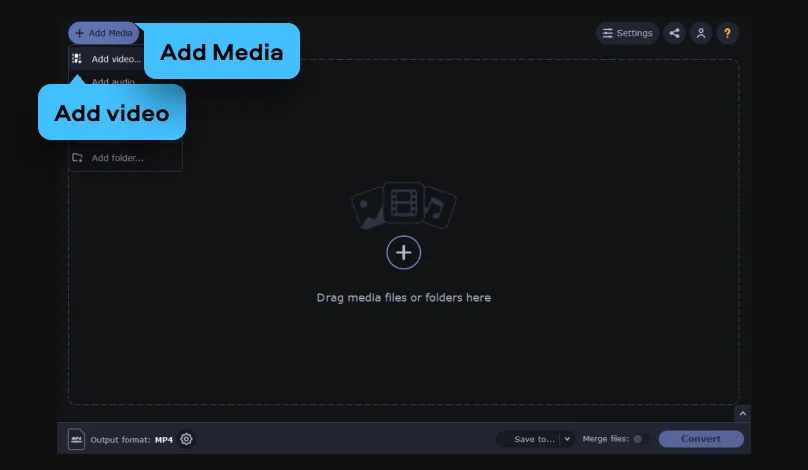
Click Add Media > Add video to upload your files. Alternatively, you can drag and drop your WebM files straight into the program window. You can upload multiple WebM files to convert them all in one go.
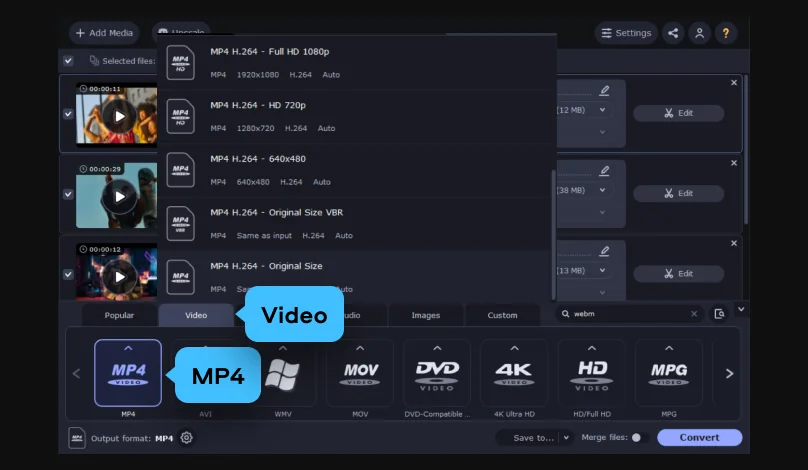
Open the Formats menu and choose MP4 as your target format. You can also adjust bitrate, resolution, and codec if the defaults don't fit your project. It’s useful if you're prepping footage for a specific platform or just want to match the settings of an existing video series. Look for the SuperSpeed label to convert your files fast without losing quality.
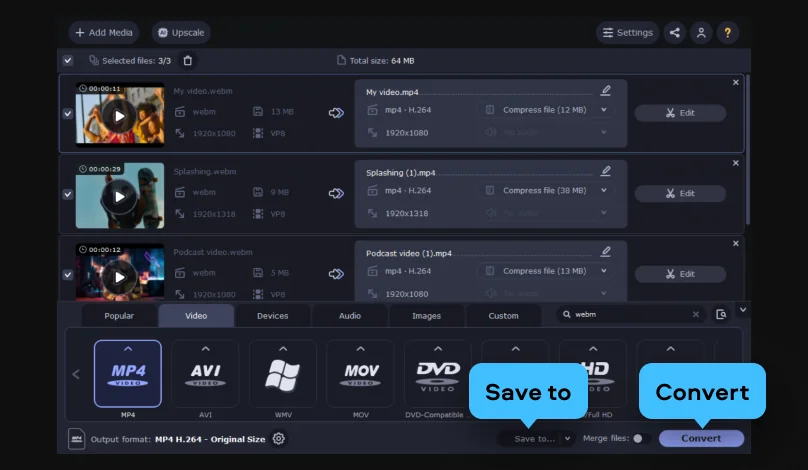
Hit Save to and pick the destination folder, then click the Convert button. Your new MP4 files show up in that folder once it finishes, ready to edit, upload, or send along.
Talking-head footage, including full podcast episodes, unedited livestream recordings, and tutorials, tends to run long. Long footage means large files. The same software that changes your format can also compress the video without losing high quality, which matters if you're trying to keep an upload under a platform's size limit or just save space on your drive.
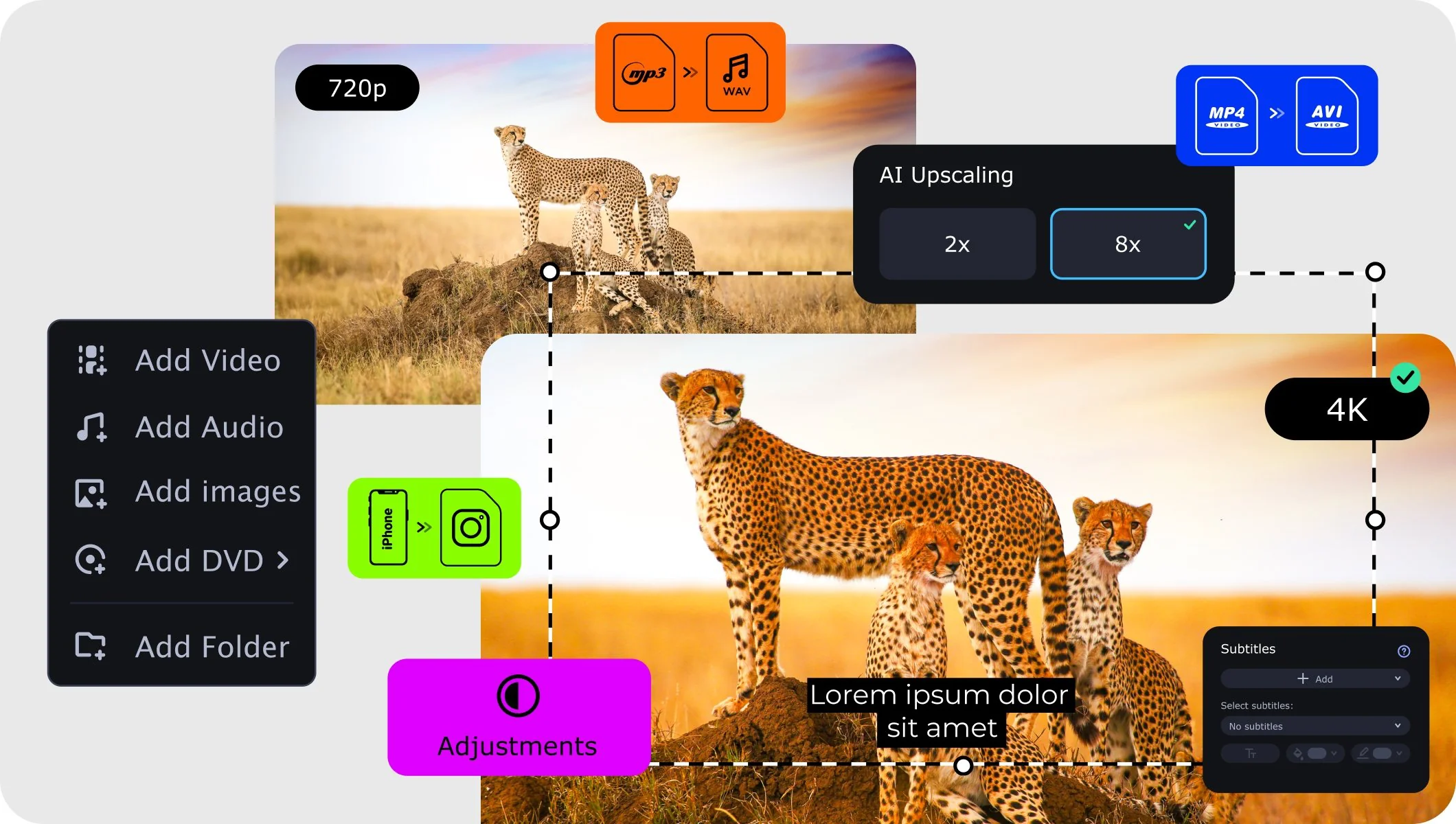
The reverse problem also has a fix. An old webcam recording that looks a little soft on a bigger screen can get its resolution boosted with the program's AI upscaling, up to 8x, before you export again. It’s especially handy for anyone revisiting older content and wanting it to hold up next to newer, sharper clips.
Since the file's already open in the program, it's worth handling a few things while you're there instead of exporting and reopening everything in a separate tool later. Movavi Video Converter lets you trim unwanted parts off the start or end of a clip, crop out anything you don't want in frame, and adjust the color if the lighting was rough. If your video needs captions, you can find and add subtitles right there too.
WebM is efficient for browsers and built into HTML5, which is exactly why so many web-based recording tools default to it. MP4 is older, more universal, and works basically everywhere: phones, editors, TVs, and streaming platforms. Both formats do their job well. They're just built for different situations, and MP4 happens to be the one nearly every other tool in your workflow is expecting.
Not if you keep the resolution and bitrate settings close to your original file. The conversion changes the container and codec, not the footage itself, so there's no meaningful quality loss for a standard format change.
Yes – Movavi Video Converter is available as a free download for both Windows and Mac computers.
Once Movavi Video Converter is installed, the whole conversion process runs offline. It helps if you'd rather not upload the footage anywhere.
Yes, the software has a version for each platform.
Yes – you can drag in and convert multiple files together in Movavi Video Converter, which beats converting them one at a time.
Yes. Trimming, cropping, color adjustments, and subtitles are all available in the same program, so there's no need to hop into separate software just to tidy up a clip before the conversion.
You can trim it down to just the part you need before converting, so you're not stuck exporting the whole file.



1.5M+ users already subscribed to our newsletter