Step 1. Install the happy birthday video maker
Download and install Movavi Video Editor. It’s available for a PC and Mac so the Blocks workflow is the same no matter which machine you're on. Once the app's installed, the entire process runs offline.

Use Movavi Video Editor!
NEW: Adjustable video templates for any vibe – made of Blocks
NEW: Blocks – pre-edited video segments you can customize
Fast and easy editing: cut, crop, adjust colors and speed
Auto subtitles, noise removal, hundreds of effects, and more
By clicking the download button, you're downloading a trial version of the program.*

Skip the blank timeline. Use Movavi Video Editor – an intuitive video editor with customizable video templates, one-click AI tools, and hundreds of drag-and-drop effects. The program comes with a multi-style library of customizable, pro-looking, modular templates for any kind of video.
A birthday video template is a ready-made project file made of short, customizable segments called Blocks, and your job is just to drop your own clips and photos into them. So creators can move from raw birthday party footage to a finished video without building a single transition or title from zero.
Below you’ll find how to make birthday videos in a few simple steps.
Download and install Movavi Video Editor. It’s available for a PC and Mac so the Blocks workflow is the same no matter which machine you're on. Once the app's installed, the entire process runs offline.
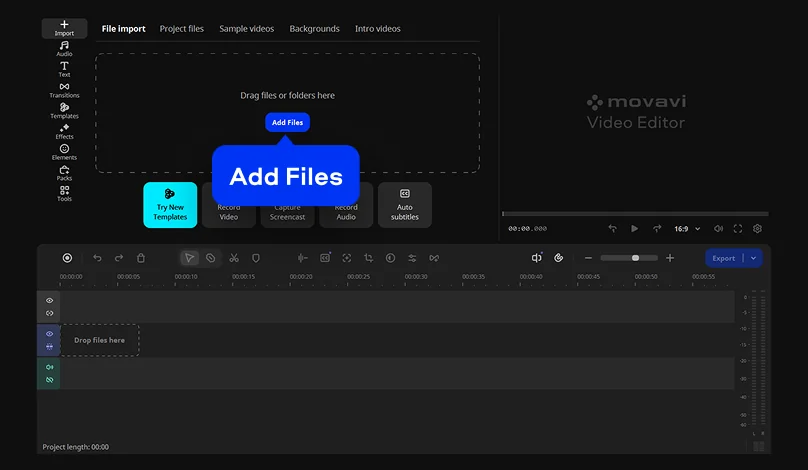
Click Add Files and load all footage you want to use: phone photos, clips, music.
Open the Templates tab and select one of the happy birthday video templates. Each template is built from editable Blocks – intro, countdown, photo montage, closing card – and every Block arrives with its music, text, and transitions already set. Move the template onto the timeline.
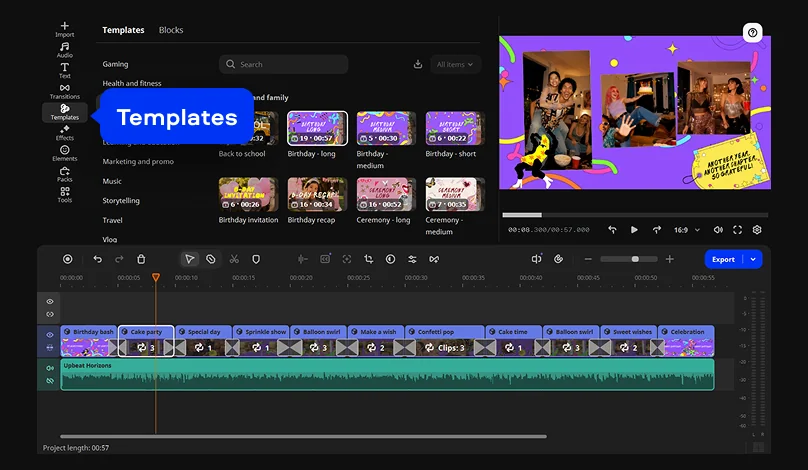
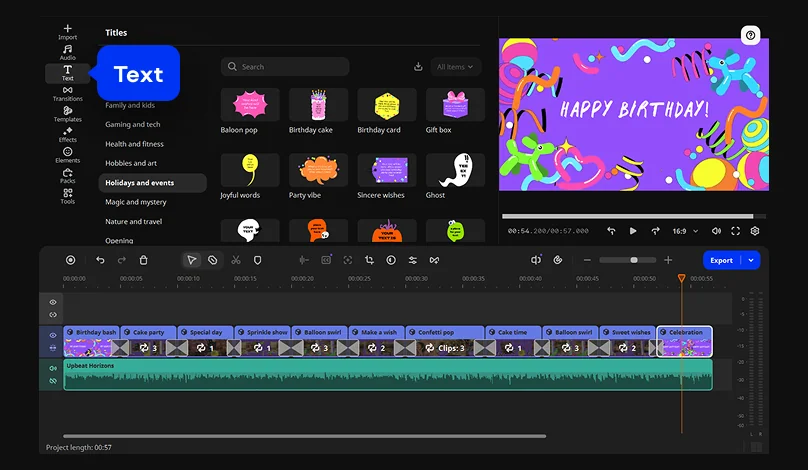
On the timeline, you can check all Blocks included in the chosen template and rearrange them if needed. Replace the placeholder clip in each Block with your own footage, reorder Blocks if the party's timeline didn't match the template's assumptions, and delete any Block you don't need. Nothing in a template is fixed – the default text reads "Happy Birthday," but you're free to retype it with the person's actual name, swap the font, or restyle the whole thing.
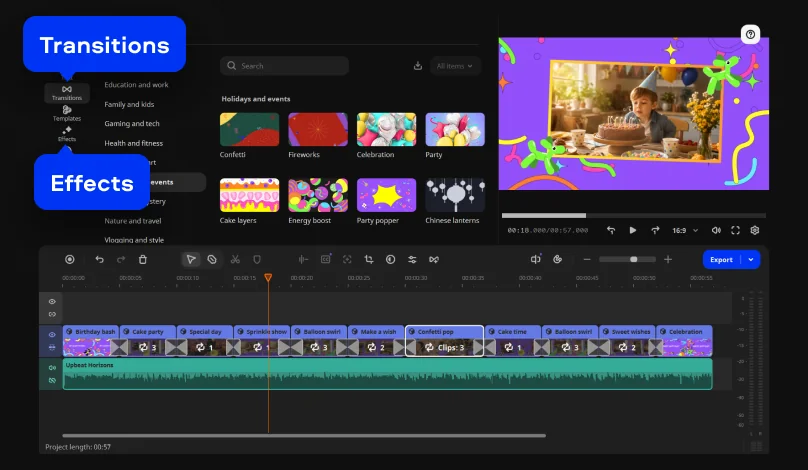
Transitions and effects are pre-applied on every template, but none of them are locked in place. You can remove unwanted effects or add another one if needed. To add extra flair for a milestone birthday, check out the optional Movavi Effects subscription with thousands of additional options.
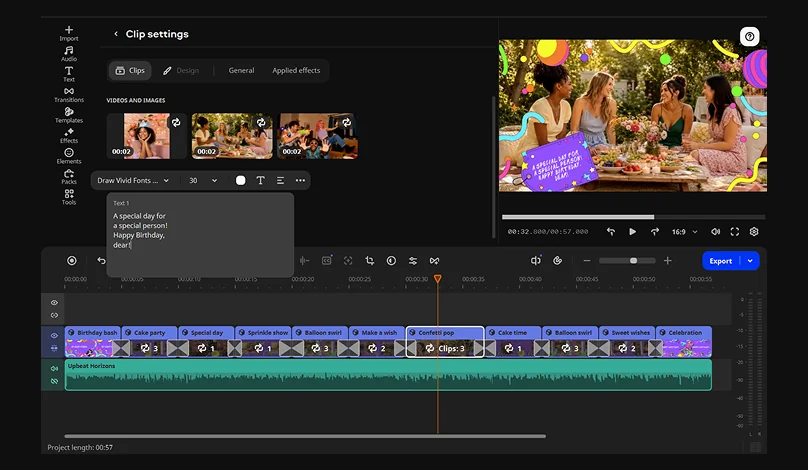
To edit captions, simply click a Block and change text as needed. On top of whatever text the template already has, you can add new titles anywhere along the timeline – a name, a date, a caption tied to one specific clip. Title presets range from clean and minimal to bold and vibrant, making it easy to style a kid's birthday recap or a video presentation.
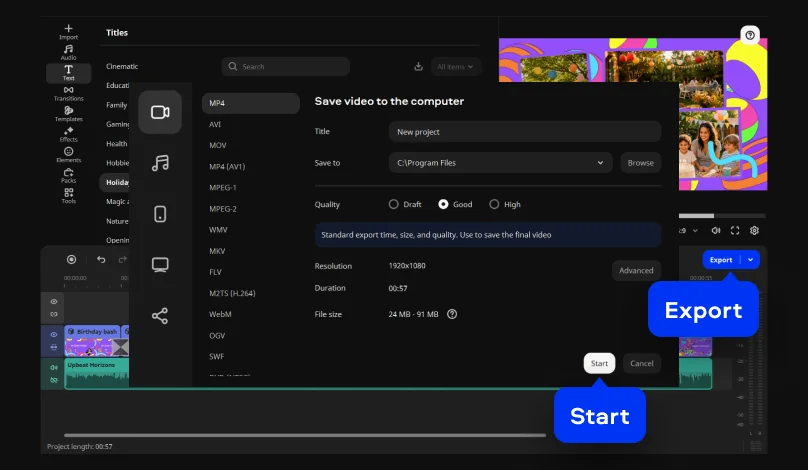
Click Export and choose MP4 as an output format – it offers universal compatibility across phones, social media platforms, and TVs.
Blocks aren't just for recaps, you can also create a birthday invitation video. Building a birthday invitation video takes the same system, scaled down: pick a template named Birthday invitation, swap in a photo and a clip of the birthday person, retype the date, time, and place into the title field, and export your video.
A birthday video isn't just one kind of project, and the template works differently depending on who's putting it together.
Parents turn a year's worth of phone photos into a birthday slideshow, or cut together clips from the party itself into something the kid (and every relative who couldn't make it) can watch back later.
Friends and family use the same Blocks to build a surprise greeting: each person records a short clip wishing the birthday person well, and those clips drop into one template instead of getting lost across a dozen separate texts.
Party hosts send a birthday invitation video in place of a plain text message – swap in a photo, retype the date and location into the title Block, and the invite already looks more personal than a group chat announcement.
Teams and small businesses use a template to congratulate a colleague or a client – a quick, clean clip works for an office birthday just as well as it does for a longtime customer.
Vloggers build a birthday vlog on the same template, dropping in footage from the day and adding a few titles so it's ready to publish without all the hassle.
*The free version of Movavi Video Editor may have the following restrictions depending on the build: watermark on exported clips, 60-second video or 1/2 audio length limit, and/or some advanced features unavailable when exporting videos.

Yes. Movavi Video Editor's free download opens every tool, so you can test things out before deciding whether to unlock the full version. Note that some templates are free – the Birthday invitation template is one of them. Other birthday video templates need a Movavi Templates subscription to unlock.
Blocks exist for exactly that reason. Transitions, music, and text are already sitting in place on each one. All you're really doing is swapping the placeholder clip in each Block for your own file and retyping the default text with the right name or date. Even if it's your first time editing, the video you end up with still looks cool and stylish – not like something you were just figuring out as you went.
Yes – editing, exporting, and browsing saved templates all happen locally on your PC or Mac once the program's installed. No internet connection needed while you work.
You can import files in popular media formats – MP4, MOV, AVI, MKV, and WMV for video; JPEG, PNG, and BMP for photos. Video clips and phone photos can be mixed in the same project without converting anything, and you can add each file to whichever Block that matches it.
Yes, Movavi Video Editor is a desktop program available for Windows 10/11 and macOS 12.0+, with native support for Apple M1 and newer chips.



1.5M+ users already subscribed to our newsletter