Movavi Video Editor is simple and fast by design, so even a first-time edit can come together quickly. Here is how to make a news video from start to finish.

Breaking News Video Template: How to Make a News Video
Try Movavi Video Editor!
Adjustable video templates for any vibe – made of Blocks
Fast and easy editing: cut, crop, adjust colors and speed
Auto subtitles, noise removal, hundreds of effects, and more
By clicking the download button, you're downloading a free version of the program.*

Edited by
12,452
A breaking news video template does a lot of work in a few seconds: the ticker, the banner, the quick cuts that say "pay attention" before anyone's said a word. It fits a few kinds of videos well – a lifestyle creator covering this week's biggest pop-culture headlines, a tech channel breaking down the week's product leaks and launches, a small business rounding up the week's company news for its team or followers. The format borrows urgency from the newsroom and hands it to whatever you're actually posting. An online breaking news generator can produce a single banner image, but a video-editing app gives you motion, sound and control over every frame.
Movavi Video Editor is an intuitive video editor with customizable video templates, one-click AI tools, and hundreds of drag-and-drop effects. It's a desktop program for Windows and macOS, built with beginners in mind, and since everything runs locally on your computer, you can edit offline. You don't need a timeline full of from-scratch edits to get this look – a template does most of the structural work, and you fill it in with your own footage and words. Movavi Video Templates is a multi-style library of customizable, pro-looking, modular templates for any kind of video – whether you're reacting to a movie, covering a new phone, or putting together a brand update.
The templates are built from Blocks – short, pre-edited segments like intros, quick cuts and animated collages – that you reorder, swap, or drop your own clips into. Paired with Movavi's drag-and-drop workflow and instant hover previews, that means you're assembling a video that already has pacing, so even a first attempt can come out looking like something you've made a dozen times before.
What a breaking-news look needs
Most of this is already built into a review-style template's customizable Blocks, so you're mainly editing, not building from scratch.
- Headline or banner text. Every Block already comes with its own placeholder titles – type over them, and change the font, color or background if you want a different style.
- Pacing and segment breaks. Ready-made cuts between segments, so the video flows like a newscast.
- Music. A track plays under the template out of the box – swap it for something from Movavi's built-in, copyright-free library, or import your own.
- Structure. The intro, segment breaks and any collage moments are already laid out as Blocks, so you're dropping in your own footage rather than building the sequence yourself.
Every one of these is editable – the point of a template is to start from something that already works, then make it look like your channel rather than a stock design.
Worth knowing: only a handful of templates ship with the full version of Movavi Video Editor at no extra cost. The complete library is a separate Movavi Templates subscription.
How to make a news video using a template in Movavi Video Editor
Step 1. Download and install
Get Movavi Video Editor, our editing software for PC or Mac, as a free download from the official site. The free version lets you test every tool, including templates and titles, but exports carry a watermark and a 60-second length cap until you move to the full version.
Step 2. Import your footage
Click Add Files or drag your clips into the project. The program accepts common formats, including MP4 and MOV, as well as photos and audio.
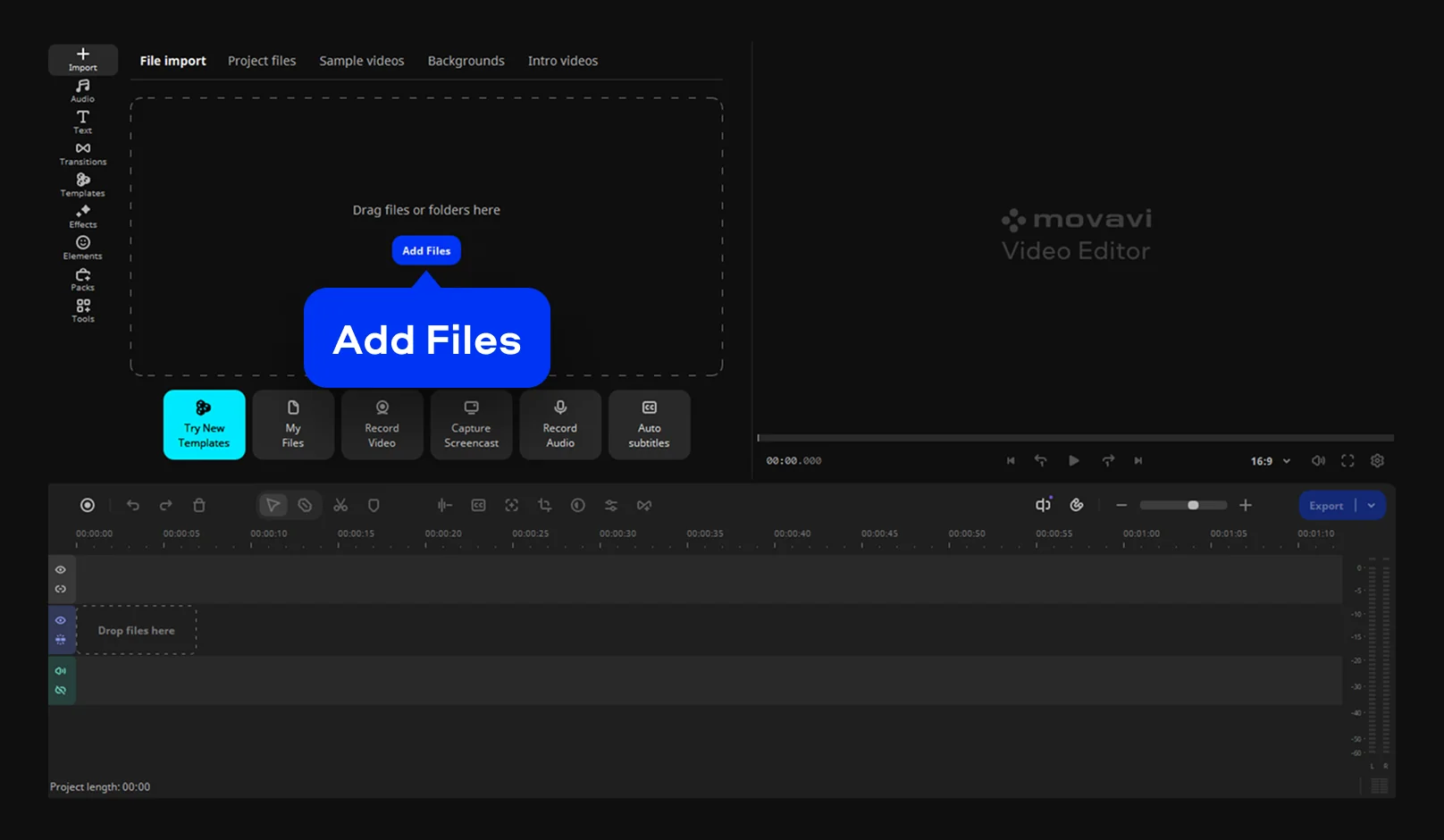
Step 3. Open the news template
Open Templates. For a news video, go to the Storytelling category and select the Weekly recap template. It already contains an intro, a news banner and story blocks, with transitions between them. Double-click the template, and it will appear on the timeline.
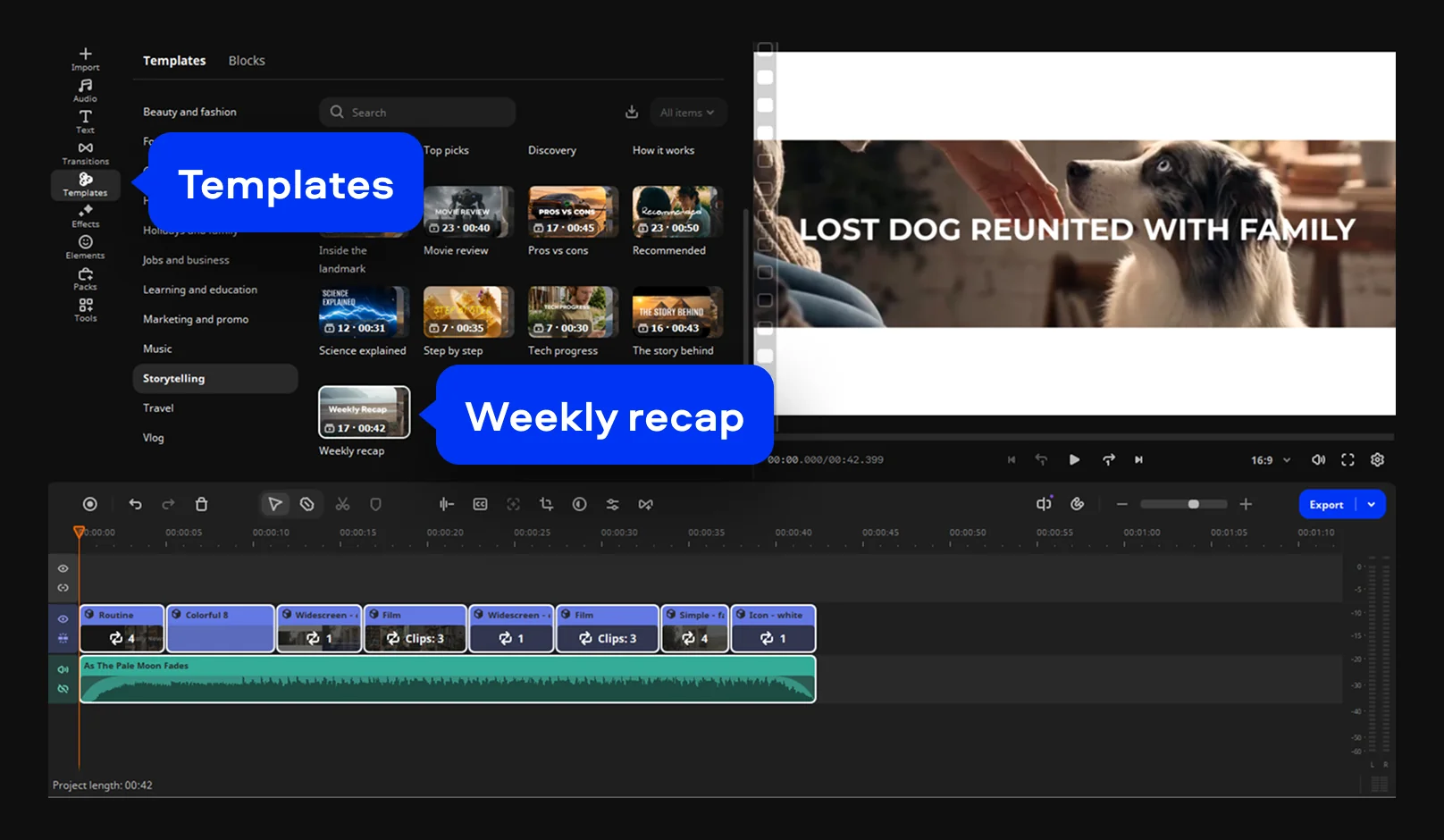
Step 4. Swap in your footage
The template opens with a collage that previews the videos you will show later. Replace placeholder clips with your own to give viewers a teaser of what is coming. Then replace the default clips in other Blocks as well. Reorder or remove the Blocks you don't need.
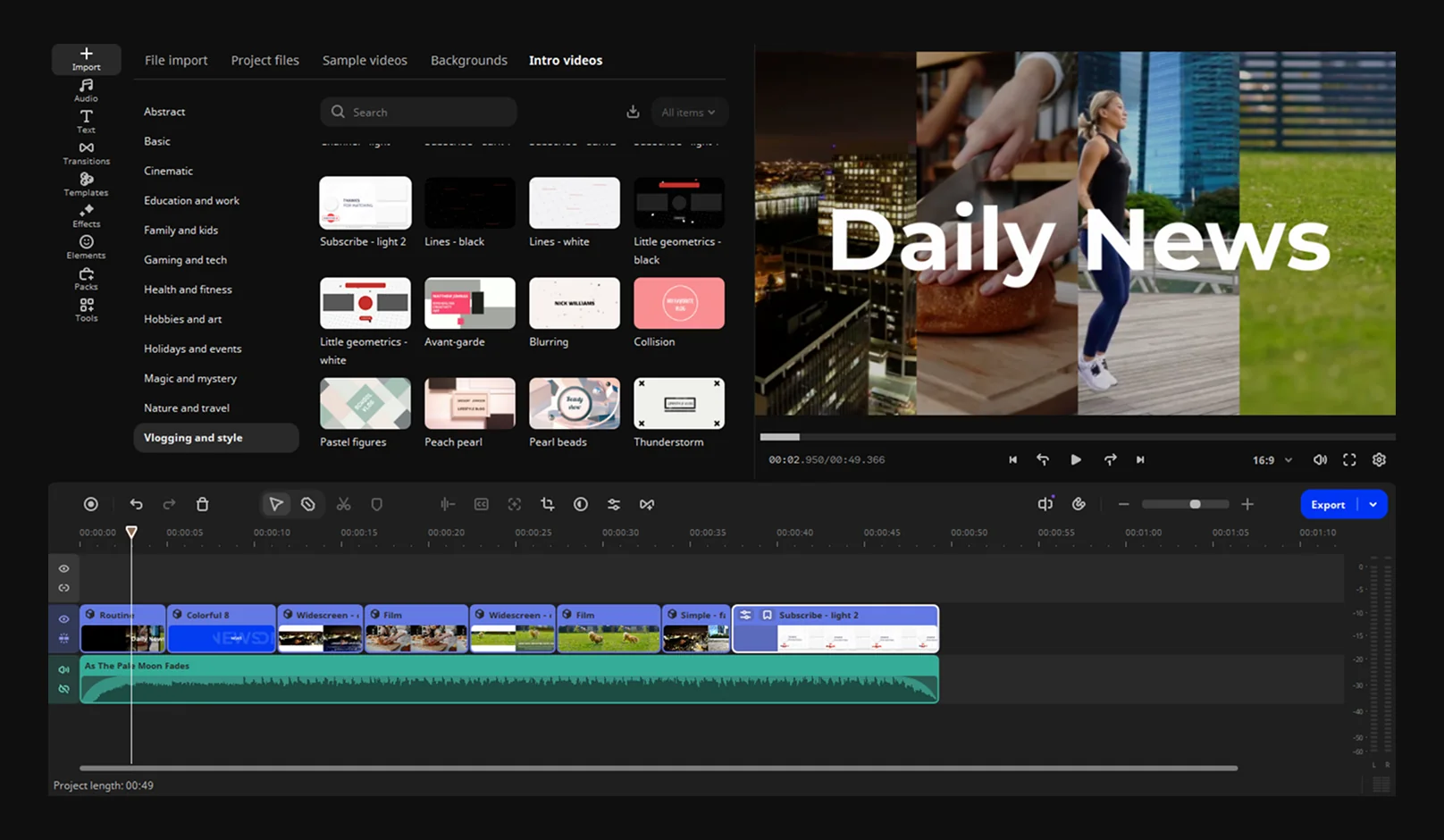
Step 5. Customize the titles
By default, the template shows a blue banner with the title "Good News Only". Have breaking news instead? Select the banner, change its color to red and its text to "Breaking News" to get a classic breaking news overlay. Next come several Blocks, each pairing a video with a title and a description – type your own headline and details, change the titles design if you need.
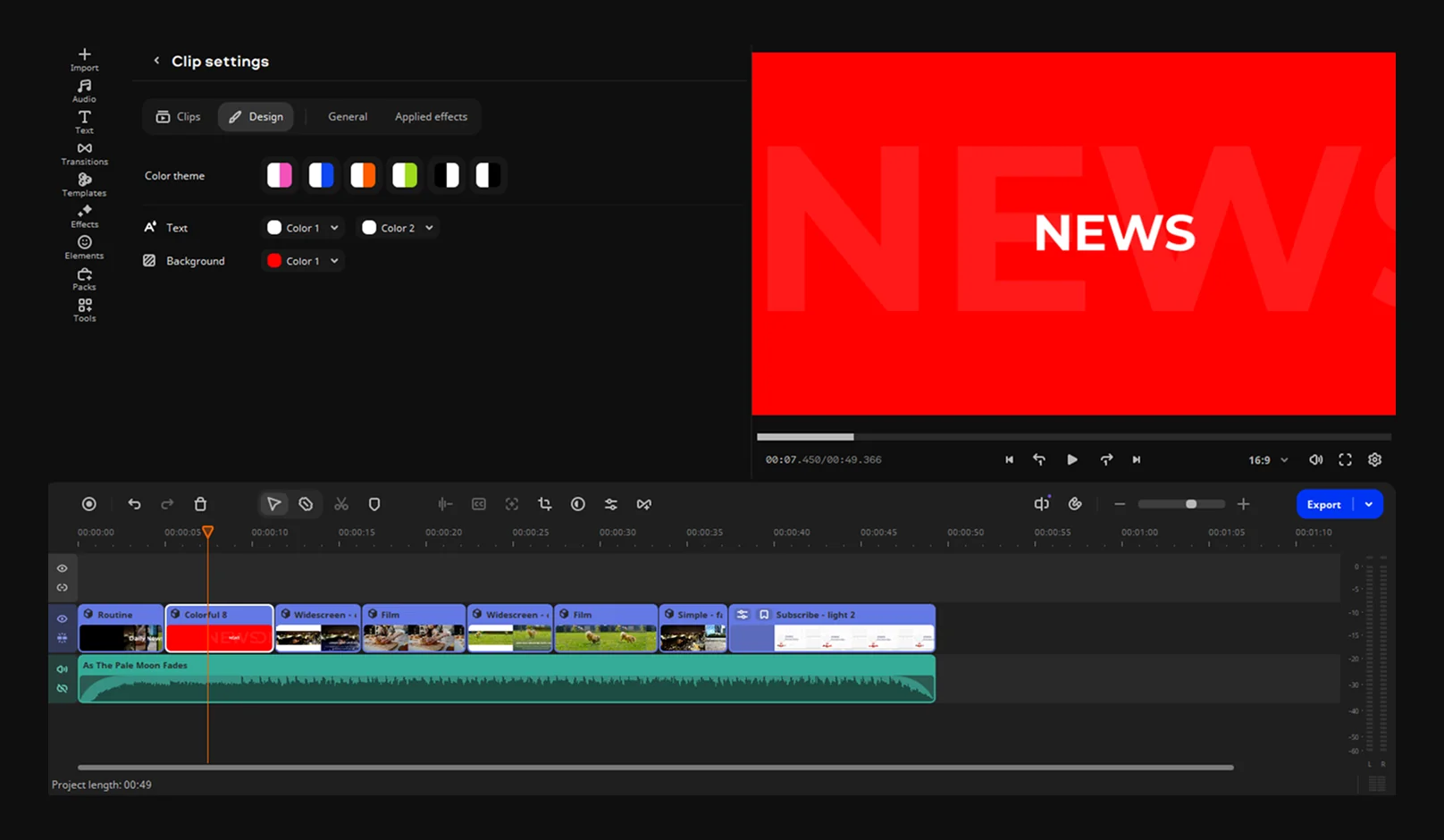
Step 6. Add music
The template comes with an audio track, but you can choose different music if you like. Pull a track from Movavi's built-in, copyright-free music library, or import your own. Keep the music volume under your voice so every word stays clear.
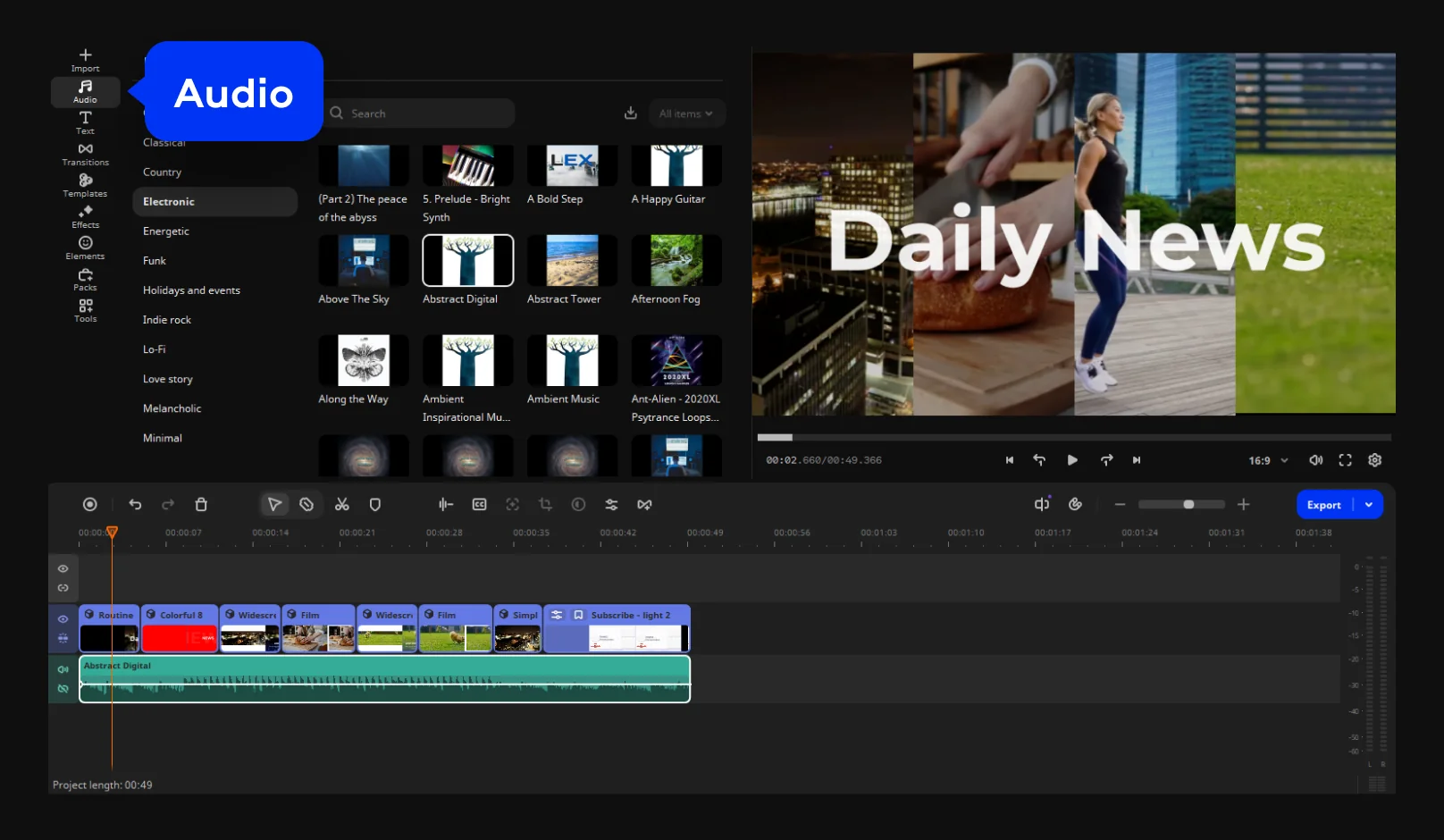
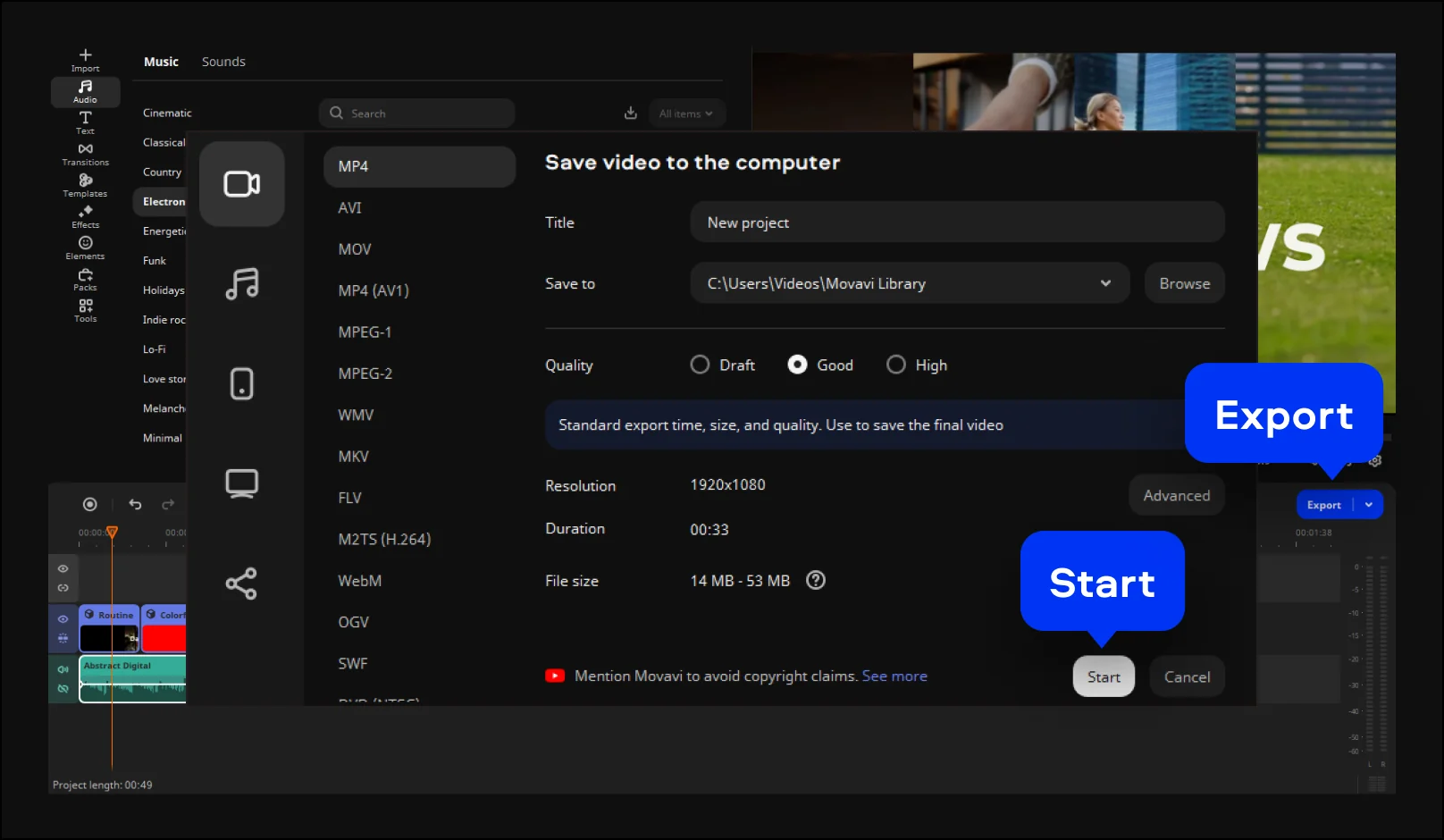
Step 7. Export
Choose MP4 for broad compatibility, pick your resolution, and save your file.
Tips for a convincing news-style video
- Keep the intro short. A few seconds of banner and motion is enough to signal urgency before you get into the actual content.
- Make text readable on phones. Bold, bigger titles and a ticker that moves slowly enough to read on a small screen.
- Keep a consistent look. The same colors, fonts and overlay from episode to episode, so the format becomes recognizable on its own.
- Use your own branding. Build an original name for your "newsroom" rather than borrowing a real network's look.
- Avoid creating fake news. A breaking-news style works well for parody, commentary and announcements, but say clearly when something's a joke – it's an easy format to mistake for an actual news claim if you don't.
If you want more structure ideas beyond reviews, Movavi Ideas publishes a new step-by-step tutorial every week, free, covering everything from vlogs to holiday content – worth a look once you've got this format down.
Movavi Video Editor
Create awesome videos easily
*The free version of Movavi Video Editor may have the following restrictions depending on the build: watermark on exported clips, 60-second video or 1/2 audio length limit, and/or some advanced features unavailable when exporting videos.

Frequently asked questions
Is an online breaking news generator enough for YouTube?
Is an online breaking news generator enough for YouTube?
A generator can give you a still banner, but not motion, sound or transitions between segments. For those, you need an actual video editor.
Can beginners make a news video without design skills?
Can beginners make a news video without design skills?
Yes. With ready-made titles, transitions and a template's Blocks already built, most of the work is swapping in your footage and typing your own text.
Which format should I export in?
Which format should I export in?
MP4 is the safer default – Movavi recommends it for broad compatibility, and it's the format most platforms expect.

Have questions?
If you can’t find the answer to your question, please feel free to contact our Support Team.
Join us for discounts, editing tips, and content ideas


1.5M+ users already subscribed to our newsletter