Step 1. Install the software
Download Movavi Video Editor for your PC or Mac and install it following the on-screen instructions.

Use Movavi Video Editor!
NEW: Adjustable video templates for any vibe – made of Blocks
NEW: Blocks – pre-edited video segments you can customize
Fast and easy editing: cut, crop, adjust colors and speed
Auto subtitles, noise removal, hundreds of effects, and more
By clicking the download button, you're downloading a trial version of the program.*

A countdown works because the structure does half the job for you – a top-5 roundup, a launch teaser, a highlight reel, whatever the format, viewers already know to stick around for the reveal. Countdown video templates hand you that pacing ready-made instead of making you build it clip by clip. Movavi Video Editor is an intuitive video editor with customizable video templates, one-click AI tools, and hundreds of drag-and-drop effects. It's a desktop app for Windows and macOS, so the project lives offline and exports on your own machine once it's installed.
Movavi Video Templates is a multi-style library of customizable, pro-looking, modular templates for any kind of video. They are built from Blocks, Movavi's short pre-edited segments such as an intro, a countdown, a quick cut, an animated collage. That means the countdown sequence itself is already sitting inside the template design, waiting to be filled in. Below is the full path through building one in Movavi Video Editor: opening the program, picking the template, and exporting a finished clip, even for someone who's never touched a timeline before.
Download Movavi Video Editor for your PC or Mac and install it following the on-screen instructions.
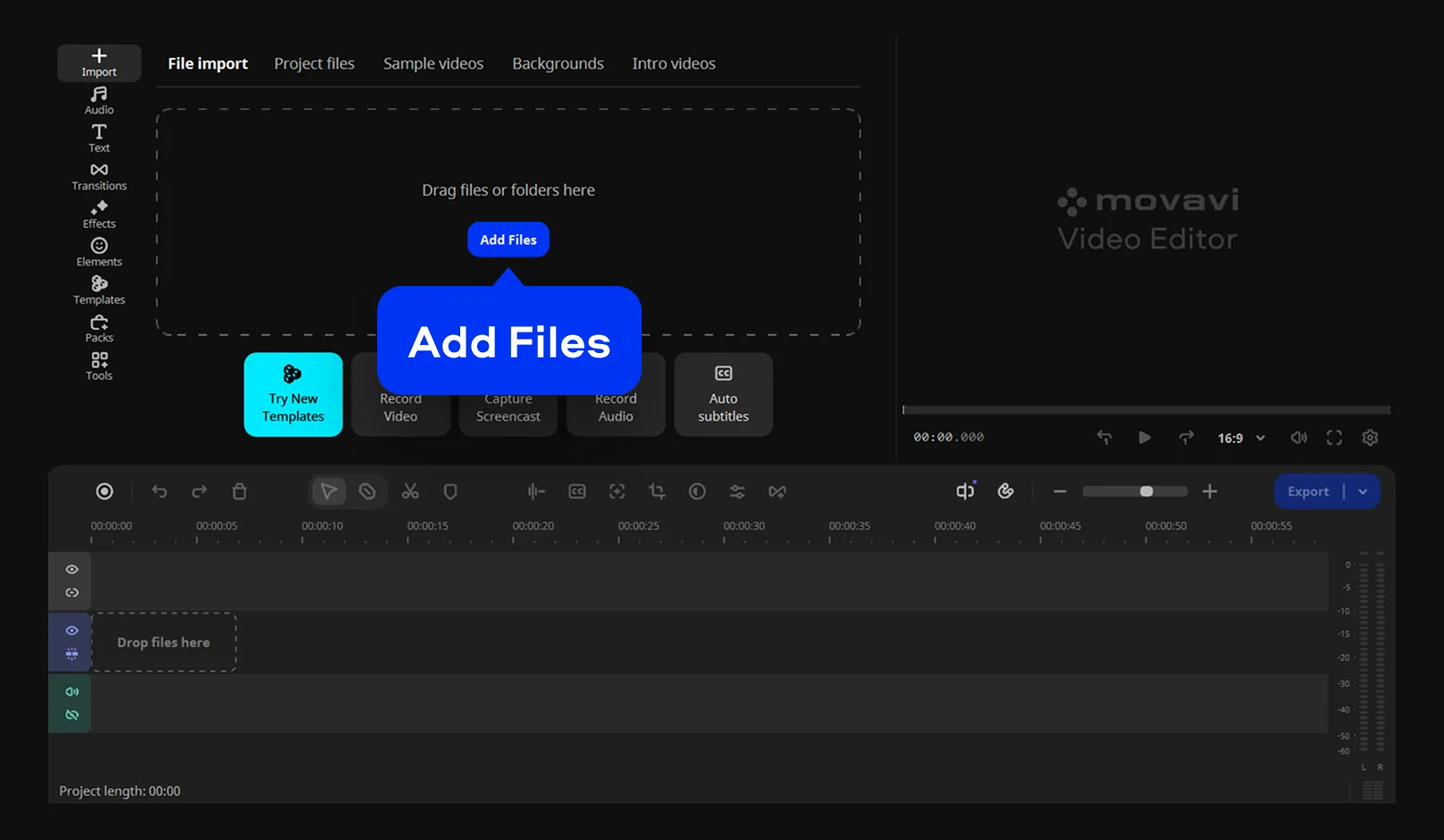
Import whatever video, image, and audio files your countdown is going to feature.
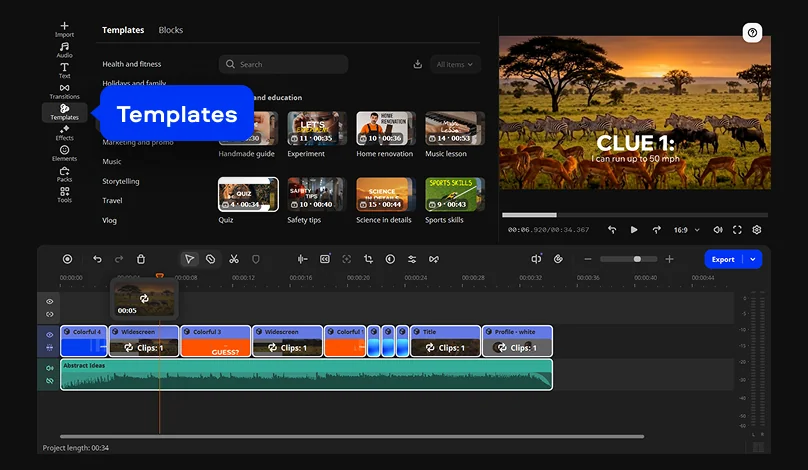
Head to the Templates tab. Select a suitable template and drag it onto the timeline.
Replace the placeholder footage with your own video or images. Every Block stays editable afterward, so reordering entries, duplicating one for a longer list, or deleting a spot when the list runs short are all fair game.
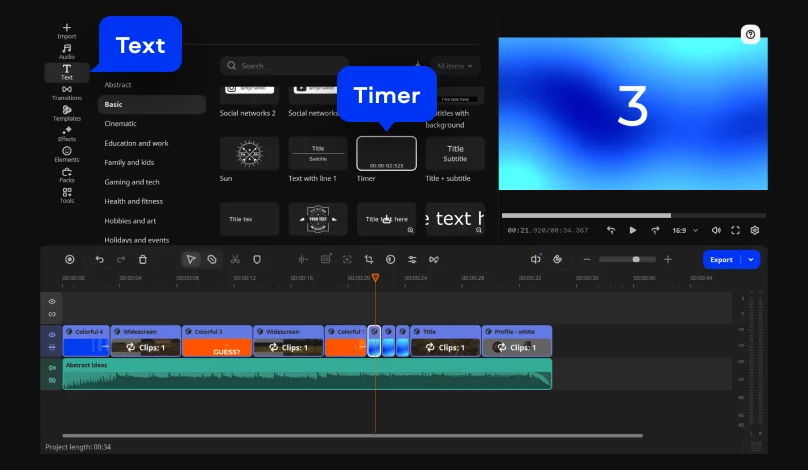
Use the template's built-in titles to handle the numbering – #5, #4, #3, and down the line. For an on-screen clock, add the Timer title from the Text tab, the dedicated title type built for on-screen timers.
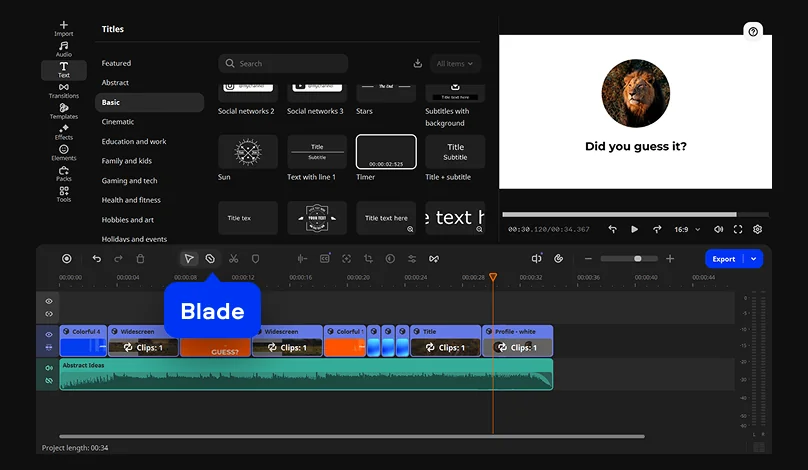
The Blade tool trims each clip, a transition between entries keeps the cuts from feeling abrupt, and a music track underneath carries the energy from one spot into the next.
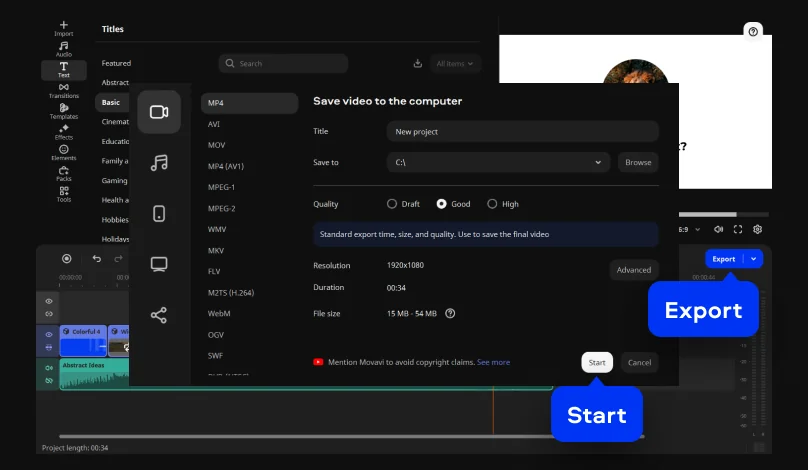
Click the Export button and choose file format and resolution. MP4 covers the broadest compatibility; pick a vertical preset instead if the countdown's headed to Shorts or Reels. The template has already done the work on pacing and layout, so the first export usually looks finished and professional.
A movie or album reviewer running a talking-head "top 5 this month" segment, for example, can drop each pick into its own countdown Block, record a short take for every entry, and let the template carry the transitions between them.
A gaming channel closing out a season can put together a "top 10 stunning moments" countdown the same way. Pull in short clips of each highlight, then use the Timer title to put a visible clock on screen before the #1 reveal.
A small business running a "3 days until launch" teaser on Instagram or Facebook gets more mileage out of a shorter countdown Block for a quick, repeatable run of posts, swapping in new product shots or on-camera updates as launch day closes in.
Looking for more starting points beyond what's built in? Movavi Ideas is a free, weekly-updated tutorial hub of step-by-step editing tricks, including ideas for pacing and reveal formats that work well alongside a countdown template.
Movavi Video Editor is a free download that includes the core editing tools, so the entire project can be built before deciding whether to upgrade. Exports from the free version cap out at 60 seconds and carry a watermark; both limits disappear in the full version. A handful of templates come bundled with the full version at no extra charge. The complete creative template library sits behind a separate Movavi Templates subscription.
Once a countdown format clicks for one video, reusing it is just a swap. Drop new footage into the same Blocks next week, and the structure, titles, and transitions carry over on their own. Movavi Ideas adds a fresh batch of editing tricks every week, so there's always another reveal format or title style worth trying.
*The free version of Movavi Video Editor may have the following restrictions depending on the build: watermark on exported clips, 60-second video or 1/2 audio length limit, and/or some advanced features unavailable when exporting videos.

Yes, Movavi Video Editor is a free download that lets you try every tool. The tradeoff is a 60-second export cap and a watermark until you move to the full version.
Movavi Video Editor handles common video formats such as MP4, MOV, and AVI, image files like JPEG and PNG, and audio formats including MP3 and WAV. So most phone or camera footage drops in without needing conversion first.
No. These templates are built with beginners in mind. Each countdown Block arrives with its pacing, transitions, and titles already set, which leaves dropping in your own clips and swapping captions as the main task.
Yes, you can. Movavi's auto-tracked cropping tool reframes horizontal footage into vertical format while keeping the main subject centered, so a countdown built for YouTube can be resized for Shorts or Reels without cropping by hand.



1.5M+ users already subscribed to our newsletter