How to Create Picture-in-Picture Video with Movavi Video Editor

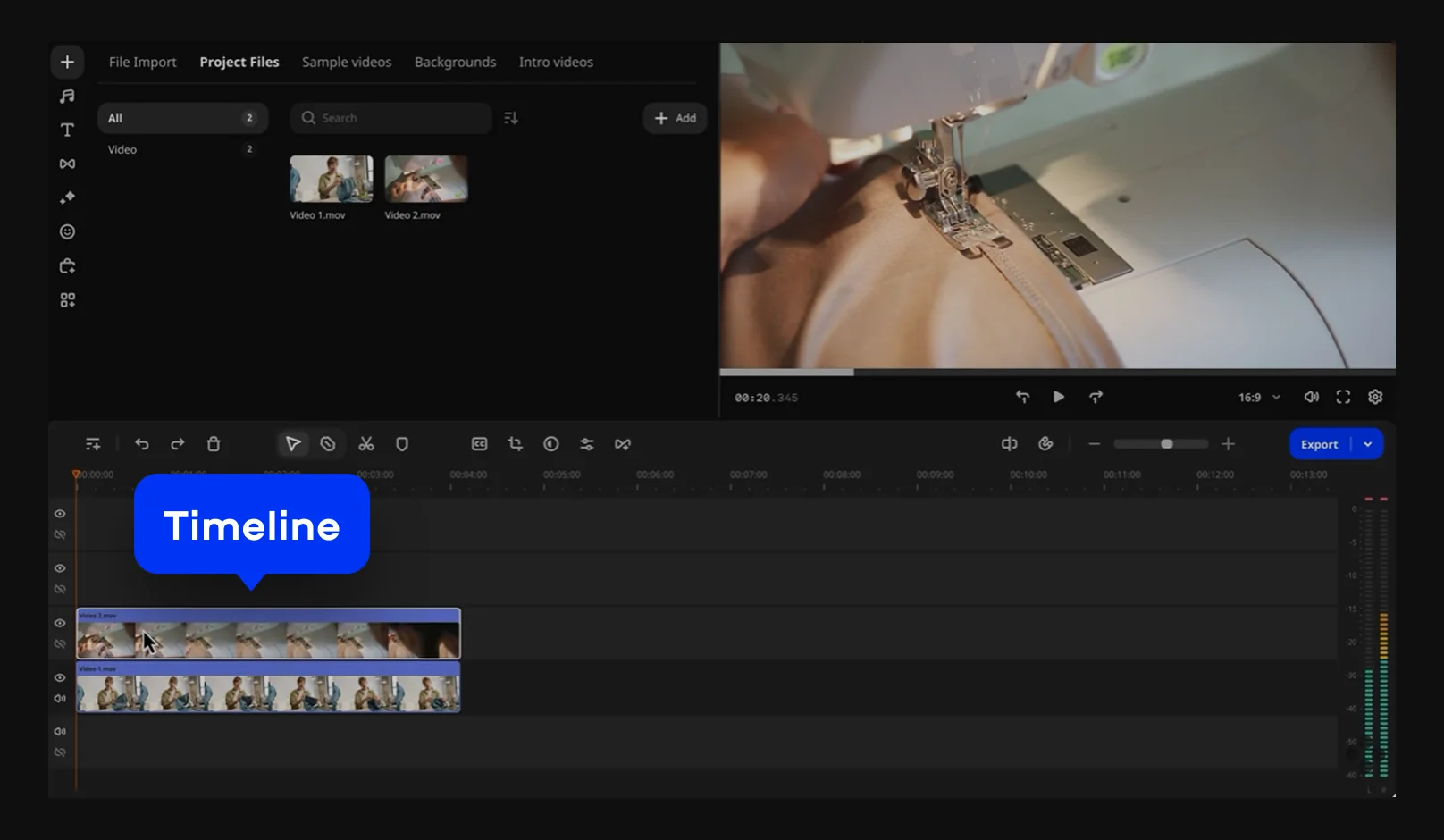
  1. Add your video on a timeline, then place a second video above it.

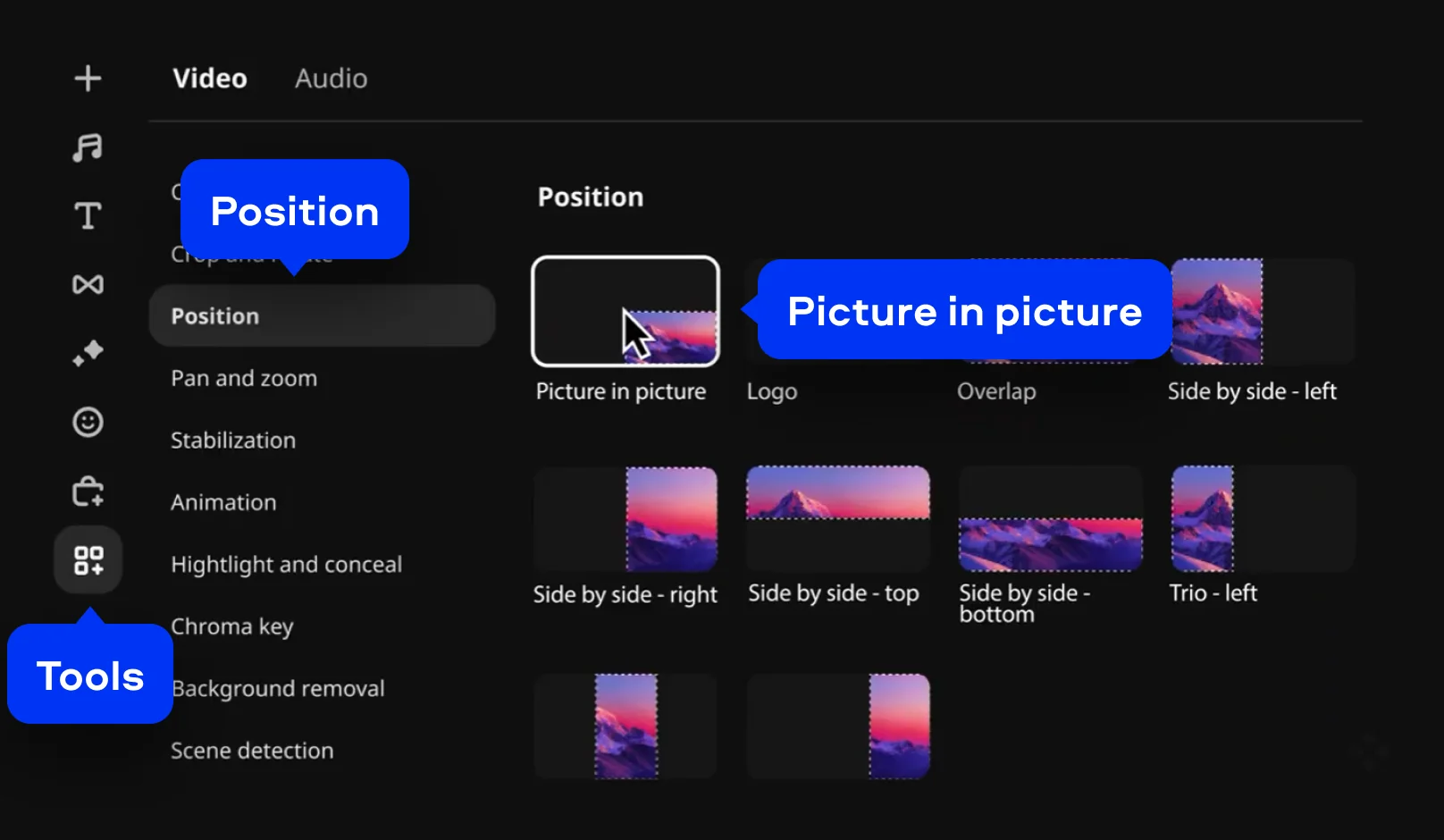
  2. Find the Position tool and apply Picture in picture to the upper video.

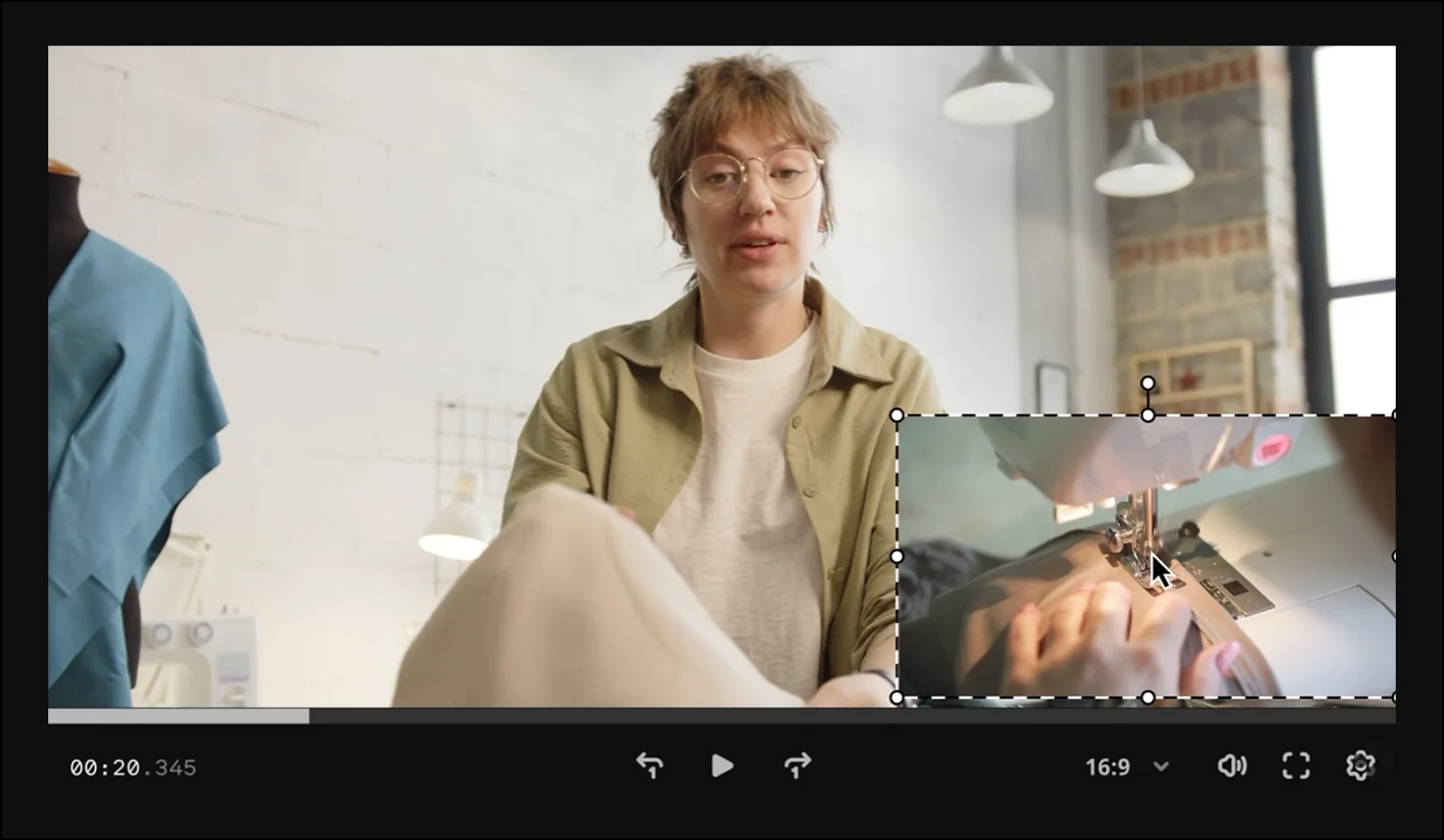
  3. Adjust the size and the position of the video, add animation, and enjoy the result!

By clicking the download button, you're downloading a free version of the program.*

Edited by
Ben Jacklin
10,864

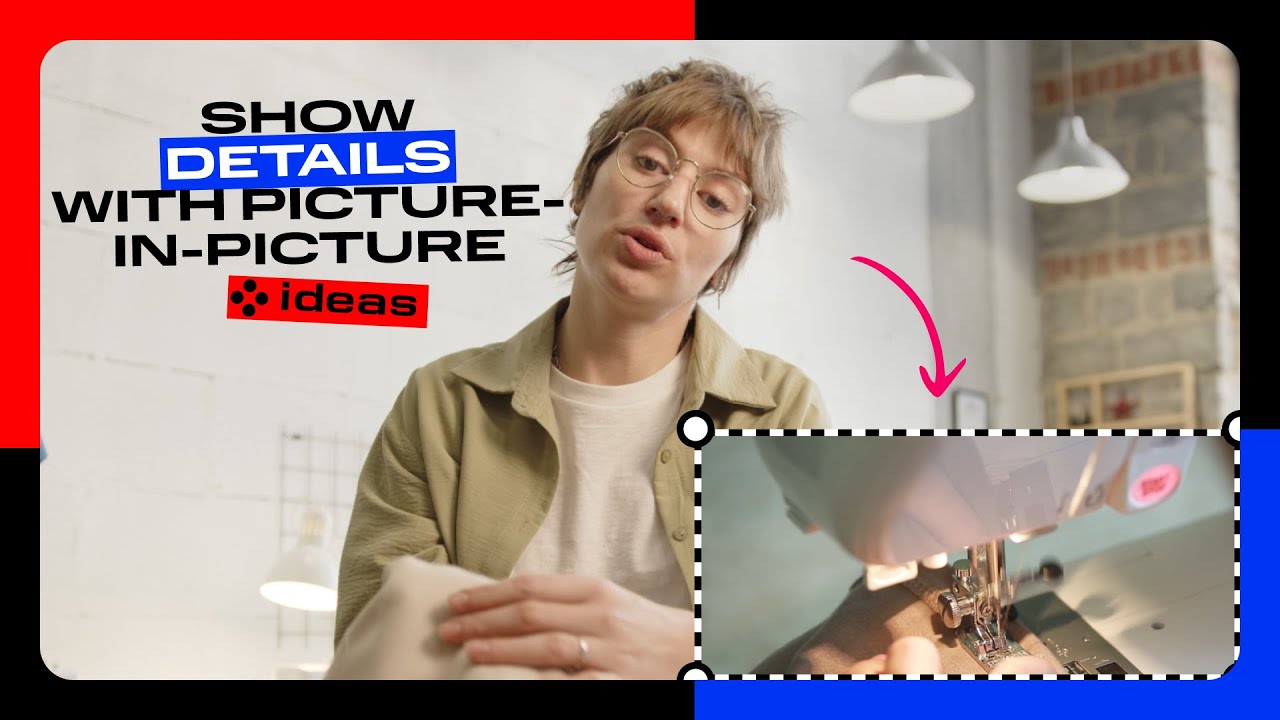
Picture-in-picture (PiP) is one of the most popular video editing effects used by creators on YouTube, social media, and beyond. Whether you're recording a reaction video, a tutorial, a gaming stream, or a how-to video for your audience, the ability to show two video sources at once gives your content a polished, professional look that immediately sets it apart. Think of the small camera feed sitting in the corner of a streamer's screen, or the presenter's face hovering over a slide deck – that's picture-in-picture in action. Movavi Video Editor makes it surprisingly easy to set up and enable this effect, with no advanced technical skills required. This simple yet powerful app is designed for creators who want professional results without a steep learning curve. It comes packed with features, including multi-track timeline editing, hundreds of drag-and-drop effects, color correction tools, audio editing, and a dedicated set of overlay and positioning tools that make setting up picture-in-picture a breeze. A clear, streamlined timeline lets you edit videos with ease. This guide will walk you through every step of how to do picture-in-picture with Movavi Video Editor.


Step-by-step: How to set up picture-in-picture in Movavi

Step 1. Download and install Movavi Video Editor

Click the button below and download the latest version of Movavi Video Editor for your device – it's supported on PC and Mac. Once the installer is downloaded, open it and follow the on-screen instructions to complete the installation. The process only takes a few minutes.

Step 2. Add your videos to the timeline

Open Movavi Video Editor and import your videos by clicking the Add Files button or dragging your files into the project. Once imported, drag your primary video down onto the main video track in the timeline at the bottom of the screen – this will be the full-screen background that plays behind your PiP overlay. Next, drag the second video (or photo) you want to use as the overlay and place it on a track above your main video. Movavi supports multiple video tracks, so anything on the upper track will appear on top of the lower one during playback.

Step 3. Set the picture-in-picture position

Click on the clip in the upper track to select it, then navigate to the Tools tab in the panel on the left side of the screen. Look for the Position tool and click on it. Inside, you'll see several layout presets – select the Picture in picture option. It enables the classic PiP layout, instantly resizing and repositioning your upper video so it appears as a small overlay in one corner of the frame.

From there, you can fine-tune things in the preview window – click and drag the overlay to move it anywhere on the frame or grab its corners to resize it. Make it smaller for a subtle look or larger if you want the second video to take up more visual space.

Step 4. Apply animation

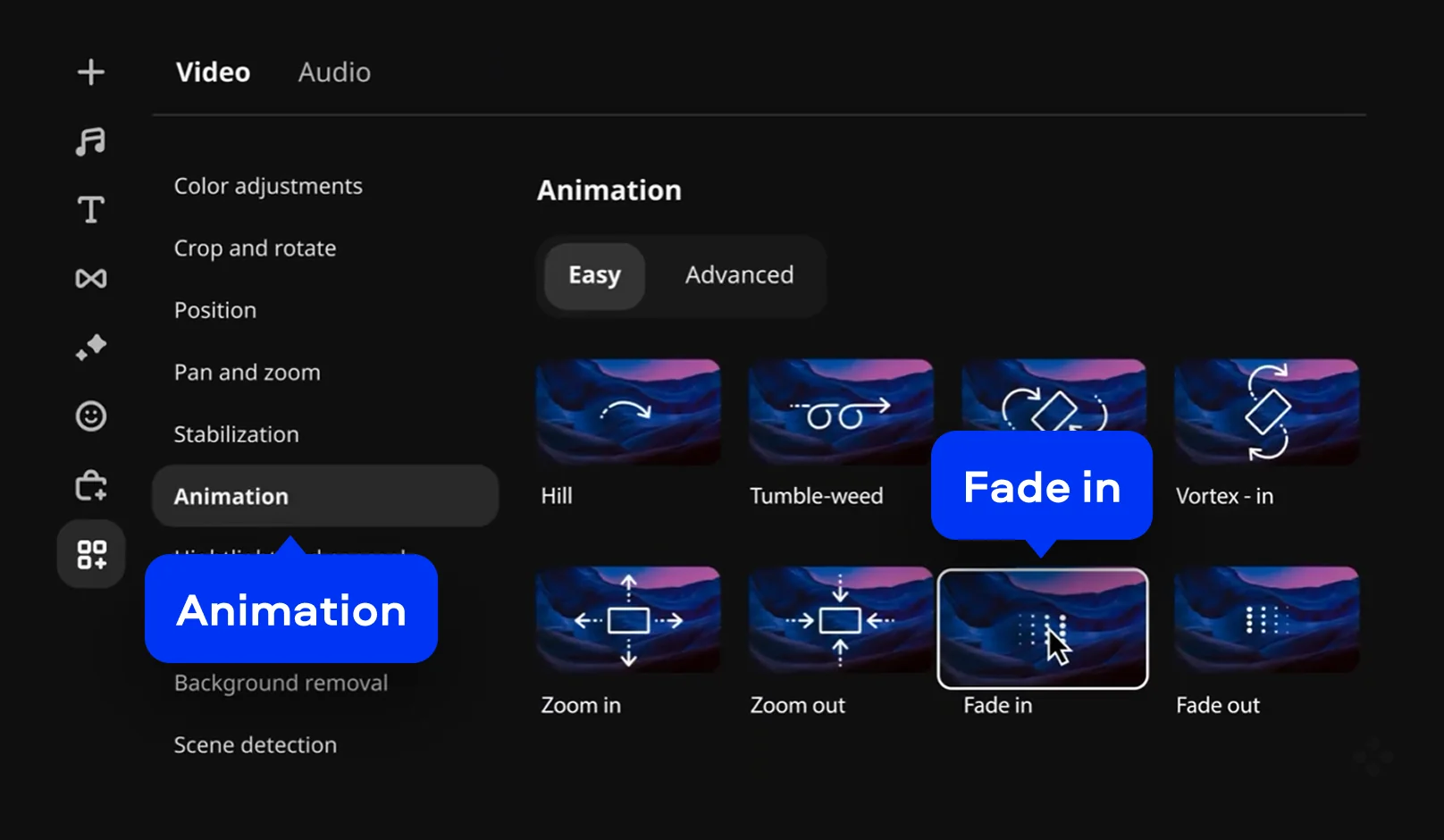
Go back to the Tools tab and look for the Animation tool. Select it while your upper video clip is still highlighted, then choose Fade in from the animation options. This applies a smooth fade-in effect to your PiP overlay at the start of the clip, making it appear gradually rather than snapping in abruptly – a simple touch that gives the edit a professional, broadcast-quality feel. If you want the overlay to also fade out at the end, look for a Fade out option and apply it as well.

Step 5. Preview and export your video

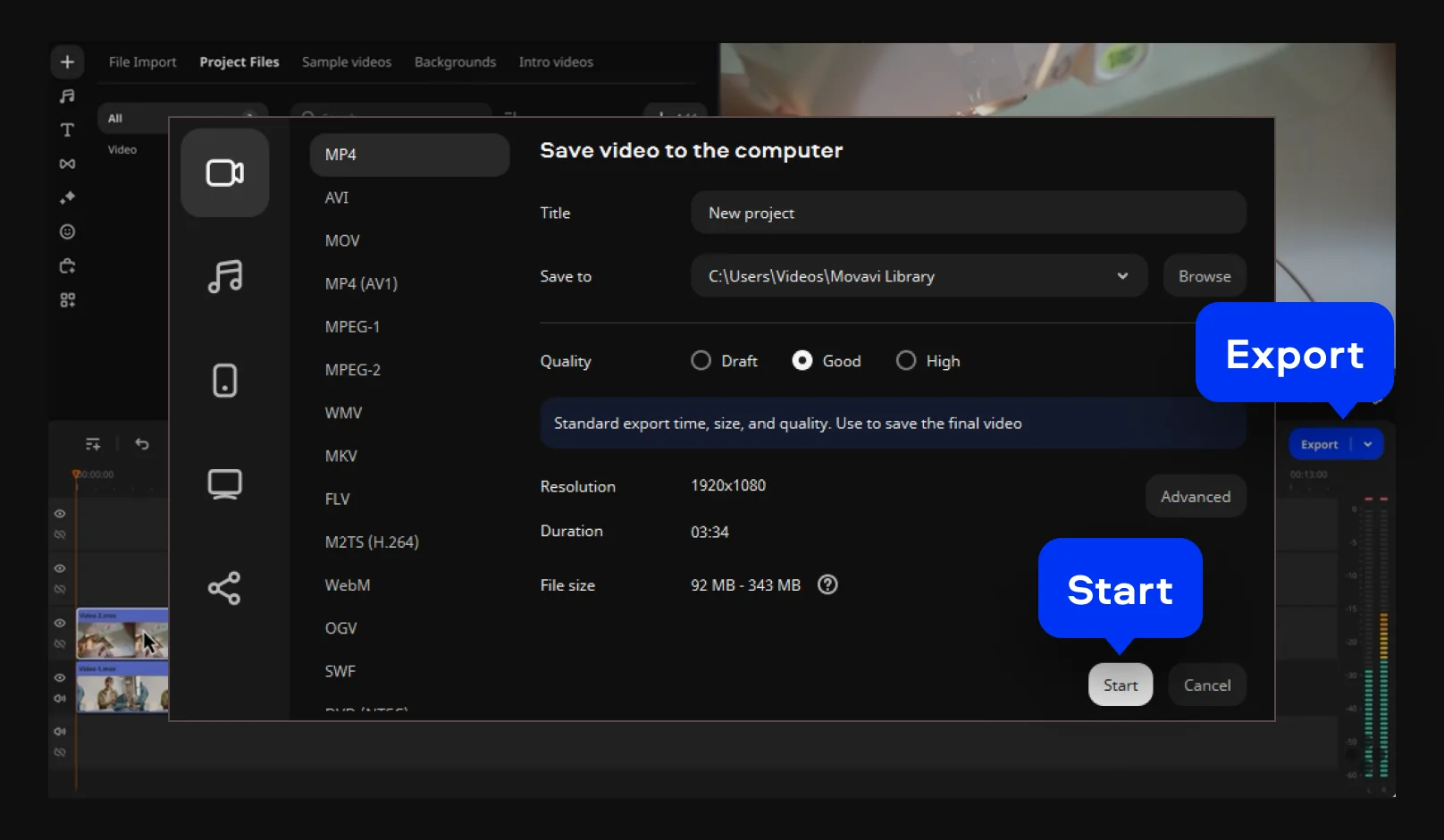
Once you've set up the picture-in-picture effect, hit the Play button in the preview panel to watch your edit in real time. Make sure the positioning and timing look good across the full duration of your clip. When you're satisfied, click Export, choose your output format and resolution, and hit Start to let Movavi render the final video. For YouTube uploads, MP4 with H.264 encoding is usually the best choice.

The picture-in-picture effect is one of the most versatile tools in video editing – and Movavi Video Editor makes it easy to enable and customize without a steep learning curve. Whether you're putting together a YouTube reaction video, a product demo, or a creative art project, layering a second video or photo over your main footage can instantly elevate your content. Follow the steps above to set it up on your computer and don't forget to add that fade-in animation for a smoother, more cinematic result.

Movavi Video Editor
Create awesome videos easily

*The free version of Movavi Video Editor may have the following restrictions depending on the build: watermark on exported clips, 60-second video or 1/2 audio length limit, and/or some advanced features unavailable when exporting videos.

Frequently asked questions

How do I turn on picture-in-picture?

To turn on picture-in-picture playback on your device, the steps vary depending on your platform. On iPhone and iPad, start playing a video in a supported app, then swipe up to go to the home screen – the video will automatically shrink into a floating PiP window that you can move around the screen. On Android, some devices support PiP natively: start video playback and tap the home button, and the video should toggle into a small floating window. On Windows, certain browsers and apps like Netflix and YouTube also support PiP playback – look for the PiP button in the video player controls, or right-click the video twice to find the option.

How do I create a picture-in-picture video?

To create a picture-in-picture video where two clips play simultaneously, you'll need a video- editing app like Movavi Video Editor. In Movavi, add your main video and overlay clip to separate tracks on the timeline, use the Position tool to enable the PiP layout, and adjust the size and placement to your liking.

How do you do picture-in-picture on an iPhone?

To use picture-in-picture playback on iPhone, you need iOS 14 or later. Start playing a video in a supported app, such as Safari, FaceTime, Apple TV, or YouTube (with a Premium subscription), then swipe up from the bottom of the screen to go to the home screen. The video will automatically shrink into a small floating window in the corner of your display. You can drag this window to any corner of the screen, pinch to resize it, or tap it to bring up playback controls. To return to full screen, tap the expand button inside the PiP window.

Is PiP available on an iPhone?

Yes, starting with iOS 14, iPhones support a built-in picture-in-picture mode for video playback.

Have questions?
If you can’t find the answer to your question, please feel free to contact our Support Team.
Join us for discounts, editing tips, and content ideas

1.5M+ users already subscribed to our newsletter

By signing up, I agree to receive marketing emails from Movavi and agree to Movavi's Privacy Policy.