Movavi Video Editor is built around exactly this shortcut. We designed the auto-subtitle tool to be simple and fast, so it listens to your video's audio, transcribes the speech into text, and times it against your footage – without you touching a stopwatch.

How to Create an SRT File
An SRT file is a plain text file storing your video's subtitles with exact timestamps. For YouTubers and creators, it's the simplest way to keep silent scrollers engaged and boost watch time. You can easily edit or translate it anytime using Notepad. Instead of typing timestamps by hand, Movavi Video Editor lets you generate, transcribe, and export subtitles as text automatically.
To do this, simply add your video, generate the text via Tools > Audio > Auto subtitles, and left-click the track to export your .SRT file. Built for beginners and everyday creators, Movavi helps you deliver high-quality videos on your very first try. Its clean interface and drag-and-drop design make editing instant, while one-click AI tools handle tedious work – letting you spend time creating instead of figuring out software.

Edited by
34,549
What is an SRT file, exactly?
SRT stands for SubRip Subtitle, named after the SubRip software that popularized the format years ago. Every entry inside the file follows the same structure: a sequence number, a start-and-end timestamp, the subtitle text, and a blank line before the next entry begins. Here's what one entry looks like:
1
00:00:04,500 --> 00:00:07,200
Okay, so today we're trying the viral pasta recipe.
Because it's just text with timing data attached, an SRT file fits seamlessly into any blogger’s workflow. YouTube, TikTok, most video editors, and every major media player accept it without complaint. That universality is exactly why the format has stuck around this long, even with newer alternatives floating around.
One habit worth keeping: name your SRT file exactly the same as your video file (just swap the extension). Most media players and upload forms look for a matching filename, so a video called pasta-recipe.mp4 should sit next to a subtitle file called pasta-recipe.srt. Get that pairing right and captions tend to just show up without extra steps.
Two ways to make an SRT file
You've got two real options, and the gap between them matters more than it looks.
Method
How it works
What it takes
Manual
Watch your video, type each line into a subtitle editor or plain text file, hand-enter every timestamp
Patience and time – a lot of it, for anything longer than a minute
AI-generated
Software transcribes your audio to text and times it against the video automatically; you export the result as an .srt file
A video editor with a built-in subtitle tool, plus a few minutes to review the output
For a five-minute vlog, typing and timing every subtitle by hand can eat up an evening. Generating subtitles automatically turns that same job into a quick review-and-edit pass instead of a from-scratch one.
How to create a SRT file
Step 1. Add your video
Launch Movavi Video Editor, select Add Files, and bring your recorded file in any of the video formats Movavi supports, including MP4. If you're working from an audio file rather than a full video, you can add that audio track to a project the same way and follow the same steps from there.
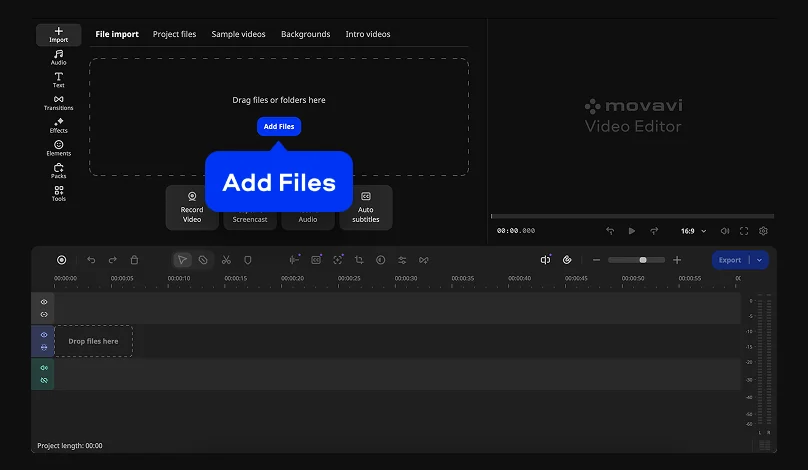
Step 2. Create auto subtitles
Go to the Tools tab on the left sidebar, select Audio, then click Auto subtitles. Choose language or let the program detect it automatically, then click Generate to let the AI create your captions. You can edit auto-generated text right after creation. Word-by-word highlighting syncs to the audio too, which is handy if you want that trending caption-karaoke look.
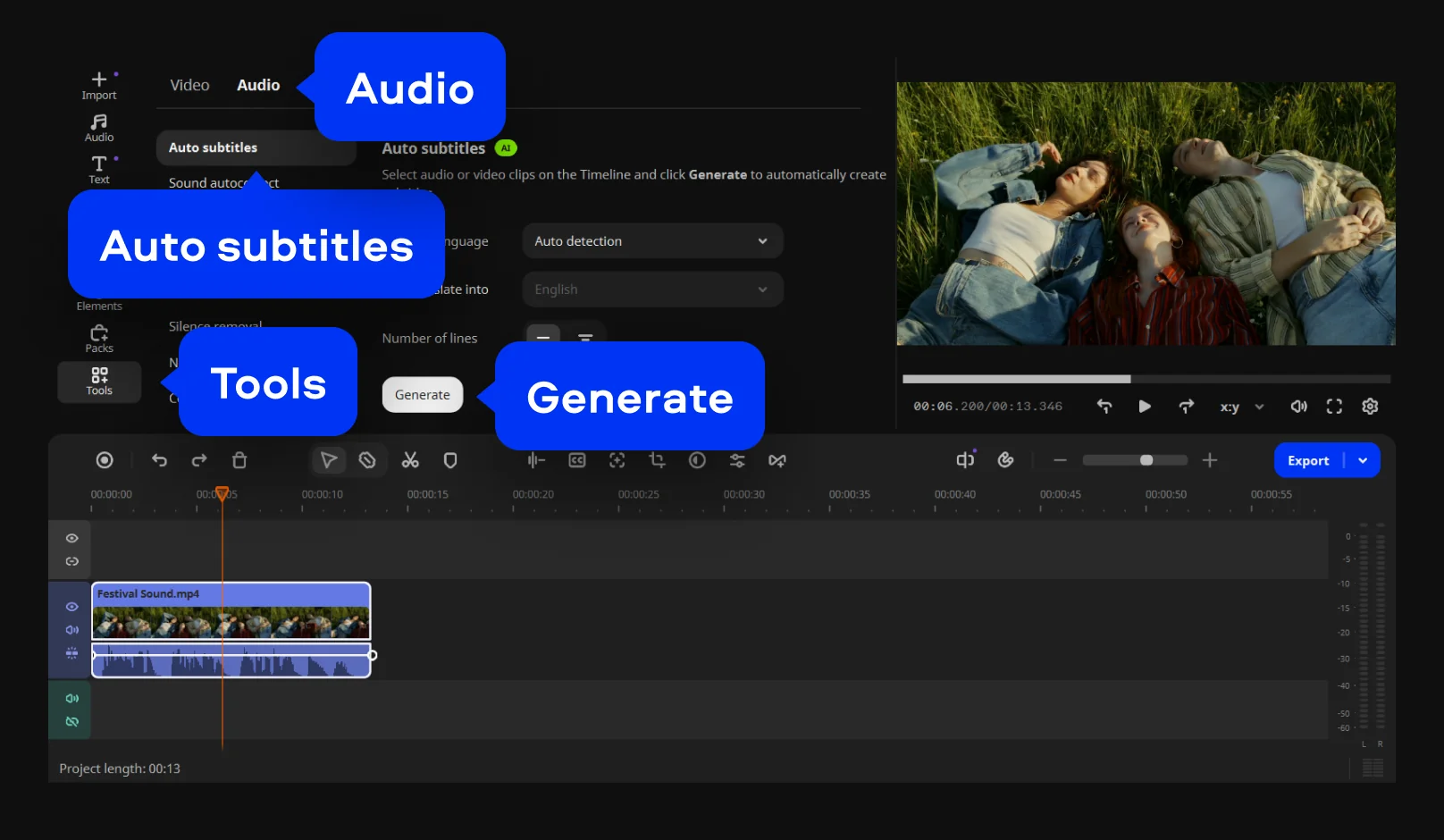
Step 3. Export the result
Left-click the subtitle track and select Export.SRT from the pop-up window. The file will be saved to the selected folder.
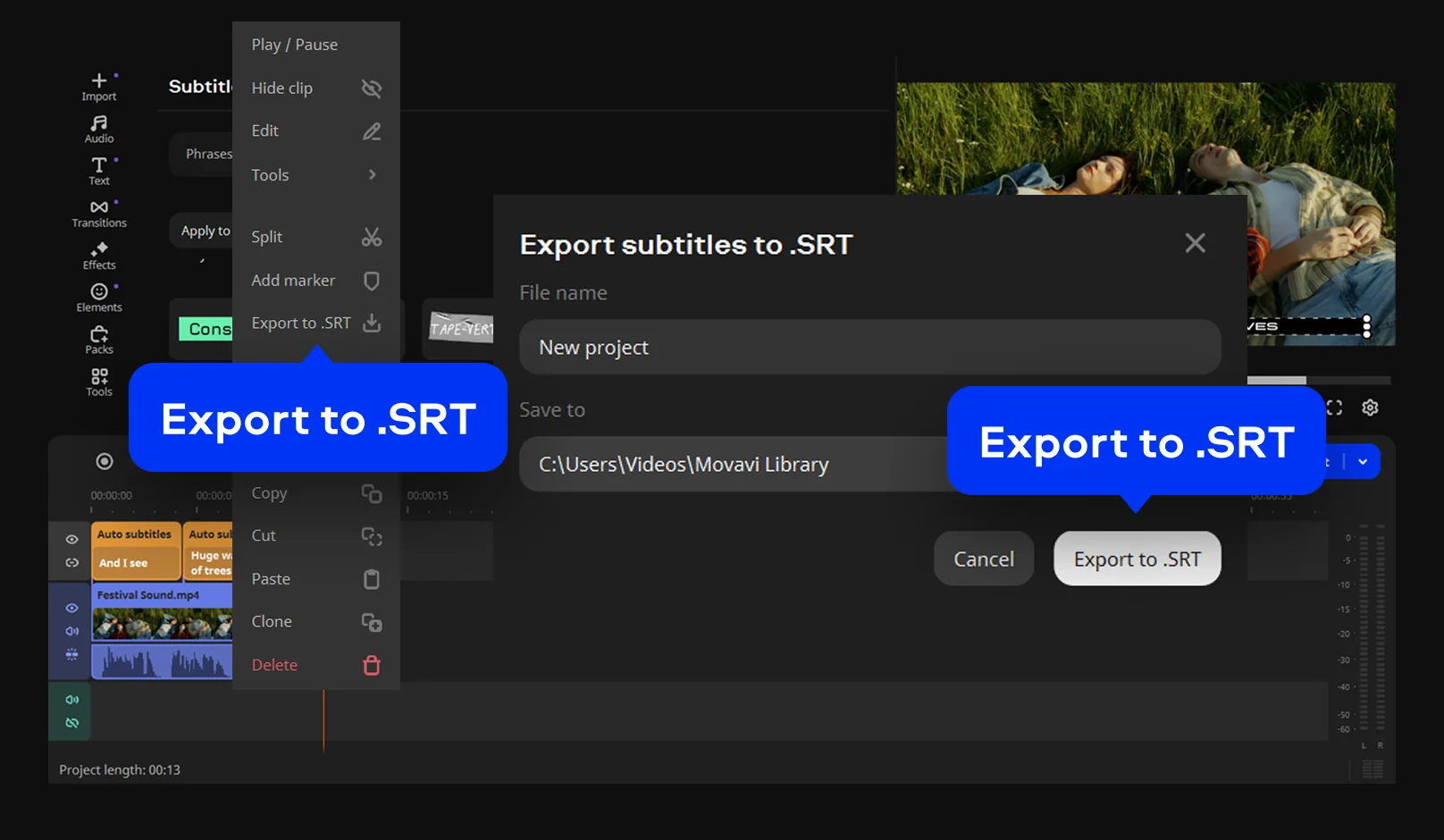
Where an SRT File Comes In Handy After Export
Once you've exported the file, it's yours to use anywhere that reads subtitles. Upload it alongside your video on YouTube for built-in captions, drop it into another editing program like Premiere Pro, or hand it off to a translator who only needs the text, not the whole video file. Because SRT is just text and timing, it travels well between platforms and programs without any conversion step.
Why talking-head creators should caption every video
If your videos are mostly you talking to a camera – daily vlogs, unboxings, reviews, tutorials – subtitles do more work than people give them credit for. A chunk of your audience watches with the sound off, on a bus or at a desk. Auto-generated subtitles catch dialogue that gets mumbled, talked over background music, or spoken quickly, and translating your captions into English opens the video up to viewers who wouldn't otherwise stick around. A product review with the ingredient list captioned on screen, or an unboxing where the model number shows up as text, also gives viewers something to pause on and screenshot. None of this guarantees a spike in views or followers. It does remove a real barrier between your video and the people who'd enjoy it if they could actually read along.
Choosing your setup
Movavi Video Editor comes in three tiers, so you're not paying for more than you need. Movavi Video Editor Free is a free download straight from the official website, and it lets you test the auto-subtitle tool along with everything else – exports are capped at 60 seconds with a watermark, which is plenty to see if the workflow fits how you edit. Movavi Video Editor Lite adds auto subtitles and the core editing toolkit with a small watermark on export. The full version unlocks everything, including subtitle export with no watermark and no length limit. It's a tailored setup for whatever budget you're working with: start free, and upgrade only the pieces you actually use.
If auto subtitles become your new default, Movavi Ideas publishes a fresh, step-by-step editing trick every week – worth a look next time you're staring at a blank timeline.
Movavi Video Editor
Create awesome videos easily

Frequently asked questions
What is an SRT file used for?
What is an SRT file used for?
An SRT file stores subtitle text and timing separately from your video, so the same captions can be uploaded to YouTube, embedded during editing, or swapped for a different language without re-editing the video itself.
Can I edit an SRT file after generating it?
Can I edit an SRT file after generating it?
Yes. Auto-generated subtitles can be edited line by line before export, so typos, names, or awkward phrasing get fixed before the file ever leaves your editor.
Does the SRT format work on YouTube and TikTok?
Does the SRT format work on YouTube and TikTok?
Yes. Both platforms accept SRT files for uploaded captions, along with most other video hosting sites and editing software.
Can I make an SRT file for free?
Can I make an SRT file for free?
Yes. The free, downloadable version of Movavi Video Editor lets you test the auto-subtitle tool before deciding whether to upgrade.
Do I need an internet connection to generate subtitles?
Do I need an internet connection to generate subtitles?
No. Once the software is installed on your PC or Mac, subtitle generation happens offline, the same as any other edit you make.
What's the difference between SRT and VTT?
What's the difference between SRT and VTT?
Both formats store subtitle text and timestamps, and both are plain text files. VTT (WebVTT) adds a few extras built for web video, like styling and positioning tags, but SRT remains the format most editors, video platforms, and media players default to first.

Have questions?
If you can’t find the answer to your question, please feel free to contact our Support Team.
Join us for discounts, editing tips, and content ideas


1.5M+ users already subscribed to our newsletter