How to Edit WebM Videos Without Losing Quality

Use Movavi Video Editor!

  • NEW: Adjustable video templates for any vibe – made of Blocks

  • NEW: Blocks – pre-edited video segments you can customize

  • Fast and easy editing: cut, crop, adjust colors and speed

  • Auto subtitles, noise removal, hundreds of effects, and more

By clicking the download button, you're downloading a trial version of the program.*

Edited by
Ben Jacklin
8,384

You can edit WebM files without a visible drop in quality. Import the original, make your cuts, crops, and text edits on one timeline, then pick export settings that match where the video will play. This guide is for anyone who films travel vlogs and unboxings, and for anyone who cuts highlights from game clips. One-click auto crop and an optional template do the heavy lifting, so your first export can already look finished.

Movavi Video Editor is an intuitive video editor with customizable video templates, one-click AI tools, and hundreds of drag-and-drop effects. It is a desktop app for Windows and Mac. If you run out of ideas, the free Movavi Ideas hub publishes new step-by-step editing tricks every week.

Say you have a WebM clip from a trip and want a vertical reel with a title card at the start. A template can supply that opening. Movavi Video Templates is a multi-style library of customizable, pro-looking, modular templates for any kind of video. Each template is a ready-made project built from Blocks: short segments of the video where you drop in your own clips, photos, and text. Several templates come with the full version of Movavi Video Editor at no extra charge.

What is a WebM file, and can you edit it without losing quality?

WebM is an open, royalty-free format made for video and audio on the web. It is a container for VP8, VP9, or AV1 video with Vorbis or Opus audio. PlayStation 5 can capture footage in WebM, so a gamer’s highlight reel can start as a WebM file.

Yes, you can edit WebM videos, and export settings decide how much quality you keep. Movavi Video Editor imports WebM with the VP8, VP7, and VP9 codecs and exports it with VP8. While you edit, Fast Track HD works on lower-size copies of HD footage and swaps the full-quality originals back in at export.

What you need to edit WebM files

Start with the original WebM file, not a compressed copy, and a computer that meets the requirements for Movavi Video Editor – Windows 10/11 (64-bit) or macOS 12.0 or higher.

Movavi Video Editor also handles MP4, MOV, AVI, MKV, and WMV video, plus MP3, WAV, and FLAC audio.

How to edit WebM videos in Movavi Video Editor

The drag-and-drop workflow and hover previews keep this quick: you preview a clip or effect before you commit to it. Steps 2 and 3 are optional, so skip them if you only need to cut a clip. For cutting, the Blade tool makes frame-accurate splits, and a pre-timeline trim lets you pull a short segment out of a long source file before it joins the project. When you remove a clip with ripple delete, the gap it leaves closes on its own, so the next clip slides into place.

A travel blogger trims the dull stretch of a WebM clip, then uses the cropping tool’s Auto mode, where AI keeps the subject centered while a horizontal shot turns vertical. A gamer cuts the best play, adds a title, and drops in music. The AI audio noise removal tool clears traffic, wind, and steady hums in one click, which helps both. For style, hundreds of built-in drag-and-drop effects cover titles, transitions, filters, and overlays, and the optional Movavi Effects subscription adds 10,000+ more plus 1,500+ music tracks that you can preview on your own footage before buying. Speed control runs from 0.01x to 100x, and its Original tone option keeps the pitch steady, so a sped-up travel montage still sounds natural. If you start from a template, you can also reorder, add, or remove Blocks, so one template fits a short intro or a longer sequence.
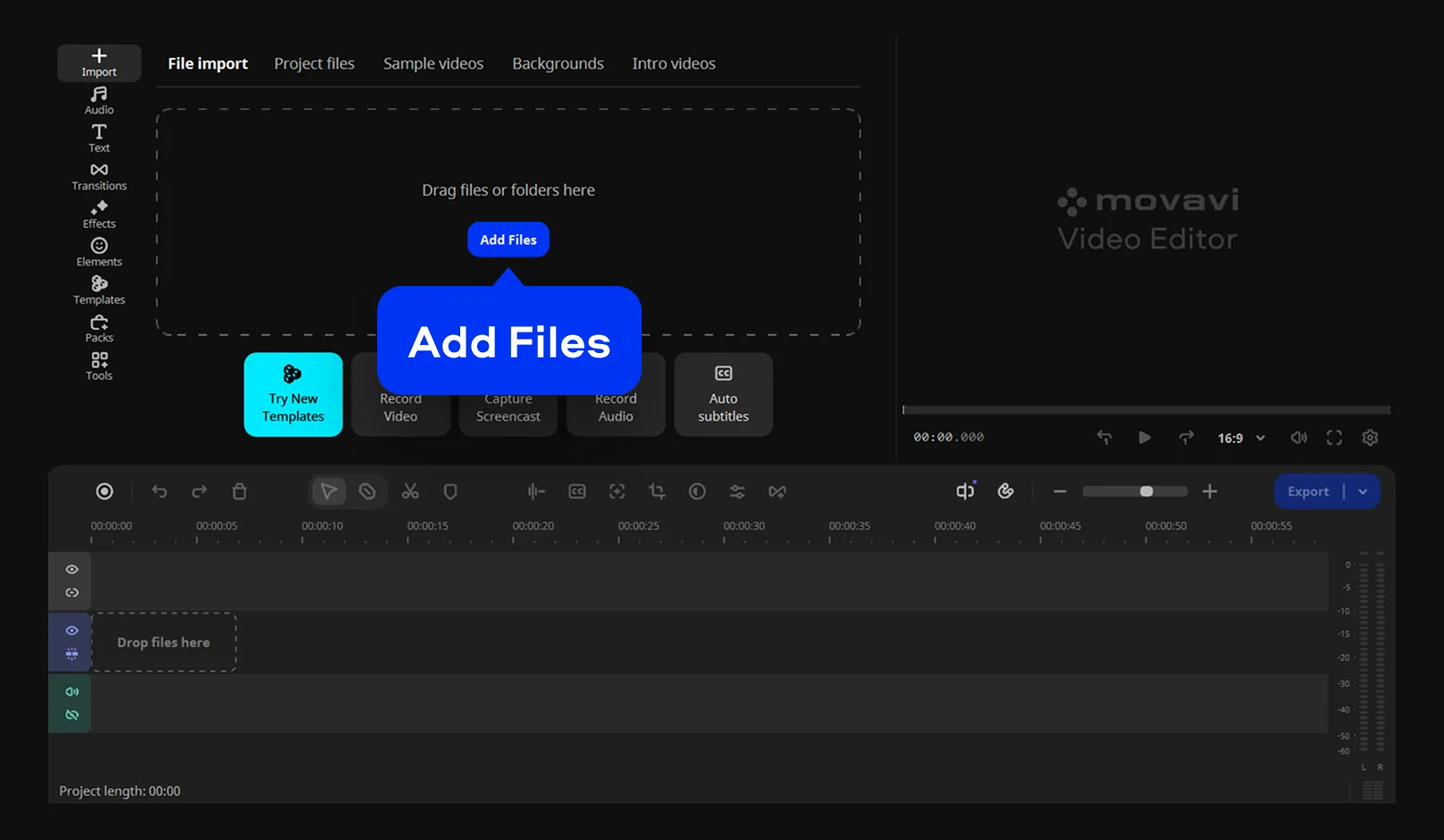
Step 1. Add your footage

Upload your WebM files to the video editor.

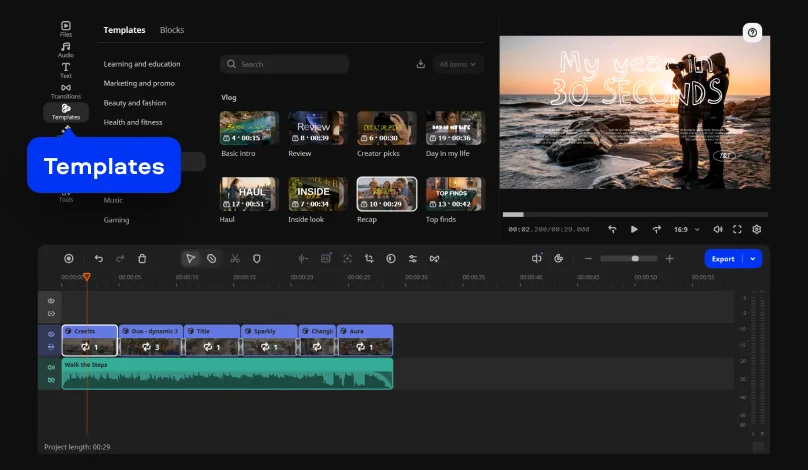
Step 2. Pick a template (optional)

Open the Templates tab. Choose a template, then drop it onto the timeline.

Step 3. Fill the Blocks (optional)

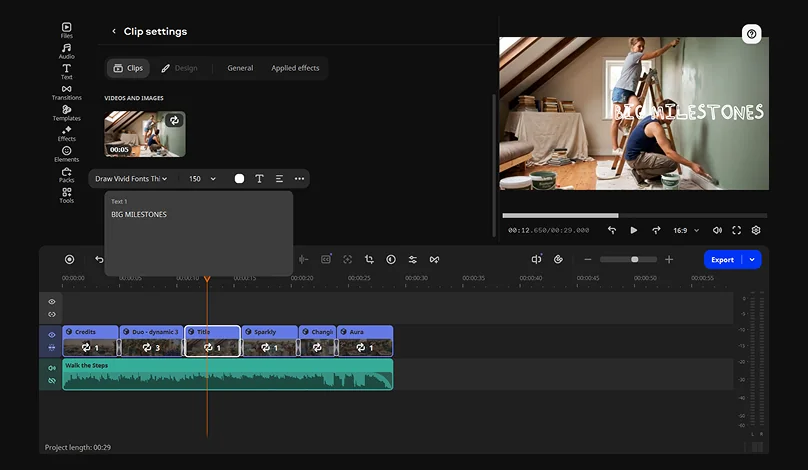
Double-click a Block on the timeline. Replace the placeholder with your WebM clip. Then retype the Block text.

Step 4. Trim, split, and join your clips

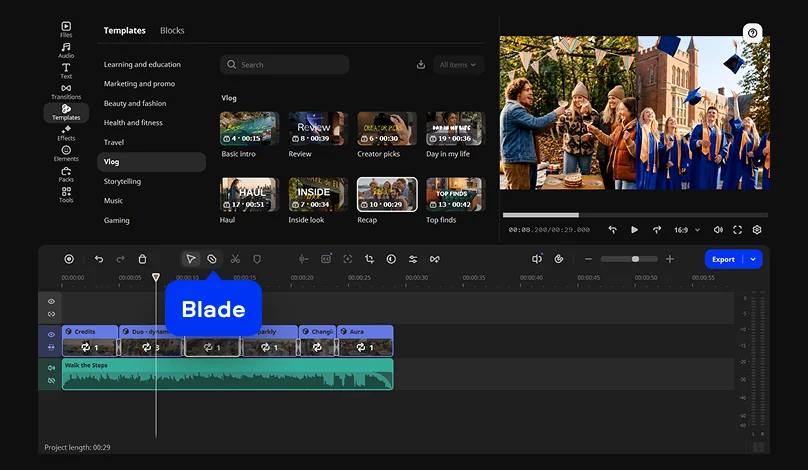
Select the Blade tool, then cut the clip where needed. Delete the part you don’t need by clicking the Delete button. Finally, drag the next clip on the timeline until it starts where the previous one ends.

Step 5. Crop or change the aspect ratio

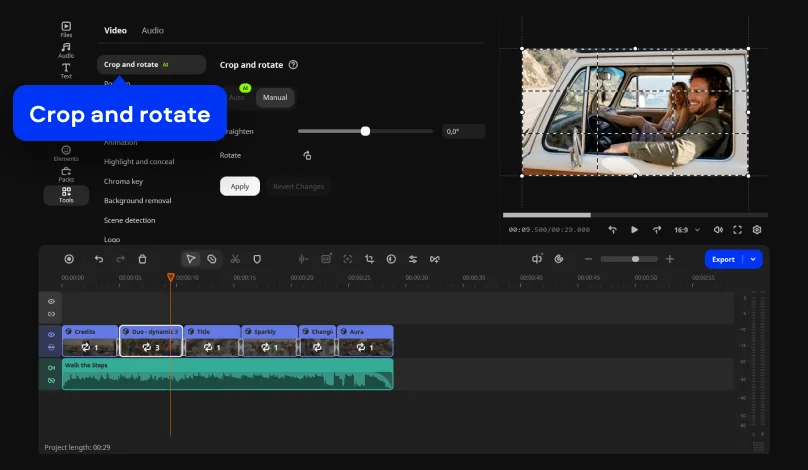
Select the clip on the timeline and open the Crop and rotate tool. Choose Auto or Manual mode. In Manual mode, drag the crop frame over the part you want to keep.

Step 6. Improve picture, speed, and sound

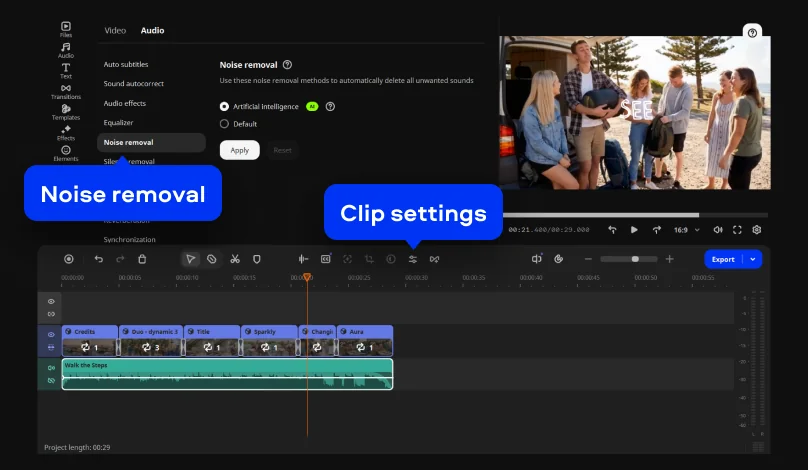
Select the clip on the timeline. Pick a color correction preset in the Color adjustments menu, then set the clip speed in Clip settings. Finally, turn on AI Noise removal.

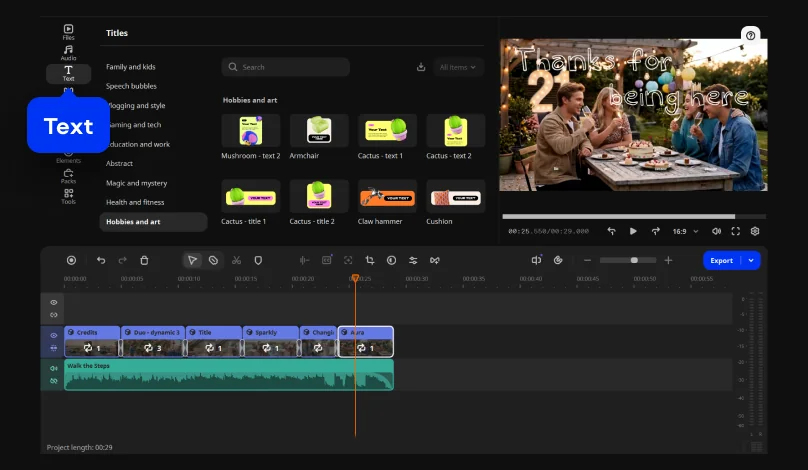
Step 7. Add text and music

Open the Text tab and drag a title onto the timeline. Retype the title text. Then drag a music track onto the timeline from the Audio library or upload your own audio track.

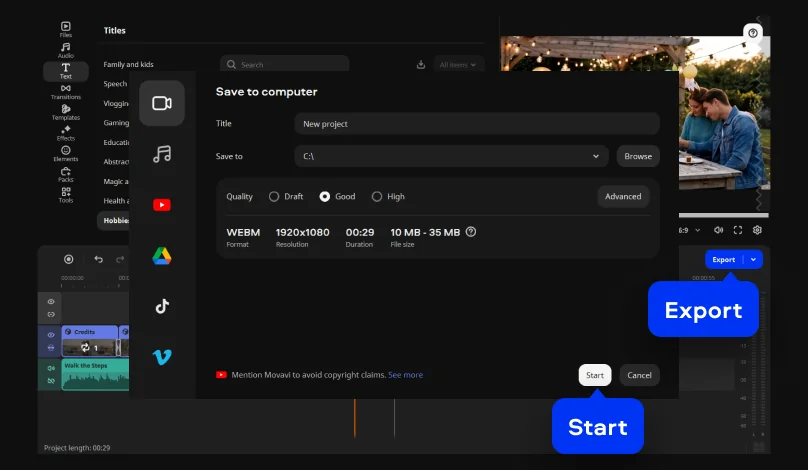
Step 8. Export the WebM video

Click Export and choose the output format. Set the resolution, then set the bitrate. Finally, click Start.

How to export an edited WebM video without losing quality

Export is where quality is won or lost, so pick the format by destination. MP4 is the recommended choice for broad compatibility, and MOV is available too. On Windows, WebM output uses VP8 while MP4 uses H.264. Match the resolution and frame rate (pictures per second) to your source file unless a platform asks for something else. Bitrate is the amount of data spent on each second of video: a higher number keeps more detail and makes a bigger file.

Need only part of the project? You can export just a fragment instead of the whole timeline, which is handy for a single game highlight or one stop of a trip. Plans scale with your project. Start with Movavi Video Editor Free, move up to Movavi Video Editor Lite or the full version, and add a Movavi Effects or Movavi Templates subscription only if you want more.

How to reduce WebM file size without losing quality

To compress WebM files, work from the least visible change to the most visible one. Cut footage you don’t need first. Next, let silence removal detect pauses in the audio and delete them; you set the pause length and volume thresholds. Speeding up a slow stretch shortens the clip too. Then lower the resolution to what the screen needs, and touch the quality setting last. A very low bitrate trades detail for file size, so make one careful pass instead of several rough ones.

Mistakes that cost you quality

  • Black bars from a wrong aspect ratio. They appear when a horizontal clip lands in a vertical frame, or the other way around. Crop the frame to the new ratio, or crop the bars away; the cropping tool handles both.
  • Repeated re-exporting. Save your project, keep the original WebM file, and export from them, never from an earlier export. A saved project also lets you change one title and export again in seconds.
  • Too little bitrate. Dropping bitrate and resolution together shrinks a file fast, but it leaves no room to undo the damage. Change one setting, check the result, and only then change the next.

Other ways to edit WebM

Three other routes cover quick jobs, and each comes with a limit.

Clipchamp, an online editor. Microsoft’s browser-based editor is built into Windows 11 and Microsoft 365. It offers a simple timeline, so it suits a short trim without installing anything. Large files can make it lag, and its free plan exports with limits.

VLC media player, a free player. VLC has native WebM playback, so it works well for checking a clip before and after you edit. Playback is its job here. For cutting and joining, you need an editor.

Movavi Video Converter, a converter. This software converts video, audio, and image files across multiple formats, which helps when a platform won’t accept WebM and you only need a different format. For joining, cropping, text, and music in one project, a desktop editor keeps everything on a single timeline.

More than 70M users worldwide edit with Movavi Video Editor. The editor gets 25+ updates a year, so the tools keep up with new formats and trends. Open Movavi Video Editor, add your clip, and give it a title card and a soundtrack. When you want fresh ideas for the next video, Movavi Ideas serves up new editing tricks every week.

Movavi Video Editor
Create awesome videos easily

*The free version of Movavi Video Editor may have the following restrictions depending on the build: watermark on exported clips, 60-second video or 1/2 audio length limit, and/or some advanced features unavailable when exporting videos.

Frequently asked questions

Can WebM be edited?

Yes. Any editor that reads the codecs inside the file can trim and combine it. Codec availability can vary with your OS version and device, and some codecs may need a separate install.

Does video editing reduce quality?

Quality depends on your export choices. Match resolution and frame rate to the source, export once from the project, and keep the original WebM file as a backup.

How do I convert WebM to MP4?

In Movavi Video Editor, upload your WebM file to the program. Click Export, choose MP4 as the output format, then click Start.

How do I make a WebM file smaller?

Trim before the clip reaches the timeline: the pre-timeline trim pulls a short segment out of a long source file before it joins the project. Then follow the resolution and bitrate advice above.

Have questions?
If you can’t find the answer to your question, please feel free to contact our Support Team.
Join us for discounts, editing tips, and content ideas

1.5M+ users already subscribed to our newsletter

By signing up, I agree to receive marketing emails from Movavi and agree to Movavi's Privacy Policy.