Hover over an effect in Movavi Video Editor, and an instant preview shows what it does – this way you can see a flip before you apply it. Flip filters sit with the other filters, the effects that change how a clip looks, such as blur, light leaks, or distortion. Flip first and edit after, so any new title lands on a picture that already faces the right way. If you want more editing ideas to try afterward, Movavi Ideas is a free tutorial hub with new ideas every week, and each one comes with a step-by-step tutorial.
How to Flip a Video on Windows and Mac
Use Movavi Video Editor!
NEW: Adjustable video templates for any vibe – made of Blocks
NEW: Blocks – pre-edited video segments you can customize
Fast and easy editing: cut, crop, adjust colors and speed
Auto subtitles, noise removal, hundreds of effects, and more
By clicking the download button, you're downloading a free version of the program.*

Edited by
8,384
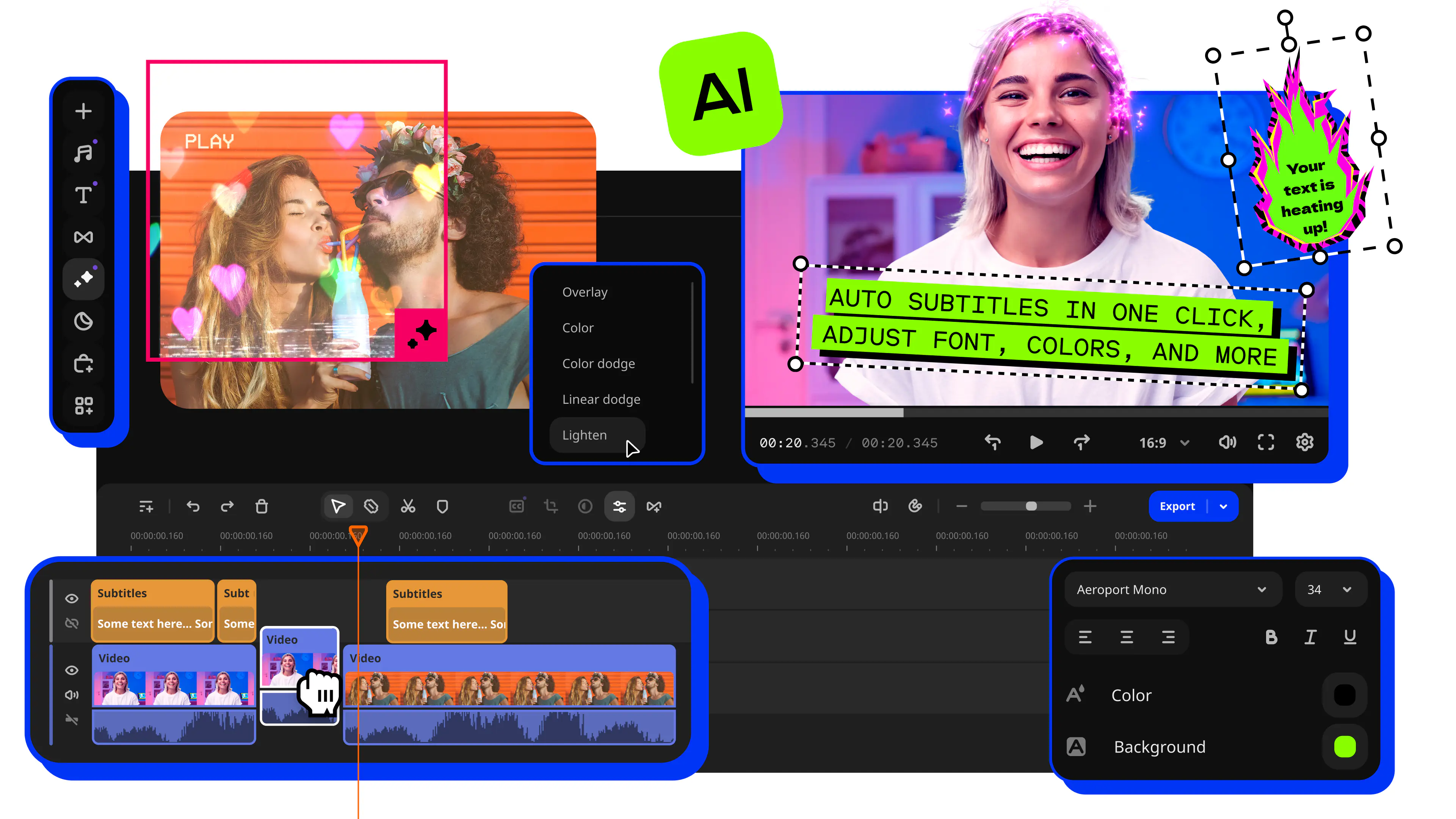
Looking for a tool to flip video? Movavi will help you out! Movavi Video Editor is an intuitive video editor with customizable video templates, one-click AI tools, and hundreds of drag-and-drop effects. It runs as a desktop app on Windows and macOS. Designed for beginners and everyday creators, the editor delivers high-quality results from the first try by automating tedious editing tasks.
Here's how to flip a video: select the clip on the timeline, apply the flip filter, check the preview, and export with your original settings. That one move fixes the words on your shirt that read backwards in a selfie vlog. It also turns around a car that drives the wrong way across the frame in a road-trip clip.
First, a quick sort of two look-alikes. A flip mirrors the picture, like a reflection. A rotate turns the whole frame. Both are easy to turn around once you know which one you need.
What you'll need
Movavi Video Editor on a Windows PC or a Mac, plus a video in a common format: MP4, MOV, AVI, MKV, WMV, or WebM. If your selfie clip is still on your phone, move it to your computer first.
How to flip a video in Movavi Video Editor
Step 1. Install and launch the program
Download Movavi Video Editor. Run the installer and follow the setup prompts. Launch the app after the installation.
Step 2. Add your video
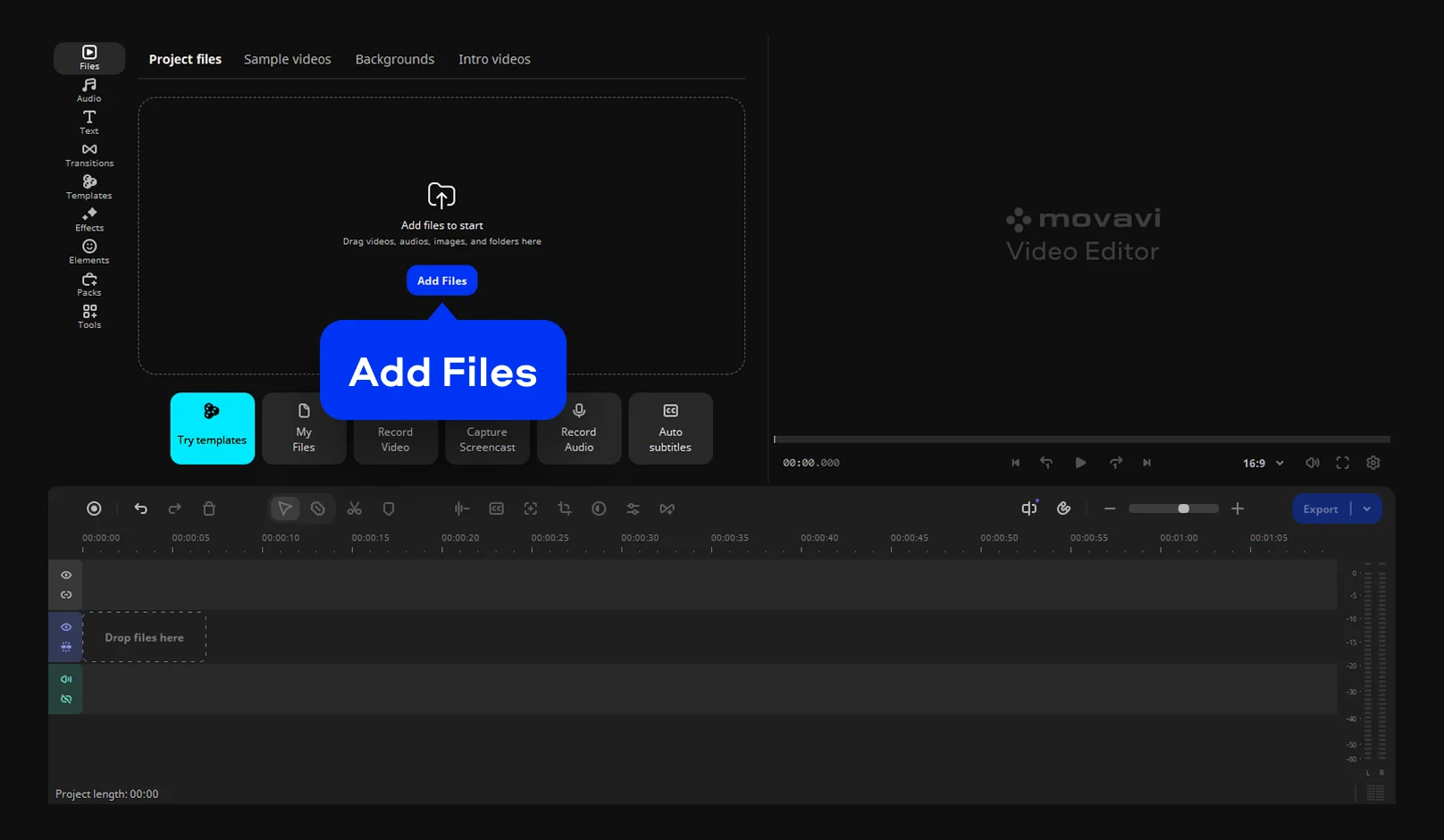
Click Add Files and select the video you want to flip. Then drag the video onto the timeline.
Step 3. Apply the flip filter
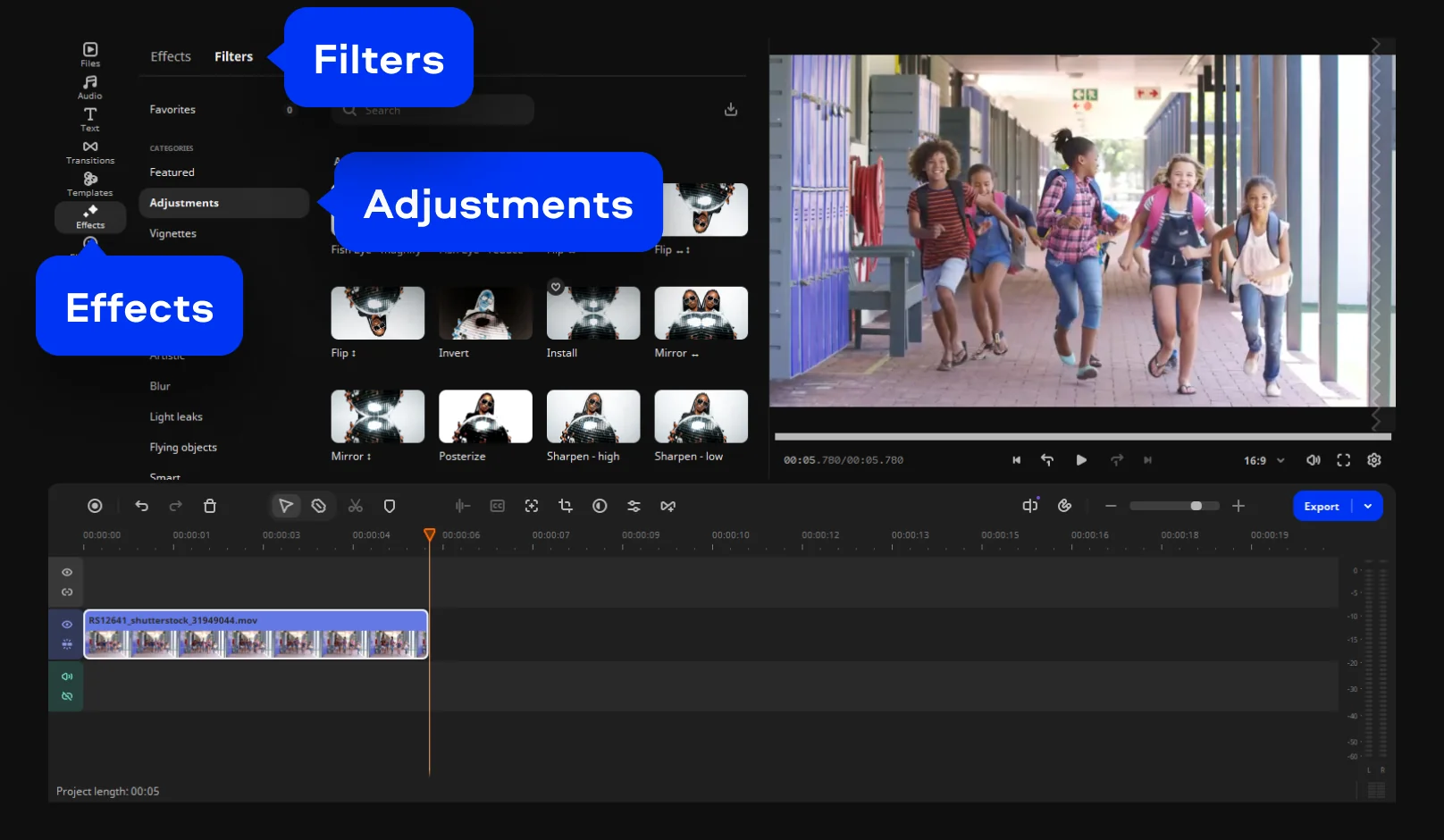
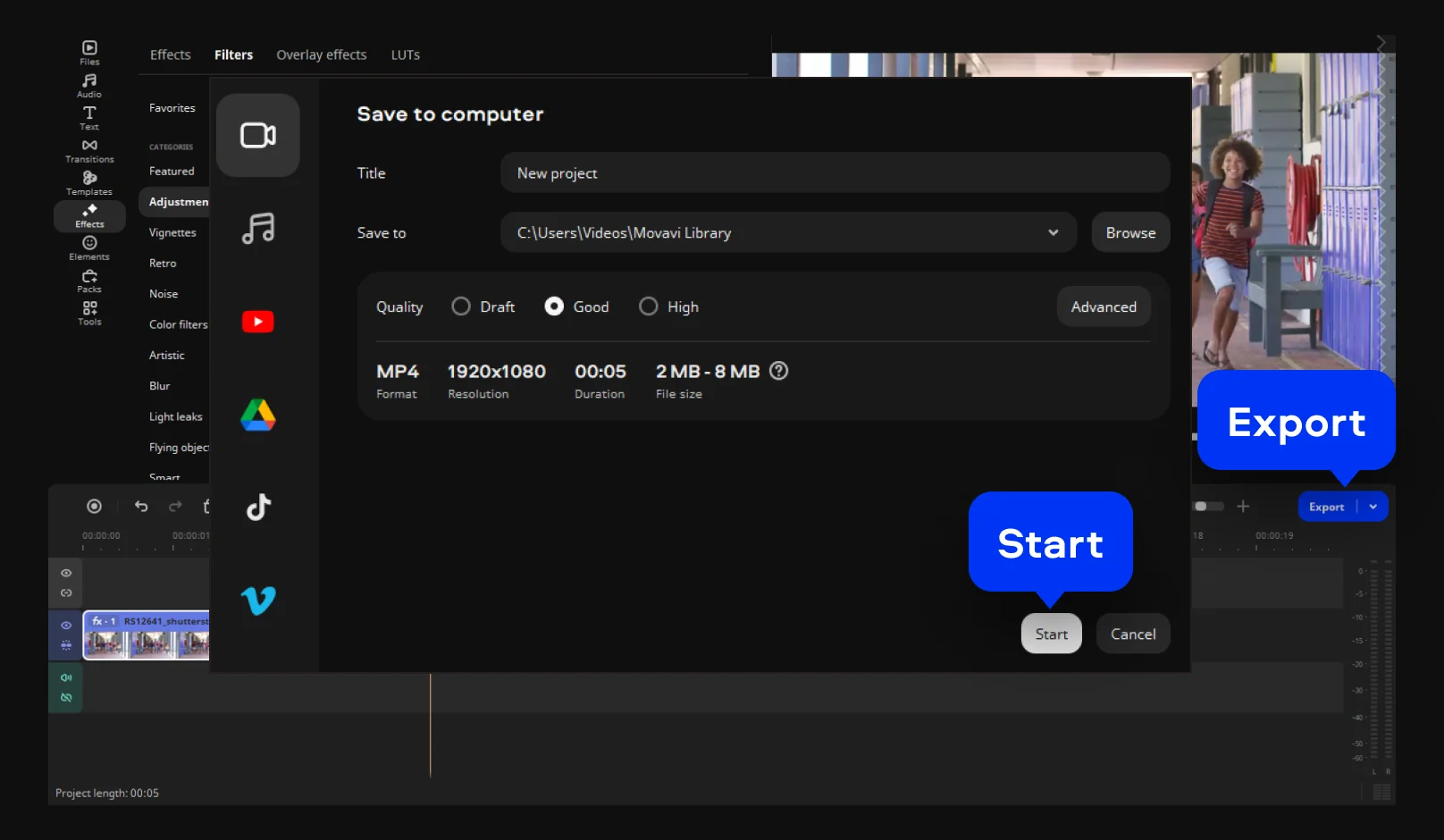
Select the clip on the timeline and open Effects. Go to the Filters tab and find Adjustments. Here, you can choose the horizontal or vertical flip filter. Drag the filter onto the selected clip on the timeline.
Step 4. Check the result in the preview
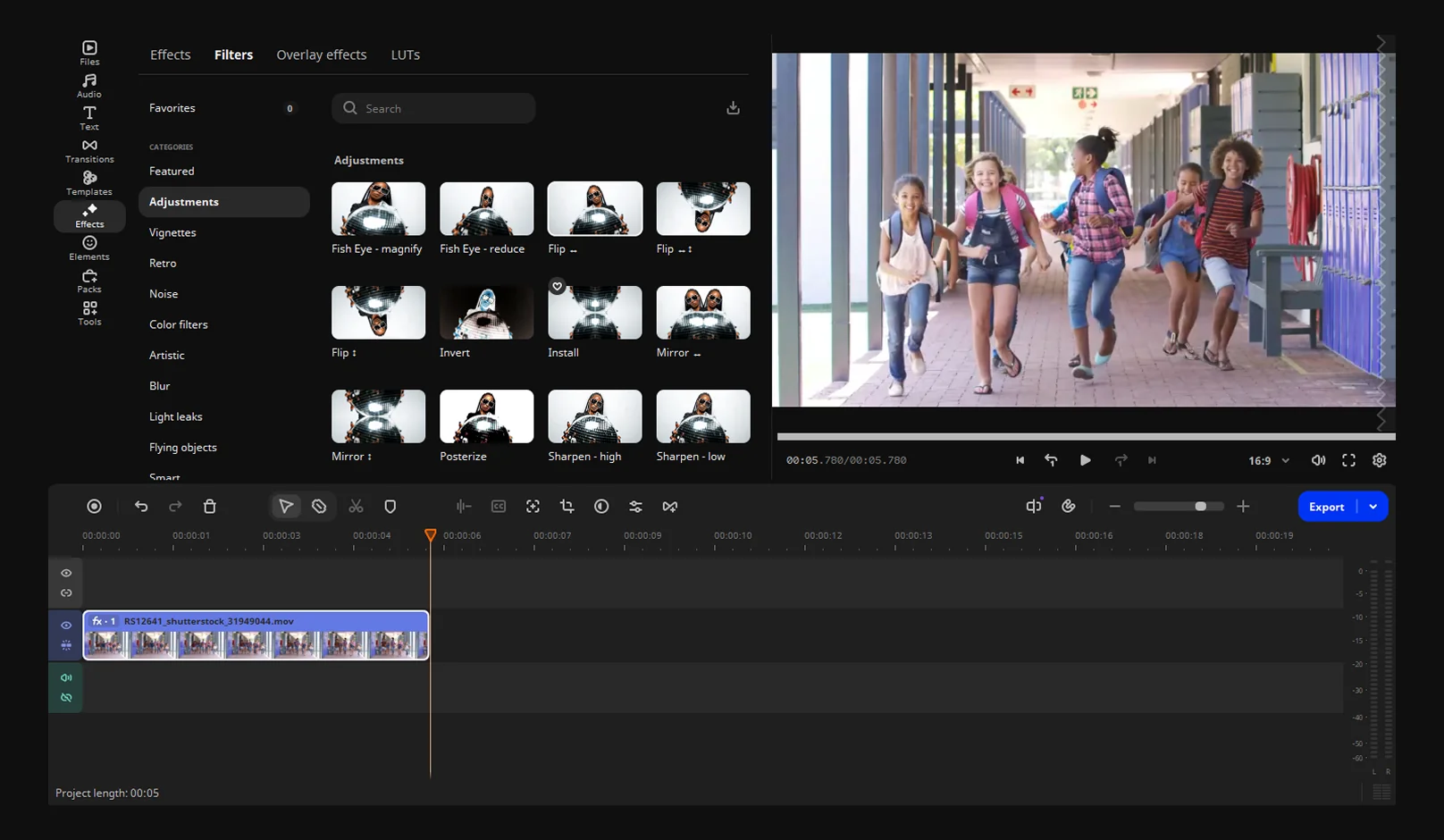
Play the clip in the preview. Read any text in the frame and watch the direction of movement.
Step 5. Export with your original settings
Click Export. Choose the same format and resolution as your original file. Hit Start.
What can a flip fix in your video?
Selfie vlog. When you film a morning-routine vlog on the front camera, the poster behind you might read backwards on the video. To fix it, apply the horizontal flip to that clip and press play in the preview – the lettering will read left to right again, and so will the logo on your shirt.
Road trip. The car in your first clip crosses the frame left to right, and the car in the next clip goes right to left. Flip the second clip, and both shots move the same way, so the cut feels natural.
Travel video. You stitch beach clips into one reel. In one shot, a friend walks in from the right; in the others – from the left. Flip that clip horizontally, and everyone enters from the same side, so the montage looks planned.
Horizontal vs. vertical flip: which one do you need?
A horizontal flip mirrors video from left to right. A vertical flip turns your footage top to bottom.
Option
What changes
Good for
Horizontal flip
Left and right swap
A selfie vlog or unboxing with backwards text on a shirt, poster, or box label; a road-trip shot that moves the wrong way
Vertical flip
Top and bottom swap
A playful upside-down reflection in a travel video
Rotate
The whole frame turns
A travel clip that came out sideways or with a tilted horizon
To decide, check what looks wrong. Words read backwards, or the action moves the wrong way across the frame: you need a horizontal flip. You want a mirror image from top to bottom, like a reflection: you need a vertical flip. The whole picture sits at the wrong angle: you need a rotation.
If you want to mirror video from left to right, the horizontal flip is your tool. That is also how to mirror a video that came out reversed on a selfie camera. The vertical flip is the rarer one: it turns a travel shot into a reflection, with the sky at the bottom of the frame.
To rotate video instead, use the Rotate tool in Movavi Video Editor. Rotating turns the clip in 90° steps, and a slider straightens a tilted horizon. A clip that was filmed sideways needs a rotation, because a flip would mirror it and leave it on its side.
How to flip video on your iPhone or Android phone
If the clip never leaves your phone, flip it there. On iPhone, the Photos app handles it. On Android, use Google Photos or your gallery app.
Phone edits suit a single clip you want to post right away. For a longer vlog built from several clips, flip in Movavi Video Editor and keep every edit in one project.
iPhone (Photos app)
- Open the video in Photos.
- Open the video you want to flip and tap the settings icon.
- Tap the crop and rotate icon.
- Tap the Flip button to mirror your video horizontally.
Android (Gallery app)
- Open the video in your gallery app.
- Tap the edit control.
- Tap the flip control.
- Save the change.
To stop backwards text before it happens, turn on the camera setting that saves selfies as previewed, so the saved video matches what you saw on screen. Then there is nothing left to fix afterward.
Mistakes to avoid when you flip a video
Five slips cause most of the "why does this look wrong?" moments.
- Mixing up flip and rotate. A clip that lies on its side needs a rotate. A flip would mirror it and leave it sideways.
- Flipping footage that already reads correctly. Text and logos in the frame flip with the picture, so a correct sign turns into a backwards one. If you need fresh lettering, add a title after the flip. Titles are separate text you can adjust, and they sit among the built-in effects next to transitions, filters, and overlays. A horizontal flip also moves everything that sat on the left to the right, so check where the new title will land.
- Exporting at a lower resolution or quality than the original. The picture gets softer. Match your original settings when you export.
- Flip video clip by clip, not the whole project. Movavi Video Editor can apply one effect to several selected clips at once, so check that only the clip you mean to flip is selected before you drag the filter on.
- Flipping twice. A mirror image of a mirror image is the original again. If the picture looks unchanged after your flip, check that the filter isn't on the clip two times.
Try Movavi Video Editor to flip your video in a couple of clicks. The drag-and-drop workflow, hover previews, and clean interface make every tool instantly intuitive, drastically speeding up the editing process so you can spend time creating – not figuring out how the software works.
Movavi Video Editor
Create awesome videos easily
*The free version of Movavi Video Editor may have the following restrictions depending on the build: watermark on exported clips, 60-second video or 1/2 audio length limit, and/or some advanced features unavailable when exporting videos.
Frequently asked questions
Does flipping a video reduce quality?
Does flipping a video reduce quality?
Flipping mirrors the picture and keeps the frame the same size. Quality drops only when you export at a lower resolution or quality setting than your original. Match both, and the flipped clip keeps the settings you started with. Movavi Video Editor's Fast Track HD adds a safety net: it works on temporary lower-size copies of HD footage while you edit, then swaps the full-quality originals back in when you export.
How do I flip only part of a video?
How do I flip only part of a video?
In Movavi Video Editor, cut the clip with the Blade tool at the moments where the flip should start and end, so that part becomes its own clip. Then apply the flip filter to that clip alone. Play the section in the preview afterward, so you can see exactly where the flip starts and stops.
Can I flip video online?
Can I flip video online?
Yes, you can use web-based tools, like Clideo or Canva, to flip your video online.
How do I flip a video in Adobe® Premiere® Pro?
How do I flip a video in Adobe® Premiere® Pro?
In Adobe® Premiere® Pro, apply the Horizontal Flip or Vertical Flip effect to your video.
Have questions?
If you can’t find the answer to your question, please feel free to contact our Support Team.
Join us for discounts, editing tips, and content ideas


1.5M+ users already subscribed to our newsletter