How to Make an Intro Using Templates: Intro Video Maker for Beginners

Use Movavi Video Editor!

  • NEW: Adjustable video templates for any vibe – made of Blocks

  • NEW: Blocks – pre-edited video segments you can customize

  • Fast and easy editing: cut, crop, adjust colors and speed

  • Auto subtitles, noise removal, hundreds of effects, and more

By clicking the download button, you're downloading a trial version of the program.*

Edited by
Ben Jacklin
8,842

If you post daily vlogs, gadget reviews, or game highlight edits, a short intro makes every upload easy to recognize. Here's how to make an intro video without opening professional motion-graphics software or starting from a blank timeline.

Movavi Video Editor is an intuitive video editor with customizable video templates, one-click AI tools, and hundreds of drag-and-drop effects. It's a desktop app for Windows and Mac, so the whole project lives on your computer. You can work offline, with none of the upload wait that comes with browser-based tools.

More than 70 million people already use Movavi Video Editor for everyday video editing. Inside the program, the fastest way to build an intro is to start from a template instead of a blank timeline: drop your logo or face-cam clip into a ready-made design, and the first export is already clean and polished.

Why start with intro video templates

Movavi Video Templates is a multi-style library of customizable, pro-looking, modular templates for any kind of video. The library is built from Blocks – short, pre-made segments like intros, countdowns, and animated collages. Each Block is editable: drop your own footage or photos into it, reorder the pieces, or remove the ones you don't need. Several intro templates come with the full version of Movavi Video Editor at no extra charge, and a Movavi Templates subscription unlocks the whole library.

Want more variety beyond the built-in options? Movavi Effects is a separate add-on with 10,000+ creative effects and 1,500+ music tracks across themes like blogs, business, and holidays. You can preview any of them, with a watermark, before buying.

A template takes care of the two hardest parts of building an engaging intro from scratch: timing the reveal, and coming up with a design that doesn't look like an afterthought. For example, a gaming channel might grab a countdown Block with bold titles; a skincare or lifestyle vlogger might pick something closer to a soft fade-in with pastel titles. Match the template to your channel, and the layout work is done before you add a single clip.


How to make an intro video with Movavi Video Editor

Step 1. Install the intro video maker

Download Movavi Video Editor for your PC or Mac. It’s available as a free download, and it lets you test every tool in the program, including templates. Exports from the free version carry a watermark and a 60-second cap; the full version removes both.

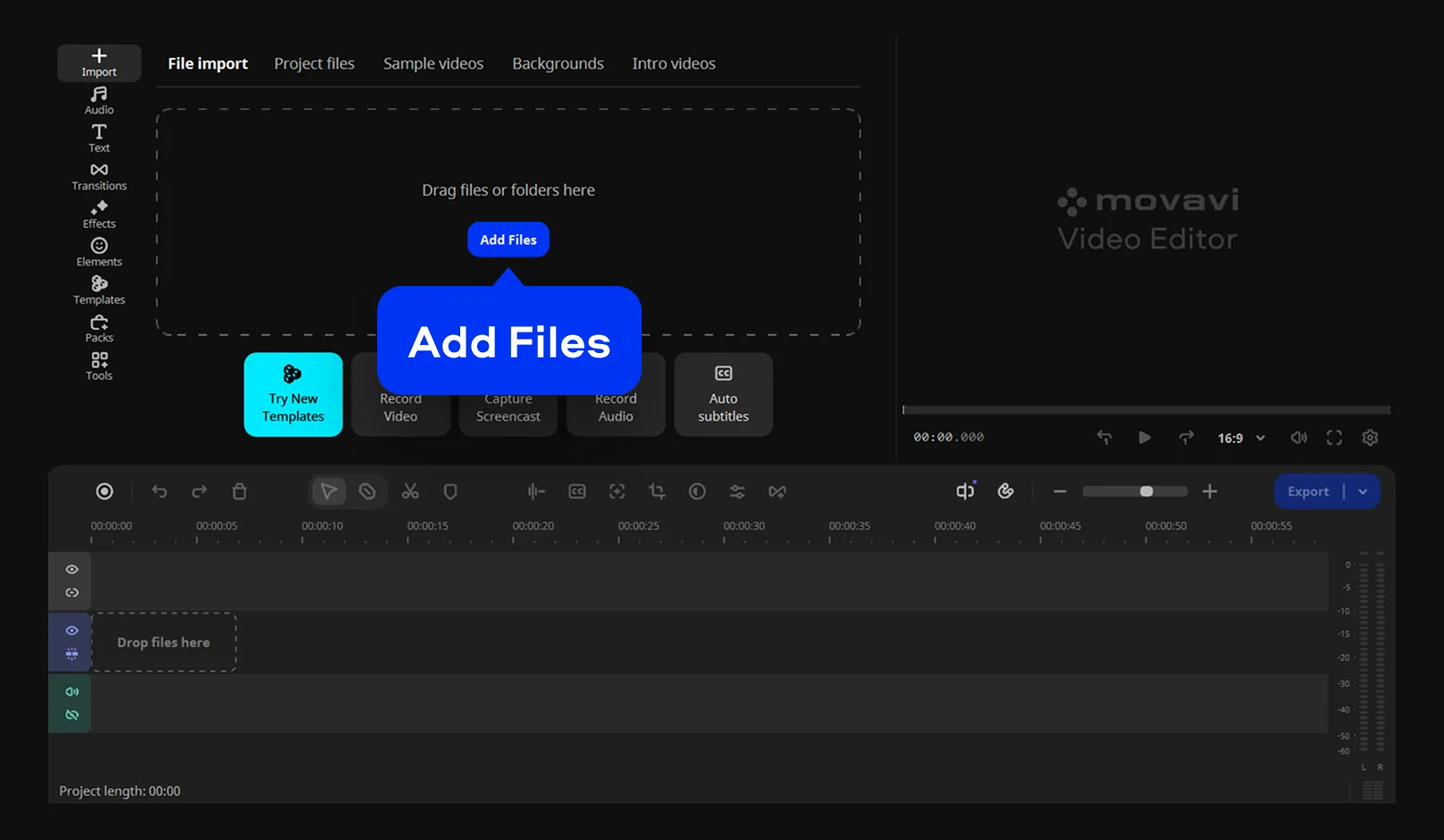
Step 2. Import your footage

Upload your own clips, photos, or logo file, or start from one of the built-in sample intro videos and backgrounds if you don't have footage ready yet.

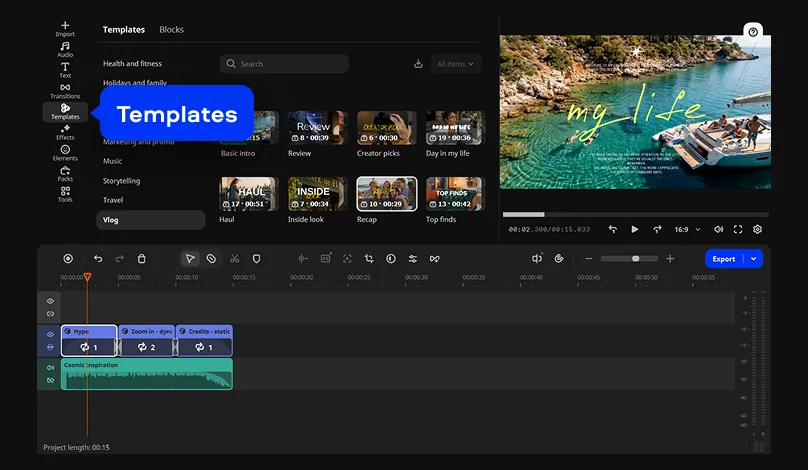
Step 3. Pick a video template

Open the Templates tab and find an intro template. Drop it onto your timeline, then drag your clip or photo straight into the Block. The layout, timing, and design are already built in.

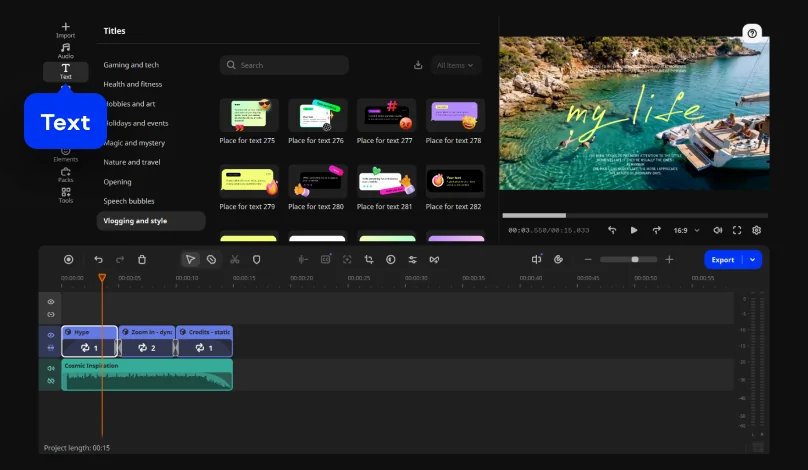
Step 4. Add your channel name

In the Text tab, pick a title style preset, type in your channel name or tagline, and adjust the font and color to match your brand.

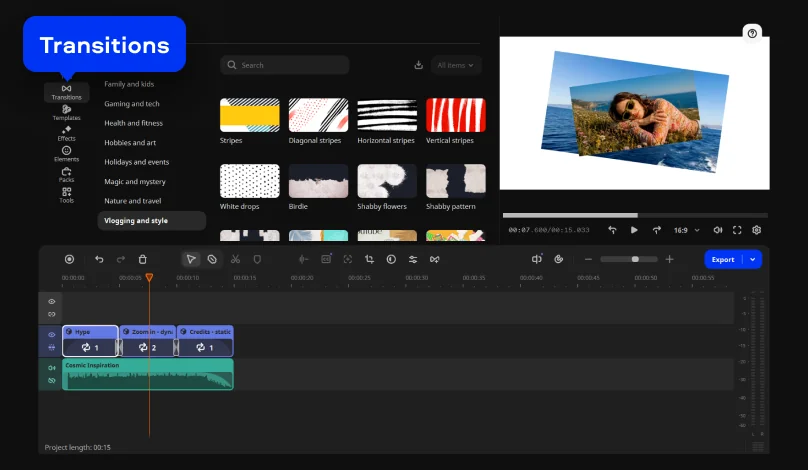
Step 5. Add a transition into your main video

A quick transition between the intro Block and your first real clip keeps the cut from feeling abrupt. Transitions, like the rest of Movavi's effects, are drag-and-drop: pick one from the Transitions tab and drop it between the two clips.

Step 6. Export your intro

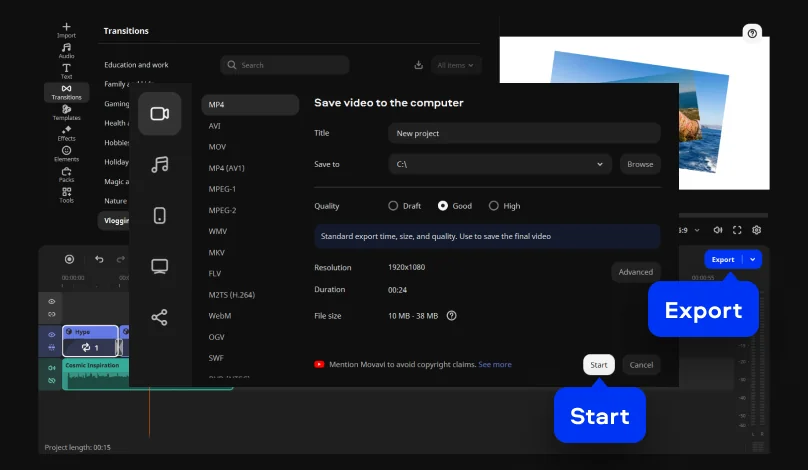
Click Export and specify the output settings. MP4 is the format Movavi Video Editor recommends by default, and it's the safer bet for a YouTube intro or any other upload because it's compatible with nearly everything.

Bonus: skip the re-upload. Movavi Video Editor can export and upload directly to YouTube, Vimeo, or Google Drive, with fields for the title, description, privacy setting, and tags built into the export window – handy once your intro is sitting at the front of the full video.

Match the intro to your channel

An intro for a skincare review channel and an intro for a game highlight reel shouldn't look the same, and Movavi Video Editor has the effects to tell them apart. A beauty or lifestyle vlogger doing daily vlogs can lean on soft filters and a gentle fade-in for a calm, inviting feel. A tech channel putting out gadget reviews or game highlights can go bolder with glitch overlays, fast cuts, and high-contrast titles. Either way, the same Blocks panel does the work. Only the choices change.

A few things that make any intro work, no matter which Block you choose:

  • Keep it short: three to five seconds is enough for most channels.
  • Reuse the same Block, sound, or title style every time, so it becomes recognizable rather than a one-off.
  • Make your channel name readable without the viewer needing to pause.

Once your intro is in place, the same template habit works for the rest of your channel. Movavi Ideas publishes a new, step-by-step editing trick every week, so there's always a fresh way to keep your uploads looking current without relearning the software from scratch.

Movavi Video Editor
Create awesome videos easily

*The free version of Movavi Video Editor may have the following restrictions depending on the build: watermark on exported clips, 60-second video or 1/2 audio length limit, and/or some advanced features unavailable when exporting videos.

Frequently asked questions

What file format should I export my intro in?

MP4, by default. It's the one setting you shouldn't have to think about.

Do I need design experience to use intro templates?

No. Intro templates are built from Blocks with the layout and timing already set, so even as a beginner, you're customizing a finished design rather than starting from nothing.

Can I use the same intro on platforms other than YouTube?

Yes – the same MP4 export works anywhere, or use the direct upload option to send it to Vimeo, Google Drive, or TikTok without exporting separately for each one.

Have questions?
If you can’t find the answer to your question, please feel free to contact our Support Team.
Join us for discounts, editing tips, and content ideas

1.5M+ users already subscribed to our newsletter

By signing up, I agree to receive marketing emails from Movavi and agree to Movavi's Privacy Policy.