How to Make a Boomerang Video (on Windows and Mac)

Movavi Video Editor
  • Reverse and loop clips to make a boomerang

  • Drop your loop into ready-made video templates

  • Reframe horizontal footage to vertical with AI

By clicking the download button, you're downloading a trial version of the program.*

Edited by
Ben Jacklin
4,542

A boomerang plays a short clip forward, then backward, and repeats the back-and-forth. A regular loop jumps from the last frame straight back to the first, so you see the cut. A boomerang has no cut: the action just rewinds. This guide shows how to make a boomerang video on your PC or Mac from a clip you already shot, and it needs no editing experience. If you’re a lifestyle blogger, a pet owner, or a small shop owner, you can turn a coffee pour, a pet clip, or a brand clip into a loop. Six short steps get you a loop ready to post.

How to turn a video into a boomerang: what you need and six steps

Step 1. Add your clip to the software

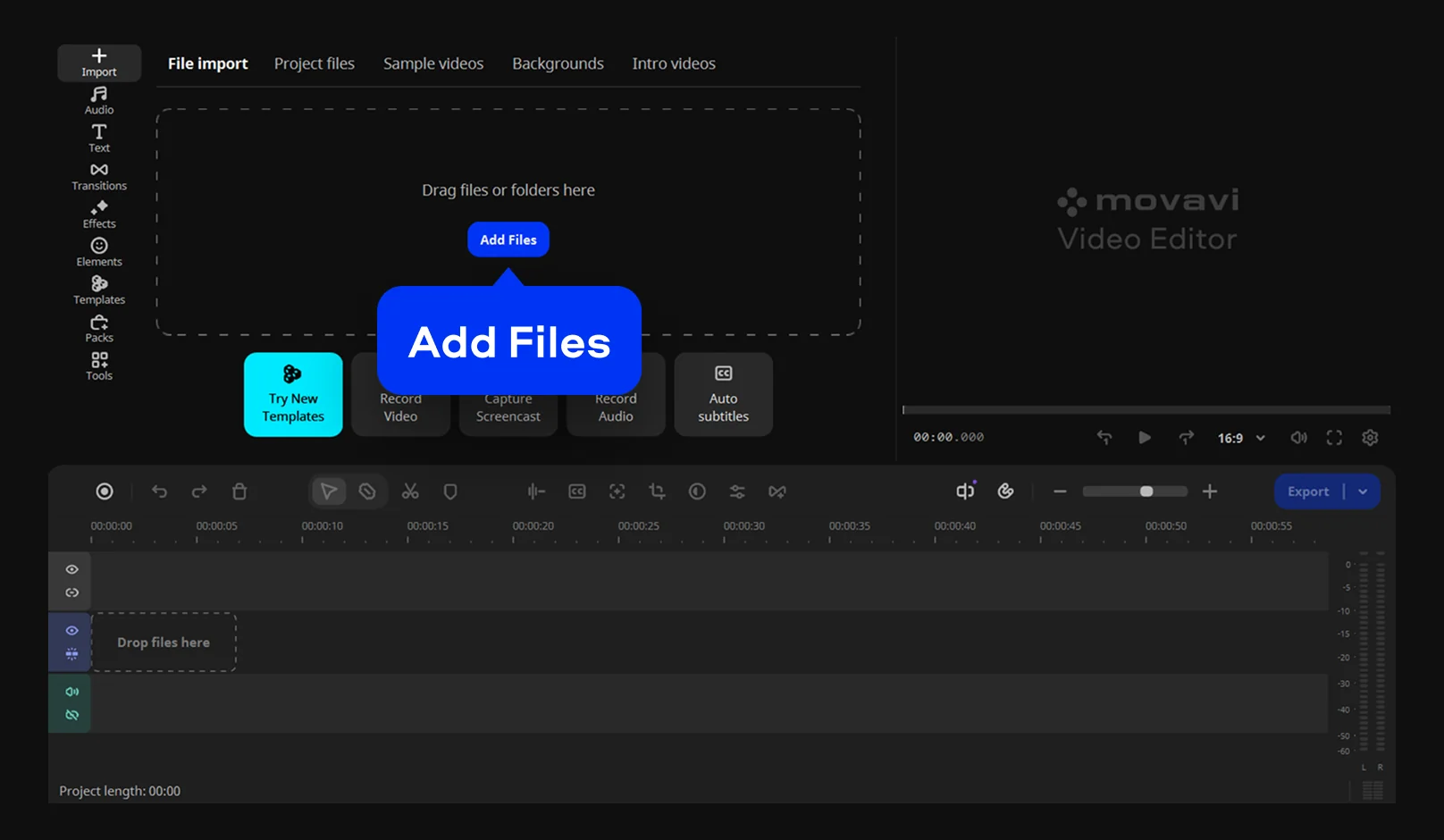
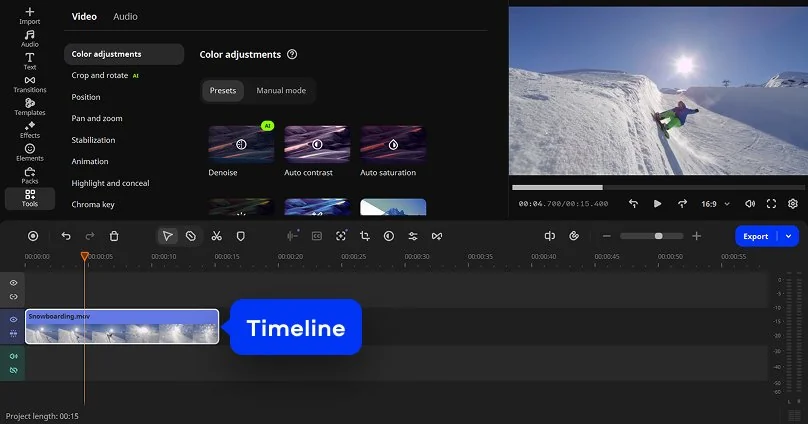
Click Add Files and select the clip you want to loop. Then drop the clip onto the timeline.

Step 2. Trim to the moment

Drag the start edge of the clip on the timeline to the point where the action begins. Then drag the end edge to the point where the action ends.

Step 3. Create the backward copy

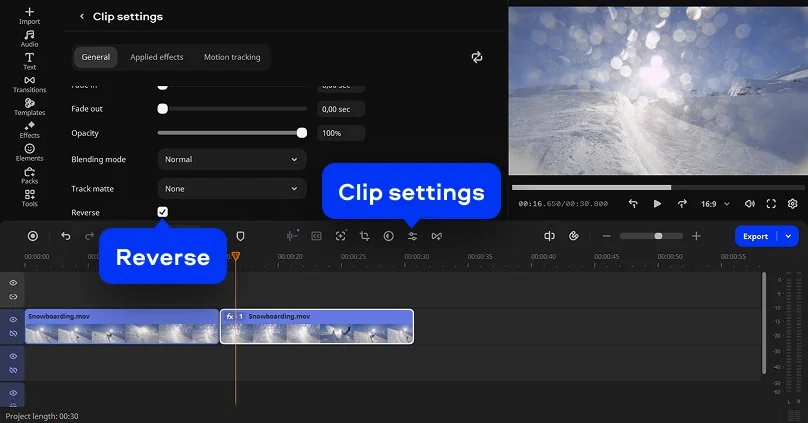
Duplicate the clip and click the copy on the timeline. Then go to Clip settings and check Reverse to reverse the copy.

Step 4. Repeat the back-and-forth

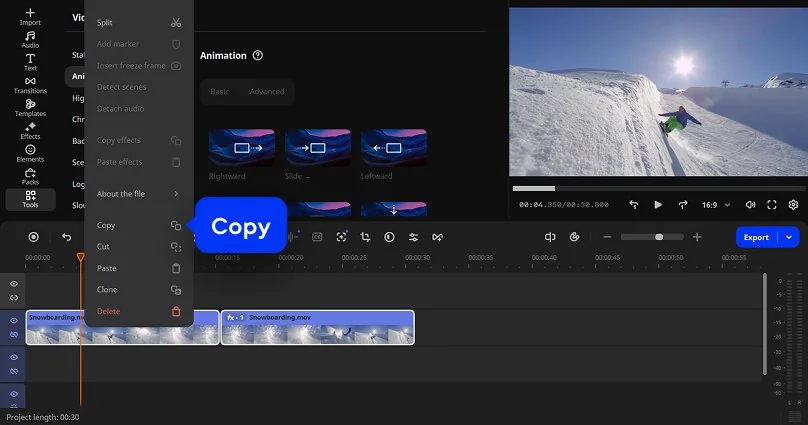
Select the original clip and its reversed copy, then right click and Copy the pair. Paste the pair after the last clip on the timeline. Repeat the paste until the loop is as long as you want.

Step 5. Export the loop

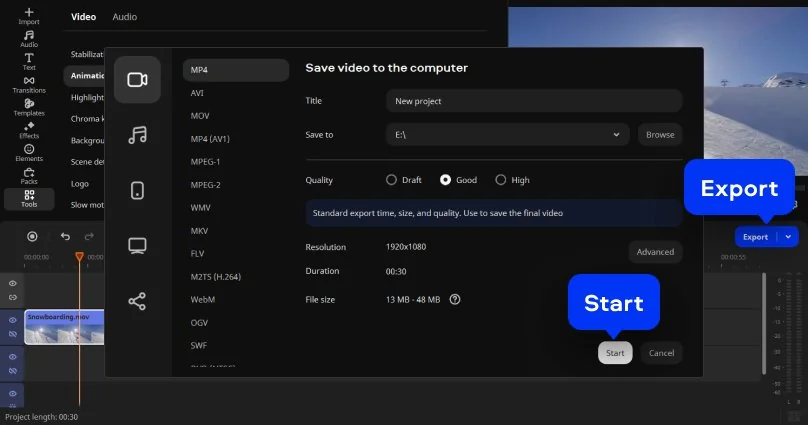
Click Export, choose the export format, and click Start.

If you’re new to editing, Movavi Ideas has step-by-step tutorials for the basics. You can also try the steps in Movavi Video Editor Free. Exports from that edition carry a watermark.

Movavi Video Editor is an intuitive video editor with customizable video templates, one-click AI tools, and hundreds of drag-and-drop effects. It’s a desktop app for Windows and macOS, so a clip from your phone’s camera roll works once you move it to your computer. Drag-and-drop and hover previews keep each step quick, because you see a clip or effect before you apply it.

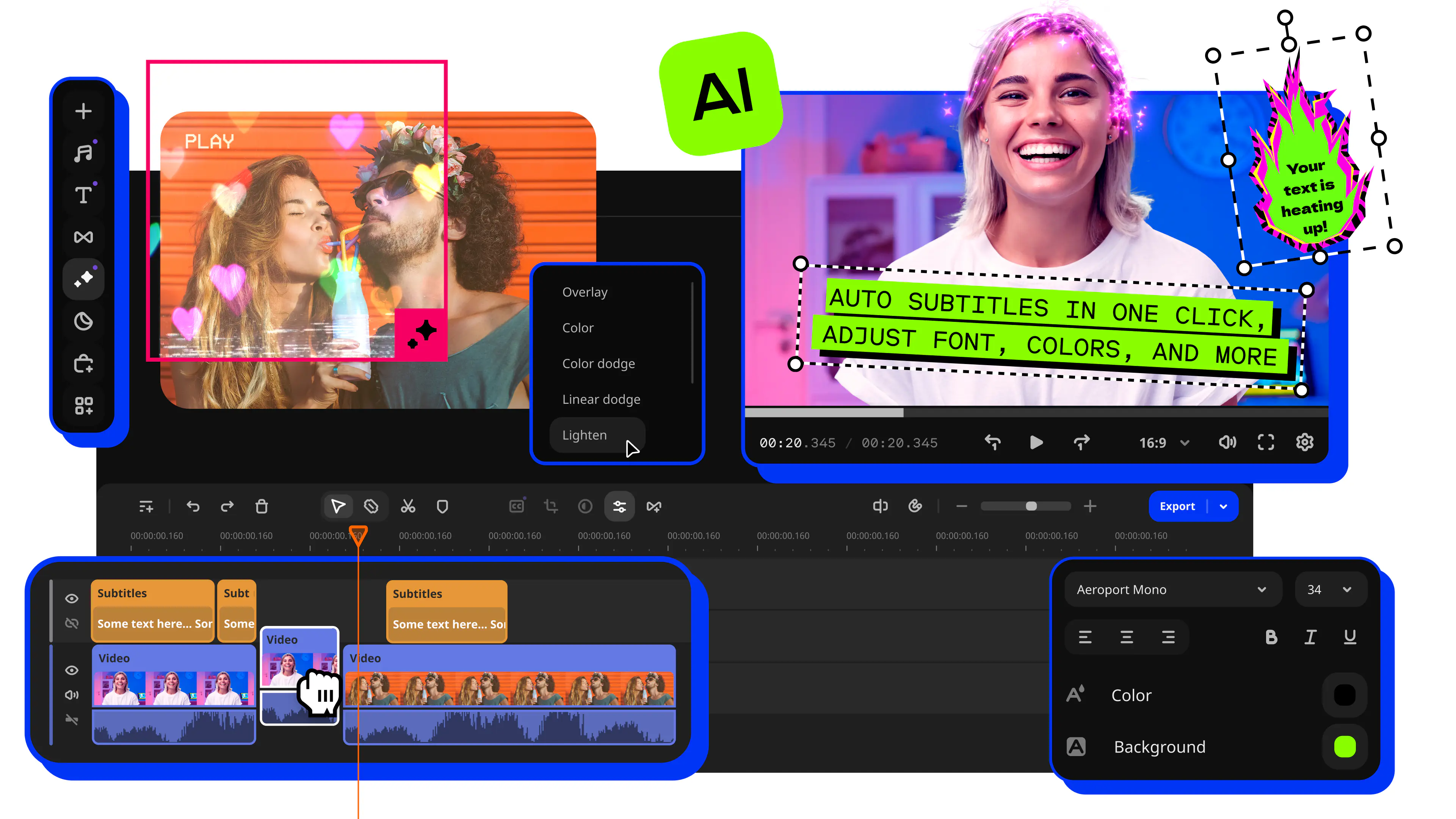
Most boomerangs end up as one beat in a longer video, which is where templates help. Movavi Video Templates is a multi-style library of customizable, pro-looking, modular templates for any kind of video. Each template is made of Blocks, which are short, pre-edited segments, such as an intro, a countdown, or an animated collage, where you drop your own videos, photos, and text. You can reorder, add, or remove Blocks to fit your video.

Go further with templates

A boomerang on its own is a few seconds long. Inside a template, it becomes one moment in a full video. Say you’re a lifestyle blogger with a travel video. Export your loop of a suitcase zipping shut, then click Add Files to bring it back in. Open the Templates tab, choose a template, and drop it onto the timeline. Double-click a Block on the timeline, replace the placeholder with your boomerang, and retype the Block text.

The template arrives with pre-set editing, music, transitions, and text. You can keep any of it or change it. Several templates come with the full version of Movavi Video Editor at no extra charge. The whole collection needs a Movavi Templates subscription.

Why Instagram can’t turn a saved video into a boomerang

Instagram’s Boomerang works while you shoot, so it can’t convert a video already sitting in your camera roll. A desktop editor covers that gap, since it works with any clip from any device, whichever platform you post to. Here’s how the three kinds of creator can use it:

  • Bloggers and lifestyle creators. You filmed an unboxing and want the box-opening beat to repeat. Trim that second, build the loop, and use it as the hook of the video.
  • Small business owners. You’re making brand clips for Instagram or Facebook, and your shot is horizontal. Auto-tracked cropping is one of the one-click AI tools. It keeps the speaker or product centered while it reframes horizontal footage into a vertical frame. Run it on the clip first, then build the boomerang from the vertical version. The AI handles the reframing, so you don’t track the product by hand.
  • Families. Your dog does something silly at a birthday party. A reversed copy turns three seconds of chaos into a loop the whole group chat will rewatch.

Common mistakes

  • Reversing the original instead of the copy. You lose the forward half. Reverse the duplicate only.
  • Leaving a gap between the clips. A pause breaks the rhythm. The timeline has a gap feature, and snapping lines the edges up for you. Check the join before you move on.
  • Starting with a long clip. A boomerang reads best with one short movement. Trim before you duplicate.
  • Forgetting the sound. The reverse option can flip video, audio, or both. A reversed voice sounds like gibberish, so decide what the sound should do.
  • Exporting in the wrong format. MP4 works almost everywhere. A project can also be saved as a silent animated GIF.

Movavi Ideas

Movavi Ideas is a free tutorial hub with new editing ideas published every week. Each tutorial takes under a minute to follow. The themes include vlogs, short vertical clips, business videos, holidays, family videos, and memes. It’s a good place to find what to put around your boomerang.

Movavi Video Editor
Create awesome videos easily

*The free version of Movavi Video Editor may have the following restrictions depending on the build: watermark on exported clips, 60-second video or 1/2 audio length limit, and/or some advanced features unavailable when exporting videos.

Frequently asked questions

How can I turn a video into a Boomerang?

Trim a short clip, add a reversed copy right after it, and repeat the pair until the loop is as long as you like. Movavi Video Editor can also save a project as a silent animated GIF, which suits places that don’t play sound.

Can CapCut make boomerangs?

The logic is the same in any editor: a forward clip, a reversed copy, and a repeat.

How can I convert a 2-second video to a Boomerang?

A two-second clip plus its reversed copy gives you a four-second back-and-forth. Drag the clip edges to trim to two seconds, then follow Steps 3 to 5. The editor’s frame-accurate navigation shortcuts help when the cut needs to land on an exact frame.

How do I make a video into a loop?

A plain loop repeats the same clip, so the end jumps back to the start. To build one, copy the clip and paste it after the original. Looping audio repeats a shorter music track to match the video’s length. If the jump looks abrupt, switch to the boomerang method above.

Have questions?
If you can’t find the answer to your question, please feel free to contact our Support Team.
Join us for discounts, editing tips, and content ideas

1.5M+ users already subscribed to our newsletter

By signing up, I agree to receive marketing emails from Movavi and agree to Movavi's Privacy Policy.