Step 1. Download and open Movavi Video Editor
The free download gets you a working copy of the program for Windows or Mac, with every tool testable before you commit to the full version.

Here's how to make a cooking video that looks good without a production crew: you shoot it with a few deliberate camera angles and decent light, then you edit it with software that doesn't expect you to already know what a timeline is.
Movavi Video Editor is an intuitive video editor with customizable video templates, one-click AI tools, and hundreds of drag-and-drop effects. It's a desktop app for Windows and macOS.

If you're filming recipes for a food blog or a cooking channel, or recording a recipe tutorial for students, you don't need a studio kitchen to get a clean result. Movavi Video Templates is a multi-style library of customizable, pro-looking, modular templates for any kind of video. Drop your ingredient shots and camera angles into a template's ready-made Blocks – an intro, a quick-cut sequence, a countdown for anything that bakes – and your first cut can already look like something a working food creator would post.
Before you open any editing program, a little planning on set saves you editing time later.
Camera angles
Three shots cover most recipes: an overhead angle for chopping and mixing, an eye-level angle for talking to the camera, and a close-up for the finished dish. Shooting all three for each major step gives you footage to cut between later instead of one long, static take.
Light
A window with indirect daylight is usually enough; if your kitchen doesn't have one, a single soft light pointed at the stove or counter beats overhead ceiling light, which tends to throw shadows across the food.
Kitchen setup
Clear the counter of anything that isn't part of the recipe. A clean background reads as more professional on camera than a kitchen that looks busy, even if the cooking itself is simple.
Plan the recipe as shots
Jot down each step as its own shot before you start – ingredients, each cooking stage, the final plate – so you're being creative with the camera instead of improvising mid-recipe.
How to make a cooking video with movavi video editor
The free download gets you a working copy of the program for Windows or Mac, with every tool testable before you commit to the full version.
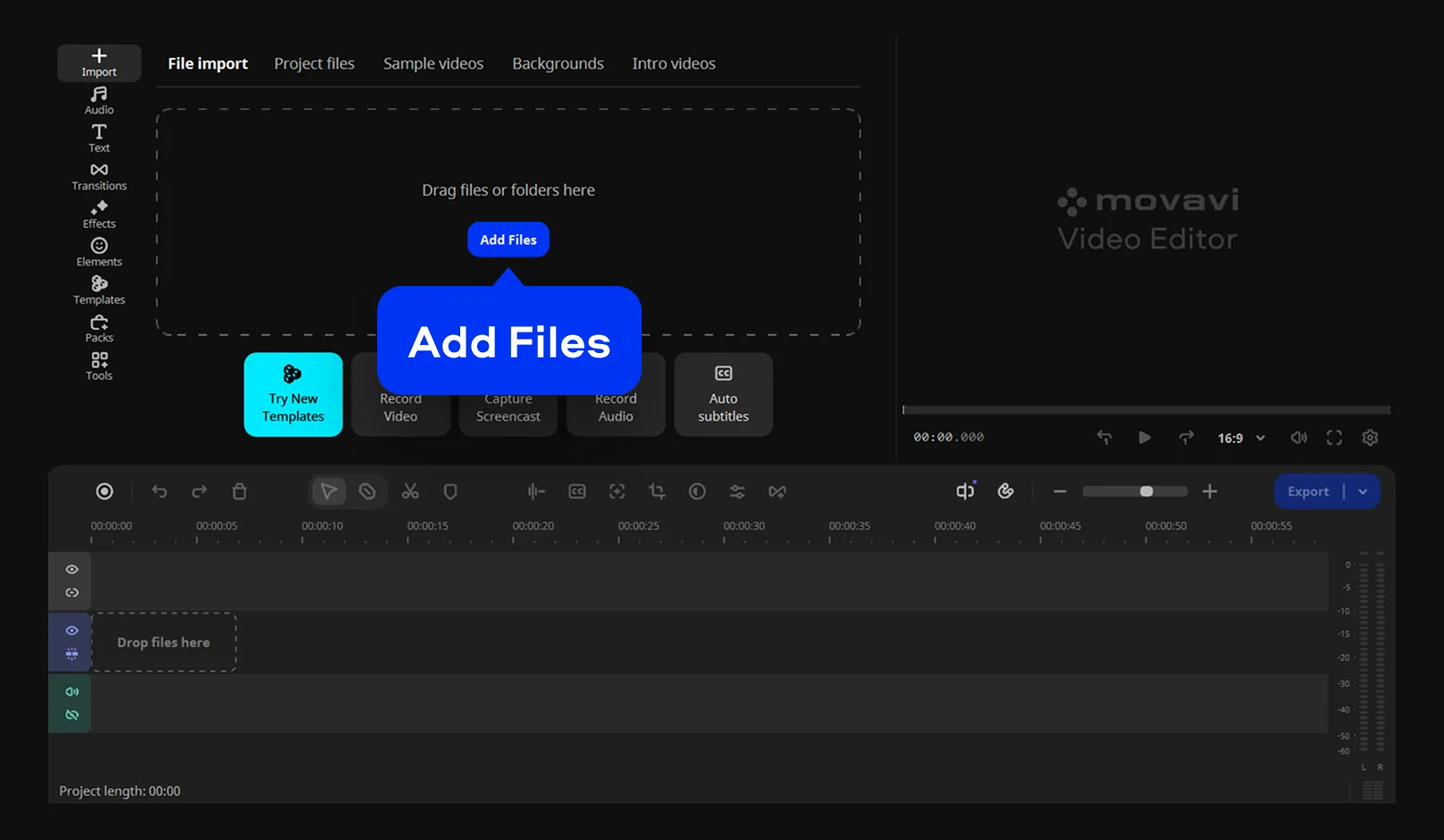
Click Add Files or drag your photos, music, and video clips into the program, then drop them onto the Timeline. If you don't have your own media ready yet, feel free to use the built-in sample footage.
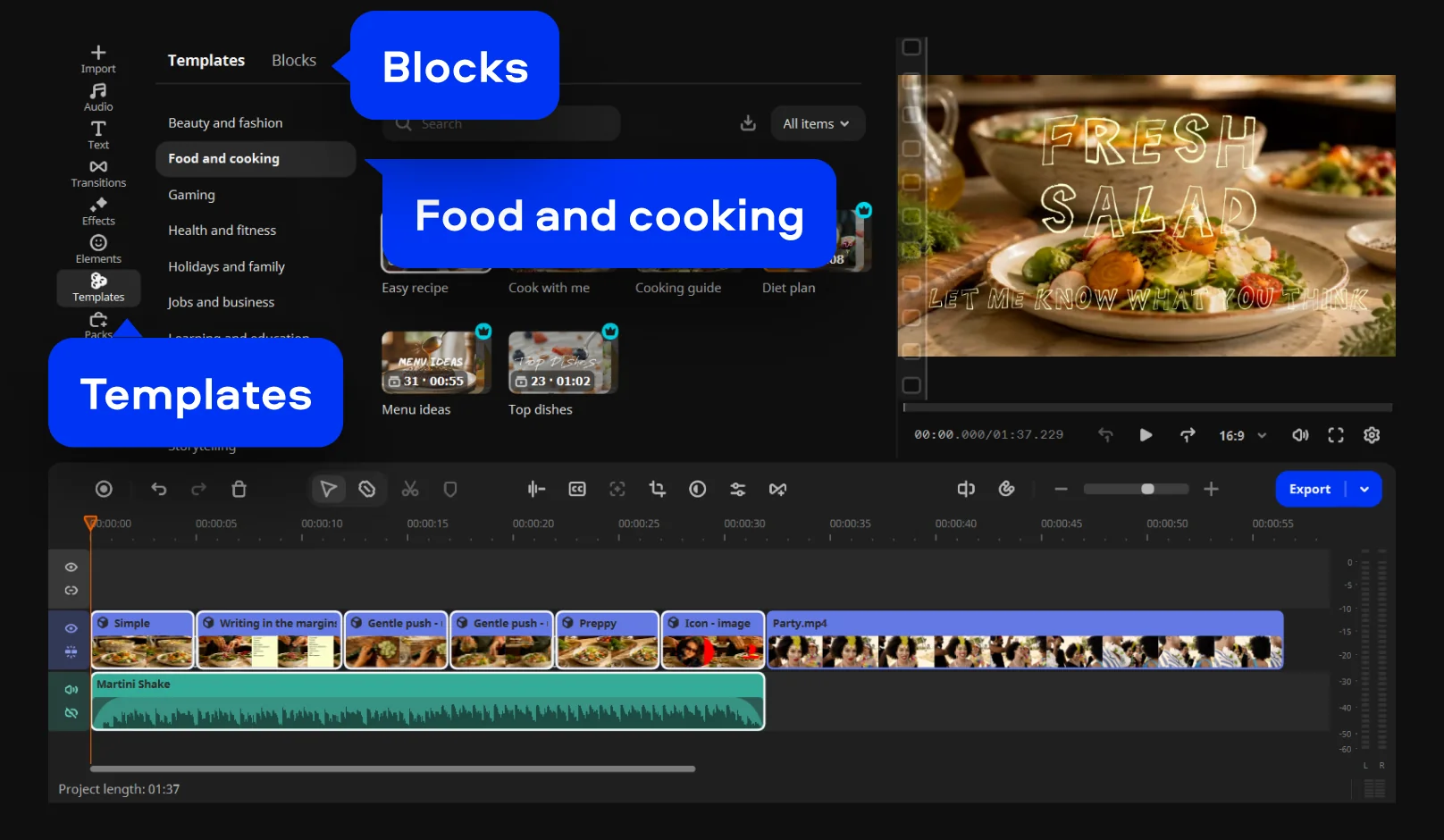
Go to the Food and cooking category and pick a template that fits your culinary vibe – from quick recipe shorts to full cooking tutorials. Drop it onto the Timeline, then replace the placeholder clips in each modular Block with your own footage. You can freely reorder or delete any Block (an intro for your opener, quick cuts for a chopping montage, or a countdown for when something's in the oven) to customize the structure of your recipe.
Step 4. Fine-tune the details
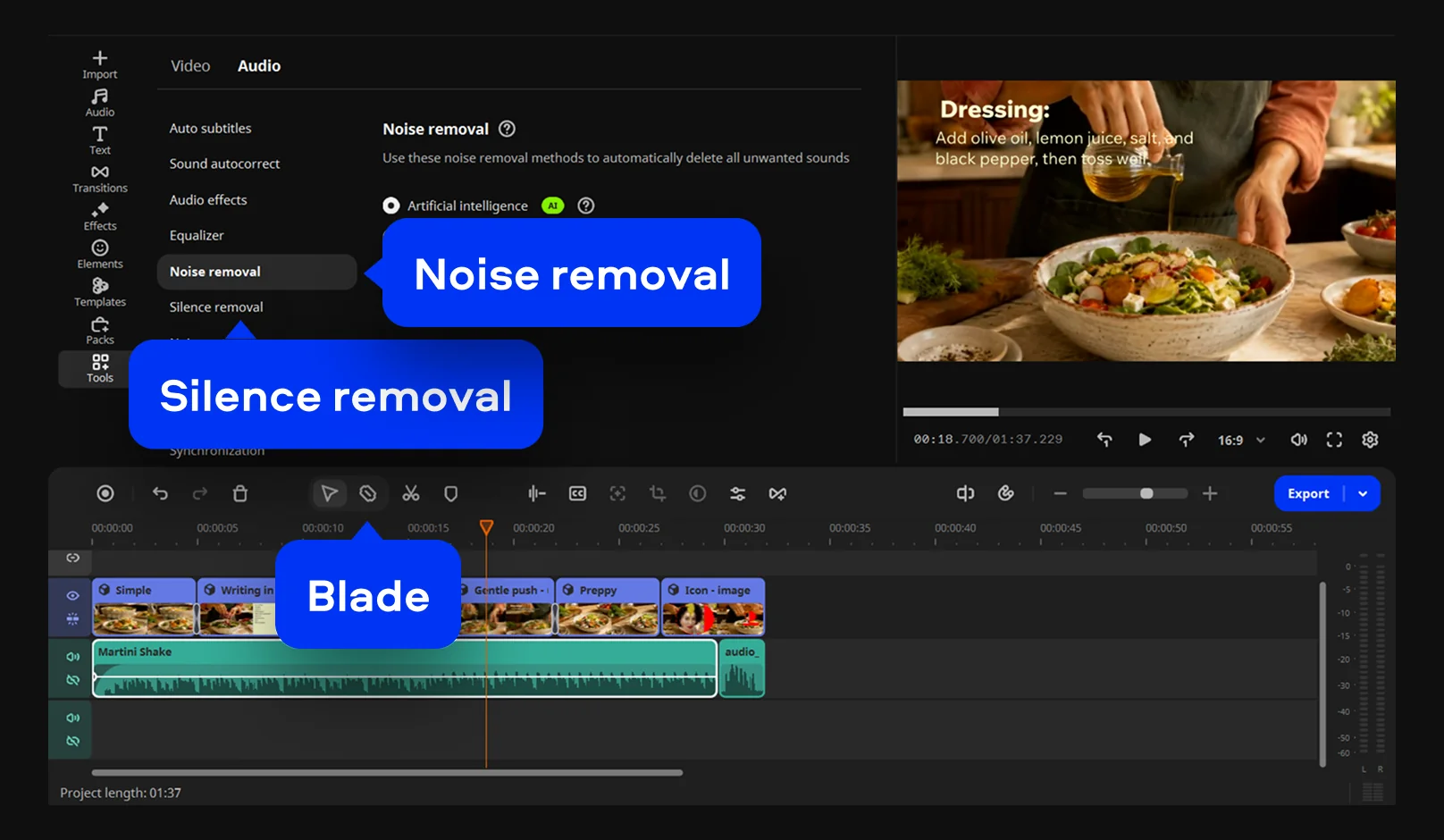
Use the Blade tool to quickly trim long clips, or go to Tools > Audio and run Silence removal, which uses AI to tighten up dead air while your dish simmers. In the Audio tab, you can also use our AI to clean up your sound by selecting Noise removal to clear out an extractor fan or a sizzling pan behind your narration.
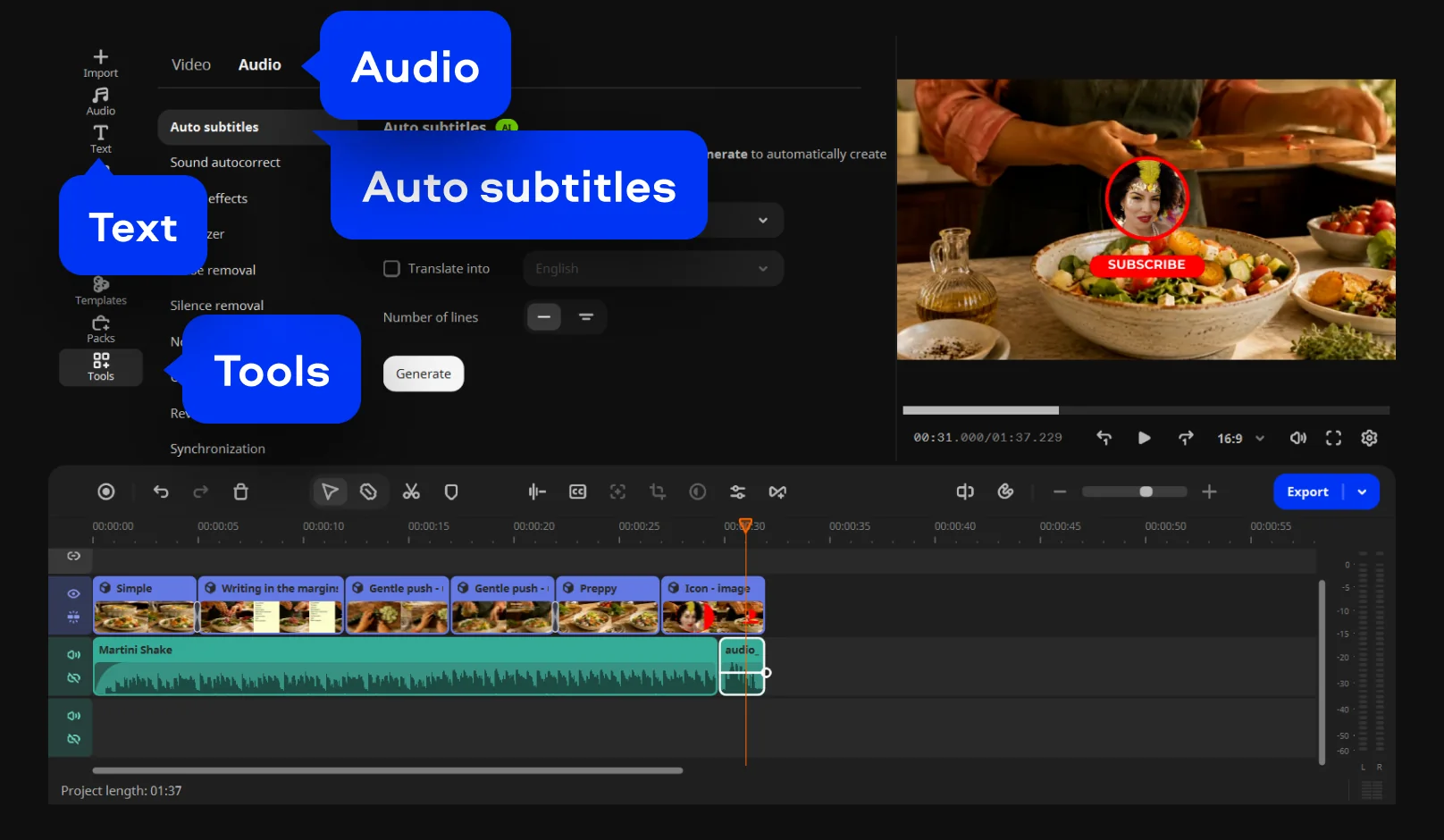
Go to the Text tab to add titles for specific ingredients and measurements. Next, use the Auto subtitles tool to generate one-click captions – which is handy since most people scroll through food videos with the sound off.
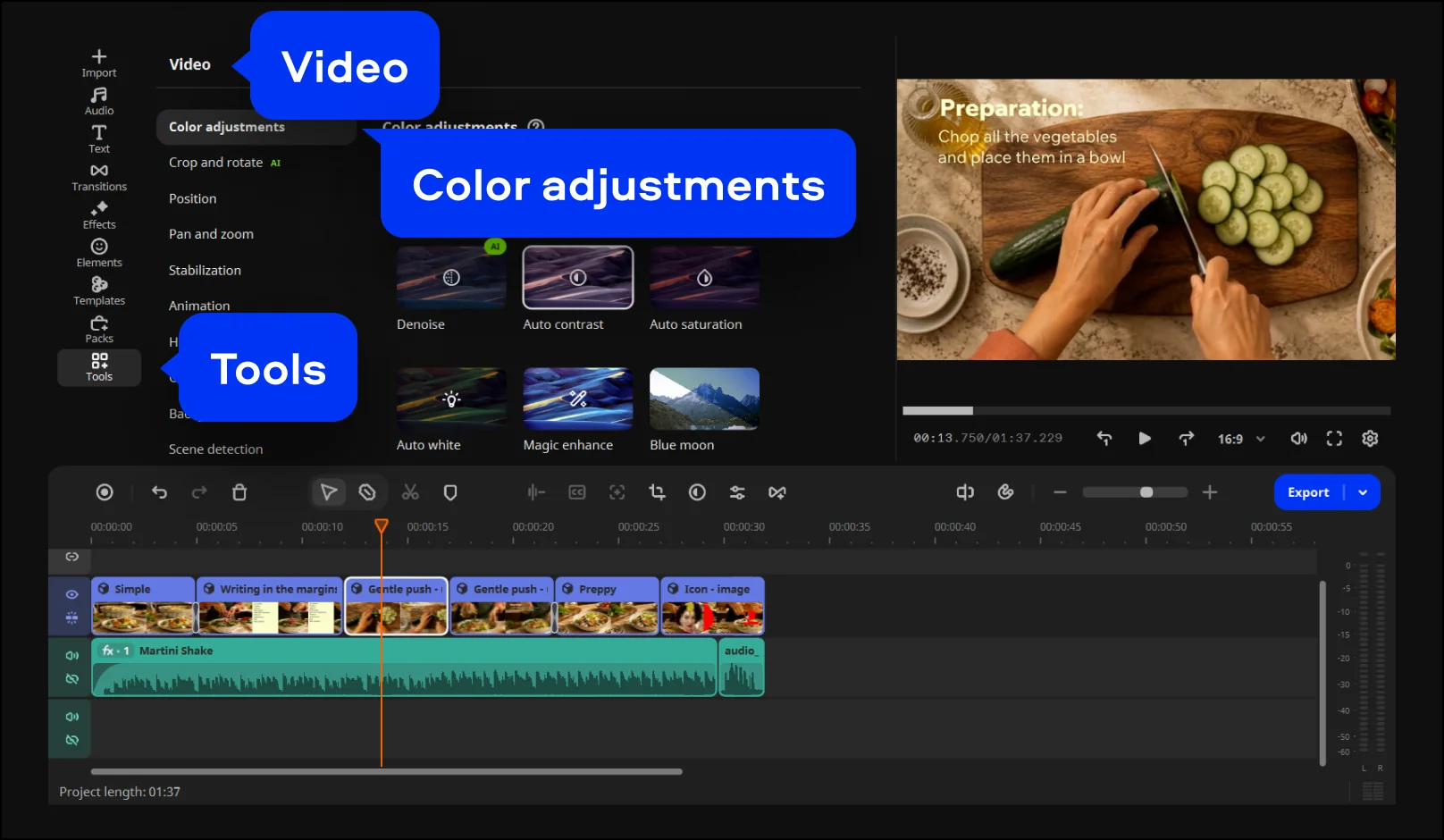
Adjust your video's colors by going to Tools > Video > Color adjustments. Use ready-made presets to make the food look as good on screen as it does on the plate.
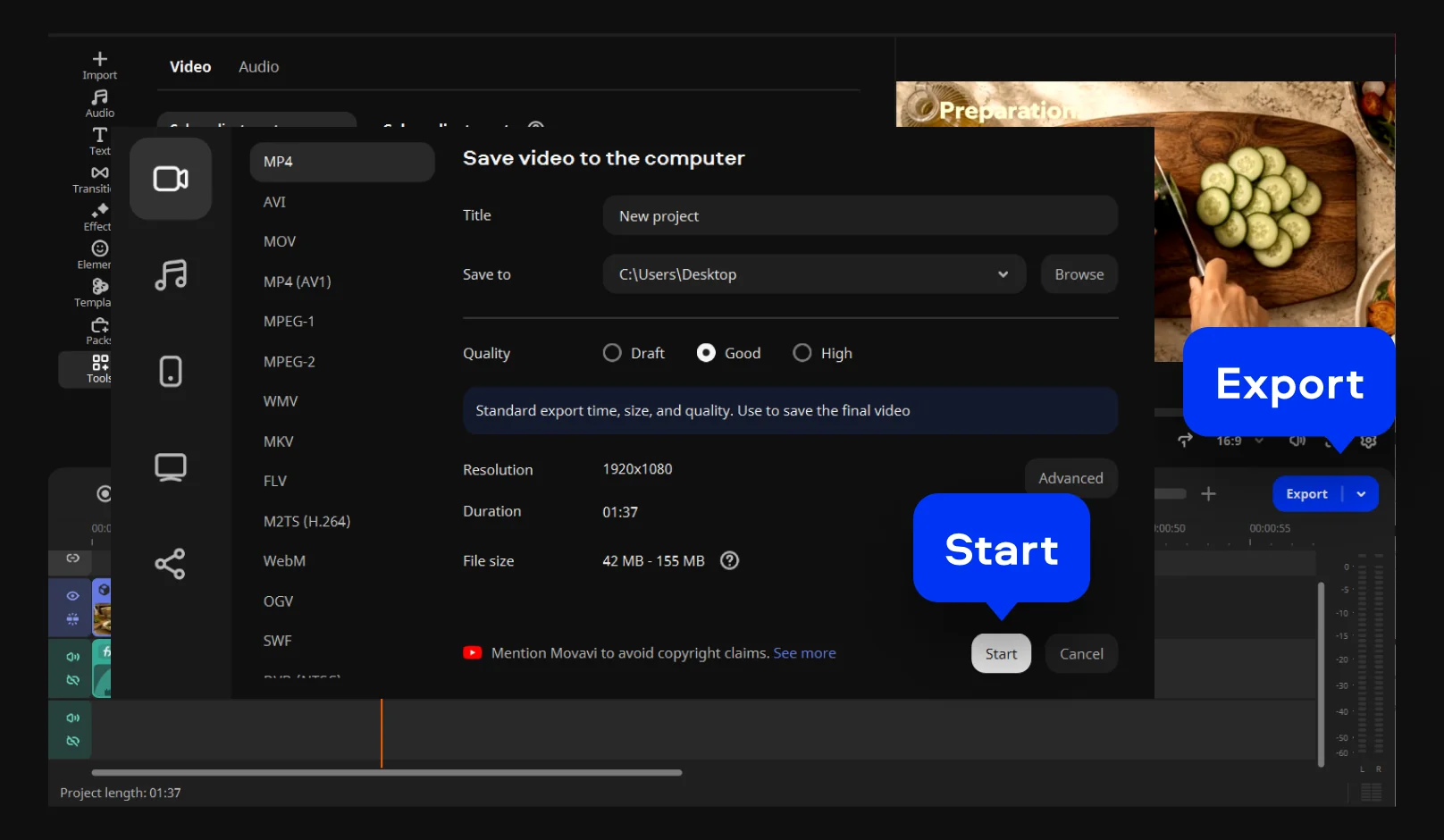
Click Export, choose the resolution you need, and click Save, or send it straight to YouTube, Vimeo, or Google Drive from inside the program.
Once you've exported your first promo, the same template trick works for almost anything else you need to announce – a giveaway, a new merch drop, or a holiday sale. Movavi Ideas adds a new step-by-step editing trick every week for free, if you want more formats to try once the promo bug bites.
If step three felt like the shortcut it is, that's the point. Our templates already have their editing, music, transitions, and text set up, with Blocks you can rearrange. You start from a structure that's already paced and fill it with your footage, instead of building from a blank timeline. For example, a tutorial-style template built around quick-cut Blocks suits a recipe you're teaching step by step, while a calmer template with longer takes suits a slower weekend-cooking vlog. Several templates come included in the full version of Movavi Video Editor; a separate Movavi Templates subscription unlocks the rest of the library.
Editing a cooking video involves a lot of repetitive cleanup, which is where Movavi's one-click AI tools earn their keep. Beyond the subtitles and noise removal already covered, Auto-Tracked Cropping reframes horizontal footage into a vertical cut for social, keeping you or the dish centered automatically as it adjusts. Your editing judgment still shapes the story; these tools just absorb the cleanup work around it.
Movavi Video Editor Free is a free download from our website, and you can test every tool in it. Free exports are capped at 60 seconds and carry a watermark,. To export a video that uses paid features, you need the full version, which has no watermark or export limits.

No. A phone camera, a window for light, and a tripod or a stack of books to keep the shot steady cover most recipes. The editing afterward does more for the finished look than expensive gear does.
Look for an editor that lets you try the tools a cooking video needs, like trimming, captions, and sound cleanup, on your own footage. Movavi Video Editor Free lets you test every tool. Free exports are capped at 60 seconds and carry a watermark, with limited codecs and lower output quality. To export a video that uses paid features, you need the full version.
Yes. Movavi Video Editor is a desktop app for PC (Windows) and Mac, you can edit offline. To upload your finished video straight to YouTube or TikTok, you'll need an internet connection.
MP4 is the safest choice for uploading to YouTube, TikTok, or Instagram, since it's supported almost everywhere without extra conversion.



1.5M+ users already subscribed to our newsletter