Step 1. Download and install Movavi Video Editor
Download Movavi Video Editor and launch the installation file. Follow the on-screen instructions to install the app.
Try Movavi Video Editor
Fast and easy editing: cut, crop, adjust colors and speed
One-click AI tools: auto subtitles, noise removal, and more
Hundreds of filters, transitions, titles, overlays

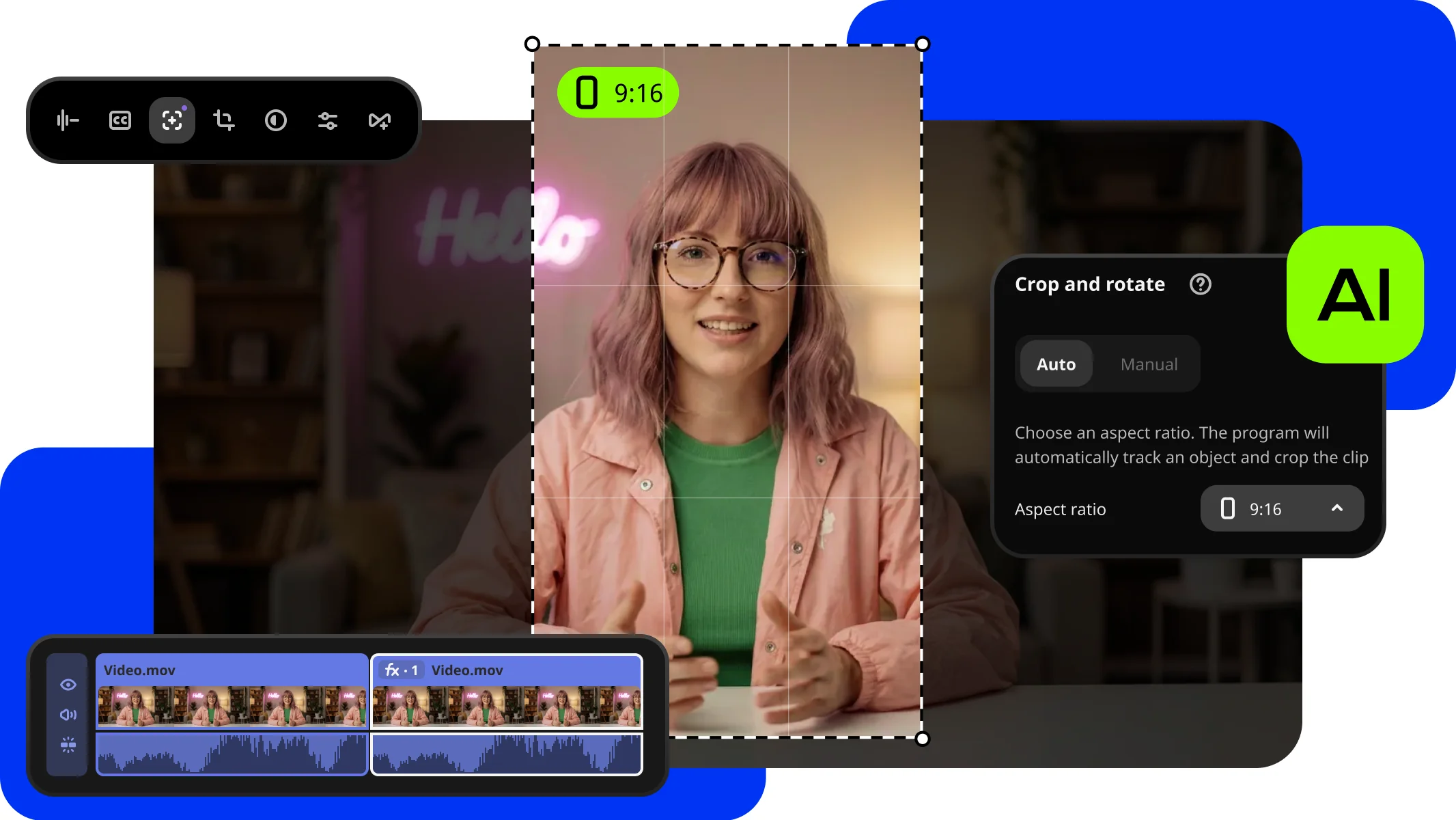
Crop videos while keeping the speaker or product centered – automatically. The tool follows the main subject and adjusts the frame on-the-go. Perfect for transforming horizontal clips into vertical while still highlighting what matters most.
Download Movavi Video Editor and launch the installation file. Follow the on-screen instructions to install the app.
Click Add Files and select your videos. Then move the imported videos onto the Timeline.
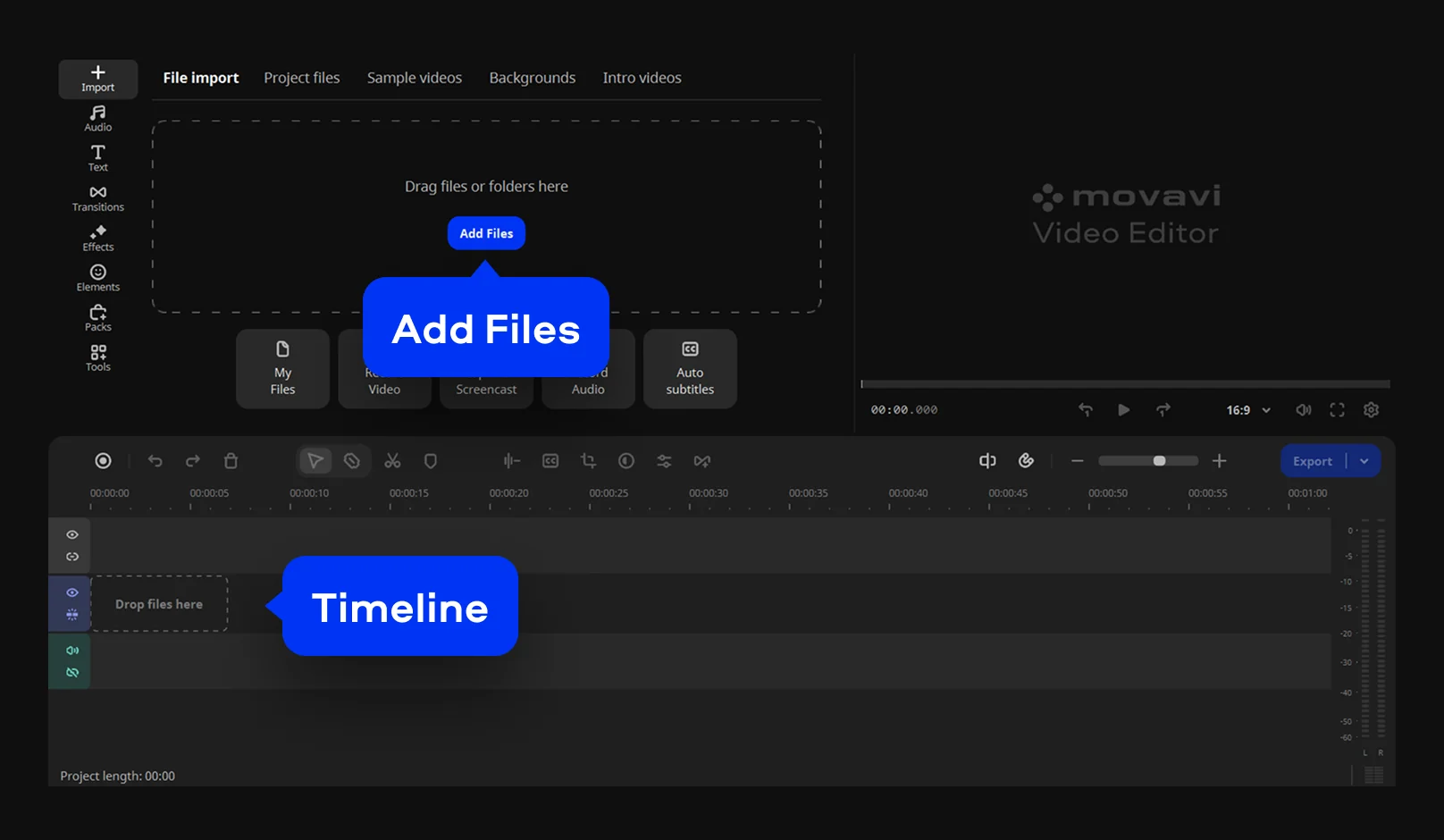
Click the Auto crop icon on the toolbar. In the Auto tab, choose your target Aspect ratio and click Apply. You can select multiple clips to batch-process them in the same style.
Movavi will analyze the motion and track the main subject. You’ll see a tracking frame in the preview window and a real-time progress indicator.
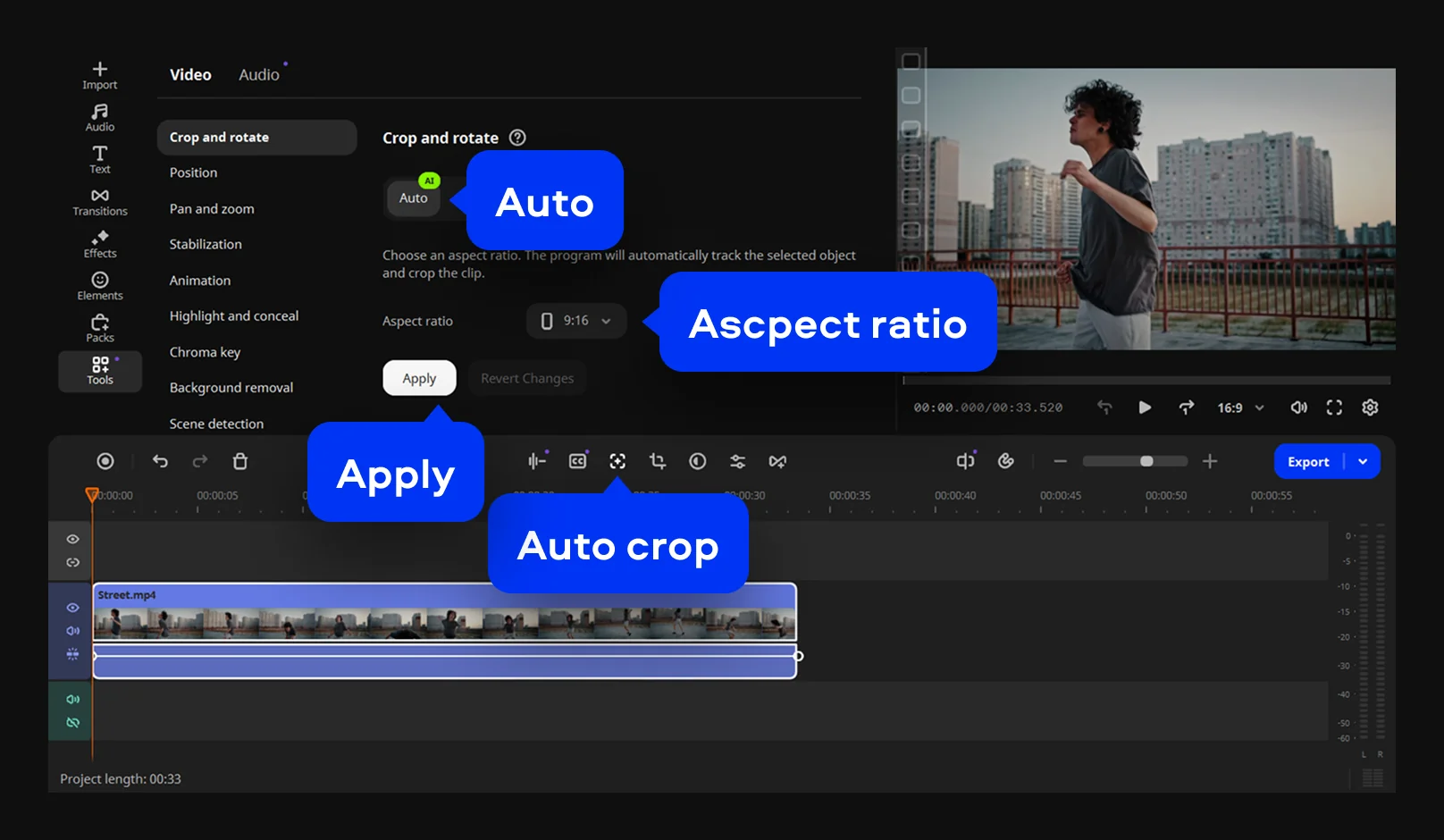
Preview the result instantly. If the AI can't pinpoint a specific subject, a notification will appear. In this case, you can adjust the crop manually.
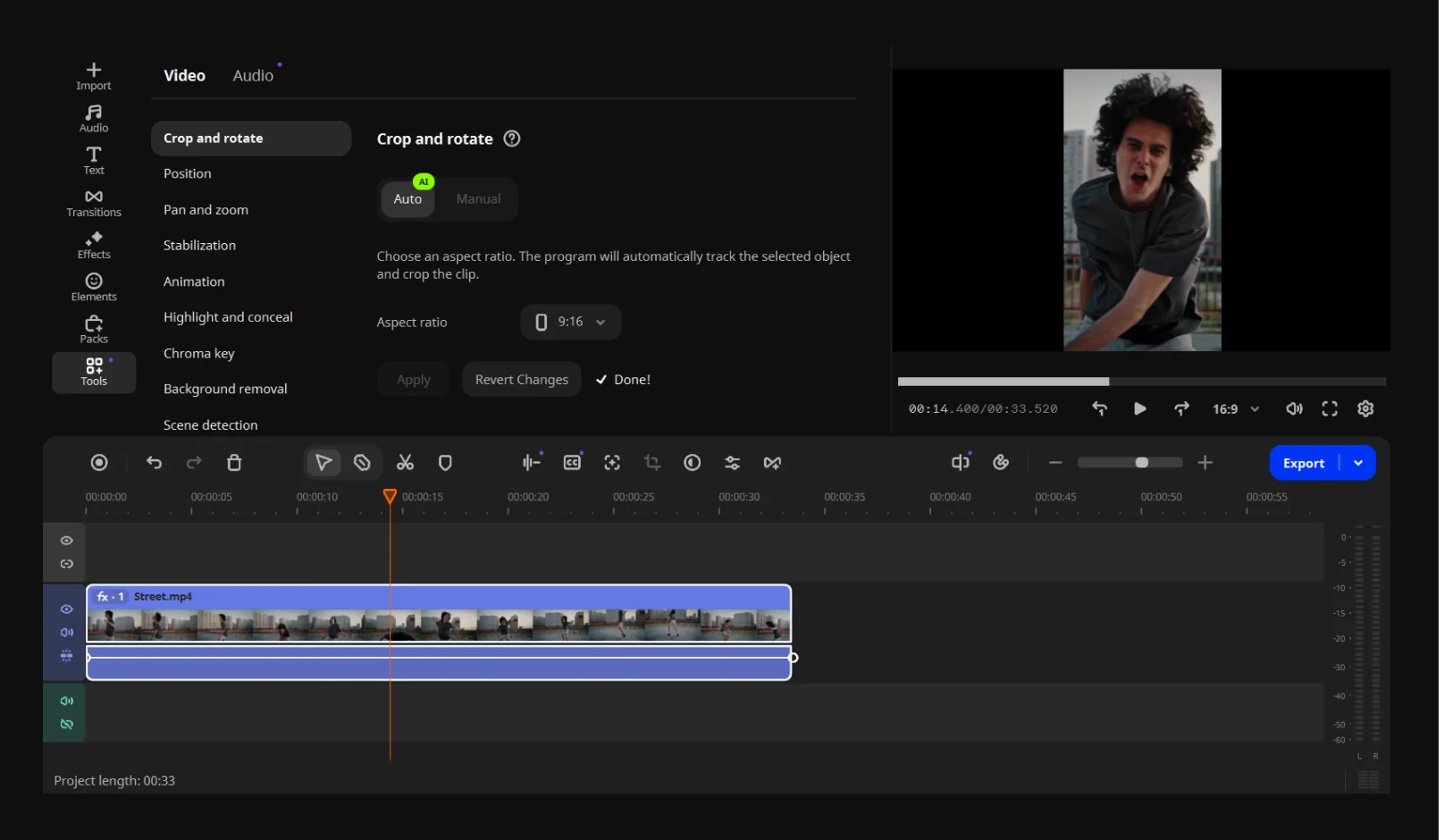
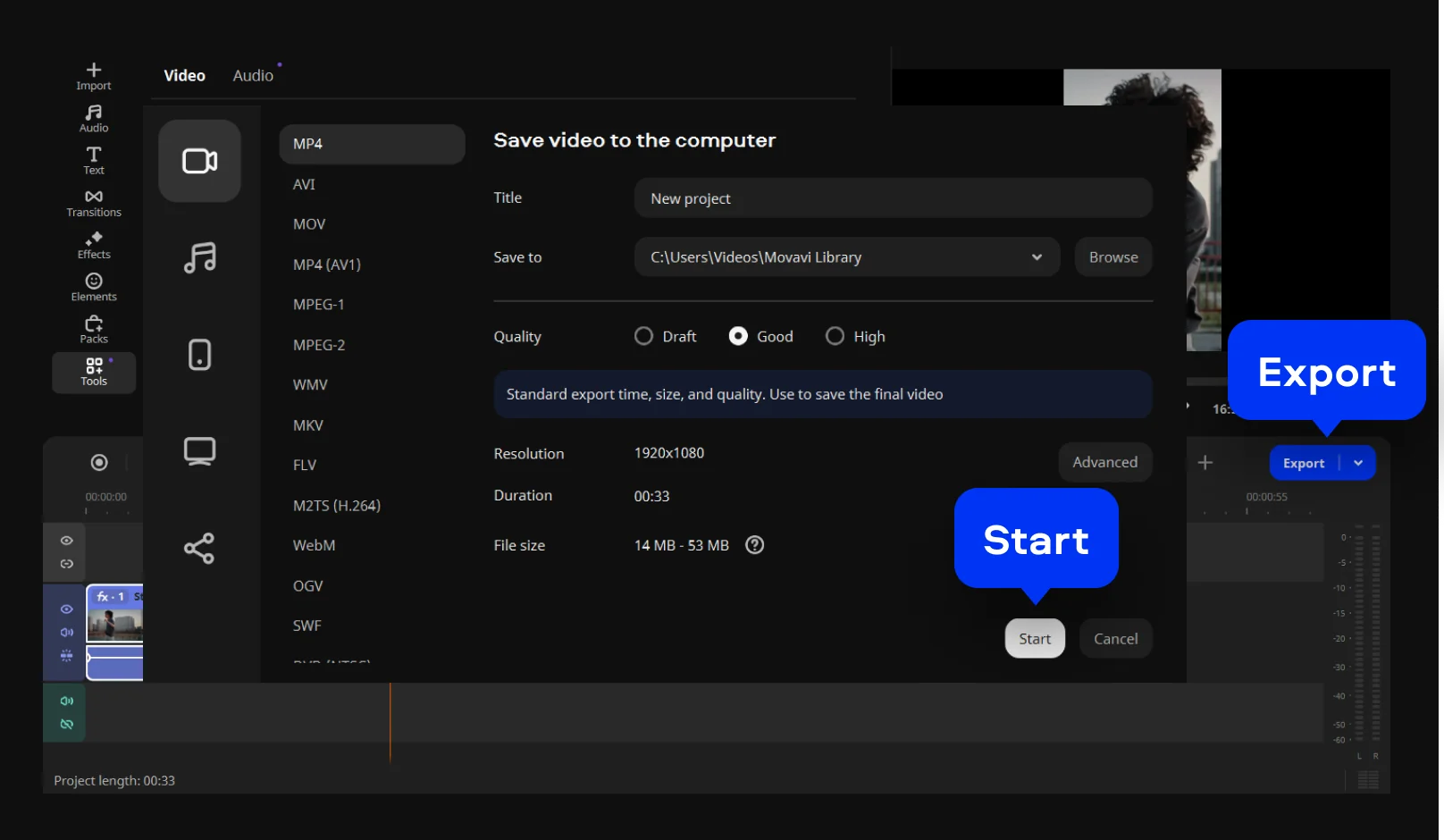
Click Export, set the desired output parameters, and click Start.
Your simple yet powerful editor for creating wow videos

Make standout edits in minutes thanks to ready-to-use video ideas and awesome effects – all available right inside Movavi Video Editor
Movavi Ideas
How to create wow content: simple and fresh video ideas every week
Movavi Effects
Get Movavi Video Editor – and full access to a huge library of effects and background music


1.5M+ users already subscribed to our newsletter