Love Video Maker: How to Make a Love Video Using Templates

Use Movavi Video Editor!

  • NEW: Adjustable video templates for any vibe – made of Blocks

  • NEW: Blocks – pre-edited video segments you can customize

  • Fast and easy editing: cut, crop, adjust colors and speed

  • Auto subtitles, noise removal, hundreds of effects, and more

By clicking the download button, you're downloading a trial version of the program.*

Edited by
Ben Jacklin
5,726

What does a love video maker actually need to get right? Mostly one thing: taking scattered photos, clips, and whatever voice notes you’ve hoarded, and shaping them into something that sounds and looks like your actual relationship. That’s the job Movavi Video Editor is built for. Movavi Video Editor is an intuitive video editor with customizable video templates, one-click AI tools, and hundreds of drag-and-drop effects. And it’s a desktop app for Windows and macOS. Add a love story video template to that, and a professional editing background stops being a requirement. The template does the structural work, a couple of AI tools handle the fiddly parts, and what comes out the other end looks good even on your first attempt, beginner or not.

Love story video templates: Your shortcut to a polished love video

Movavi Video Templates is a multi-style library of customizable, pro-looking, modular templates for any kind of video. The love video templates in that library aren’t reserved for grand-gesture proposals – a quiet, everyday relationship story runs through the same system just as well. Each template is made of Blocks: short, pre-edited segments such as an intro, a countdown, a quick cut or an animated collage. You can keep them as they are, reorder them, add new ones or remove them. Since every Block edits independently of the rest, swapping the intro for the day you met, or dropping two minutes of last summer’s trip photos into the middle, won’t disturb anything around it.

A trip-themed Block sequence, for example, suits a stack of travel photos; a slower, caption-heavy template tends to serve a long-distance timeline better. In both cases the pacing, music, and where titles land are already decided for you – your main job is deciding what content goes in which slot.

Running a lifestyle channel changes the use case slightly: a love story template becomes a ready-made frame for a couples vlog – a “how we met” story, say, or an anniversary recap. Just drop talking-head clips and photos into a template meant for everyday vlogging, then layer your own titles on top. The same logic holds for a one-off gift: gather photos and clips of your girlfriend, reach for a creative template built for occasions like weddings or anniversaries, and you can have something finished and ready to send before the night ends.


How to make a love story video with Movavi Video Editor

Step 1. Download the romantic video maker

Download the installation file for your PC or Mac and install the program following the on-screen instructions. Movavi Video Editor is a free download so you can test out all the features before committing to subscribe.

Step 2. Import your footage

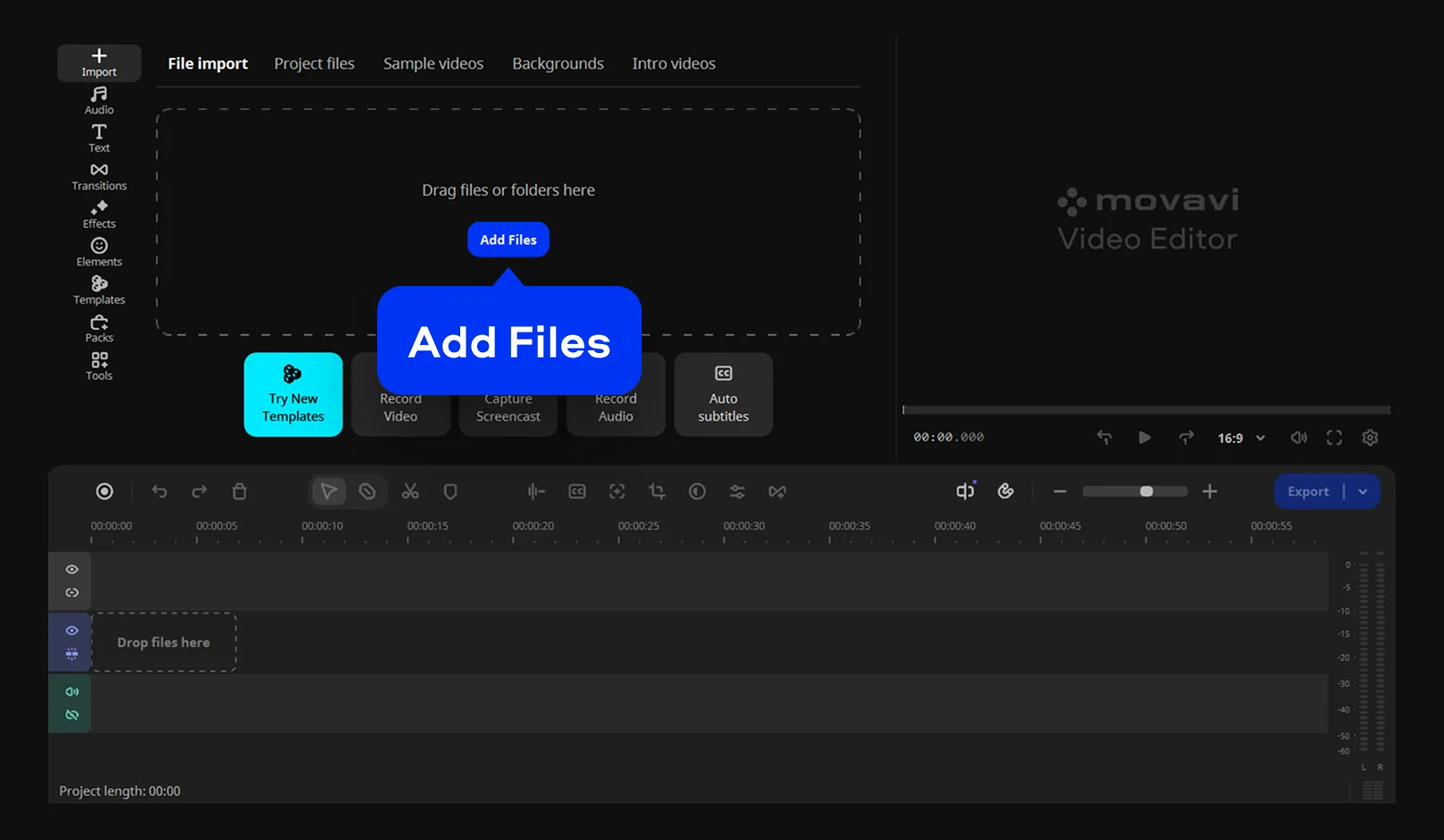
Click Add Files and upload your clips and photos. Running as desktop software rather than a browser tool also means you can work offline; nothing leaves your machine until you choose to export.

Step 3. Choose a template

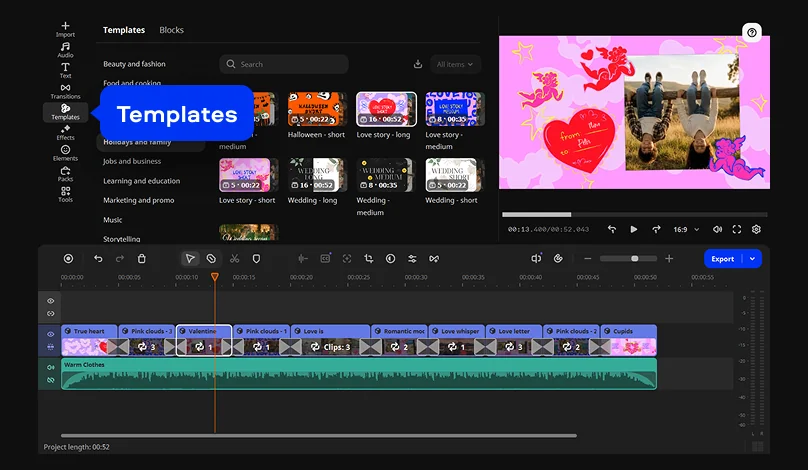
Open the Templates tab and pick whichever love story video template matches the mood. Swap the placeholder Blocks for your own photos and clips, arranged in whatever order tells the story right.

Step 4. Clean up the footage

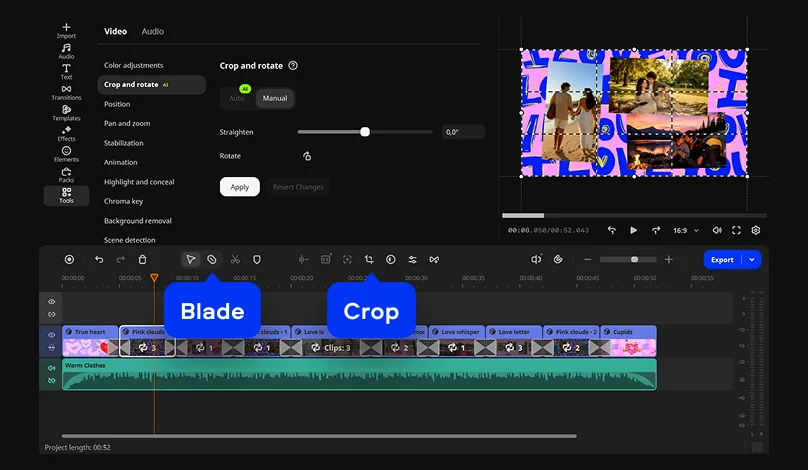
The Blade tool handles cutting dead moments, and the Crop tool removes anything unwanted from the frame. Apply a preset from the Color adjustments menu to give your clips a matching look.

Step 5. Record a voiceover

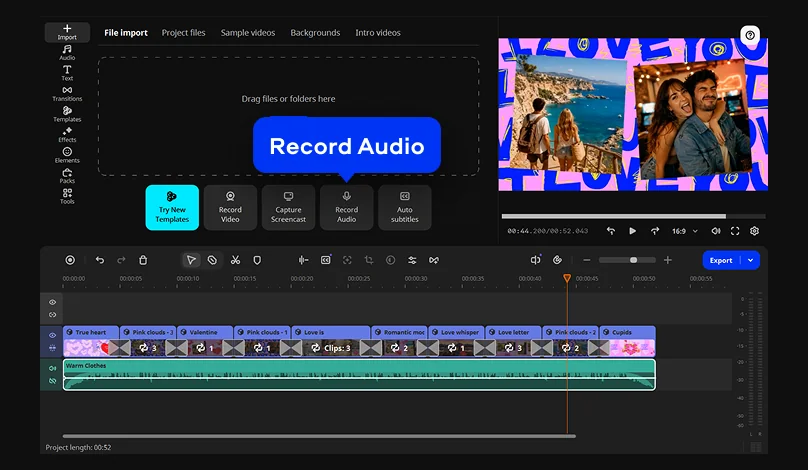
Click the Record Audio button. Narration beats text-only captions in some cases, and Movavi Video Editor records straight from a connected microphone onto the timeline, so the voice track sits right alongside the footage.

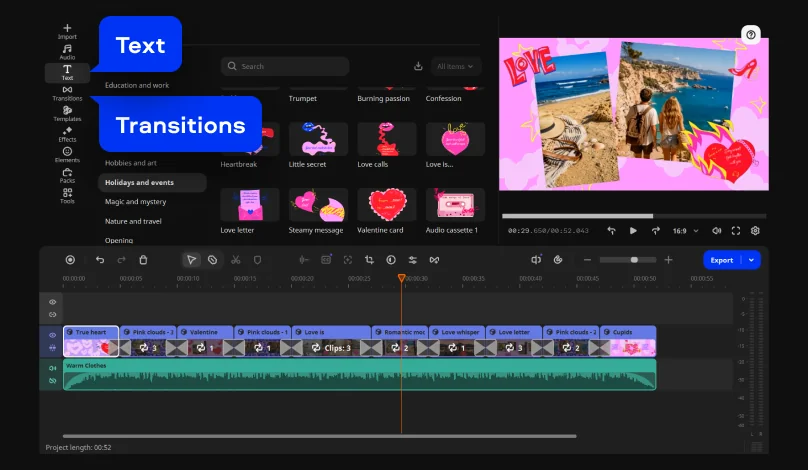
Step 6. Add titles and transitions

Open the Text tab to add titles that cover captions or dates. Select a transition from the Transitions tab to keep cuts from feeling abrupt. A filter from the built-in effects collection can also smooth over visual mismatches between clips.

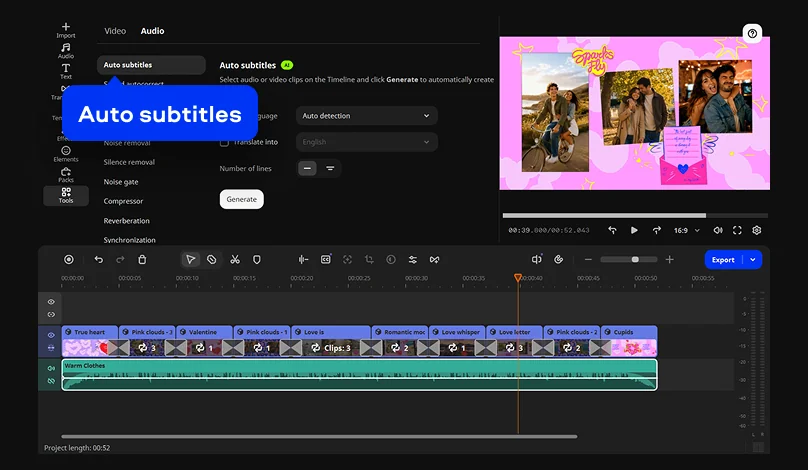
Step 7. Turn on subtitles

For a video likely to be watched on mute, the Auto subtitles tool converts narration or dialogue into on-screen text in one click, with over 60 styles available to match whatever template you picked.

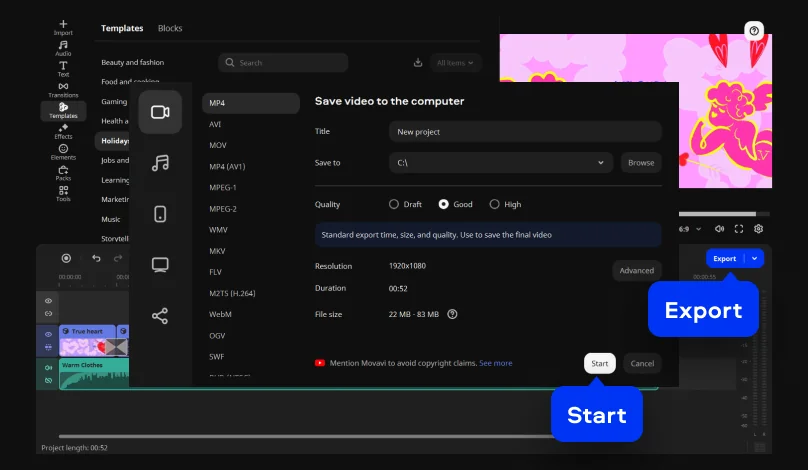
Step 8. Export your video

Once the edit’s where you want it, click Export. MP4 is the format Movavi Video Editor recommends for compatibility across phones and social platforms.

With one love video finished, the same steps apply to whatever’s next – a birthday edit, a travel recap, next week’s vlog. Movavi Ideas publishes a new, free, step-by-step editing idea every week, in case the next project needs a push.

Movavi Video Editor
Create awesome videos easily

*The free version of Movavi Video Editor may have the following restrictions depending on the build: watermark on exported clips, 60-second video or 1/2 audio length limit, and/or some advanced features unavailable when exporting videos.

Frequently asked questions

Can I use a love story video template without any clips of my own?

Not having footage yet isn’t a dead end. Movavi Video Editor ships with built-in sample videos, backgrounds, and intro clips, so an editable template can take shape before your own photos and footage are ready.

Does Movavi Video Editor work on a Mac?

It does. Alongside Windows 10 and 11, Movavi Video Editor runs on macOS 12.0 or later with native support for Apple M1 and newer chips, so the Blocks-and-templates workflow carries over to either platform without changes.

What languages does the auto subtitle tool support?

It recognizes more than 100 languages with over 99% accuracy, and you can choose the look of your subtitles from a set of ready-made designs.

Have questions?
If you can’t find the answer to your question, please feel free to contact our Support Team.
Join us for discounts, editing tips, and content ideas

1.5M+ users already subscribed to our newsletter

By signing up, I agree to receive marketing emails from Movavi and agree to Movavi's Privacy Policy.