Movavi Video Editor is built to be simple and fast by design, so mirroring a clip doesn't mean digging through nested menus:

How to Mirror a Video: Quick & Easy Guide
Mirroring a video means flipping every frame horizontally, so left and right swap places – a lifesaver when a storefront sign or a T-shirt logo comes out reading backward in your footage. Unlike rotating a clip, which spins the whole frame, a quick horizontal flip corrects selfie-camera footage instantly.
The fix sounds simple, but users often face confusing tools, compressed exports, or unexpected watermarks. Movavi Video Editor keeps the process simple with a clean interface and intuitive drag-and-drop workflow.

Edited by
24,228
Built for beginners and everyday creators, Movavi puts the horizontal flip control within easy reach, helping users get high-quality results from the first try by eliminating tedious guesswork. On top of that, customizable video templates for any vibe and hundreds of drag-and-drop effects help bring creative designs to life, while Movavi Ideas provides weekly video ideas with step-by-step tutorials to give creators fresh tricks and techniques.
How to mirror a video in Movavi Video Editor
Step 1. Add your video
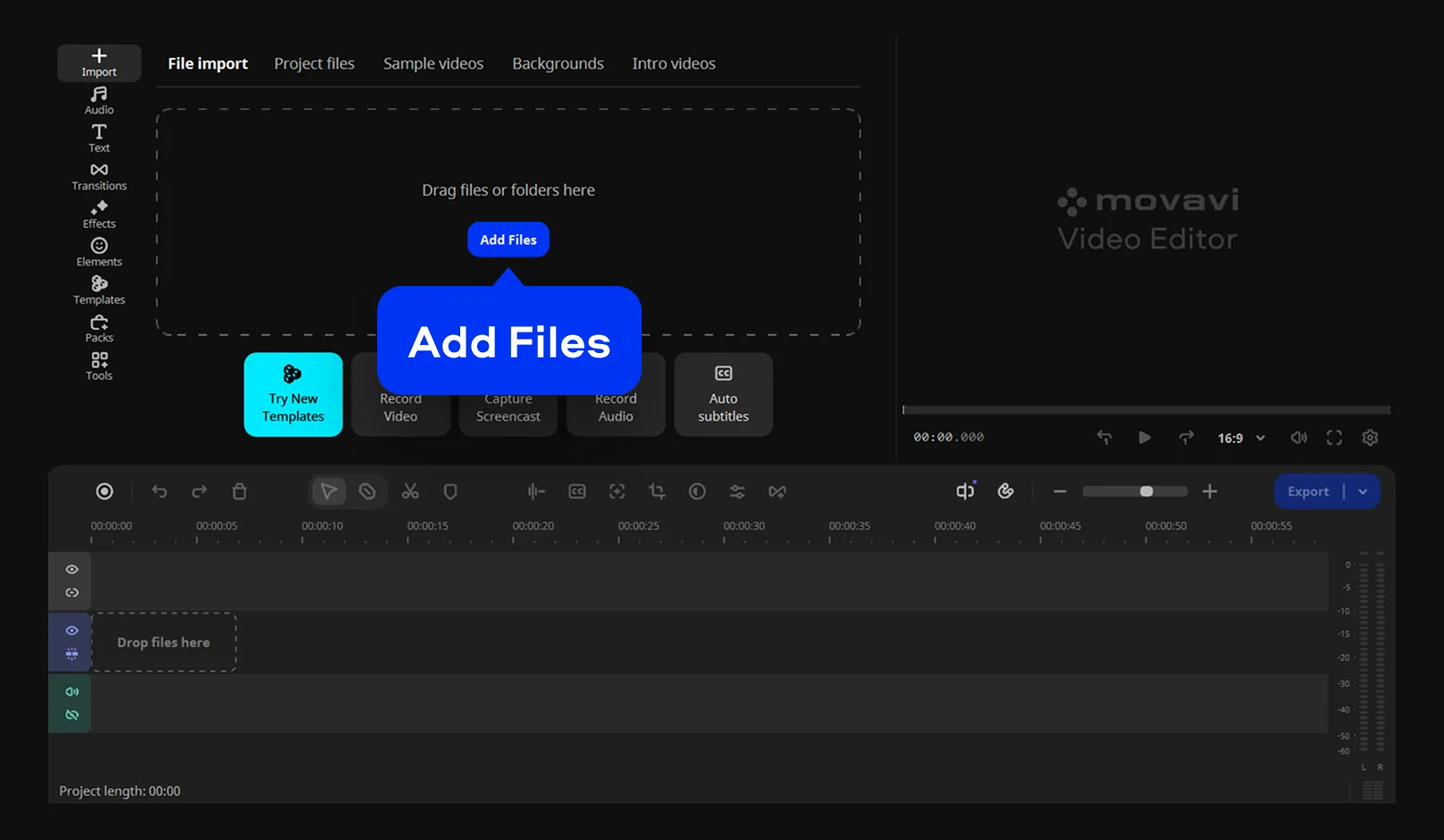
Click Add Files or drag the clip in, then drag it down onto the Timeline.
Step 2. Apply a flip effect
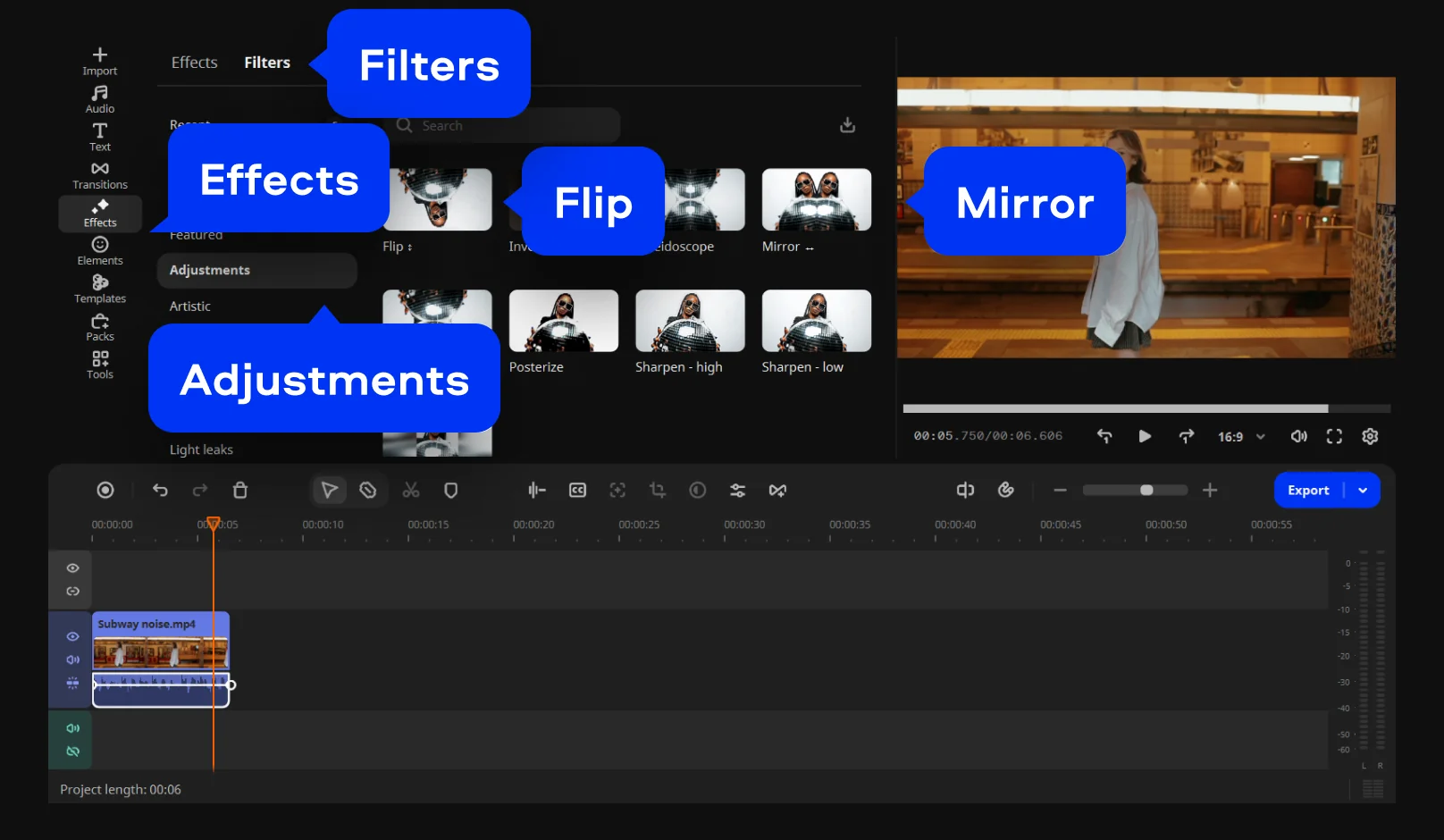
Go to Effects, choose the Filters tab, and select the Adjustments menu. Choose one of the Flip or Mirror effects (horizontal, vertical, or both) and drag it onto your clip on the Timeline. The clip will pick up an FX icon so you can tell the filter is active.
Once it's flipped, the clip behaves like any other on the Timeline – trim it, speed it up, or layer effects on top without starting over.
Step 3. Preview and export
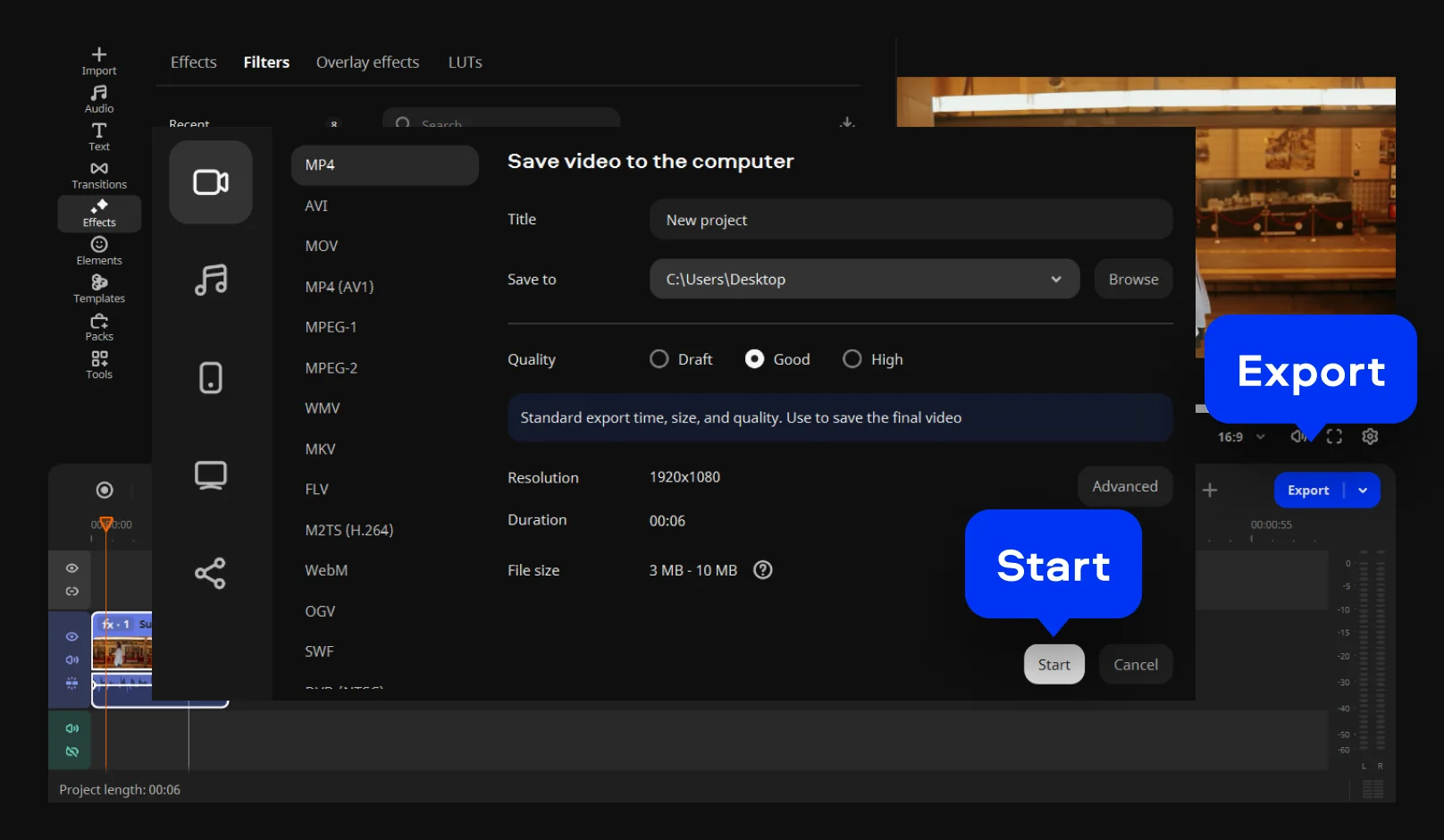
Check the result in the preview window first to confirm your left/right positioning is exactly how you want it. Once it looks right, hit Export, choose a format or a preset built for a specific social platform, and save.
Why selfie-camera footage comes out backwards
Front cameras on phones typically show you a mirrored preview while you're filming, so the framing feels natural – but depending on the app, what actually gets saved can end up flipped from how you saw it while shooting. The result: a street sign, or handwritten text in the background reads backward once you review the footage. It's a small thing, but it's the kind of detail viewers notice immediately, especially on TikTok and Reels where a still frame gets scrutinized in a thumbnail. Flipping the clip horizontally after the fact restores the text and signage to normal without re-shooting anything.
Why dance and fitness tutorials need a mirrored view
If you teach dance, fitness, or any movement-based skill on camera, there's a second, more practical reason to mirror videos: your viewer is trying to copy you in real time, and "face-to-face" footage forces them to flip left and right in their head while they're also trying to keep the beat. Instructors solve this by mirroring the instructional clip so a viewer's right hand maps to the instructor's right hand on screen, the way it would if they were standing in front of a mirror instead of facing another person. It's a small edit that removes a real point of friction for anyone following along on their device.
Why a desktop video flipper beats a browser tab
Online video tools
Movavi Video Editor
Processing & Quality
Processed on external servers, often causing resolution drops and compression blur.
Runs locally on Windows 10/11 & macOS 12.0+ with no forced re-encoding or quality loss.
Format Support
Frequently reject standard formats like direct iPhone MOV files.
Natively reads MP4, MOV, AVI, MKV, and WMV.
File & Length Limits
Strict caps on file size and runtime; often unusable for 4K video or clips longer than 1-2 minutes.
No file size or runtime caps in the full version (the free version has a 60-second limit).
Export & Access
Clean exports are usually gated behind mandatory sign-ups, subscriptions, or watermarks.
No blocked exports or sign-up walls; the full version is completely watermark-free (the free version includes a watermark).
Most people's first instinct is to search for a free online video flipper, and that's usually where the frustration starts. Web-based tools process your file on someone else's server, which means your original resolution and bitrate often take a hit on the way back down – footage that left your phone crisp comes back visibly softer, with compression blur around fast motion or text. Many of these tools also gate the clean export behind a sign-up, a subscription, or a logo stamped across your footage, and most cap file size or runtime, which becomes a wall the moment you're working with a 4K clip or anything longer than a minute or two. A surprising number don't even accept MOV files straight off an iPhone.
None of that applies once the file stays on your own device. Movavi Video Editor runs as desktop software for Windows 10/11 and macOS 12.0 and up, reading MP4, MOV, AVI, MKV, and WMV natively, so there's no forced re-encoding just to open the file. With the full version, there's no watermark, no runtime cap, and no blocked export – the free version does carry a 60-second limit and a watermark, which is worth knowing before you start a longer project.
Rotate vs. Flip – two different buttons, two different jobs
A common mix-up: people look for "Flip" and only find "Rotate 90°" or "Rotate 180°," assume that's the same thing, and end up with a spinning frame instead of a mirrored one. Rotating turns the whole picture around a center point – useful for footage shot sideways or upside down. Flipping keeps the frame upright and swaps left for right, which is what actually fixes backward text or creates a mirror-image tutorial.
After the flip: Polish the clip before you post
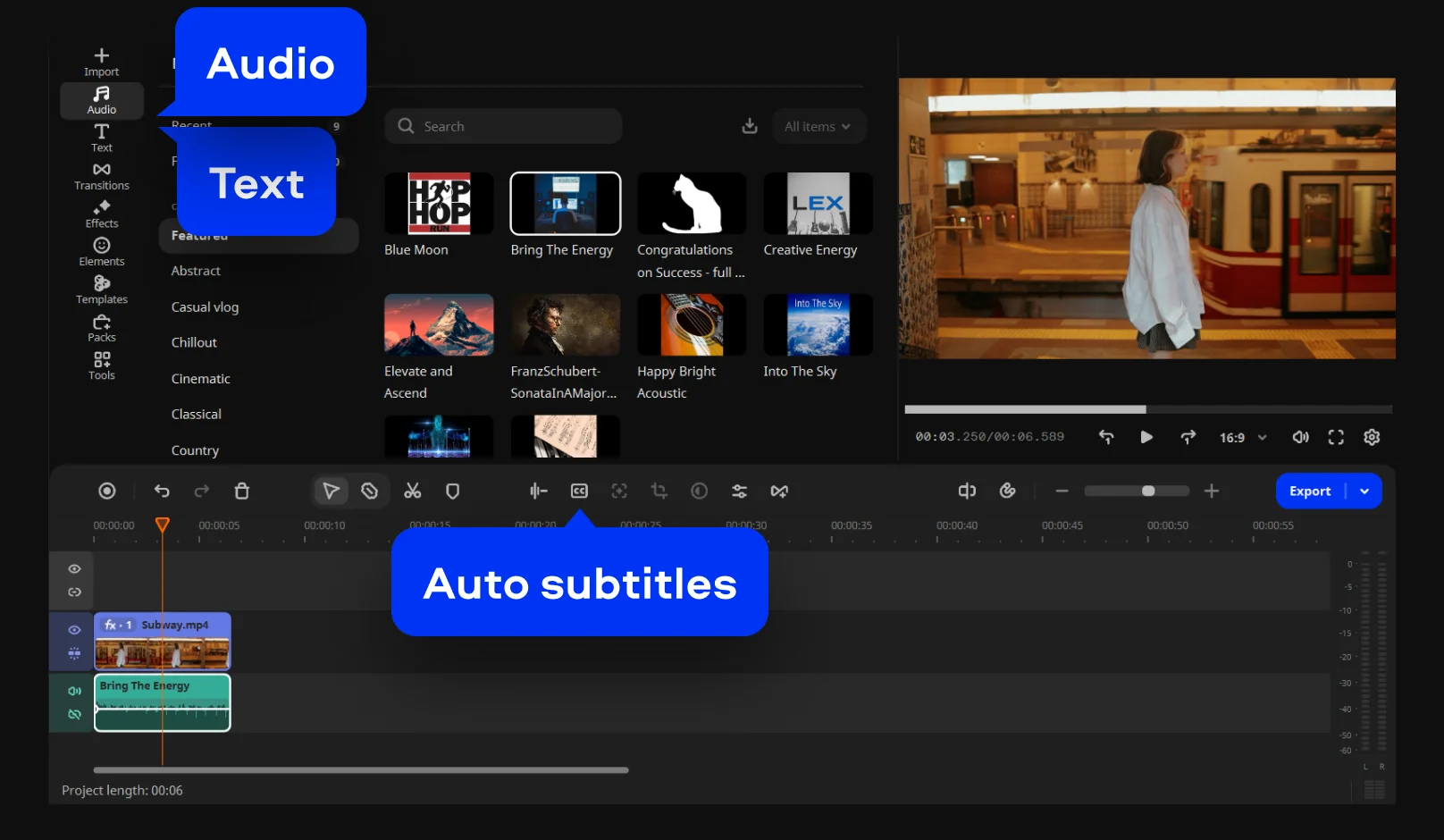
Mirroring is usually step one, not the whole job. Once the orientation is right, Movavi's one-click AI tools actually save real editing time rather than sitting there as a buzzword: auto subtitles transcribe your voiceover automatically, so a dance tutorial or explainer clip is caption-ready without typing anything out by hand. From there, drag-and-drop effects for every style – transitions, titles, filters, and copyright-free music – are already sitting in the built-in library, no separate download required. And if the next question is what to edit tomorrow, Movavi Ideas publishes new editing tricks every week, free and exclusive to Movavi Video Editor users, with a short tutorial for each one.
Built for millions, priced for every budget
Movavi is trusted at scale – more than 70 million people use it across 190+ countries, with 25+ updates shipping every year, including recent additions like auto-tracked cropping and one-click video denoise. None of that requires paying for the full toolkit up front. None of that requires paying for the full toolkit up front. With tailored options for every budget, you can start with a free download to test the basics before unlocking the full version. Effects and template libraries are separate add-ons for anyone who wants to go further, previewable on your own footage before you buy anything.
Movavi Video Editor
Create awesome videos easily

Frequently asked questions
How do I mirror a video on an iPhone?
How do I mirror a video on an iPhone?
iPhone's native Camera and Photos apps let you flip still photos from the crop screen, but there's no built-in horizontal-flip control for video clips. The fastest route is importing the clip into a desktop editor – Movavi Video Editor included – where flipping it is a single click, or looking for a dedicated mirroring app if you need to stay entirely on your device.
How do I flip or reverse a video?
How do I flip or reverse a video?
These solve two different problems, and it's worth keeping them separate. Flipping mirrors the frame left-to-right, so backward text reads correctly. Reversing plays the clip backward in time – the same footage, running from end to start – which is its own tool in Movavi Video Editor and can be combined with speed changes for rewind-style effects.
How can I flip a video on my phone?
How can I flip a video on my phone?
Most phone gallery apps don't include a native flip tool for video the way they do for photos. A mobile editing app can cover quick, one-off flips; for anything you plan to layer effects or subtitles onto afterward, moving the file to a PC or Mac and finishing it in a full editor gives you more control over the final export.
How do you mirror a video in Photos?
How do you mirror a video in Photos?
Apple's Photos app supports flipping still images through its built-in crop tool, but that flip control doesn't extend to video clips. For video, the file needs to go through an actual video editor – that's the point where a tool like Movavi Video Editor picks up the job.
Once your footage reads the right way round, the next natural step is stacking on subtitles or a quick color pass – both live one panel over from the Rotate tool you just used.

Have questions?
If you can’t find the answer to your question, please feel free to contact our Support Team.
Join us for discounts, editing tips, and content ideas


1.5M+ users already subscribed to our newsletter