Step 1. Install the program
Download and install Movavi Video Editor. It works on Windows and Mac so the Blocks workflow is the same.

Use Movavi Video Editor!
NEW: Adjustable video templates for any vibe – made of Blocks
NEW: Blocks – pre-edited video segments you can customize
Fast and easy editing: cut, crop, adjust colors and speed
Auto subtitles, noise removal, hundreds of effects, and more
By clicking the download button, you're downloading a trial version of the program.*

Download and install Movavi Video Editor. It works on Windows and Mac so the Blocks workflow is the same.
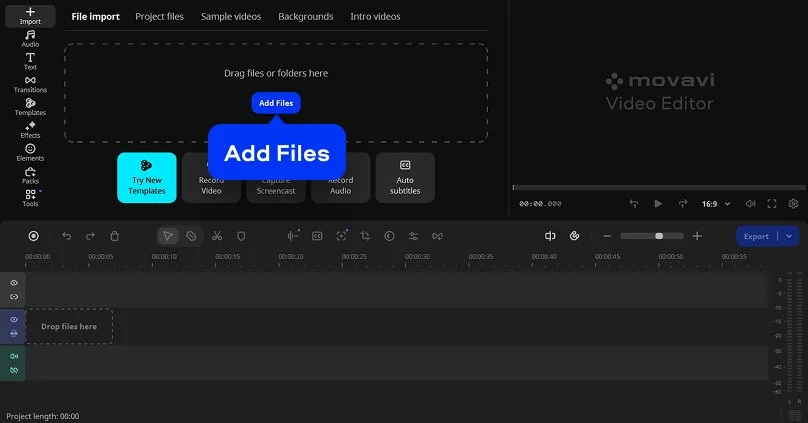
Bring your finished clip into the program by clicking Add Files. Movavi Video Editor runs directly on your desktop, so you can edit anywhere without an internet connection.
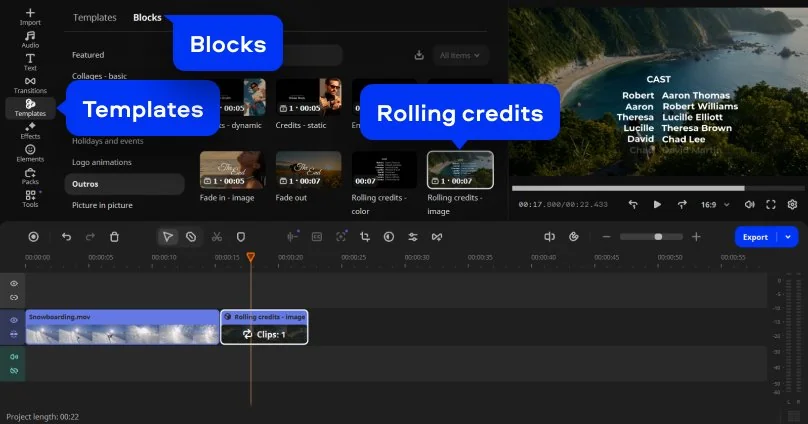
This is where your closing sequence actually starts. Open the Templates menu and choose the Rolling credits Block. Drag it onto the end of your timeline.
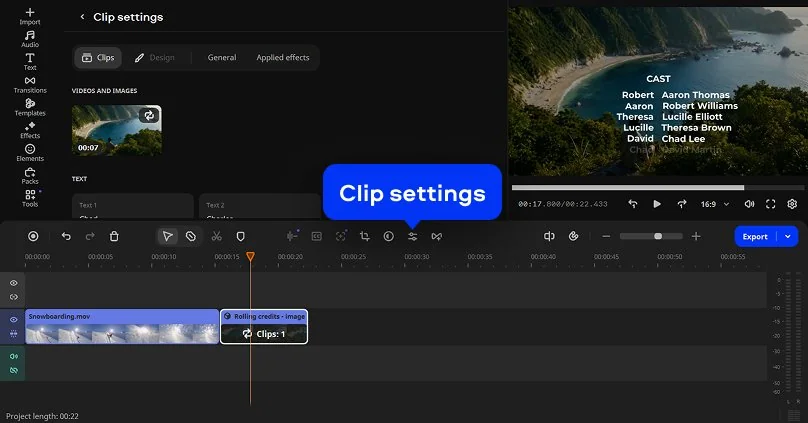
Customize your Block in Clip settings. Reorder, add, or remove Blocks within the template to shorten or extend the sequence, swap in a different Block for a different section, or build the closing sequence entirely from Blocks you pick yourself. This keeps the credits template flexible enough to match a short vlog outro or a longer end-of-film sequence, without starting from a blank timeline.
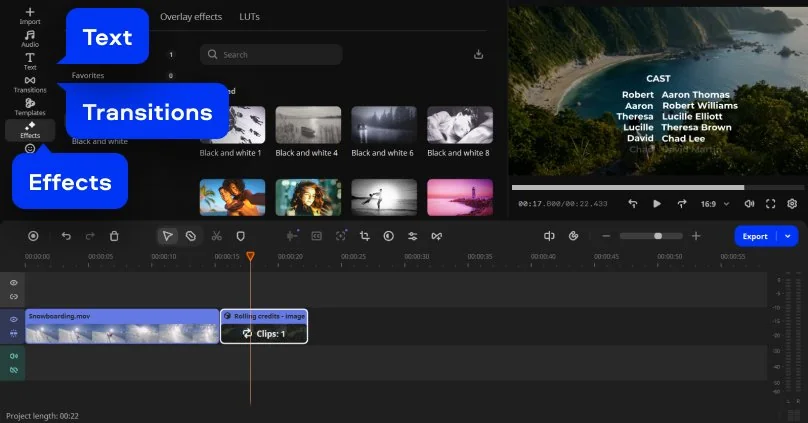
Movavi Video Editor includes hundreds of drag-and-drop transitions, titles, filters, and overlays. A quick fade transition into your credits Block gives your video a clean, smooth transition into the credits.
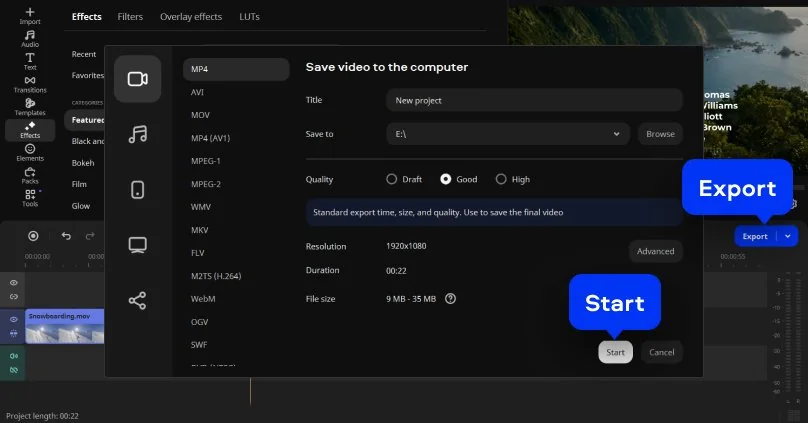
Click Export to open the export menu, then click Start. Your video saves as an MP4 by default, which plays reliably across YouTube, other platforms, and just about any device.
Movavi Video Templates – multi-style library of customizable, pro-looking, modular templates for any kind of video. You could animate scrolling titles manually – set keyframes, time every line, adjust the pan yourself. A credits Block skips that. The scrolling motion, spacing, and pacing are already built in, and every part of it stays editable, so you're not locked into a rigid layout the way a plain video template sometimes feels. That's the whole idea behind Movavi's pre-built Templates in general: handle the repetitive formatting so you can focus on the creative side.
If you're closing out a talking-head video, a credits Block also gives your channel a recognizable outro. Reusing the same Block (with a different scroll speed or text) across episodes builds a consistent sign-off without redoing the work each time.
YouTubers and vloggers close out vlogs, reviews, and episodic series with a credits Block instead of just cutting to black. Reusing the same one across uploads gives a channel a recognizable outro without rebuilding it every time.
Students and beginner filmmakers use the same Block to give a short film or class project a proper ending – the kind of closing credits that make a project feel finished rather than just done.
Families and wedding videographers drop a credits Block onto a wedding film or a holiday video to note the date, the names, the people who helped put the day together – a small detail that rounds off a video meant to be watched more than once.
Small businesses use it to credit the team behind a promo or an event recap, turning a two-line thank-you into part of the video instead of an afterthought.
Movavi Video Editor – intuitive video editor with customizable video templates, one-click AI tools, and hundreds of drag-and-drop effects. You don't need editing experience to use this as an end credits maker. The whole workflow – import, drag a Block, edit the text, click Export – is designed for beginners and everyday creators, delivering awesome looking results without spending years video editing. Movavi Video Editor runs on Windows 10 and 11 and macOS 12.0 and higher, including native support for Apple M1 and newer Macs, so the same Block workflow works whichever machine you're on.
If you want to try it before committing, Movavi offers a free download with the essential editing tools, including the Templates and titles features, available to test in the app. The free trial lets you test all essential tools. Exported videos from the trial version have a 60-second limit and a watermark, which are removed when you upgrade to the full version.
Once your credits are in place, Movavi Ideas is worth a look. It's a free tutorial hub, exclusive to Movavi Video Editor users, with new step-by-step editing tricks published regularly – quick enough to follow in under a minute, covering everything from vlogs to holiday videos. If you're closing out one video and already wondering what to try on the next one, that's where to look.

Yes. The free version is downloaded from the official Movavi website and gives access to essential editing features alongside automated tools like auto subtitles, auto crop, and silence removal. While all tools can be tested within the app, using paid features will restrict video export; additionally, standard free-tier limitations apply, including a 60-second length cap, limited codec support, low output quality, and a mandatory watermark.
The full version of the program with access to all features, including one-click AI tools – no watermark or other export limitations. Users can additionally buy a subscription to Movavi Effects to unlock 10,000+ extra effects and 1,500+ music tracks.
Yes, Movavi Video Editor is a desktop application that works entirely offline.
MP4 by default, which covers most upload and playback needs. Audio-only and device-specific export options are also available from the same export menu.
Yes. Movavi Video Editor is available for Windows 10 and 11 PC and on macOS 12.0 and higher, with the same Templates and Blocks workflow on either platform.
Every Block is fully editable – text, scroll speed, and timing all adjust through Clip settings, and you can pair it with any transition or effect from the built-in library.
Once your credits are exported, that same Templates menu has Blocks built for far more than closing sequences – intros, countdowns, and full themed templates for whatever you're editing next. Worth a look while you're already in there.



1.5M+ users already subscribed to our newsletter