Step 1. Import your clips
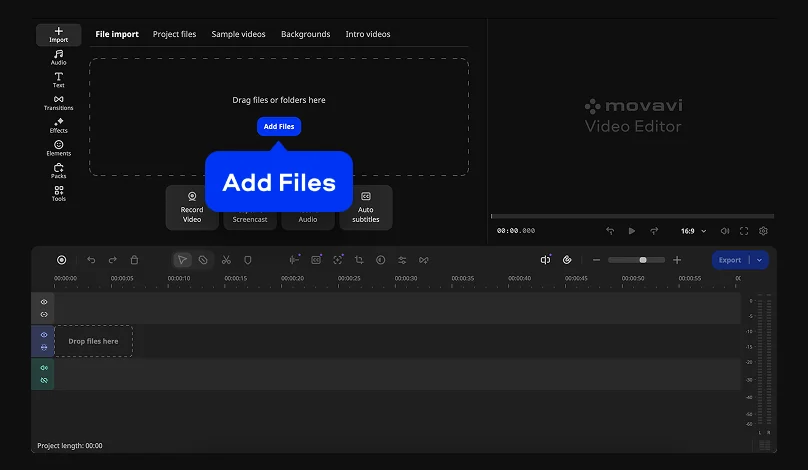
Click Add Files to bring in your own footage.

Your best clips, a solid structure, and the right pacing – that's the foundation of a great portfolio. Movavi Video Editor helps you build it in just a few easy steps. The fast and simple route is using one of Movavi's customizable templates, each built from editable Blocks – a snappy intro, a mid-reel highlight montage, and a closing contact card.
Movavi Video Editor keeps this process simple with a clean interface and an intuitive drag-and-drop workflow.

A good video portfolio template saves you from building pacing and structure from scratch. Movavi Templates provides multi-style library of customizable, pro-looking, modular templates for any kind of video. Once your layout is locked in, hundreds of built-in drag-and-drop effects help bring any creative design to life, while Movavi Ideas provides weekly step-by-step tutorials, giving creators a constant supply of fresh tricks and techniques to make their content more engaging.
A portfolio video is a short, edited reel that showcases your best work in one place – the talking-head moment that landed, the shot your audience still comments on. Photographers and designers have used portfolios for years. Creators use them the same way – as proof of creative range, not a resume.
You'll want one if you're:
None of this depends on a huge subscriber count. A well-cut portfolio video is judged on craft, not reach.
A good video portfolio template saves you from building pacing and structure from scratch. Look for one made of smaller, editable segments – an intro, a mid-reel transition, a closing title card – so you can swap footage in and out without rebuilding the whole sequence.
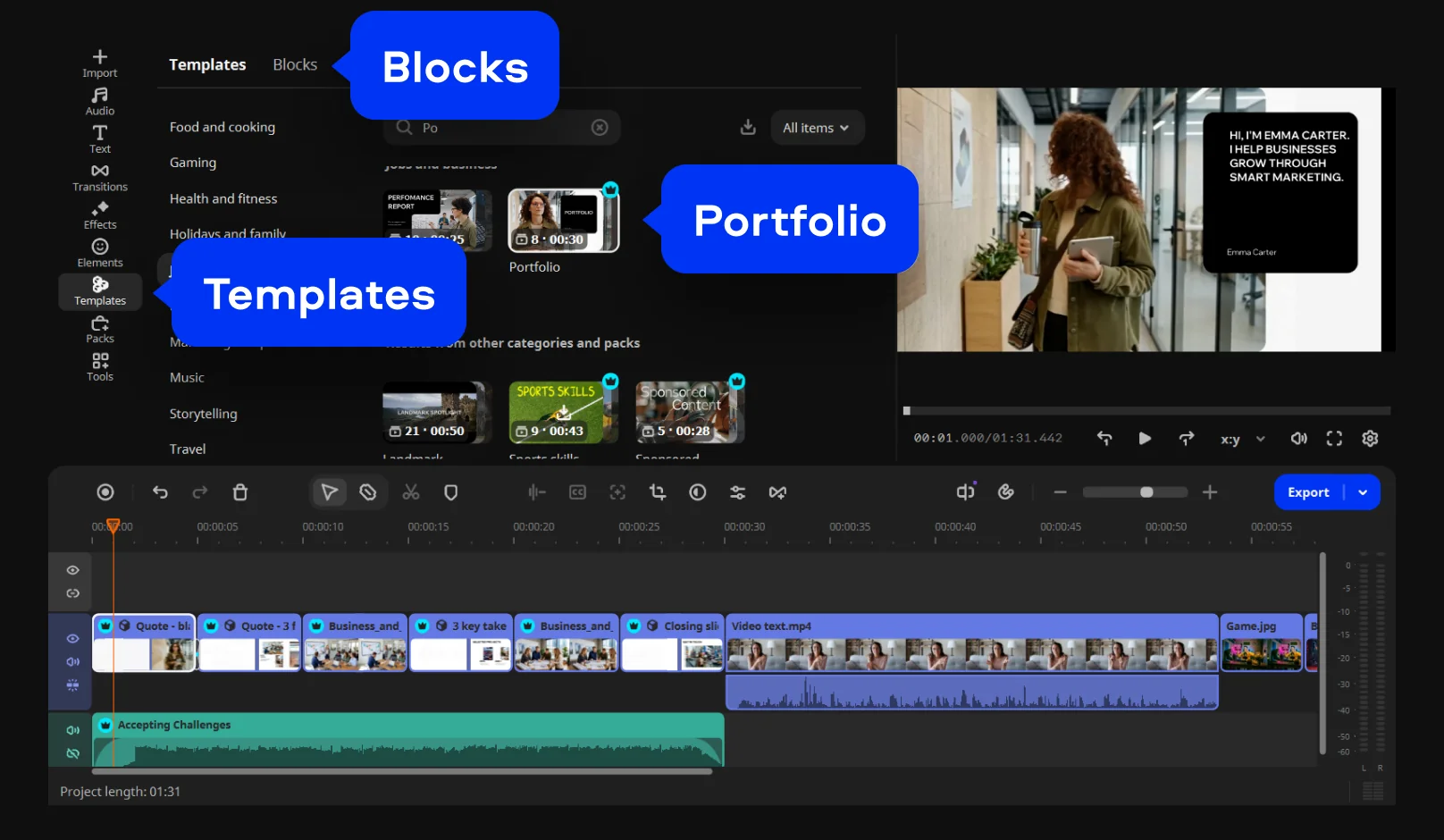
Movavi Video Editor's templates work this way. Each one is organized into Blocks: short, pre-edited segments like an intro, a countdown, or a quick-cut collage. Say you need an example segment that counts down before your logo drops – that Block already exists. Drop your own clips in, keep the music and pacing, and move to the next Block. Reorder them, delete the ones you don't need, or pull an extra Block in from a different template. The transitions, effects, and titles are already built into each one, so you're customizing a layout instead of staring at a blank timeline.
How to make a portfolio video: Step by step
Click Add Files to bring in your own footage.
Open the Templates tab and pick a Portfolio template, or choose one that fits your specific niche – whether that's a vlog, a promo, or a tutorial layout. Each one is built from editable Blocks (a snappy portfolio intro, a highlight montage, a closing contact card) that already include music and pacing. Drop the template onto the timeline, then swap the placeholder clips inside each Block for your own.
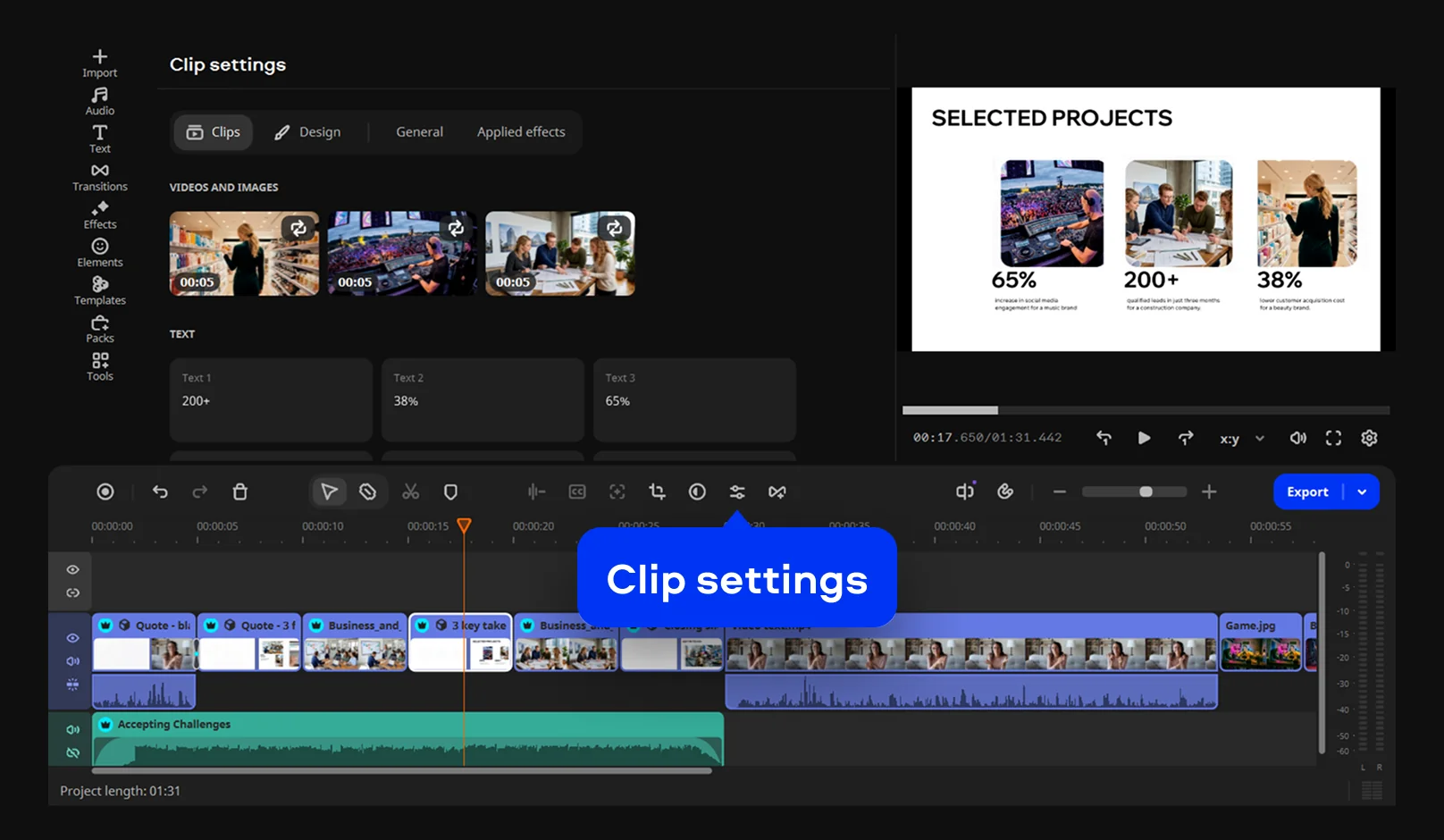
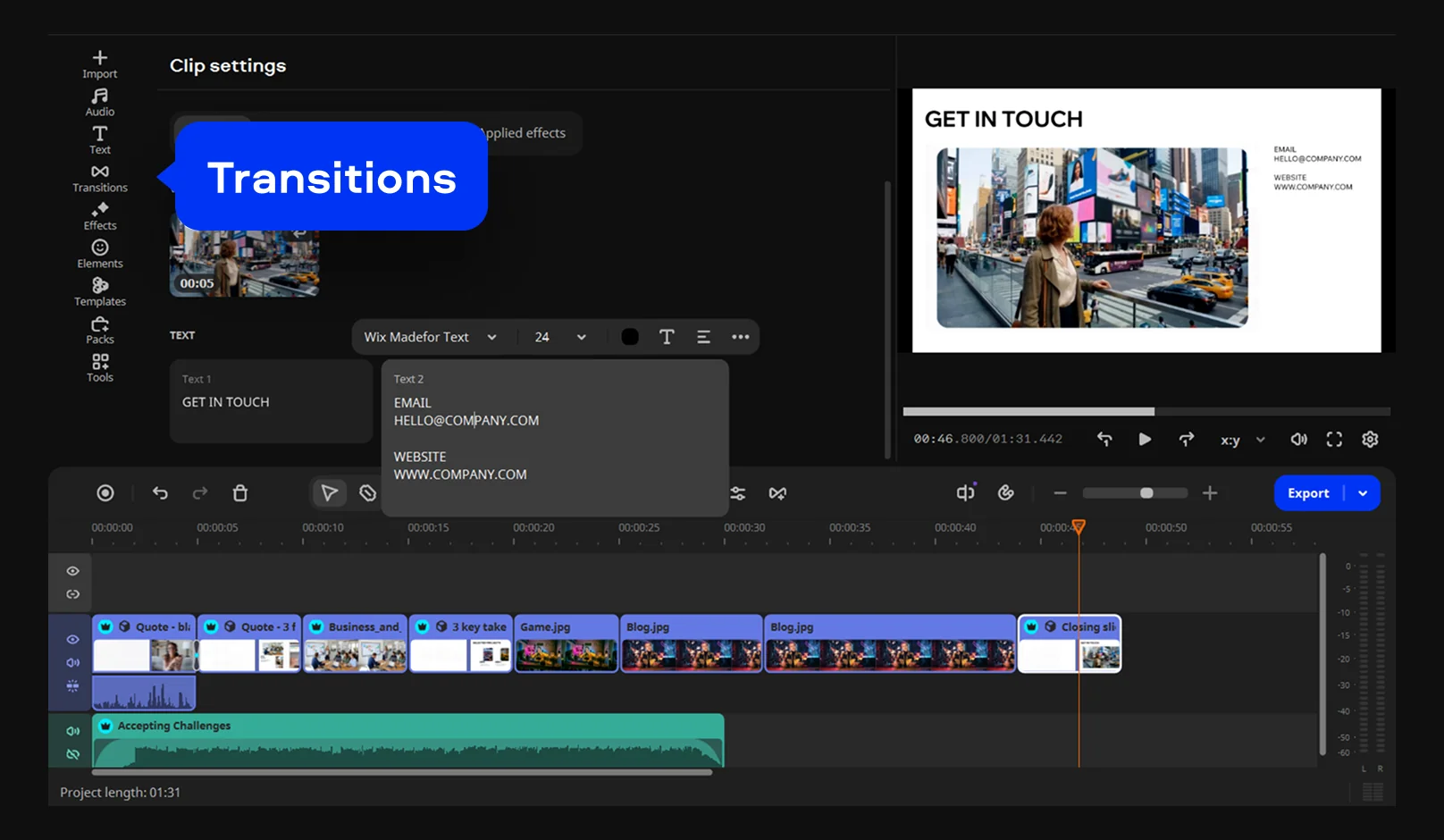
Double-click any Block on the timeline or open Clip settings to customize it further. You can reorder, add, or remove Blocks within the template to shorten or extend the sequence, swap in a different Block for a different section, or build the layout entirely from Blocks you pick yourself. This keeps the template flexible enough to match a short pitch or a longer highlight reel, without starting from a blank timeline.
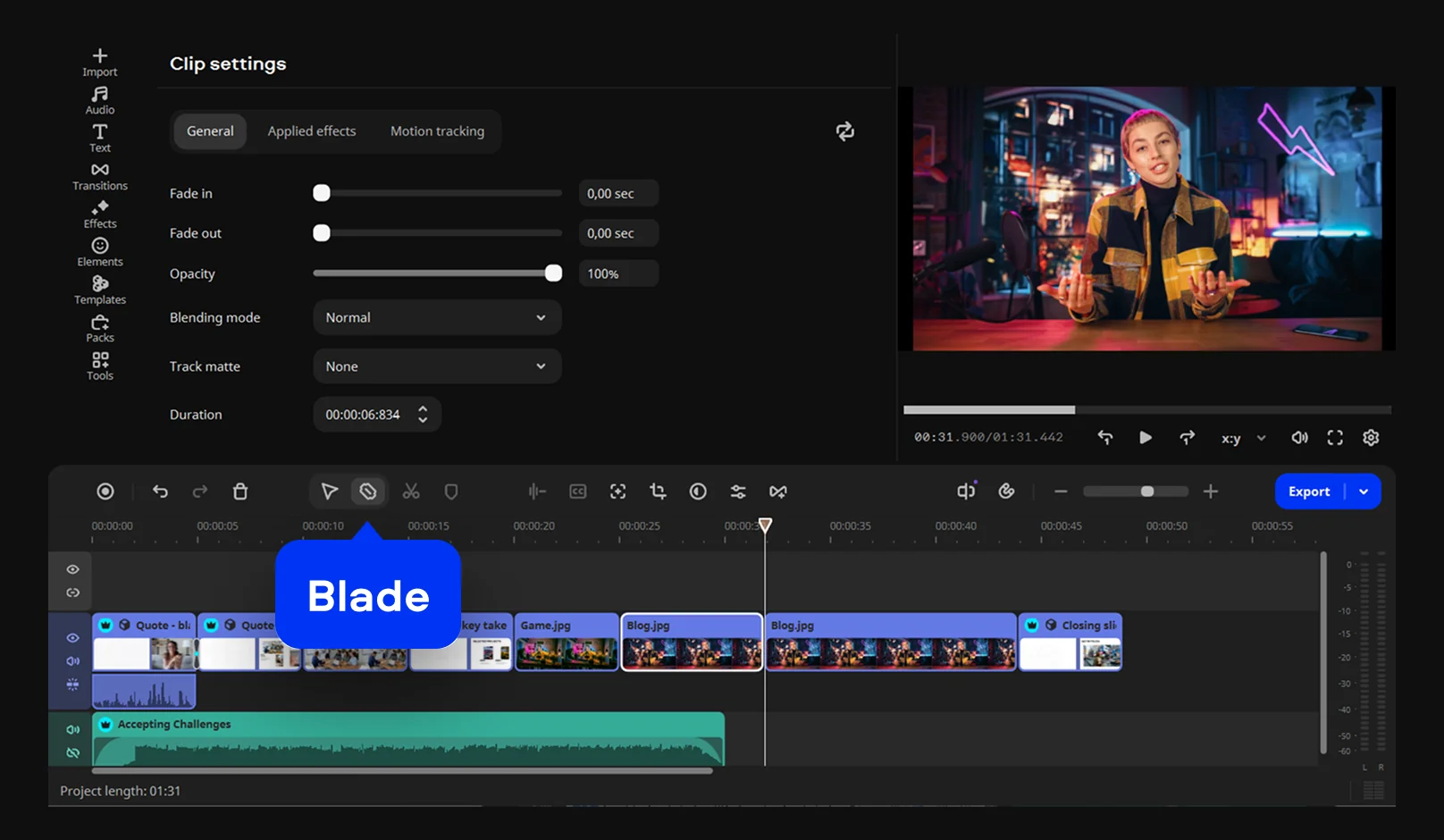
Cut long takes down to the moments that actually land. Use the Blade tool to slice away dead air and keep only your strongest highlights – a punchline, a dynamic product shot, or one clean sentence said well.
Every template comes with transitions and effects already applied, but nothing is locked. Use the built-in title presets to label each segment with your channel name, a project title, or a quick "before/after" caption. Let the pre-built transitions between Blocks carry the pace, or swap them out to match your personal editing style.
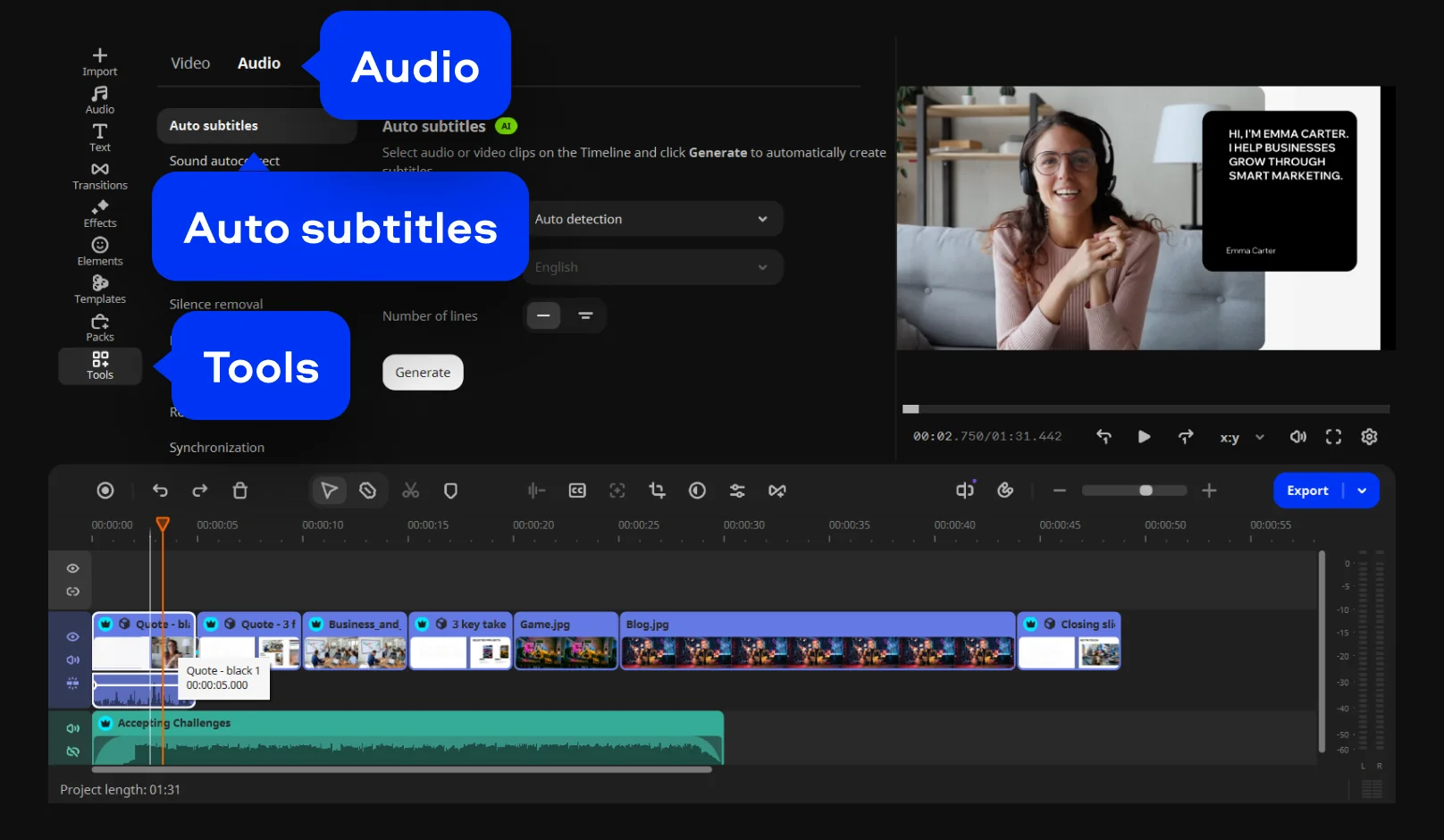
Make sure your pitch works in any environment. In the Tools menu under Audio, select Auto subtitles and click Generate so agency reps and brands can follow along on mute.
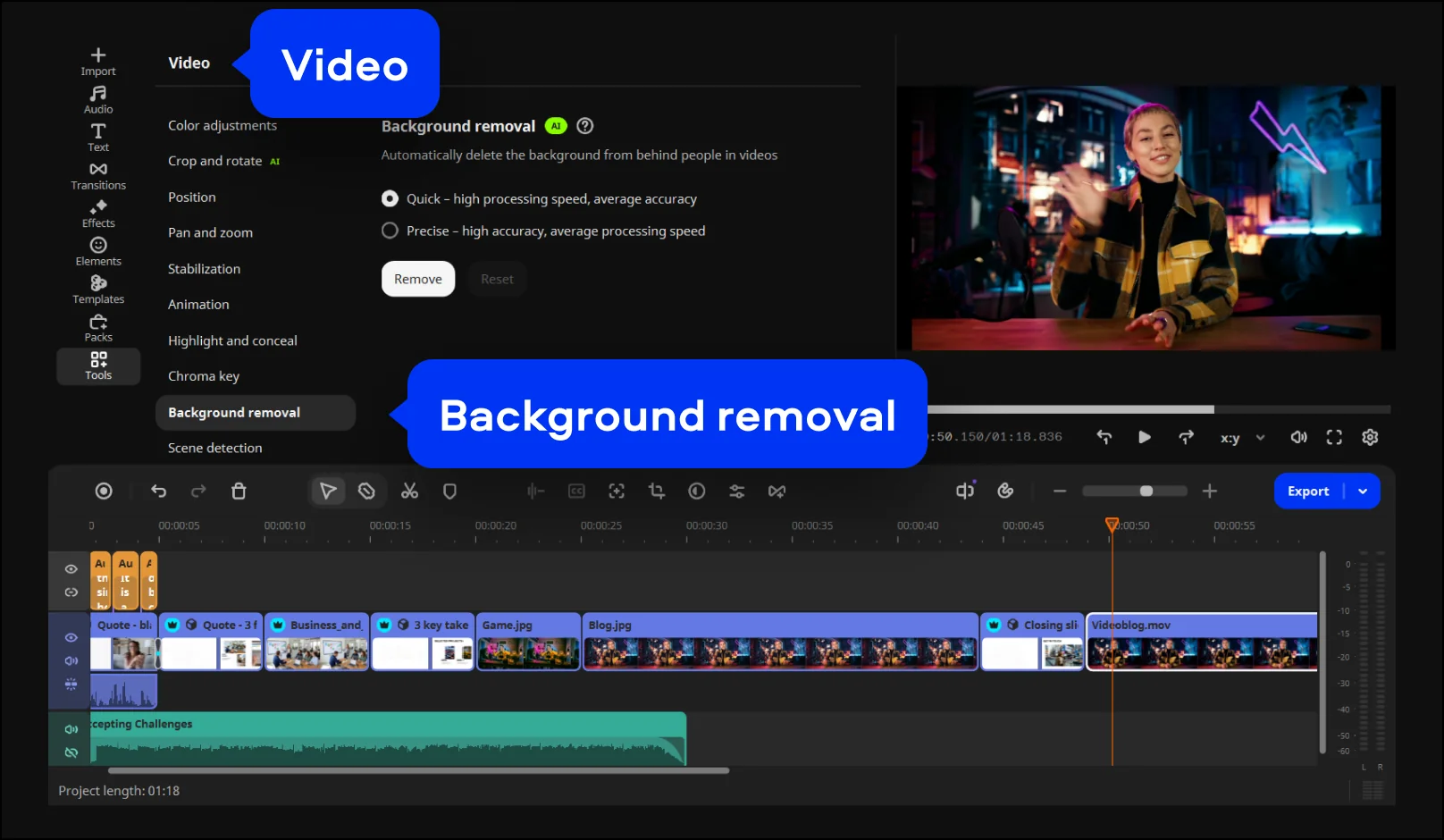
Meanwhile, in the Video section, you can use Background removal to hide a distracting background if the room isn't part of your pitch.
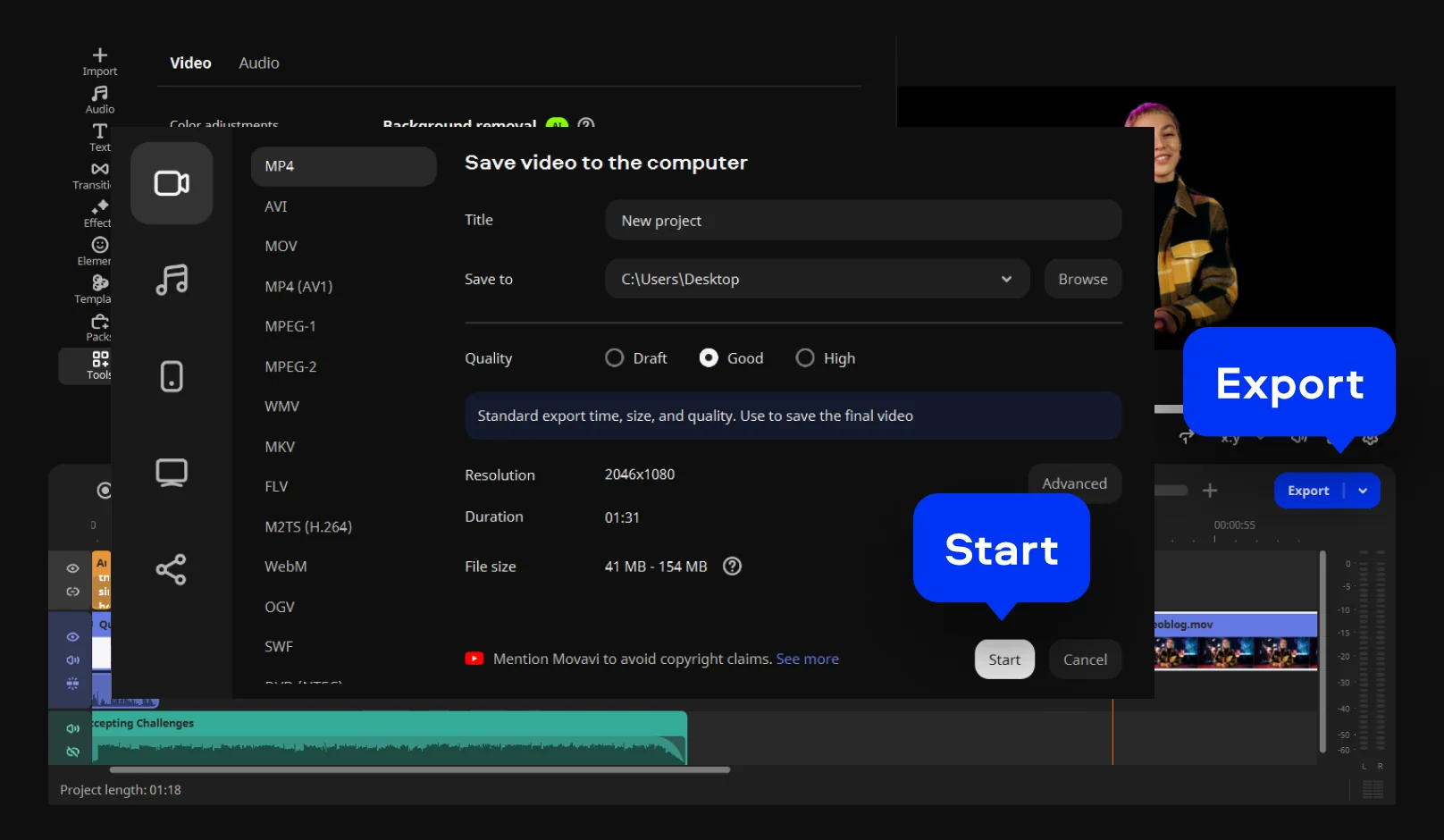
Click Export and pick MP4 as your target format. It's the recommended standard for broad compatibility, ensuring your portfolio will open and play smoothly wherever a company or agency needs to review it. Then click the Start button.
Movavi Video Editor is the program behind every step above. As an intuitive video editor with customizable video templates, one-click AI tools, and hundreds of drag-and-drop effects, it's simple and fast by design: a drag-and-drop workflow, hover previews of every clip and effect, and a clean interface that doesn't demand a manual. It works as a portfolio video editor for people who've never opened a timeline before, and just as well for people who already call themselves editors.
The AI tools save real editing time: auto subtitles support 100+ languages, audio noise removal clears background hum in one click, and auto-tracked cropping keeps your face centered when you reframe a talking-head clip for vertical. The effects library covers a wide range of styles too – hundreds of built-in transitions, titles, and filters, from clean and minimal to loud and glitchy, giving even a first cut a professional finish, with thousands more available through an optional add-on.
The software runs offline once installed – a program for PC (Windows 10 and 11) or Mac (macOS 12.0 and up, with native Apple M1 support), no browser tab required mid-edit. There's a free download to test the interface and every tool, plus a full version and add-ons for creators who need more, so the tailored pricing scales with whatever budget a given project has. More than 70 million people across 190+ countries already use Movavi software, with new updates arriving over 25 times a year. Looking to edit more than just a video resume? Built for beginners and everyday creators – whether you are a lifestyle vlogger building a media kit, a food creator compiling your most cinematic recipe shots into a highlight reel – the software helps you get high-quality results from your very first try.

Look for an editing app with a template or Block system built in – it saves real time over a blank timeline. Movavi Video Editor includes both, alongside manual tools for anyone who wants to build a sequence by hand.
Yes. The free version of Movavi Video Editor lets you test every tool, including templates, though exports are capped at 60 seconds and carry a watermark. The full version removes both limits.
MP4. It's the format most companies, agencies, and upload forms expect, and it plays back on nearly any device without conversion.
No. The pacing, music, and transitions are already in place – the main task is picking clips and dropping them into the right Block.
Yes. Movavi Video Editor is offline desktop software. Once it's installed on a PC or Mac, editing doesn't depend on a connection.



1.5M+ users already subscribed to our newsletter