You don't need prior editing experience for any of this. The software is built with beginners in mind, and once it's installed, every step below takes place inside one project. Read on to learn how to create a video resume.

How to Use Video Resume Templates: A Video Resume Maker
Use Movavi Video Editor!
NEW: Adjustable video templates for any vibe – made of Blocks
NEW: Blocks – pre-edited video segments you can customize
Fast and easy editing: cut, crop, adjust colors and speed
Auto subtitles, noise removal, hundreds of effects, and more
By clicking the download button, you're downloading a trial version of the program.*

Edited by
6,283
A video resume is really just a sharper, more personal cover letter, and you can build it with the same tools you'd use to edit any video. Movavi Video Editor is an intuitive video editor with customizable video templates, one-click AI tools, and hundreds of drag-and-drop effects. It's a desktop app for Windows and macOS, so your footage and edits stay offline on your own computer.
This guide works whether you're a YouTuber or blogger turning camera confidence into a stronger spot in the job market, or a professional condensing a portfolio into one clip for LinkedIn or a recruiter. In both cases, the timeline isn't empty when you start. Movavi Video Templates is a multi-style library of customizable, pro-looking, modular templates for any kind of video. So a presentation-style template, for example, does most of the structural work before you record a word. Pick one, and the pacing and transitions are already set.
Video resume templates to build from
Every template breaks down into modular Blocks – short, pre-edited segments such as an intro, a countdown, or an animated collage. You fill them with your own clips, photos, and text. Use a template exactly as built, or rearrange, add, or delete Blocks until the pacing fits your pitch. Each Block stays editable on its own, so changing a line of text or nudging the timing never disturbs the structure around it. A presentation-style template, for instance, already lays out an intro, several achievement cards, and a closing title card – close to the shape a video resume needs by default. The full version of Movavi Video Editor ships with a handful of templates at no extra cost, while the rest of the library sits behind a separate Movavi Templates subscription.
Combine the built-in effects with the templates and you can push the same structure toward a casual, vlog-style resume or a buttoned-up corporate pitch. The look isn't locked to one style, and the transitions, titles, and music bundled with a template can each be swapped out on their own.
How to create a video resume with Movavi Video Editor
Step 1. Download and install the program
Download the installation file for your PC or Mac and install the Movavi video resume maker on your computer.
Step 2. Import your clips and work samples
Drag in screen recordings from past projects, photos of your work, or any file already sitting on your drive.
You can also record your intro and talking points using the Record Video feature. The webcam recording tool captures your on-camera segments directly into the project. Choose your camera, resolution, and microphone without ever opening a separate recording app.
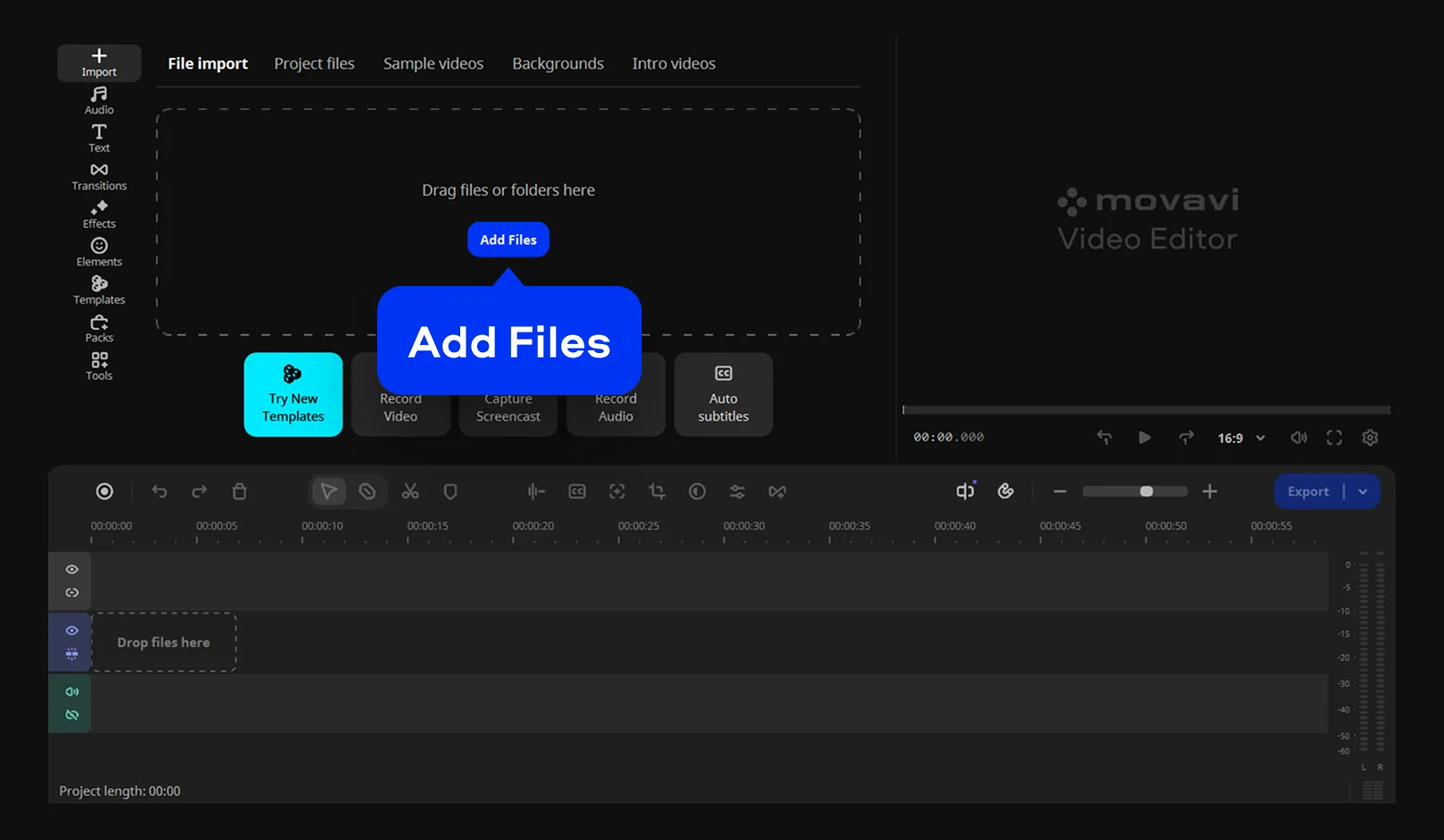
Step 3. Choose a video resume template
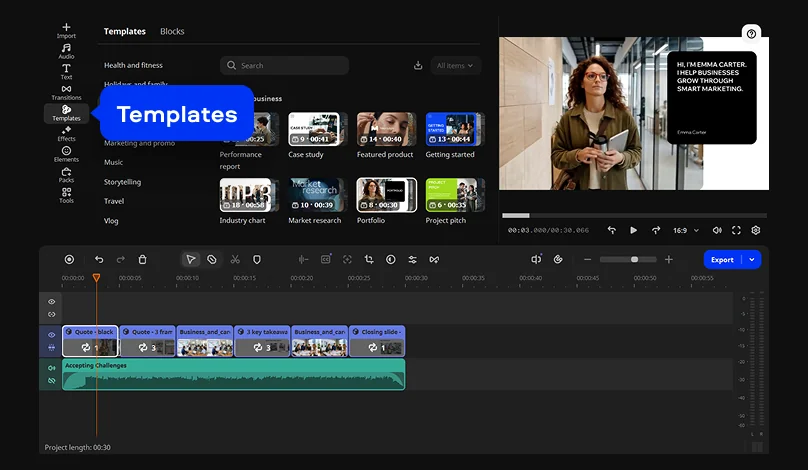
Open the Templates tab and choose a template suitable for your video resume. Drag and drop it on the Timeline. The template already lays out an intro, a few achievement cards, and a closing title card. And each of those Blocks stays separately editable, so dropping in your own footage won't disturb the pacing already built into it.
Your own media sits alongside the sample videos and backgrounds already built into the template.
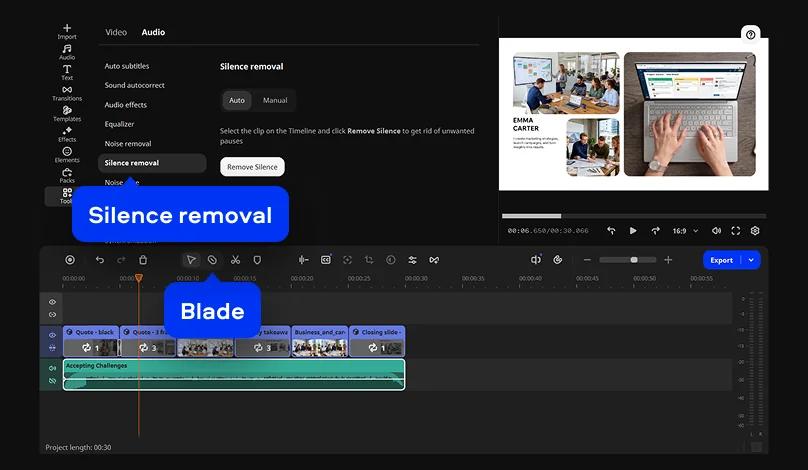
Step 4. Trim your clips
The Blade tool handles precise cuts, and running Silence removal afterward closes up dead air between sentences on its own. Movavi's internal testing found this cuts editing time by nearly five times compared to trimming the timeline by hand.
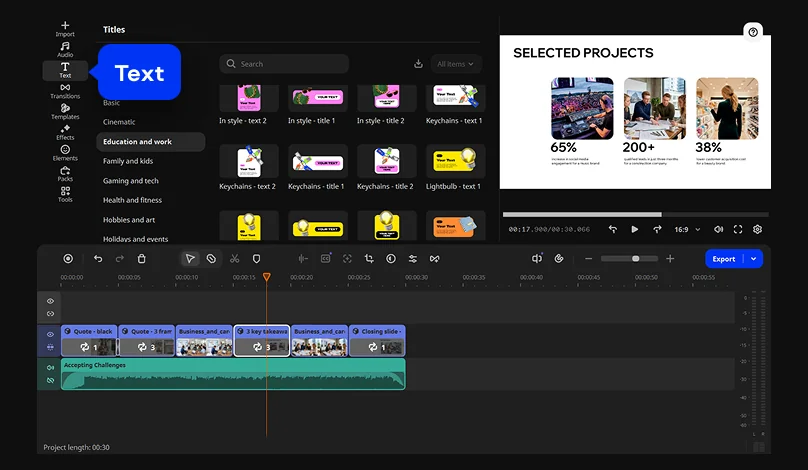
Step 5. Title your skills and achievements
Layer titles over your talking-head footage to call out your role, a top achievement, or a quick stat. Choose a style preset in the Text tab, swap in your own fonts and colors, and set the text to track you if you move around the frame.
Step 6. Clean up the picture and sound
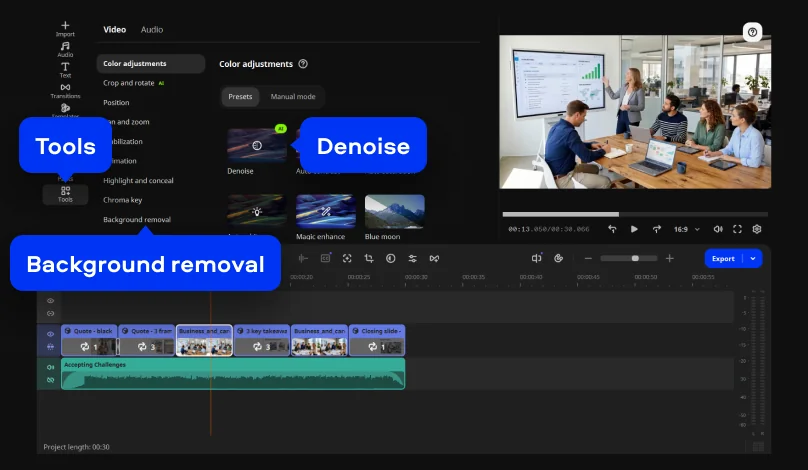
If the room was dim, run AI video denoise. Open Tools > Video and select the Denoise preset in the Color adjustments menu.
If your actual background isn't camera-ready, the Background removal feature fixes that without a reshoot or a green screen.
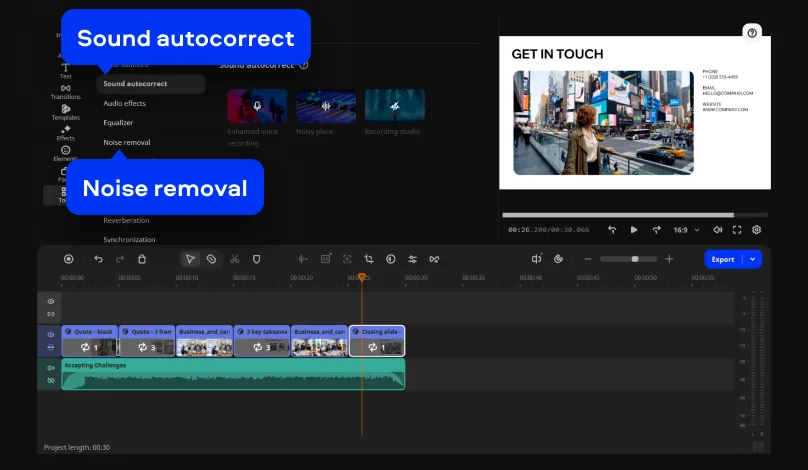
On the audio side, the Enhanced voice recording preset in the Sound autocorrect menu paired with Noise removal strips out traffic, hums, and room echo while your voice stays sharp.
Step 7. Export and share your video
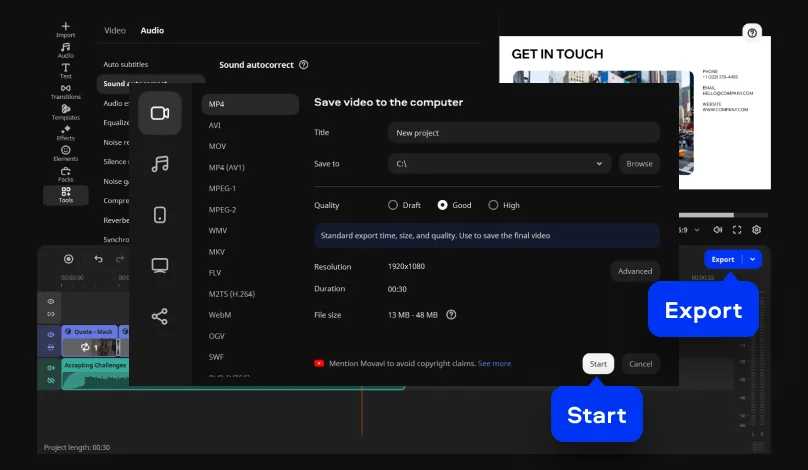
Click the Export button, specify the export settings, and hit Start. Then upload your video to LinkedIn or attach it to your application. For a vertical version for Instagram or TikTok, apply auto-tracked cropping to the same project and export again. It reframes the video and keeps you centered in the frame.
Each AI tool is a specific, feedback-driven feature that clears a tedious task in a single click, which counts for something when a job posting is closing soon.
Once it's exported, don't treat it as one static file and forget it. Pull a shorter cut for a LinkedIn banner video, or drop the same clips into a different template next time your experience changes. Since the Blocks are already broken apart, updating a video resume the second time takes a fraction of the effort the first one did.
Movavi Video Editor
Create awesome videos easily
*The free version of Movavi Video Editor may have the following restrictions depending on the build: watermark on exported clips, 60-second video or 1/2 audio length limit, and/or some advanced features unavailable when exporting videos.

Frequently asked questions
How long should a video resume be?
How long should a video resume be?
Hiring managers tend to skim, so keep it short – just enough time to cover your name, your role, a couple of achievements, and a clear way to get in touch.
What file format should I export a video resume as?
What file format should I export a video resume as?
MP4 is the safe bet. Movavi Video Editor recommends it for broad compatibility, and it's what most job boards, email clients, and LinkedIn will open without any extra conversion.
Is there a free way to make a video resume?
Is there a free way to make a video resume?
Movavi Video Editor Free is a free download that lets you test the entire workflow, and exports carry a watermark and a length cap until you upgrade to the full version. The full version and the Movavi Templates subscription are sold separately, so you're only paying for what your resume actually needs.
Do I need editing experience to make one?
Do I need editing experience to make one?
No – this guide covers how to make a video resume without any editing background. The drag-and-drop workflow and one-click AI tools are made for beginners, so the learning curve feels closer to filling out a form than learning new software.

Have questions?
If you can’t find the answer to your question, please feel free to contact our Support Team.
Join us for discounts, editing tips, and content ideas


1.5M+ users already subscribed to our newsletter