Because everything here is drag-and-drop, with hover previews showing you a transition before you commit to it, you spend your time cutting the video instead of learning the software, no matter how new you are to editing.

How to Make Videos With Transition Templates
Transition templates make it easy to create smooth, natural-looking cuts between clips. Movavi Video Editor is an intuitive video editor with customizable video templates, one-click AI tools, and hundreds of drag-and-drop effects.
Whether you're editing vlogs, dance videos, gaming highlights, or work presentations, you can create polished transitions even if you've never used a video editor before. Movavi runs on Windows and Mac, so you can edit your videos right on your computer, even offline.

Edited by
15,654
Speed up your workflow with transition video templates
A transition is a short animation – like a wipe, fade, or zoom – that smoothly connects two clips. Instead of animating these by hand, a transition video maker like Movavi provides ready-made effects with adjustable durations and fill modes (Trimmed content, Freeze frame, or Slow motion). They work perfectly whether you're mixing MP4 video footage or JPEG still images.
To skip manual placement entirely, you can rely on transition video templates. Movavi Video Templates offers a modular library where transitions, text, and music are already perfectly timed. Just drop your media into customizable pre-edited segments called "Blocks." You can easily reorder, add, or swap these blocks so your vlog or product demo fits your exact footage without looking like a rigid, cookie-cutter file. With built-in options and over 10,000 extra assets available via the Movavi Effects subscription, achieving a pro-level look takes just a few clicks.
How to add a transition in Movavi Video Editor
Step 1. Import your clips
Click Add Files to bring in your own footage.
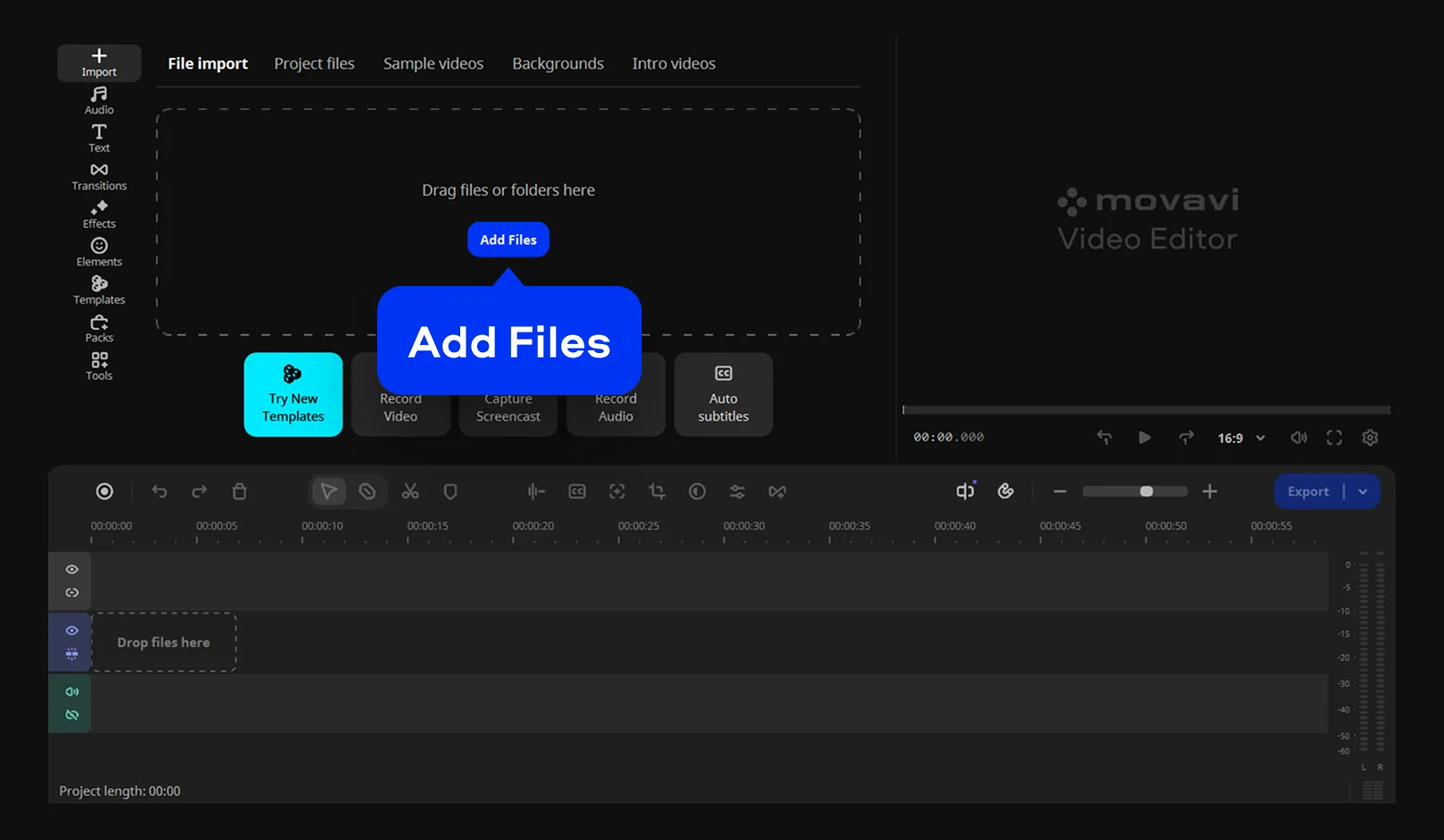
Step 2. Pick a template with ready-made transitions
Navigate to the Templates tab on the side panel and pick a template with ready-made transitions that fits your project vibe – from quick social shorts and pitch videos to full tutorials, culinary guides, or highlight reels. Drop it onto the Timeline. Then replace the placeholder footage and photos inside each modular Block with your own media. Built-in transitions and effects will automatically keep everything connected and visually aligned.
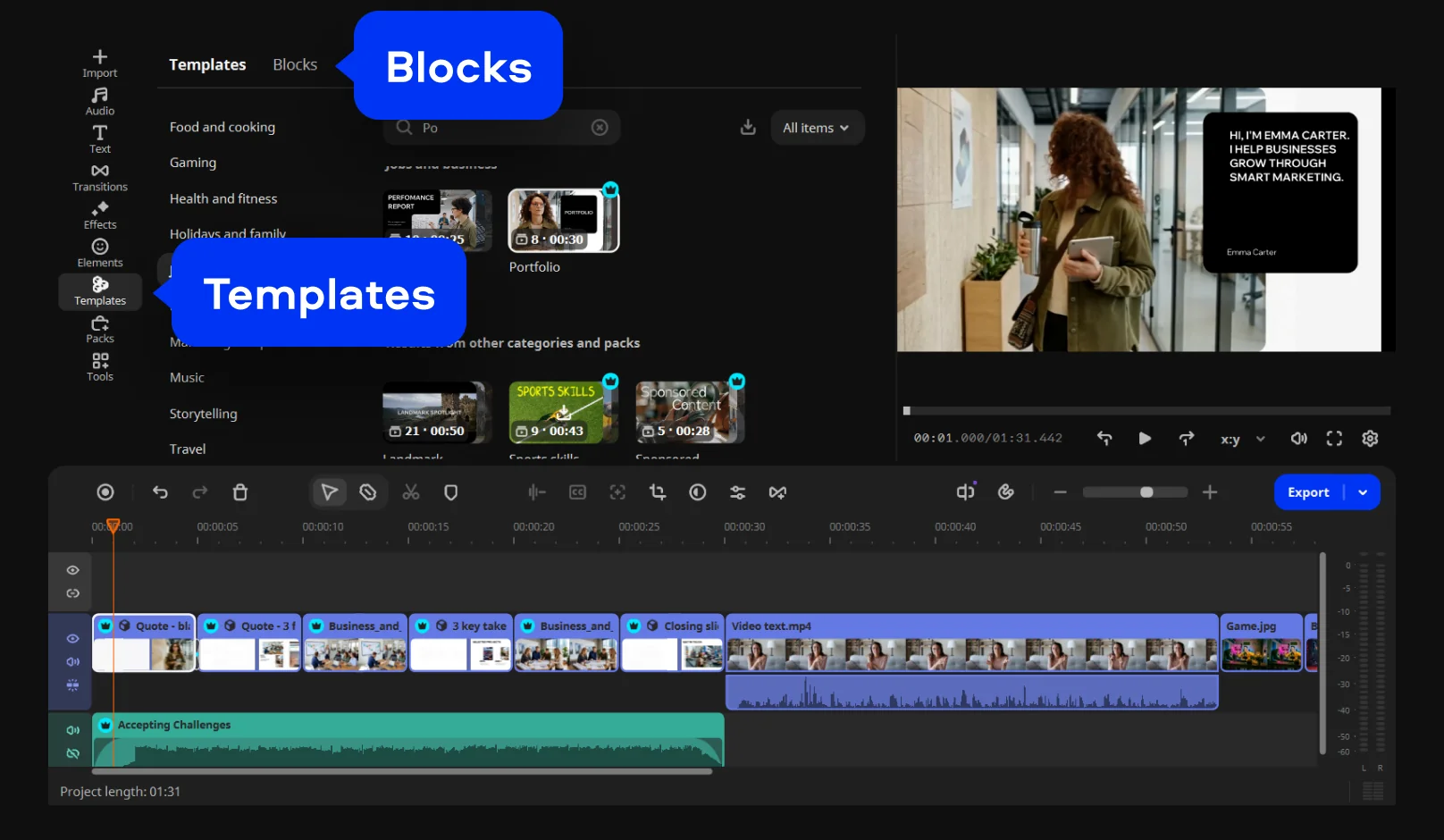
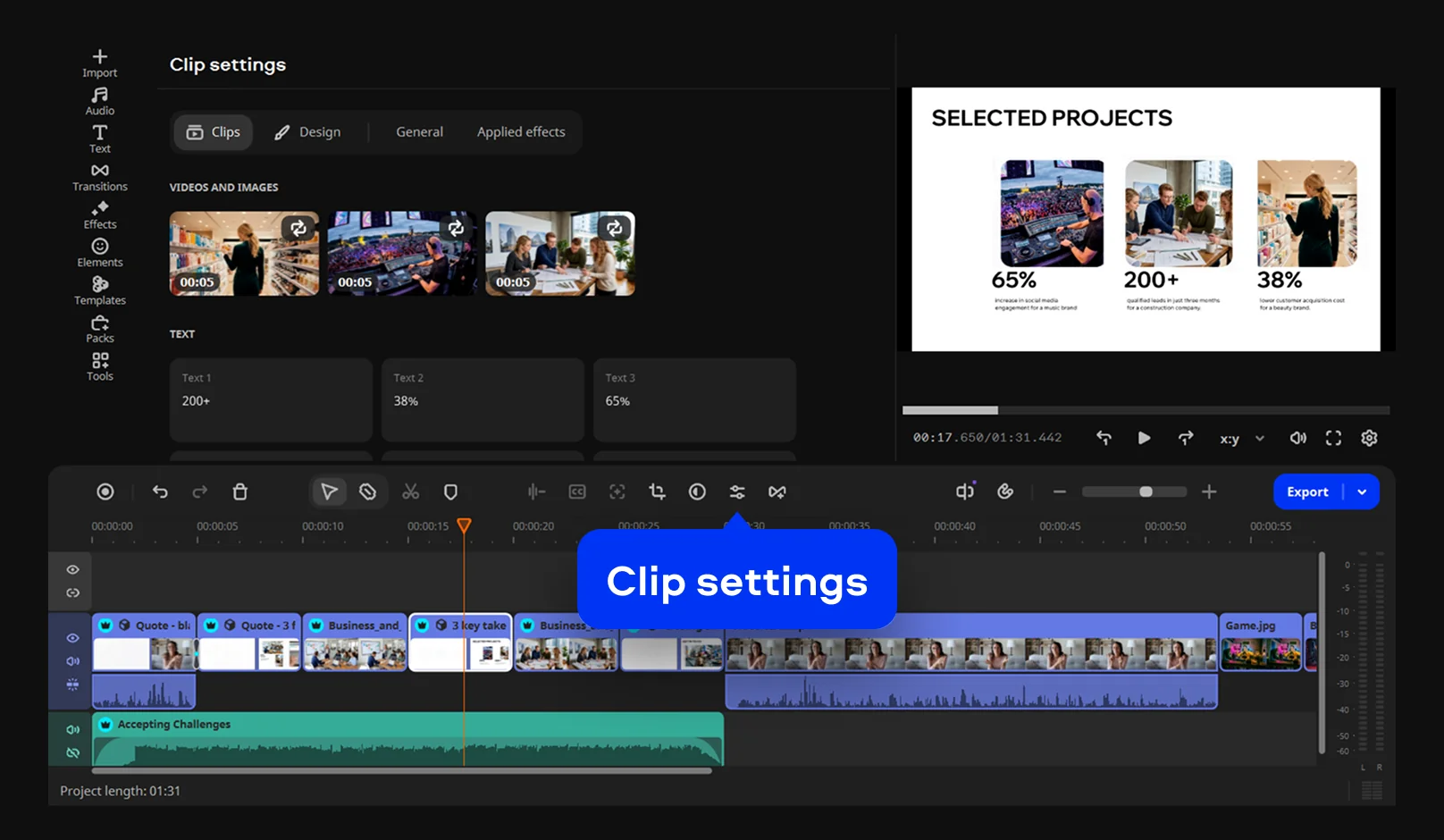
Double-click any Block on the timeline or open Clip settings to customize it further. You can reorder, add, or remove Blocks within the template to shorten or extend the sequence, swap in a different Block for a different section, or build the layout entirely from Blocks you pick yourself. This keeps the template flexible enough to match a short pitch or a longer highlight reel, without starting from a blank timeline.
Step 3. Fine-tune the transitions
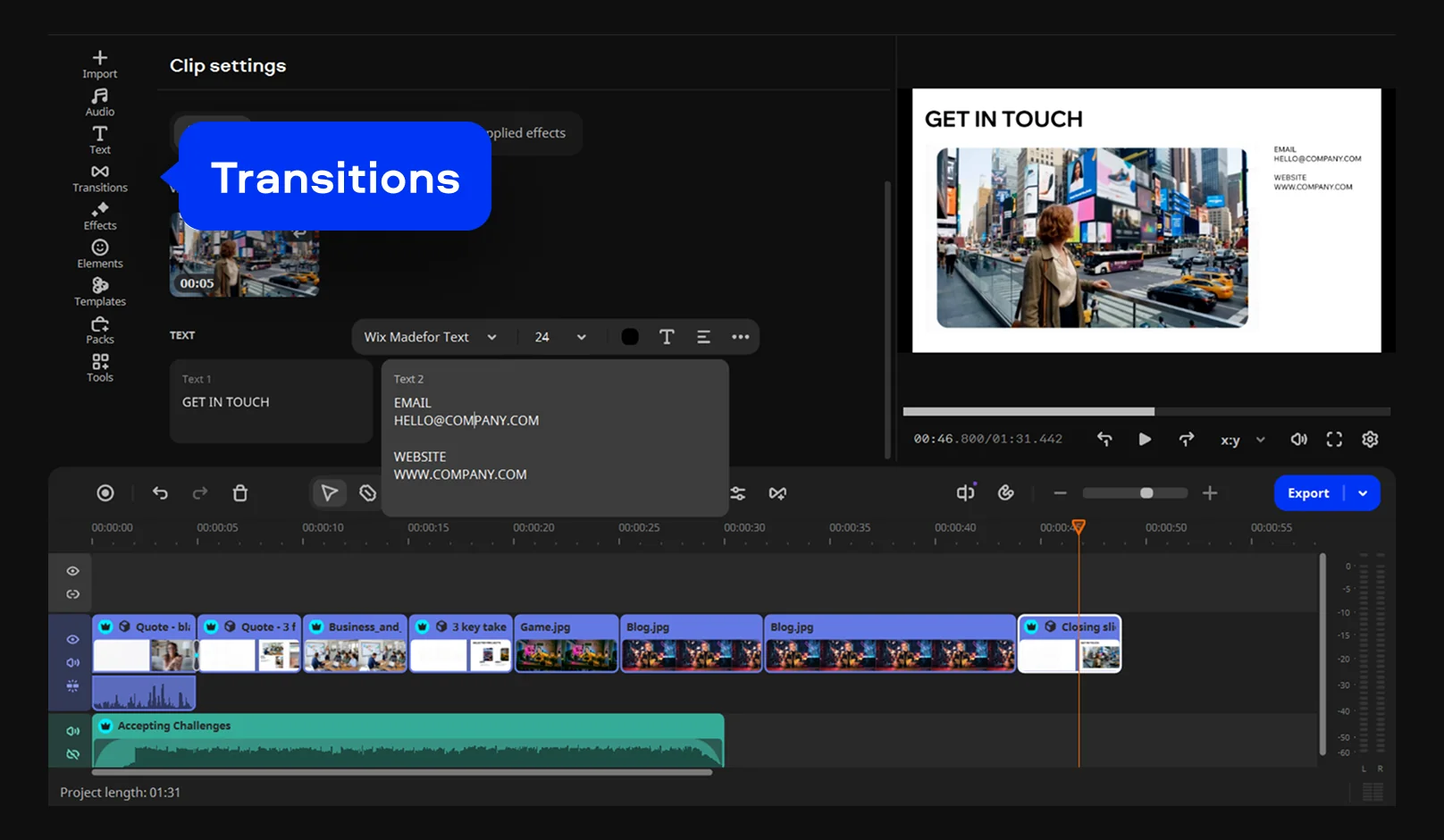
Preview your video to see how the transitions look with your footage. Keep the ready-made ones, or open the Transitions tab to try something different. Drag a new transition between clips, adjust its duration, and choose a fill mode – Trimmed content, Freeze frame, or Slow motion.
Step 4. Export your video
Click Export and choose MP4 for broad compatibility. Then click Start to save your finished video.
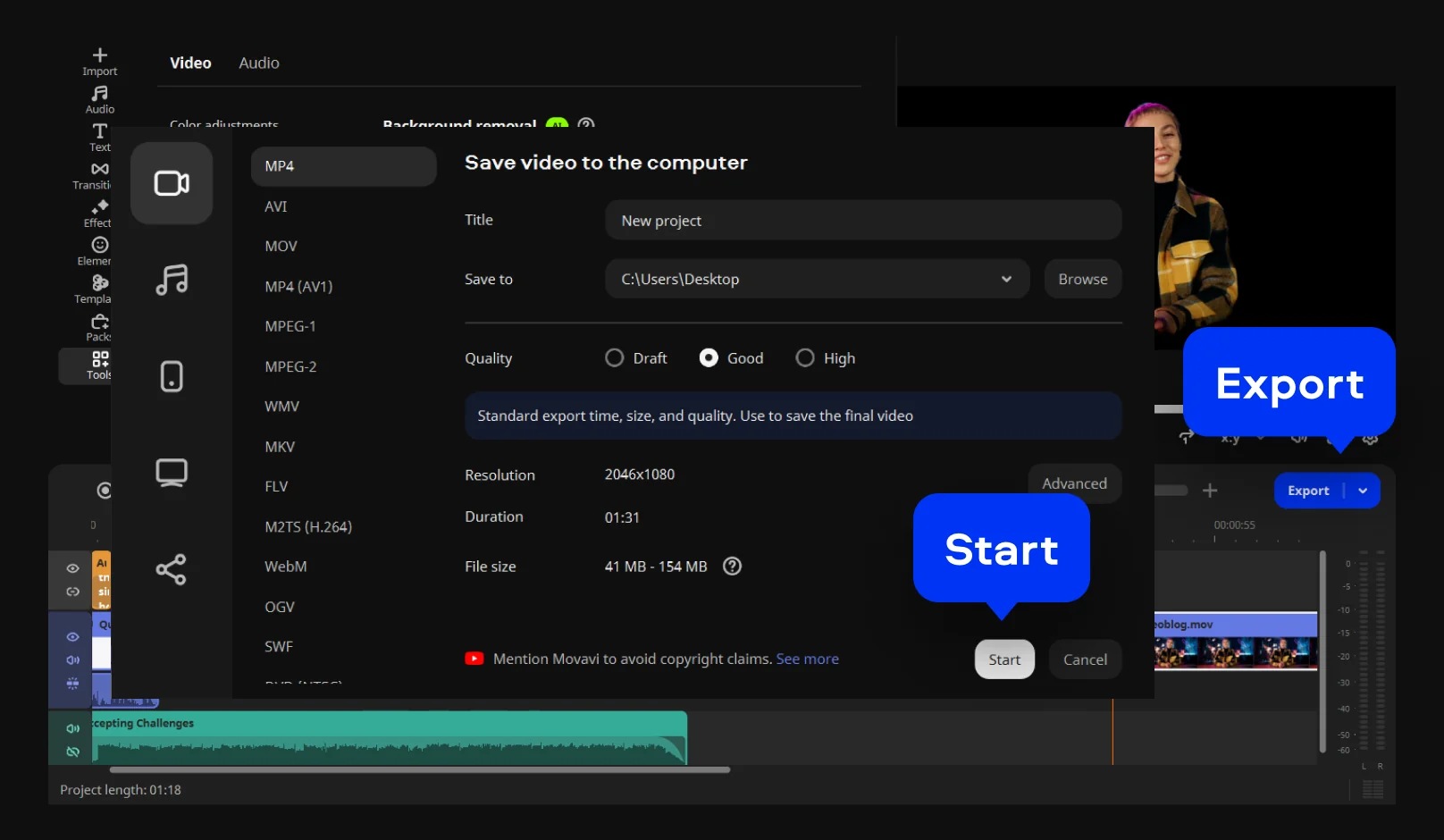
Now your clips flow into each other instead of jumping, and all it took was a drag and a couple of settings per cut. More than 70 million people across 190+ countries already edit with Movavi Video Editor, and Movavi Ideas adds a free, weekly-updated tutorial to that mix – short, step-by-step video editing tricks that are a good source of fresh, creative ideas if you're new to video editing or just want something different to try. You can download Movavi Video Editor Free from the official Movavi site and try every tool in the app. Free exports are capped at 60 seconds, with lower output quality and a watermark; the full version removes those limits.
Movavi Video Editor
Create awesome videos easily

Frequently asked questions
Is Movavi Video Editor a good transition maker for YouTube and social clips?
Is Movavi Video Editor a good transition maker for YouTube and social clips?
Yes – it's built for exactly that kind of everyday editing, even for complete beginners. The interface is designed and tested to be intuitive enough to use on your first project, with no course or tutorial required beforehand.
What if I want more transitions than the ones built in?
What if I want more transitions than the ones built in?
The Movavi Effects subscription adds 10,000+ effects, including extra transitions, plus 1,500+ music tracks. You can preview any of them on your own video for free and even save it with a watermark before you decide to buy.
What file format should I export a portfolio video in?
What file format should I export a portfolio video in?
MP4. It's the format most companies, agencies, and upload forms expect, and it plays back on nearly any device without conversion.
Do I need to download anything extra to try this?
Do I need to download anything extra to try this?
No. Movavi Video Editor is available as a free download, and every tool – transitions included – can be tested right in the app before you decide on anything.
What's the difference between a transition and a video template?
What's the difference between a transition and a video template?
A transition connects two clips. A video template is a complete structure: Movavi Video Templates bundles transitions with music and text into ready-made Blocks you drop your footage into, so you're starting from a finished look instead of building one effect at a time.

Have questions?
If you can’t find the answer to your question, please feel free to contact our Support Team.
Join us for discounts, editing tips, and content ideas


1.5M+ users already subscribed to our newsletter