Step 1. Install the Movavi wedding slideshow maker
Download an installation file for your PC or Mac and install the app. Once it's installed, everything happens offline; there's no internet connection required to keep editing.

Use Movavi Video Editor!
NEW: Adjustable video templates for any vibe – made of Blocks
NEW: Blocks – pre-edited video segments you can customize
Fast and easy editing: cut, crop, adjust colors and speed
Auto subtitles, noise removal, hundreds of effects, and more
By clicking the download button, you're downloading a trial version of the program.*

Photos, a handful of clips, and music, laid out in the order the day actually happened – that's really all a wedding slideshow is. Use Movavi Video Editor – an intuitive video editor with customizable video templates, one-click AI tools, and hundreds of drag-and-drop effects.
The fast and simple route is using one of Movavi's wedding slideshow templates, each built from editable Blocks – an opening title, a ceremony montage, a couple's-portrait segment, and a closing card. You can skip the blank timeline entirely and start with a slideshow that's already paced, scored, and styled, and just swap in the couple's own footage. In this guide, you’ll learn how to make a wedding slideshow in a few clicks – simple to build, impressive to watch.
Download an installation file for your PC or Mac and install the app. Once it's installed, everything happens offline; there's no internet connection required to keep editing.
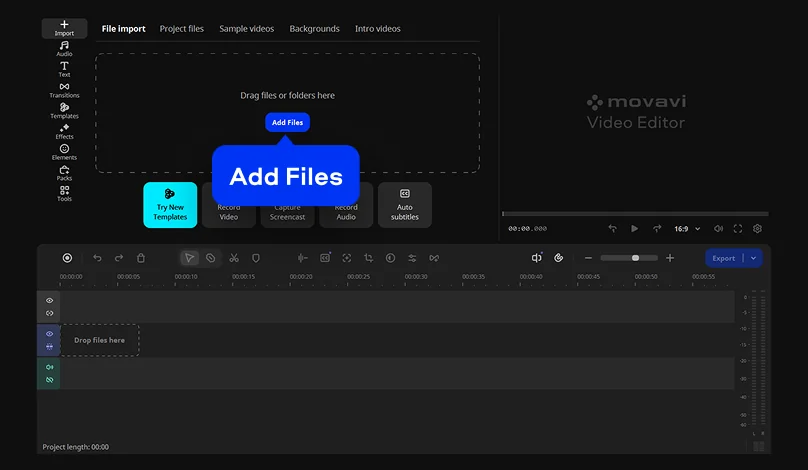
Hit Add Files and upload everything you plan to use – ceremony photos, reception clips, phone footage from guests, a track for the soundtrack. Load more than you think you'll need; trimming down later beats going back to find more.
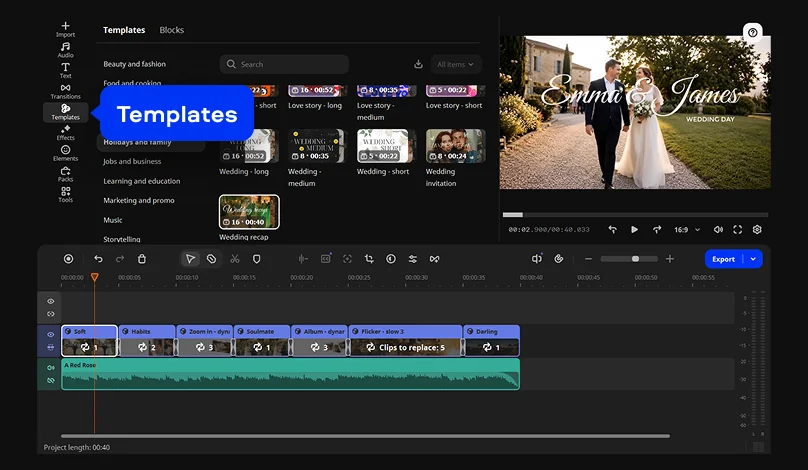
Open the Templates tab. Here you’ll find a multi-style library of customizable, pro-looking, modular templates for any kind of video. Pick one of the wedding-themed options. Each template is built from editable Blocks – an opening title, a ceremony montage, a couple's-portrait segment, a closing card – and every Block already comes with music, text, and transitions in place. Drop the template onto the timeline and you've got a starting point to build on.
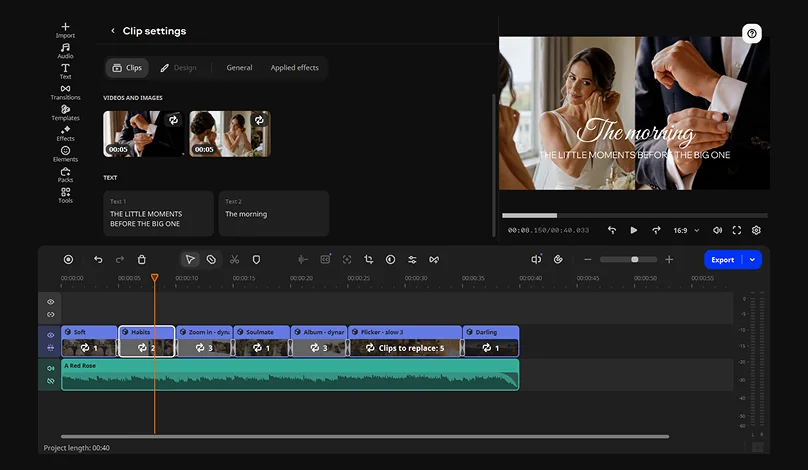
Work through the Blocks on the timeline, checking each one and rearranging as needed. Swap the placeholder clip in each Block for your own footage, reorder Blocks if the actual day ran differently than the template assumed, and delete any Block that doesn't apply. Nothing here is locked – the default text might read something generic like "Forever Starts Today," but you can retype it with the couple's names, change the font, or restyle the whole thing to fit their style.
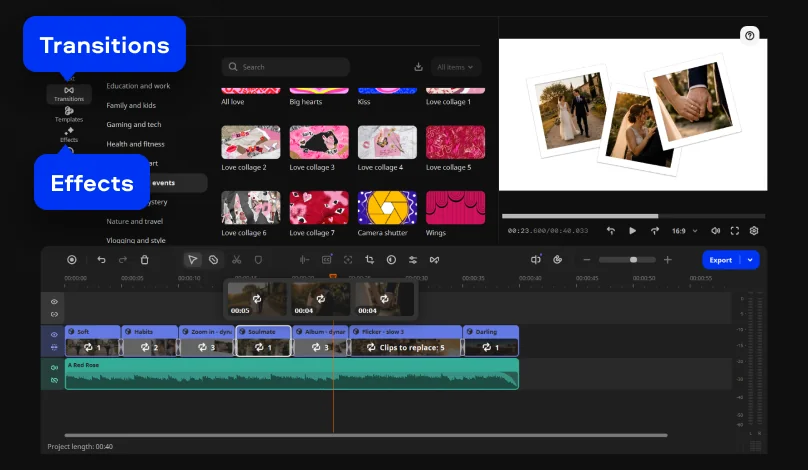
Every template ships with transitions and effects already applied, but none of it is permanent. Trade a hard cut for a soft dissolve if you're after something more romantic, or strip out an effect that feels too busy for a quiet, candlelit moment. For a bigger celebration that calls for more variety, the optional Movavi Effects subscription adds thousands of extra options.
Click into a Block to edit its captions. Beyond what the template already includes, you can drop new titles anywhere along the timeline – the couple's names, the date, the venue, or a caption for one specific photo. Title presets run from clean and minimal to bold and decorative, so the same tool covers an understated, elegant slideshow just as well as a bright, playful one.
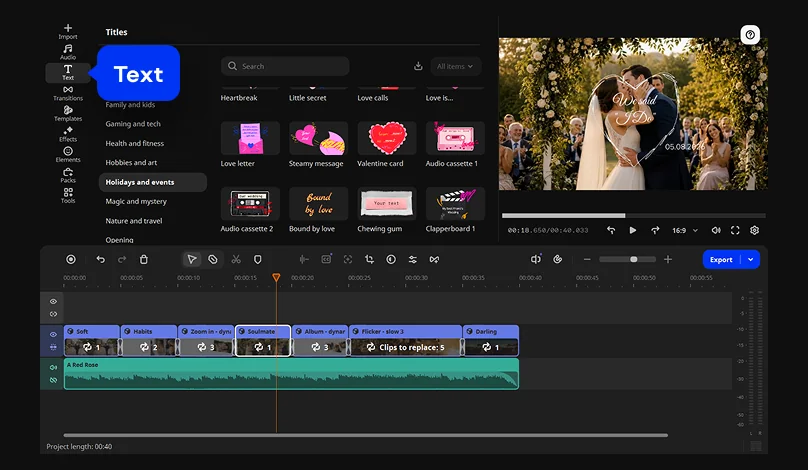
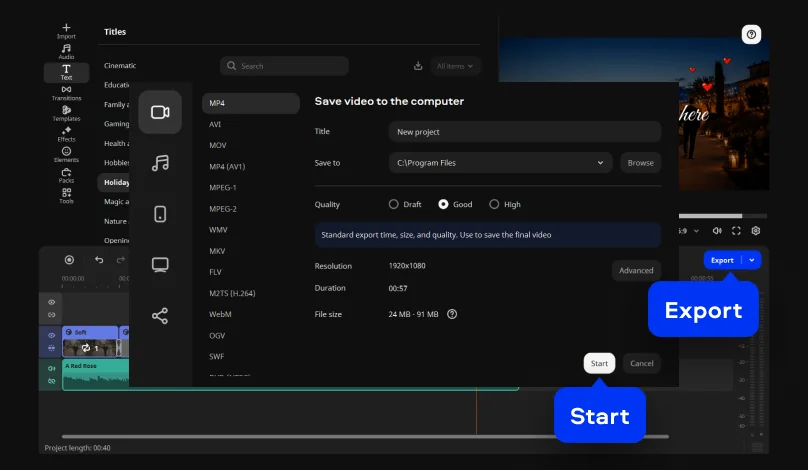
Click Export and pick MP4 as a target format. It's the safest bet for compatibility so the couple can watch it back wherever, without any playback issues. Finally, hit the Start button.
Templates have a reputation for looking generic, but Movavi's don't work that way. Each one is a set of Blocks, and every Block can be changed – you're not locked into the stock photos or the default order. Swap in your own images, delete a Block you don't need, or add one for the reception if the template you picked only covers the ceremony.
Several templates are available for free in the full version, and a Movavi Templates subscription opens up the rest of the library if you want more options for whatever you're editing next – birthdays, travel, work portfolio, or anything else.
Where AI saves you time. AI features solve problems that often show up in wedding footage. The AI audio noise removal tool automatically filters out wind and background noise while keeping voices crisp and clear. And if some of your reception clips were shot on a phone in low light, AI denoise clears out the grain while keeping faces and detail intact.
Effects for every style. Some wedding slideshows lean romantic and soft; others go bright and playful – it depends on the couple. Movavi Video Editor comes with hundreds of drag-and-drop effects – transitions, filters, overlays, titles – so the same software handles a warm, candlelit montage and a bold, upbeat highlight reel equally well. A soft dissolve paired with a warm filter suits a slower, romantic sequence; quick cuts and a bright filter suit a livelier one. For more variety, the Movavi Effects subscription adds thousands more, and you can preview all effects on your own footage first.
Finishing a slideshow in one sitting doesn't take prior editing experience. Most of Movavi's tools work in a single click, and because everything is drag-and-drop, you don't need any prior editing experience to get started. If you’re stuck on an idea, check out Movavi Ideas. It’s a free tutorial hub that adds a new step-by-step trick every week – worth a look for your next project too, not just this one.
Movavi's scale backs that up: more than 70 million users across upward of 190 countries rely on it, and the software gets more than 25 updates a year, so the tools you use today keep improving.
*The free version of Movavi Video Editor may have the following restrictions depending on the build: watermark on exported clips, 60-second video or 1/2 audio length limit, and/or some advanced features unavailable when exporting videos.

Any editor that handles photos, music, and basic transitions will get the job done. Movavi Video Editor is built with exactly this in mind – a beginner-friendly program for Windows and Mac with wedding-ready templates already included.
Yes. Drag in your own track, or choose one from the built-in royalty-free library, then trim it to fit your photo timing.
No. The templates and one-click tools are set up so a first-time editor can finish an entire slideshow without watching a separate tutorial beforehand.
Yes – Movavi Video Editor offers a free download that lets you test every tool before deciding whether to pay to remove the watermark and lift the length cap.



1.5M+ users already subscribed to our newsletter