Step 1. Install Movavi Video Editor
Download the AI video denoiser and run the installation file. Simply follow the on-screen prompts to complete the setup on your Windows PC or Mac.

Movavi Video Editor
Easily clear up your grainy videos
By clicking the download button, you're downloading a free version of the program.*
Clean Up Your Footage with the Free Video Denoiser
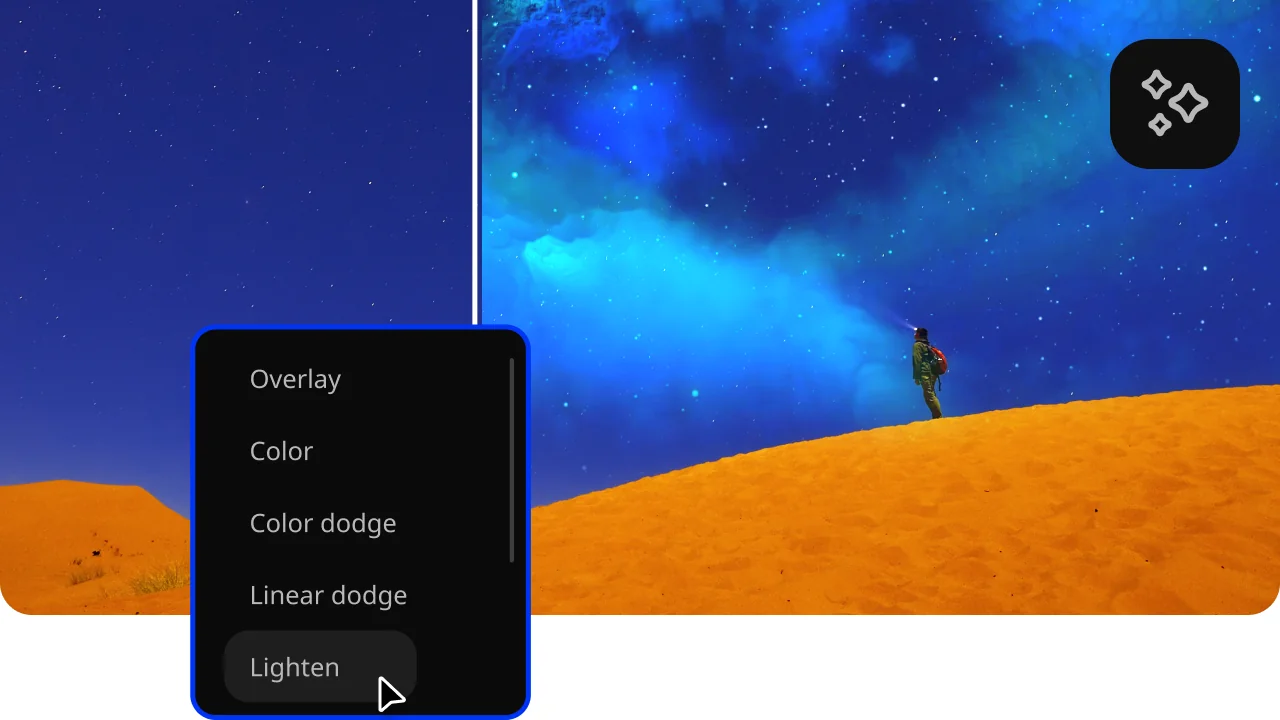
Built-in noise reduction tool
Movavi Video Editor includes a dedicated AI noise reduction filter that lets you clean up grainy footage directly on the timeline.
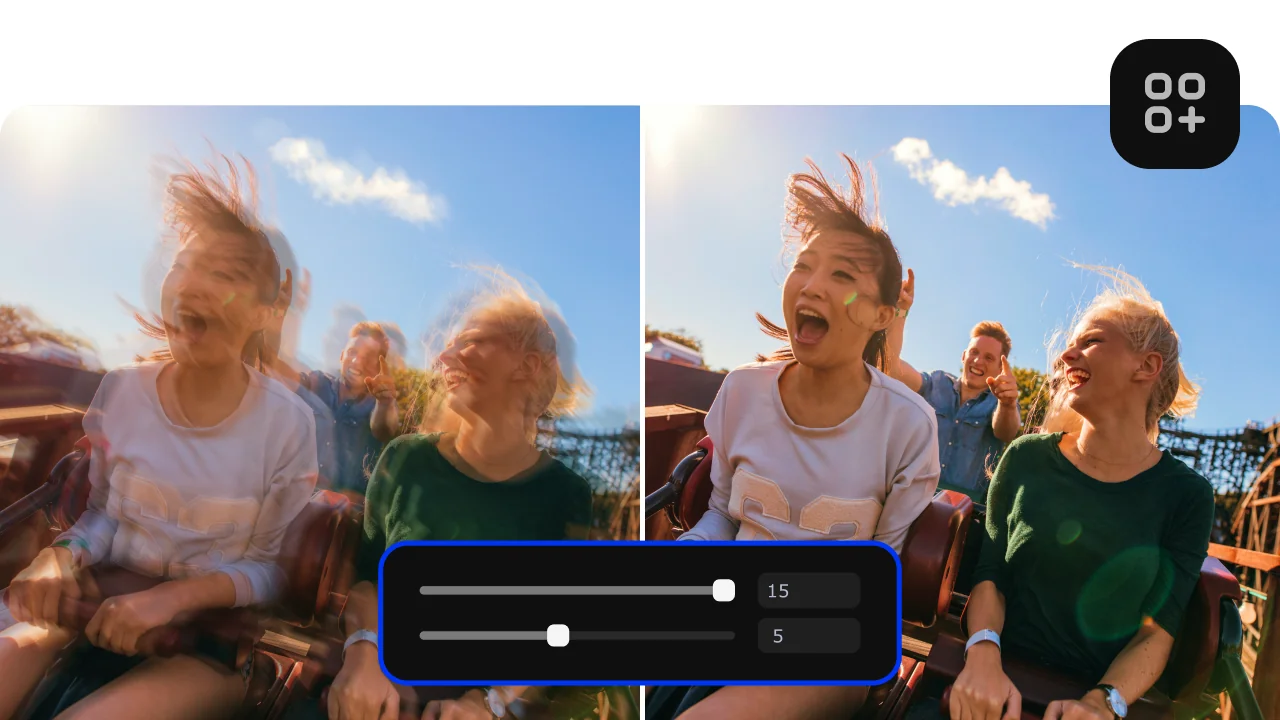
Non-destructive editing
Every adjustment you apply remains fully editable. You can tweak or remove the denoising effect at any point in your workflow, keeping your original video file completely intact.

Beginner-friendly editing suite
Beyond denoising, Movavi Video Editor is designed with simplicity in mind. Its intuitive interface and extensive library of beginner-friendly tools lets you polish an entire video without a steep learning curve.
Denoise your videos quickly and easily
If you're looking for a simple way to denoise your videos without spending hours learning complex software, Movavi Video Editor is the tool for you. Its built-in noise reduction filter removes unwanted grain and visual interference in just a few clicks, delivering clean, professional-looking footage regardless of your experience level.
Whether you're working with low-light recordings, old archival clips, or shaky smartphone footage, Movavi Video Editor handles it all efficiently. Download it for free and start producing smoother, cleaner videos today – no technical background required.
Download the AI video denoiser and run the installation file. Simply follow the on-screen prompts to complete the setup on your Windows PC or Mac.
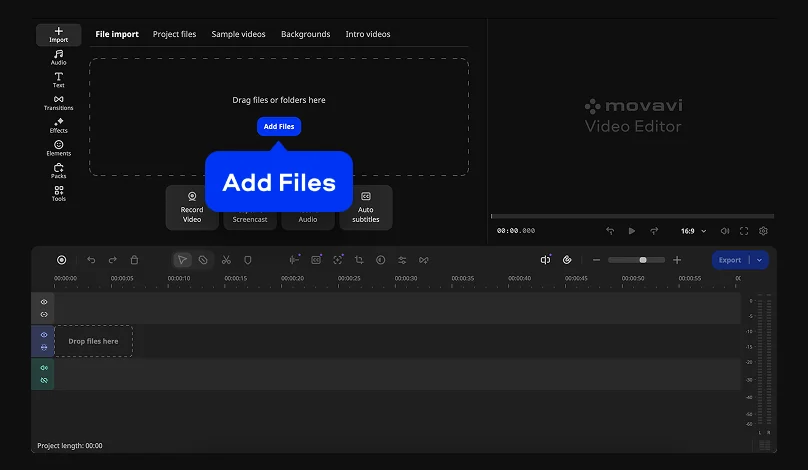
Hit Add Files and choose the video clips you want to work with. Drag the imported footage down onto the Timeline to get started.
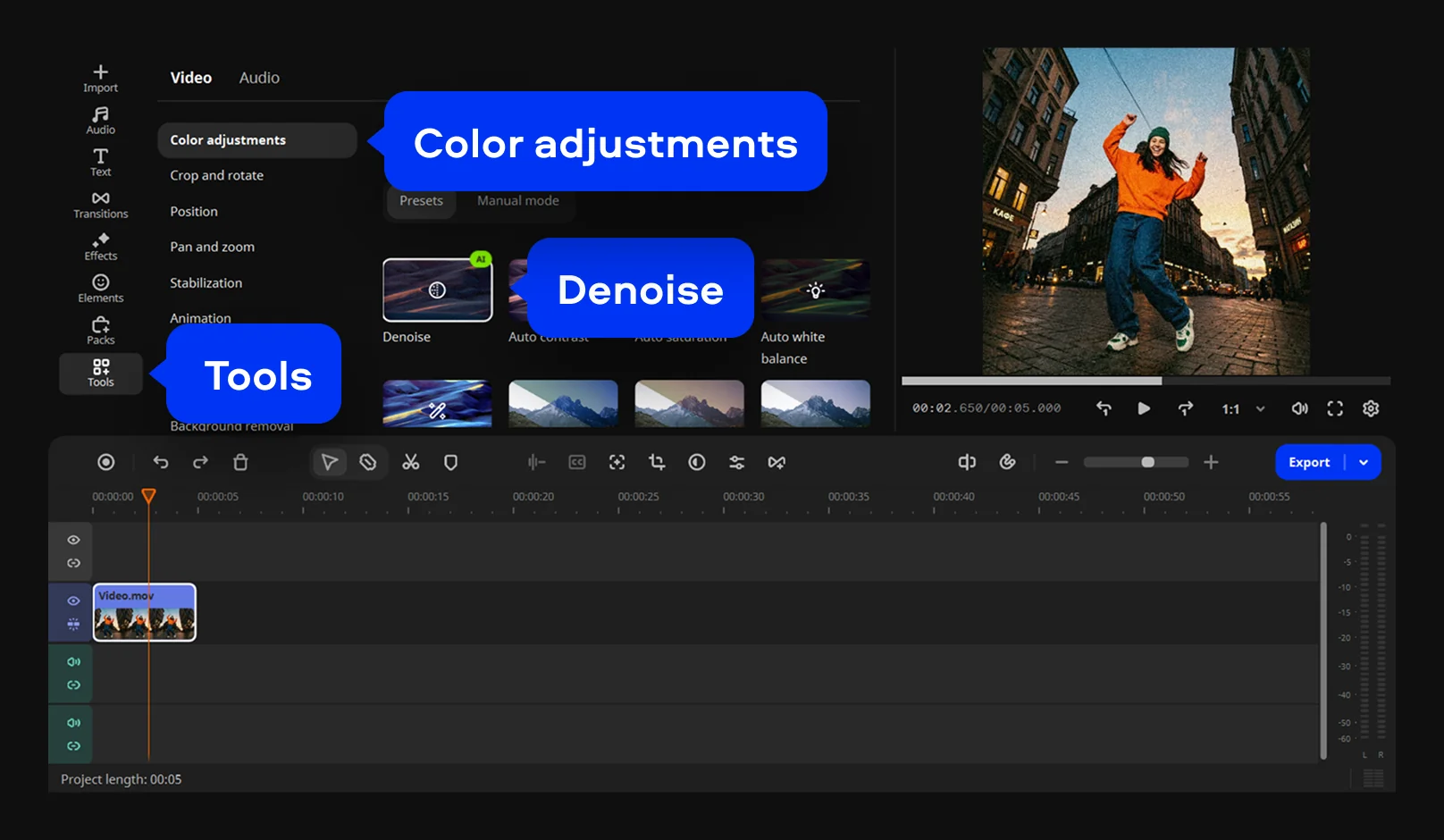
Head to Tools and open the Video tab. Select Denoise from the Color adjustments menu and drag it directly onto your clip in the Timeline. The AI goes to work immediately, stripping out grain and sharpening your footage.
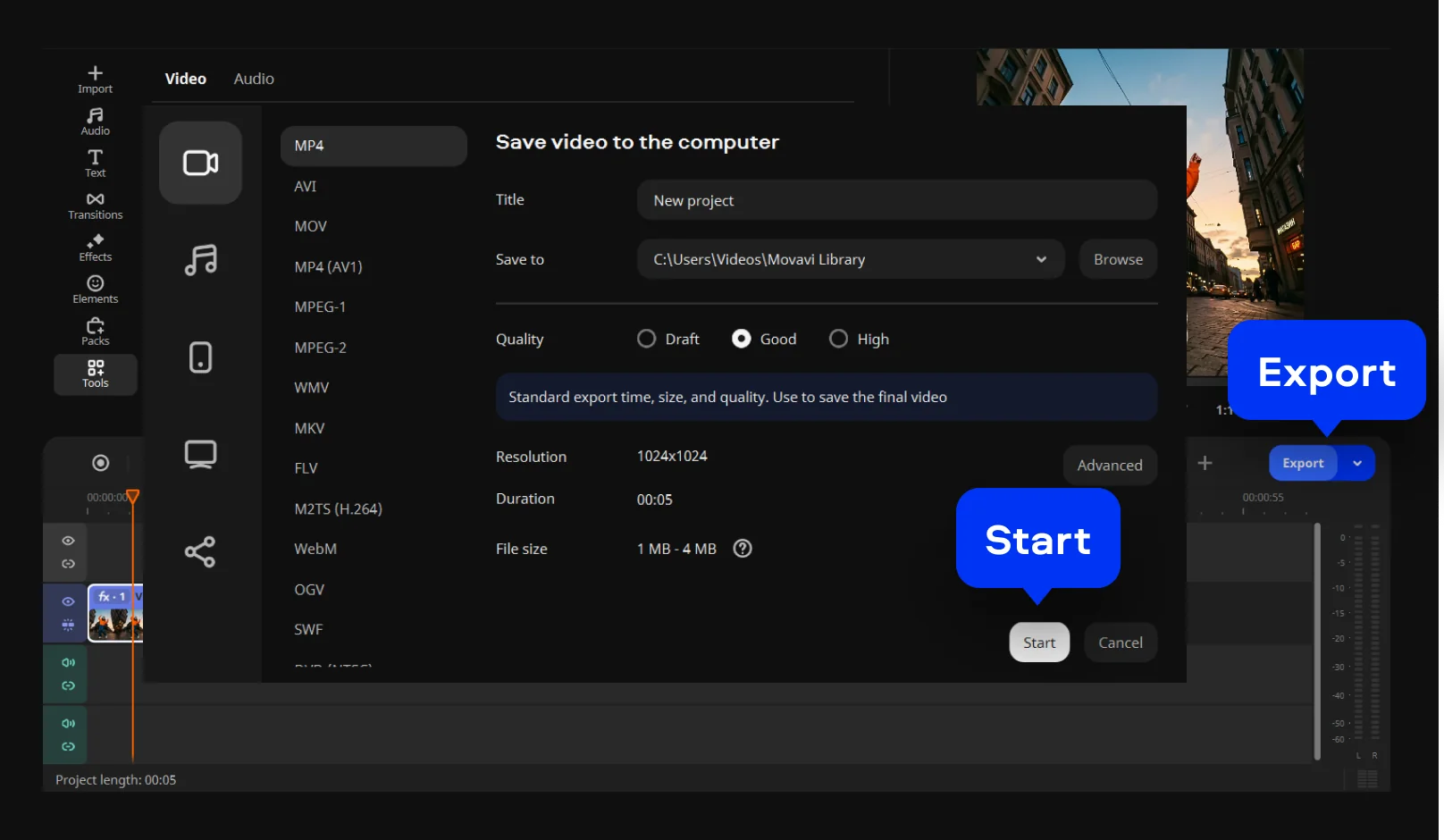
Hit Export, choose your preferred output settings, and press Start to save your finished video.

We’re the #1 choice for millions of people from all around the world. Join our thriving community and create stunning content with incredible ease.
Millions


Yes. Using a dedicated video-editing app like Movavi Video Editor makes it simple. Its built-in AI Denoise filter removes grain and visual noise in just a few clicks.
Import your clip into Movavi Video Editor, apply the Denoise filter from the Color adjustments menu, and export your cleaned-up footage.
Denoising is the process of reducing unwanted visual grain or "noise" to produce smoother, clearer footage. Visual grain is typically caused by low lighting, high ISO settings, or poor camera quality.
CapCut offers basic enhancement tools, but its noise reduction capabilities are limited compared to dedicated video denoiser solutions. Movavi Video Editor provides a powerful and precise AI-driven denoising tool, making it the stronger choice for achieving professional results.
*The free version of Movavi Video Editor may have the following restrictions depending on the build: watermark on exported clips, 60-second video or 1/2 audio length limit, and/or some advanced features unavailable when exporting videos.


1.5M+ users already subscribed to our newsletter