Funeral Slideshow Maker – Make a Beautiful Memorial Video

Movavi Slideshow Maker is a gentle, easy-to-use funeral slideshow maker that helps you bring together photos, videos, and music into a heartfelt memorial presentation – at your own pace, on Windows or Mac. No technical experience is needed: choose your files, arrange the sequence, add a piece of music you associate with the person, and export a video ready to show at the service or share with family.

Trusted by Millions of Families Worldwide

70M+

users

190+

countries

15+

updates per year

10,000+

effects to choose from

Key Features of the Funeral Slideshow Maker

Tools designed to help you create a respectful, personal tribute without technical barriers.

Slideshow Wizard – Automatic Assembly in Minutes

The Slideshow Wizard mode assembles your photos and clips into a complete memorial slideshow automatically: it applies transitions, syncs slides to the music beat, and structures the sequence so you don't have to arrange everything by hand. This is the fastest path for families who need to know how to make a slideshow for a funeral quickly and under time pressure.

Add Your Own Music or Choose from Built-in Tracks

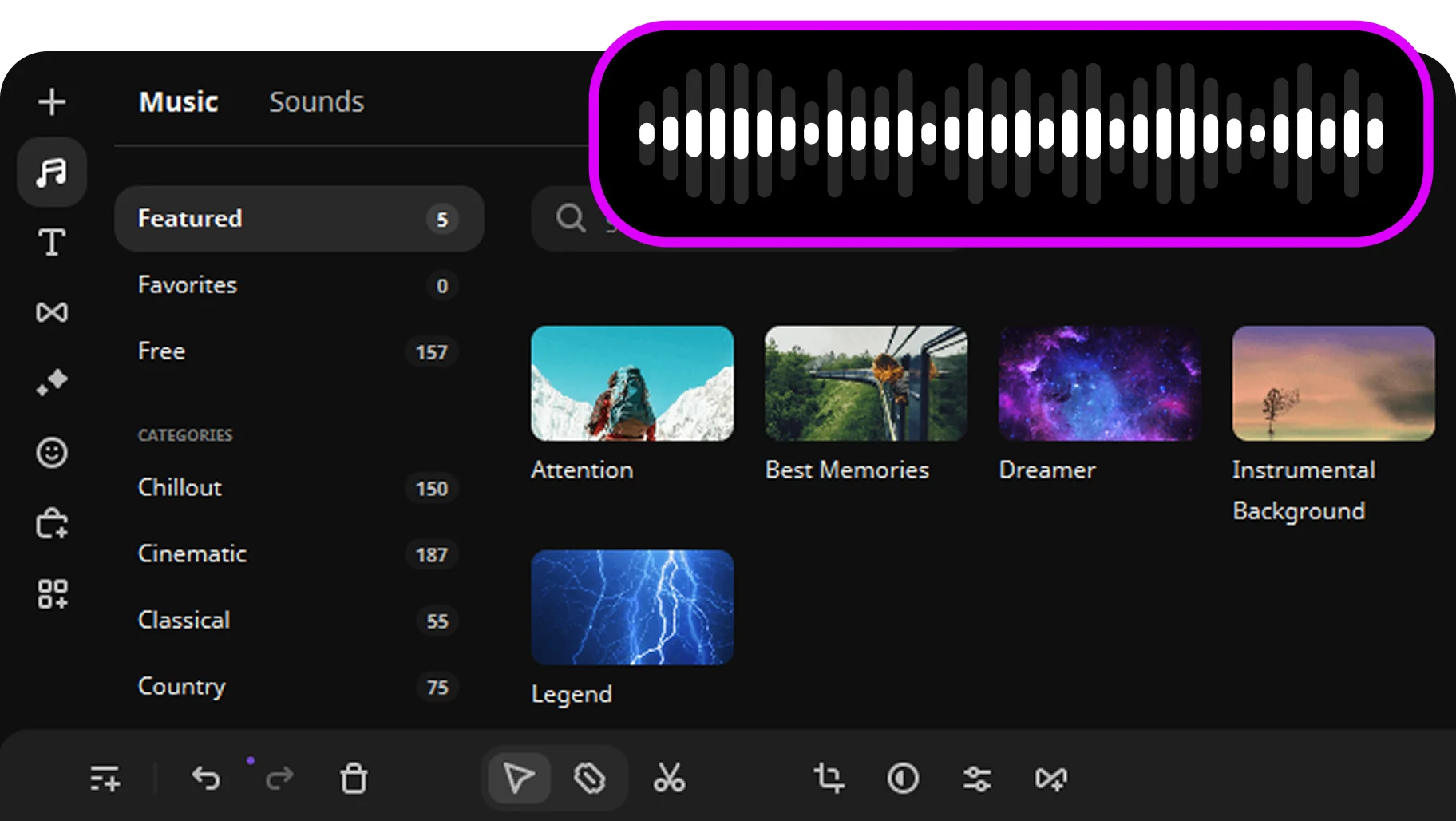
Upload any audio file – a favourite song, a hymn, an instrumental piece – or browse Movavi's built-in royalty-free music collection to find something that fits the tone. This feature is at the core of how to make a memorial slideshow with music that feels personal rather than generic, because the right track shapes the entire emotional atmosphere of the tribute.

Add Captions, Dates, and Personal Messages

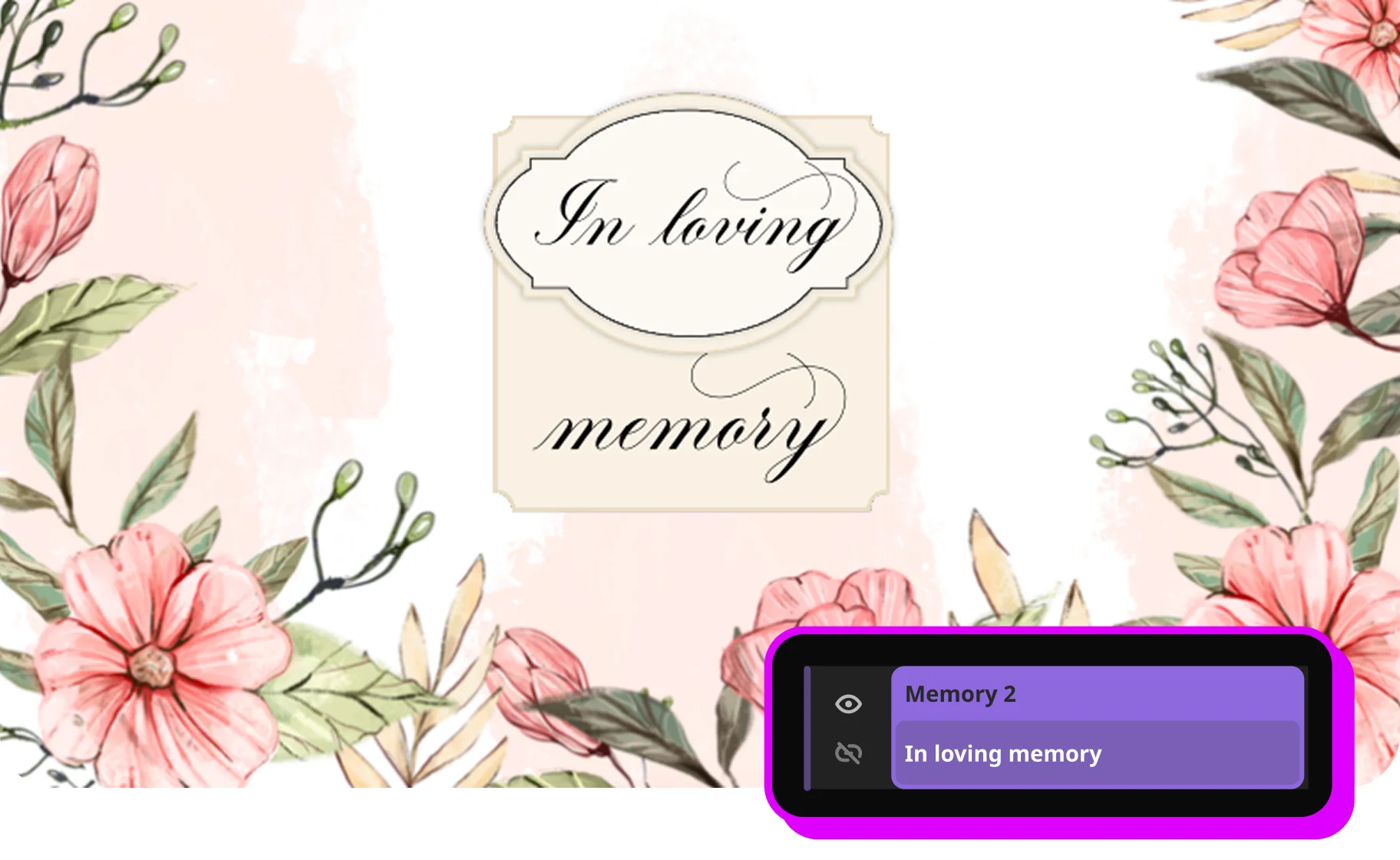
Place names, dates, quotes, or short dedications directly onto individual slides using Movavi's text tools. Captions give the memorial slideshow a narrative thread – viewers understand who they are looking at, when a photo was taken, and what moment in the person's life it captures, without needing anyone to explain it aloud.

Full Manual Mode for Complete Creative Control

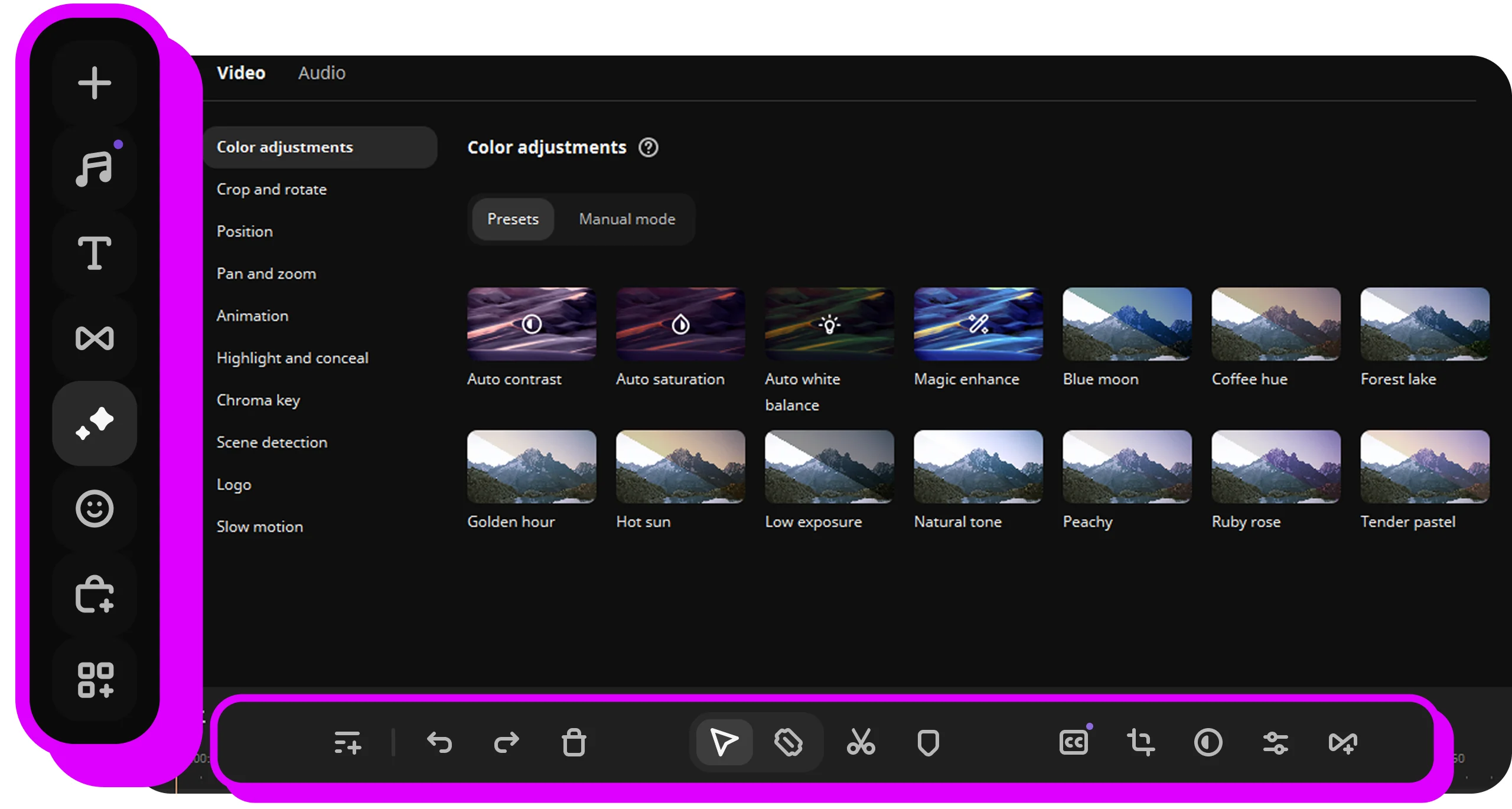
Switch to Manual mode when you want to control every detail: set the exact duration of each slide, choose specific transitions between photos, adjust clip-level volume, and fine-tune the colour of individual images. This is the option for someone who wants the memorial video maker to work as a proper editor, not just a quick assembler.

Why families choose Movavi as their memorial slideshow maker

Three reasons Movavi is well-suited for this kind of meaningful, personal project.

Calm, distraction-free interface

Grief makes concentration harder. Movavi's interface is clean and uncluttered – there are no confusing menus, no advertising, no interruptions. Every control is labelled clearly and placed where you would expect it. Families can focus entirely on the photographs and the story they are telling, not on learning software.

Works with any photos and videos you have

Movavi Slideshow Maker accepts JPEG, PNG, and most video formats, so you can use scanned old photographs, recent digital snapshots, and phone videos in the same project without converting files first. There is no minimum photo quality requirement – what matters is the memory the image holds, not its resolution.

Works on windows and Mac, no subscription required

The program installs on both platforms and is available as a one-time purchase – not a monthly subscription. A 7-day free trial lets you build and preview the complete memorial slideshow before paying anything, so you can be certain the result is right before committing.

How to make a funeral slideshow with Movavi – step by step

A complete tribute presentation, ready to play at the service or share with family.

Step 1. Choose the mode and add files

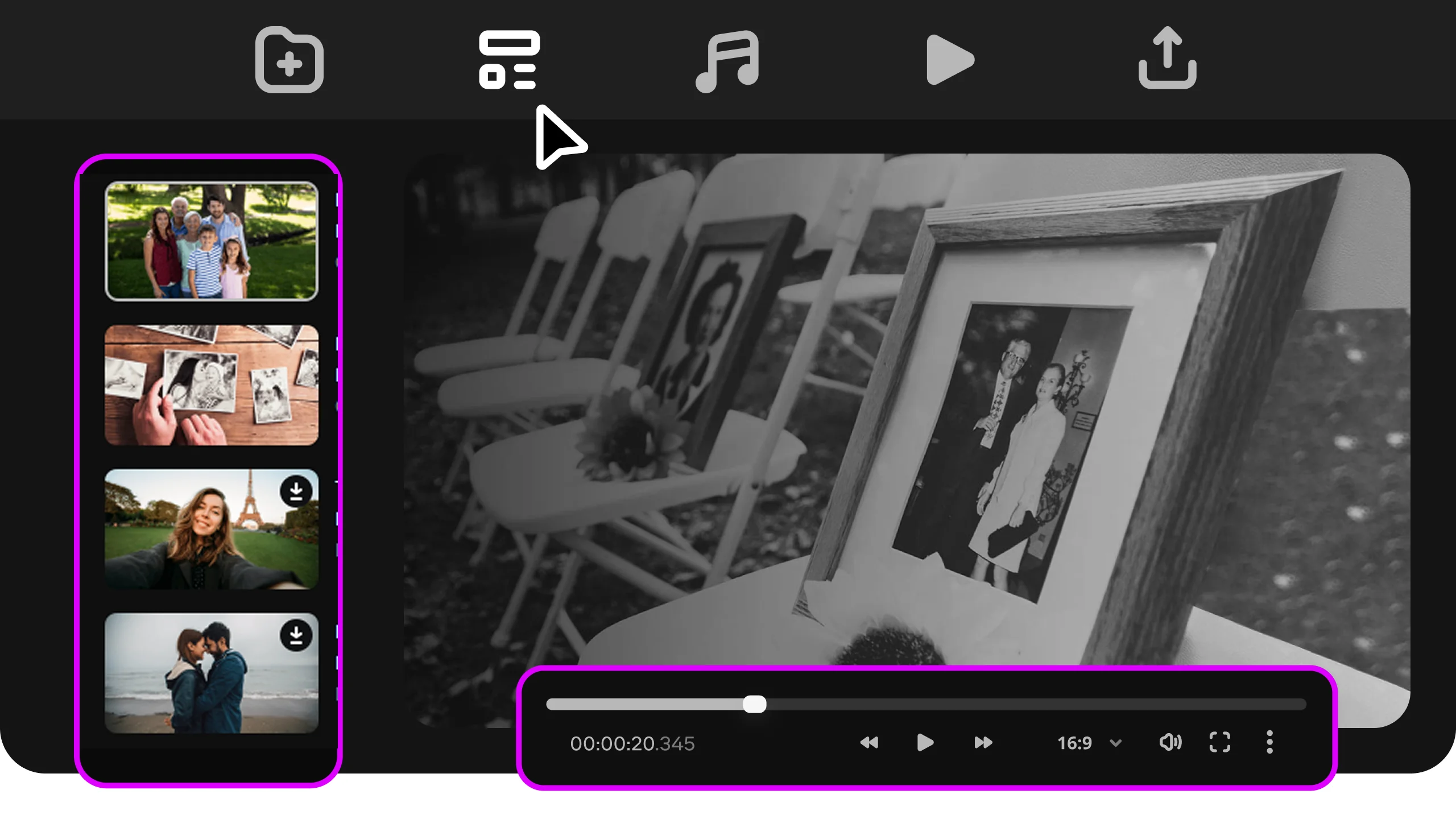
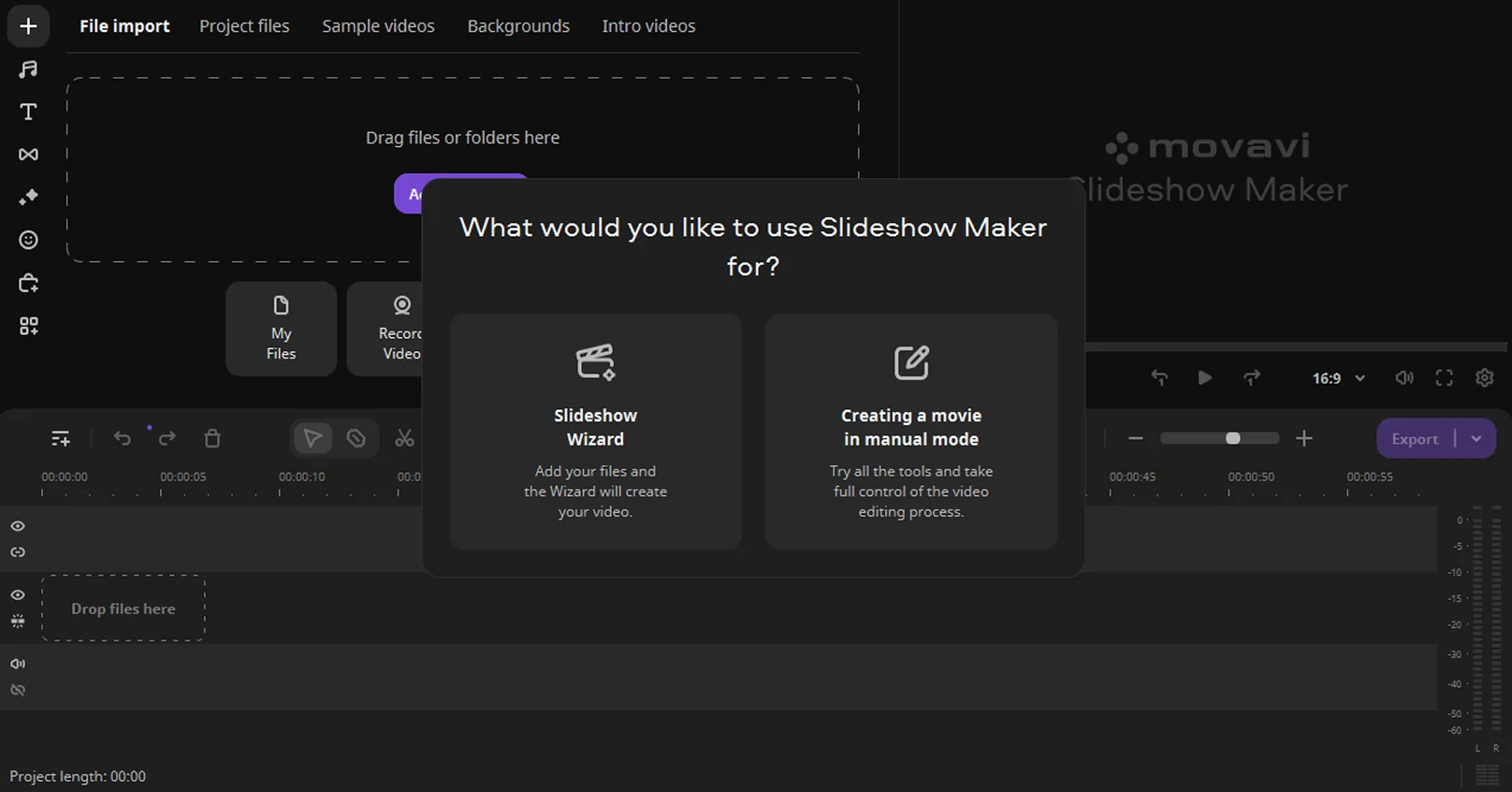
If you want to learn how to make a slideshow for a funeral, download and install Movavi Slideshow Maker. Open the memorial maker app and select a working mode: Slideshow Wizard for a faster setup or Manual mode for more control.

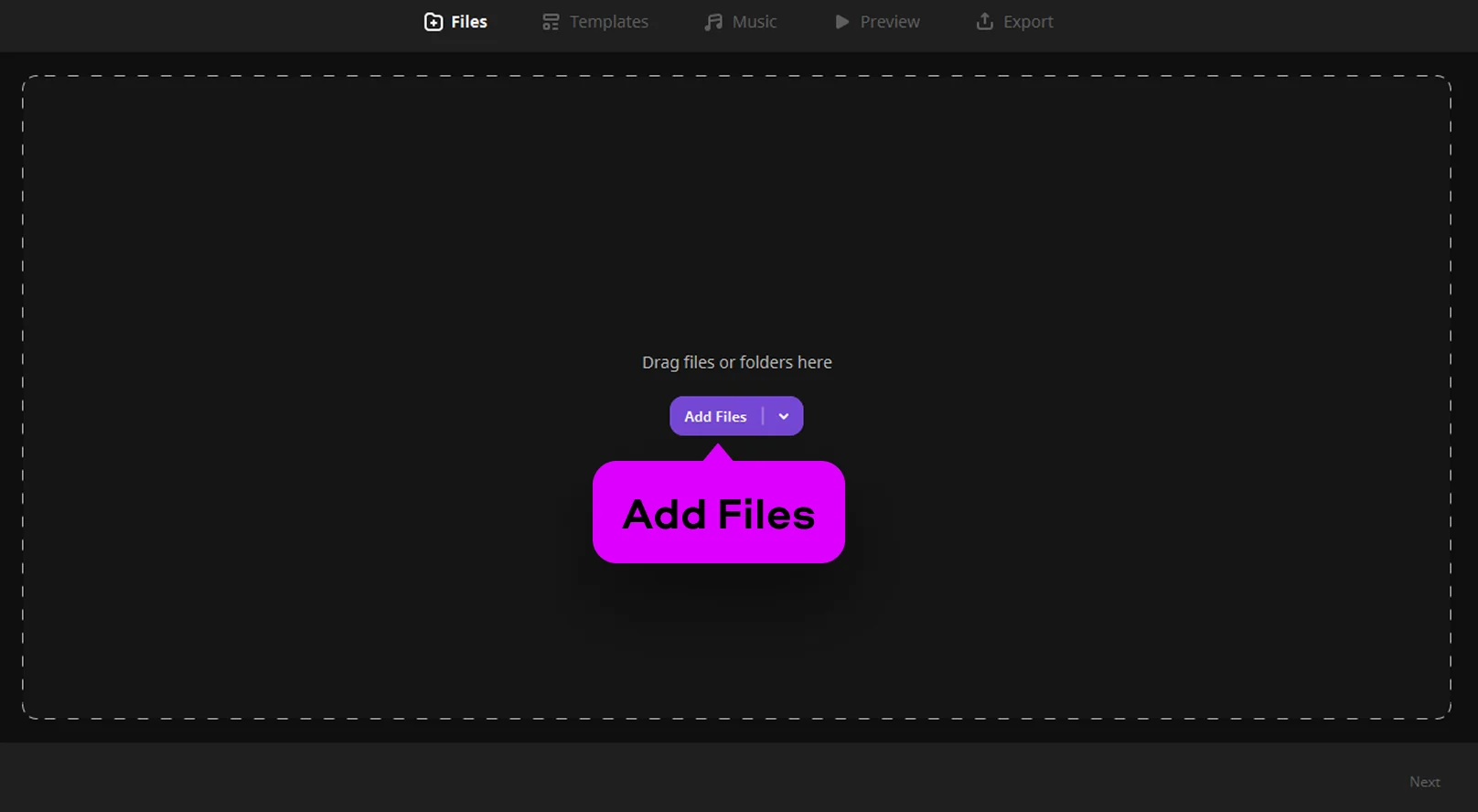
Click Add Files to upload photos and videos. In the manual mode, place them on the timeline in the order you prefer. You can arrange images by date or highlight key moments at the beginning and end.

Step 2.1. Create a slideshow in Slideshow Wizard

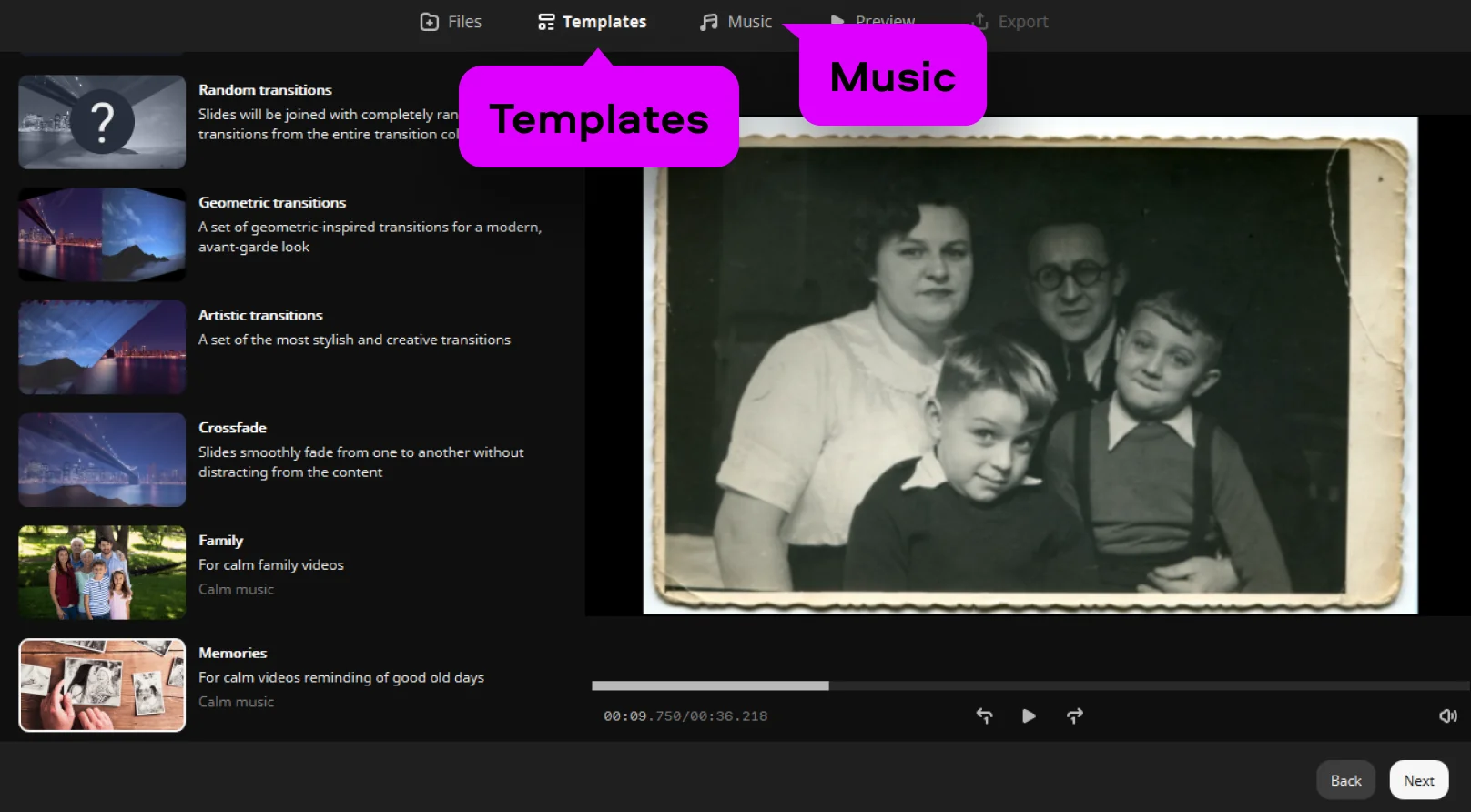
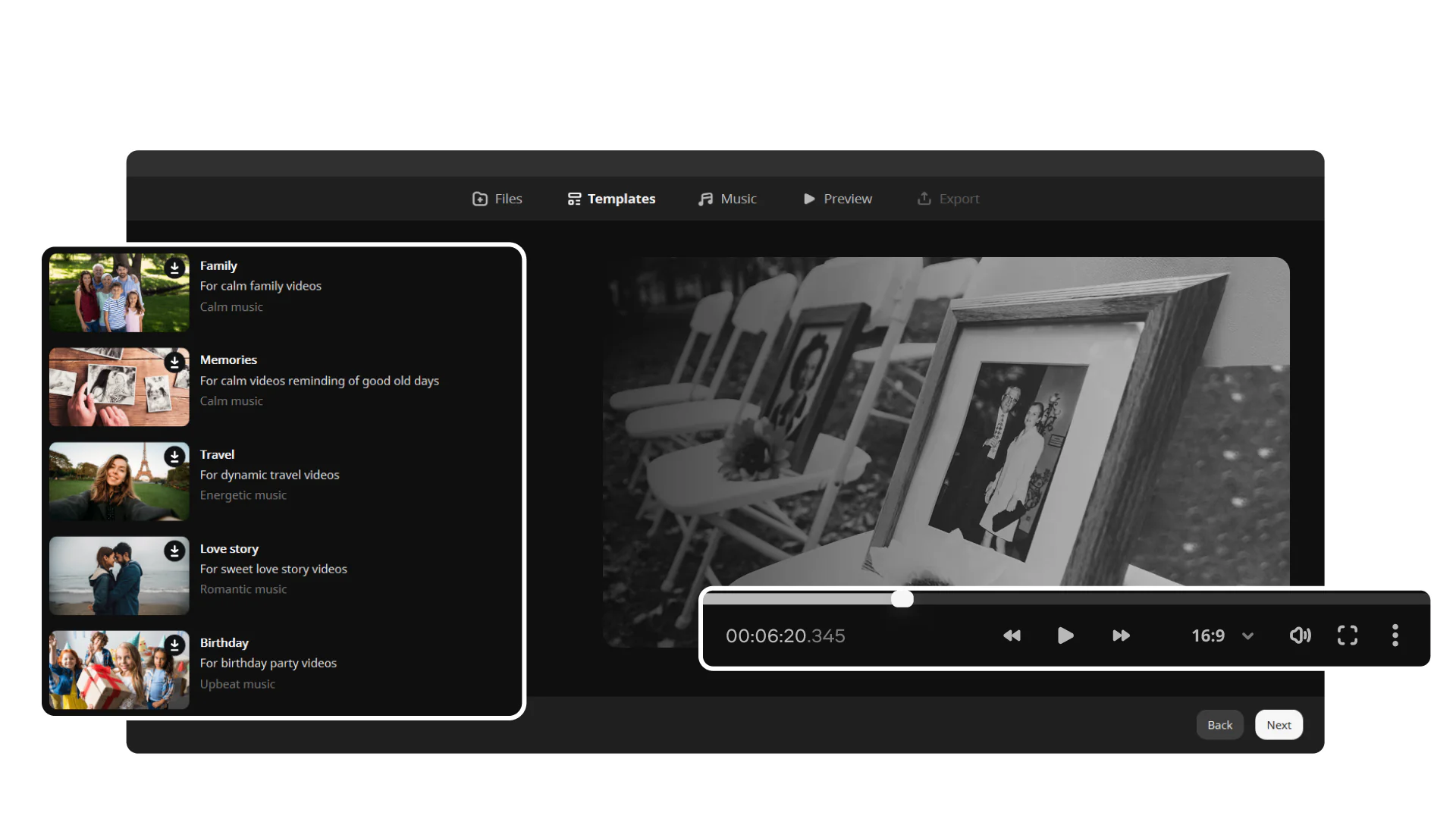
After adding files, choose a template that fits the tone of your slideshow. Then select a music track from the built-in collection or upload your own.

The program will automatically apply transitions and sync slides with the music. You can preview the result and make small changes if needed before moving to export.

Step 2.2. Create a slideshow manually

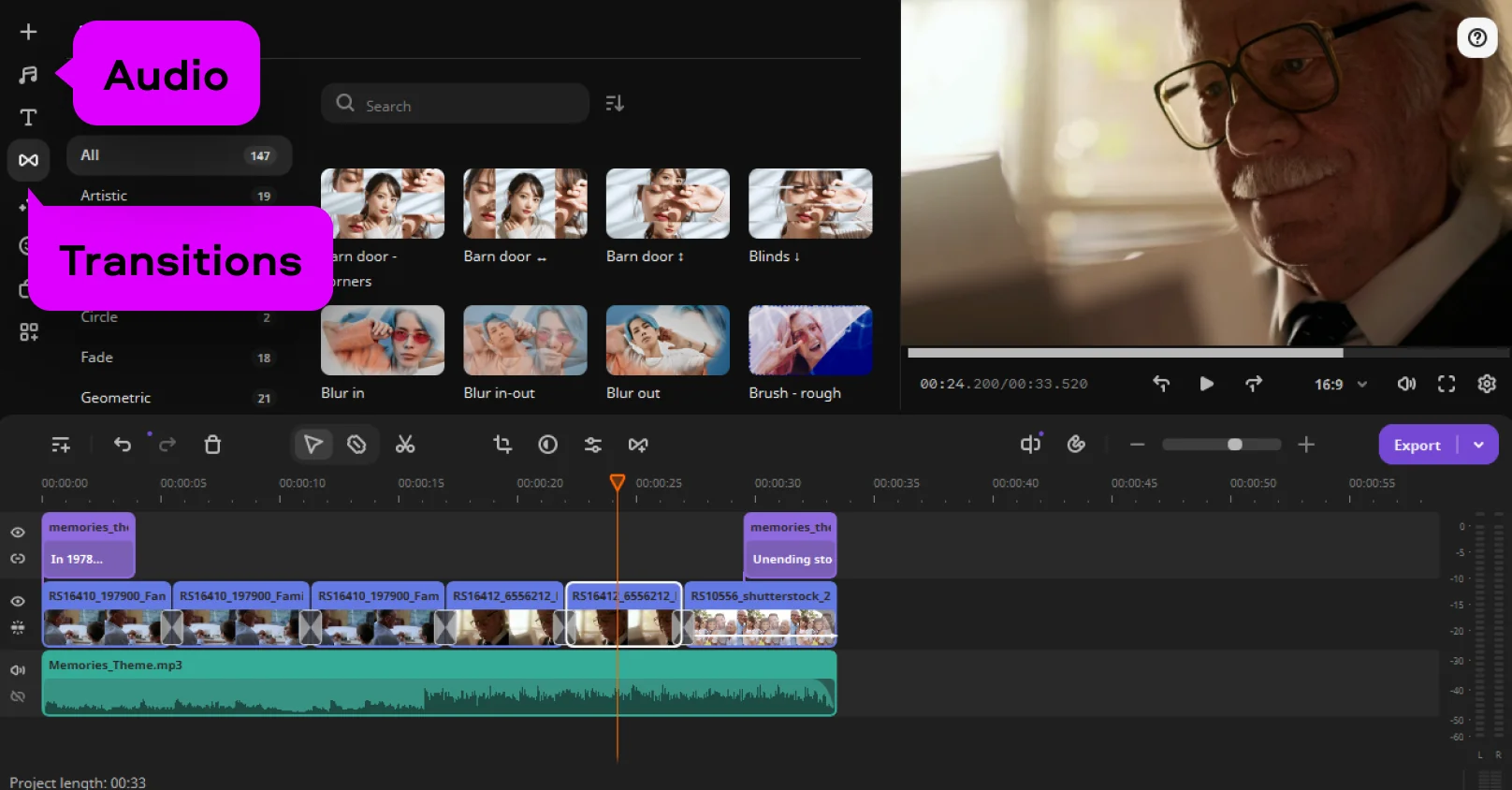
In the manual mode, add music to the audio track and set the duration of each slide yourself. Adjust timing so the sequence feels steady and clear.

You can also add captions, apply transitions between slides, and correct colors if needed. This funeral video maker gives you more control over each detail, so you can fine-tune the final result.

Step 3. Export your slideshow

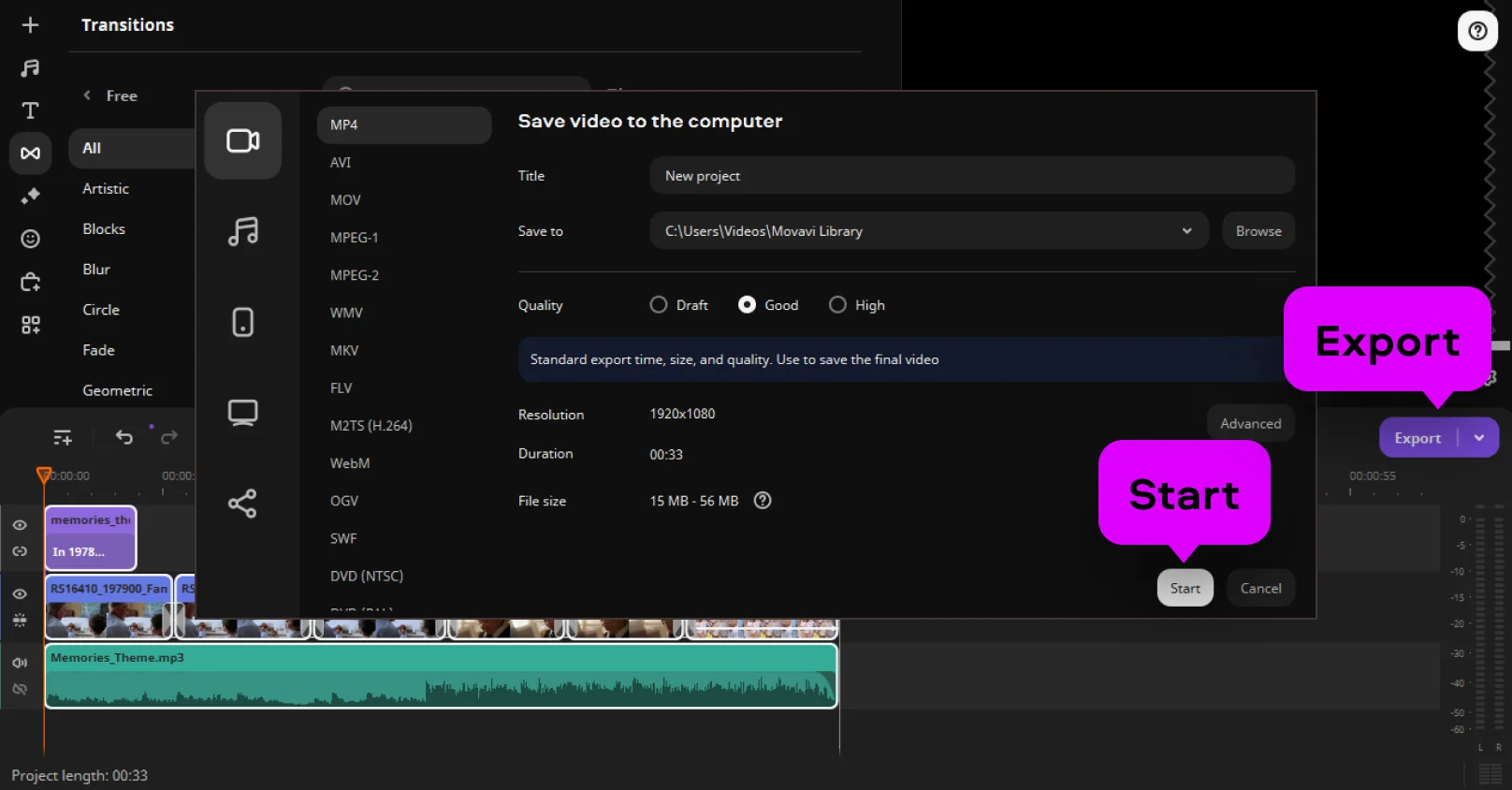
When everything is ready, preview the slideshow from start to finish. Then click Export, choose a format like MP4, and save the file so it is ready to play or share.

Who Uses a Slideshow Maker for Funeral Tributes

Memorial slideshows serve different needs depending on who is creating them and why.

👨‍👩‍👧 Families Organising a Funeral Service | FAMILY

Family members preparing a service often want a way to share a lifetime of photographs with everyone gathered in the room. A funeral slideshow maker like Movavi lets them assemble years of family photos – from childhood to recent times – into a single video that plays quietly in the background or as a dedicated tribute moment, without requiring any video editing experience.

Funeral homes and celebrants | PROFESSIONAL SERVICES

Funeral directors and celebrants who prepare memorial materials for clients benefit from a reliable, fast tool that produces consistent results. Movavi's Wizard mode allows a professional to take a folder of photos provided by the family and produce a polished tribute video in under thirty minutes – a meaningful service that takes little production time.

📸 Friends and Communities Marking a Loss | COMMUNITY

Friends, colleagues, or community members who want to create a personal tribute outside of the formal service can use Movavi to put together a memorial video from photos collected across different people and different decades. These informal tributes are often shared digitally – by email or private link – so that people who could not attend in person still feel part of the commemoration.
Frequently asked questions

Practical answers for families and professionals creating memorial slideshows.

What is the best program to make a funeral slideshow?

The best funeral slideshow maker is one that is easy enough to use under emotional pressure, flexible enough to handle both photographs and short video clips, and capable of adding music without technical complexity. Movavi Slideshow Maker meets all three criteria: its Wizard mode assembles a complete memorial slideshow automatically from your files, while Manual mode gives experienced users full control over timing, transitions, and captions. It is available for both Windows and Mac, and a 7-day free trial lets you build and preview the entire project before purchasing. Other options include iMovie (Mac only, free) and Canva (browser-based, with limitations on file size and music licensing).

How do I create a photo slideshow for a funeral?

To create a photo slideshow for a funeral, start by gathering the photographs you want to include – scan any printed photos if needed. Then open a dedicated slideshow maker for funeral projects such as Movavi Slideshow Maker. Add your files, arrange them in a meaningful order (chronological usually works well), and choose a piece of music that reflects the person's life or the tone of the service. Apply gentle transitions between slides, add captions where helpful, and set each slide to display long enough to be seen comfortably – around four to six seconds per photo is a good starting point. Preview the full result before exporting as MP4. The whole process of how to make a slideshow for a funeral typically takes one to two hours for a standard-length tribute.

How do I make a slideshow with music for a funeral for free?

The most straightforward way to understand how to make a memorial slideshow with music for free is to use Movavi Slideshow Maker's 7-day trial, which gives access to all features including music support, transitions, and export – the only limitation is a watermark on the output file. Alternatively, iMovie on Mac is fully free and supports music. Google Photos' movie creation tool is free and browser-based, though it offers less control over timing and transitions. When choosing any free tool, check whether the music tracks it provides are licensed for the use you have in mind, and whether the exported file format can be played on the device you'll use at the service. Movavi's built-in music library is royalty-free and cleared for use in personal memorial videos, which removes one less thing to worry about during a difficult time.

Where to make a slideshow for a funeral?

You have three main options. Desktop software – such as Movavi Slideshow Maker, which functions as both a funeral slideshow maker and a memorial video maker – gives you the most control, works offline, and produces high-quality output with no file-size limits. Browser-based tools like Canva or Adobe Express work on any device without installation, but usually impose upload limits and may add watermarks on free plans. Mobile apps (iMovie on iPhone, Google Photos on Android) are convenient if your photos are already on your phone, but offer limited control over timing and music. For a tribute that will be played in a room full of people, desktop software is generally the most reliable choice because it produces the highest-quality video file and lets you rehearse the exact presentation beforehand.

Movavi Slideshow Maker
An easy-to-use, yet efficient slideshow making program
Join us for discounts, editing tips, and content ideas

1.5M+ users already subscribed to our newsletter

By signing up, I agree to receive marketing emails from Movavi and agree to Movavi's Privacy Policy.