Movavi Video Editor
  • Fast and easy editing: cut, crop, adjust colors and speed
  • One-click AI tools: auto subtitles, noise removal, and more
  • Hundreds of filters, transitions, titles, overlays

By clicking the download button, you're downloading a free version of the program.*

How to Use the Video Merger Online

Online AVI tools have a habit of starting simple and ending somewhere between a file converter and a miniature film studio. Movavi’s free online AVI joiner avoids that detour. I arrived expecting little more than a browser utility for stitching clips together, but the experience felt surprisingly focused. Instead of filling the screen with menus, settings, and distractions, the tool keeps attention on the videos themselves. There is no installation, no account of every technical decision, and no feeling that I need to learn the software before using it. A handful of clips went in, a single video came out, and the process stayed refreshingly uneventful.

What stayed with me afterward was how little the tool tried to complicate a simple task. The question of how to combine AVI files is usually answered with timelines, advanced controls, or features that have little to do with joining videos. Here, travel footage, old AVI recordings, screen captures, and random clips from different folders simply found their place in the same project. The workflow feels less like editing and more like arranging pieces on a table until they sit in the right order. For people looking to merge AVI files for social posts, presentations, family videos, or archived recordings, that restraint becomes surprisingly valuable. The best thing about this tool may be that it never tries to convince me I am making a movie when all I want is one video instead of five.
How to combine AVI files using Movavi’s online AVI joiner

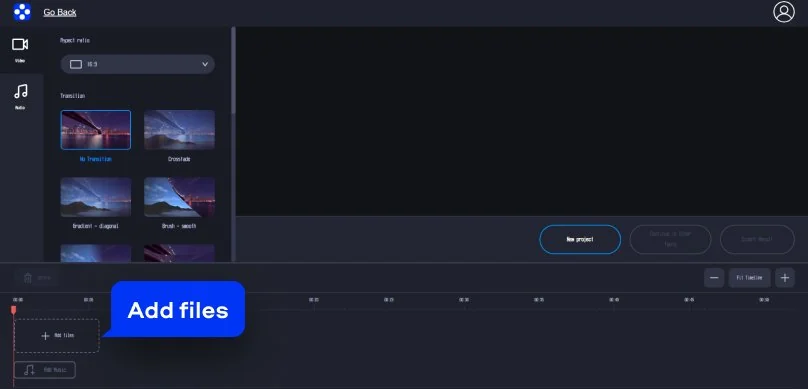
Step 1. Add your files

Open the tool directly in the browser and click the Add files button on the banner to upload the clips you want to combine. I’d add them in the order I want them to appear, but you can still rearrange everything later in the editor. It starts preparing the clips for editing almost immediately, without requiring any software installation.

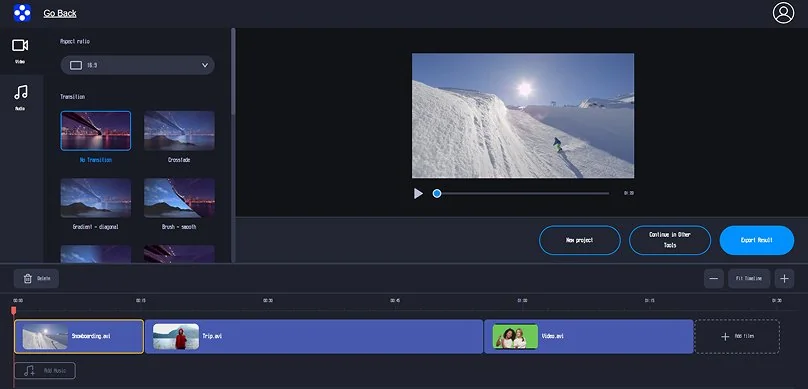
Step 2. Arrange and customize

Once the videos appear in the timeline, place them in the order you want viewers to see them. This is also the stage where you can adjust the aspect ratio to match platforms such as YouTube or Instagram, and add transitions between clips to create smoother, more natural scene changes instead of abrupt cuts.

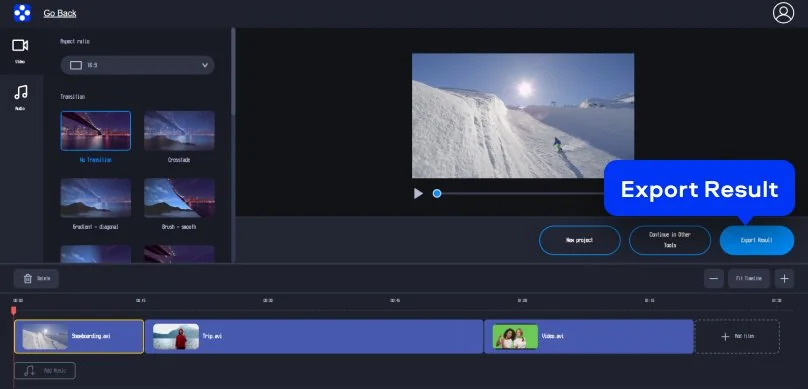
Step 3. Export the merged video

Before exporting, I would quickly review the entire sequence to make sure the clips flow correctly and the transitions appear where expected. When everything looks right, click the Export Result button and let the tool merge the videos into a single file, ready to download and share.

Movavi Video Editor
Create awesome videos easily

*The free version of Movavi Video Editor may have the following restrictions depending on the build: watermark on exported clips, 60-second video or 1/2 audio length limit, and/or some advanced features unavailable when exporting videos.

Why choose Movavi

We’re the #1 choice for millions of people from all around the world. Join our thriving community and create stunning content with incredible ease.

70M+

users

190+

countries

15+

updates per year

10,000+

effects to choose from

Frequently asked questions

Why is AVI not used anymore?

AVI never really disappeared, it simply stopped being the format people actively chose. Back in the 1990s and early 2000s, it was one of the formats behind countless home videos, screen recordings, and downloaded clips. Then video platforms, smartphones, streaming services, and higher resolutions arrived, and the industry started favoring formats that could do more with less space.

MP4 became the obvious beneficiary of that shift because it delivers smaller files, broader compatibility, and better support for modern codecs. When I encounter AVI files today, they usually come from an old camera, a forgotten hard drive, or software that has not changed much in years.

How do I merge multiple video files into one file?

Video merging has quietly become one of those tasks that sounds more complicated than it actually is. Today, most online tools handle the process in a way that feels closer to arranging cards on a desk than editing a film. Upload the videos, place them in the right order, and let the software do the heavy lifting.

What I appreciate most is how little attention modern mergers demand. A travel video split across several files, screen recordings captured over multiple days, or clips sent from different phones can all end up in the same timeline within minutes. If transitions are available, I might add them; if not, the basic merge often does the job perfectly well.

What program will open an AVI file?

AVI belongs to a category of formats that refuse to retire gracefully. Decades after its introduction, it still appears often enough that most media players have learned to accommodate it without complaint. When an AVI file lands on my PC, my first reaction is usually confidence that something on the computer will probably open it.

Programs such as VLC, Windows Media Player, and a long list of third-party players generally handle AVI without much ceremony. The occasional exception tends to involve the codec hidden inside the file rather than the AVI container itself. Fortunately, modern media players have become remarkably good at dealing with those surprises, which is why AVI remains far more usable than its age might suggest.

Can I open an AVI with VLC?

Yes, and in many situations VLC is the first program I would try. Over the years, the player has built a reputation for opening video files that other programs greet with confusion, warning messages, or complete silence. AVI files are among the formats VLC handles routinely.

Part of VLC’s charm is that it rarely turns compatibility into a project. There is usually no search for codecs, no hunt through settings menus, and no need to wonder whether the format is supported. I can drag an AVI file into the player and, more often than not, the video simply starts playing. In an age where many applications seem eager to complicate simple tasks, VLC remains committed to the idea that clicking Play should result in exactly that.

Movavi Video Editor
Create awesome videos easily

*The free version of Movavi Video Editor may have the following restrictions depending on the build: watermark on exported clips, 60-second video or 1/2 audio length limit, and/or some advanced features unavailable when exporting videos.

Have questions?
If you can’t find the answer to your question, please feel free to contact our Support Team.
Join us for discounts, editing tips, and content ideas

1.5M+ users already subscribed to our newsletter

By signing up, I agree to receive marketing emails from Movavi and agree to Movavi's Privacy Policy.