From separate MKV files to a single joined video on your PC – done in minutes.

MKV Joiner | Merge MKV Files Into One
Movavi Video Editor lets you combine MKV files into one on Windows and Mac – drag your clips onto the timeline, arrange them in order, and export a single joined MKV or MP4 file with no quality loss.
Whether you’re joining MKV files split across multiple parts, combining episode files from a TV series, or merging screen recordings into one continuous clip, Movavi handles the MKV merge cleanly – preserving audio tracks, subtitle streams, and the original video quality throughout.
Trusted by 70 million creators
Millions


of users
countries
updates per year
effects to choose from
Key features – MKV merge software
Everything you need to join MKV files and finish the full edit – in one free PC app.
Import and join MKV files without conversion
Movavi Video Editor accepts MKV files directly on import – no pre-conversion to another format needed. Each MKV file appears on the timeline immediately after drag-and-drop, ready to arrange and merge. This eliminates the extra conversion step that many other video editors require before they’ll touch an MKV file, which saves time and avoids an unnecessary re-encode pass before the actual merge.

Drag and drop to join files in any order
The timeline is the merge interface: drag your MKV files onto it in the order you want, trim any overlapping or unwanted sections at the join points, and the clips run together as one continuous video. You can add as many MKV files as you need, reorder them freely by dragging, and preview the full joined clip before exporting. There’s no separate merge dialog – the timeline handles everything.

Export as MKV or convert to MP4, AVI, and 60+ other formats
When you export the merged project, choose MKV to stay in the original format with zero re-encoding quality loss. Or convert to MP4 for broad device compatibility, AVI for legacy workflows, or any of 60+ other supported formats in the same step. The output preserves the original video quality, and the audio tracks and subtitle streams from the source files carry through to the final merged file.

Trim, transition, color-correct, and polish – all before export
Because the MKV merge happens inside a full video editor, you’re not limited to just joining files. Trim dead frames at the beginning and end of each clip before the merge point, add a transition between clips for a smooth cut, apply color correction to match clips recorded in different conditions, and add titles if the combined file needs chapter labels. Export once and the result is polished, not just joined.

Why Movavi is the best way to combine MKV files
How to merge MKV files with Movavi – 5 steps
Step 1. Download and install Movavi Video Editor
Download the Movavi Video Editor installation file for Windows or Mac. Run the installer and follow the on-screen prompts – the program opens automatically when installation is done.
Step 2. Import your MKV files
Click Add Files to open the import dialog, or drag your MKV files straight into the program window. All selected files appear in the Project Files panel. You can add as many MKV files as you need in one import pass – there’s no per-file limit.
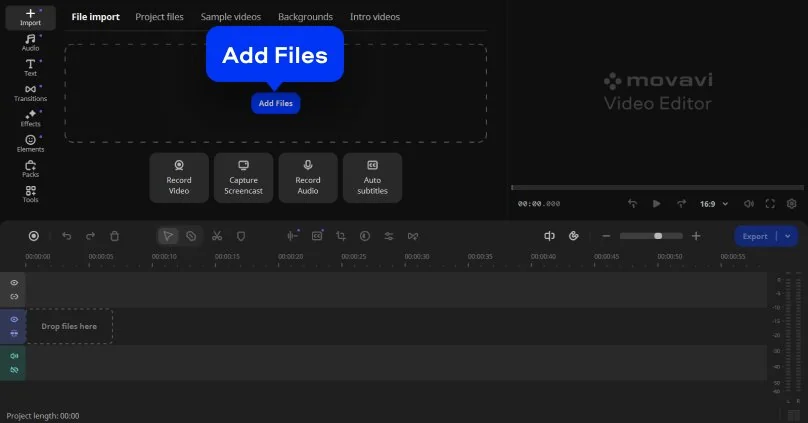
Step 3. Drag files onto the timeline in the right order
Drag each MKV file from Project Files down onto the main video track on the Timeline. Place them end-to-end in the order you want them to play in the merged output. Drag clips left or right along the Timeline to reorder them at any point. If two clips need to sit right next to each other with no gap, snap them together by dragging until the edges touch.
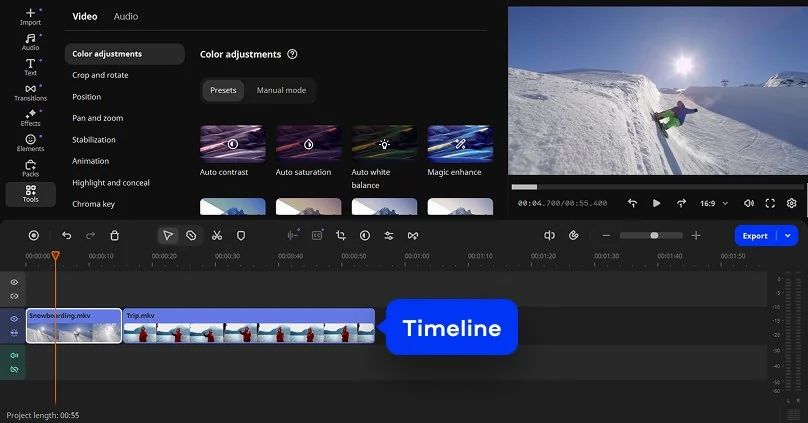
Step 4. Adjust settings and trim if needed
Check that all clips share the same aspect ratio so the merged video looks consistent. If any clip has dead frames at the start or end, drag the clip edges on the Timeline to trim them before the merge point. To smooth the cut between clips, go to the Transitions tab and drag a transition between clips on the Timeline. This step is optional – skip it if you want a clean direct cut between files.
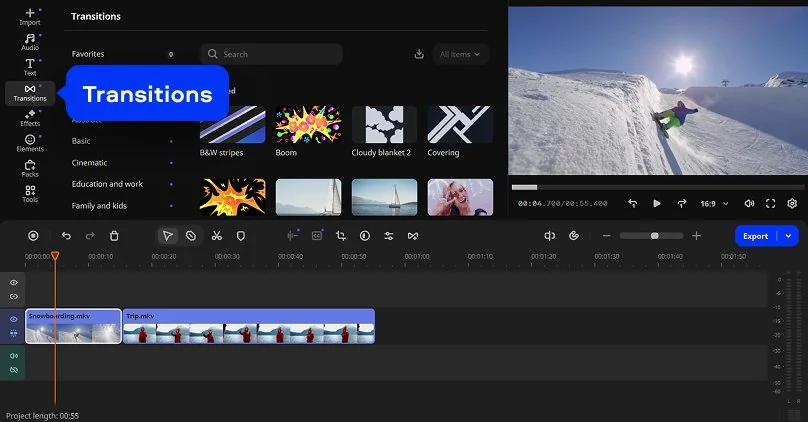
Step 5. Export the merged video
Click Export. Choose MKV as the output format to stay in the original container with no quality loss, or select MP4 for maximum playback compatibility. Pick your output resolution and save location, then click Start. Movavi renders all files on the Timeline as one continuous video and saves it to your computer. The merged MKV file is ready when the progress bar completes.
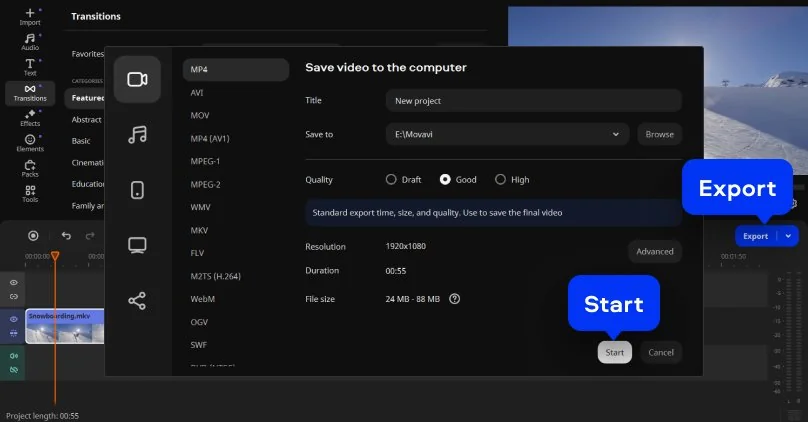
Who needs to merge MKV files
MKV files often arrive in parts, and combining them is one of the most common file-management tasks in digital video.
Media archivists organizing their libraries · MEDIA / ARCHIVE
Movies and TV series stored in MKV format frequently come split into multiple part files – Part 1, Part 2, etc. – from ripping, downloading, or recording. Combining MKV files into one continuous file makes a library cleaner to navigate, eliminates playback interruptions between parts, and simplifies chapter management in media players like Plex, Kodi, or Infuse.
Gamers and streamers joining recording segments · GAMING / STREAMING
Screen recorders and capture tools – OBS, Nvidia ShadowPlay, Xbox Game Bar – often split long recording sessions into separate MKV files when a file size or duration limit is hit. Gamers and streamers who want to upload a complete session to YouTube or edit a full stream need to join those MKV files back together first. Movavi handles this as a simple drag-and-drop timeline operation without the need for command-line tools.
Video editors working with multi-part source footage · PRODUCTION
Editors who receive source material shot across multiple recording sessions – interviews, documentary footage, event coverage – often need to combine MKV files into a single consolidated clip before editing begins. Movavi’s MKV merge workflow drops directly into the full editing environment, so once the files are joined, the edit can continue in the same session without exporting an intermediate file first.
Movavi Video Editor
Create awesome videos easily

Frequently asked questions
Common questions about merging MKV files on PC – tools, process, and terminology.
How do I merge two MKV files together?
How do I merge two MKV files together?
To merge two MKV files using Movavi Video Editor:
- Download and install the app for Windows or Mac.
- Click Add Files and import both MKV clips.
- Drag them onto the Timeline in the order you want them to play.
- Trim any dead frames at the join points if needed.
- Click Export, choose MKV or MP4 as the output format, and click Start. The software renders both files as one continuous video and saves it to your PC. The whole process takes under 5 minutes for most standard MKV files.
Alternative free tools: MKVToolNix is the most technically capable free option but requires understanding container configuration. FFmpeg via command line (ffmpeg -i "concat:file1.mkv|file2.mkv" -c copy output.mkv) is the fastest option for technically confident users. Movavi is the most accessible for anyone who doesn’t want to use a command line.
What is MKV merge?
What is MKV merge?
MKV merge refers to the process of combining two or more MKV files into a single continuous video file. MKV (Matroska Video) is a container format that can hold multiple video streams, audio tracks, and subtitle tracks in one file. Merging MKV files means taking the video content from separate files and joining them end-to-end so they play as one uninterrupted video. This is different from remuxing (changing the container format without re-encoding) or transcoding (re-encoding the video data itself). A simple MKV merge with a tool like Movavi is a lossless operation when you export back to MKV – the video data isn’t re-compressed, so there’s no quality loss from the join.
How do I merge multiple video files into one file?
How do I merge multiple video files into one file?
The general process to combine multiple video files into one is the same regardless of format – MKV, MP4, AVI, or MOV:
- Open a video editor like Movavi Video Editor on your PC.
- Import all the video files.
- Drag them onto the Timeline in the order you want.
- Optionally trim dead frames, add transitions, or adjust settings.
- Click Export and save as a single file. Movavi handles all common formats – you can join MKV files with MP4 or AVI files in the same project if the clips came from different sources. The output can be exported in any format regardless of what formats the source files were in.
For a purely lossless MKV merge with no editing, MKVToolNix is the more technically precise choice; for any workflow that also involves trimming, color correction, or format conversion, Movavi is faster.
How do I merge MKV files with VLC?
How do I merge MKV files with VLC?
VLC can merge video files using its Convert/Save function, but it’s not purpose-built for this task and the process is less intuitive than a dedicated tool. Here’s how: open VLC, go to Media → Open Multiple Files, add all the MKV files you want to join, check Show more options and enable Play another media synchronously, then use Media → Convert/Save and set the output file. VLC’s merge via Convert is slow, the quality can degrade depending on codec settings, and subtitle tracks are frequently dropped. For a straightforward MKV merge without those risks, Movavi Video Editor is a more reliable alternative – and the free 7-day trial covers everything you need to combine MKV files into one without any limitations.
Join us for discounts, editing tips, and content ideas


1.5M+ users already subscribed to our newsletter