Movavi Screen Recorder

Capture your vision with the ultimate screenshot tool for Windows and Mac

Meet the Screenshot Software

Get a free download of Movavi Screen Recorder

Simple capturing

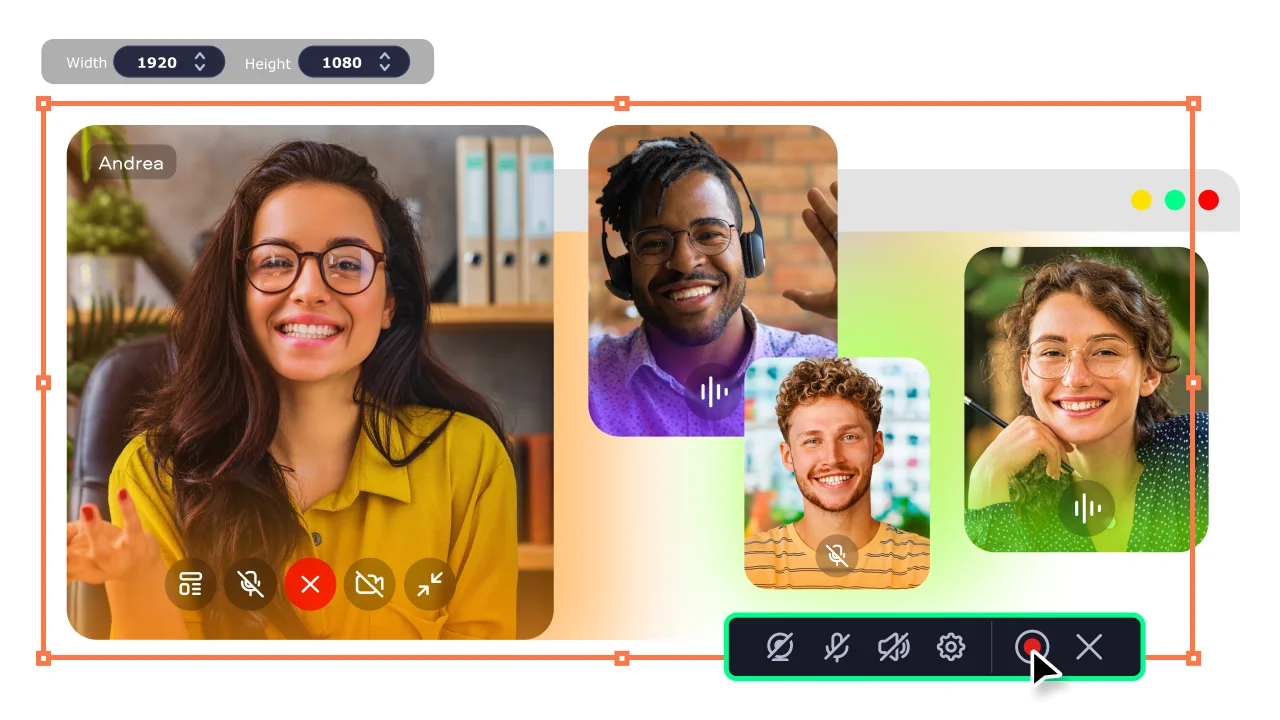
Grab a full window, a web page, or just a small part of your screen in one click.

Quick editing

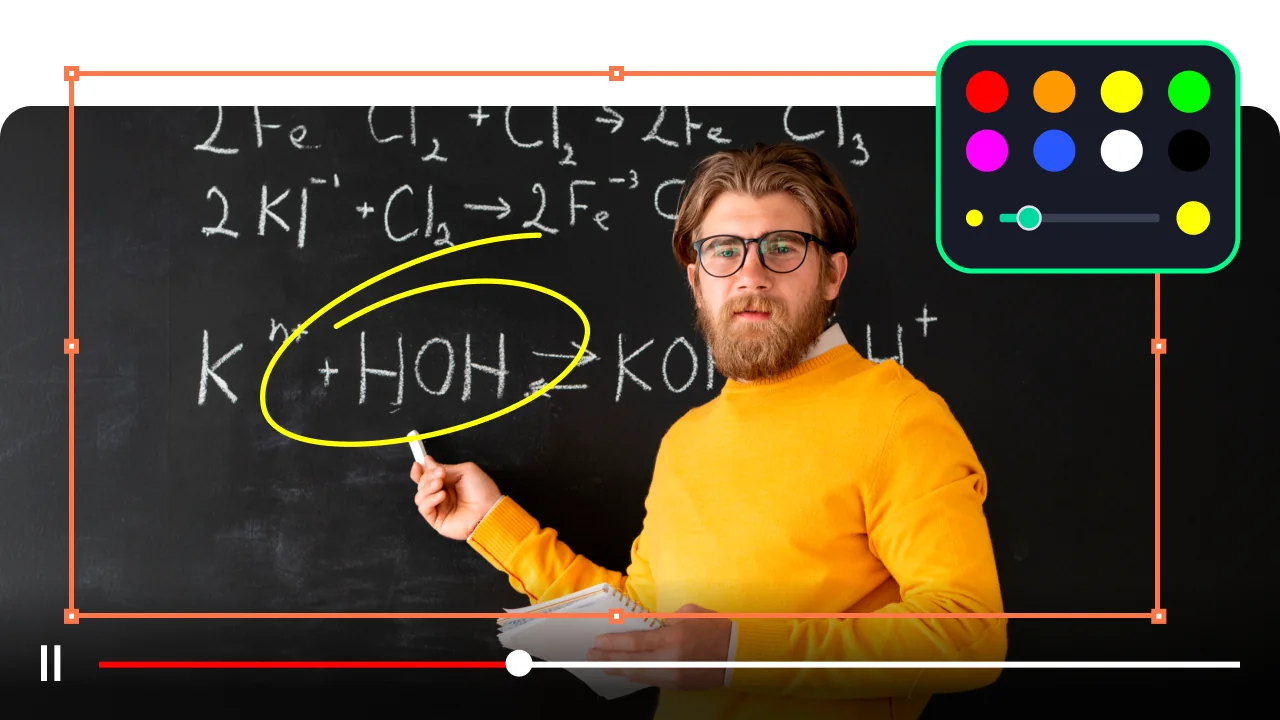
Add useful elements like arrows, text, and colorful frames to make your images engaging.

Easy sharing

Save your snap and fire it off to friends or coworkers instantly so everyone knows what’s up.

Take screenshots easily

If you need good screenshot software, Movavi Screen Recorder is a great fit for this. It is a simple yet handy screenshot taker for users who want to save what they see on their monitor.

This is one of the best screenshot tools for beginners, it helps you work fast. If you need a Windows screenshot tool, this one is very reliable. You can try the free version first, then you can see why it is a popular choice for screenshot tools.

You can use this screenshot tool Windows every day at work, you can use it at school too, so, it is great for any person. It has many buttons that are easy to find and you will like how it feels. It is smooth and fast, and you can make your work look very professional.
How to use the screenshot app for Windows and Mac

Step 1. Install the screen capture tool

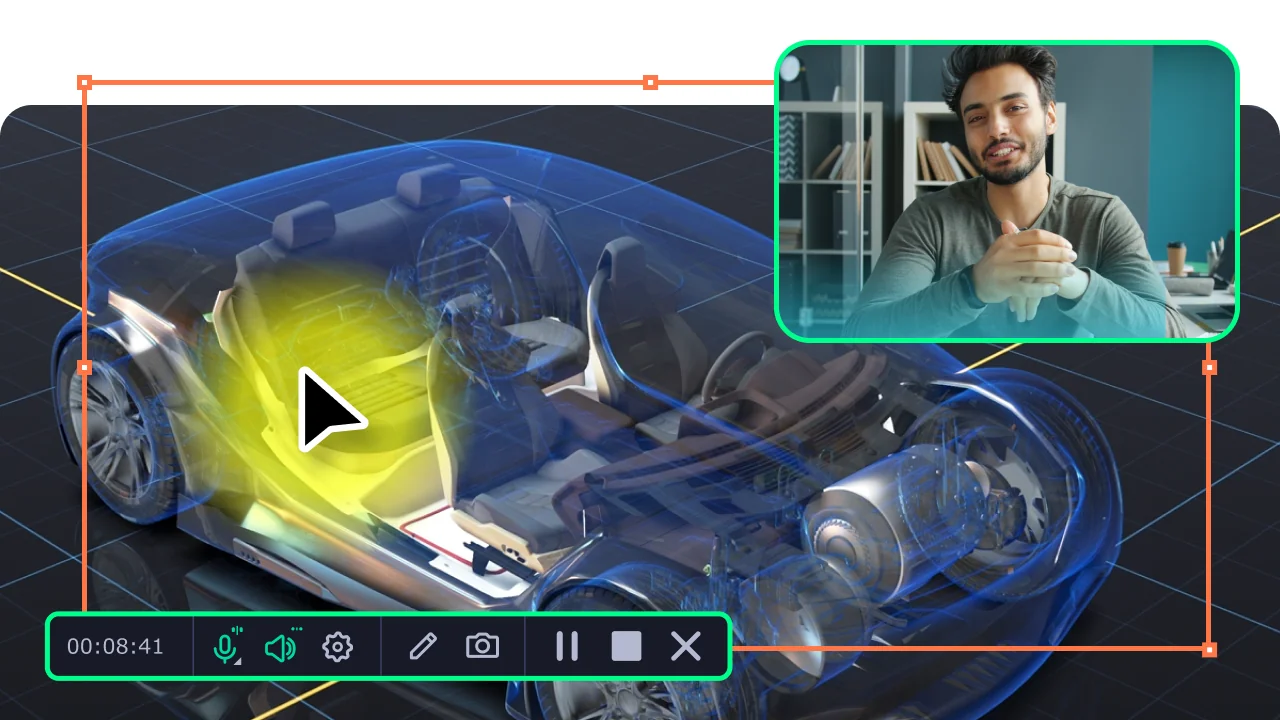
Download the screenshot app for Windows or Mac and follow the steps on your display, it takes only a few minutes, then, launch the app. You will see a small bar on the side of your screen. This bar has all the icons you need.

Step 2. Select the screenshotting area

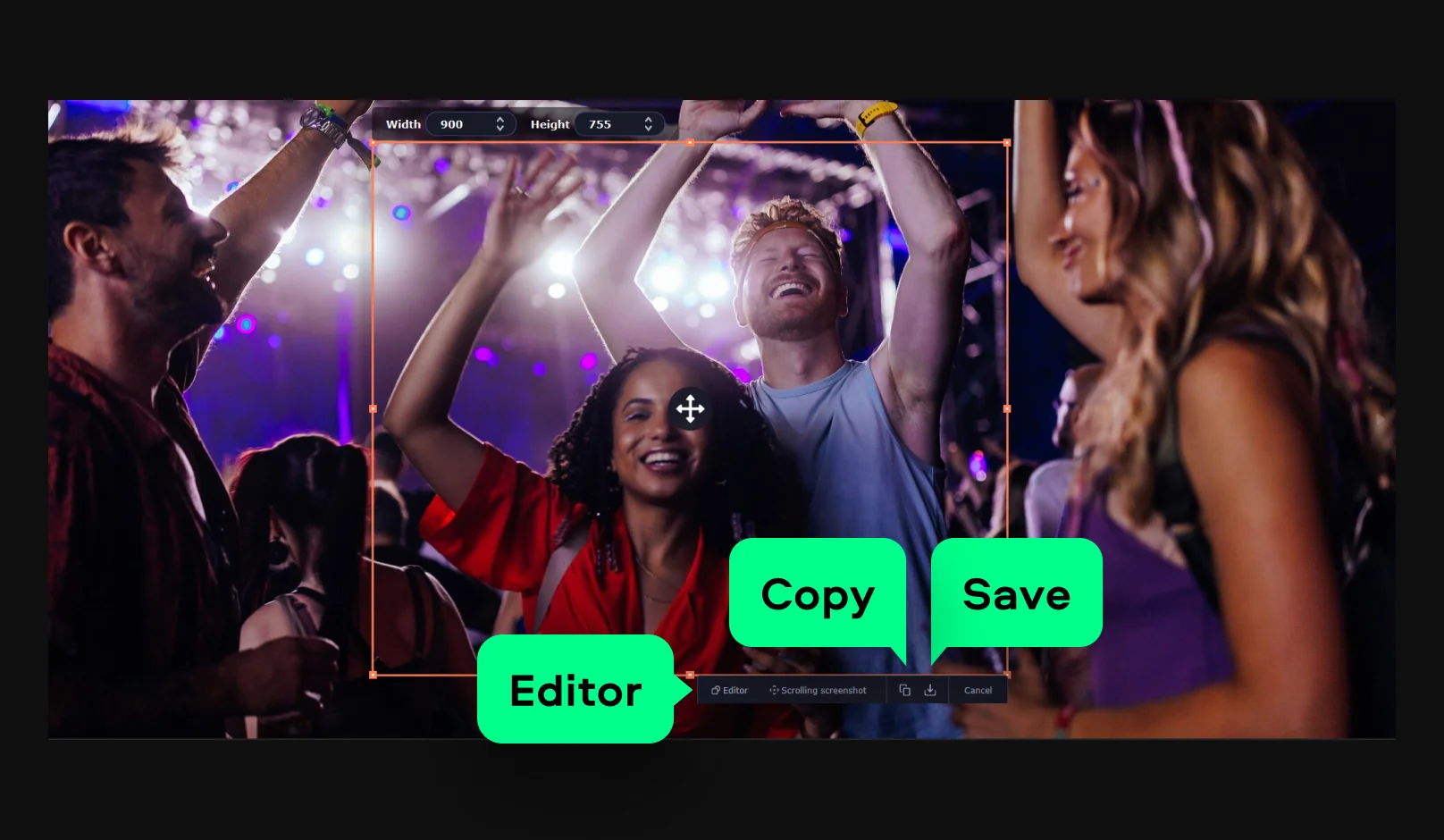
Next, click the camera icon. Click and drag the mouse over the part of the screen you want, you can pick a small part or a big part. The print screen software will show you exactly what it will capture, it is very precise.

Step 3. Save the screenshot

Now, a small menu will pop up, you can hit the Editor button to add lines or text. When you are done, press the Save icon. You can pick where to put the file on your computer. You can also click Copy to put it in a chat or an email right away.

Movavi Screen Recorder
The perfect way to record anything from your screen

Disclaimer: Please be aware that Movavi Screen Recorder does not allow capture of copy-protected video and audio streams.

Why choose Movavi

We’re the #1 choice for millions of people from all around the world. Join our thriving community and create stunning content with incredible ease.

70M+

users

190+

countries

15+

updates per year

10,000+

effects to choose from

Frequently asked questions

What is the best screenshot app for Windows with editing features?

Wondering how to choose the best screenshot app for Windows? Movavi Screen Recorder is a very solid choice, it has an editor built right in. You can add arrows and frames easily, so your recipient can easily understand it. This makes it a smart screenshot app for a PC for people who need to show things to others.

How do I take a high-quality screenshot on a PC using third-party software?

To get a crisp image, you should use a high-quality screenshot program like Movavi Screen Recorder. First, select the area you want to save, and then watch the app to capture in Full HD. This makes sure your picture stays very clear and looks great on any screen.

Can I capture a scrolling window or specific area with this screenshot tool?

Yes, this Windows screenshot tool is very flexible. You can drag your mouse to pick any area you like. You can also pick a specific window to capture. Movavi’s screencap software gives you much more control than the normal buttons on your keyboard.

Movavi Screen Recorder
The perfect way to record anything from your screen

Disclaimer: Please be aware that Movavi Screen Recorder does not allow capture of copy-protected video and audio streams.

Join us for discounts, editing tips, and content ideas

1.5M+ users already subscribed to our newsletter

By signing up, I agree to receive marketing emails from Movavi and agree to Movavi's Privacy Policy.