Movavi Screen Recorder

Record Zoom meetings and screen activity with ease

Meet the Zoom Meeting Recorder – Easy Zoom Screen Recording

Get a free download of the Movavi Screen Recorder

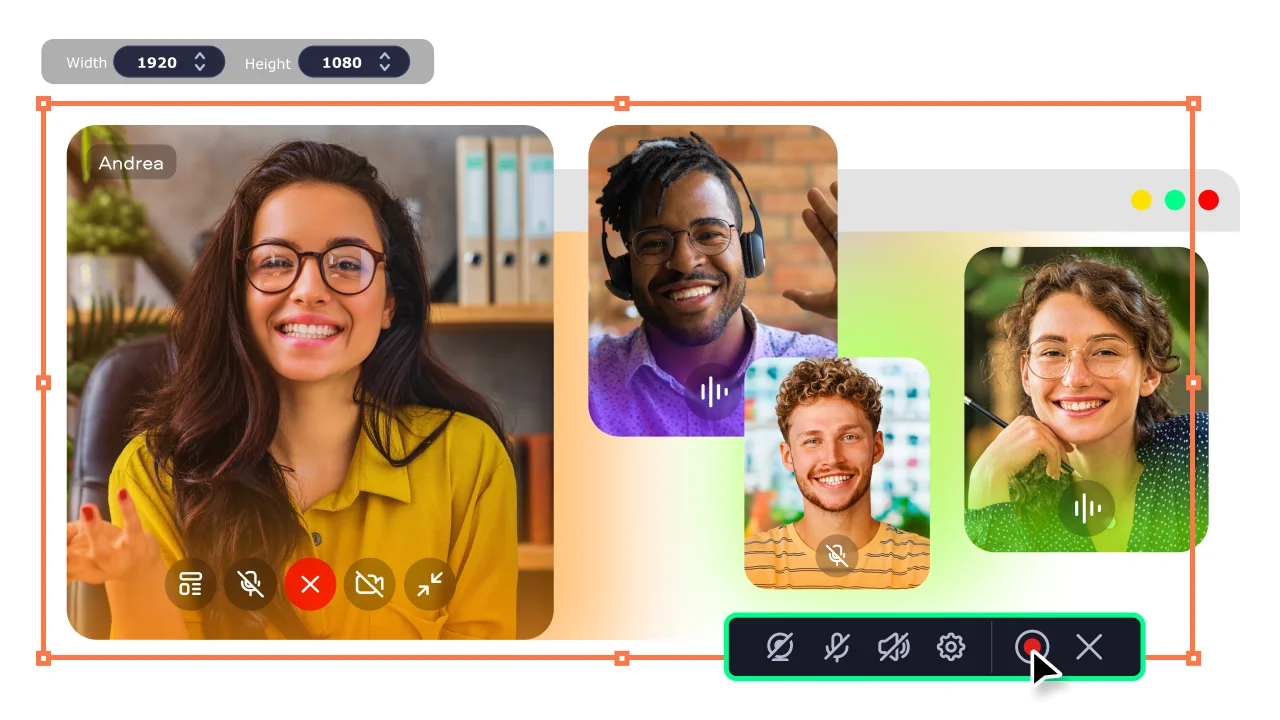
Record Zoom meetings in high quality

Capture video calls with clear audio and smooth screen recording without lag or interruptions.

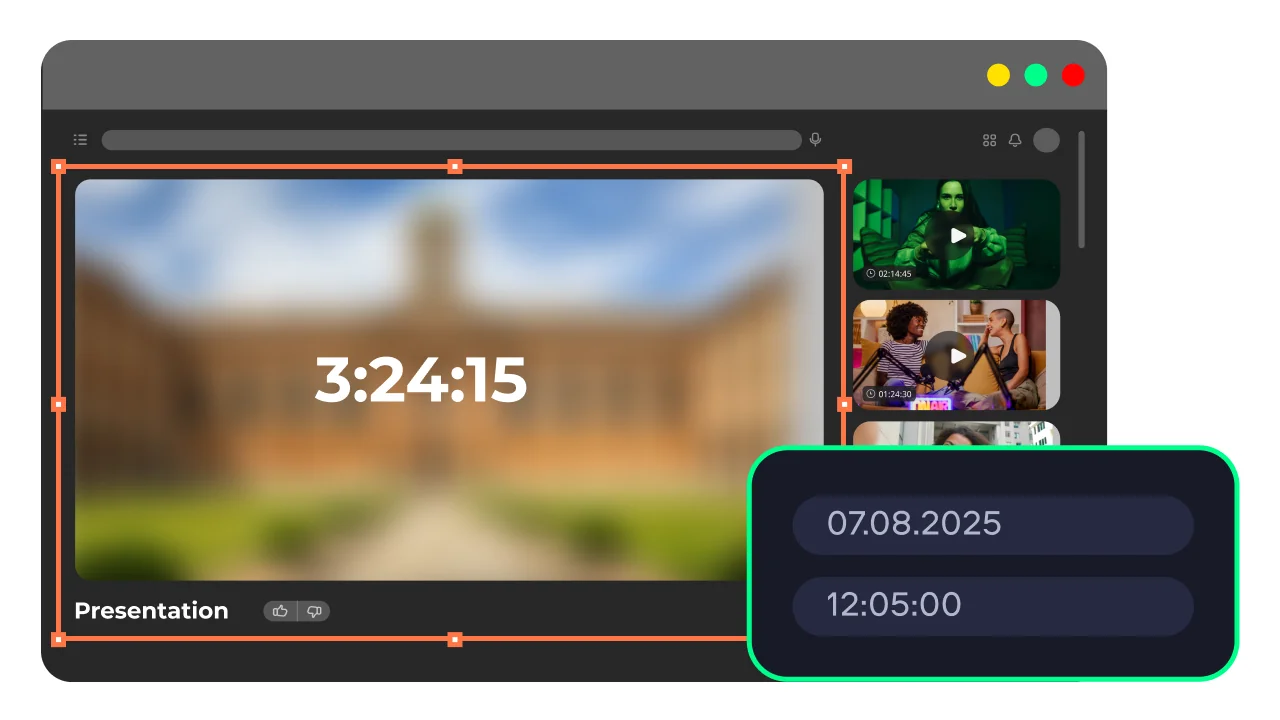
Schedule recordings in advance

Set up automatic recording for meetings so you never miss an important call or session.

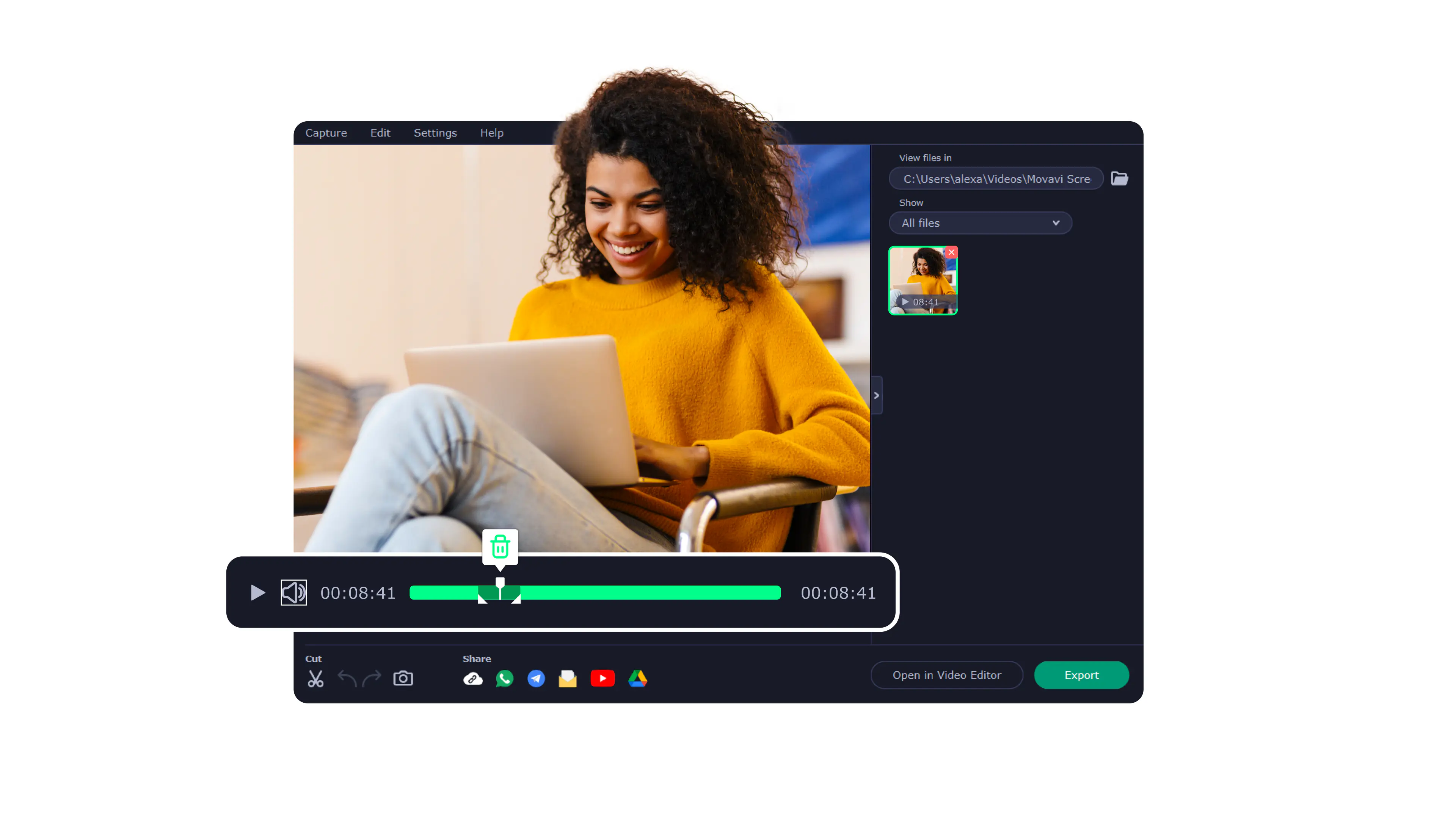
Save and export in multiple formats

Store your recordings in popular formats and easily share them across devices and platforms.

Easily record Zoom meetings

Need a simple way to record Zoom meetings without missing a detail? Movavi Screen Recorder is a Zoom recording software for Windows and Mac that lets you capture calls, webinars, and screen activity in high quality with just a few clicks.

With an intuitive interface, scheduled recording, and support for multiple formats, this Zoom call recorder makes saving and sharing your meetings effortless. No technical skills needed, just install it, and you can record a zoom call on a PC or Mac right away.

How to record a Zoom meeting with high-quality audio

Step 1. Set up the Zoom screen recording software

Download and install Movavi Screen Recorder on Windows or Mac. Launch the high-quality Zoom recording app and choose the area you want to record. You can select the full screen or just the Zoom window if you want to keep things clean.
Step 2. Configure audio for clear Zoom screen recording

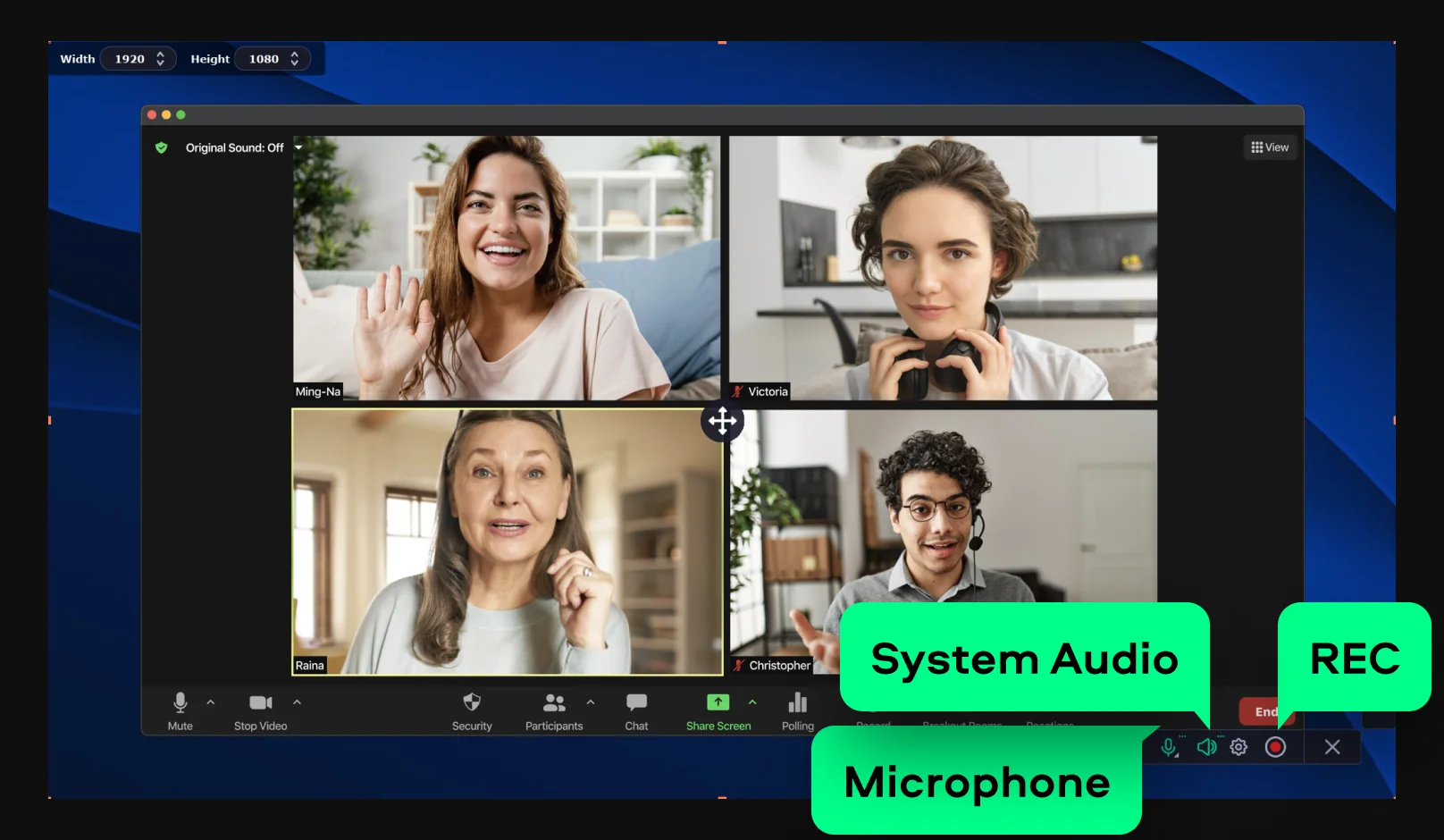
An important step to record a Zoom meeting with audio: turn on System Audio to capture the voices of everyone in the Zoom call. Enable Microphone if you plan to speak and want your voice included. Check audio levels to avoid distortion or low volume.

Click REC to start recording and let the meeting run as usual. When it is over, stop the recording and review the file.

Step 3. Record and save your meeting

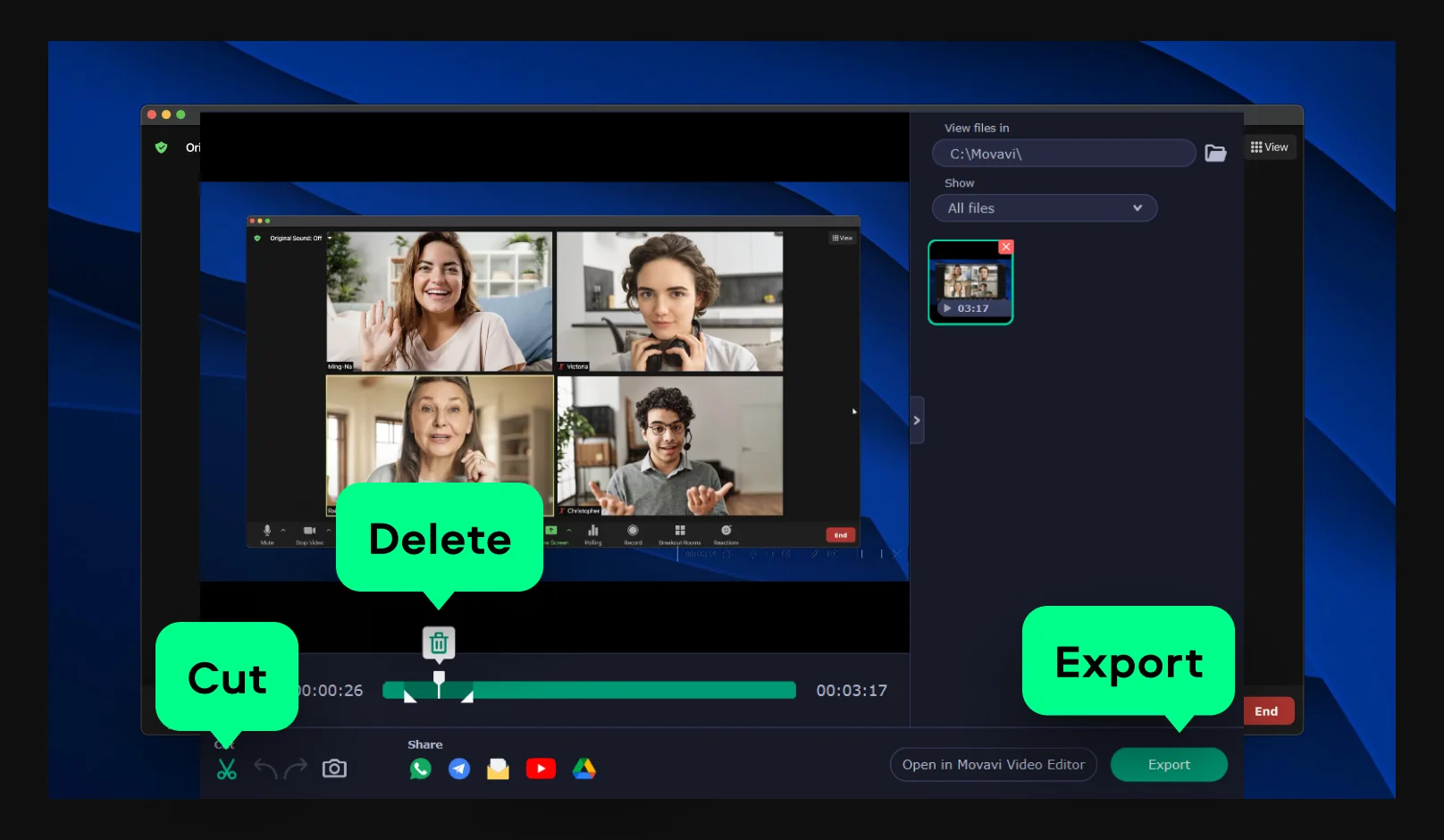
Trim any unnecessary parts if needed, then export the video in your preferred format. After that, the recording is ready to share, archive, or revisit when details start to blur. Now you know how to record a Zoom meeting with high-quality audio.

Movavi Screen Recorder
The perfect way to record anything from your screen

Disclaimer: Please be aware that Movavi Screen Recorder does not allow capture of copy-protected video and audio streams.

Why choose Movavi

We’re the #1 choice for millions of people from all around the world. Join our thriving community and create stunning content with incredible ease.

70M+

users

190+

countries

15+

updates per year

10,000+

effects to choose from

Frequently asked questions

What is the best software to record Zoom meetings in high quality?

As for the best software to record a Zoom meeting, I would not call it a single winner, more like a tier list depending on how much control you want. If I need something simple and reliable, a Zoom meeting recorder like Movavi Screen Recorder or Loom gets me clean video and audio without friction. If I feel like going deeper, you can try a professional Zoom recorder: for example, OBS Studio sits there like a control panel for everything, resolution, bitrate, audio routing, all adjustable. Zoom itself now includes recording features with noise suppression and even 4K support in some cases, which is surprisingly solid for everyday use.

Can I record a Zoom meeting with audio as a guest?

Yes, there are ways to record a Zoom meeting without permission, but it depends on how you approach it. A built-in Zoom video capture tool usually belongs to the host, so as a guest, you are often locked out unless permission is granted. The workaround is external screen recording software. I have used those to capture both system audio and microphone input without touching Zoom’s permissions at all. Almost any modern screen recorder for Zoom is designed exactly for this scenario, recording the meeting window and audio streams simultaneously. Some apps even highlight that they can record Zoom calls with audio even if you are not the host.

How do I record a Zoom call without any lag or frame drops?

This is where things get a bit technical, but not complicated. First rule, keep your system stable. Close background apps, free up CPU and RAM. Second, match your recording settings to your hardware. Recording at 4K sounds nice, but if your machine struggles, it will show. Third, network matters more than people think. A wired connection is usually more stable and helps maintain consistent video quality during the call. Even the best automatic Zoom meeting recorder software cannot fix a shaky connection.

Movavi Screen Recorder
The perfect way to record anything from your screen

Disclaimer: Please be aware that Movavi Screen Recorder does not allow capture of copy-protected video and audio streams.

Join us for discounts, editing tips, and content ideas

1.5M+ users already subscribed to our newsletter

By signing up, I agree to receive marketing emails from Movavi and agree to Movavi's Privacy Policy.
