Step 1. Download and install Movavi Video Converter
First, download and install Movavi Video Converter on your Mac or Windows computer. You can follow the instructions that appear on your computer screen to install the program.
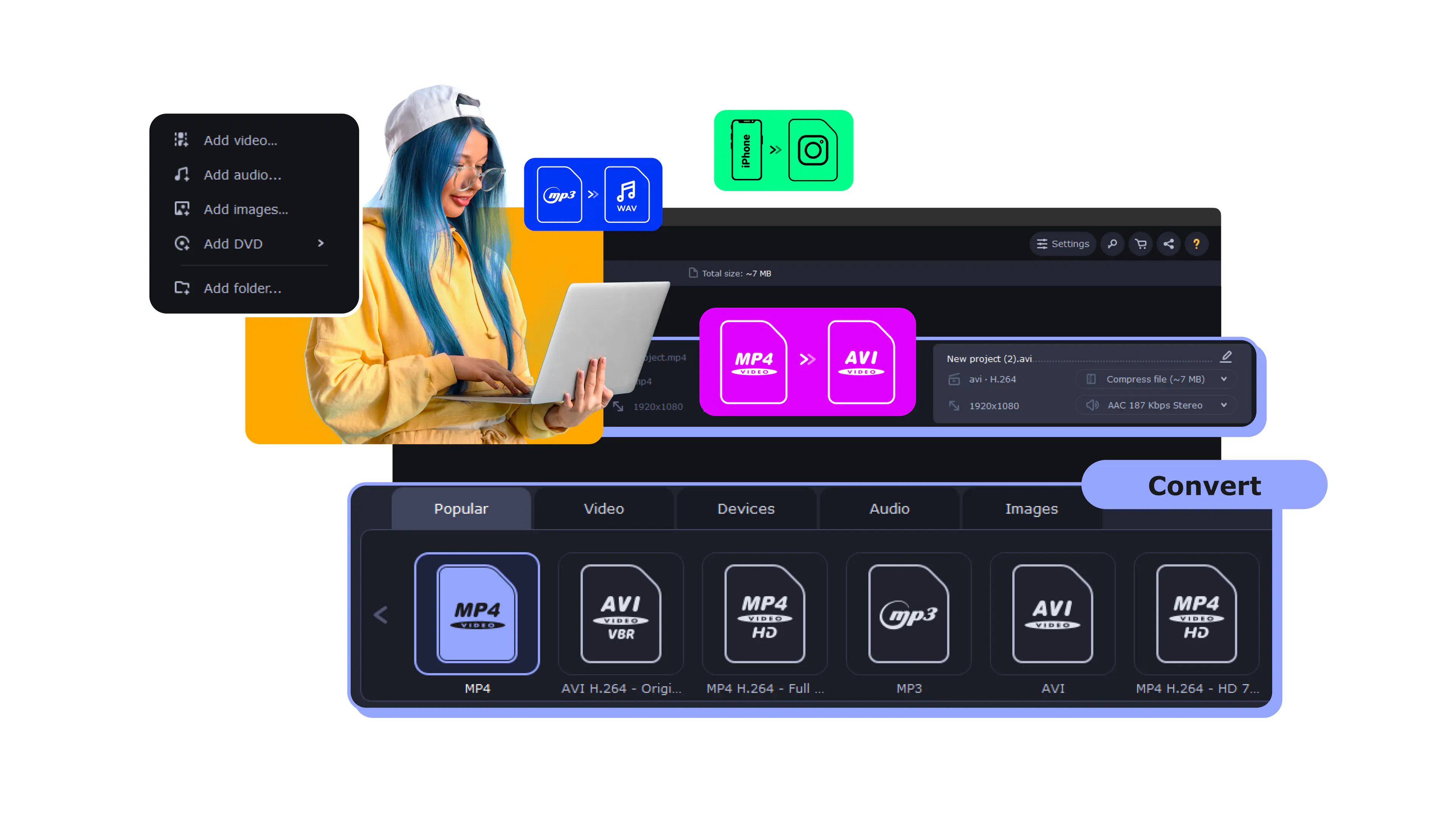
Movavi Video Converter reads a DVD straight from your computer – inserted disc, VIDEO_TS folder, or ISO image – and saves it as a clean MP4 sized for your iPhone. Pick your iPhone model, hit Convert, and the video is ready to play in the Apple Photos or Files app.
Old family discs, store-bought movies, language and fitness courses – carry all of it on your phone, offline, with no disc and no DVD player. No DVD drive is needed on the iPhone itself, and nothing gets uploaded to a server: the whole job runs locally on your Windows or Mac machine.
Millions


A good DVD to iPhone converter should open the disc for you, pick the right video automatically, and make standard-definition footage look decent on a Retina screen – without a single codec setting.
Ready-made iPhone presets
Choose your iPhone model and Movavi sets a compatible MP4 (H.264 or HEVC) at a resolution that fits the screen – no digging through codecs, bitrates, or containers. The Devices tab has ready-made presets for iPhone, iPad, Android, smart TVs, and consoles, so you match the target device in one click instead of looking up its specs.
Reads DVDs directly
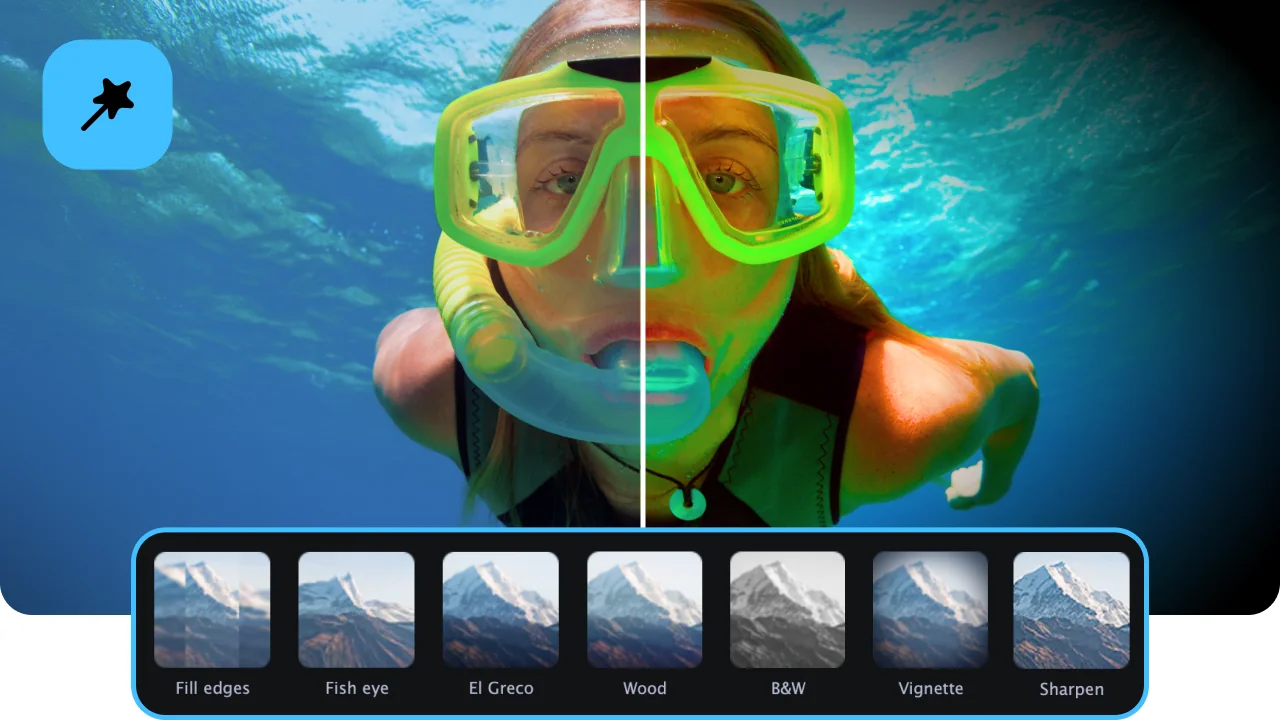
Movavi opens a VIDEO_TS folder, individual VOB files, or an ISO image and detects the main title automatically – so you don't have to guess which of a dozen VOB files is the actual movie. Reading a physical disc or its folder structure is something browser-based tools simply can't do; it only works on the desktop.
AI upscaling – from soft SD to sharp on Retina
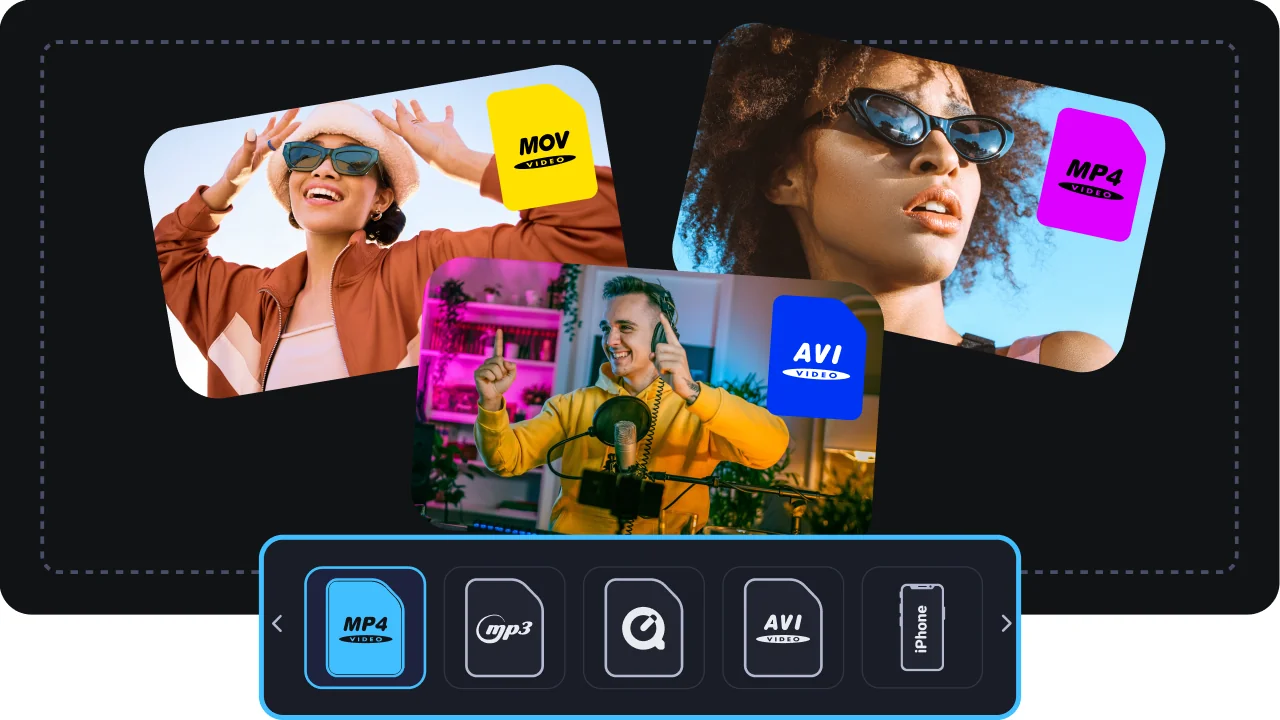
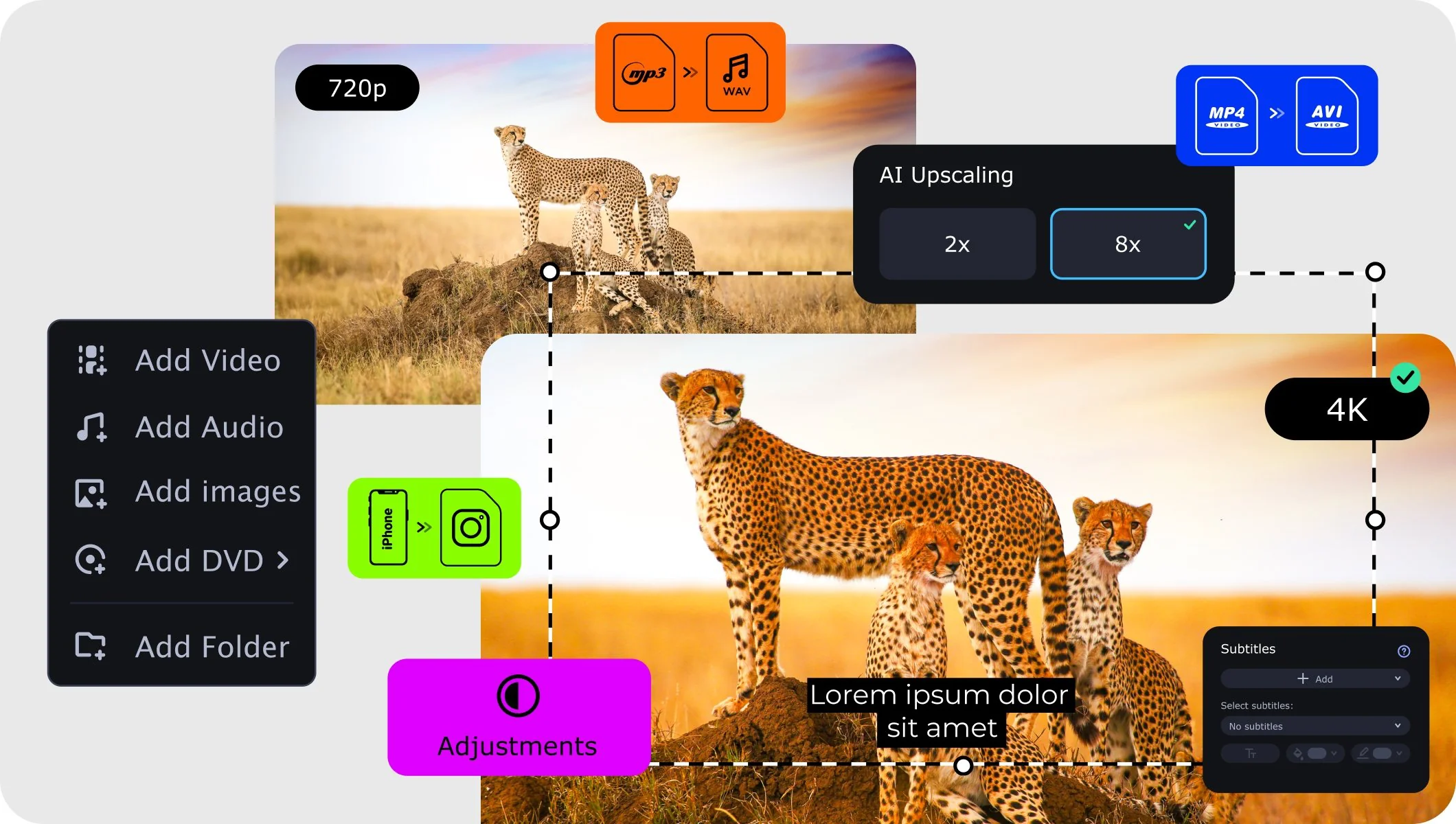
A DVD is 480p or 576p, and an iPhone screen is sharp enough to show every soft edge. Movavi's built-in AI upscaler raises resolution by up to 4× or 8×, reconstructing detail instead of just stretching pixels. It's the feature that makes a "blurry" DVD genuinely watchable on the phone – the AI fills in what standard resizing would leave mushy.
Audio tracks, subtitles, and trimming
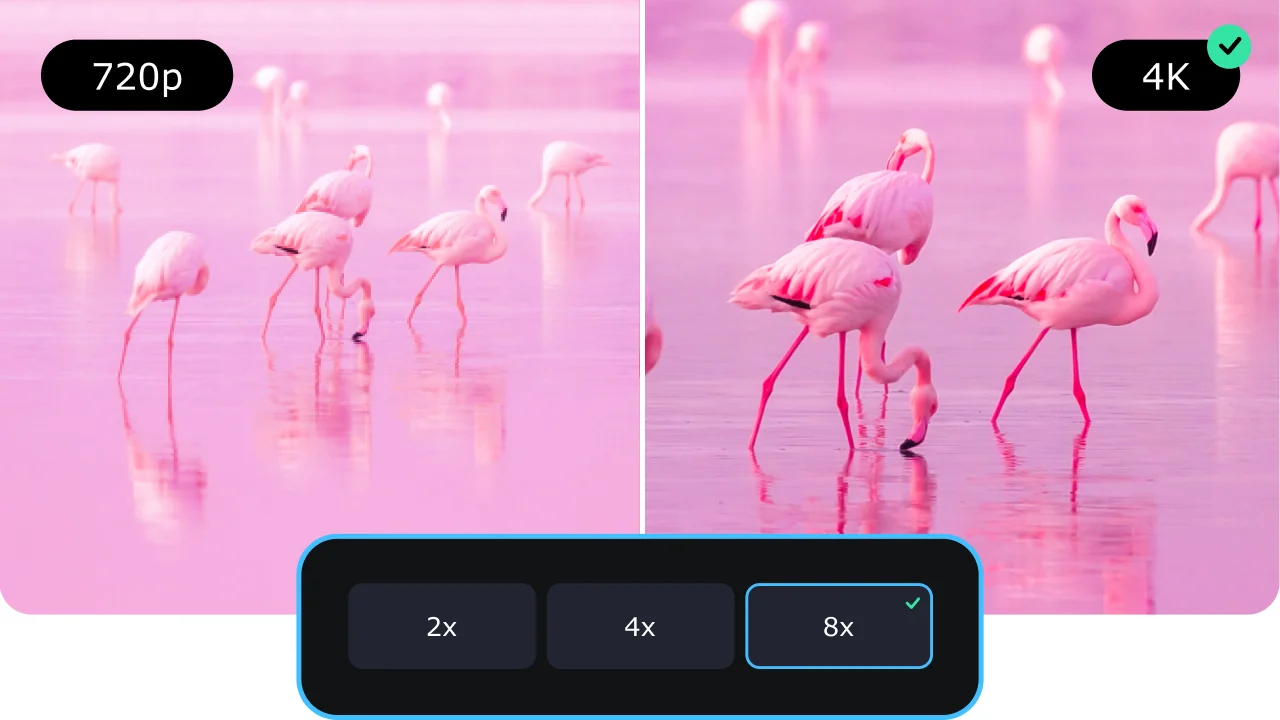
Keep only the audio language and subtitle track you want, cut out the menus and trailers, and convert just the film. Batch mode handles several discs or a whole series of episodes in one run, and SuperSpeed hardware acceleration keeps conversions fast even on long titles.
Three reasons a desktop app beats a free or online DVD to iPhone converter for this task.
From a disc in the tray to a video playing on your phone – done in minutes.
First, download and install Movavi Video Converter on your Mac or Windows computer. You can follow the instructions that appear on your computer screen to install the program.
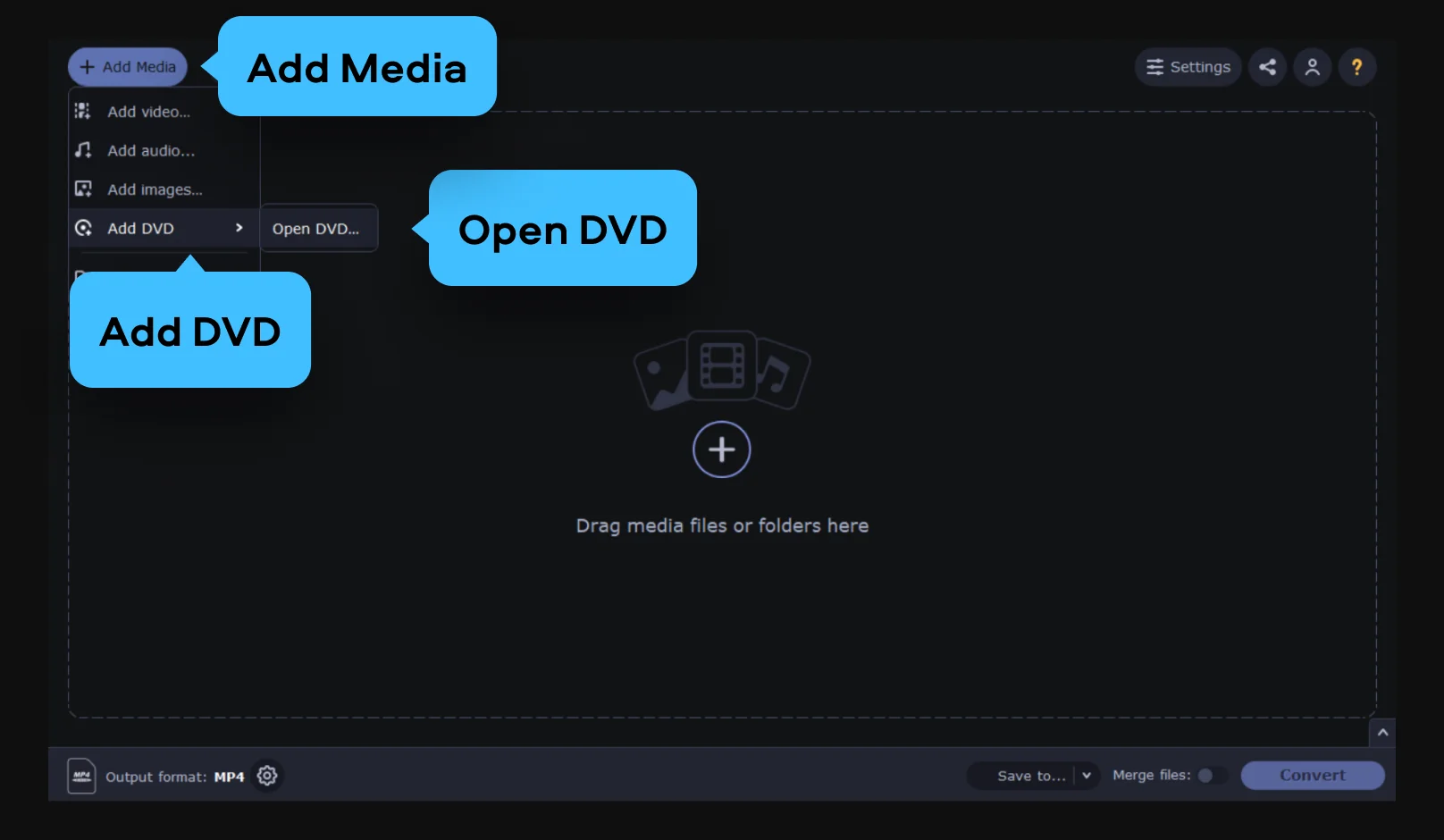
Сlick Add Media, choose Add DVD from the list that appears, and then Open DVD.
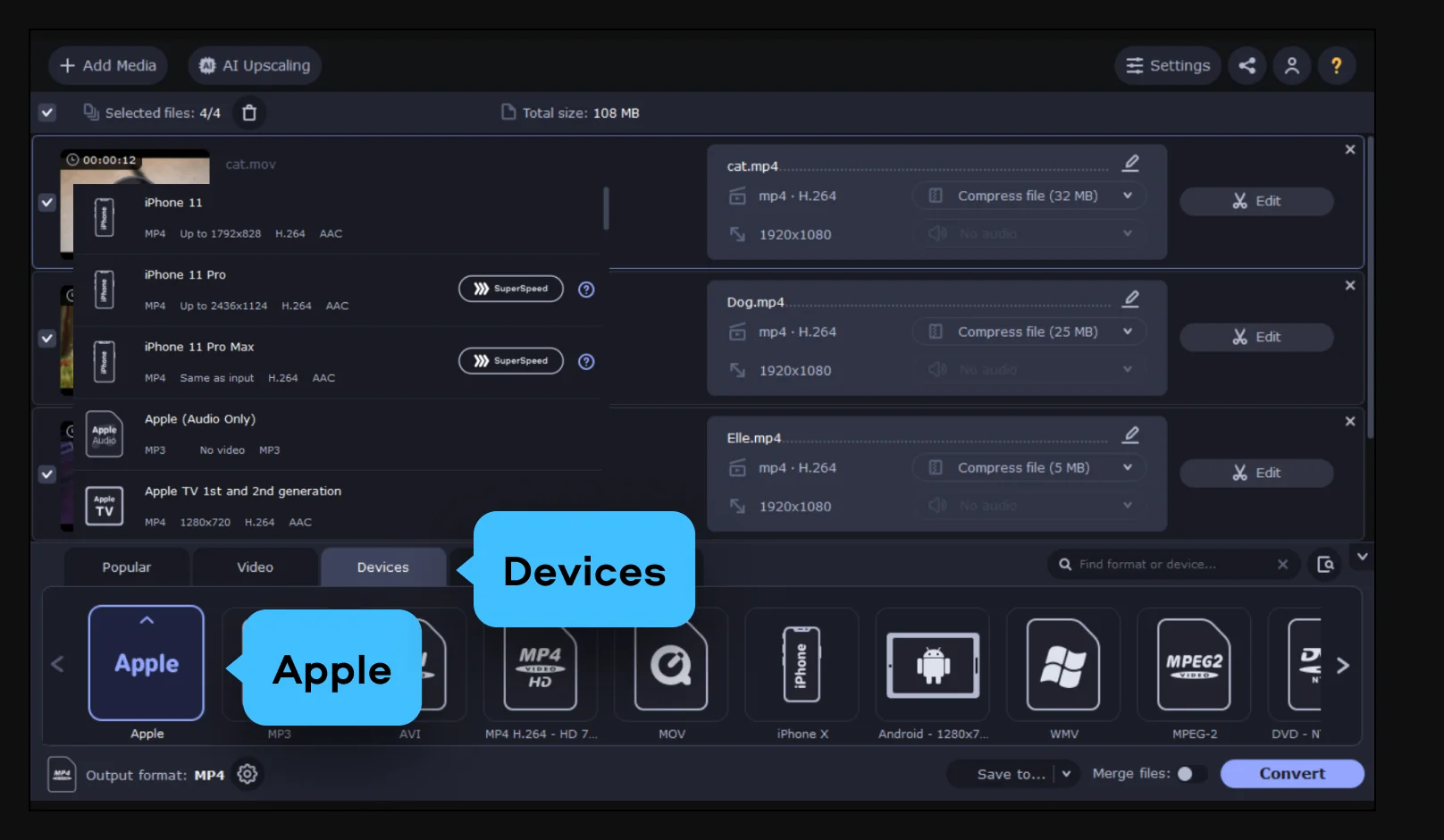
Open the Devices tab, go to Apple, and pick your iPhone model – or open the Video tab and choose an MP4 preset. This sets a compatible format and a resolution that fits your screen automatically.
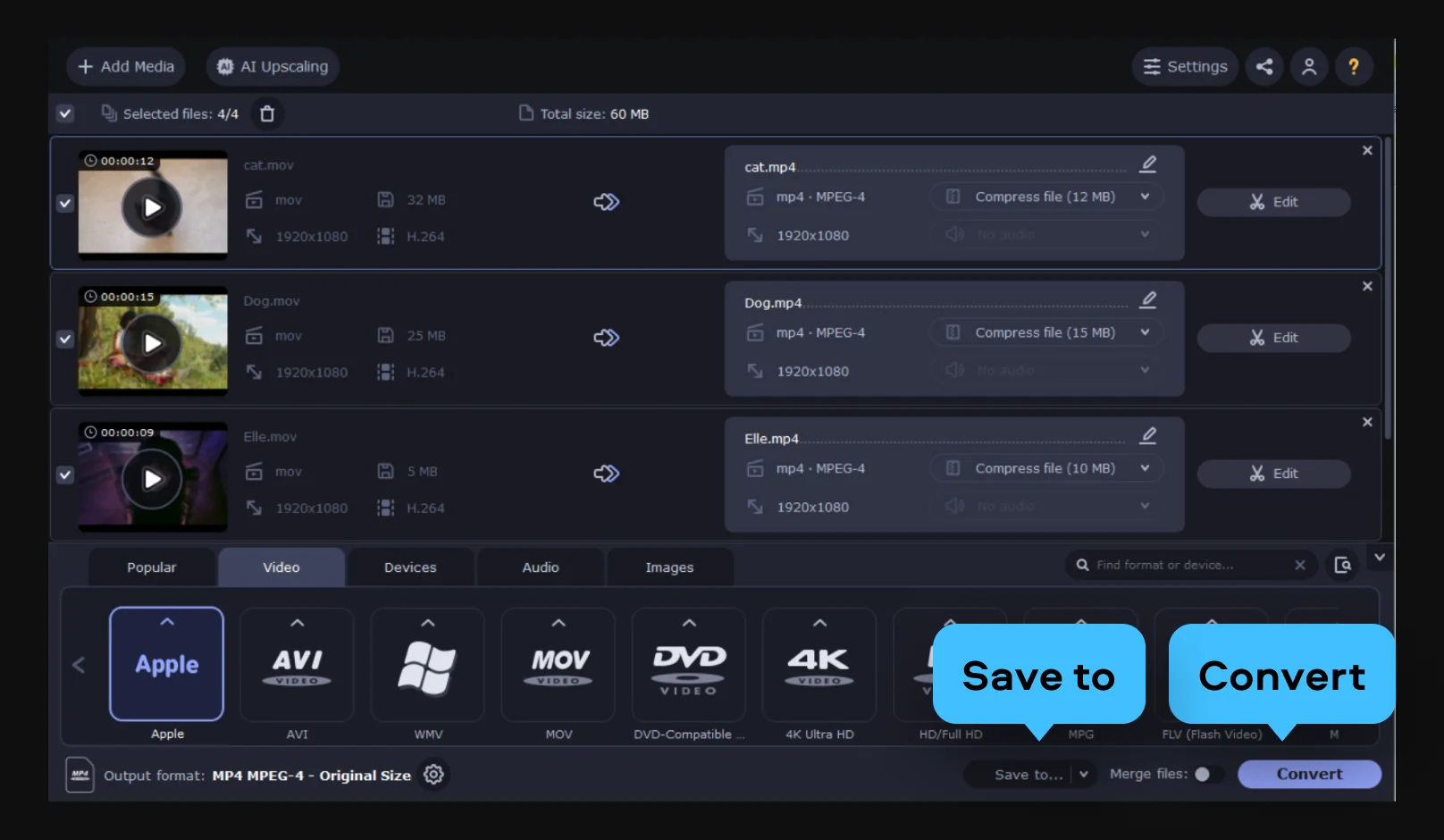
Click Save to to pick an output folder, then hit Convert. When it's done, move the MP4 to your iPhone using Finder or iTunes, the Photos app, AirDrop, or a cloud service like iCloud or Google Drive.
Getting a disc onto a phone comes up across family archives, travel, and learning alike.
Families with a home-video archive · PERSONAL
Wedding, christening, birthday, and family-reunion discs don't last forever – the dye layer degrades and players disappear. Converting them to MP4 digitizes those memories before the discs go bad and lets you watch them from your phone anytime.
Travelers and business flyers · LIFESTYLE
Take your own store-bought movies with you on the plane – offline, with no streaming subscription and no DVD player at the other end. Convert the disc once and the film lives in your pocket.
Students and pros with DVD courses · EDUCATION / WORK
Language, training, and fitness courses that shipped on disc can ride along on your iPhone. Convert the DVD and follow the lessons anywhere, whenever you have a spare few minutes.
Common questions about getting a DVD to play on an iPhone and what to expect from the process.
In four steps: install Movavi Video Converter on Windows or Mac; add the DVD by inserting the disc or loading a VIDEO_TS folder or ISO; open the Devices tab and pick your iPhone model (or choose an MP4 preset under Video); then click Save to and Convert. An MP4 with H.264 video is the most compatible choice and plays natively on every iPhone, so it's the safe default if you're unsure.
A DVD is standard definition – 480p or 576p – so a plain resize will look a little soft on a sharp Retina screen. Turning on Movavi's AI upscaling helps a lot: it reconstructs detail instead of just enlarging the picture, which makes SD footage noticeably crisper on the phone. Be realistic about the ceiling, though – the result won't match native HD, because quality is ultimately limited by what's on the original disc. Starting from the disc itself rather than a compressed copy gives the best outcome.
Movavi Video Converter is intended for your own personal and home-recorded discs and other unprotected content. Please respect copyright and the laws that apply where you live – we don't provide any guidance on bypassing disc protection.
For the widest compatibility across every iPhone, choose MP4 with H.264. If you have a newer model and want smaller files, HEVC (H.265) gives similar quality at a lower file size, which helps when you're working with limited storage.
Any of the usual routes works: Finder or iTunes over a cable, the Photos app, AirDrop from a Mac, or a cloud service such as iCloud or Google Drive.
It's a free download for Windows and Mac with a trial that unlocks every feature – iPhone presets, AI upscaling, and track selection included – so you can try the whole workflow first. Exported files carry a watermark during the trial period.
Yes. Movavi Video Converter runs on both Windows and Mac, and the DVD-to-iPhone workflow is the same on either platform.
Beyond DVD, the converter reads and writes a wide range of video and audio formats – MP4, MKV, MOV, AVI, and more – plus Blu-ray, so you can move almost any source onto your iPhone or other devices.


1.5M+ users already subscribed to our newsletter