Step 1. Install Movavi Video Converter
Download the installation file on your Mac or PC device. Then follow the instructions to complete the installation.
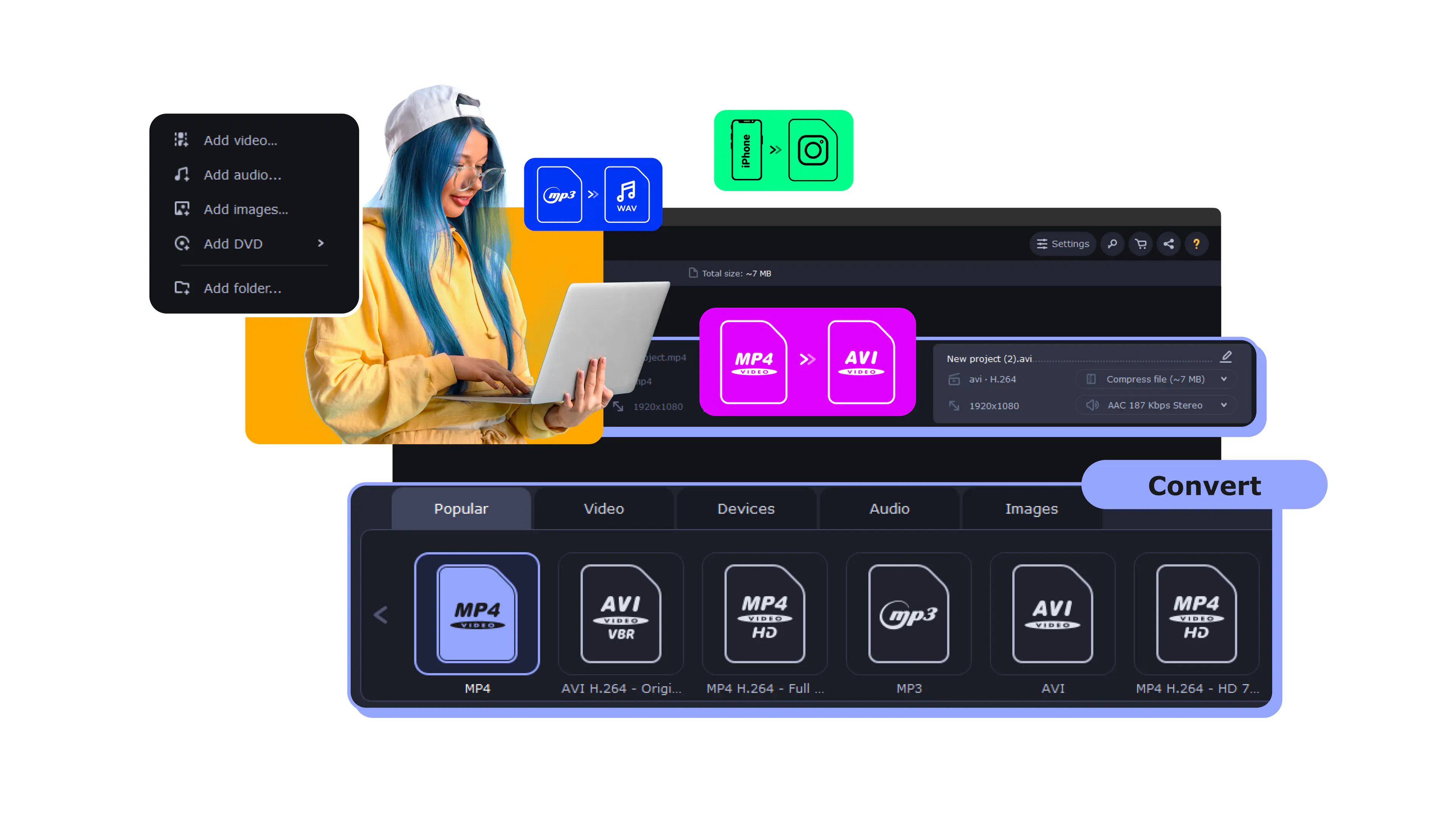
Use Movavi Video Converter!
Lightning-fast conversion
Batch processing of files – any number, any size
No quality loss, even with 4K videos
Easy editing and compression

GIFs have been a popular form of media since the early 2000s. People use GIFs to convey an emotion or for comedic relief. In this article, we’ll show you how to convert a video to a GIF on different platforms.
Here’s what Movavi’s team does to provide you with verified information:
When selecting products to include in our reviews, we research both demand and popularity.
All the products covered in this article have been tested by our team.
When testing, we compare key characteristics, including supported input and output formats, quality loss when converting, and other significant features.
We study user reviews from popular review platforms and make use of this information when writing our product reviews.
We collect feedback from our users and analyze their opinions of Movavi software as well as products from other companies.
There are millions of PC and Mac users from around the globe. If you’re one of those users then you’re in luck. Using a PC or Mac to change video to GIF is quick and easy if you have the correct platform. Here are the top three platforms to get the task done.
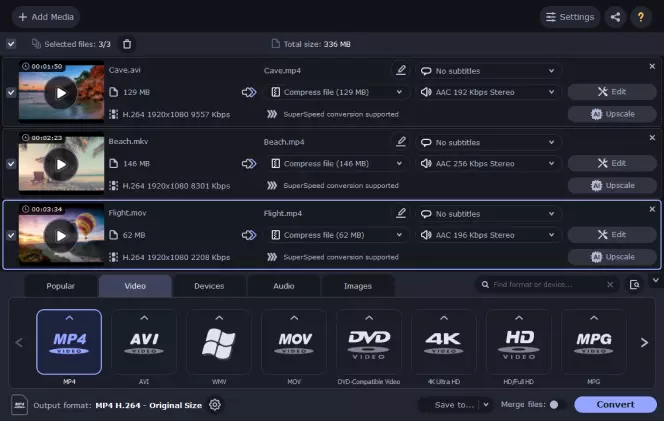
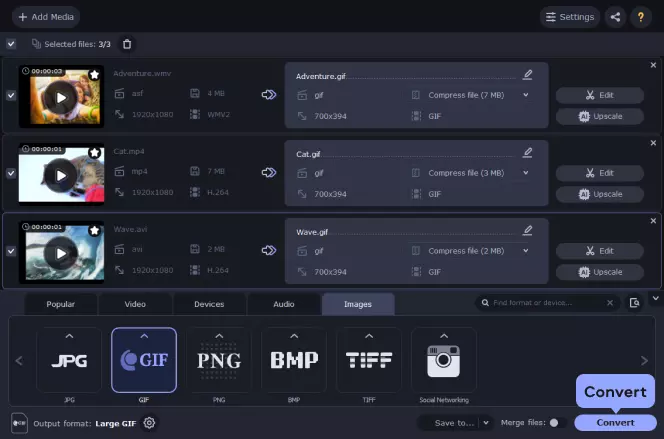
Movavi Video Converter is incredibly fast and easy to use. With this handy GIF generator, you can make your own high-quality animated GIFs out of videos to entertain your friends and stand out from the crowd. Learn how to make a video into a GIF using Movavi Video Converter in this step-by-step guide:
Download the installation file on your Mac or PC device. Then follow the instructions to complete the installation.
To add your files to the program, click on the Add Media button. Then select Add Video and pick the file you want to convert into a GIF.

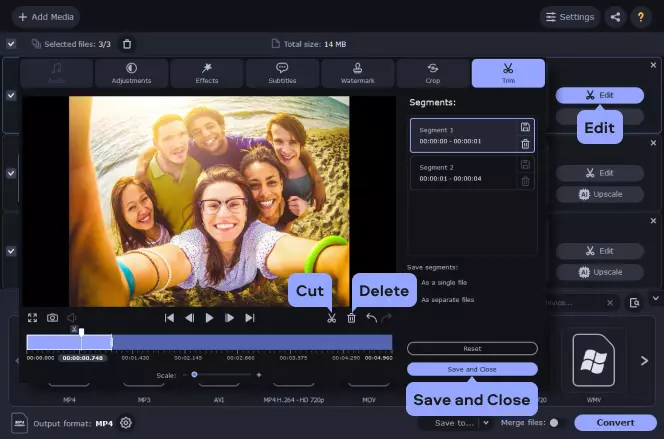
To the right of the imported file, you’ll find the Edit button. In the editing window that pops up, move the marker under the video to specify the point at which your video will be first cut. If you just want to cut the clip in two, click the Scissors icon, select the fragment you don't need for the GIF, and hit the Trash Can icon.
If you want to cut one or more fragments in the middle, mark the desired cutting points by clicking the Scissors icon. You can also drag the cutting points around on the timeline. Select the segment(s) you want to delete and click the Trash Can icon. Hit Save and Close when you're satisfied with the resulting footage.
Go to the Images tab, open the GIF preset group and select the preset. You can also use the Cogwheel icon to set up your frame rate, frame size, quality, and resize method.
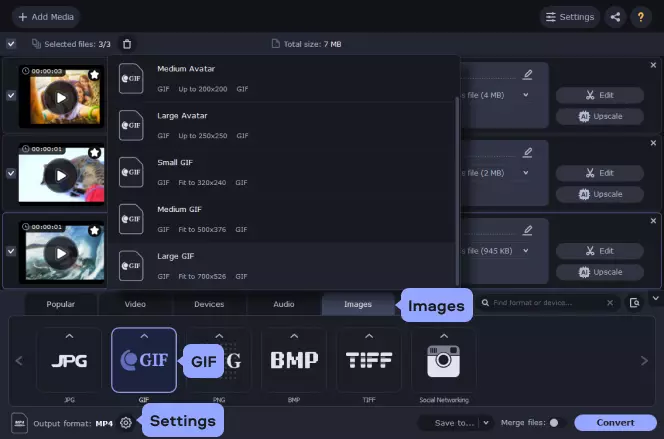
Once you’re done with choosing your GIF size, click the Convert button and then wait for your file to convert. The folder with your GIF files will open automatically.
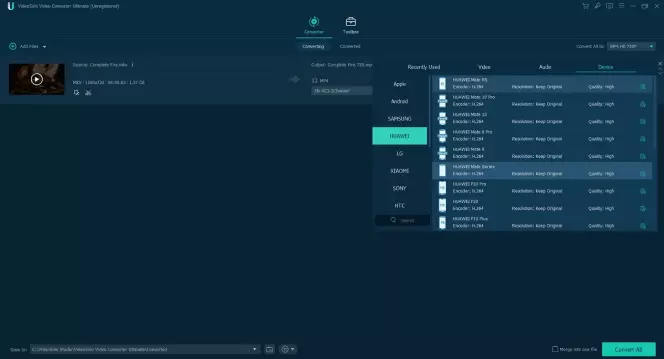
VideoSolo is a platform that allows you to edit, compress and merge videos on one user-friendly interface. Add filters and subtitles to your GIFs as well as a watermark. Learn how to turn a video into a GIF with VideoSolo in this step-by-step guide:
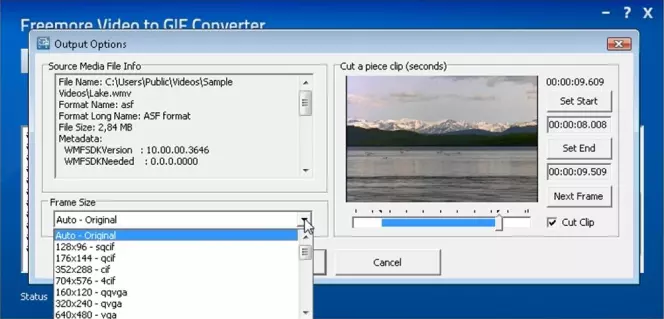
With Freemore you can convert any video file to GIF without losing the HD quality. You can clip any part of a large video to make your animated GIF. What makes this video converter popular is that it’s 100% free and it supports all video formats such as AVI and MP4. Learn how to convert a video into a GIF with Freemore in this guide below:
For those who don’t want to download a video converter onto their device, you can make GIFs online. With an online GIF generator, you can save your creations on your device as you would with any other downloadable program. Here are three online converters to choose from.

GIPHY is a video to GIF converter that can be used on laptops, tablets, PCs, and smartphones as long as you have an internet connection. The program accepts video formats such as MP4 and MOV. What’s more, you can decorate your GIFs with stickers, filters, and captions. Here’s how to change a video to a GIF using GIPHY:
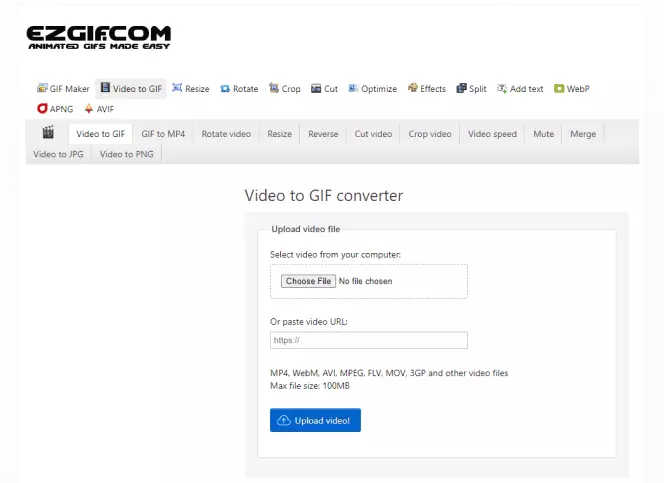
Whether you want to create a looping GIF or add special effects to it you can with Ezgif. It has a user-friendly interface and converts your files quickly. With this platform, you can create an animated GIF with files that are in any format such as AVI or MP4. Here’s how to change video to gif with Ezgif:
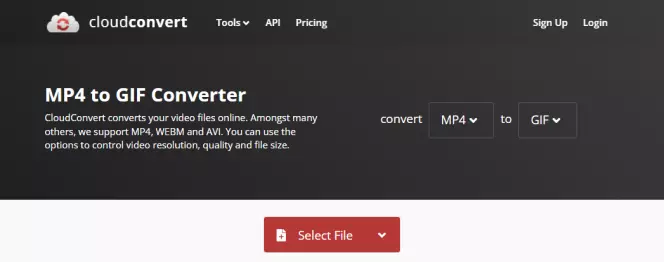
CloudConvert offers an easy-to-use program online so you can make quality GIFs fast. It supports video formats such as MP4, AVI, and WEBM. It has tools so you can customize resolution and size. Here’s how to save your video as a GIF with CloudConvert:
It can be difficult finding the right GIF converter if you use an iPhone. Here are two platforms you can use that will make the task easier for you.
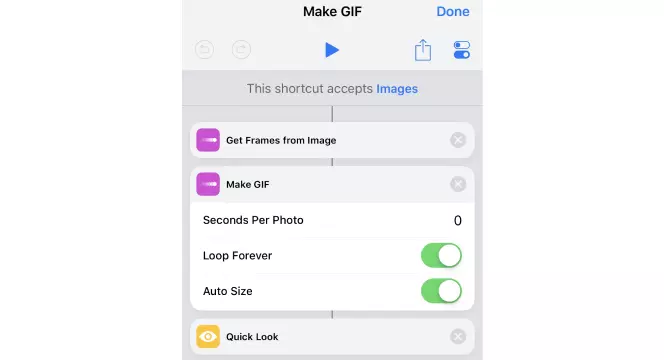
Shortcuts is a built-in iOS platform that you can use to make quality GIFs on your iPhone. With this program, you can save your GIFs directly in your smartphone’s gallery. Shortcuts are quite versatile because it allows you to create PDFs too. Here’s how to use the app for GIF creation:
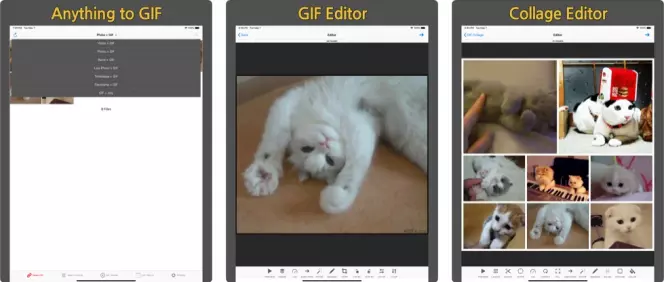
If you don’t want to be limited by built-in iPhone apps you can try platforms such as GIF Toaster. With this platform, you can convert different types of media into GIFs quickly and easily. It doesn’t lower the quality of your GIFs when you convert your files. Here’s how to get the task done:
Android users have specific apps they can utilize to make high-quality GIFs out of their videos. Here are two platforms that work best for Android operating systems.
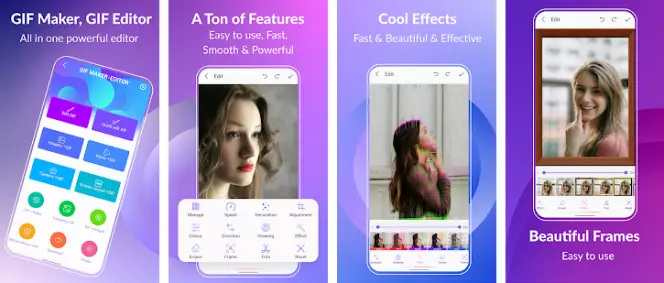
This app has a user-friendly interface and has all the tools needed to create high-quality GIFs from videos. You can create GIFs without watermarks and it supports popular video formats such as MP4. Here’s how to use it:
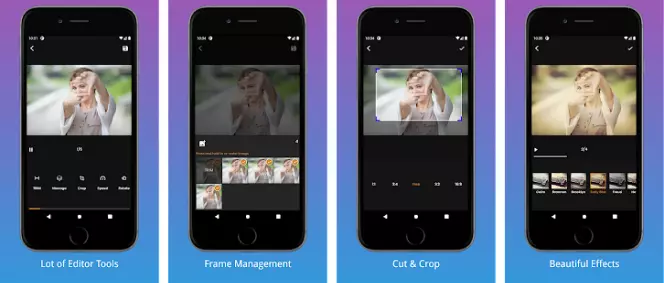
GIF Maker, Video to GIF has effects to spruce up your GIFs such as filters and you can manage the frame rate and speed. You can also add stickers or draw on your GIFs to highlight important parts. Here is how to use the app.
As you can see in our guide, there is a video to GIF converter for all operating systems. You just need to choose the correct one. In short, here is how to choose the correct platform for your GIFs:
You can use Movavi Video Converter to convert a video to a GIF:
Here’s a list of the best apps:
Follow the link below to find out more options:
NTSC vs. PAL – Which Is Better and What Is the Difference
Convert MP4 to AVI Free & Online [Fast & Easy]
15 Best RAW File Converters in 2026 – Movavi Image Converter
10 Best Video Compressors for Discord [2026] – Movavi
MP4 to MP3 Converter [Free & Online] – Movavi Video Converter
How to Convert a CD to MP3: Best Ways to Rip CD Audio Tracks to MP3



1.5M+ users already subscribed to our newsletter