Step 1. Install and launch Movavi Screen Recorder
Download the app, install it in minutes, and open the recorder. The interface is clean, modern, and doesn’t waste your time hunting for buttons.
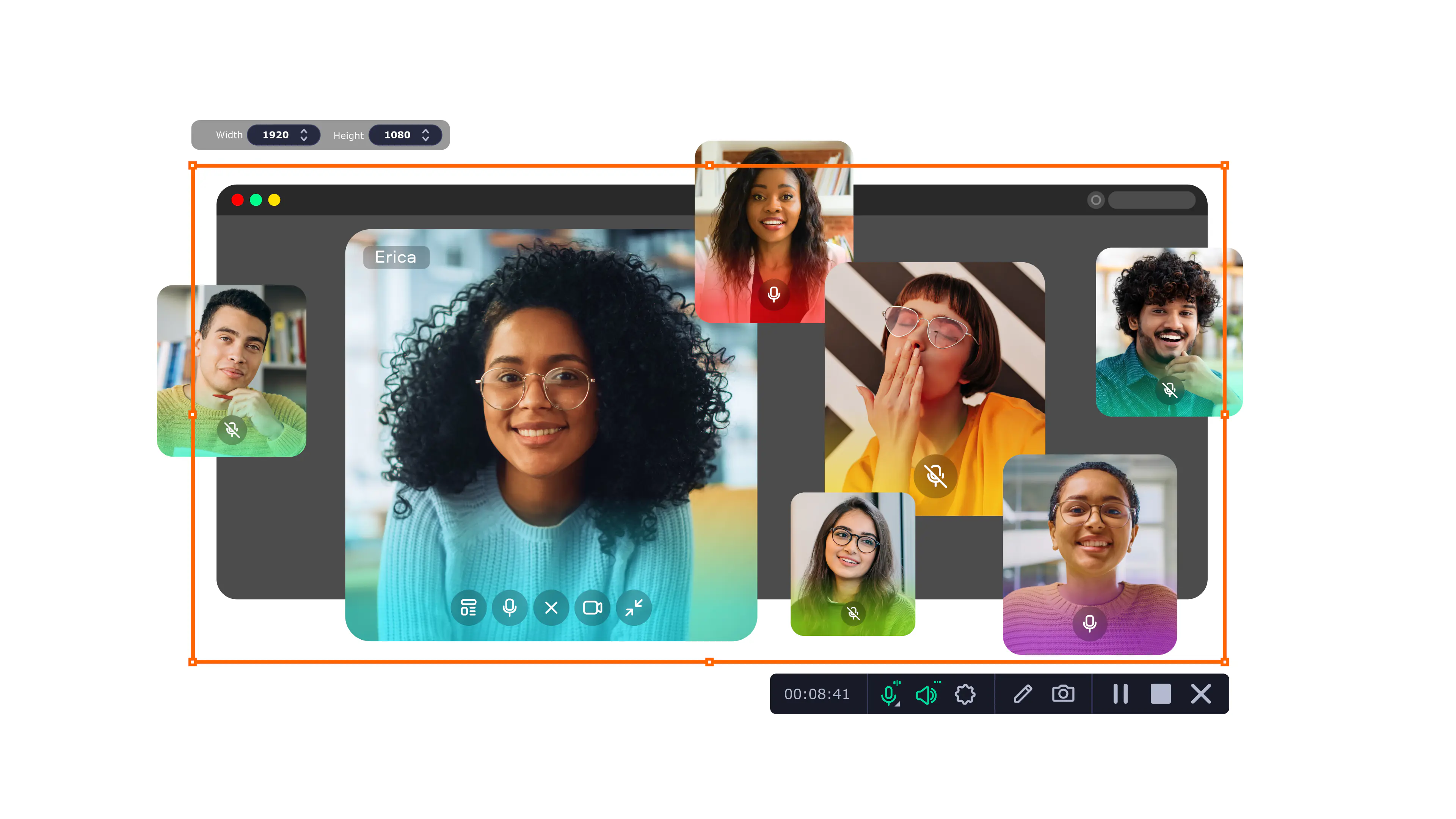
Audio Recorder by Movavi
Use Movavi Screen Recorder:
Capture system audio and your microphone
Schedule and annotate your recordings
Edit your recording with ease
Features to record audio from a computer
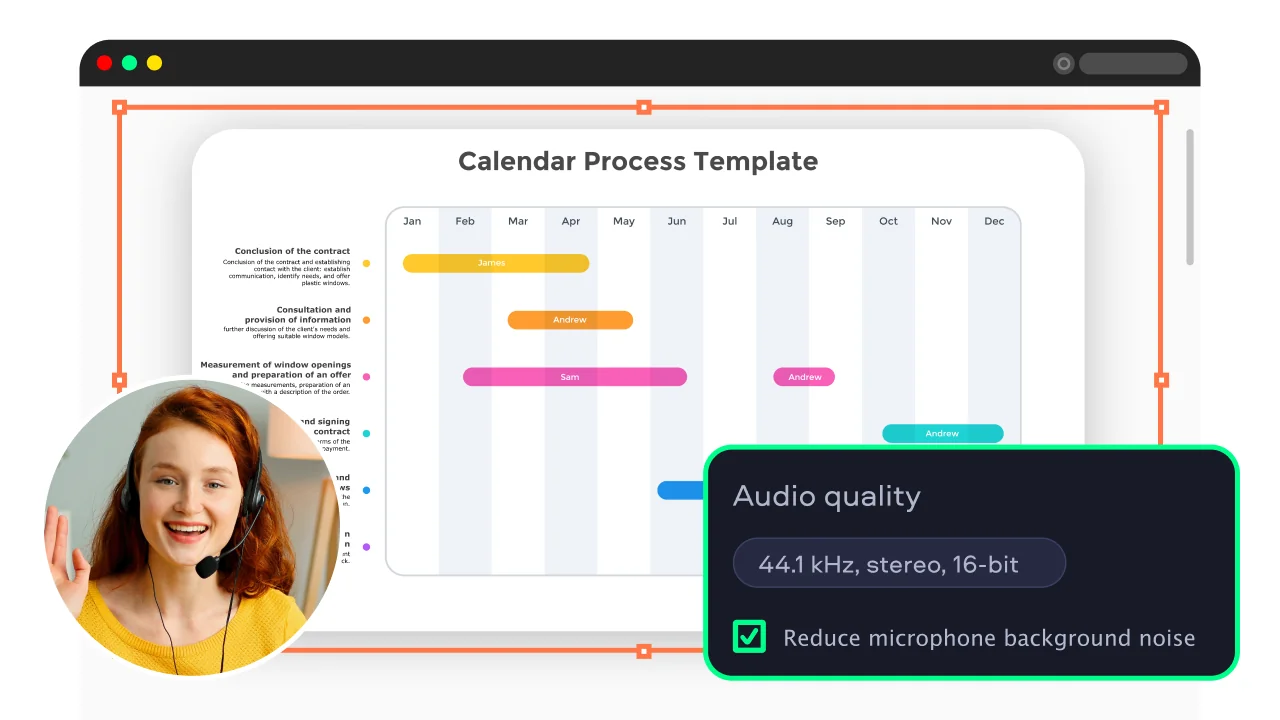
AI noise reduction
Cut out background noise automatically with AI noise reduction. Keep your narration clear and your recordings distraction-free.
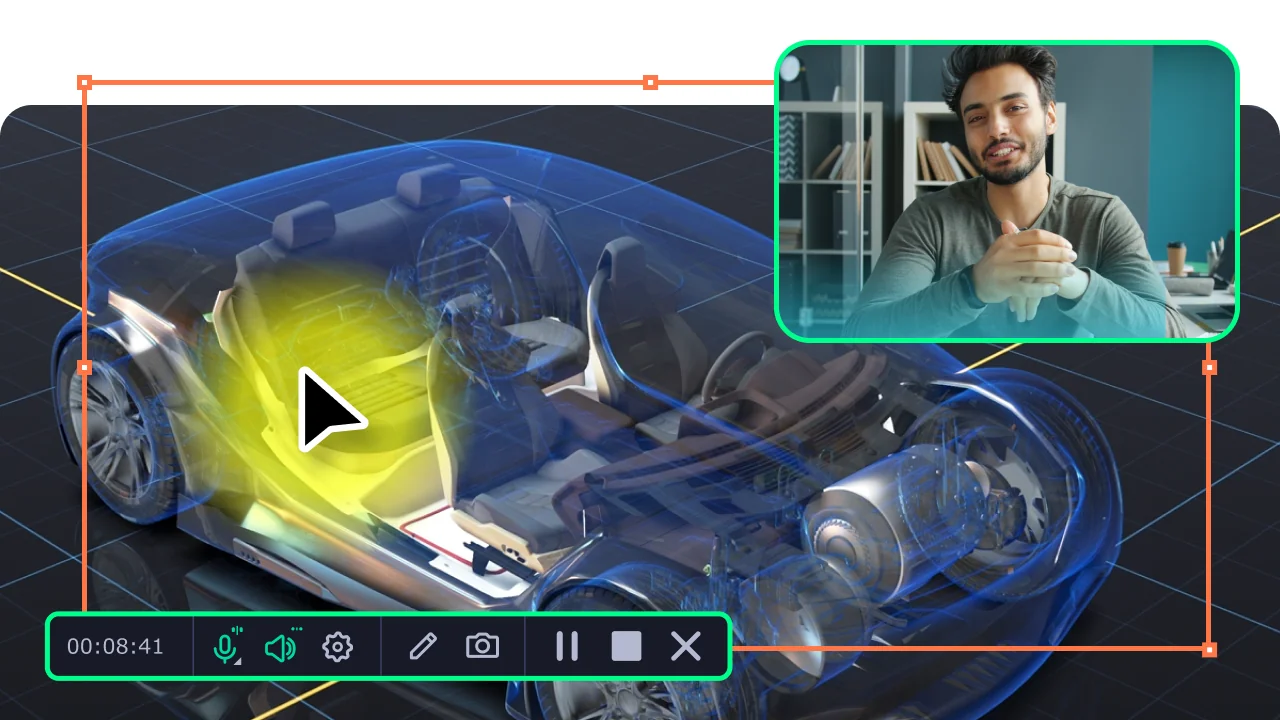
Webcam capture & overlay
Add a personal touch to your recordings. Overlay your screencast with a webcam video to show who the real hero is.
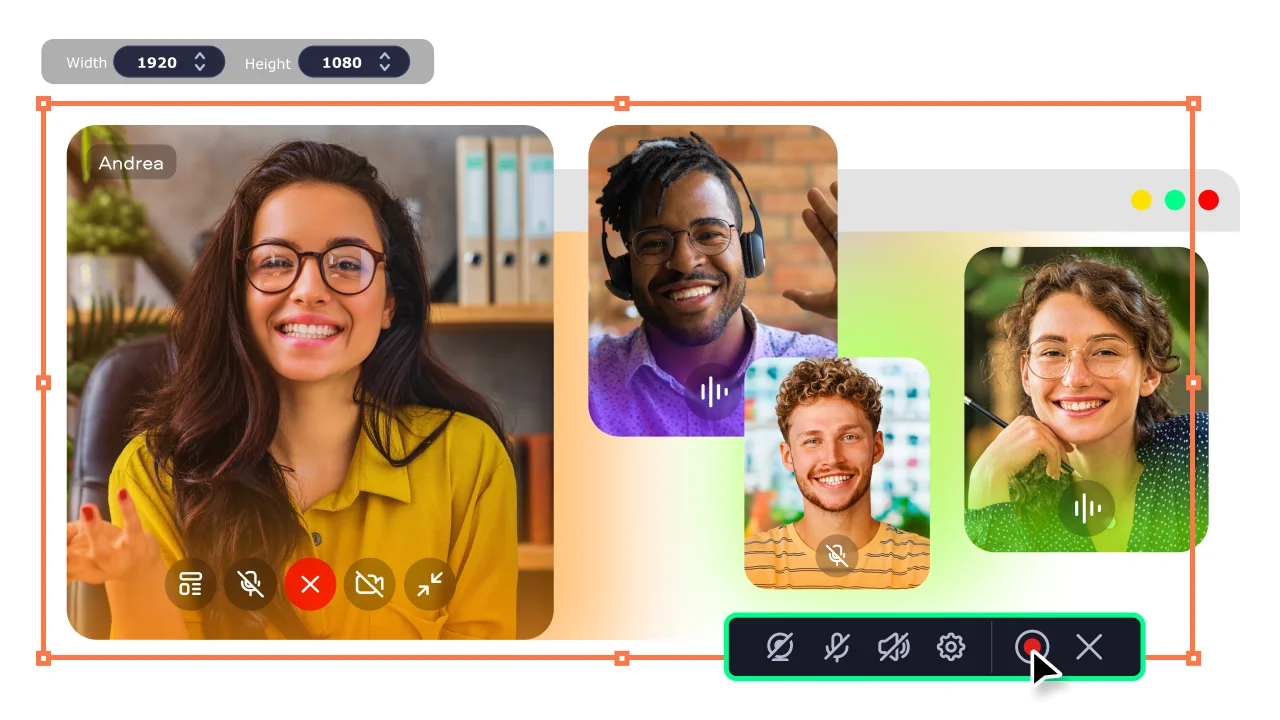
Hassle-free screencast creation
Effortlessly capture screens to never miss a single thing. Select full-screen or custom area recording and grab online calls, webinars, video lessons, and more.

HD & 4K screen capture
Record your screen in stunning HD or 4K resolution for crisp, clear videos every time.
How to record computer audio with the Movavi audio recorder
Step 1. Install and launch Movavi Screen Recorder
Download the app, install it in minutes, and open the recorder. The interface is clean, modern, and doesn’t waste your time hunting for buttons.
Step 2. Adjust settings before recording
Open the Preferences panel to select format, quality, and shortcuts. This quick setup helps you record computer audio exactly the way you need, without extra cleanup later.

Click Screen recording and enable System audio to record audio from computer apps, browsers, or media players. You can mute the mic if you want a clean capture with zero background noise.
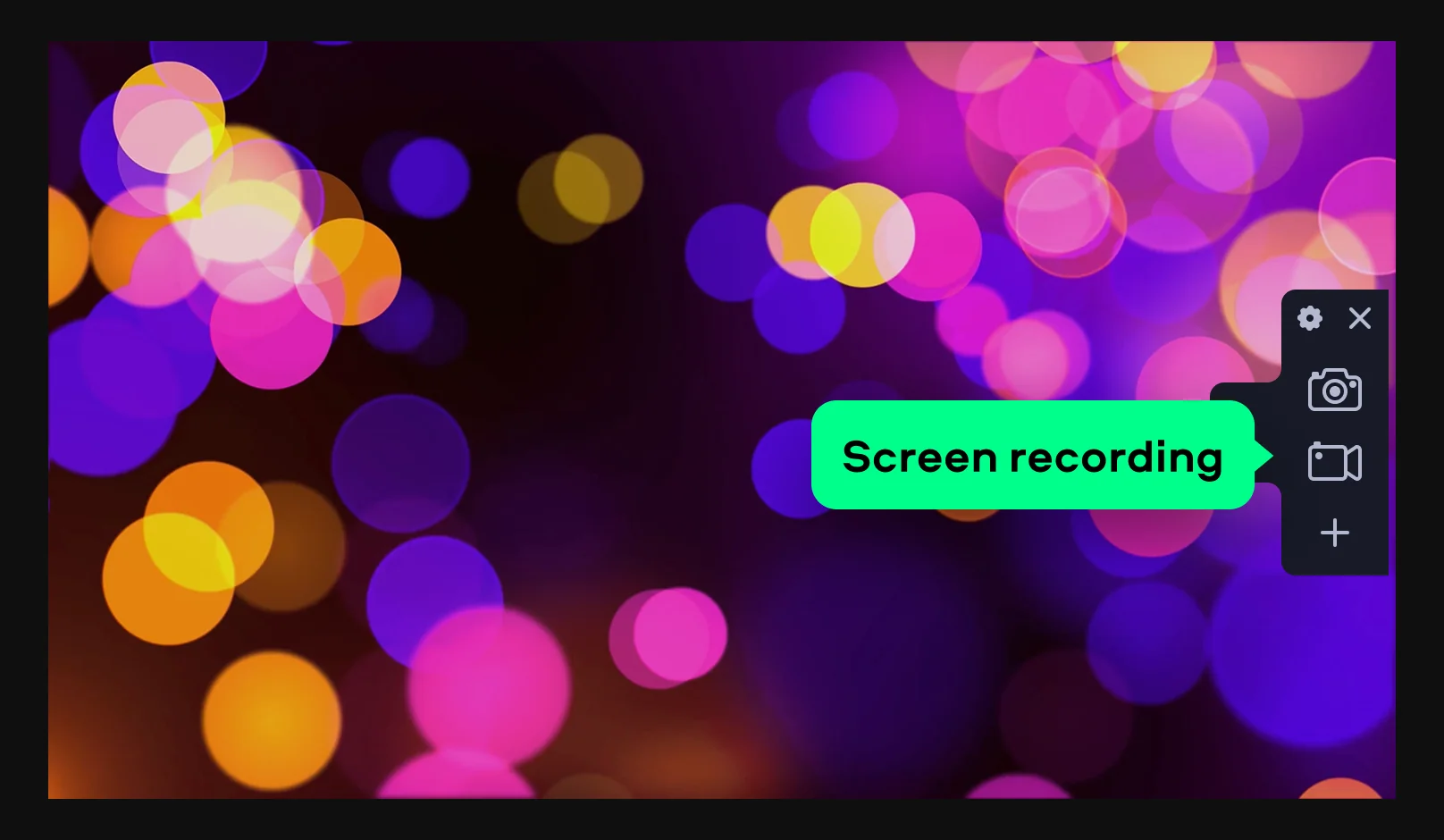
Step 3. Start recording and monitor levels
Hit REC and play your content. Watch the sound levels in real time to avoid distortion, clipping, or awkwardly quiet results.
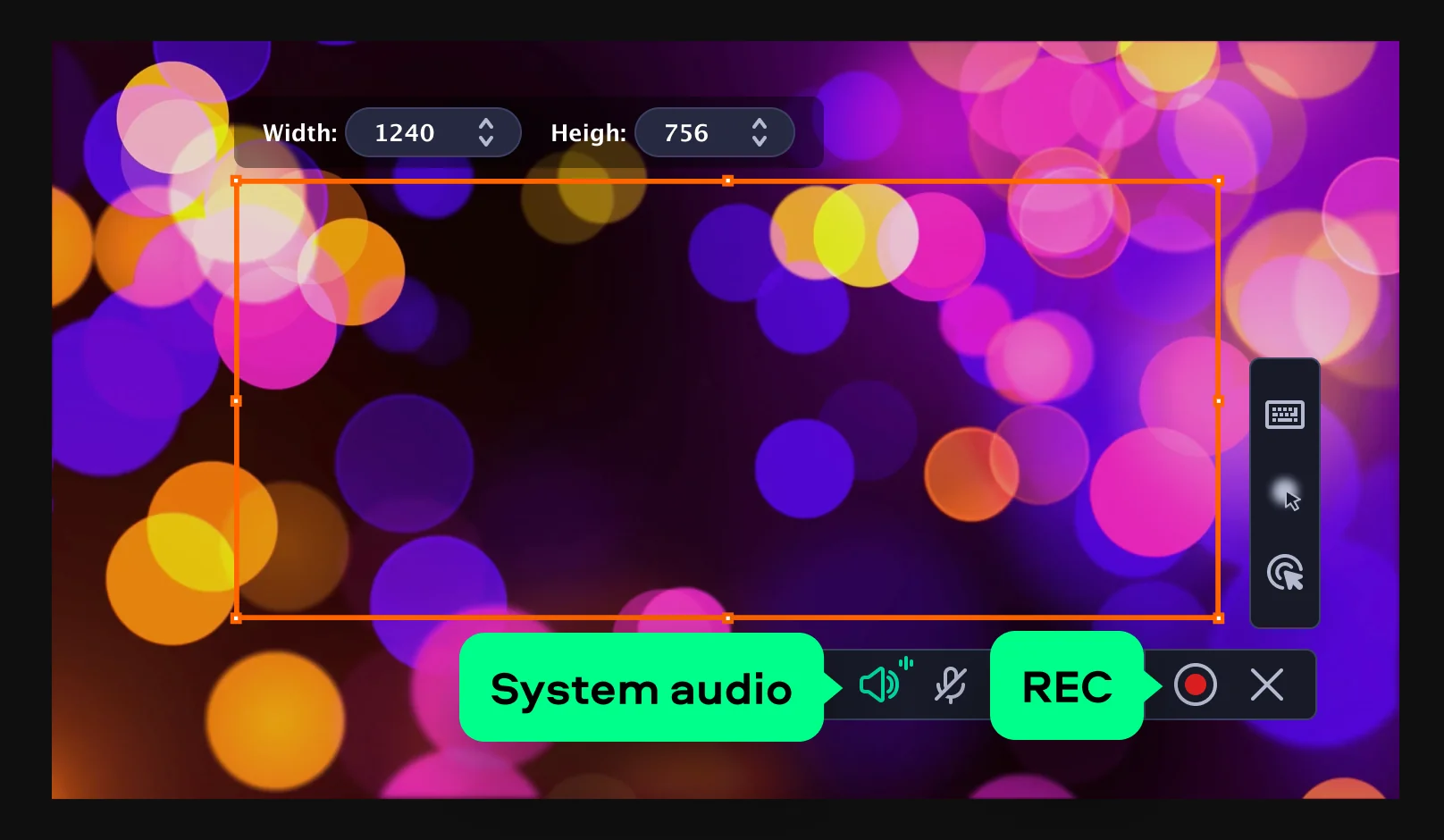
Step 4. Save, edit, and export
Stop recording, trim mistakes, and export your file in a share-ready format. It’s fast, intuitive, and doesn’t interrupt your workflow.

More tools for recording and editing
How to choose audio recording software
Choosing the right audio recording software isn’t about chasing features you’ll never use. It’s about finding a tool that fits how you actually work, whether that’s casual clips or polished production. The smartest tools fade into the background and let you focus on the moment you’re trying to capture, not the menu you’re clicking through.
Start with control. A good recorder should let you isolate system sound, microphone input, or both. This matters if you’re capturing streaming audio, internal app sounds, or narration. If the software can’t clearly separate sources, your final file will always feel messy, no matter how carefully you planned the session.
Next, think about use cases. One creator might need to capture a voice memo for a podcast intro, while another is recording internal audio for a tutorial. Movavi Screen Recorder handles both with minimal setup, which makes it useful for beginners and still satisfying for experienced users who just want things to work.
Case example #1. A content creator records Spotify previews for a review channel. Using Movavi, they can record audio from computer playback directly, trim clips instantly, and export in high quality – no plugins, no guesswork, no strange compression artifacts.
Case example #2. A remote worker records training sessions straight from their desktop, pairing system sound with commentary. Because the tool is built for clarity, the result feels polished enough to share company-wide without a long editing session afterward.
Case example #3. A student needs quick lecture clips and compares tools like an audio recorder online versus desktop apps. Online tools are convenient, but Movavi delivers better stability, higher fidelity, and offline reliability, especially when lectures run long.
You’ll also want to decide between downloadable tools and a browser-based online audio recorder. Online options feel fast, but they often compress files or limit session length. Desktop software gives you consistency and better results, which matters when you need to record computer audio repeatedly on a PC.
Finally, don’t assume free audio recording software always means better. Some free tools work, but they often hide limits behind exports or watermarks. Movavi strikes a balance: accessible, efficient, and reliable on Windows, including Windows 10 and Windows 11 – a strong contender if you’re wondering how to choose the best tool without overthinking it.

Frequently asked questions
You can use Movavi Screen Recorder
To learn more options for recording audio, follow the link below.
Windows includes a built-in app called Sound Recorder that is a useful mic audio PC recorder. However, the application doesn’t record system sound. We recommend using a tool like Movavi Screen Recorder instead if you need system sound too.
Yes, Windows includes Sound Recorder, a basic app designed for simple tasks. It works for quick notes and basic captures, but it lacks advanced controls, system audio capture, and editing tools. If you want more flexibility, better sound quality, and real-world usability, third-party tools are usually the best option.
You can, as long as you follow local laws. Most laptops have built-in microphones that handle conversations well. For clearer results, use software that lets you control mic levels and system audio separately. Dedicated tools also help remove mistakes and export clean files for sharing or archiving.
Use a recorder that lets you disable video and focus only on audio input. Apps like Movavi Screen Recorder allow you to capture system sound, microphone input, or both – no visuals required. This approach is ideal for podcasts, interviews, or quick clips when video isn’t needed.
Yes, most PCs include basic recording apps, but they’re limited. For better control, quality, and flexibility, dedicated tools outperform built-ins. They’re easier to use, more stable, and better suited for modern tasks like tutorials, media capture, and internal audio recording.
70M+


Disclaimer: Please be aware that Movavi Screen Recorder does not allow capture of copy-protected video and audio streams.



1.5M+ users already subscribed to our newsletter