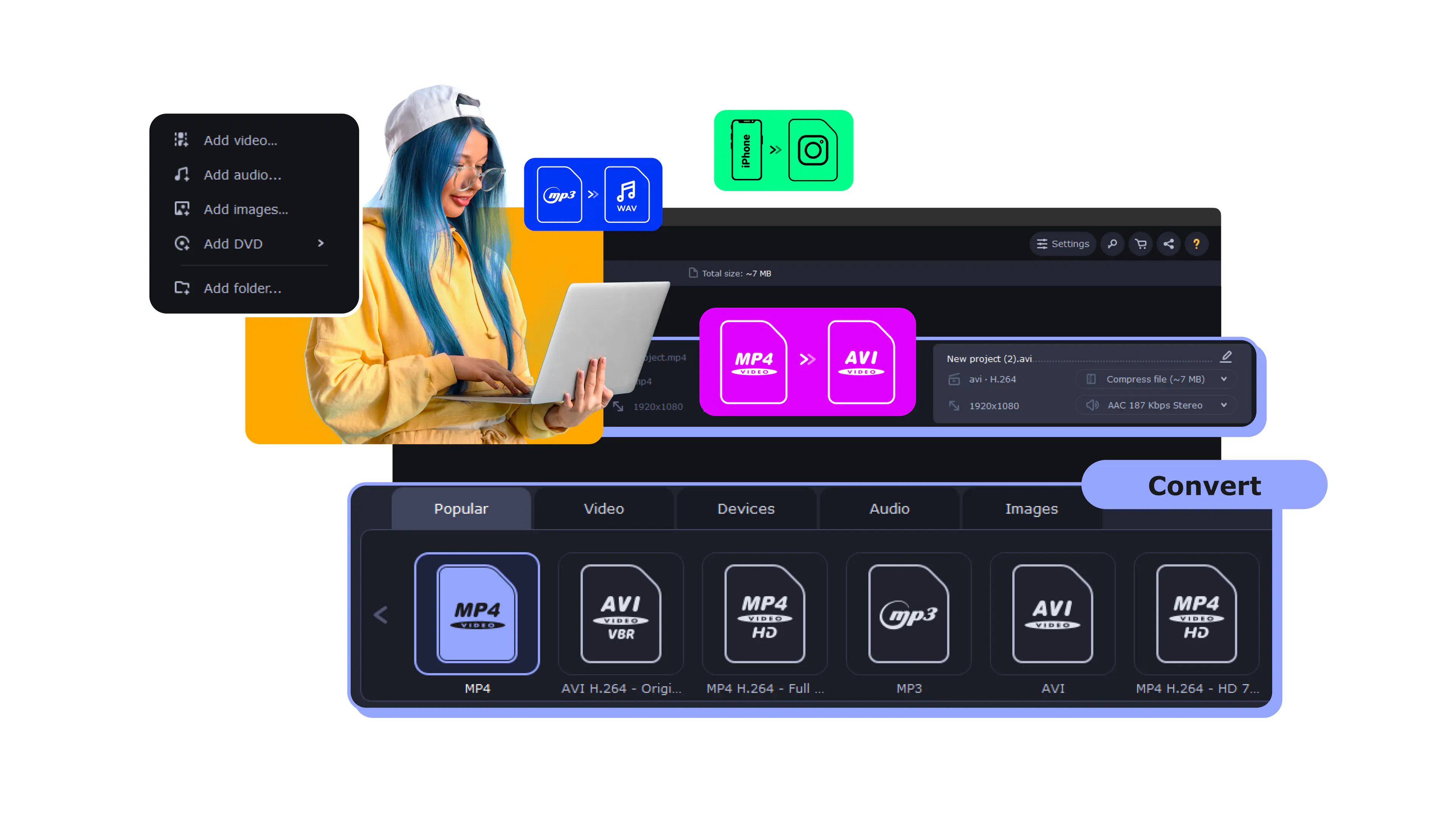
This is the exact process in Movavi Video Converter, a program built specifically for changing video, audio, and image formats without any of the fuss.
How to Convert MP4 to MP3
Use Movavi Video Converter!
- Lightning-fast conversion
- Batch processing of files – any number, any size
- No quality loss, even with 4K videos
- Easy editing and compression

Edited by
35,651
If you talk to a camera for a living, you'll run into this need constantly. You could be looking to drop a Q&A video into a podcast feed, share "just the audio" with an interview guest, or compress a multi-gigabyte video into a lightweight email attachment. Whatever the reason, turning a video file into an audio file is a two-minute job once you have the right converter. With a high-speed tool like Movavi Video Converter – trusted by over 70 million users worldwide – the process is simple and completely effortless.
Why bloggers and Youtubers convert MP4 to MP3
A talking-head video is really an audio recording with a face attached. Once you notice that, the reasons to strip out the audio start piling up:
- Repurposing content. Say you just wrapped a 45-minute sit-down interview for your channel. That same recording, minus the video track, becomes a podcast episode without re-recording a single word.
- Smaller files. An MP3 of a 20-minute talking-head video is a fraction of the size of the MP4, which matters when you're emailing a guest a copy or archiving old projects.
- Audio-only platforms. Podcast apps, voice memos, and some CMS tools want an audio file, not a video file.
- Editing elsewhere. Some creators pull the audio into a separate program to clean up sound before dropping it back into the final cut.
None of this needs to be complicated. It's a straightforward format swap, done in the time it takes to grab coffee.
How to convert MP4 to MP3 in 4 steps
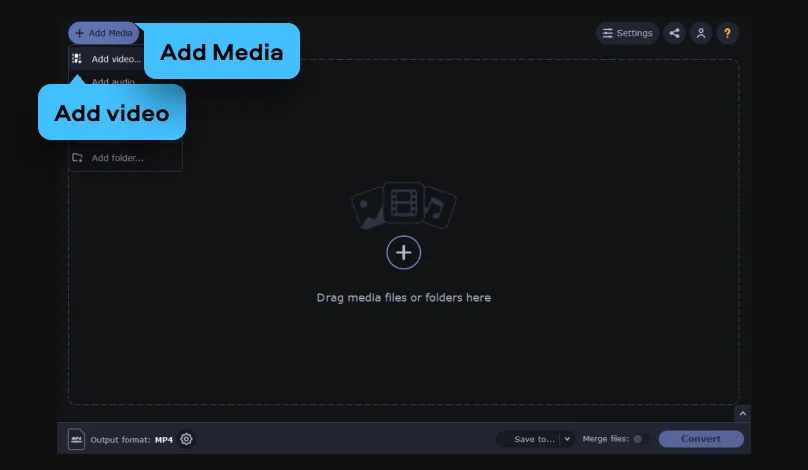
Step 1. Add file
Open the program and click Add Media > Add video to bring in the MP4 you want to convert. You can add more than one video at a time if you're batch-converting a folder of clips.
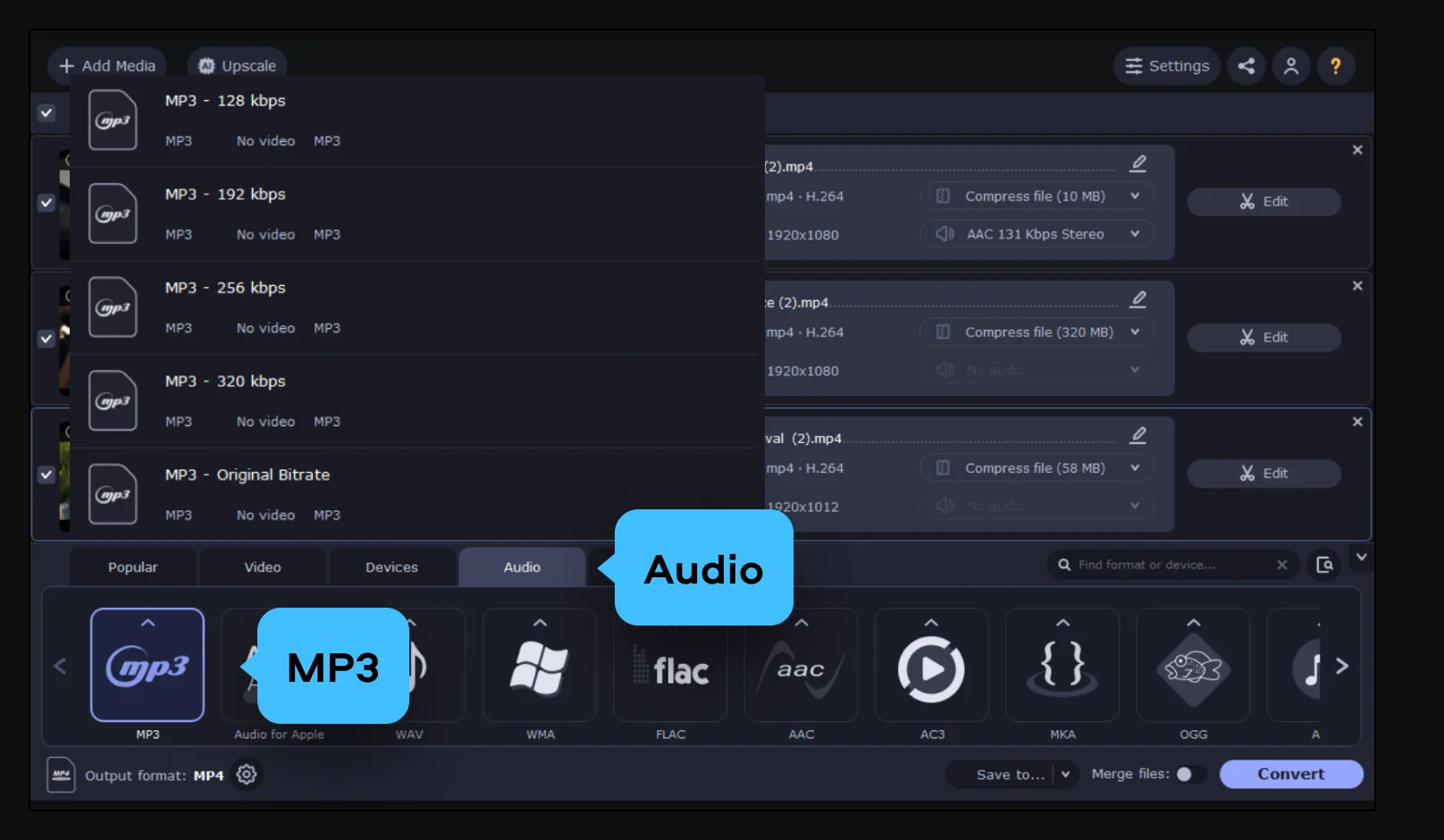
Step 2. Choose MP3 and set your quality
Open the Audio tab, pick MP3 from the format list, then use the audio quality setting to choose your bitrate. Higher bitrates mean better sound and slightly bigger files. More on which one to pick below.
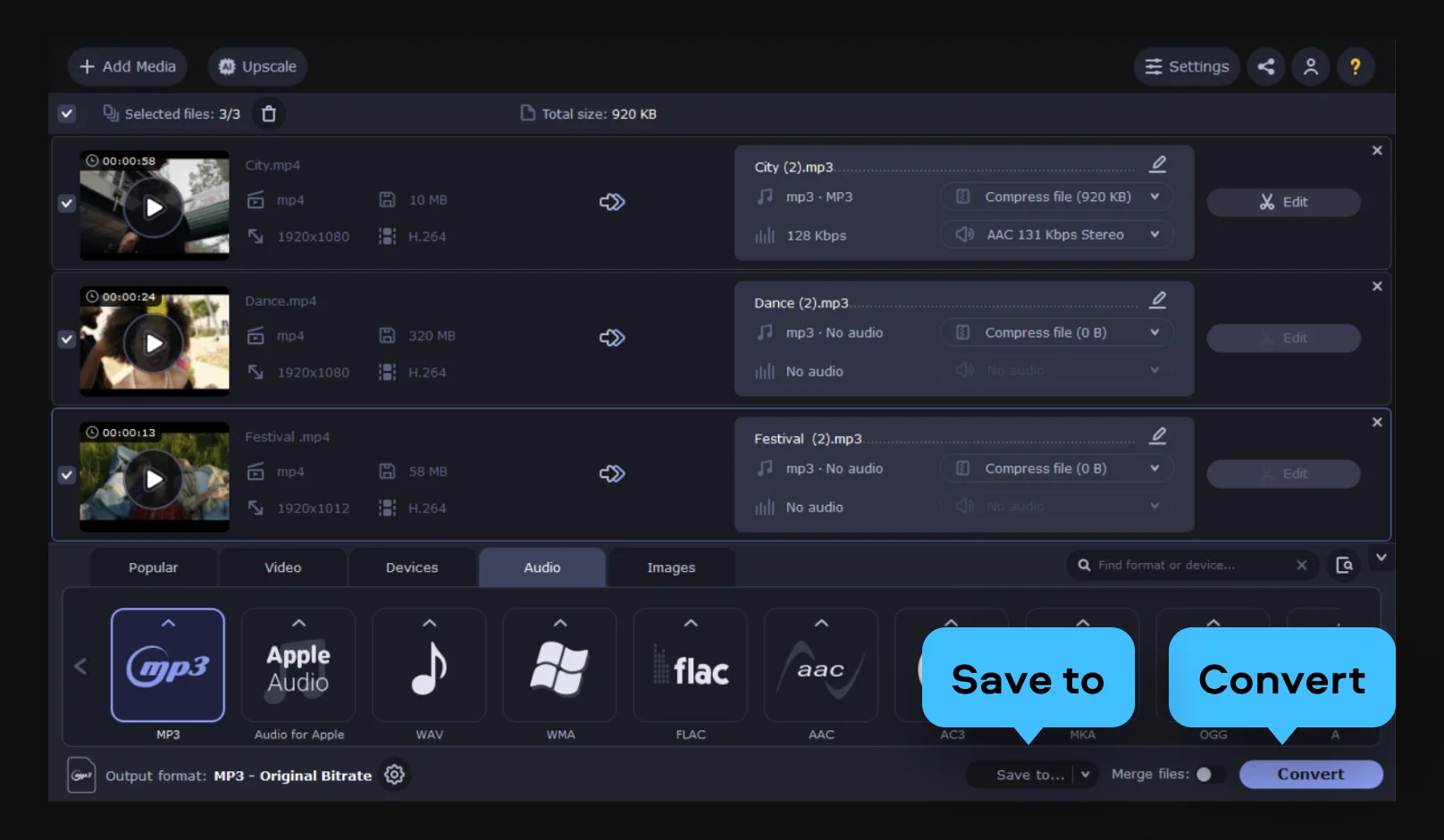
Step 3. Convert
Hit Save to and pick the destination folder, then click the Convert button. Your new MP3 files show up in that folder once it finishes, ready to edit, upload, or send along.
Which MP3 quality should you pick?
MP3 files are measured in bitrate – how much data is packed into each second of audio. The higher the number, the closer the file sounds to the original recording.
If you're not sure which to pick, 320kbps is the safe default – it's the highest standard MP3 bitrate, so you're not leaving any audio quality on the table.
Why convert offline instead of using a web tool
Browser-based converters ask you to upload your video to someone else's server, wait in a queue, and download the result, assuming the file isn't too big for the free tier. An offline program skips all of that:
- No file size ceiling set by a website's upload limit
- No internet required once the software is installed
- Faster conversion, since the file never has to travel to a server and back
- More control, with settings like bitrate sitting right in front of you instead of buried in an "advanced options" toggle you have to hunt for
Movavi Video Converter is a free download for both Windows and Mac, so you can try the process on your own footage before deciding it's part of your regular workflow.
What else the same converter handles
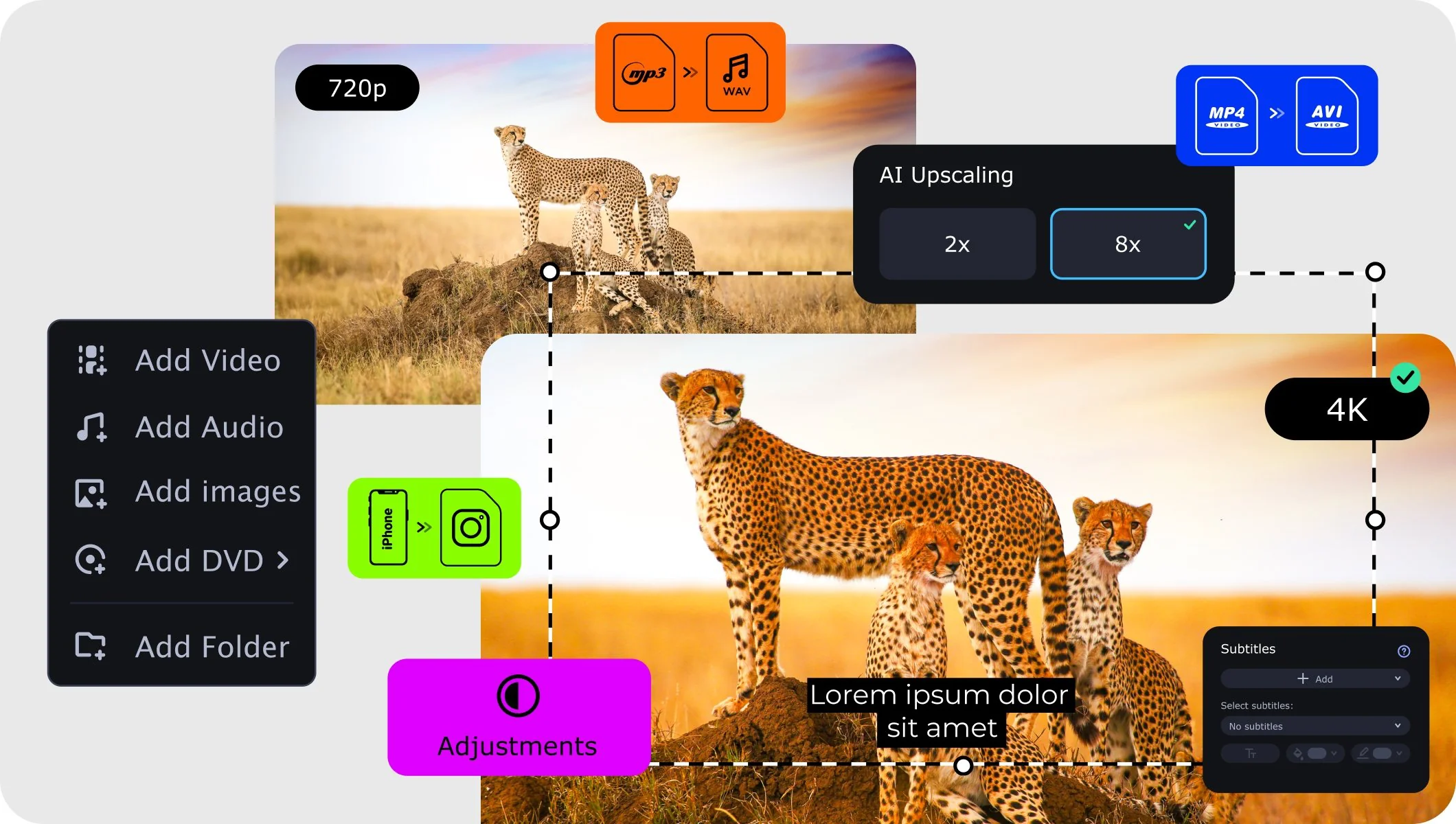
MP4 to MP3 is just one direction. The same program that pulls audio out of your talking-head videos also converts between video formats (MP4, MOV, AVI, MKV, WMV, and more), compresses large video files without a visible drop in quality, and can upscale video resolution with AI – handy if you're prepping an old vlog for a bigger screen. It's one download that covers most of the format headaches a creator runs into – today's single MP3 export, next month's batch of old clips, whatever comes up.
Clearing out a backlog of old talking-head videos
Most creators have a folder somewhere full of raw interview footage, old vlogs, or Q&A recordings that were never trimmed into anything. If you've been sitting on that backlog because reprocessing each file one by one felt like a project on its own, batch conversion solves it in one pass: add the whole folder, set MP3 as the output once, and let the program work through every file while you do something else. What used to be a drive full of untouched video becomes a folder of lightweight audio you can actually search through, archive, or repurpose. It's one of those tasks that feels bigger in your head than it is once the software is actually doing it.
Movavi Video Converter
The ideal way to get your media in the format you need!
Frequently asked questions
Is there a free way to convert MP4 to MP3?
Is there a free way to convert MP4 to MP3?
Yes. Movavi Video Converter is a free download for Windows and Mac, so you can convert your files before deciding whether to upgrade to the full version for more features.
Do I need an internet connection to convert MP4 to MP3?
Do I need an internet connection to convert MP4 to MP3?
No – that's the advantage of offline software. Once the program is installed, the conversion happens on your own computer, with no upload or download step in between.
Will converting MP4 to MP3 lower the audio quality?
Will converting MP4 to MP3 lower the audio quality?
It can, depending on the bitrate you choose. Pick 320kbps for the highest quality output, or a lower bitrate like 128kbps if file size matters more than audio fidelity.
Can I convert more than one MP4 file at a time?
Can I convert more than one MP4 file at a time?
Yes. You can add multiple files before starting the conversion, so a whole folder of talking-head clips can be turned into MP3s in one batch instead of one at a time.
Does this work the same way on Windows and Mac?
Does this work the same way on Windows and Mac?
Yes. Movavi Video Converter runs as a native app on both Windows and Mac, and the steps – Add File, Audio tab, quality setting, Convert – are the same on either system.
Can I convert formats other than MP4 to MP3?
Can I convert formats other than MP4 to MP3?
Yes. The same Audio tab accepts most common video formats, and the converter also handles image and video-to-video conversions if MP3 isn't the only format you're chasing down that day.

Have questions?
If you can’t find the answer to your question, please feel free to contact our Support Team.
Join us for discounts, editing tips, and content ideas


1.5M+ users already subscribed to our newsletter