Step 1. Install the Movavi 4K video converter
Launch the downloaded file and follow the on-screen instructions to install the software.
For a quick 4K conversion, the online tool is a handy option – add your clip, pick your output format, and download the result without installing anything. When you're handling full-length 4K footage or several files at once, try Movavi Video Converter. It runs on your Windows or Mac and there are no upload limits and even large files convert in minutes.
If you shoot on a 4K camera, drone, or smartphone – or simply care about high-quality video – you'll often need to convert that footage to or from 4K without losing clarity. Movavi's online converter is built for exactly that, with full 4K support and acceleration, MP4 as the default for the widest compatibility, and batch processing so you can handle several files at once. Here's how to do it:
3G2, 3GP, ASF, AVI, DVD (NTSC), DVD (PAL), FLV, M1V, M2T, M2TS, M2V, M4V, MJPEG, MKV, MOV, MP4, MPEG, MPEG-TS, MPG, MTS, MXF, OGV, SWF, TOD, TS, VOB, WebM, WMV, WTV
4K footage brings its own problems: huge file sizes, playback that stutters on devices that can't keep up, long processing times, and clips that won't play on older hardware at all. Movavi Video Converter is built to handle it – it processes large 4K files with GPU acceleration, supports H.264 and HEVC/H.265 codecs, and helps you strike the right balance between quality and file size, so your video plays smoothly wherever you need it. Here's how to convert it:
Launch the downloaded file and follow the on-screen instructions to install the software.
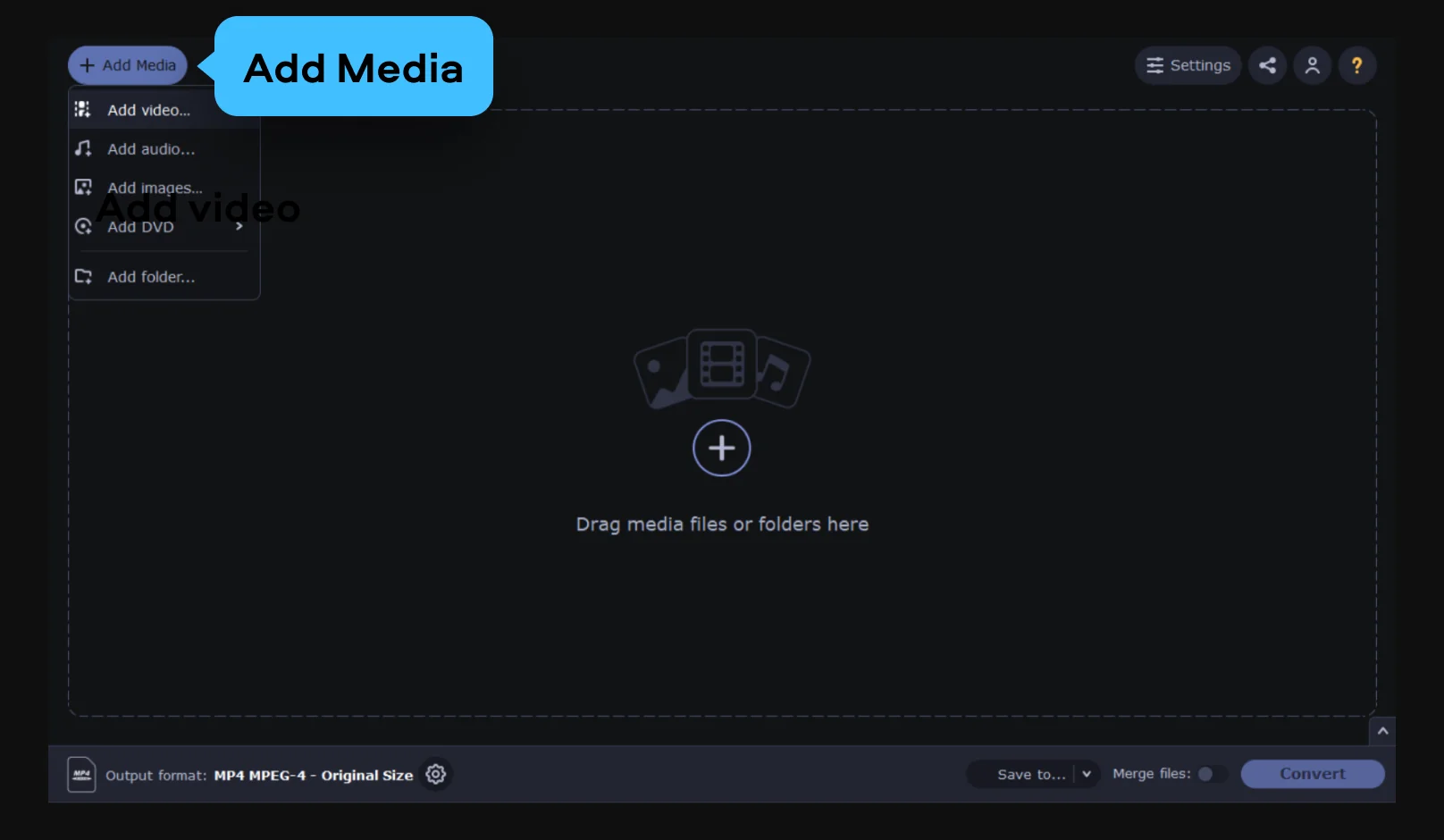
Open Movavi Video Converter. Click the Add Media button and then Add video in the upper left corner of the program interface. Choose the video files you want to convert and click Open.
4K files may have different file extensions, depending on where you obtain them. Blu-ray videos are usually stored in M2TS format, while smartphone-recorded videos are saved in MP4. Still, no matter what the input format of your video is, the Movavi 4K converter will have no problems opening it.
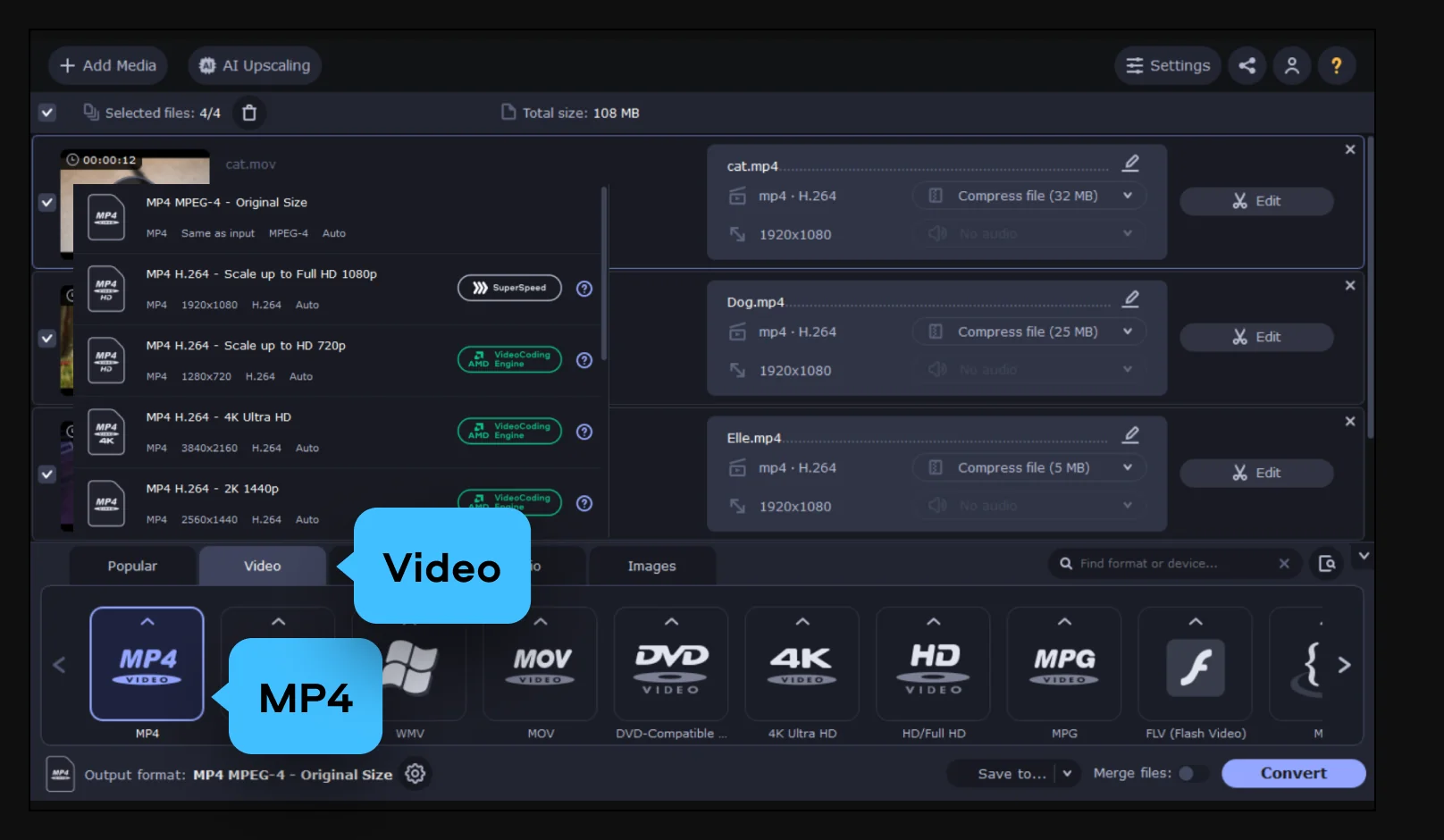
You can choose any output format, but for better compatibility and image quality, MP4 is one of the best options. So, in the lower part of the interface, go to the Video tab and choose MP4, then select the desired preset depending on the screen resolution you need.
Click the Save to button to specify where your converted files should be saved. Hit Convert in the bottom right corner to start the conversion process. When the file is ready, the folder with the output file will open automatically.
Now you know how to downscale videos using the 4K to 1080p converter from Movavi!

3GP, 3G2, 3GP2, 3G2P, 3GPP, ASF, AVCHD, AVI, DivX, DVD, FLV, F4V, M2TS, TS, MTS, M2S, M2T, MKV, MKM, MOV, QT, MP4, M4V, MPG, MPEG, MPE, M2P, M1V, M2V, VOB, DAT, MOD, TOD, VRO, IFO, MXF, OGG, OGV, OGM, RM, RMVB, RAM, RAX, RMX, SWF, WebM, WMV, WTV, AMV, AV1, AVS, BIK, BNK, CAVS, CDG, DPG, DV1394, DVR-MS, EA, FFM, FILM, FILM_CPK, FLC, FLI, FLM, FLT, FLX, GXF, H.261, IVR, MJ2, ML20, MPEG-3, MTV, MVI, MXG, NC, NSV, NUT, NUV, R3D, REC, RVA, RMS, RPL, RTSP, SDP, SMK, SXA, THD, THP, TRP, VFW, WM, WMVHD, WPG
Millions


Common questions about free 4K video converters – safety, quality, and the 4K to 1080p conversion process.
The best approach is to use dedicated desktop software rather than a browser-based tool. While an online 4K video converter can be convenient for small files, 4K footage is large and processing it in a browser tends to be slow and limited. Movavi Video Converter runs natively on your computer and uses GPU-accelerated SuperSpeed mode (NVIDIA CUDA, Intel Quick Sync, AMD AMF, and Apple Silicon) to encode 4K output far faster than real-time. Just install the app, add your file, choose an output format and resolution preset, and click Convert. For most people, a preset-based desktop 4K video converter gives the best balance of speed, quality, and ease of use.
Movavi Video Converter offers a free trial with full access to every 4K conversion feature, including 4K-to-1080p presets, AI upscaling, SuperSpeed encoding, H.265 output, and batch mode. If you're looking for a completely free 4K video converter with no watermark, open-source options like HandBrake exist, though they require more manual setup than Movavi's preset-based workflow.
It depends on the type of conversion. Converting 4K to 1080p intentionally lowers the resolution to shrink file size, so the goal is smaller files rather than higher quality. Switching between codecs, such as H.264 to H.265, can preserve identical visual quality while cutting file size by up to 67%. And Movavi's AI upscaler actually improves perceived sharpness when converting lower-resolution footage to 4K, because it reconstructs detail instead of simply stretching pixels. In every case, conversion can only preserve or intelligently reconstruct quality – it can't recover detail that was never captured. For the best results, always start with the highest-quality source file you have.
Movavi supports all major 4K codecs, including H.264, H.265/HEVC, AV1, and VP9, along with 180+ container formats such as MP4, MKV, MOV, AVI, and WebM. It handles 2K, 4K, 5K, and 8K video. The Devices tab also includes ready-made presets for iPhone, Android, smart TVs, and streaming platforms, so you can convert your footage to the exact format and resolution each device needs without adjusting codec parameters manually.
Yes. Movavi works as both a 4K video converter for Windows and a 4K video converter for Mac. It installs natively on Windows 7 through 11 and on macOS, including M-series Apple Silicon. The conversion workflow is identical on both platforms, and SuperSpeed hardware acceleration is available on Windows GPU setups as well as Apple Silicon. Simply download the correct version for your PC or Mac and start converting right away.


1.5M+ users already subscribed to our newsletter