

How to Add Music to a Video on an iPhone Movavi App

Movavi App lets you add any song, royalty-free background track, or your own recorded audio to any video – import a clip, pick your music, sync it to the footage, and export directly to your camera roll in minutes.

Whether you want to add music to a video for YouTube, enhance an Instagram Reel with the perfect song, or merge separate audio and video files into one clip, Movavi App gives you the audio tools and a complete mobile editor in a single free app – with no desktop computer required.

Trusted by 70 million creators worldwide

70M+

users

190+

countries

15+

updates per year

10,000+

effects to choose from

Key features for adding music to a video on an iPhone

Everything you need to add a song, mix audio, and export a polished video – all in one free mobile app.

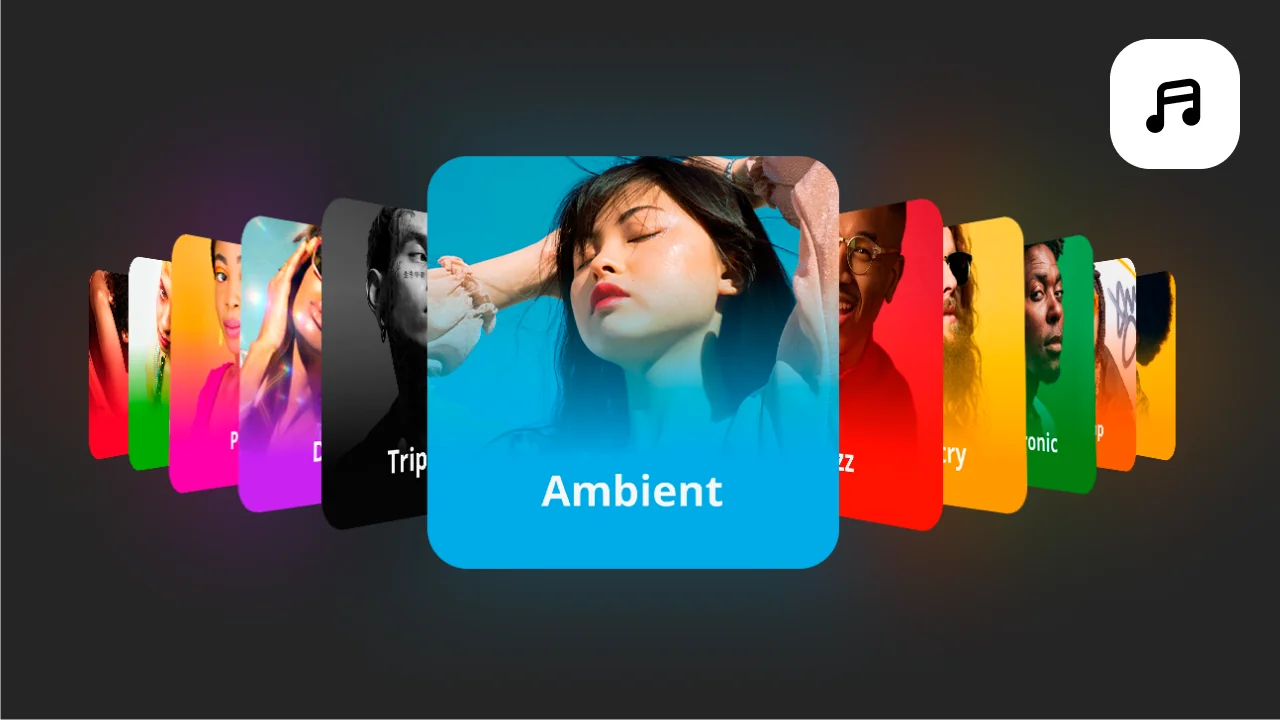
Built-in royalty-free music library – no copyright issues

Movavi App includes a built-in library of royalty-free background tracks organized by mood and genre. Choose a song, preview it against your footage, and drag it to the audio timeline. Every track in the built-in library is cleared for use on YouTube, Instagram, TikTok, and other platforms without copyright claims or monetization blocks. No external download required – the music is right inside the app.

Add any song from your device – MP3, M4A, or voice memos

To add music you already own to a video, import it directly from your Files app, Voice Memos, or any audio file saved to your device. Movavi App accepts MP3, M4A, AAC, and WAV audio files. Drag the imported track to the audio timeline and align it to the video. This is the correct workflow for adding a specific song you’ve purchased or downloaded from a royalty-free source to a video for YouTube or social media.

Volume, fade in/out, and speed

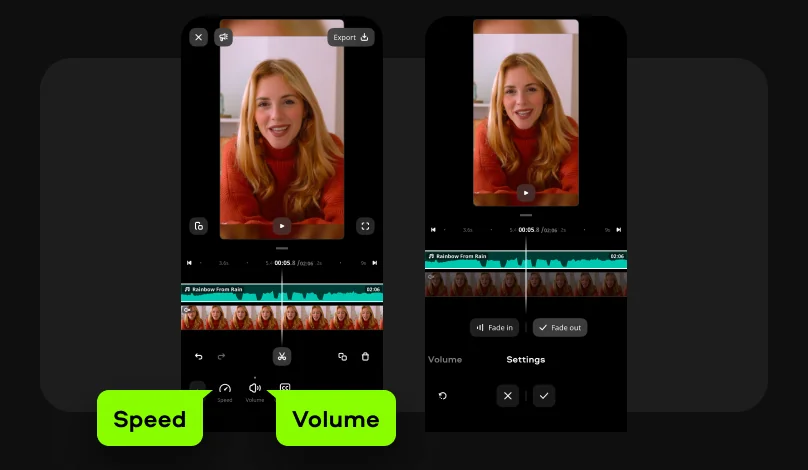
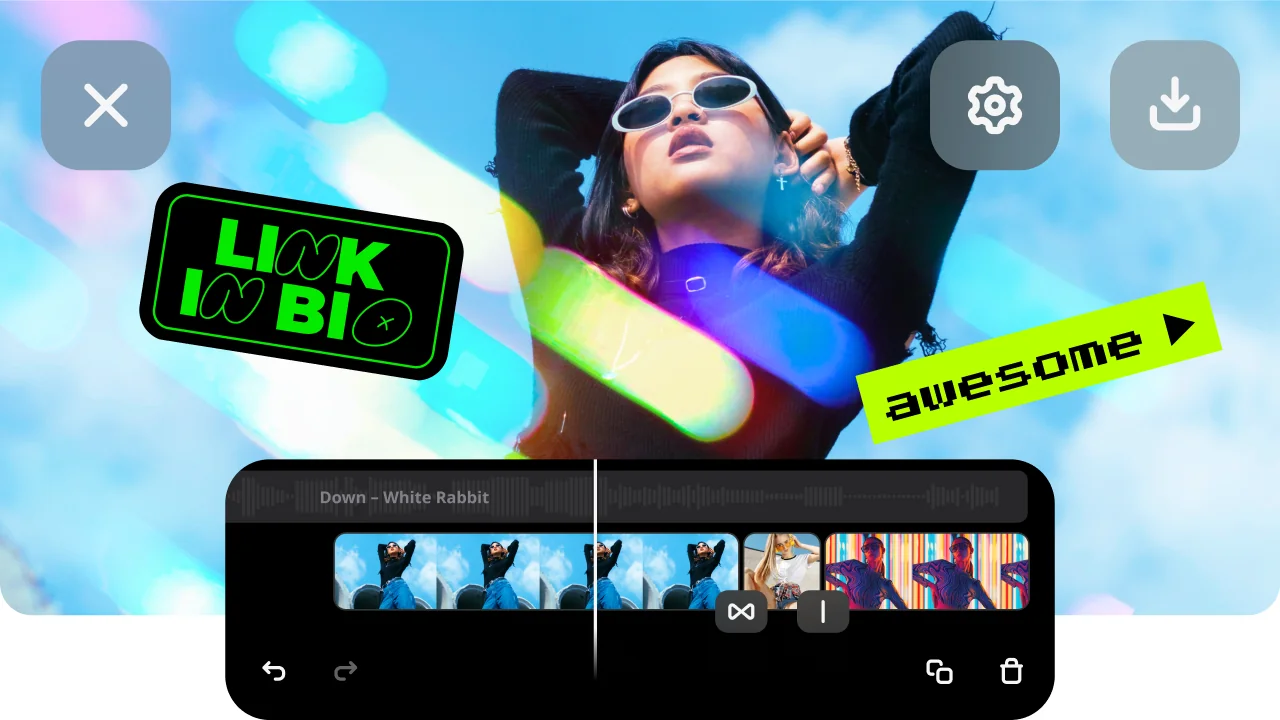
Once the music track is on the timeline, tap it to access audio controls: adjust the volume and speed levels to balance music against any original video audio, set a fade in at the start and fade out at the end for smooth transitions. These controls give your video a professional, broadcast-quality audio mix.

Combine a separate audio file with any video clip

To merge a standalone audio file with a video clip in Movavi App, import both files into the same project and place them on separate tracks in the timeline. Align the audio start point to the desired position in the video, trim both to the same length, and export. This is the standard workflow for adding a voiceover, narration, or extracted audio track from one video over a different video clip.

Why use Movavi App to add music to a video on an iPhone

Three reasons creators choose Movavi App for adding music to their videos.

Royalty-free music built in – safe for YouTube and social media

The biggest problem with adding music to a video for YouTube is copyright. Songs from your personal library or Spotify cannot be used in public videos without a license. Movavi App’s built-in music library solves this completely – every track is pre-cleared for use on YouTube, Instagram, TikTok, and other platforms. No copyright claims, no monetization blocks, no need to search external royalty-free music sites.

Full mobile workflow – record, edit, add music, and post

Movavi App handles the complete video-to-post workflow on an iPhone: film the clip, import to the app, add music, trim, apply filters and text, and share directly to social media from the same session. Unlike tools that only handle audio, Movavi App is a full video editor – adding music is one step in a complete production flow rather than a separate task requiring a second app.

Free to download – music library included

Movavi App is free to download from the App Store. The built-in royalty-free music library and the audio import feature are both included in the free tier. Premium features such as watermark-free export are available via in-app subscription. No sign-up required – download, add your song, and export your first music video in minutes.

How to add music to a video on an iPhone with Movavi App – 4 steps

From a camera roll clip to a music-backed exported video in four taps.

Step 1. Download the app and start a new project

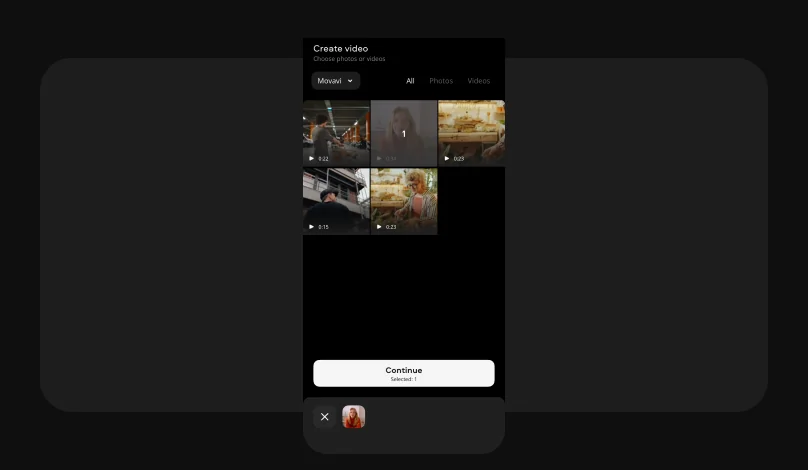
Download Movavi App from the App Store. Open the app and tap the + icon to create a new project. Select the video clip you want to add music to from your camera roll. The clip loads onto the Movavi App timeline.
Step 2. Choose your music

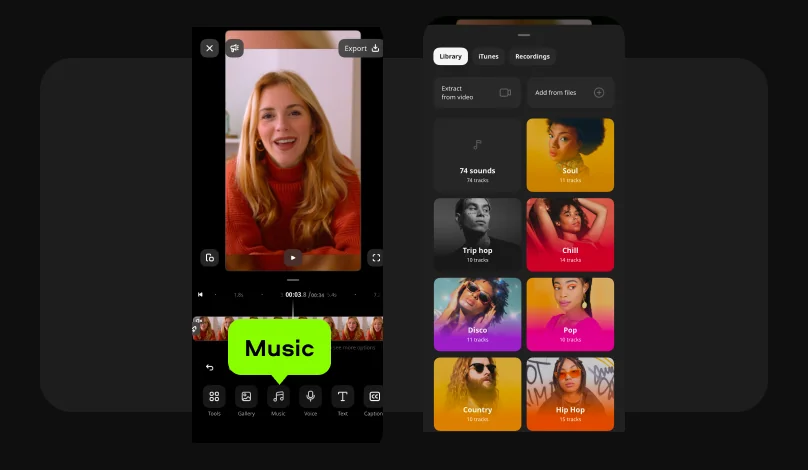
Tap the Music icon in the editing toolbar at the bottom of the screen. This opens the music library with tracks organized by mood and genre. Tap any track to preview it. To use your own audio file instead, tap the Add from files button and select an audio file.

Step 3. Adjust audio settings

Tap the track you want to add and it appears on the audio track below your video clip. Trim the audio by dragging its edges to match the video length. Tap the track to open audio settings: adjust speed and volume to balance music against the original video audio, and enable fade in and fade out for smooth transitions.

Step 4. Preview and export to your camera roll

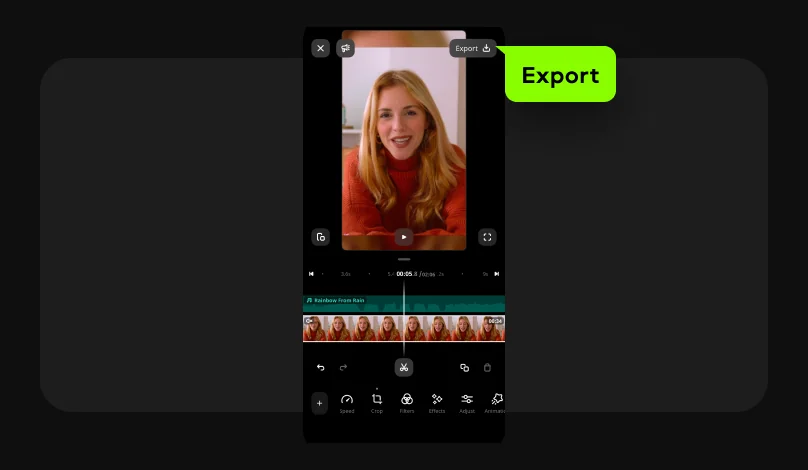
Tap the Play button to preview the video with the music. When it sounds right, tap the Export button in the top-right corner and select Save. Your video with music saves to your camera roll at full resolution. You can also tap a social media icon to post directly from Movavi App to Instagram.

Who uses Movavi App to add music to videos

Adding music to videos is one of the most universal editing tasks across every content format.

CONTENT CREATION

Vloggers and social media creators

Vloggers, travel creators, and lifestyle content producers add background music to their videos to set tone, match editing rhythm, and increase viewer retention. Movavi App’s built-in royalty-free music library means creators never have to worry about copyright claims blocking their YouTube monetization or Instagram reach. Adding the right song takes under a minute in the app before posting.

EVENTS

Wedding and event videographers

Wedding highlight reels, anniversary recap videos, and birthday party edits need music that matches the emotional tone of the footage. Movavi App lets event videographers import a specific licensed song and sync it to their footage with precise volume and fade controls – all from their iPhone on location without needing to transfer files to a computer. Export to camera roll for immediate sharing with the client.

BUSINESS

Small businesses creating product and promo videos

Retailers, restaurants, and service businesses create product showcase videos, promotional reels, and social media ads that need background music to feel professional. Movavi App’s royalty-free library provides business-appropriate background tracks that won’t trigger copyright blocks on business Instagram or YouTube accounts. The complete workflow – import footage, add music, apply text and filters, export – takes minutes and requires no video editing experience.

Movavi App

Create scroll-stopping videos for your socials in a few taps

Frequently asked questions

Common questions about how to add music to videos on an iPhone.

How do I add audio to an existing video?

To add audio to an existing video on an iPhone using Movavi App:

  1. Download Movavi App from the App Store.
  2. Start a new project and import the video from your camera roll.
  3. Tap the Music tool in the editing toolbar.
  4. Choose a track from the built-in music library or add your own audio file.
  5. Align the audio track to the video.
  6. Adjust volume and fade, then export to your camera roll.

Both your original video audio and the new music track can coexist on the timeline – use the volume sliders to balance them.

How do I merge audio and video on an iPhone?

To merge a separate audio file with a video clip on an iPhone using Movavi App:

  1. Start a new project and import the video clip.
  2. Tap the Music tool and select Import to bring in the audio file.
  3. Both files appear on separate tracks in the timeline – the audio on the top track, the video on the bottom.
  4. Drag the audio clip to align its start point with the correct moment in the video.
  5. Trim both clips to the same length.
  6. Mute the original video audio if you only want the imported audio track by tapping the video track and setting its volume to zero.
  7. Export to your camera roll.

How do I put audio from a video over another video on an iPhone?

To extract audio from one video and place it over a different video on your iPhone:

  1. Use a separate tool or app to extract the audio from the source video as an MP3 or M4A file first (for example, the Voice Memos method: play the source video while recording in Voice Memos).
  2. Open Movavi App and start a new project with the destination video.
  3. Import the extracted audio file via Music > Add from files.
  4. Trim and align as needed.
  5. Export to camera roll.

Alternatively, if both clips are accessible in Movavi App, you can add both as tracks, mute the video track’s original audio, and use the audio-only portion of the other clip by separating it on the timeline.

How do I add audio to Apple Clips?

Apple Clips has limited audio editing compared to a dedicated software like Movavi App. In Apple Clips, you can add a song from your Apple Music library or a built-in soundtrack during or after recording: tap the Music note icon before recording to choose a song, or after recording to select a Soundtrack. The limitation is that Apple Music subscription tracks are DRM-protected and may not export cleanly for use on other platforms. For more control over how to add music to a video on an iPhone – including importing your own royalty-free tracks, adjusting volume and fade, and exporting for YouTube or Instagram without copyright issues – Movavi App is the better mobile tool. It accepts any local audio file, includes a built-in cleared music library, and exports a standard MP4 file that works on every platform.

Join us for discounts, editing tips, and content ideas

1.5M+ users already subscribed to our newsletter

By signing up, I agree to receive marketing emails from Movavi and agree to Movavi's Privacy Policy.