How to Crop Videos on an iPhone with  Movavi App

Movavi App lets you crop any video with a drag-and-drop crop frame – reposition the frame around your subject and export the cropped clip straight back to your camera roll in seconds. 

Whether you need to remove unwanted edges from a clip, reframe portrait footage for a landscape post, or cut out a distraction in the background, Movavi App gives you a precise crop tool and a full mobile video editor in one free app – no desktop required. 

Trusted by 70 million creators worldwide

70M+

users

190+

countries

15+

updates per year

10,000+

effects to choose from

Key features for cropping videos on an iPhone

Precise crop controls plus a complete mobile editor – all in one app.

Drag-and-drop cropping

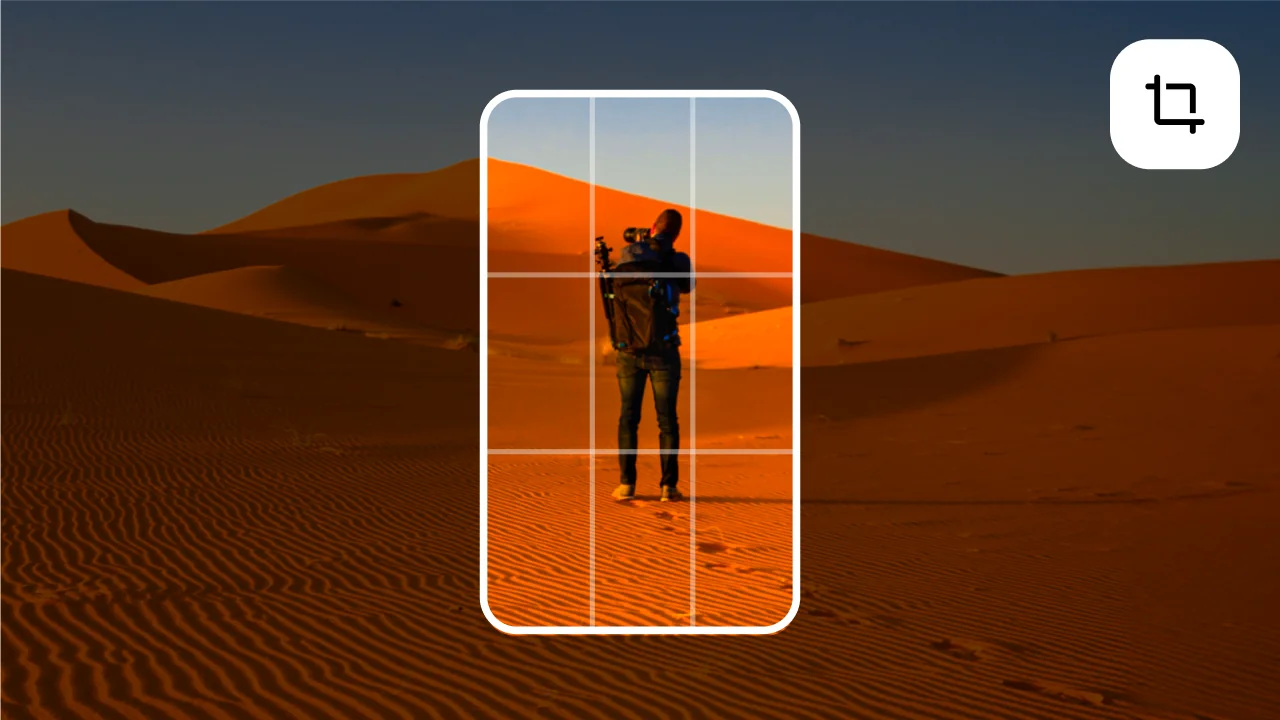
Movavi App’s crop tool places a resizable frame over your video preview. Define the area you want to keep, then drag the frame itself to reposition it around your subject.

Trim the length and crop the frame in the same session

Crop and trim are two separate but related edits – crop removes unwanted edges from the frame, trim removes unwanted time from the start and end. Movavi App handles both in the same editing session: set your crop frame, then use the trim handles to cut the clip to the exact duration you need. Export one polished, trimmed, and cropped clip directly from the app.

Reframe for any platform – square, vertical, landscape

Different platforms require different aspect ratios. Instagram feed posts look best at 1:1 or 4:5, Reels and TikTok at 9:16, YouTube at 16:9. Movavi App lets you crop any clip to the correct format for each platform. Adjust the crop frame to keep the subject in frame and export a platform-ready clip.

Add filters and captions after cropping

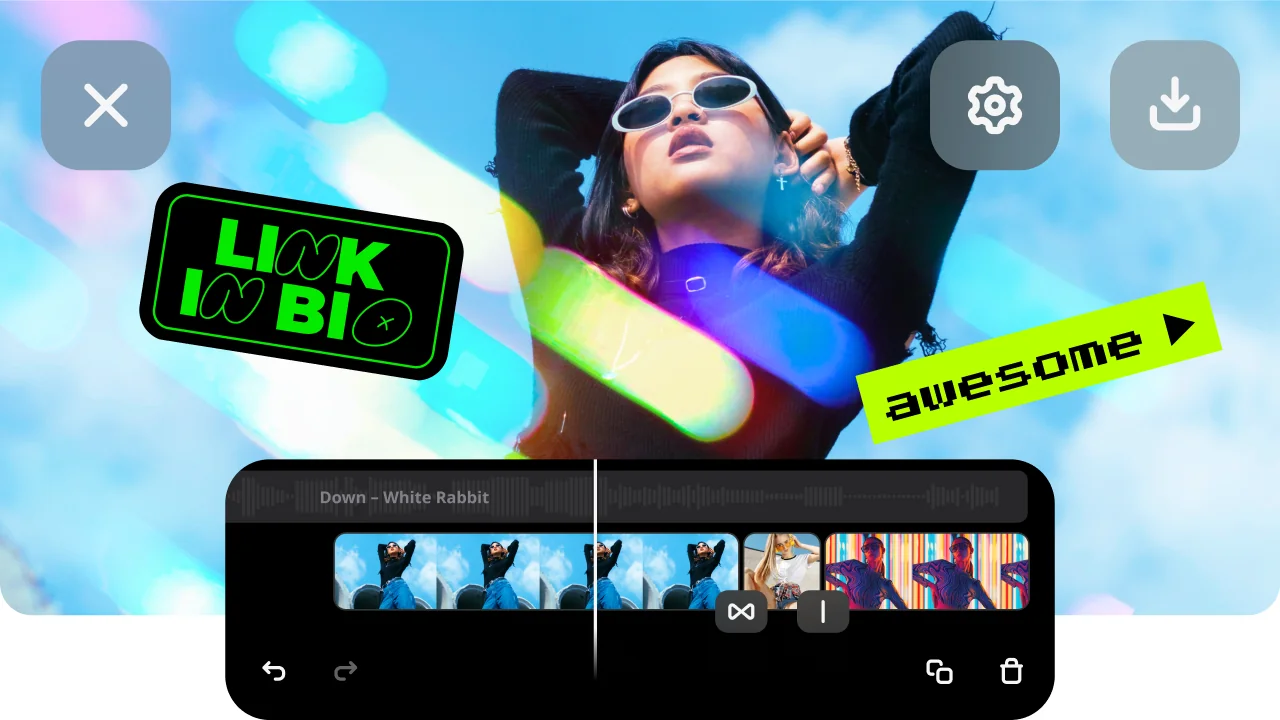
After cropping, you can apply color filters, animated text overlays, stickers, and speed adjustment before exporting. The finished video exports to your camera roll at the full resolution of the cropped area. Share directly to Instagram from the export screen without leaving the app.

Why use Movavi App to crop videos on an iPhone

Three reasons creators choose Movavi App for cropping video on an iPhone.

True crop – not just zoom or pinch-to-scale

iOS’s native Photos app lets you trim a video’s duration but does not include a spatial crop tool for removing frame edges and saving the result. The pinch-to-zoom in the native camera doesn’t export a cropped file – it only affects playback. Movavi App’s crop tool permanently re-renders the video to the new frame dimensions and saves a real cropped video to your camera roll.

Platform-perfect framing with one tap

Creators who post across multiple platforms need the same clip in different formats – a landscape clip for YouTube, a square for Instagram feed, a vertical for Reels. Movavi App lets you crop the same source clip to each format in one session. Each export saves separately to your camera roll, ready to upload to the right platform without re-editing.

Free to download with the crop feature included

Movavi App is free to download from the App Store. The crop tool is available in the free tier, making it accessible to every iPhone user without a subscription. Premium features such as watermark-free export and advanced filters are available via in-app subscription. Download and crop your first video in under two minutes.

How to crop a video on an iPhone with Movavi App – 3 steps

From camera roll to a cropped, exported video in three steps.

Step 1. Download Movavi App and open a new project

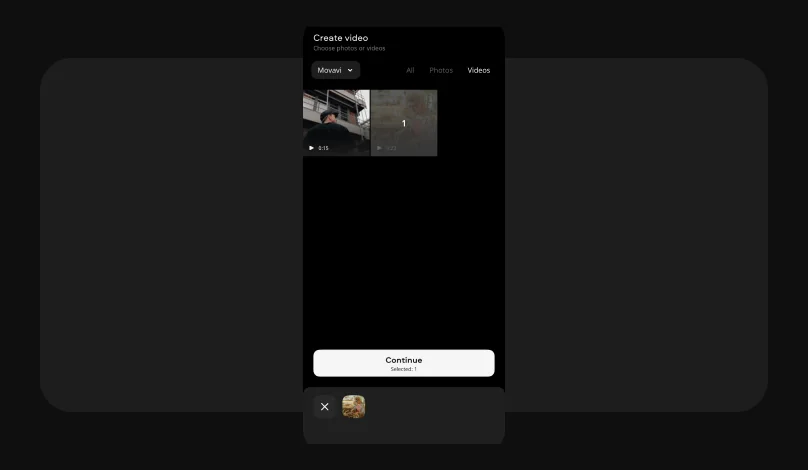
Download Movavi App free from the App Store. Open the app and tap the + icon to start a new project. Select the video clip you want to crop from your camera roll. The clip loads onto the Movavi App timeline.

Step 2. Crop your video

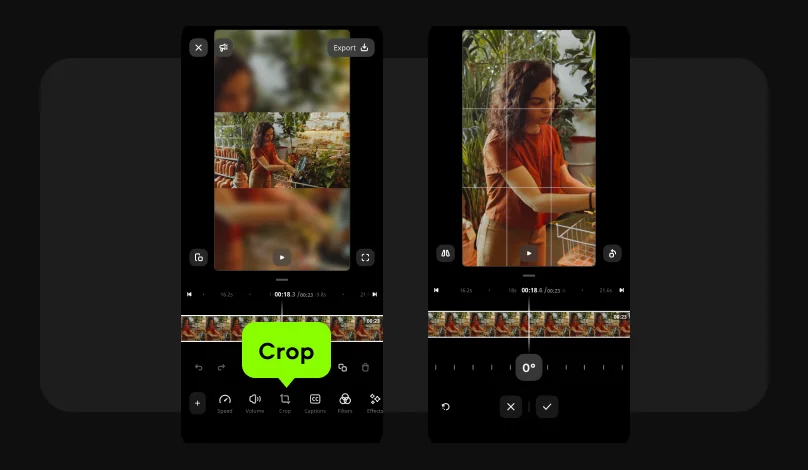
Tap the clip on the timeline to select it, then tap the Crop icon in the editing toolbar at the bottom of the screen.

Resize your clip to include only what you want to keep. Drag the clip to reposition it so your subject stays centered. When the framing looks right, tap the checkmark icon.

Step 3. Export the cropped video

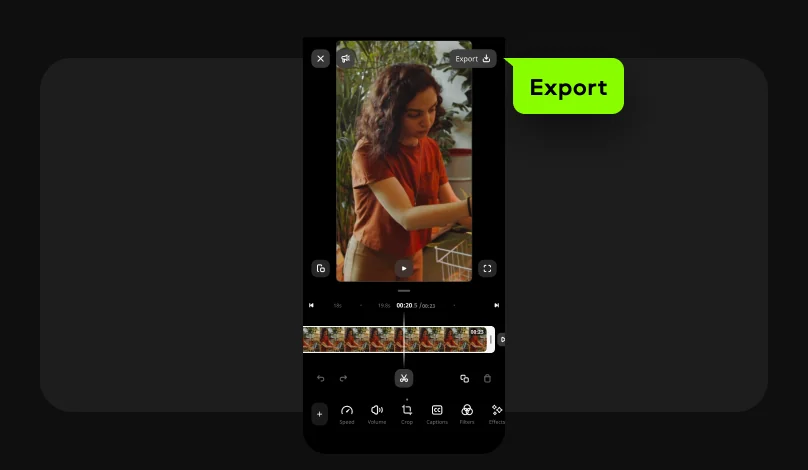
Tap the Export button in the top-right corner of the app and select the resolution, and tap Save. Movavi App renders the cropped video at full resolution and saves it to your camera roll. You can also share the cropped clip directly to Instagram.

Who uses Movavi App to crop videos on an iPhone

Cropping videos is one of the most common mobile editing tasks across every content type.

CONTENT CREATION

Content creators repurposing clips for multiple platforms

Instagram, TikTok, YouTube, and LinkedIn all use different aspect ratios. A creator who shoots one landscape clip needs to crop it to 9:16 for Reels and TikTok, 1:1 for an Instagram feed post, and keep the 16:9 original for YouTube. Movavi App makes this a one-session workflow – crop the same clip to each format, export separately, and post to all platforms without re-editing.

FITNESS / LIFESTYLE

Video creators and YouTubers making creative edits

Fitness instructors filming workout videos, yoga creators, and lifestyle vloggers frequently need to crop out a cluttered background, an unintended person in frame, or an out-of-place object at the edge of the shot. Movavi App’s freeform crop lets them reframe the subject tightly without reshooting, saving time and keeping the focus where it belongs.

BUSINESS

Small business owners creating product and service clips

Retailers, real estate agents, and service businesses filming product demos, property tours, and service videos often capture more frame than they need. Movavi App’s crop tool lets them trim the frame to focus on the product or key detail, remove branding or signage that shouldn’t appear in a public post, and resize to the correct format for their social media platform – all from their camera roll in minutes.

Movavi App

Create scroll-stopping videos for your socials in a few taps

Frequently asked questions

Common questions about how to crop videos on an iPhone.

How do I cut off part of a video on my iPhone?

Cutting off part of a video can mean two different things: trimming the duration (removing frames from the start or end) or cropping the frame (removing edges from the visible area).

For trimming by duration, use the iOS’s native Photos app: open the video in Photos, tap Edit, and drag the yellow handles at the start and end of the clip.

For cropping the frame – which Photos cannot do for video – use Movavi App: import the clip, tap the Crop tool, crop the unwanted edges, and export. The result saves as a new file to your camera roll with the original left intact.
Can you crop a video on an iPhone without an app?

You cannot crop the frame of a video on an iPhone without an app. iOS’s native Photos app includes a trimming tool for cutting the duration but has no spatial crop function that removes edges from the frame and exports a permanently cropped file. The built-in camera’s zoom only affects recording and does not export a cropped version of an existing clip. To crop a video on your iPhone, you need a third-party app. Movavi App is free to download and includes the crop tool, making it an accessible option for anyone who needs to spatially crop an existing video from their camera roll.

How do I cut a part of a video?

To cut a section out of the middle of a video on iPhone using Movavi App: 

  1. Import the clip into a new project.
  2. Place the playhead at the start of the section you want to remove and use the Split tool to divide the clip.
  3. Move the playhead to the end of the unwanted section and split again.
  4. Tap the middle segment and delete it.
  5. The remaining clips snap together on the timeline.
  6. Export to camera roll.

For trimming the start or end only: use the trim handles on the clip edges in the Movavi App timeline, or use iOS Photos’ built-in trim for a quick edit. Movavi App is the correct tool when you need to cut from the middle of a clip – something iOS Photos cannot do.

How do you crop a video on an iPhone?

There is no tool for video cropping in iOS’s native Photos app. Photos has a crop tool for still photos but this does not apply to video clips. For video, you need a third-party mobile app. In Movavi App, the crop tool is found in the editing toolbar at the bottom of the screen after you tap a video clip on the timeline. Tap it to open the crop frame.

Join us for discounts, editing tips, and content ideas

1.5M+ users already subscribed to our newsletter

By signing up, I agree to receive marketing emails from Movavi and agree to Movavi's Privacy Policy.