Step 1. Download and install Movavi Video Converter
Download Movavi Video Converter on your Mac or Windows to rip a DVD. After the download is finished, run the setup file to install the program.
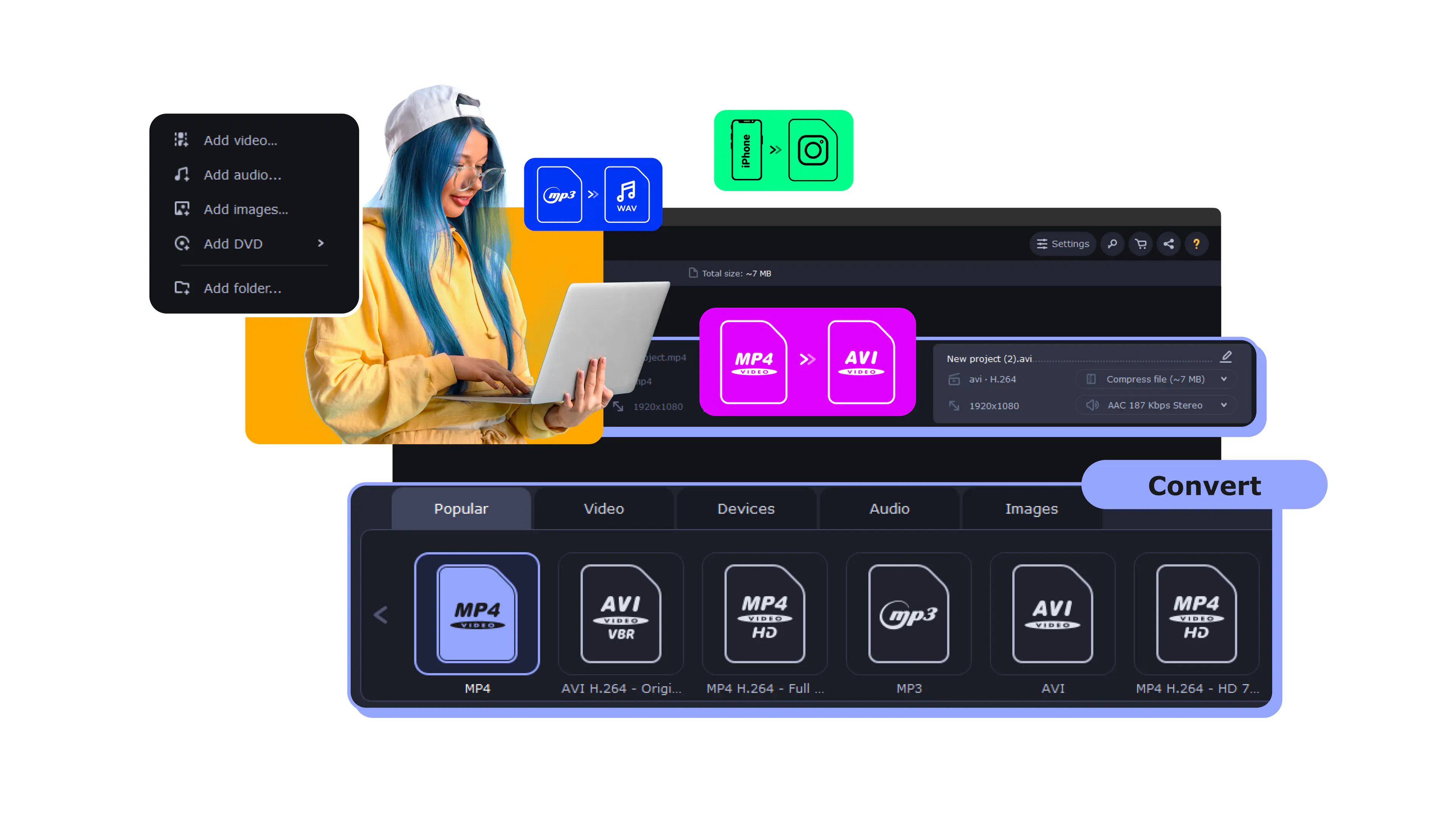
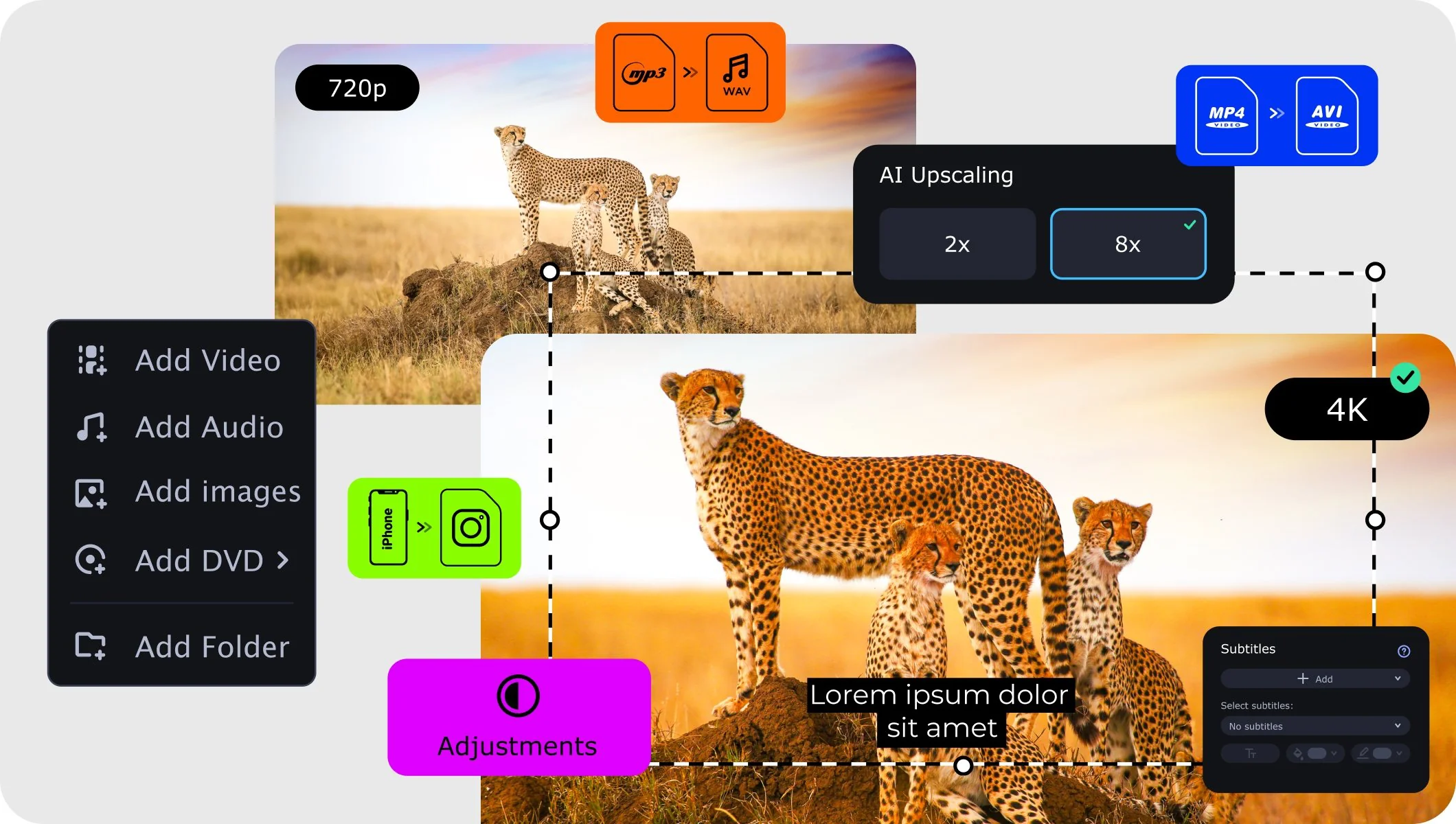
Movavi Video Converter converts any disc to MP4, MKV, AVI, or 180+ other formats in minutes – with SuperSpeed GPU acceleration and AI upscaling that can improve old DVD quality.
Whether you’re digitizing a home movie collection, archiving family DVDs before the disc drive disappears from laptops for good, or converting a disc for playback on a phone or TV, Movavi handles every disc it’s been tested on without a hitch.
Millions


SuperSpeed conversion, AI upscaling, 180+ output formats, and batch ripping – everything you need to rip a DVD and put it anywhere.
SuperSpeed GPU acceleration
Movavi’s SuperSpeed mode uses GPU hardware acceleration to convert a full DVD movie in a fraction of real-time playback. For a standard 2-hour movie disc, the rip typically completes in minutes compared to slower tools.
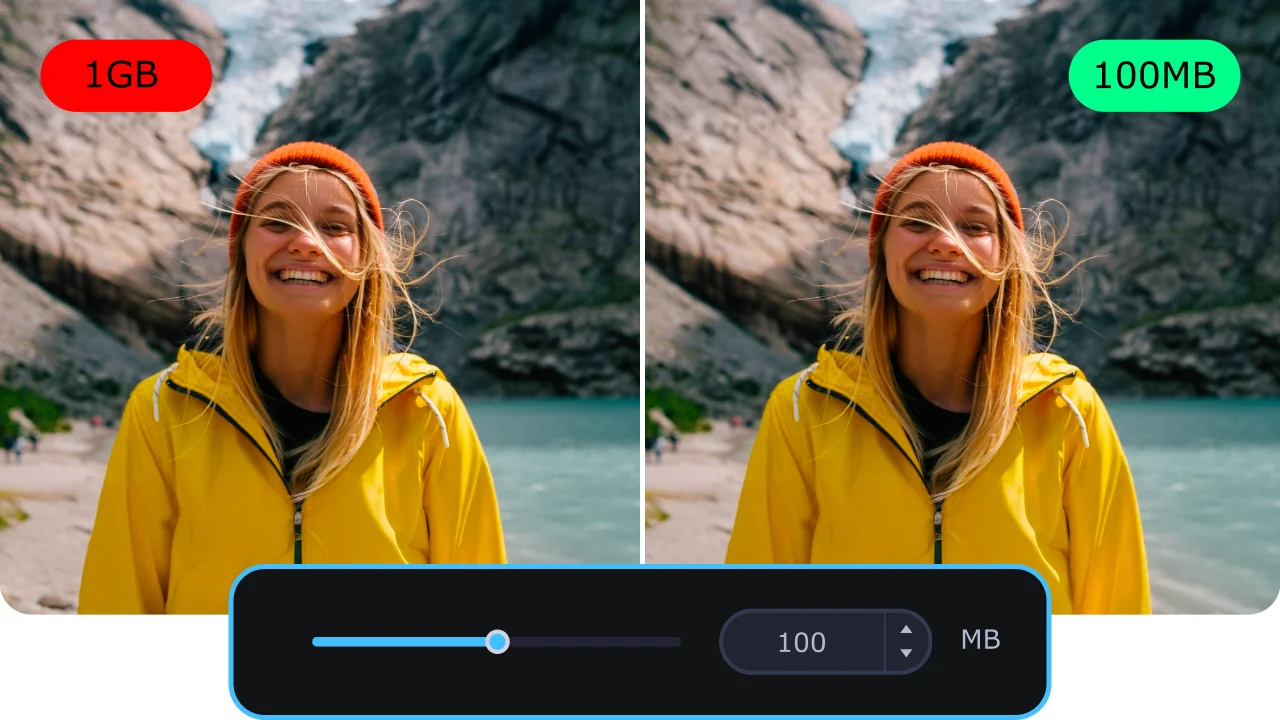
AI upscaling up to 4×
Movavi’s AI upscaler can enhance the output resolution of DVD content by up to 4×, improving the sharpness of older home movies and classic films that look soft on modern screens. The AI reconstructs detail rather than just stretching pixels, which produces a cleaner result than standard resizing. This is especially valuable for family home movies originally shot in standard definition on camcorders.
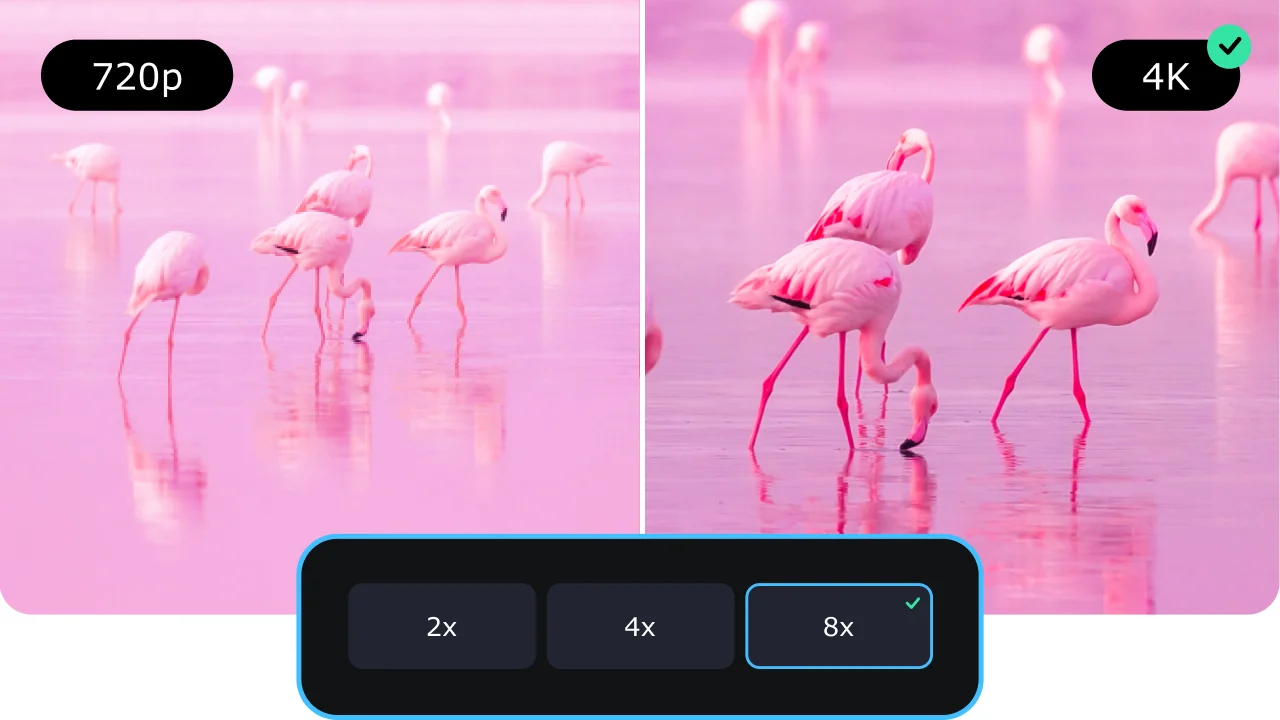
180+ output formats and device presets
Movavi supports over 180 formats including MP4, MKV, AVI, MOV, FLV, MPEG, and more, plus device-specific presets for iPhone, Android, smart TVs, and gaming consoles. The output lands in exactly the format needed for the target device or platform without manual codec configuration. MP4 gives the widest compatibility; MKV preserves multiple audio tracks and subtitle streams from the original disc.
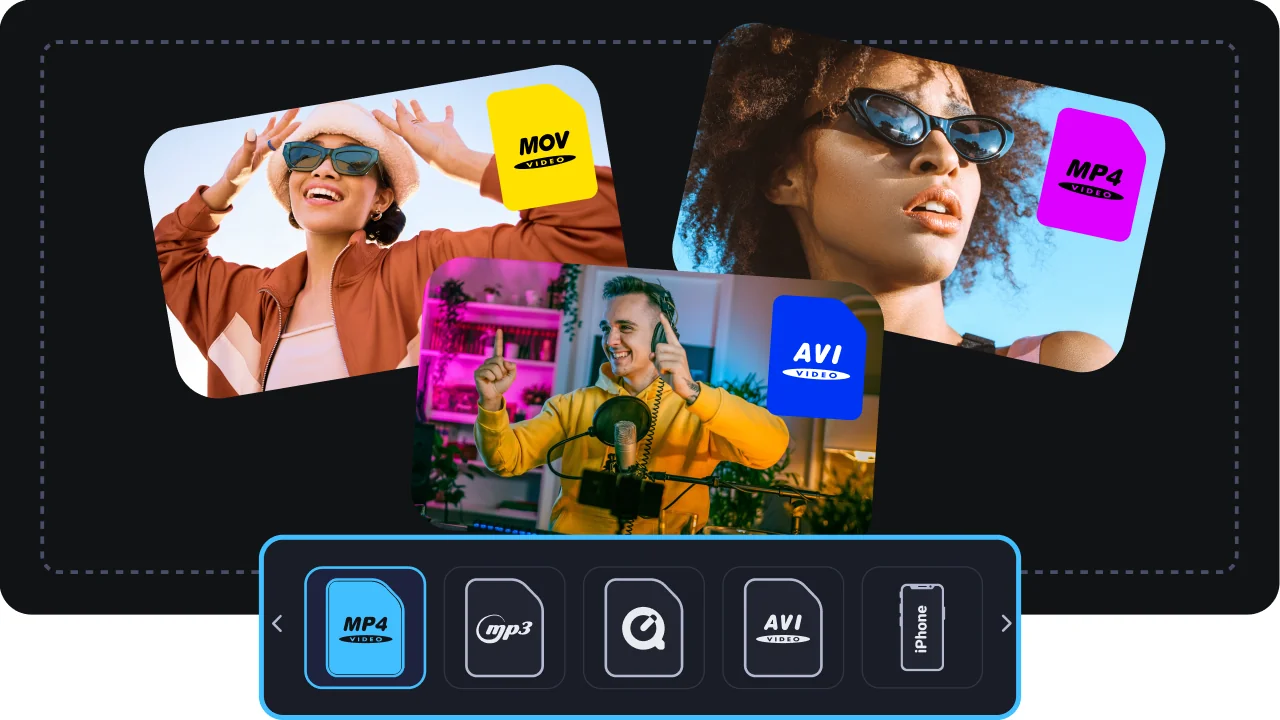
Batch conversion – Queue multiple discs and walk away
Movavi Video Converter’s queue handles batch conversion so you can line up multiple files and walk away while they process. For anyone ripping a full DVD collection, this removes the need to manually start each disc.
Three things that put Movavi ahead of free alternatives and clunkier ripper tools.
From a disc in your drive to a digital video file on your computer – done in minutes.
Download Movavi Video Converter on your Mac or Windows to rip a DVD. After the download is finished, run the setup file to install the program.
Launch Video Converter. Click the Add Media button, then select Add DVD > Open DVD, and find the VIDEO_TS folder on your DVD.
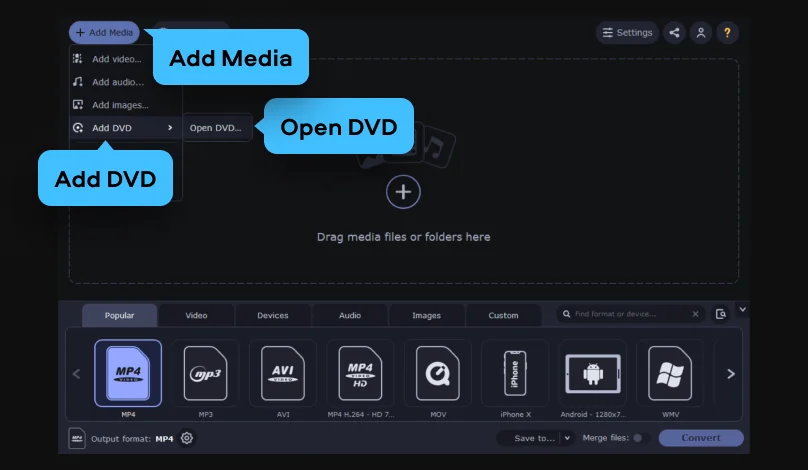
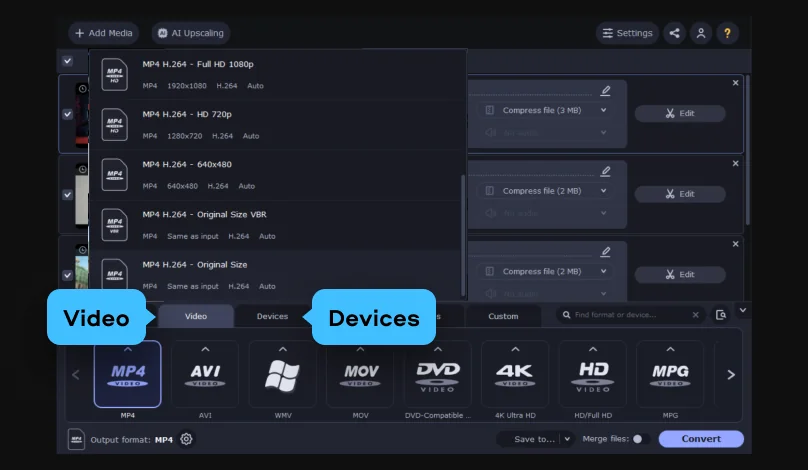
In the Video or Devices tab at the bottom of the video converter interface, select the video format or mobile device you need as your target. You can choose from over 180 media formats and 200 device presets.
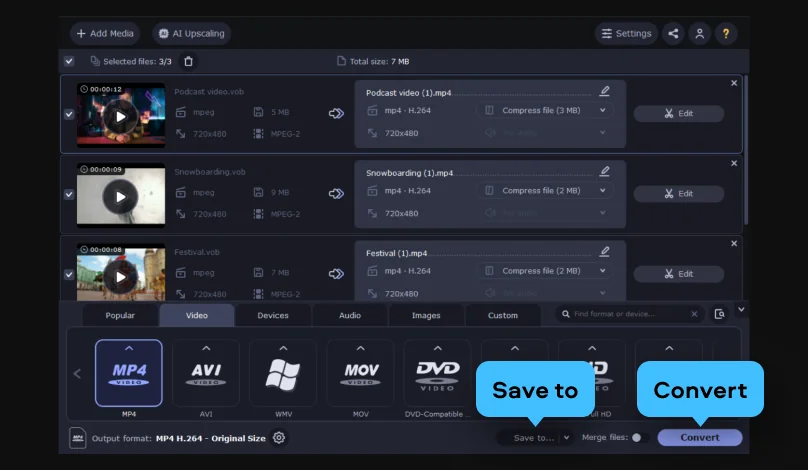
Click Save to to specify the folder on your hard drive where the program should save the converted files. Finally, click the Convert button. The program will start processing your media files.
DVDs are a format in decline – and a collection worth preserving.
Common questions about ripping DVDs – legality, process, terminology, and free options.
The legality of ripping DVDs varies by country and disc type. The clearest rule: DVDs you made yourself – home movies, personal projects, discs you authored – are legal to rip and digitize anywhere. Commercial DVDs with copy protection exist in a gray area. In the United States, the DMCA technically prohibits circumventing copy protection (CSS) even on a disc you own; however, the law is rarely if ever enforced against individuals ripping for personal use. The EU, UK, Canada, and most other jurisdictions have a similar nuance. The practical consensus: ripping a DVD you own for personal playback is widely accepted and unenforced. Redistribution, such as uploading ripped content to share publicly, is a different matter entirely and is not legal.
Yes, ripping a DVD is a standard, straightforward process. You need a computer with a DVD drive (or an external USB drive), and a DVD ripper like Movavi Video Converter. The software reads the video data from the disc and converts it to a digital file format that you can store on your hard drive and play on any device. The process is safe for the disc: ripping doesn’t modify or damage the original DVD in any way; it makes a digital copy of the content. Copy-protected commercial DVDs use CSS encryption that most DVD rippers can handle for personal-use digitization.
A DVD rip refers to the process of extracting video and audio content from a DVD disc and saving it as a digital file on a computer. The term “rip” comes from the idea of pulling the data off the disc. The output is typically an MP4, MKV, or AVI file that can be played on a computer, phone, or media player without needing the physical disc. A DVD rip can refer to the process itself (ripping a DVD) or the output file (a “rip” of a film). The quality of a DVD rip depends on the compression settings used during conversion – a lossless conversion produces a large file that matches the disc exactly, while a compressed conversion produces a smaller file with some quality reduction. Movavi Video Converter offers both options, letting you choose between quality and file size based on your storage situation.
Several DVD ripping tools are available free of charge.
For most people who want an easy, reliable experience with good output quality, the Movavi free trial is one of the most practical starting points.


1.5M+ users already subscribed to our newsletter