Step 1. Download and install the DVD to video converter
First, download and install Movavi Video Converter on your Mac or Windows computer. You can follow the instructions that appear on your computer screen to install the program.
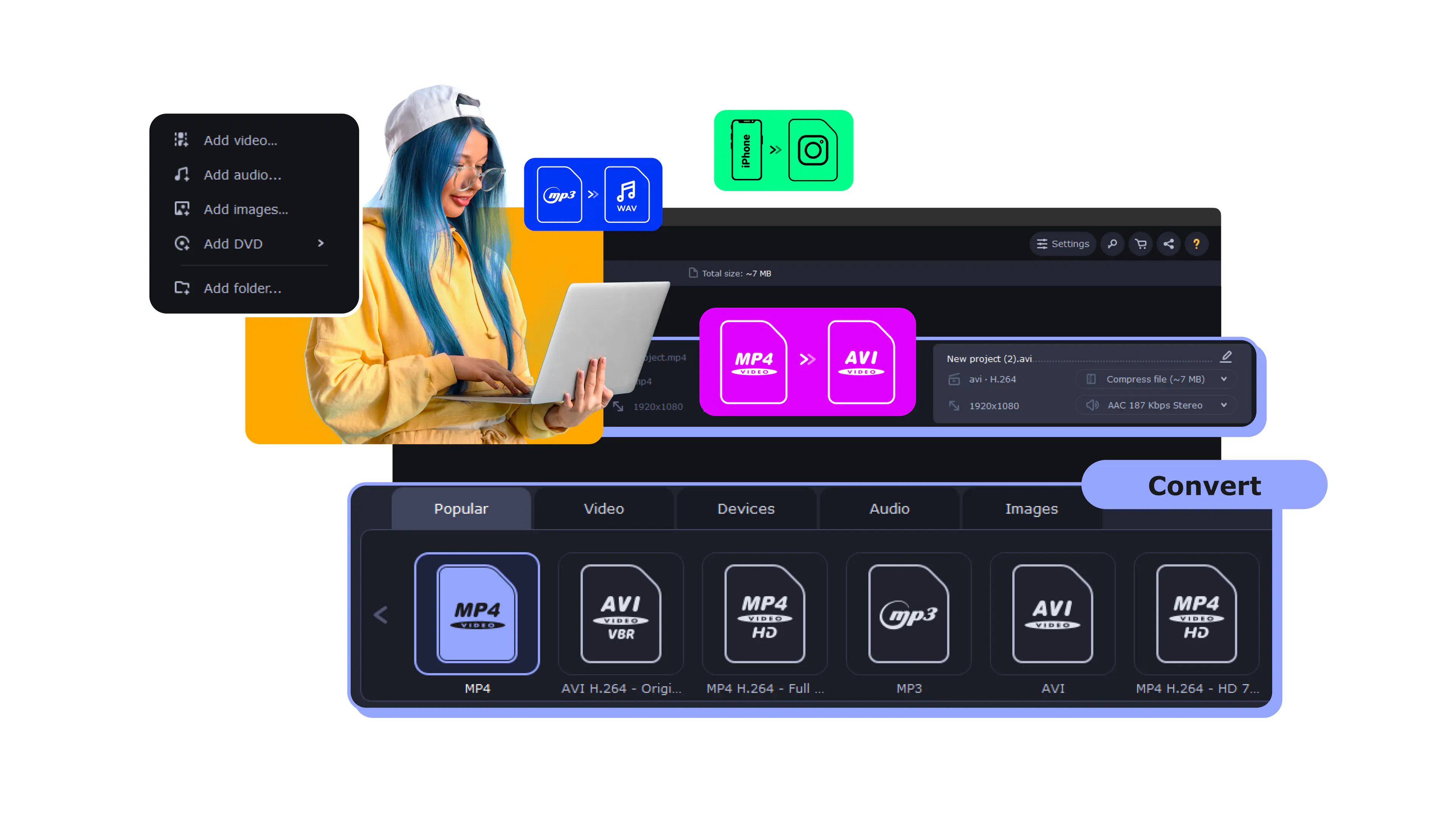
Movavi Video Converter reads a DVD straight from your computer – inserted disc, VIDEO_TS folder, or ISO image – and saves it in any popular video format or ready-made device preset.
Movies, family archives, weddings, language and fitness courses – turn all of it into a convenient file you can keep and play offline, with no disc and no DVD drive. The converter reads the disc directly on your Windows or Mac.
Millions


A good DVD to video converter should open the disc for you, find the right video automatically, and save it in whatever format your device needs – without a single codec setting.
Reads DVDs directly
Movavi opens a VIDEO_TS folder, individual VOB files, or an ISO image and detects the main title automatically – so you don't have to guess which of a dozen VOB files is the actual movie. Reading a physical disc or its folder structure is something browser-based tools simply can't do; it only works on the desktop.
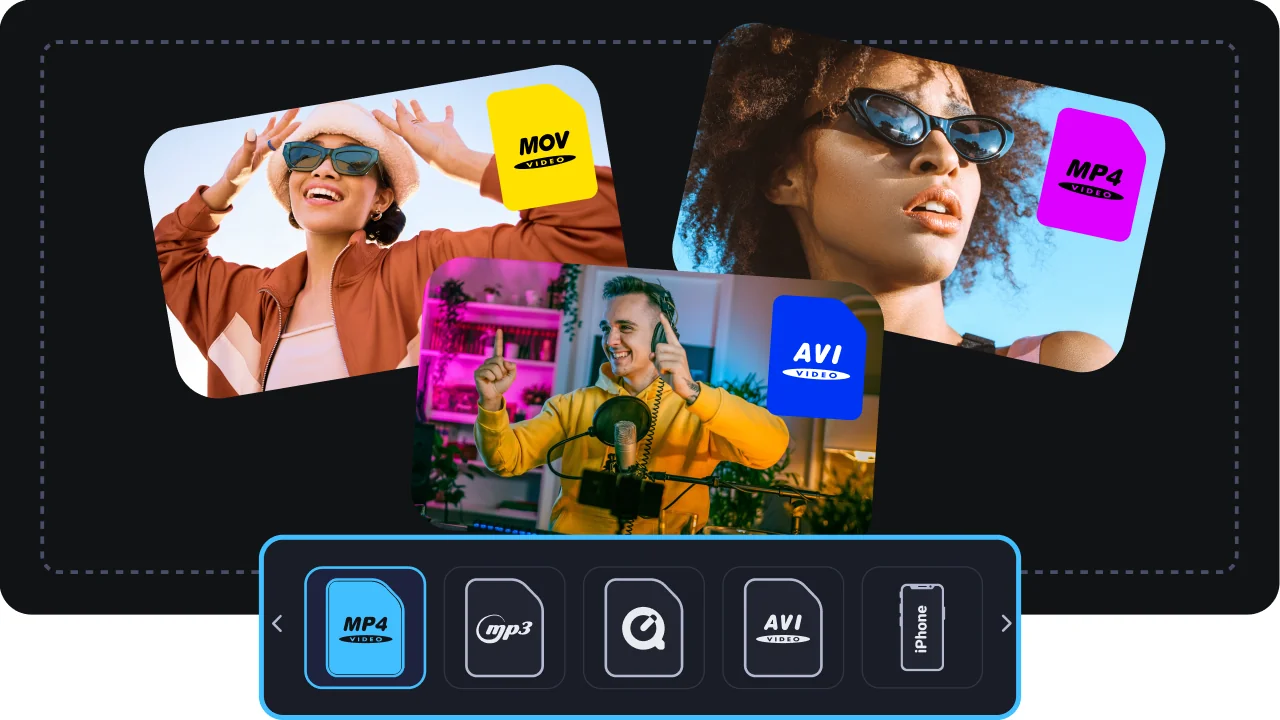
Any format and device presets
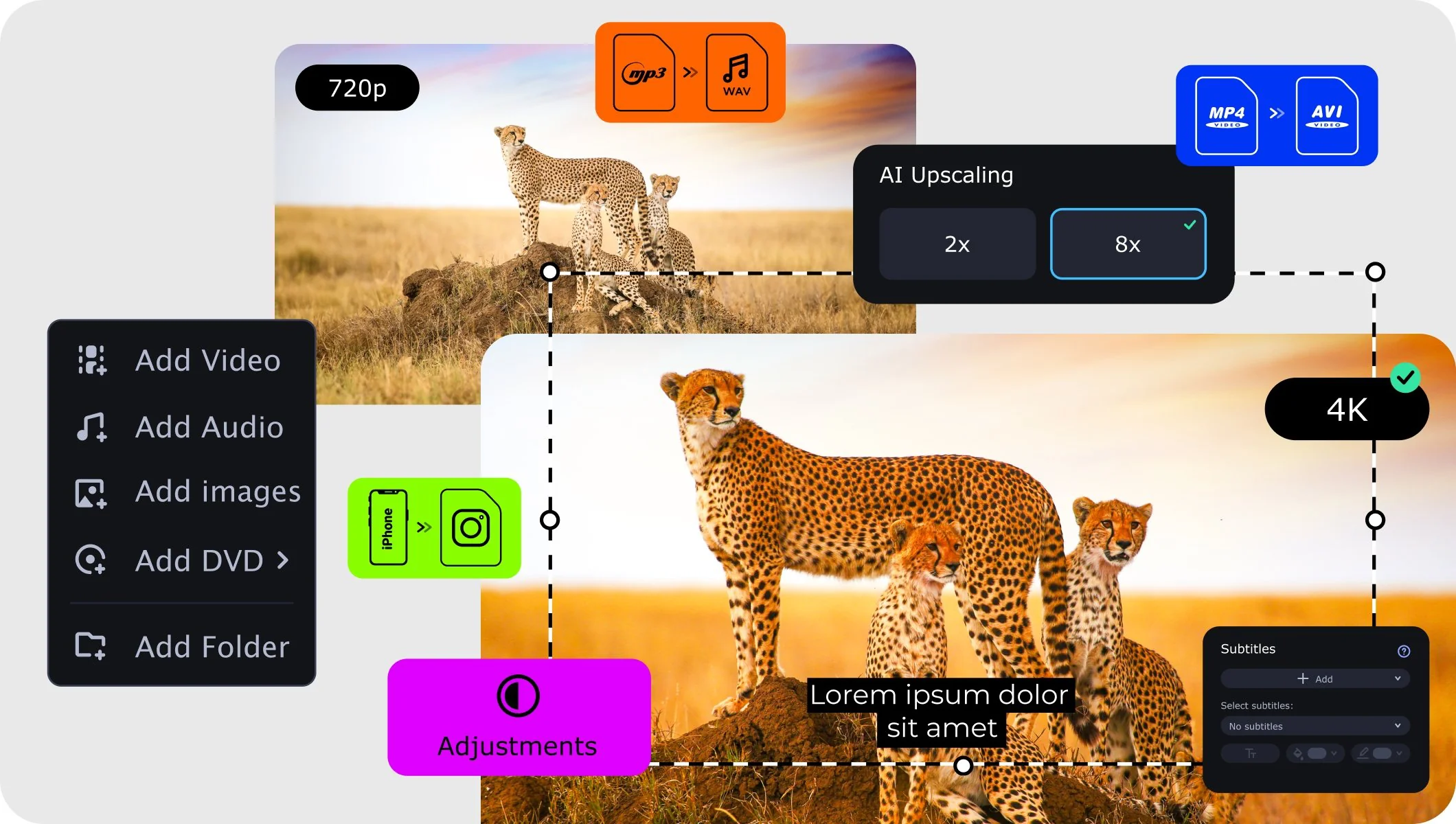
Convert your disc to MP4, AVI, MKV, MOV, and more – or skip the format question entirely and pick a ready-made preset for iPhone, Android, smart TVs, or gaming consoles. Movavi sets the right format and resolution for your target device in one click, so the finished video just works wherever you send it.

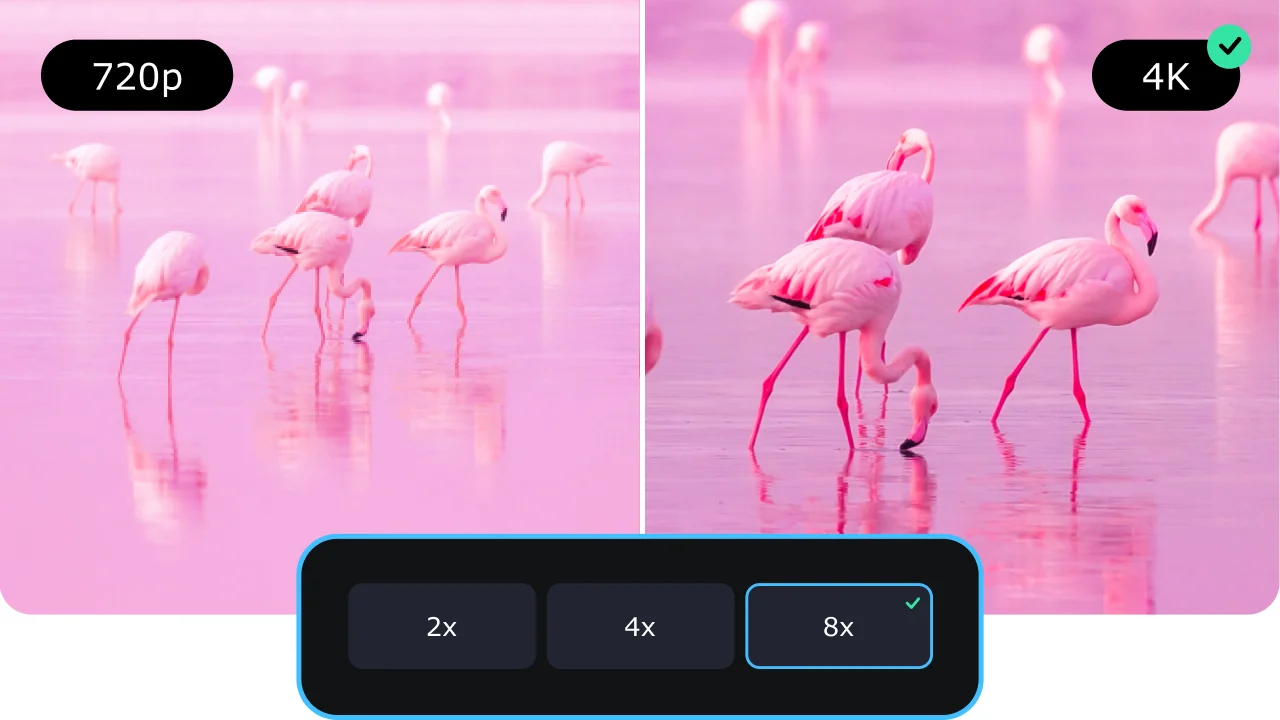
AI upscaling – from soft SD to sharp
A DVD is 480p or 576p, and modern screens are sharp enough to show every soft edge. Movavi's built-in AI upscaler raises resolution by up to 4× or 8×, reconstructing detail instead of just stretching pixels. It's the practical way to make old standard-definition footage watchable on today's displays – the AI fills in what plain resizing would leave mushy.
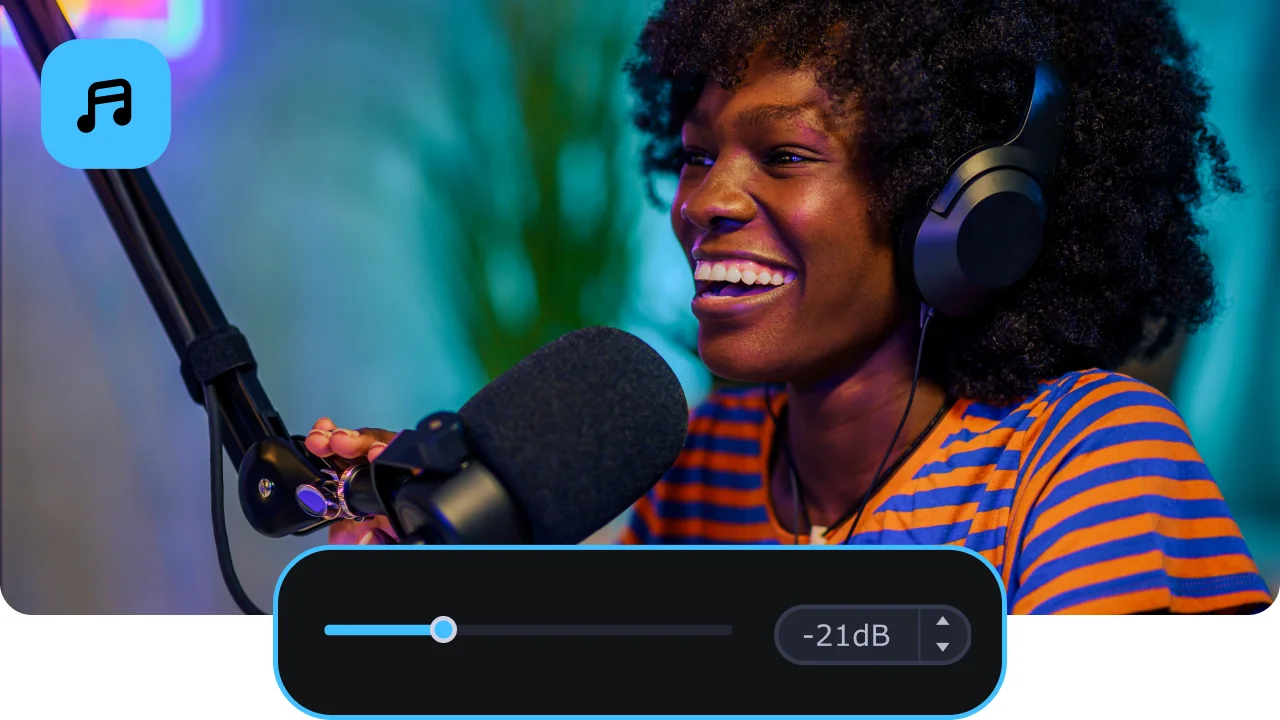
Audio tracks, subtitles, and trimming
Keep only the audio language and subtitle track you want, cut out the menus and trailers, and convert just the film. Batch mode handles several discs in one run, and SuperSpeed hardware acceleration keeps conversions fast even on long titles.
Three reasons a desktop app beats a free or online DVD to video converter for this task.
From a disc in the tray to a ready-to-use video file – done in minutes.
First, download and install Movavi Video Converter on your Mac or Windows computer. You can follow the instructions that appear on your computer screen to install the program.
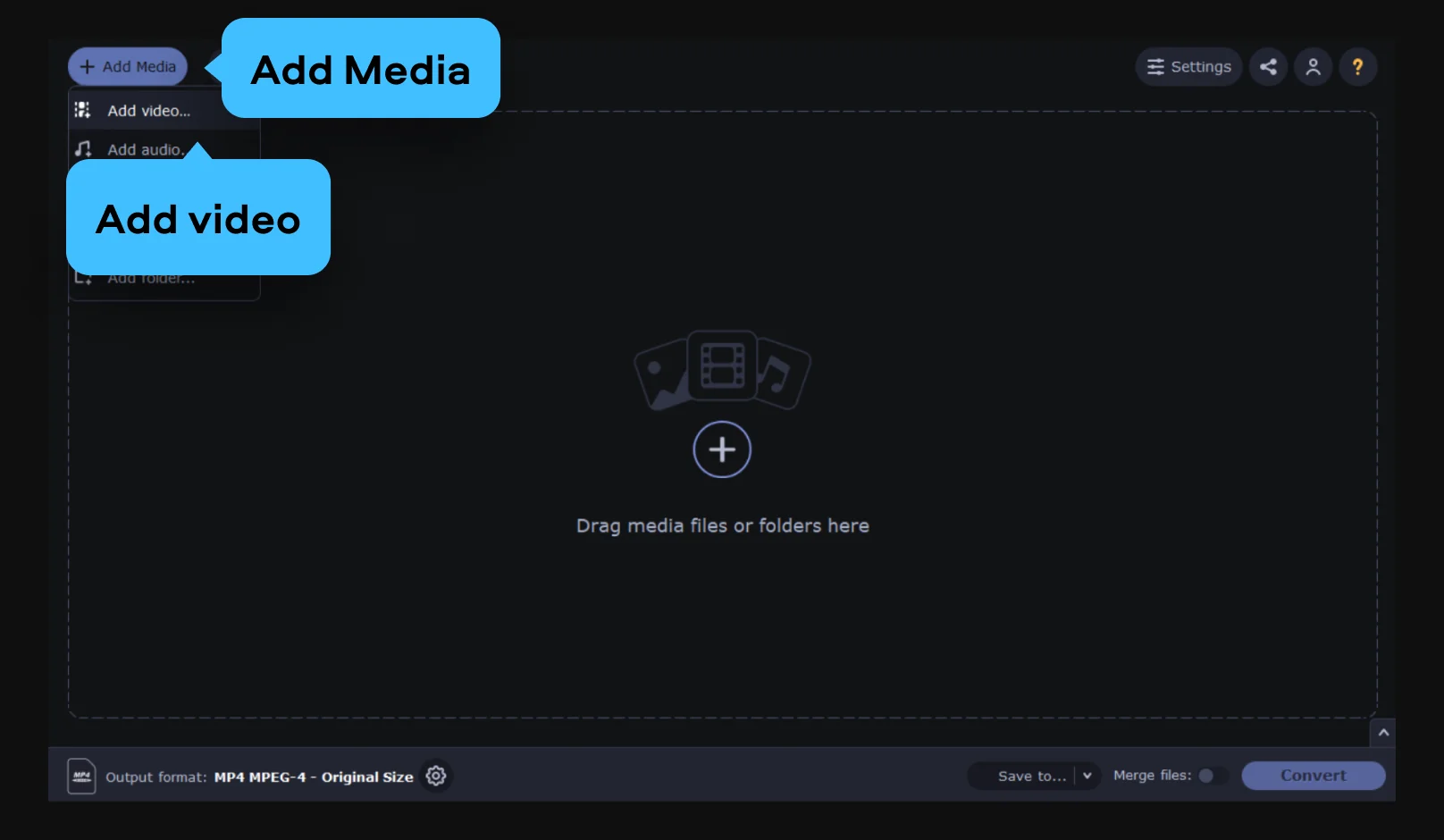
Click Add Media, choose Add DVD from the list that appears, and then Open DVD.
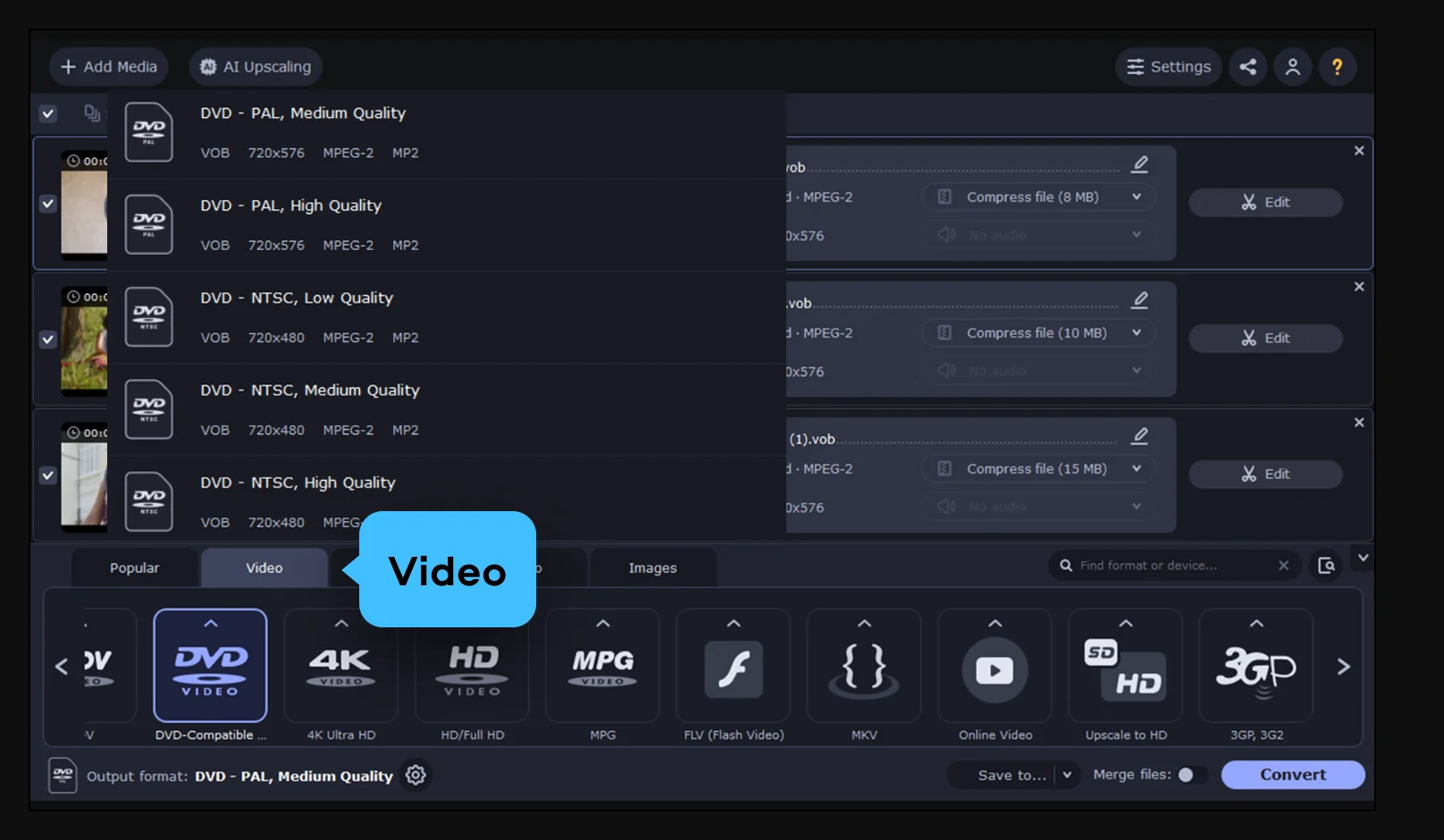
Open the Video tab to pick a format like MP4, AVI, MKV, or MOV – or switch to the Devices tab and choose a ready-made preset for your phone, TV, or console. Either way, the format is set without any manual codec setup.
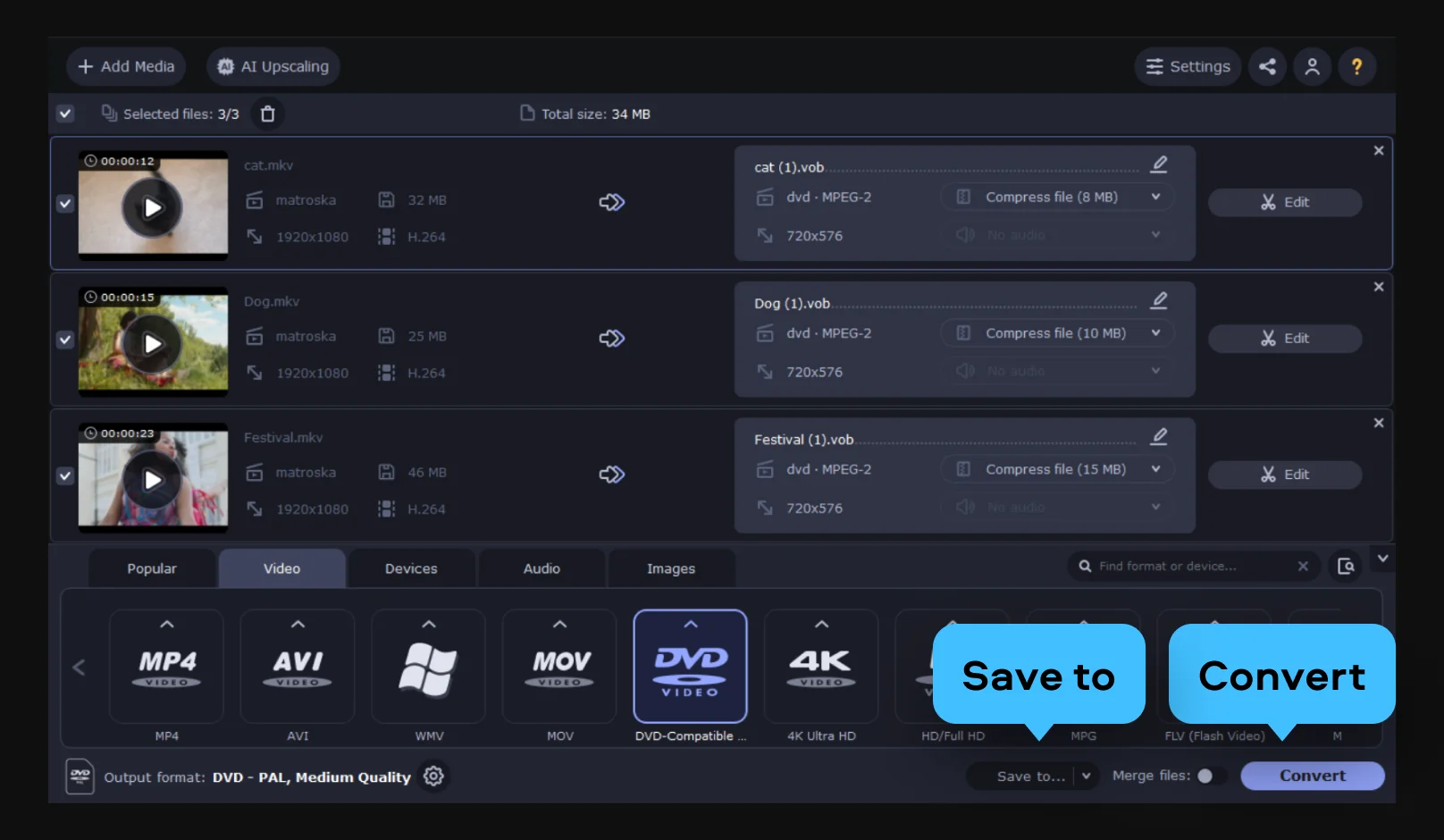
Click Save to to pick an output folder, then hit Convert. When it's done, the video is ready to watch, edit, or move to another device.
Getting a disc into a usable file comes up across family archives, movie libraries, and learning alike.
Families with a home-video archive · PERSONAL
Wedding, christening, birthday, and family-reunion discs don't last forever – the dye layer degrades and players disappear. Converting them digitizes those memories before the discs go bad and keeps them in a format that's easy to store and play.
Collectors and movie fans · LIFESTYLE
Turn store-bought DVD movies into tidy files for a home media library, a TV box, or a laptop on the road – choose the format and device preset that fits, and leave the disc juggling behind.
Students and pros with DVD courses · EDUCATION / WORK
Language, training, and fitness courses that shipped on disc become a file you can open whenever you need it. Convert the DVD once and keep the lessons within reach.
Common questions about converting DVD and what to expect from the process.
You get to decide whether to target a specific format like MP4 or a ready-made preset for your phone, TV, or console.
A DVD is standard definition – 480p or 576p – so a plain resize will look a little soft on a sharp display. Turning on Movavi's AI upscaling helps a lot: it reconstructs detail instead of just enlarging the picture, which makes SD footage noticeably crisper. Be realistic about the ceiling, though – the result won't match native HD, because quality is ultimately limited by what's on the original disc. Starting from the disc itself rather than a compressed copy gives the best outcome.
Movavi Video Converter is intended for your own personal and home-recorded discs and other unprotected content. Please respect copyright and the laws that apply where you live – we don't provide any guidance on bypassing disc protection.
For universal compatibility, MP4 (H.264) is the safe default – it plays on practically any device and editor. Choose MKV if you want to keep every audio and subtitle track from the disc in one file. And if you're targeting a specific phone, TV, or console, a device preset picks the right format and resolution for you automatically.
The converted file opens in almost any media player and video editor, so you can watch it or edit it right away. From there it's easy to move to a phone, a TV box, or the cloud.


1.5M+ users already subscribed to our newsletter