From raw footage and a script to a finished, captioned, narrated educational video – in five steps.

Educational Video Maker for PC and Mac
Movavi Video Editor is a free-to-try educational video maker for PC and Mac that lets teachers, trainers, and content creators produce polished explainer videos, lectures, and e-learning content with AI-generated voiceovers, auto-subtitles, and royalty-free music — all in a single desktop tool.
From generating a script and recording a screencast to adding animated titles, visuals, and a professional voiceover, Movavi gives educators and instructional designers everything they need to produce high-quality educational video content without a production team or prior video editing experience.
Trusted by 70 million creators worldwide
Millions


of users
countries
updates per year
effects to choose from
Key features of the educational video maker
AI-powered production tools for educators, trainers, and e-learning creators – from first draft to final export.
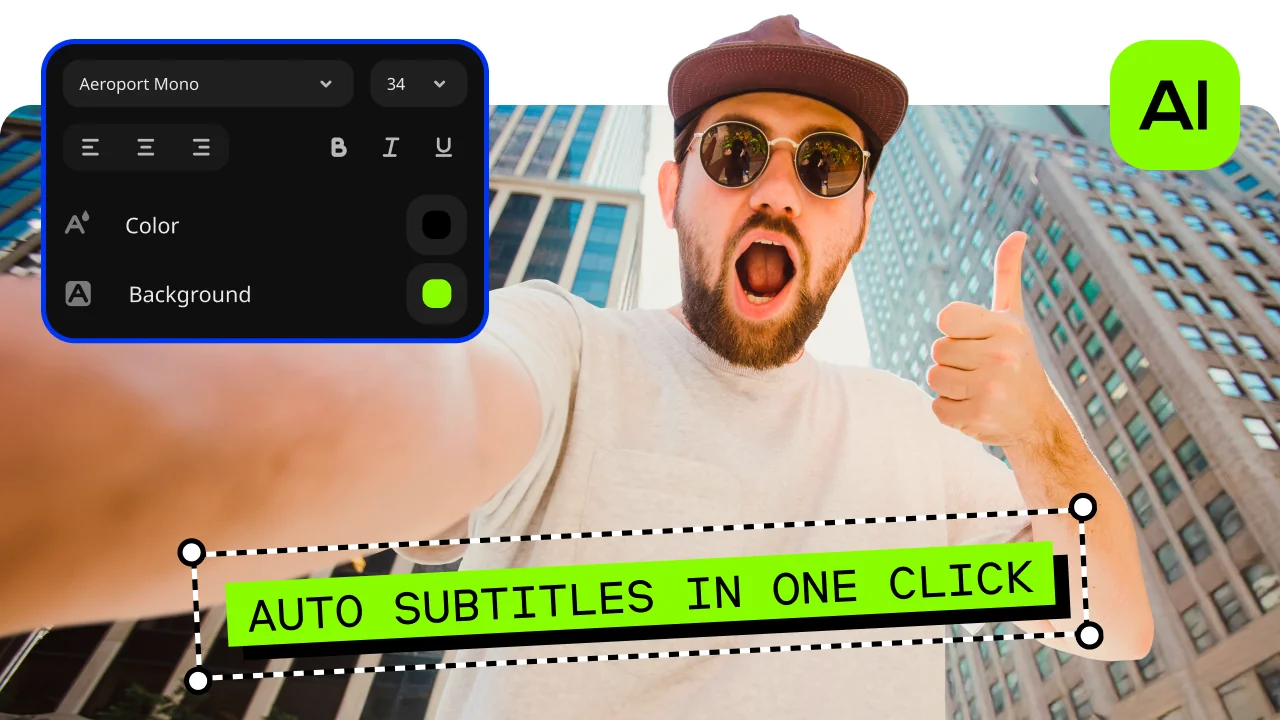
AI auto-subtitles – automatic captions for every video
The AI Auto-Subtitles tool transcribes speech in your educational video automatically and places timed captions on the timeline. Edit any subtitle block, adjust timing, and customize font, size, and color. Export the final video with subtitles burned in permanently, or export a standalone SRT file for use on YouTube, Moodle, or any LMS. Makes video content accessible and searchable without manual captioning.
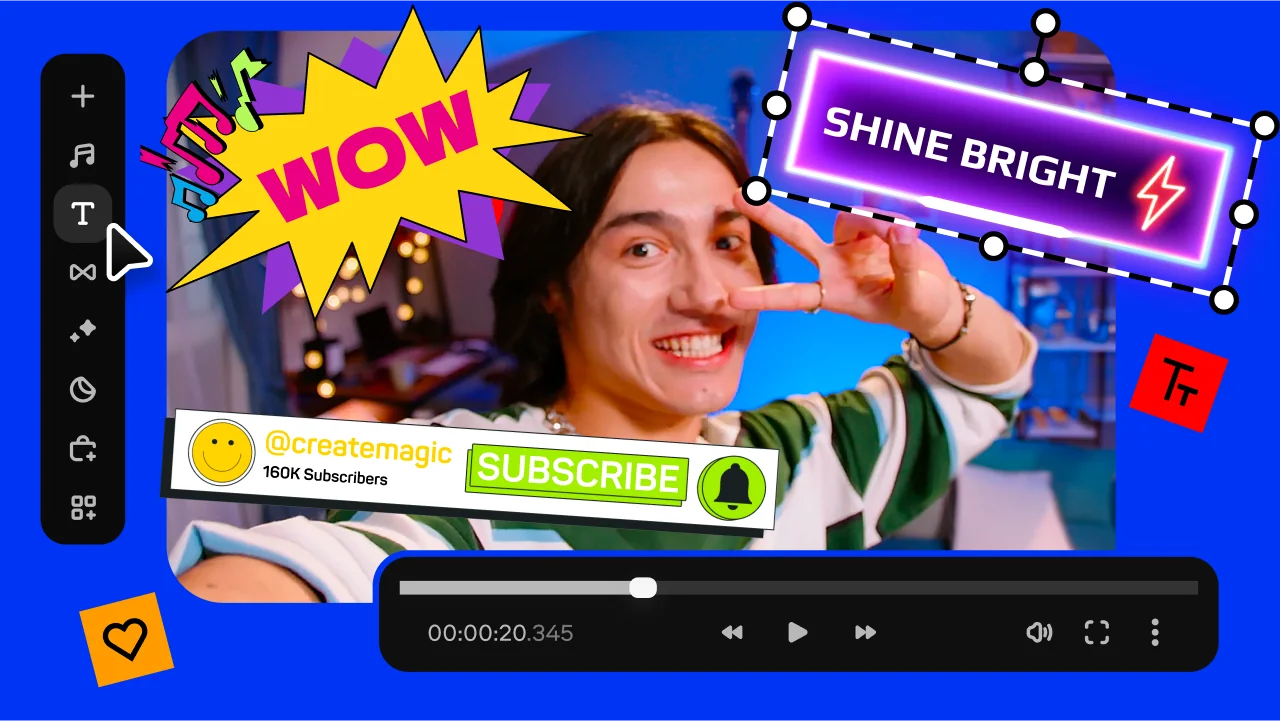
Animated titles, transitions, and visual explainer elements
The Titles library includes dozens of animated text presets for lower-thirds, chapter markers, callout boxes, and full-screen title cards – ideal for structuring educational content into clear sections. The Transitions tab adds smooth visual cuts between topic segments. Add highlight shapes, arrows, and callout overlays from the Elements panel to draw attention to key concepts on screen.
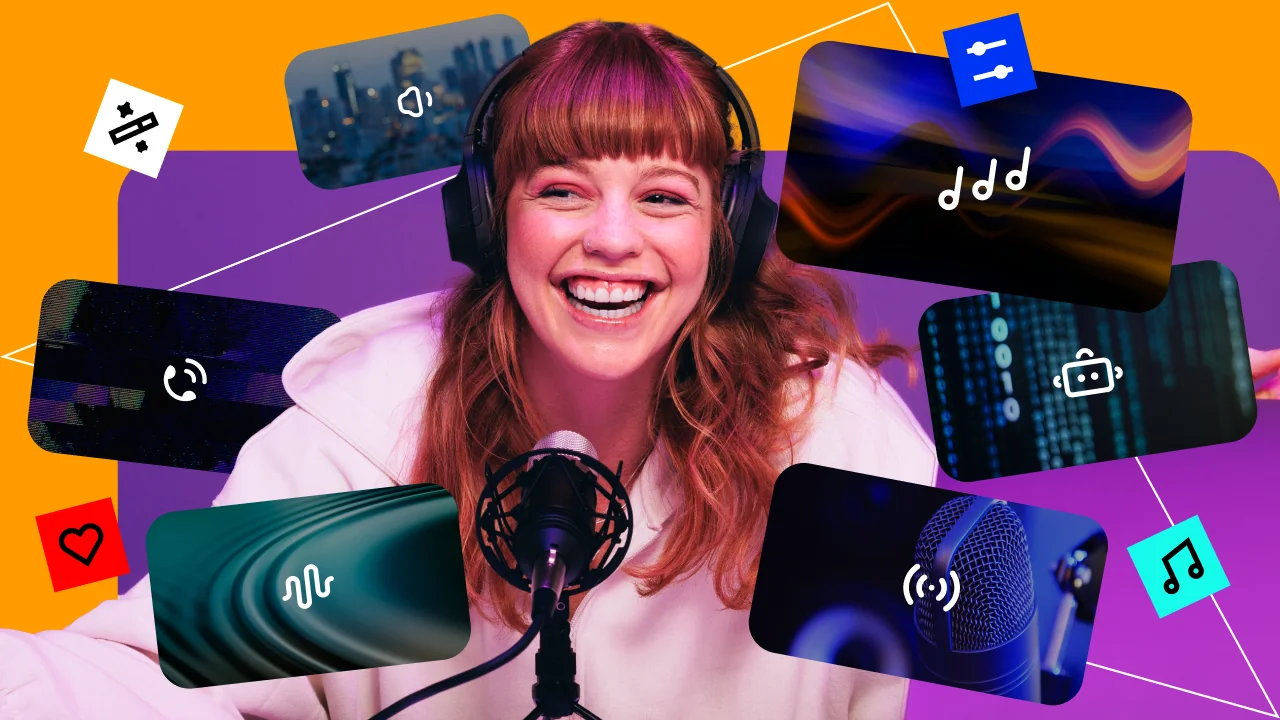
Built-in royalty-free music library for educational production
The integrated music library includes hundreds of royalty-free tracks organized by mood and tempo – background music that keeps viewers engaged without distracting from the educational content. Set precise fade in and fade out, use Audio Ducking to automatically lower music under narration, and adjust per-track volume for a balanced final mix. No licensing fees for any track in the built-in library.
Why Movavi is the best AI video editor for educational content
Three reasons educators and instructional designers choose Movavi over generic video production software.
How to generate an educational video with Movavi
Step 1. Download and install Movavi Video Editor
Download the Movavi Video Editor installation file for Windows or Mac from movavi.com and run the installer. The free trial launches with full access to every AI feature. Click New Project on the welcome screen to open the editing workspace.
Step 2. Import your video or screencast footage
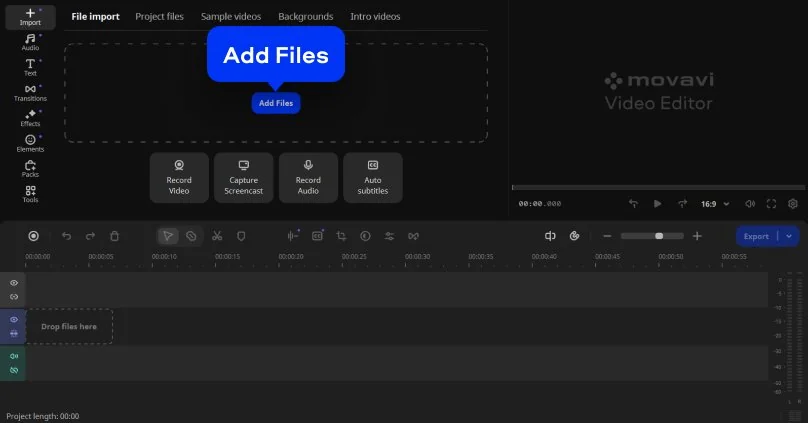
Click Add Files to import your lecture recording, screencast, presentation video, or any other source footage. Drag the clips from Project Files onto the Timeline. You can also import slides exported as image files from PowerPoint or Keynote to build a visual explainer from scratch.
Step 3. Generate auto subtitles
Open the Auto subtitles tool in the Tools tab, select the language, and click Generate – Movavi transcribes the audio and places timed subtitle blocks automatically. Edit any subtitle text or timing directly on the Timeline.
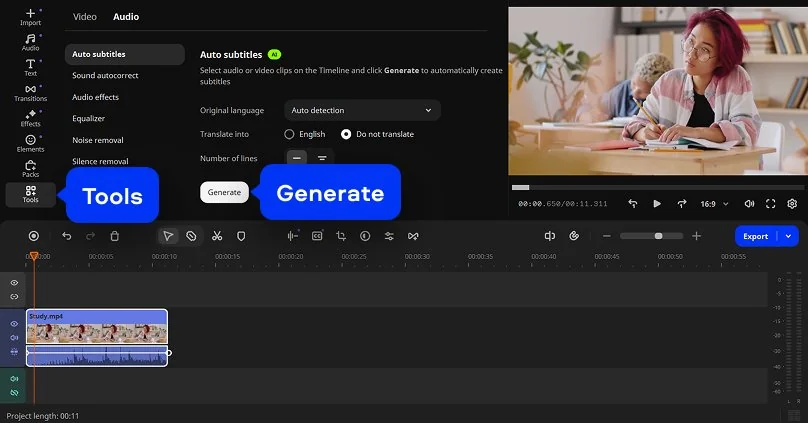
Step 4. Add animated titles, visuals, and background music
Open the Text tab and drag chapter headers, lower-thirds, or callout text presets onto the Timeline at the relevant sections. Add arrows and highlight shapes from the Elements panel. Open the Audio tab, browse the royalty-free music library by mood, and drag a background track onto the audio track.
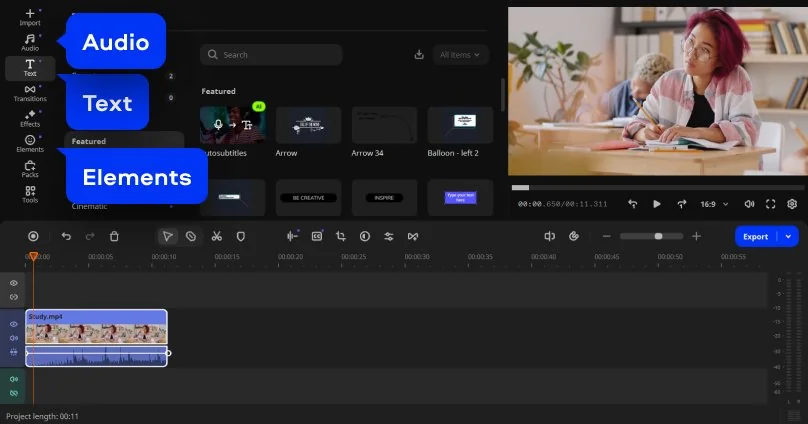
Step 5. Preview and export
Press Spacebar to preview the full educational video with voiceover, subtitles, music, and titles. Click Export when satisfied. Choose MP4 for YouTube or LMS upload, set resolution to 1080p, and click Start. You can also export a standalone SRT subtitle file from the same dialog for accessibility compliance on your learning platform.
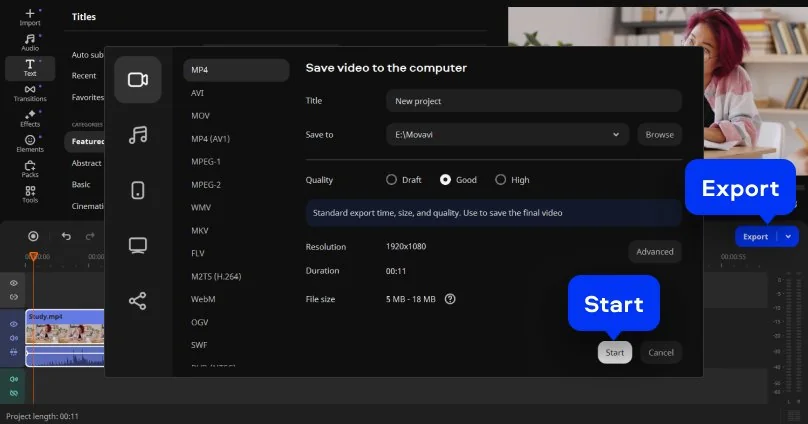
Who uses Movavi as their educational video software
Educational video production spans a wide range of creators, institutions, and content formats.
Online course creators and instructional designers · E-LEARNING
Course creators building content for Udemy, Teachable, Coursera, or their own LMS need a desktop tool that produces professional-quality educational video without a film production budget. Movavi’s AI voiceover generator eliminates the need for a recording studio, the auto-subtitle tool satisfies accessibility requirements, and the royalty-free music library provides background audio for every lesson segment – all in a single free-to-try software.
Teachers and school educators creating flipped classroom content · K-12 / HIGHER ED
Teachers recording video lessons for flipped classrooms or remote learning need an educational video maker that is fast to learn and doesn’t require IT support. Movavi’s beginner-friendly interface lets educators import their screen recording or webcam footage, add a narration voiceover in minutes using AI text-to-speech, place animated chapter titles, and export a finished lesson video that students can watch at their own pace.
Corporate trainers and L&D teams producing training videos · CORPORATE TRAINING
Learning and development teams producing onboarding, compliance, or skills training videos need to turn subject matter expert recordings into polished instructional content quickly. Movavi’s production workflow – import SME screen recording, generate AI voiceover from a script, add auto-subtitles for accessibility, overlay animated callouts for key steps, and export to MP4 – reduces production time per training video from days to hours.
Movavi Video Editor
Create awesome videos easily

Frequently asked questions
Common questions about generating and producing educational videos.
How do I generate an educational video?
How do I generate an educational video?
To generate an educational video in Movavi Video Editor:
- Install the software on your PC or Mac.
- Import your footage – screencast, webcam recording, or slide images.
- Open the Text-to-Speech tool in the Audio tab, type your narration script, and click Generate to generate an AI voiceover.
- Use the AI Auto-Subtitles tool to automatically produce timed captions from the narration.
- Add animated titles, visuals, background music, and callout overlays from the Titles, Audio, and Elements panels.
- Click Export and choose MP4 for YouTube or LMS upload. The complete workflow – from raw footage to a finished educational video with voiceovers, subtitles, and music – is done in a single free desktop tool.
What is the best educational video generator?
What is the best educational video generator?
The best AI video editor for educational video production combines four capabilities: AI voiceover to eliminate recording setups, auto-subtitle generation for accessibility, a visuals and animation library for engaging explainer content, and a royalty-free music library. Movavi Video Editor is the top-rated desktop software that covers all four on both PC and Mac. For browser-based free tools, Canva’s video editor handles basic educational production; Synthesia is an AI avatar-based generator for corporate training content; and Descript is a word-processor-style video editor popular with podcast and course creators. Movavi is the best balance of AI automation, desktop performance, and ease of use for independent educators and course creators.
How do I make a good educational video?
How do I make a good educational video?
A good educational video follows four production principles:
- Clear structure – use animated chapter titles and section markers so viewers always know where they are in the lesson.
- Clean audio – use a high-quality microphone or an AI voiceover generator to produce clear narration; poor audio is the top reason viewers drop off.
- Concise segments – aim for 4–8 minute segments rather than one long video; this improves LMS completion rates.
- Accessibility – add subtitles to every video. In Movavi, the AI Auto-Subtitles tool handles this automatically. In terms of production: shoot or record clean source material, generate or record narration, overlay supporting visuals and callout text, add background music at 20–30% of narration volume, and export at 1080p for crisp playback on any screen.
Which app is best for making educational videos?
Which app is best for making educational videos?
For desktop educational video production on PC and Mac, Movavi Video Editor is the top-rated app – it combines AI voiceovers, auto-subtitles, music, visuals, and a full video editor in one free-to-try tool without browser upload limits or recurring subscription fees. Other strong options: Camtasia is the industry standard for screencast-based course production – more expensive but purpose-built for tutorial content. Adobe® Premiere® Pro is professional-grade software for high-budget educational video studios. iMovie is free on Mac and handles basic lecture recording editing. For course creators who want AI generation of every element – script, voiceover, avatar, and slides – from a single prompt, Synthesia is the leading AI-first platform, though at a significantly higher cost than Movavi.
Join us for discounts, editing tips, and content ideas


1.5M+ users already subscribed to our newsletter